App for Making Videos from Photos: A Step-by-Step Guide
Looking for an app for making videos from photos? Learn how to use Photo for Video to turn a single picture into a living memory for tributes, reels, and more.
You’re probably here with one photo open on your phone or laptop. It might be a scanned print of your grandparents, a wedding portrait with soft grain, or a picture of someone you’ve lost that still stops you for a second every time you see it. A static image already carries weight. The reason people look for an app for making videos from photos is that they want a little more than a slideshow. They want a moment to breathe again.
That’s where the gap starts to show. Most photo-to-video apps are built for fast social clips, dramatic effects, and glossy modern images. They’re fine for product shots and trend edits. They’re often clumsy with older family photos, where the goal isn’t to make the image flashy. It’s to keep the original feeling intact while adding just enough motion to make it feel alive.
Table of Contents
- From Still Photo to Living Memory
- The Core Workflow Uploading and Prompting
- Refining Your Animation in the Preview Editor
- Advanced Tips for Meaningful Animations
- Real-World Examples and Use Cases
- Exporting Your Video Pricing Privacy and Next Steps
From Still Photo to Living Memory
A good old photo doesn’t need much. A slight camera drift across a face. A gentle push in toward clasped hands. A warm, restrained sense of movement that respects the print instead of smoothing it into something synthetic.
That’s the difference between a flashy clip and a living memory. One chases attention. The other helps someone feel present with the image for a few extra seconds.

A lot of people discover this the hard way. They upload a scanned family photo into a general-purpose editor, hit animate, and get motion that feels too fast, too glossy, or just wrong. Faces shift strangely. Backgrounds wobble. Film grain gets scrubbed away. The picture moves, but the memory doesn’t.
That frustration isn’t niche. A recent analysis of the old-photo memorial search gap found that searches for “AI animate old photos memorial” surged 240% year-over-year, while most apps still focus on modern, high-quality images and often produce unnatural results on historical photos.
Practical rule: If the animation makes the photo look newer than the memory feels, the effect is working against you.
The photos that usually benefit most from subtle animation tend to fall into a few categories:
- Family keepsakes that already have emotional context. Wedding prints, childhood snapshots, military portraits, anniversary pictures.
- Scanned analog photos with faded edges, dust, or visible paper texture. Those imperfections often add meaning.
- Tribute centerpieces where one image needs to hold attention long enough to anchor a montage or memorial reel.
The best app for making videos from photos in this context isn’t the one with the most effects. It’s the one that lets you direct motion with restraint. You want slow camera language, not spectacle. You want the viewer to notice the person in the image, not the software that animated it.
That shift in mindset changes the whole process. Instead of asking, “How do I make this photo move?” ask, “What kind of movement belongs inside this memory?”
The Core Workflow Uploading and Prompting
The focus tends to be on hunting for controls rather than on choosing the right photo and writing the right prompt. That’s backwards. The upload step is simple. The prompt is where the creative result is decided.
The category itself has expanded fast. Kaptur’s review of Sensor Tower data notes hyper-growth in photo and video editing apps, with a dramatic increase in monthly active users since late 2023, especially in tools that turn photos into videos for social media and personal keepsakes. More options are available now. Better results still come from better direction.
Start with the right photo
If you’re using an old print, scan it cleanly and avoid aggressive restoration before animating it. Light cleanup is fine. Heavy smoothing usually removes the very texture that gives the final clip its emotional pull.
A strong source image usually has one clear focal point. That could be a face, a pair of people, a child holding someone’s hand, or a product centered against a simple background. The app can do more with a photo that already knows what matters.
Use this quick check before you upload:
- Check the subject first. If your eye doesn’t know where to land in the first second, the animation won’t either.
- Keep natural texture. Grain, paper softness, and slight fading often help.
- Avoid crowded frames. Busy backgrounds invite awkward motion.
- Crop with intention. If the emotional core is in the top half of the image, don’t force the full frame.
Write a motion prompt that actually helps
“Make it move” is technically a prompt. It’s also close to useless.
A good prompt gives the model three things: subject, camera move, and tone. If you want stronger results, add pacing.
Here’s the simplest formula:
| Part | What to include | Example |
|---|---|---|
| Subject | What should feel central | the couple in the foreground |
| Camera move | zoom, pan, drift, push in | slow zoom toward their faces |
| Tone | emotional style | warm, reflective, nostalgic |
| Pacing | speed or intensity | gentle, subtle, unhurried |
So instead of writing “animate this old photo,” write something like:
- Reflective: gentle zoom on the couple’s faces, slight pan left, warm nostalgic tone
- Joyful: soft camera push toward the laughing child, natural light feel, subtle lively motion
- Serene: slow drift across the portrait, calm pacing, preserve old photo texture
- Tribute-focused: gentle zoom toward the parent and child, respectful movement, soft memorial tone
The best prompts read less like commands and more like direction you’d give an editor.
If you want more examples, this guide on image-to-video prompt ideas for better motion is useful because it focuses on describing movement in plain language.
Bad prompts versus usable prompts
A few common misses show up again and again:
- Too vague: “Make it cinematic”
- Too aggressive: “Add dramatic motion and intense camera sweep”
- Too contradictory: “Subtle but energetic with lots of movement”
- Too effect-focused: “Make the background explode into motion”
Try these instead:
- For memorials: keep movement gentle and centered on the face or hands
- For anniversaries: add a slow push in with warm tone language
- For product clips: specify the object, the angle, and the pace
A good app for making videos from photos doesn’t replace taste. It responds to it. The clearer your motion language, the closer the first preview gets to the feeling you had in mind.
Refining Your Animation in the Preview Editor
The first preview is rarely the final one. That isn’t a failure. It’s normal. AI animation works best when you treat the result like a rough cut and then direct it toward the version you want.
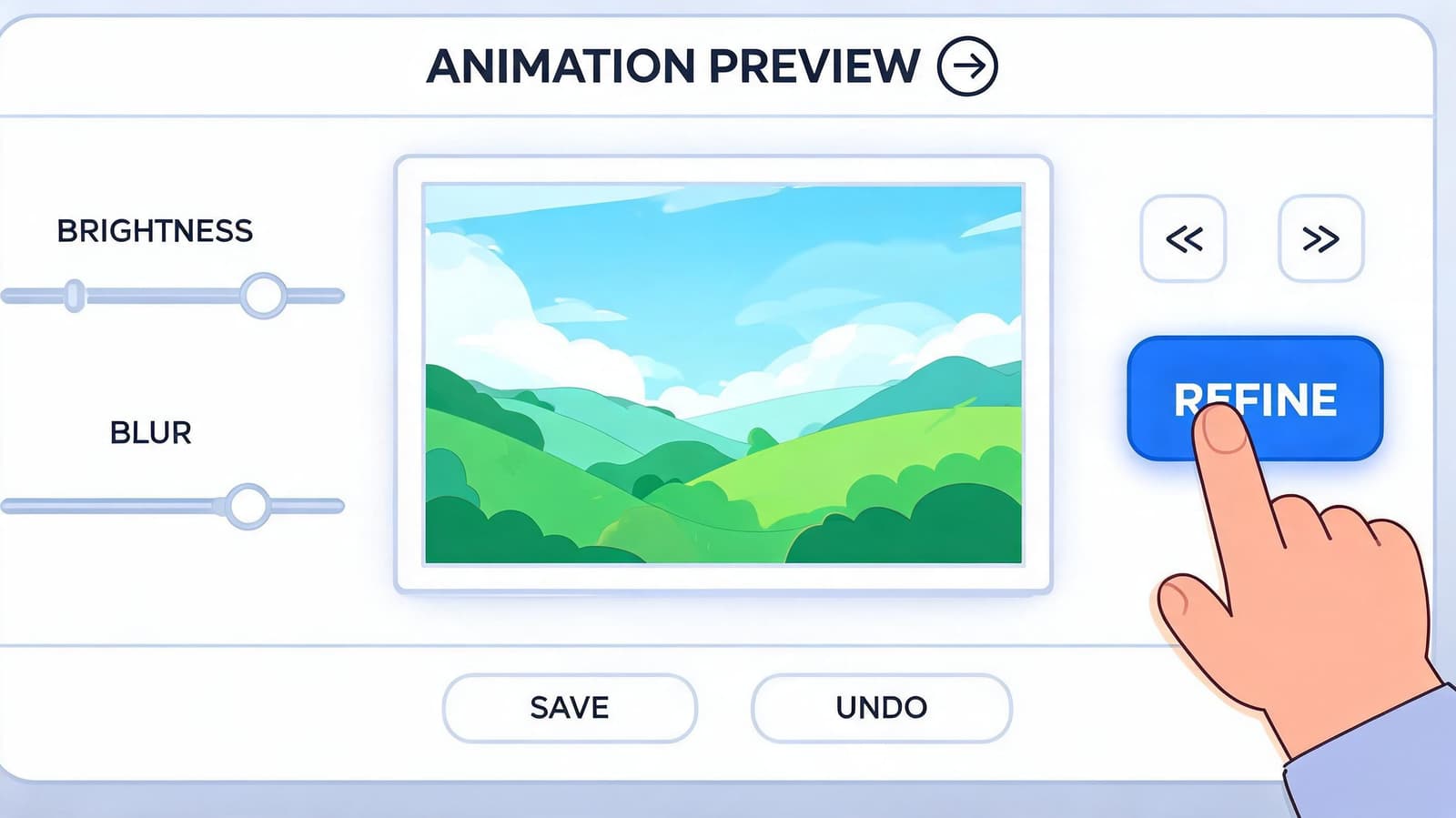
A lot can go right on the first pass, but a lot can also drift. Crews Control’s overview of AI video generation trade-offs notes common issues like unnatural motion artifacts and continuity errors, and says polished outputs often land in the 70-85% range. That’s exactly why refinement matters.
What to look for in the preview
Don’t just ask whether the photo moves. Ask whether the motion belongs there.
Focus on four checks:
- Face stability: Eyes, mouths, and cheeks shouldn’t warp or pulse.
- Background behavior: Walls, trees, curtains, and edges shouldn’t ripple for no reason.
- Speed: Fast motion usually weakens emotional scenes.
- Center of attention: The animation should guide the eye to the most meaningful part of the frame.
If one of those feels off, go back to the prompt before you start over entirely.
Small wording changes often fix bigger visual problems than slider changes do.
Simple revisions that improve the result
When motion feels too strong, soften the language. Add words like gentle, slow, subtle, or steady. If the app keeps moving the wrong part of the image, name the subject more clearly.
Try this adjustment pattern:
| Problem in preview | Better prompt revision |
|---|---|
| motion is too fast | slow, gentle zoom with minimal movement |
| focus drifts to background | center movement on the two people in front |
| face looks unnatural | preserve facial realism, use subtle camera drift only |
| image feels flat | slight push in with warm reflective tone |
A short demo helps here because you can see how restrained edits change the outcome:
Edit like a director, not a technician
Brightness, blur, and crop tools matter, but they matter after the motion direction is right. If the emotional center of the photo is clear, a small crop can strengthen it. If the scan is dim, a slight brightness lift can help. If the image already has soft analog edges, don’t sharpen it into a different era.
The strongest previews usually happen when you make one change at a time. Rewrite the prompt. Recheck the face. Recheck the pace. Then export only when the movement feels invisible enough that the memory stays in front.
Advanced Tips for Meaningful Animations
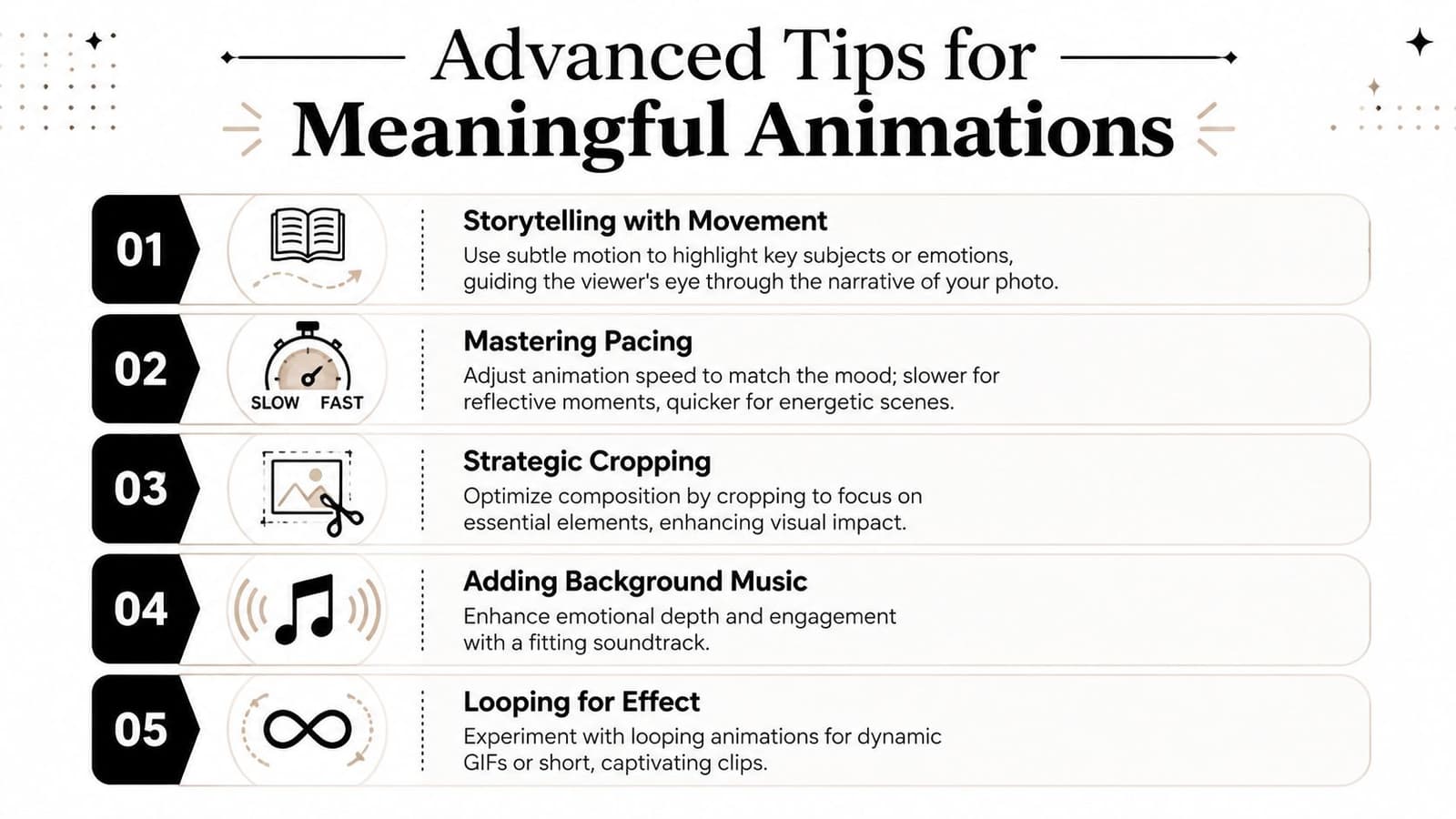
Some photo animations look technically competent and still feel empty. The difference usually comes down to intention. Motion has to serve the story already inside the image.
This category is clearly bigger than a novelty feature. Statista’s ranking of top-grossing U.S. photo and video apps shows that top apps such as Canva and Remini collectively bring in over 17 million U.S. dollars weekly from a single market. Consumer demand is real. So is commercial demand. The gap is in doing this tastefully.
Animating old and damaged photos
Old photos need a lighter hand than modern phone images. Scratches, fading, and uneven exposure aren’t always defects to erase. They’re often part of the emotional realism.
Use these habits:
- Scan for flexibility. Capture enough detail that you can crop without the face falling apart.
- Repair only what distracts. Remove major damage if it steals attention, but don’t polish away the paper feel.
- Prompt for preservation. Include language like preserve old photo texture, gentle movement only, natural facial realism.
- Choose one motion path. Old photos usually respond better to one camera move than multiple combined moves.
A useful creative reference is this guide to cinematic movement for still-photo animation, especially if you want motion that feels more like camera language than an effect preset.
Pairing motion with audio and story
A short animated clip gets stronger when it already knows what it will sit beside. If it’s going into a memorial montage, build motion that leaves room for music and voiceover. If it’s for an anniversary reel, match the camera pace to the emotional tempo of the soundtrack.
Here’s a simple pairing approach:
- Reflective music: use slow zooms and stillness-heavy movement
- Warm storytelling voiceover: keep the image stable enough that words carry the emotion
- Celebration edits: allow a little more lateral motion, but keep faces natural
- Caption-led social reels: compose so text can sit in negative space without covering the subject
A moving photo doesn’t need to do all the emotional work. Sometimes its job is just to hold the moment steady while the music does the rest.
Using photo animation for business
Meaningful motion isn’t only for family archives. It also works for ecommerce, handmade products, hospitality, and event services. A static product image can become more persuasive when the movement feels deliberate instead of promotional by default.
That usually means:
- Show form first. A slow push toward texture, shape, or packaging often beats flashy movement.
- Keep backgrounds quiet. Product animation falls apart when the whole frame tries to move.
- Export short clips for reuse. One subtle motion asset can fit reels, store pages, and ads.
- Match the brand tone. Luxury products often need slower pacing than impulse-buy items.
The best commercial clips follow the same rule as memorial clips. Motion should support attention, not demand it.
Real-World Examples and Use Cases
One of the best uses for an app for making videos from photos is a memorial tribute. A family has a single portrait that everyone recognizes instantly. Instead of dropping it into a slideshow as a static frame, they animate it with a slow zoom and soft drift. The clip becomes the emotional pause in the sequence. It gives the room a moment to stay with the person, not just move past them.
An anniversary reel works differently. The photo might be less formal. Maybe it’s an old vacation snapshot with imperfect lighting and a lot of charm. A subtle push toward the couple, paired with a favorite song and a short caption, turns that image into something shareable without making it feel staged. The motion doesn’t rewrite the memory. It just opens it slightly.
There’s also a practical use for creators and businesses. A small shop starts with one strong product photo, maybe a candle, a framed print, or a gift box. Instead of building a full video shoot around it, they create a brief animated clip with a controlled pan and a little depth. That short piece of motion works on a product page, in a reel, or inside a seasonal ad where a static image might get skipped.
What these examples have in common
They all work because the movement fits the purpose.
- Tributes benefit from restraint, stability, and emotional clarity.
- Celebration reels benefit from warmth and light pacing.
- Product edits benefit from focus, clean composition, and reuse across channels.
The strongest result usually comes from asking one question first: what should the viewer feel in the first two seconds?
That answer shapes everything else. It tells you whether to zoom, pan, hold steady, crop tighter, or leave the image almost untouched. Good animation starts with taste, not software.
Exporting Your Video Pricing Privacy and Next Steps
The final step should feel easy. Export the clip as a clean MP4, check it once on the device where you’ll use it, and then drop it into your reel, tribute edit, memorial slideshow, or product sequence. If the file opens cleanly and the movement still feels natural outside the editor, you’re done.
Where many tools lose people isn’t the animation step. It’s the pricing and export confusion at the end. A 2025 survey cited in this pricing transparency discussion found that 62% of family creators abandon photo-to-video tools mid-process because pricing is confusing or opaque. That tracks with what a lot of editors already know. Hidden credits, surprise watermarks, and unclear export rules break trust quickly.
What to check before you commit
A practical app should answer these questions up front:
- How credits work. You should know what a generation costs before you start.
- What file you receive. MP4 output matters if you’re editing into a larger montage.
- Whether exports are watermark-free. Tribute and client work usually need a clean file.
- How uploads are handled. Sensitive family photos deserve a short, clear retention policy.
Privacy matters more here than in a lot of other creative categories. People aren’t just uploading selfies and casual snapshots. They’re often uploading memorial photos, scanned prints, or family images they wouldn’t post publicly. That’s why details like auto-delete policies matter.
If you want a closer look at what a focused tool in this category offers, this overview of an app that turns still images into moving clips gives a useful reference point for comparing workflow, output readiness, and privacy expectations.
The finish line should be simple. Clear pricing. Clean export. Respectful handling of personal images. That’s what makes the whole process feel usable, not just impressive in a demo.
If you want a tool built specifically for turning one treasured image into a subtle, montage-ready living memory, take a look at Photo for Video. It’s designed for old scans, family keepsakes, memorials, anniversaries, and polished short clips that keep the original photo’s texture and emotion intact.