App that Makes Images Move: Animate Your Photos 2026
Discover the best app that makes images move. Turn any photo, including old family pictures, into a beautiful 5-second moving clip easily.
You’re probably here with a specific photo open on your phone or laptop. It might be a scanned wedding print with soft grain, a slightly faded portrait of a grandparent, or a snapshot from a birthday that matters more now than it did when it was taken. You don’t want a flashy gimmick. You want an app that makes images move in a way that still feels like the original memory.
That’s where most tutorials miss the mark. They focus on crisp selfies, travel shots, and social media effects, but many family archives aren’t clean or modern. A 2025 Pew Research survey summarized here found that 70% of family photo archives consist of old, scanned, or low-quality images, and 62% of respondents over 50 said they struggled to animate them without losing their “vintage feel.” That is the core challenge. Not making a picture move at all, but making it move without sanding off the emotion that made you save it in the first place.
Table of Contents
- Bringing Cherished Memories to Life
- Choosing and Preparing Your Perfect Photo
- Writing Prompts That Create Lifelike Motion
- Generating and Exporting Your Moving Clip
- Inspiring Workflows for Tributes Reels and Ecommerce
- Troubleshooting Privacy and Pricing Notes
Bringing Cherished Memories to Life
A moving photo works best when it feels restrained. The strongest tribute clips usually do one small thing well. A slight head turn, a soft blink, a gentle push-in from the camera. When the motion stays quiet, the viewer notices the person, not the effect.
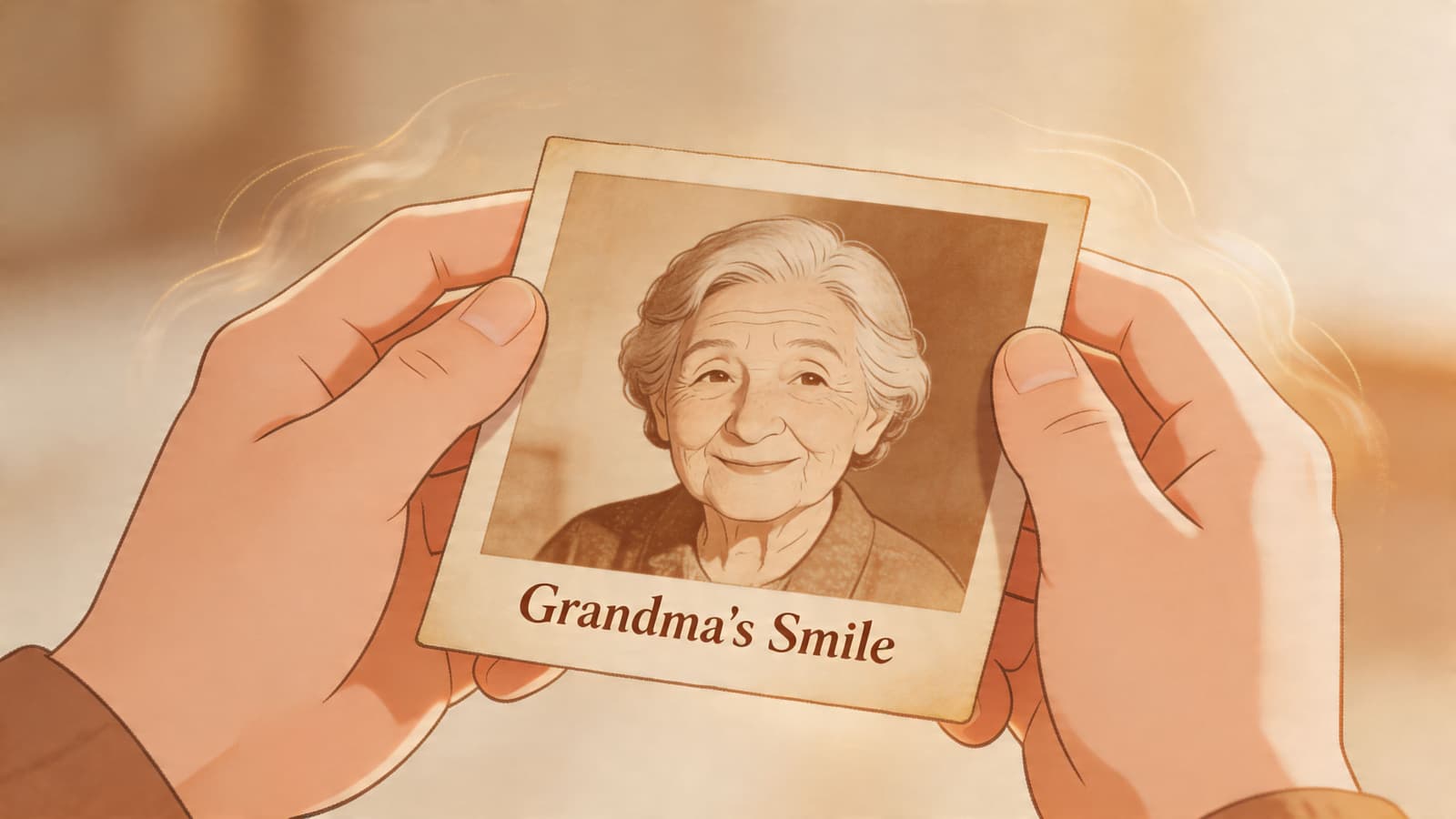
That matters even more with old family photos. The paper texture, slight blur, uneven exposure, and faded tones are often part of the memory. If an app that makes images move tries to “improve” everything too aggressively, it can erase the age and warmth that give the photo meaning.
Why old photos need a different approach
Modern animation apps are often built around novelty. They’re great at dramatic skies, stylized pans, or eye-catching social clips. They’re less reliable when the goal is emotional accuracy.
For sentimental work, these trade-offs matter:
- Too much facial motion can make a loved one look unfamiliar.
- Over-cleaning the image can remove film grain and paper texture.
- Heavy camera movement can make a memorial clip feel theatrical instead of reflective.
- Preset-driven effects can force the image into a template that doesn’t fit the person.
Practical rule: If the viewer’s first reaction is “that effect is cool,” the motion is probably too strong for a keepsake.
What good motion actually looks like
The best results usually preserve the stillness of the original and add only one layer of life. In practice, that might mean:
- Animating the gaze with a very small eye movement.
- Adding breath to the frame through a subtle zoom or pan.
- Letting hair, fabric, or background light shift slightly while the face remains mostly anchored.
That’s what makes a tribute clip feel respectful instead of synthetic.
I’ve found that families respond most strongly to motion that feels almost invisible on first watch. They don’t say, “Look what AI did.” They say, “It feels like them.” That’s the standard worth chasing.
Choosing and Preparing Your Perfect Photo
The source image decides more than the app does. A weak prompt can sometimes be fixed. A bad source photo usually can’t. When you’re working with a family archive, choosing the right image is often half the job.

What makes a strong source photo
The strongest candidates aren’t always the sharpest photos. They’re the ones with a clear emotional center and a subject the animation model can read cleanly.
Look for these qualities first:
- One obvious subject. A single face is easier to animate naturally than a crowded group.
- Readable facial angle. Front-facing or slightly turned portraits tend to hold up better.
- Visible texture. Hair, clothing folds, smoke, water, and soft background depth often animate beautifully.
- Emotional clarity. A calm smile, reflective expression, or affectionate glance gives the motion somewhere to go.
What to avoid when possible:
- Tiny faces in a large frame
- Harsh shadows across eyes
- Heavy damage over key features
- Busy group shots where multiple faces overlap
The technology got much better after the 2019 wave of faster image animation models. A summary of that shift notes that breakthroughs were 20x faster than previous models, which helped apps handle a much wider range of images, from portraits to scenic views. The same source also notes that 65% of US users animate family photos for virtual memorials and celebrations. That tracks with what creators see now. Old photos are no longer edge cases. They’re a core use case.
How to prep an old scan without over-restoring it
Preparation should make the photo easier to animate, not make it look newly manufactured. Keep your edits light.
A simple workflow works well:
- Crop first. Bring the subject closer so the face or main object has room to carry the clip.
- Straighten the scan if it’s visibly tilted.
- Clean dust and scratches selectively. Don’t scrub every mark away. Remove distractions from eyes, mouth, and hands first.
- Lift exposure gently if the scan is muddy, but don’t flatten all contrast.
- Leave some grain. That texture helps the clip feel like a preserved artifact rather than a synthetic remake.
Old photos usually fail because people edit them too much before animation, not because they edit them too little.
If you’re unsure whether the photo is ready, preview it at the size people will watch. On a phone screen, a little softness often looks fine. On a large memorial display, obvious dust and torn edges become more distracting.
A quick demo can help you judge motion potential before you commit to a final render.
One more practical tip. If you have both the full photo and a tighter crop, test both. The full frame may preserve context, but the crop often creates a more intimate and stable moving clip.
Writing Prompts That Create Lifelike Motion
Prompt writing is where good taste shows up. The best prompt doesn’t describe everything that could happen. It limits what should happen. That restraint is what keeps a family photo from drifting into uncanny territory.
A useful mental model is to write for three things only: subject motion, camera motion, and tone. If all three fit together, the result usually feels coherent.
The three-part prompt that works
A strong prompt for an app that makes images move is usually short. Dreamina’s guide to moving-photo prompts explains that these tools analyze the image and parse the written instruction using convolutional neural networks, and for tribute-style videos, experts suggest keeping prompts to 10 to 15 words around ideas like “subtle zoom + emotional gaze.”
That advice holds up in practice.
Use this formula:
| Part | What to write | Why it matters |
|---|---|---|
| Motion | gentle blink, slight head turn, soft smile, calm breathing | Tells the model what physical change should happen |
| Camera | subtle zoom in, slow pan left, slight push forward | Adds life without forcing exaggerated face movement |
| Tone | warm, nostalgic, serene, reflective | Keeps the result emotionally consistent |
A few examples of what works:
- “gentle blink, subtle zoom in, warm nostalgic tone”
- “slight head turn, slow push forward, serene memorial feeling”
- “soft smile, delicate camera drift, peaceful anniversary mood”
And what usually doesn’t:
- “make him come alive and look around happily with dramatic cinematic motion”
- “big smile, full head turn, fast zoom, emotional realistic movie scene”
- “animate everyone naturally in this family reunion photo”
Better prompts are narrower, not longer.
If you want more prompt patterns to test, this collection of best prompts for image to video is a useful reference point.
Sample Motion Prompts and Their Effects
Small wording changes can shift the emotional result a lot. Here’s a practical cheat sheet.
| Goal | Example Prompt | Expected Result |
|---|---|---|
| Quiet memorial clip | gentle blink, subtle zoom in, serene reflective tone | Face stays calm, camera adds emotional closeness |
| Anniversary reel opener | soft smile, slight head tilt, warm nostalgic glow | A still portrait feels affectionate and alive |
| Old photo keepsake | minimal movement, slow push forward, preserve vintage texture | Motion stays restrained and doesn’t over-modernize the scan |
| Product detail shot | slight camera pan, gentle lighting shift, clean premium mood | The image feels dynamic without becoming distracting |
| Candlelight tribute | delicate eye movement, slow drift, peaceful memorial mood | The scene holds stillness while adding presence |
Two prompt habits help more than people expect.
First, write the emotion as plainly as possible. “Warm nostalgic tone” works better than trying to write poetry into the prompt. Second, if the face is already expressive, reduce the physical motion and let the camera do more of the work.
A prompt editing test
When a generation feels off, rewrite by subtraction. Remove one instruction, not add three more.
Try this sequence:
- Start with one facial motion.
- Add one camera move.
- Add one tonal phrase.
- Regenerate before adding anything else.
That method gives you clearer feedback and keeps the clip from becoming overdirected.
Generating and Exporting Your Moving Clip
Once the image and prompt are solid, generation should feel simple. This part isn’t about creativity as much as judgment. Most mistakes happen when people increase motion intensity too early or export before checking the face frame by frame.
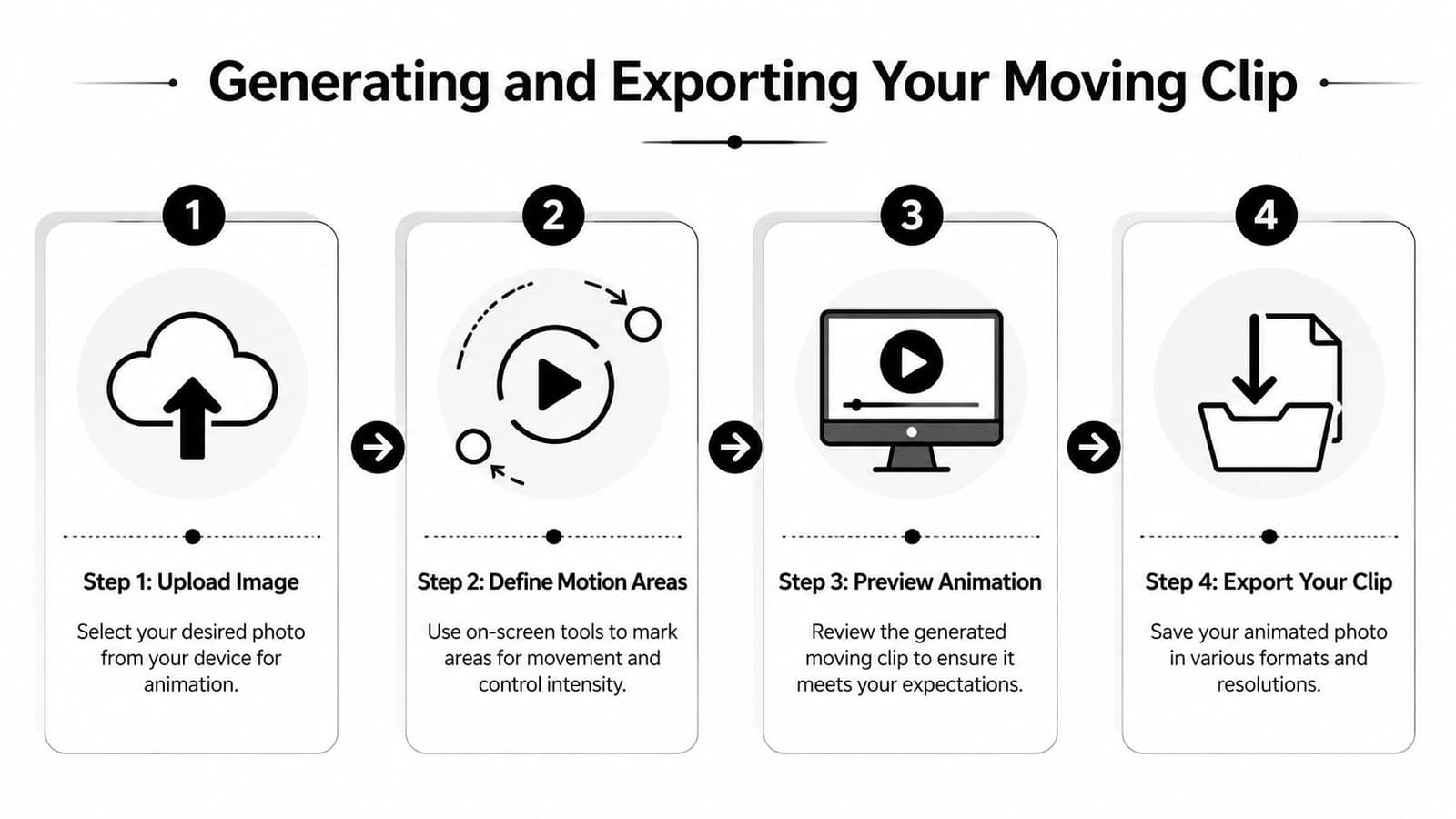
A clean generation workflow
A practical workflow looks like this:
-
Upload the prepared image
Start with the version you already cropped and lightly cleaned. Don’t upload five variants unless you’re testing intentionally. -
Set the motion direction
If the interface offers motion areas, anchors, or freeze controls, use them conservatively. Keep the face stable before you animate secondary elements. -
Paste the prompt and choose clip length
Short clips usually work best for keepsakes because they loop cleanly and hold attention. -
Preview before committing to final export
Watch the eyes, mouth line, jaw, and edges of hair first. Those are the places where unnatural movement usually appears.
For a related walkthrough on turning a single frame into a finished asset, this guide on how to create video from single image is worth bookmarking.
If the face looks good but the background feels too active, keep the generation and crop tighter in the edit. Don’t always restart from zero.
Export choices that actually matter
Export isn’t just a button. It decides where the clip can live next.
What to check before downloading:
- File format. MP4 is usually the easiest for tribute editors, social apps, and slideshow tools.
- Watermark status. For memorial videos or family reels, a clean export matters.
- Clip length. Very short loops are often easier to place inside a larger montage.
- Resolution. Match the destination. A reel, a remembrance slideshow, and a product page don’t need the same final frame.
A polished moving image should be ready to drop into a larger edit without repair work. If you need to stabilize, hide artifacts, or crop around errors after every render, the problem usually started with the source photo or the prompt, not the export setting.
Inspiring Workflows for Tributes Reels and Ecommerce
The same core technique can serve very different goals. What changes is the emotional target. A memorial clip needs restraint. A reel opener needs a little more immediate pull. A product shot needs motion that supports the item instead of stealing focus.
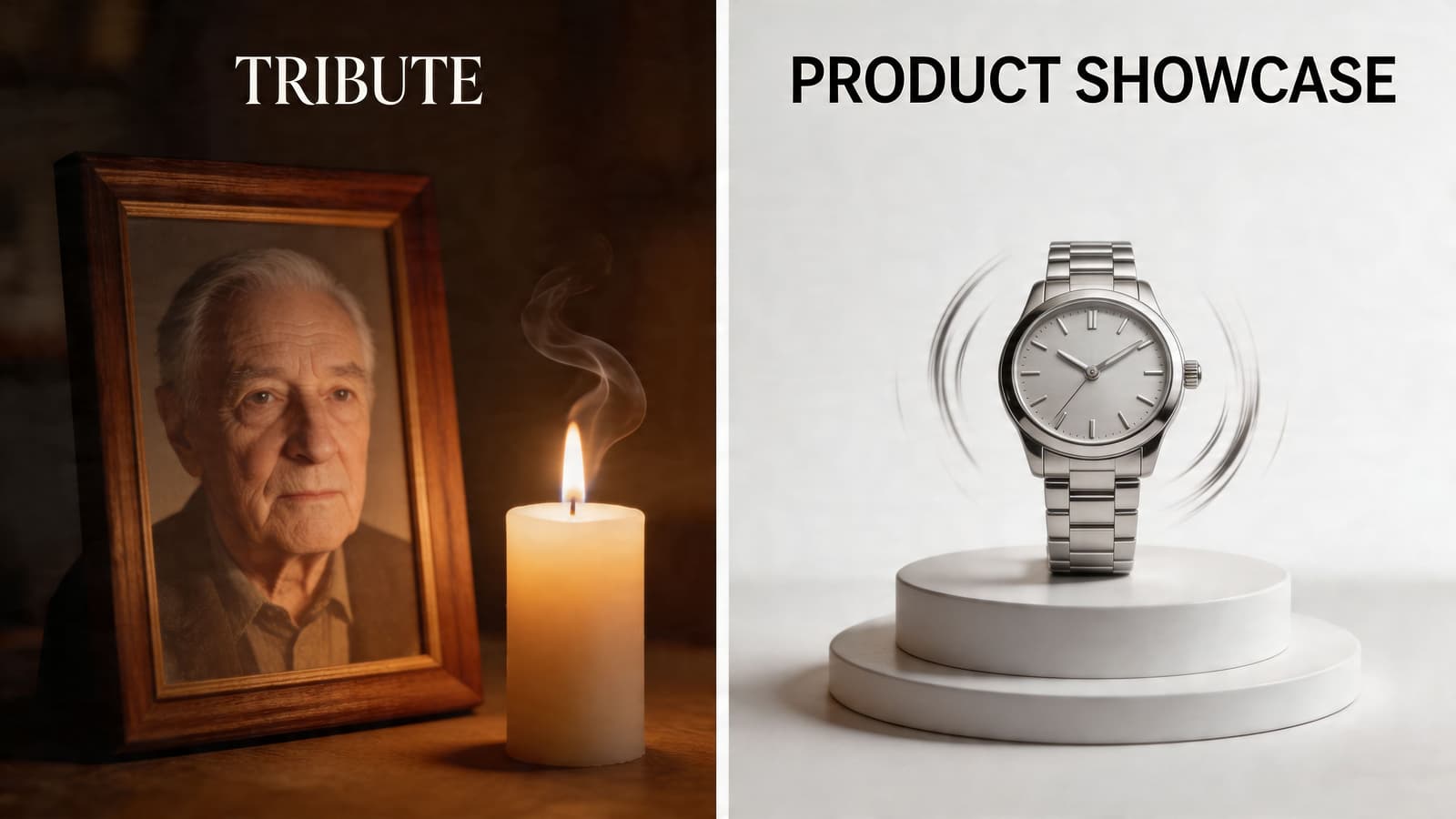
A memorial tribute clip
Start with a single portrait where the expression is calm and direct. A seated pose, formal photo, or candid close-up often works better than a wide family scene.
For this kind of clip, I’d choose:
- a cleaned scan with the face centered
- very light facial motion
- a slow push-in rather than a dramatic pan
A prompt like “gentle blink, subtle zoom in, peaceful reflective tone” usually keeps the image dignified. Then I’d place the final clip at the opening or midpoint of a tribute video, with music already carrying the emotion so the image doesn’t need to overperform.
The biggest mistake here is using a template with too much built-in style. Revive’s app listing notes that template-driven tools can achieve strong single-subject results, but audio-ready tiers can have over 20% sync errors. For memorial work, that matters. A custom-prompt approach gives you finer control when authenticity matters more than speed.
An anniversary reel opener
Anniversary content can tolerate more movement, especially if the final use is Instagram or a short family montage. The photo can be less formal too. A laugh, a dance floor shot, or a candid glance across the table often feels more alive than a posed portrait.
A useful workflow:
| Choice | Best option |
|---|---|
| Photo type | candid couple portrait or mid-action celebration shot |
| Motion strategy | slight head tilt or smile, plus gentle camera drift |
| Edit placement | first clip in the reel to establish mood fast |
Prompt example: “soft smile, slight head turn, warm nostalgic anniversary mood.”
This is one place where a tiny bit more motion can help. Not exaggerated. Just enough to stop the scroll and make the still image feel present.
A subtle ecommerce motion shot
Product animation benefits from the same restraint as family keepsakes, just for a different reason. The goal isn’t emotion. It’s attention without distraction.
For ecommerce, I prefer still product photos with one clear focal point and clean background separation. Then the motion stays almost entirely in the camera move or lighting feel.
A clean setup might use:
- A watch or jewelry photo with shallow depth
- A prompt focused on motion around the frame, not bending the object
- A loop-friendly crop for website headers, product pages, or ads
Products rarely need “animation.” They need a reason for the eye to pause.
Prompt example: “slow pan across product, slight lighting shimmer, clean premium mood.”
This works especially well when you want motion from a single hero image but don’t have a full video shoot.
Troubleshooting Privacy and Pricing Notes
A moving-photo result usually fails in predictable ways. The good news is that most of them are fixable without starting over from scratch.
Common fixes when motion looks wrong
If the clip feels uncanny, reduce the number of moving parts. One face movement plus one camera move is enough for most sentimental images.
Use this checklist:
-
The face looks warped
Re-crop tighter around the subject, remove competing background detail, and shorten the prompt. -
The motion is too strong
Replace action words like “turn” or “smile” with “slight” or “gentle.” Let the camera do more work. -
The old scan looks plasticky
Roll back any heavy restoration. Leave grain and paper texture intact. -
Group photos keep breaking
Choose one person and crop for that person alone. Crowds are much harder to animate naturally. -
The clip feels generic
Remove trendy style language and rewrite around memory, mood, and restraint.
Why privacy and pricing deserve attention
People often compare tools based on popularity first. That’s understandable. Infinium’s overview of animation apps describes Motionleap as a market leader with over 100 million downloads and over $50 million in revenue by 2025. But scale doesn’t answer the questions that matter most for personal photos.
For family archives, I’d pay attention to three things before anything else:
- Privacy handling. Personal images deserve clear deletion policies. Review a service’s privacy terms before uploading keepsake photos.
- Pricing clarity. Credit systems can be fine if reservations and consumption are explained upfront.
- Output style. Mass-market apps often favor social effects. That doesn’t always line up with memorial, anniversary, or archival work.
The best tool isn’t the one with the loudest feature list. It’s the one that preserves the feeling of the original photo and treats the upload with care.
If you want a straightforward way to turn a single still photo into a short, natural-looking keepsake clip, Photo for Video is built for exactly that. It works especially well for birthdays, memorials, anniversaries, and old family scans where preserving texture matters as much as motion.
Produced via Outrank app