How to Create Video From Single Image in 5 Minutes
Learn how to create video from single image with our guide. Turn a treasured photo into a polished, 5-second animated clip for tributes, reels, or products.
You’ve probably got the photo open right now.
It might be a scanned print from an old album. It might be a phone snapshot of a framed portrait. It might be the one image everyone in the family comes back to when birthdays, anniversaries, or memorials come around. The problem isn’t finding the photo. The problem is making it move without making it feel fake.
Most tutorials for create video from single image workflows chase dramatic camera sweeps, ad-style motion, and polished cinematic tricks. That’s useful for marketers and filmmakers, but it misses what many families want. Existing tutorials overwhelmingly focus on professional cinematic movement, while search interest for “animate old family photo video” has risen 40% year over year, and 90% of top results still prioritize cinematic effects over sentimental use cases like preserving texture and privacy for keepsakes, according to this analysis of current tutorial trends.
A good tribute clip doesn’t need spectacle. It needs restraint. A tiny breath of motion, a slow push in, a warm tone, and enough respect for the original image that it still feels like the same memory.
Table of Contents
- From Still Photo to Living Memory
- Selecting and Prepping Your Perfect Photo
- Crafting Your Motion and Tone Prompt
- Generating Your Video with Photo for Video
- Export Tips and Creative Integration
- Common Pitfalls and Troubleshooting
From Still Photo to Living Memory
A daughter scans her parents’ wedding portrait for an anniversary tribute. She does not want a dramatic AI spectacle. She wants a few quiet seconds where the photo seems to breathe without losing the softness, grain, and dignity that made it worth saving.
That is the standard for this kind of work.
Creating video from a single image for family use works best when the goal is restraint. After animating old photos for tributes and memorial pieces, the pattern is consistent. The clips people keep coming back to are rarely the ones with big expressions, sweeping camera moves, or heavily altered backgrounds. They are the ones that preserve the original feeling of the photograph and add just enough motion to make it feel present again.
A living memory approach treats the image as a record of a real moment, not raw material for reinvention. A wedding portrait may only need a slow camera drift and the faint suggestion of movement in fabric or hair. A childhood snapshot can hold up with a soft sway and a warmer mood. A memorial image often lands best when the face stays almost completely stable and the motion comes from the frame itself.
Practical rule: If the effect gets attention before the person does, pull it back.
That difference matters because family photos have a different job than showcase clips on social platforms. The point is recognition. People want to see the same face, the same posture, the same imperfections in the print. They usually want the analog texture to survive too, because the wear in the photo is part of the memory.
The technical side supports that creative choice. Current image-to-video models are much better at holding facial structure and adding restrained motion than earlier tools were. Even so, the best results still come from asking for less, especially with older prints. If facial fidelity is the priority, this guide to realistic face animation from photo is worth reviewing before you generate anything.
What living memory looks like in practice
A strong result usually has these traits:
- Subtle subject movement that fits the original pose.
- Minimal camera motion such as a slow push in or gentle side pan.
- Stable facial detail so the eyes, mouth, and skin texture stay coherent.
- Emotional consistency that matches the moment in the photo.
Emotional consistency is more significant than commonly acknowledged. A birthday tribute can carry a little warmth and lift. A memorial clip usually needs calm, stillness, and dignity. The same photo can support either direction, but the motion and tone have to match the memory people already attach to it.
Selecting and Prepping Your Perfect Photo
The easiest way to get a believable clip is to start with a photo that already has a clear emotional center.
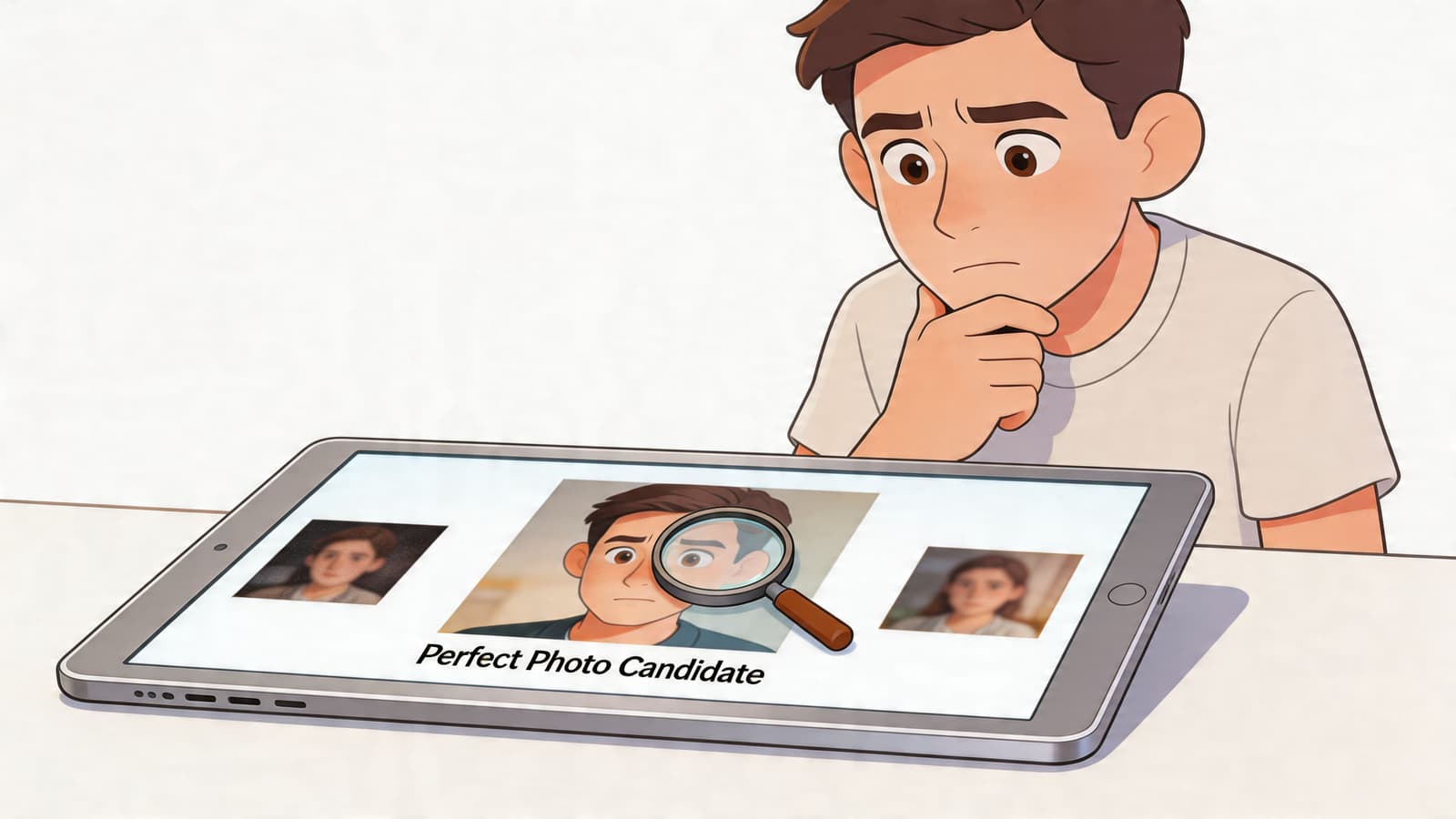
What makes a photo animate well
Not every image responds the same way. Some photos almost direct themselves. Others fight the model at every step.
Look for these qualities first:
- A single clear subject: Portraits usually outperform busy group shots because the model has one focal point to preserve.
- Readable lighting: Even old photos with fading can work well if the face and body contours are still visible.
- Natural posture: Seated portraits, standing poses, and candid side profiles often animate more gracefully than extreme angles.
- Emotional weight: The best tribute clips start with a picture that already means something before motion is added.
Photos with heavy blur, deep shadows across the face, or multiple overlapping people tend to be harder to animate cleanly. They can still work, but they usually require much gentler motion directions.
How to prep without scrubbing away the past
Prepping an old photo isn’t about making it look new. It’s about making it legible for the model.
Start with a high-quality scan if you’re working from a print. Clean obvious dust, scratches, and fold marks, but stop before the image starts to look plastic. The little imperfections in an old print are often part of why it feels real.
A simple prep checklist helps:
| Check | What to do | What to avoid |
|---|---|---|
| Resolution | Use the sharpest scan or capture you have | Upscaling a blurry original and expecting it to fix detail |
| Cleanup | Remove major distractions like dust specks or tears | Erasing film grain or over-smoothing skin |
| Crop | Keep the subject clearly framed | Cropping so tightly that hair, shoulders, or hands get clipped |
| Contrast | Lift muddy shadows gently if needed | Crushing blacks or whitening the whole image |
If you’re focusing on portrait movement, this guide to realistic face animation from photo is useful because it shows where facial detail holds up and where it often falls apart.
Old photos usually look best when you restore just enough for clarity and leave enough behind for character.
One more practical note. Background simplicity helps. A subject standing in front of a plain wall or soft outdoor backdrop usually gives you cleaner motion than a dense scene full of patterned wallpaper, furniture, and other faces.
Crafting Your Motion and Tone Prompt
A good prompt decides whether the photo feels like a living memory or a generic AI effect.
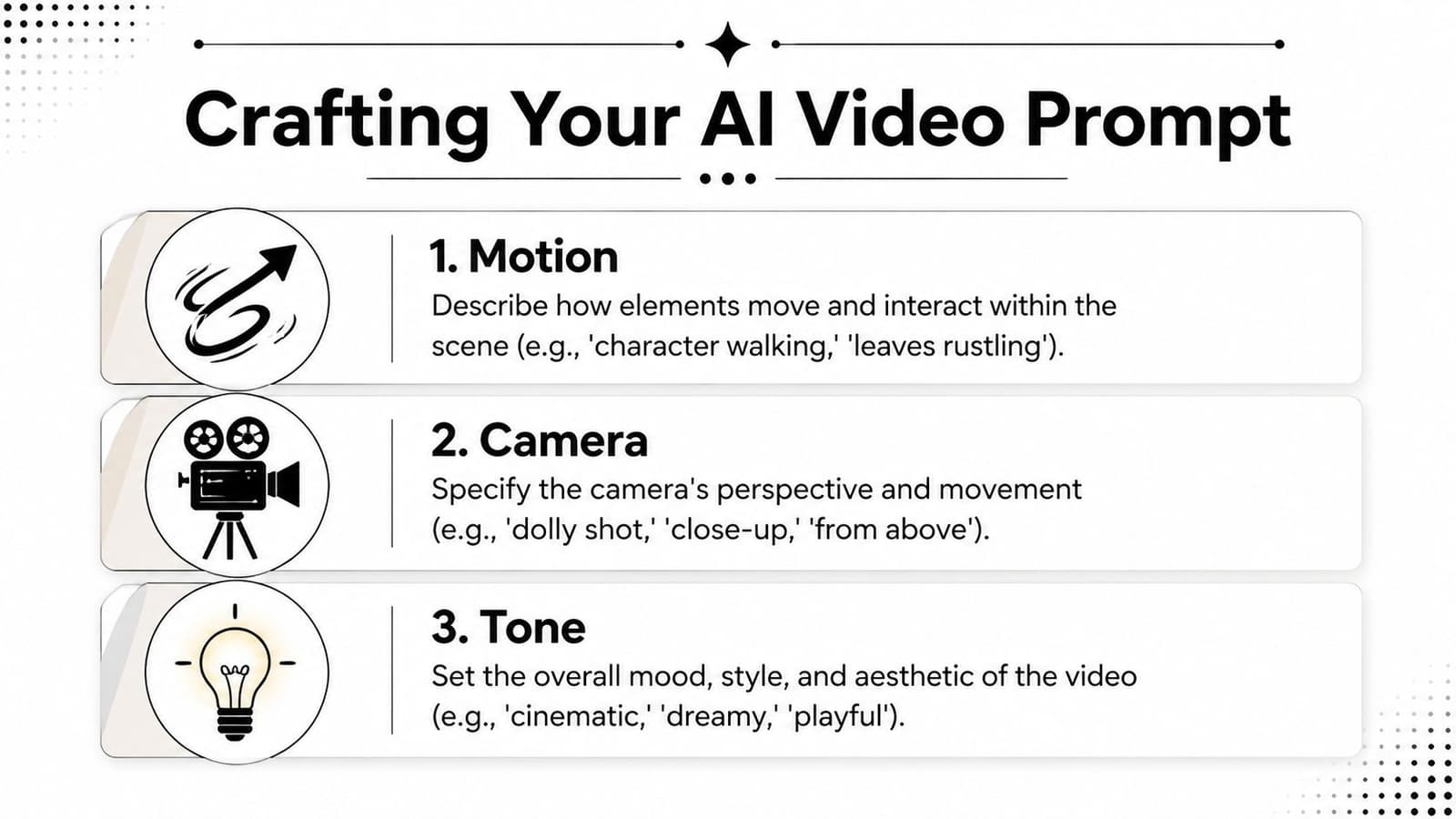
With old family photos, less usually gives a better result. I’ve had the strongest tribute clips come from prompts that ask for one believable movement, one restrained camera move, and one clear emotional tone. That keeps the model focused on preserving the person in the frame instead of inventing a performance the original photo never contained.
The three-part prompt that works
I build prompts from motion, camera, and tone.
-
Motion
Describe the movement inside the image, and keep it physically plausible for the pose. A slight breath in the chest, a faint shift in hair, a small movement in a collar or dress fabric usually reads well. A head turn, big smile change, or full-body gesture often pushes the model into guesswork. -
Camera
Add one simple camera instruction. A slow push in or a very slight pan can add life without putting too much strain on the face and hands, which are usually the first places to break. -
Tone
Tone tells the model how restrained the clip should feel. For memorial slideshows, anniversary edits, and family tributes, words like warm, tender, reflective, peaceful, and nostalgic tend to keep the motion gentle.
If you want more phrasing ideas, this guide to best prompts for image to video gives useful examples. The principle stays the same. Short prompts with clear boundaries usually hold up better than long prompts packed with cinematic instructions.
Good prompts and better prompts
Vague prompts leave too much for the model to invent.
make the photo move naturally
That can produce random facial shifts, drifting eyes, or motion in the wrong part of the frame because the instruction has no limits.
A better prompt gives the model a narrow job:
subtle breathing, slight movement in her hair, slow push in, warm nostalgic tone
That line is short, but it does real work. It tells the system what should move, how the frame should move, and what feeling to protect.
Here’s a quick comparison:
| Prompt type | Example | Likely result |
|---|---|---|
| Too vague | make him move | Unfocused motion, possible face drift |
| Too ambitious | turn and smile at camera while background moves dramatically | Higher chance of artifacts and unnatural facial changes |
| Balanced | subtle breathing, slight movement in jacket collar, slow push in, calm reflective tone | More believable tribute-style clip |
Words that usually hold up
Some prompt language is consistently safer for sentimental photo animation because it respects the stillness of the original image.
- For motion: gentle sway, subtle breathing, slight hair movement, soft fabric movement
- For camera: slow push in, very gentle pan, slight zoom, steady framing
- For tone: nostalgic, warm, peaceful, tender, reflective
One caution matters here. Old photos often carry their emotion through restraint. If the person in the frame already has a quiet expression, asking for dramatic movement can erase what made the image meaningful in the first place.
The best result usually feels almost modest. You should notice presence, not performance.
Generating Your Video with Photo for Video
A good render usually feels quiet on first watch. The person seems present for a moment, the photo keeps its original character, and nothing calls attention to the tool.
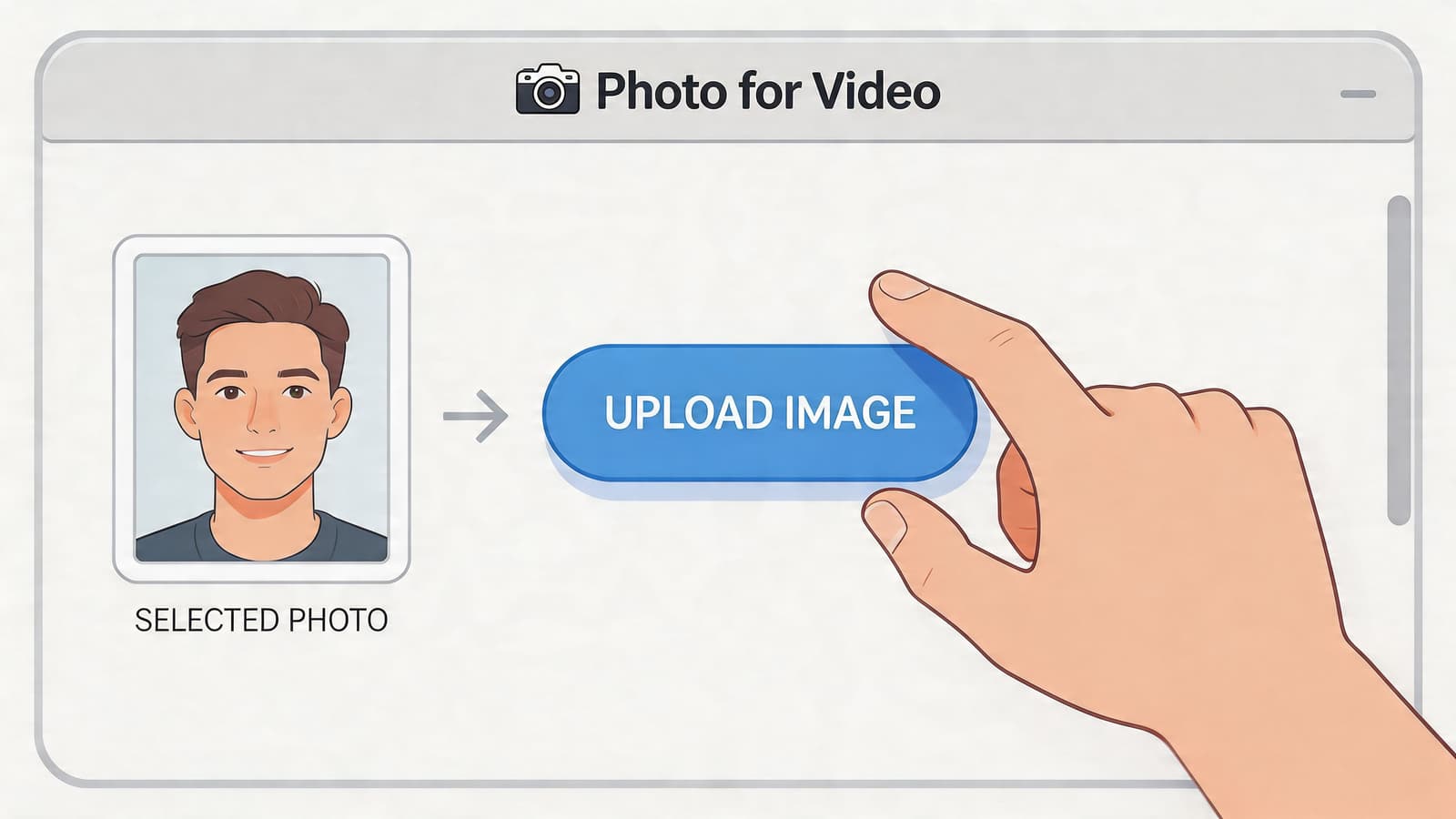
The shortest path from upload to clip
Upload the cleaned, final image first. Do not use a version you still plan to crop, retouch, or sharpen. Small flaws often become more obvious once motion starts, especially in old family photos where dust, torn edges, or uneven restoration can pull attention away from the feeling of the moment.
Then add your prompt and keep it tight. One clear line usually performs better than a long instruction block. The goal at this stage is not to force dramatic action. It is to protect the expression, preserve the analog texture, and introduce just enough motion to make the memory feel alive.
Most tools show credits, render length, or generation settings before you start. Check them before clicking. That saves time when you need two or three restrained variations for a tribute edit on a deadline.
What to check before you hit generate
Three decisions matter more than anything else:
- The source image is completely finished: Final crop, final cleanup, final orientation.
- The motion request stays narrow: Ask for one family of movement, such as breathing, hair shift, or a slow push in.
- The duration fits the job: A short clip often works best for memorials, anniversaries, and family reels because it leaves room for music, voiceover, or a cut back to stills.
I judge the preview by one standard. Does it still feel like the same person people remember?
That question catches problems fast. If the smile changes, the eyes drift, or the motion feels performative, generate again with less ambition.
A simple sequence works well in most cases:
- Upload the restored photo.
- Confirm framing and orientation.
- Paste a single-line prompt.
- Review the generation settings or credit cost.
- Render one conservative version first.
Short outputs are usually easier to place inside a montage, memorial opener, or social edit. If you plan to build a longer sequence around the clip, this guide on how to add animated photo clips into a larger video edit shows the next step.
If you want to see the workflow in action, this walkthrough gives a visual sense of the process:
The first render is rarely the final one. The best results usually come from one small revision, not a complete rewrite of the prompt.
That pattern shows up constantly with older photos. Replacing an expressive instruction with a gentler one often fixes the result. “Gentle breathing” usually holds the likeness better than asking for a new smile or a head turn.
For family tribute work, restraint is the advantage. The strongest clip often looks like the photo found its breath for a few seconds.
Export Tips and Creative Integration
A short animated clip becomes much more valuable once you stop thinking of it as the finished piece.
Where a short clip fits best
The strongest use of a single-image animation is usually inside something larger.
It can open a memorial montage. It can sit between stills in an anniversary film. It can be the emotional first shot in a social reel before text cards and music come in. It can also work in the background while someone speaks over it during a service or celebration.
A few integrations work especially well:
- Tribute montage opener: Start with the moving clip, then cut to stills.
- Looping background visual: Let the animation sit behind a date, quote, or name card.
- Reel introduction: Use the motion clip as the first beat before the rest of the story unfolds.
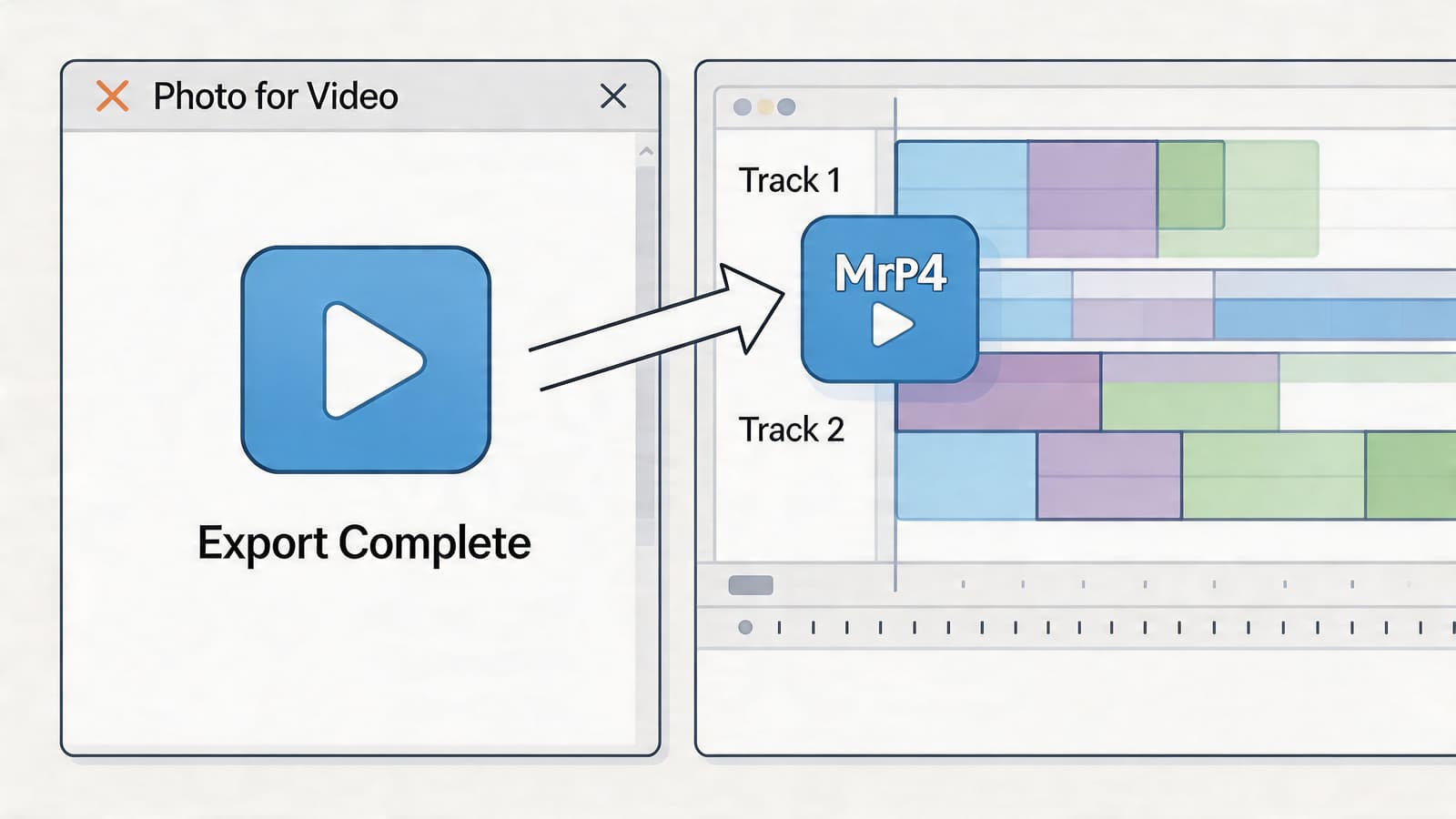
If you want to place the finished clip into a larger edit, this add image to video workflow shows how to slot short visual assets into a broader sequence.
How to make the loop feel intentional
Some of these animations rely on bidirectional motion prediction to create continuous loops. One practical tip from that approach is to include subtle camera moves like a slow pan or zoom, which can reduce the slight drift that sometimes appears in static-looking clips over several seconds, according to this explanation of looping motion generation.
That advice matches what works in tribute editing. A tiny camera move gives the eye somewhere to travel, and it makes the loop feel designed rather than repetitive.
Audio matters too. A soft piano bed, room tone, gentle wind, or light vinyl crackle can deepen the emotional effect without overpowering the image. Keep the sound understated. The clip should support memory, not compete with it.
A strong tribute edit rarely asks one clip to carry the whole story. It lets one clip set the emotional temperature for everything that follows.
Common Pitfalls and Troubleshooting
The biggest mistake people make is assuming a bad result means the whole method doesn’t work. Usually it means one input was wrong.
If the result looks strange, start here
If the motion feels wobbly or inconsistent, the prompt is often too vague. Some AI systems produce unnatural temporal changes when they don’t get a strong enough motion cue from the image or prompt. In the underlying research, one example is fireworks exploding asymmetrically without clear guidance, which shows why precise prompting matters in dynamic scenes, as described in this CVPRW paper on video from a single image and sound.
If the face looks slightly uncanny, don’t force more facial motion. Pull back. Let the life come from hair, clothing, atmosphere, or camera movement instead.
A few symptom-to-fix matches help:
| If you see this | It’s usually because | Try this instead |
|---|---|---|
| Face warping | Too much expression change requested | Remove smile or head-turn instructions |
| Floating background details | Scene is too complex for the motion asked | Reduce motion and use a slow camera push |
| Blurry output | Source image lacked clean detail | Re-scan or use a sharper crop |
| Overdramatic movement | Prompt used cinematic language that conflicts with the photo | Replace with subtle, restrained language |
When less motion gives you a better result
A common assumption is that more animation creates a more powerful tribute. In practice, the opposite is often true.
Old photos carry their own gravity. If the person in the image already has presence, adding too much movement can weaken it. The most believable clips often keep the face almost still and move only what would naturally catch a little life. Hair. Fabric. Posture. Camera.
Use this reset when a clip misses the mark:
- Cut the prompt in half: Keep only one motion instruction, one camera move, and one tone word.
- Protect the face: Shift movement away from eyes and mouth if realism is slipping.
- Respect the pose: Don’t ask the subject to do something the original frame doesn’t imply.
- Try a quieter emotional word: “Peaceful” usually behaves better than “joyful” if the image is formal or solemn.
The best troubleshooting move is almost always simplification.
If you want a fast, tribute-focused way to create video from single image files without overcomplicating the process, Photo for Video is built for exactly that use case. Upload one cherished photo, describe the motion, camera move, and tone in a single line, and get a polished 5 to 6 second living memory designed for birthdays, memorials, anniversaries, and family keepsakes.
Composed with the Outrank app