Master Photo to Video AI in 2026: Easy Guide
Learn how to use photo to video AI to turn images into moving memories. Our 2026 guide covers choosing photos, crafting prompts, and more. Get started today!
A lot of people arrive at photo to video AI the same way. They're not chasing a flashy effect. They're sitting with one image that matters. A wedding portrait with worn corners. A phone snapshot of a father laughing at a backyard birthday. A scanned school photo of a grandmother who's gone.
What they want is simple and hard at the same time. They want the picture to move a little, not perform. They want it to feel like memory, not animation.
That's where most tutorials miss the mark. They focus on dramatic camera tricks, surreal motion, and creator-style experimentation. But families making a memorial slideshow or an anniversary reel usually need something gentler, faster, and easier to trust. That need is real. Luma's discussion of AI video framing and camera workflows reflects a common practical gap: non-creative users often want a straightforward workflow for scanned prints and phone photos, especially when they're working on birthdays, memorials, or other time-sensitive family projects.
Table of Contents
- Bringing Your Still Memories to Life
- Choosing the Right Photo for Animation
- Writing Prompts That Create Natural Motion
- Generating and Integrating Your Video Clip
- Tips for Authentic and Moving Results
- Your Memories Are Ready to Move
Bringing Your Still Memories to Life
You open an old photo to make a tribute video. It shows your mother laughing at the kitchen table, or your grandfather standing in a suit he only wore on important days. The goal is not flashy motion. The goal is to let that moment breathe for a few seconds without losing what made the original photo feel true.
Photo to video AI works best this way. A slight head turn, a natural blink, a gentle camera drift. Those small choices preserve the texture of the memory instead of polishing it into something generic. For memorials, anniversaries, and family keepsakes, restraint usually gives the strongest result because the person stays at the center.
I have seen families respond to this almost immediately. Once they realize the clip does not need dramatic movement to feel alive, the process becomes less intimidating. They can start with one meaningful image, create a short motion clip, and place it into a slideshow or tribute reel without turning the project into a technical exercise. If you want a practical companion for that workflow, this guide on turning still photos into video fits well alongside the steps here.
The emotional test is simple. If the motion draws attention to the tool instead of the person, pull it back.
These tools are also easier to use well than they were even a short time ago. The primary shift is not bigger effects. It is better control over subtle motion, which matters most when you are working with a cherished family photo and trying to keep its original feel intact.
Choosing the Right Photo for Animation
A moving tribute starts before you write a prompt. It starts with photo selection. Some pictures animate gracefully. Others fight the process at every step.

Start with one clear subject
The easiest photos to animate have one obvious focal point. A single face. A couple standing together. A child centered in the frame. The model has less to invent, so the motion usually feels steadier and more believable.
Use this quick checklist when choosing:
- One main person or subject: Solo portraits and simple two-person shots are the safest starting point.
- Readable facial features: Eyes, mouth, and head angle should be visible enough that the model can preserve identity.
- Space around the subject: A little room around the head and shoulders gives the system space for a subtle zoom or pan.
- Low scene complexity: Crowds, patterned wallpaper, and cluttered backgrounds often pull the generation in the wrong direction.
Busy group photos aren't impossible. They're just less forgiving. If the image matters, crop tighter so the emotional center becomes obvious.
Respect the original photo's strengths
A family archive isn't a stock library. You'll often work with imperfect material, and that's fine. Faded prints, soft scans, and older phone captures can animate beautifully if you lean into what they already do well.
A crisp studio portrait can support a slow blink or gentle smile. A grainy black-and-white image may work better with a quiet camera drift and no facial change at all. The photo tells you how much motion it can handle.
Practical rule: Don't ask an old photo to become sharper, younger, cleaner, and more cinematic at the same time. Ask it to move like itself.
A simple decision table helps:
| Photo type | Usually works well | Avoid |
|---|---|---|
| Formal portrait | Slow zoom, soft blink, minimal expression shift | Big head turns |
| Outdoor candid | Gentle breeze effect, slight camera pan | Fast background motion |
| Old scanned print | Camera drift, tiny smile, texture preserved | Heavy smoothing |
| Group photo | Tight crop on key person, minimal movement | Multiple actions |
If you're torn between two images, pick the one that already feels emotionally complete as a still. Animation should add presence, not rescue a weak photo.
Writing Prompts That Create Natural Motion
Prompt writing is where many people either get a moving result or a strange one. The good news is that memorial and keepsake clips don't need elaborate instructions. In fact, simpler works better.
Start with this visual reference before you draft your first line.
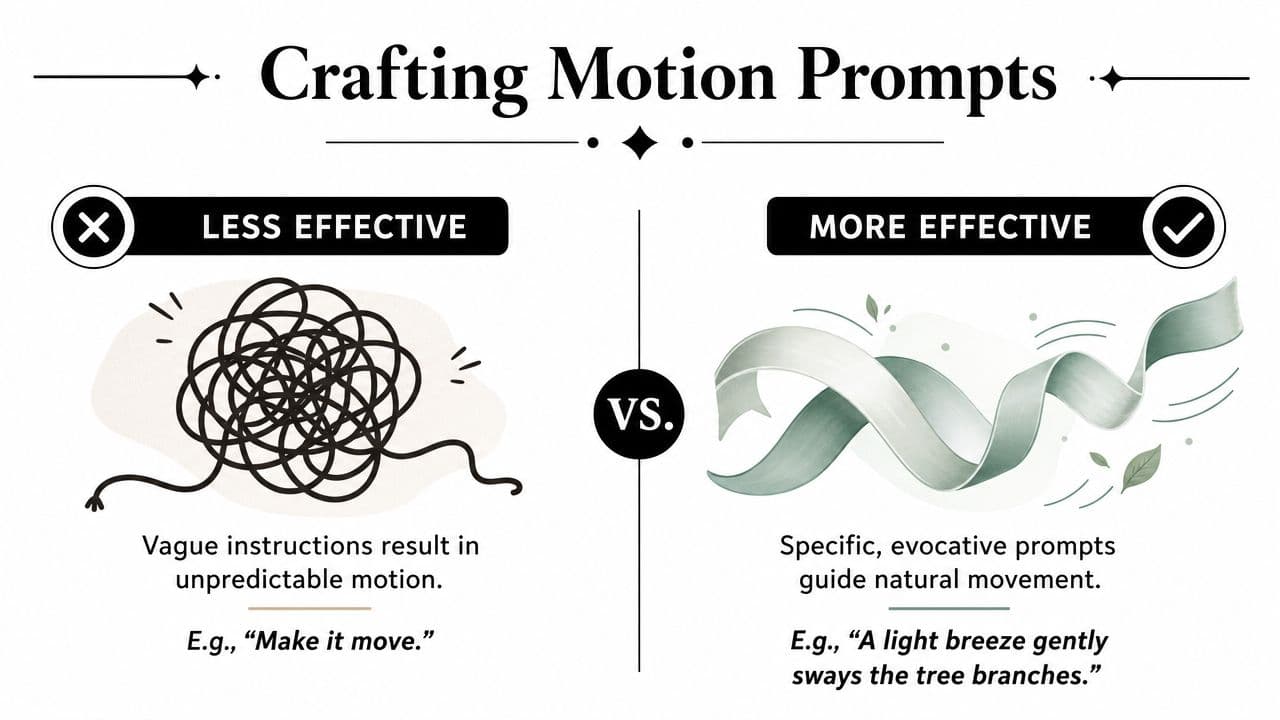
Use three parts and stop there
A strong photo to video AI prompt usually has only three ingredients:
-
Subject motion
What should the person or scene do? Think slow blink, gentle smile, slight head stillness, soft breeze in hair, or subtle hand movement. -
Camera motion
Add one move at most. Slow zoom in. Subtle pan right. Slight push forward. A camera move often adds enough life without forcing the subject to do much. -
Emotional tone
This keeps the result coherent. Words like serene, warm, nostalgic, respectful, joyful, and calm help narrow the behavior of the clip.
AI video models still struggle with complicated instructions. As evidence, a survey of AI-generated video evaluation found that even the best models achieved accurate semantic adherence and physical commonsense in only 19.7% of cases, according to the video generation evaluation survey on arXiv. If you overload the prompt with multiple actions, emotional shifts, and cinematic directions, the output often drifts away from the original memory instead of honoring it.
For more examples of concise prompt structure, this guide to best prompts for image to video is worth bookmarking.
Here's a useful way to consider it:
Give the model one thing to animate, one way to frame it, and one feeling to protect.
Later in the process, this kind of prompt language also makes it easier to diagnose what went wrong. If the motion feels false, you'll know whether the issue came from the subject action, the camera instruction, or the tone.
A short walkthrough can help you hear the difference in phrasing before you generate.
Prompt examples for tributes and celebrations
Below are examples that tend to stay grounded in the original photograph.
For a memorial tribute
- “A gentle blink, very subtle slow zoom in, serene and respectful”
- “Soft stillness with a slight natural breath, slow camera drift left, nostalgic”
- “Minimal motion, delicate eye movement, calm cinematic push in, dignified”
For an anniversary reel
- “A warm soft smile, slow zoom in, romantic and tender”
- “Gentle movement in hair, subtle pan right, affectionate and nostalgic”
- “Slight smile and natural stillness, soft camera push forward, warm and joyful”
For a birthday slideshow
- “Light smile, tiny head movement, cheerful slow zoom, playful and warm”
- “Gentle laugh-like expression, subtle camera drift, happy and candid”
Avoid prompts like “make it come alive,” “turn this into a movie,” or “make everyone move naturally.” They sound intuitive, but they leave too much open to invention.
Generating and Integrating Your Video Clip
The first generation is a revealing moment. Sometimes it lands immediately. More often, it gets close. The face looks right but the motion is too active. The camera move works but the smile feels exaggerated. That's normal.
Expect versions, not perfection
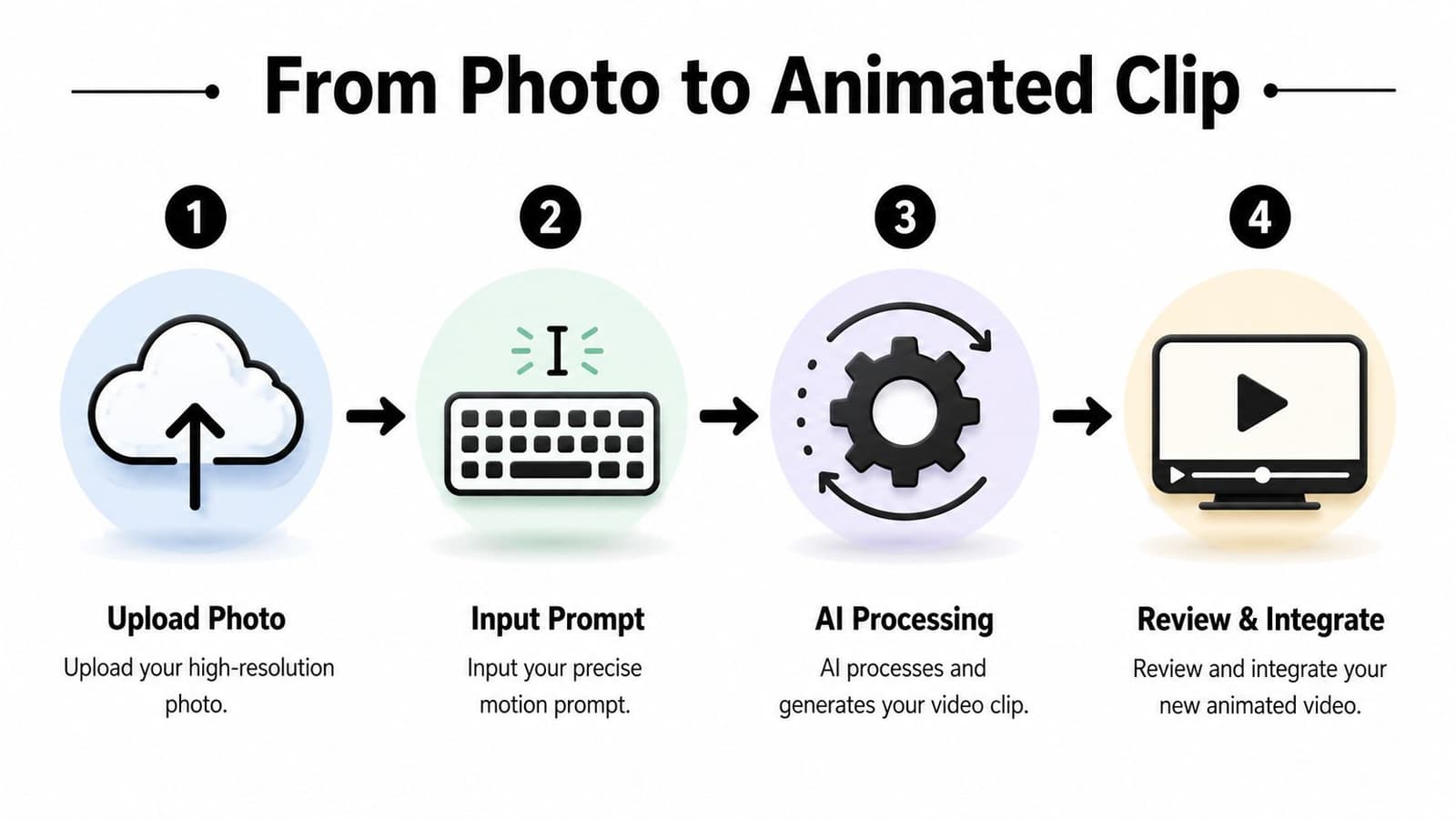
The most practical mindset is to treat generation like selection, not magic. You upload the image, enter one short prompt, review the result, and then make slight adjustments. Usually that means changing only one variable at a time. Reduce the expression. Remove one motion word. Swap “joyful” for “warm.” Keep the rest.
That approach matches how these tools behave in real production. Industry reporting cited by AdMonsters notes that it can take 5-20 attempts to get one usable clip, according to The Truth About AI Video Yield. For family work, that doesn't mean the process is broken. It means you should leave room for a few retries and review each version with human judgment.
A clean workflow looks like this:
- Upload the best available still: Use your chosen crop first. Don't start by over-editing.
- Generate one restrained version: Begin with the mildest prompt you think will work.
- Create two nearby variations: Change only tone or camera, not everything at once.
- Review at full size: Watch the eyes, mouth, and edges of the face before you approve it.
- Export as MP4: Save the clip in a format that drops easily into your editor.
If you want a step-by-step companion for this part, this walkthrough on creating AI video from a single image helps map the process from upload to final clip.
Where the finished clip fits best
A short animated clip works best as an accent inside a larger story. In a memorial slideshow, place it after two or three stills so the motion feels like a quiet lift, not a gimmick. In an Instagram Reel, use it near the opening to establish emotional connection before faster cuts begin. In iMovie or another simple editor, let the clip breathe for a few seconds without layered effects.
When the clip is strong, it doesn't need help. Music and sequencing should support it, not compete with it.
Tips for Authentic and Moving Results
The hardest part of photo to video AI isn't motion. It's restraint. You're not only trying to generate a clip. You're trying to protect identity, era, texture, and emotional truth at the same time.
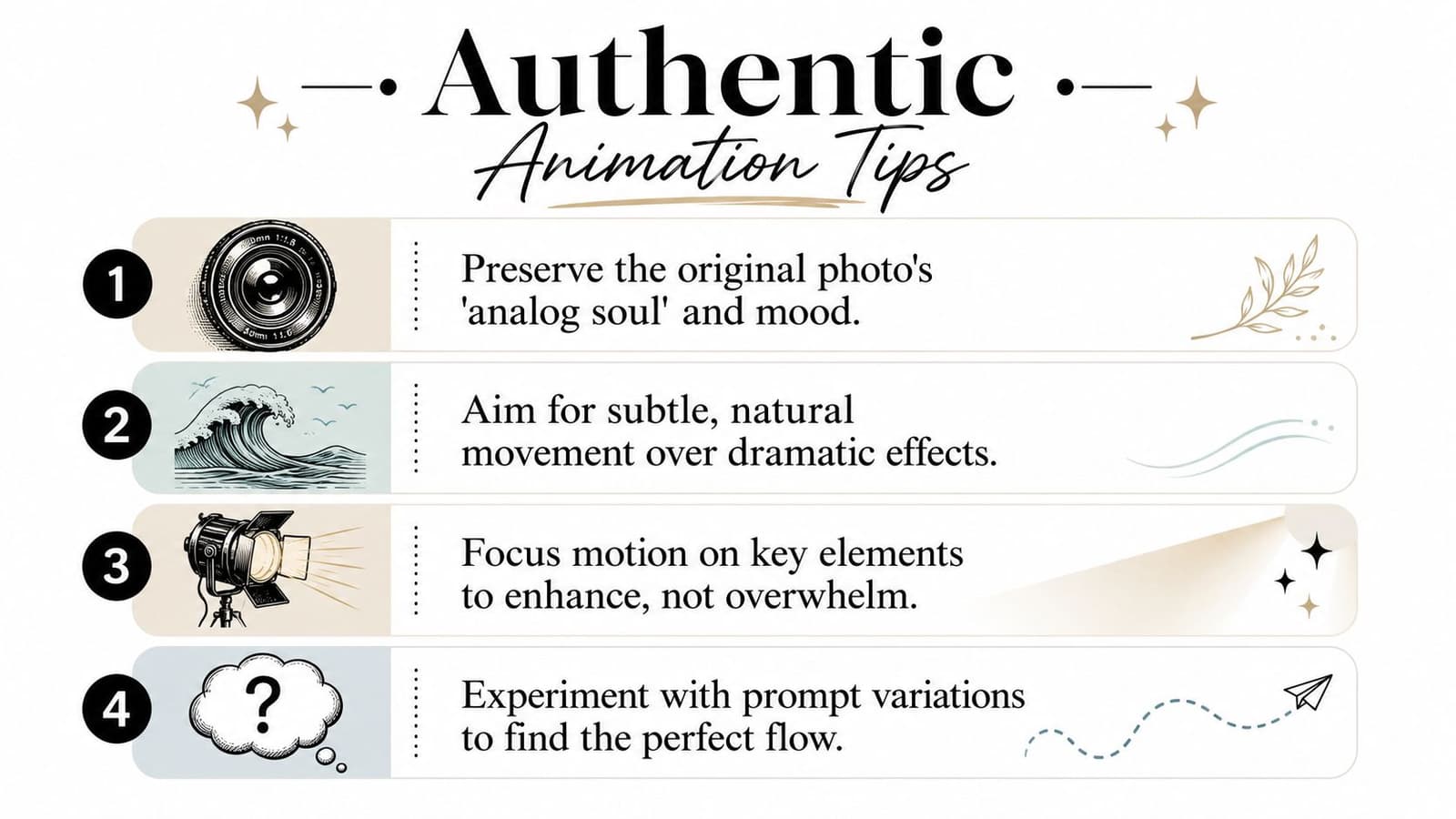
Protect identity before style
Family images carry a private standard of accuracy. A stranger may not notice a changed smile or softened jawline. A daughter will. A sibling will. That's why identity preservation has to outrank cinematic flair.
Public tutorials often spend more time on sweeping camera angles than on whether the animated face still feels like the same person. A YouTube discussion of single-image video generation highlights that gap and the risk of losing realism and analog texture in family-photo use cases in this coverage of AI camera and image animation behavior.
When reviewing a generated clip, look for:
- Eyes that still belong to the person: If the gaze changes personality, reject it.
- A mouth that doesn't overperform: Tiny expression shifts are safer than broad smiles.
- Hair and clothing that stay stable: Flicker around edges can break the spell quickly.
- A face that remains anchored to the original age and mood: Don't let the model modernize the photo.
Keep the original texture intact
Older photos often become moving when you preserve what makes them old. Grain. Softness. Slight exposure falloff. Paper texture. Faded contrast. Those aren't flaws in a memorial context. They're part of the record.
Write prompts that protect the photograph's character instead of replacing it. Words like “subtle,” “natural,” “preserve original texture,” “soft,” and “minimal motion” help. So does avoiding language that implies transformation, such as “ultra detailed,” “hyper realistic,” or “cinematic remake.”
A simple comparison makes the point:
| If you want this feeling | Use language like | Avoid language like |
|---|---|---|
| Family keepsake | preserve original texture, minimal motion, soft | dramatic transformation, remake |
| Respectful memorial | serene, gentle, dignified, slight movement | energetic, expressive, dynamic |
| Warm celebration | natural smile, subtle camera drift, warm | exaggerated emotion, big motion |
Troubleshooting the moments that feel off
Most failed generations fall into a few familiar categories. The fix is usually modest.
-
The clip feels uncanny
Reduce facial movement first. Keep the camera motion and remove the smile or blink. -
The person no longer looks quite right
Tighten the crop and shorten the prompt. The model often drifts when too many elements compete. -
The motion is technically smooth but emotionally wrong
Change the tone word. “Joyful” and “warm” can produce very different expression intensity. -
The image loses its vintage feel
Remove polished style language and regenerate with texture-preserving wording.
One more practical note matters here. Family projects often involve sensitive material, so privacy and deletion windows aren't side issues. They're part of what makes a tool suitable for memorial and keepsake work. It also helps when pricing is transparent and generation credits are easy to understand, because emotional projects already carry enough decision fatigue.
Your Memories Are Ready to Move
A daughter scans one worn print for a memorial table. The original matters because the crease, the grain, and the slight softness are part of how her father is remembered. Photo to video AI can help here, if the goal is not spectacle but recognition. A good result gives the image a little life without sanding away the age and texture that make it honest.
As noted earlier, this category is growing quickly. The practical takeaway is simpler than any market forecast. Tools that once felt experimental are now usable for family archives, tribute edits, anniversaries, and remembrance pieces, even if you are starting with a single photograph and no editing background.
What still separates a moving keepsake from an awkward clip is restraint.
Use the photo that already carries emotional weight. Keep the motion brief and believable. Protect the paper feel, the film grain, the faded tones, or the studio portrait texture if those details are part of the memory. In my experience, families respond most strongly when the clip feels like the original photo gently breathing, not performing.
The technology can generate motion. You still decide what should remain untouched.
If you're ready to turn a treasured image into a gentle, shareable keepsake, Photo for Video is built for exactly that kind of family storytelling. It takes a single still photo, lets you add one short motion prompt, and returns a polished MP4 designed for birthdays, memorials, anniversaries, and tribute edits, while preserving the original photo's analog feel.