Transform Your Memories: Turn Still Photos Into Video
Our step-by-step guide shows you how to turn still photos into video. Learn to choose photos, add motion, audio, and create beautiful keepsakes.
You’re probably here with one photo open on your screen and a very specific feeling in your chest.
Maybe it’s a wedding portrait with soft fading at the edges. Maybe it’s a phone photo of a printed snapshot you found in a drawer. Maybe it’s the last good picture of someone you love, and you don’t want flashy effects. You just want a little movement. A gentle breath in the frame. Something that feels like memory, not spectacle.
That’s why learning to turn still photos into video matters so much for family projects. Used well, these tools don’t just animate an image. They help you shape a moment so it can sit naturally inside a memorial montage, an anniversary reel, or a birthday tribute without losing the original photo’s dignity.
Table of Contents
- Bringing Cherished Memories to Life
- Choosing and Preparing the Perfect Photo
- Writing Prompts That Bring Photos to Life
- Generating and Refining Your Animated Video
- From Clip to Keepsake Assembling Your Story
- Understanding Privacy and Pricing in AI Video Tools
Bringing Cherished Memories to Life
The best use of photo animation isn’t turning every image into motion. It’s choosing the one frame that deserves it.
A still photo already carries a lot. The angle of a face, the fold in a jacket, the slight blur from an old camera, the look between two people who didn’t know they were being photographed. When you animate that kind of image with restraint, the result can feel less like an effect and more like a continuation of the original moment.
Modern image-to-video tools have made that process much simpler. Old photographs, scans, phone captures, and digitized prints can now be turned into polished clips that preserve analog texture while adding gentle movement. In many tools, the workflow is reduced to upload image, provide text prompt, and generate variations, as described in MagicShot’s overview of image-to-video workflows.
That simplicity matters for families. You don’t need a camera crew. You don’t need timeline-heavy animation software. You need judgment.
The most moving tribute clips are usually the least aggressive ones.
For memorials, anniversaries, and keepsakes, subtle motion does more emotional work than dramatic motion. A slight push-in on a portrait. A soft shift in the light. A calm movement in the background of a scene from a family trip. These choices support remembrance instead of distracting from it.
I’ve found that people often start with the wrong question. They ask, “What can the tool do?” The better question is, “What should this photo feel like when it moves?”
That question changes everything. It helps you decide whether the image should remain almost still, whether a face should stay untouched, and whether the final clip belongs as a standalone keepsake or as one beat in a larger story.
Choosing and Preparing the Perfect Photo

Start with the photo that already holds a story
Not every beloved image is a good animation candidate. Some photos are emotionally important but technically weak, and that trade-off matters.
Image-to-video output depends heavily on resolution and clarity. A minimum of 1080px is recommended, and photos with distinct subjects and minimal background clutter produce better results than compressed or low-resolution files, according to this image-to-video workflow breakdown on YouTube. If you’re working from a small messaging-app download or a blurry crop, the motion often exposes flaws that felt acceptable in the still.
When I’m choosing between several family photos, I usually favor the one with the cleanest separation between subject and background, even if another image feels slightly more sentimental. Animation needs visual stability. The tool has to understand what belongs to the person, what belongs to the room, and what should stay still.
A strong source image usually has these traits:
- Clear subject placement that makes it obvious who or what the viewer should focus on
- Good light on faces so the model can preserve natural features
- Enough detail in clothing, hair, and background to keep the clip from looking smeared
- Minimal clutter behind the subject because busy backgrounds often create strange motion
If you’re digitizing an old print, scan it if possible. If you have to use a phone, photograph it in even light and avoid reflections. Keep the print flat, fill the frame, and resist heavy sharpening before upload. Old paper texture often adds warmth, and over-cleaning can make a cherished photo feel synthetic.
For readers who want a practical starting workflow, this guide on how to create video from a single image gives a useful baseline before you fine-tune for tribute work.
What usually fails before animation even begins
Most disappointing outputs can be traced back to prep, not prompting.
Here’s a quick way to judge whether a photo is worth animating as-is:
| Photo issue | What tends to happen in motion | Better move |
|---|---|---|
| Blurry face | Features wobble or lose definition | Find a sharper copy |
| Heavy compression | Texture breaks apart during movement | Re-export from the original if possible |
| Busy background | AI invents distracting motion | Crop tighter or choose another image |
| Extreme pose or awkward crop | Motion feels forced | Use a more stable composition |
Practical rule: If the still image already feels calm and readable, the animated version usually has a much better chance of feeling elegant.
That’s especially true for memorial work. The preparation stage isn’t glamorous, but it protects the emotional tone of everything that follows.
Writing Prompts That Bring Photos to Life
Think like a director, not a button pusher
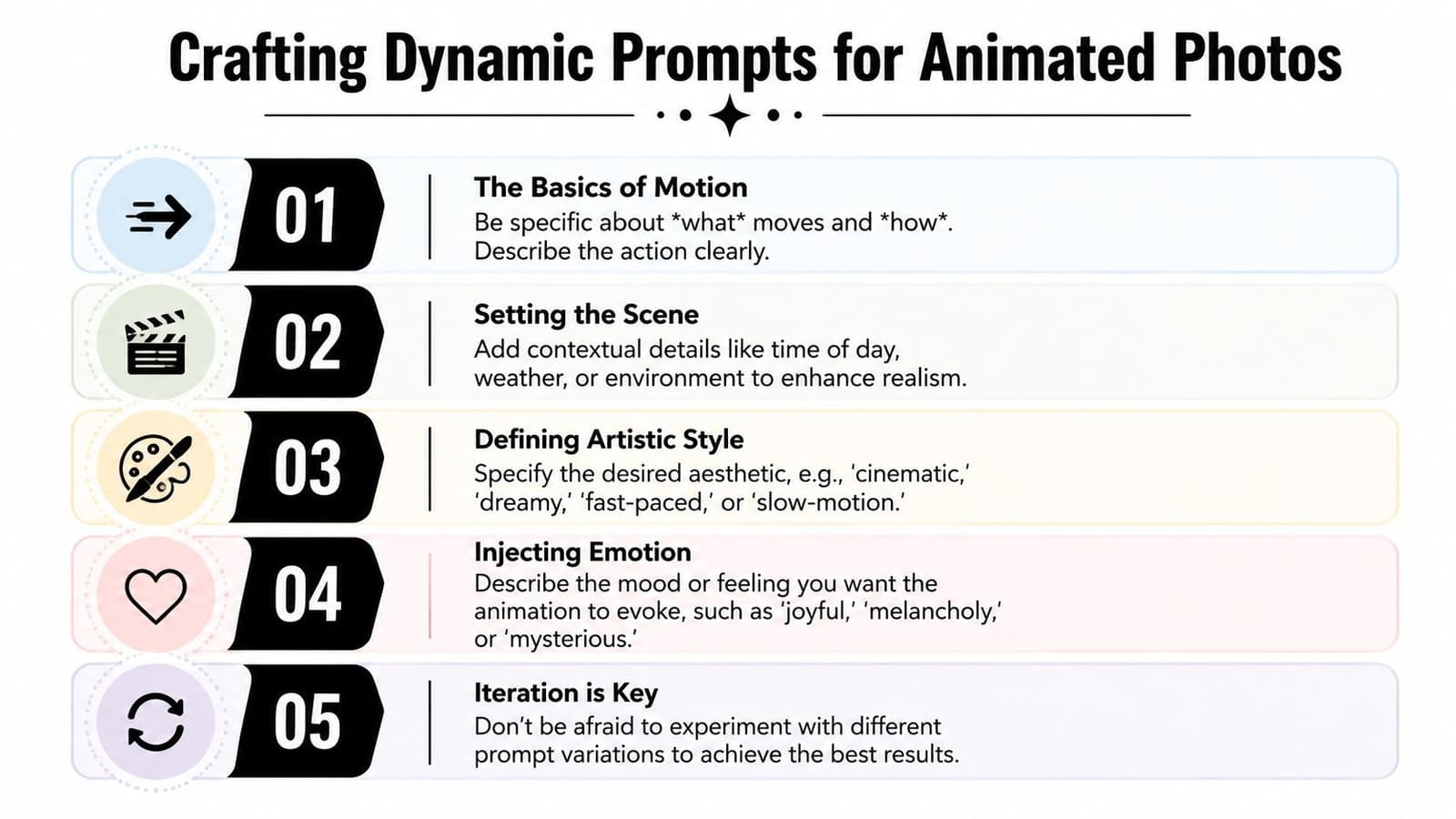
A good prompt doesn’t try to make the image do everything. It gives the model one clear emotional instruction and one or two visual ones.
For tribute work, I think about prompts in three parts. Subject motion, camera movement, and tone. Those three choices are usually enough to turn still photos into video without making the result look overproduced.
The motion itself should fit the image type. University of Washington research highlighted different movement needs for different content. Portraits benefit from subtle camera push-ins or atmospheric effects, while scenic views benefit from sweeping pans or crane movements, as summarized by the AAU coverage of the UW photo animation research. That distinction is useful because many weak outputs come from applying the same prompt style to every photo.
A portrait of a grandparent usually wants less facial motion and more camera restraint. A beach photo from a honeymoon can tolerate more environment movement. A bouquet, a handwritten note, or a wedding table setting may work best with almost no subject motion at all.
For readers who want more prompt ideas beyond tribute use cases, this collection of best prompts for image-to-video is a good reference.
Prompt examples that stay tasteful
Here’s how I simplify prompt writing for family keepsakes.
-
Start with the camera move
Use phrases like “slow zoom in,” “gentle push toward subject,” or “soft pan across the scene.” These moves feel natural because they resemble what a human editor would already do in a memorial slideshow. -
Add one restrained motion cue For portraits, try “subtle blink” or “slight head turn” only if the photo can support it. For scenic shots, describe movement in the environment instead: “clouds drifting slowly” or “soft movement in the water.”
-
Finish with emotional tone
Words like “serene,” “nostalgic,” “warm,” or “celebratory” help shape the output. They’re especially useful when the image itself could go in different directions.
A few examples:
“Slow cinematic push-in on the couple, gentle natural movement, warm nostalgic mood.”
“Soft pan across the lake, light movement in the trees and water, peaceful reflective tone.”
“Subtle zoom toward the portrait, natural facial stillness, tender memorial feeling.”
What doesn’t work well is stacking too many instructions into one line. If you ask for dramatic camera motion, facial animation, weather changes, and cinematic lighting all at once, the result often stops feeling like a family photo and starts feeling like a demo reel.
Another common mistake is writing prompts that are emotionally mismatched. A joyful birthday montage can handle a bit more lift in pacing. A memorial clip usually needs stillness, slower camera language, and a softer visual rhythm.
Use action verbs when needed, but keep them gentle. “Turn,” “blink,” and “zoom” are often enough. If the first result feels too active, don’t rewrite the entire prompt. Remove one motion instruction and keep the emotional tone.
Generating and Refining Your Animated Video
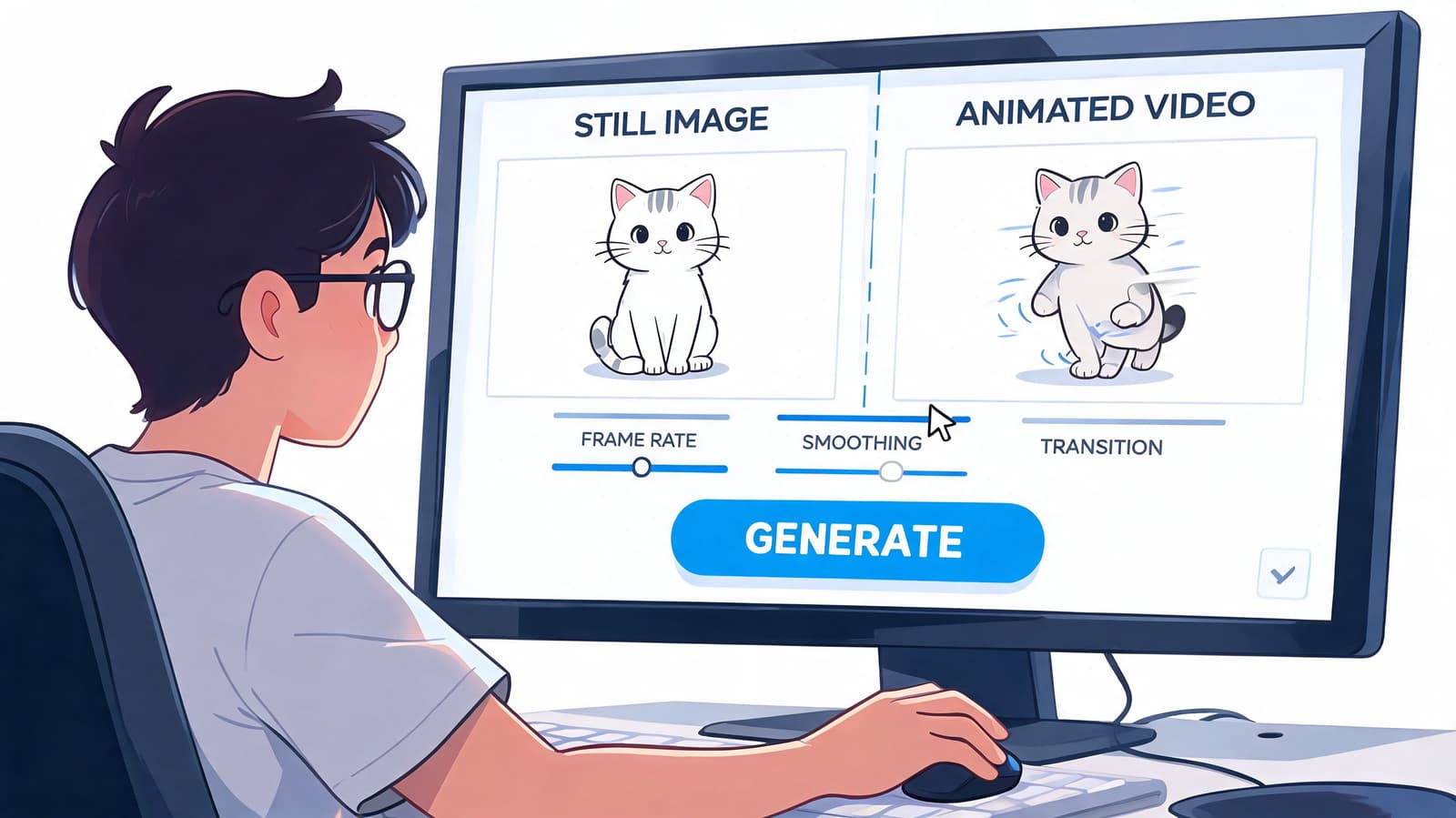
Generation is where people expect magic. In practice, it’s closer to editing.
Current tools can produce professional-quality 3–10 second clips in seconds to a minute depending on motion complexity, and they support 9:16, 16:9, and 1:1 aspect ratios for different publishing needs, according to SynthLife’s summary of AI image-to-video capabilities. That speed is useful, but speed can also tempt you to accept the first pass too quickly.
The first render is a draft. Treat it that way.
Judge the first result calmly
When I review an animated family photo, I’m looking for three things. Does the movement feel believable? Does the face stay recognizable? Does the clip respect the mood of the original image?
If the answer to any of those is no, I don’t scrap the whole project. I diagnose the specific problem.
- If the face looks unstable, reduce facial motion and let the camera move do more of the work.
- If the background starts pulling attention, crop tighter or rewrite the prompt with less environmental action.
- If the motion feels too obvious, ask for slower, gentler movement.
- If the clip feels emotionally off, change the tone words before changing everything else.
This is also where restraint beats novelty. A clip that looks slightly understated usually lands better in a memorial or anniversary edit than one that tries to prove the technology is impressive.
Sometimes the best generated version is the one where viewers barely notice the effect and simply feel the moment.
One more practical note. Generate a few variations from the same image rather than bouncing between many different photos too early. Comparing near-identical versions helps you see which subtle change improved the result.
A short walkthrough can help if you want to visualize that review process in action.
Choose the right frame for where it will live
Export choices matter because the clip usually won’t live on its own.
If you’re building for Reels, Shorts, or TikTok, vertical framing makes sense. If the animation is going into a memorial video for a service, family website, or YouTube upload, widescreen often fits better. Square can work for tribute posts in feed layouts where you want the image to feel centered and contained.
I like to decide the destination before the final render, not after. That changes how tightly I crop and how much room I leave around the subject. A portrait that feels beautiful in 16:9 can become cramped in 9:16 if you didn’t plan for it.
Use this quick decision guide:
| Destination | Best fit |
|---|---|
| Memorial montage on YouTube or web | 16:9 |
| Social tribute reel | 9:16 |
| Feed post or simple family share card | 1:1 |
The polished file you want at the end is simple. Clean motion, no visual distractions, and an export that matches where the family will watch it.
From Clip to Keepsake Assembling Your Story
A single animated photo becomes memorable when it’s placed correctly among other moments.

The biggest mistake I see in tribute edits is treating the animated clip like the whole event. It’s usually stronger as one emotional peak inside a sequence of stills, short videos, text cards, and music.
Build around the emotional peak
If the animated image is the most important frame in the project, give it breathing room. Let a few still photos lead into it. Use a simple dissolve. Don’t stack it next to another heavy effect.
Music matters just as much as motion. A gentle clip needs space in the soundtrack. Sparse piano, ambient pieces, or a family-favorite song with enough quiet in it will support the image better than anything overly dramatic. The point isn’t to make the viewer notice your editing. The point is to let them stay with the memory.
Text should be minimal. Names, dates, places, or one short line can help anchor the moment. More than that, and the viewer starts reading instead of feeling.
Keep the words short enough that the image remains the center of attention.
Simple story structure for family montages
When I’m assembling a keepsake from animated and still photos, I usually think in three movements:
-
Opening with context
Start with stable stills. Early childhood, a wedding day, a home, a favorite place, or a familiar expression. This gives the viewer orientation before motion appears. -
Centering the animated moment
Drop the living photo where the emotional arc rises. In a memorial, that might be a portrait. In an anniversary reel, it might be the couple together. In a birthday video, it might be a photo that captures personality more than perfection. -
Closing with calm
Return to stillness or a slower sequence. Endings usually feel stronger when they settle rather than escalate.
You can also pair animated clips with details that deepen the memory. A scanned letter. A close-up of hands. A photo of a place the person loved. These don’t need elaborate movement. A light pan or soft zoom is often enough.
The finished keepsake should feel coherent. One motion language. One emotional temperature. One clear sense that every clip belongs to the same person or family story.
Understanding Privacy and Pricing in AI Video Tools
Privacy matters more with family images
When you animate a product photo, the stakes are practical. When you animate a memorial portrait, they’re personal.
That’s why privacy deserves more attention than it gets in most tutorials. For families working with old scans and sensitive images, explicit guidance on image deletion timelines and tone-matching for grief contexts addresses a critical gap, as noted in this discussion of memorial-focused image animation concerns. If a tool doesn’t clearly explain how it handles uploads, generated files, and retention, I’d be careful about trusting it with family archives.
Look for plain-language answers to a few questions:
- How long are uploads stored
- How long are generated files retained
- Can you delete work manually
- Does the tool acknowledge memorial and grief use cases respectfully
A vague privacy page isn’t enough for this kind of material. Families deserve clarity.
Pricing should feel predictable
Pricing matters too, but less because of the raw cost and more because uncertainty adds friction at the wrong moment. Most AI video tools use some variation of subscriptions, credits, or one-time top-ups. That isn’t a problem if the system is easy to understand before you upload anything.
I prefer tools that explain what a generation consumes, what happens when you rerun a version, and whether occasional users can buy only what they need. If you’re comparing options, it helps to review a clear AI video tool pricing page before starting a tribute project, especially if you expect revisions.
The right tool should reduce stress, not add to it. With family keepsakes, that standard matters more than feature lists.
If you’re ready to turn still photos into video with a workflow built for memorials, birthdays, anniversaries, and family keepsakes, take a look at Photo for Video. It’s designed to turn one treasured image into a polished living memory with gentle motion, privacy-minded handling, and export-ready clips you can place straight into a tribute edit.