Photo Video Maker No Watermark Export Guide
Make a clean clip with a photo video maker no watermark: prep the scan, prompt gentle motion, export an MP4, and check credits plus privacy.

The scan is already on your screen, a faded print from a wedding or a birthday you still talk about. You asked a photo video maker for a few seconds of gentle motion, and the preview looks right until a corner logo or trial ribbon sits on the cheek you wanted left alone. A photo video maker no watermark export is the file you can drop into a tribute, a reel, or a private keepsake without that commercial badge. It does not turn the clip into untouched archival footage. The paper grain, the fade, and the scratches should stay. Whether you tell viewers the still was animated is a separate choice you make in the caption, not in the pixels.
Table of Contents
- Export Specs for a Clean Photo Video
- Prompts That Protect Paper Grain and Faces
- Credit Plans for Logo-Free Downloads
- How to Make a Watermark-Free Photo Video
- What Happens to the Photo After Upload
- Watermarks That Survive the Export
- Save the Clip or Place It in the Edit
Export Specs for a Clean Photo Video
Open the scan you already have, not a sharpened copy you made for social. The export a tribute edit can use today is an MP4 with no logo, trial ribbon, or burned-in caption. That promise covers visible marks only. A logo is branding or a paywall. A plain disclosure, or a hidden provenance note, is a different decision when slow movement could be mistaken for old film.
Match the file to where it will play before you generate anything. Adobe's export guidance for Premiere Pro points to an MP4 with H.264 High Profile, progressive scan, square pixels, and a frame rate matched to the generation. For standard 1080p delivery, that same guidance recommends variable-bitrate encoding at about 20–30 Mbps. Vertical social output uses 1080×1920. Horizontal and square projects generally use 1920×1080 and 1080×1080. Keep SDR material in BT.709, and place the MP4 moov atom at the front so playback starts quickly. More on why those delivery choices hold up is in this video quality settings guide.
Shape the still before it moves
Crop or pad the photograph to the target shape first. If you let the generator guess, it will invent edges or slice a head. Upscaling a soft scan to 4K does not create authentic detail and only swells the file, so light cleanup comes before motion, not after. Then open the first frame and the last frame at 100 percent. You are looking for an overlay, a logo, or burned-in text, and also for cheeks that still look like paper rather than plastic.
Practical rule: If the grain disappears at full size, the export is too cleaned, even when the logo is gone.
| Delivery | Resolution | Codec and bitrate | Pass check |
|---|---|---|---|
| Vertical reel | 1080×1920 | H.264 High, progressive, square pixels, VBR 20–30 Mbps | No logo on first or last frame |
| Landscape tribute | 1920×1080 | H.264 High, VBR 20–30 Mbps, BT.709 SDR | Moov atom at front and playback in a second player |
| Square post | 1080×1080 | H.264 High, VBR 20–30 Mbps | Still was cropped or padded before motion |
| Soft family scan | Native size or 1080p, not fake 4K | Same codec after light cleanup only | Paper grain still visible at 100% |
| Private keepsake | Match the player you will use | MP4 with no burned-in caption | Working copy already stripped of GPS |
Generate at the row that matches the screen, then stop adjusting the codec.
Prompts That Protect Paper Grain and Faces
Motion should be quieter than the memory. One action plus one camera move is enough. Extra adjectives tend to invent skin, teeth, or titles that were never on the print.
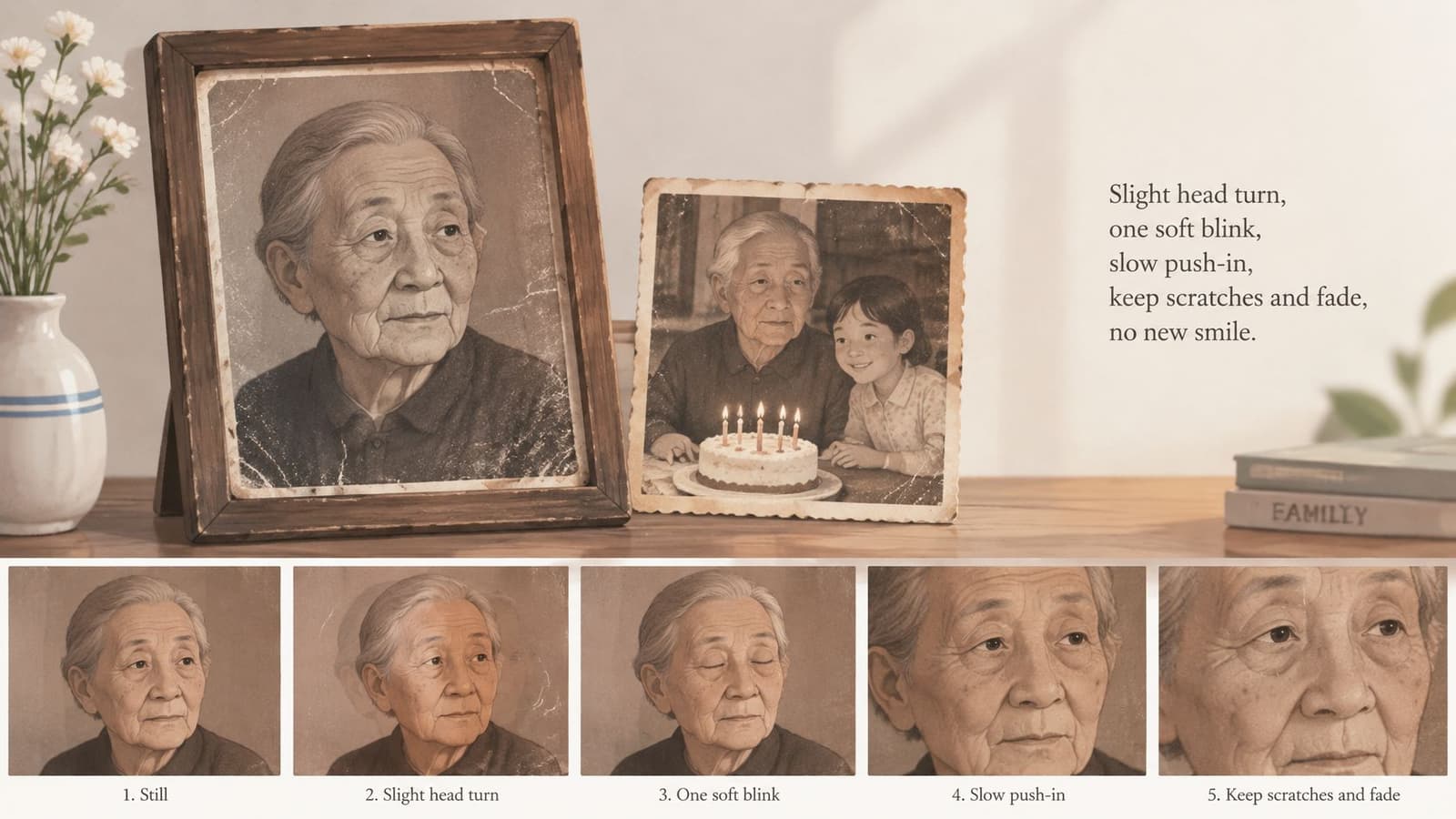
Lines that keep the print
For a grandparent portrait, write: “slight head turn, one soft blink, slow push-in, keep scratches and fade, no new smile.” For a birthday snapshot, try: “candle flame only, tiny camera drift, faces unchanged.” For a product still, try: “gentle orbit, label readable, no extra text.” If the scan is soft, add “preserve grain and blur” so cleanup does not plasticize cheeks.
Lines that ruin old prints
“Cinematic 4K, perfect skin, dramatic spin, add title” asks the model to invent detail and often bakes words into the frame. Those words are not a logo you can crop later. They are pixels.
Faces smaller than about a third of the frame drift more, so crop tighter before a retry. Group photos need less motion than portraits, or hands melt into the person beside them. Glossy 1990s color can survive a blink. A halftone obituary photo should only get a push-in, because eyes and teeth break first. If a fold crosses a face, do not ask for a turn across that fold. The model will try to move skin through a crease that never moved.
Make two takes, one restrained and one slightly stronger. Keep the take that still looks like the print when you pause on a face.
Quiet motion, original texture, and no on-screen words.
A short walk-through of restrained camera moves is worth watching before you rewrite a prompt that already failed.
Credit Plans for Logo-Free Downloads
Credits pay for the clean file. They are not a hidden switch that puts the logo back. On Photo for Video, a standard run reserves credits before it spends them, so you see the cost of the short MP4 before you commit. You do not buy the badge off afterward, and you should not drop a free preview into the timeline and crop the corner.
Match the path to the job
Lite fits one birthday, memorial, or anniversary still. Plus fits several family clips in a month, with a refill if the month runs long. Pro is where audio-ready, multi-photo storytelling opens, which matters when a service slideshow would otherwise be rebuilt one isolated frame at a time. A one-time refill covers a project that overruns the plan you already have. A custom credit checkout fits an uneven batch, such as eight portraits for one memorial service. All of those paths are for a watermark-free MP4. Compare the rows on the pricing page, pick one, and return to the export shape you already chose.
I would start a single keepsake on Lite or a small refill. I would not start a multi-photo tribute there. Rebuilding a service reel from leftover credits usually means mixed lengths and a story that never sits on one timeline.
| Path | Use it when | Download | Credits |
|---|---|---|---|
| Lite | One birthday, memorial, or anniversary still | 5–6 second watermark-free MP4 | Standard run reserves credits before the render |
| Plus | Several family clips in one month | Same clean MP4, more runs | Plan credits, with a refill if you overrun |
| Pro | Montage, reel, or service slideshow | Clean MP4s plus audio-ready multi-photo story | Higher credit pool on this tier |
| One-time refill | The current plan ran out mid-project | Same export rules as that plan | Credits only, no plan change |
| Custom checkout | An uneven batch for one event | Watermark-free MP4 per photo | Buy the credit count the batch needs |
Choose the row, confirm the reserve, and leave the preset alone.
How to Make a Watermark-Free Photo Video
Take one faded 1978 wedding print from the scanner to a file you can place in an anniversary reel. The running test is simple. Grain stays. No corner badge. The couple still looks like the people in the photograph.
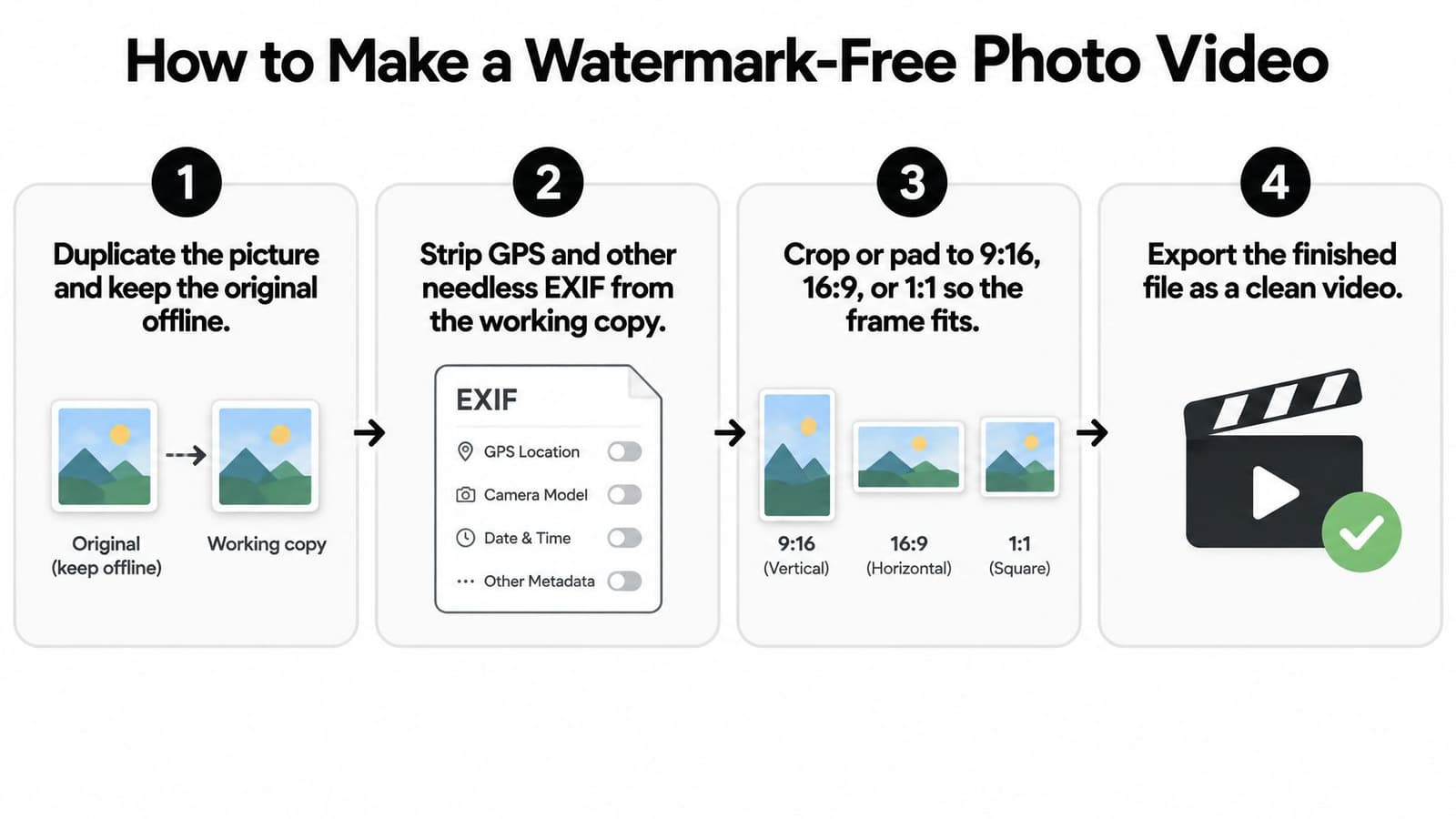
- Duplicate the picture and keep the original offline. The working file can be cropped. The print scan cannot be the only copy if an upload fails.
- Strip GPS and other needless EXIF from the working copy. A wedding scan rarely needs a location, and a phone photo of that scan often carries one.
- Crop or pad to 9:16, 16:9, or 1:1. The generator should not guess the frame. For this anniversary reel, pad the portrait to 16:9 with a quiet border rather than zooming until the dress disappears.
- Leave paper grain. Remove only a fold or dust spot that would flicker. Broad denoise makes 1970s cheeks look painted.
- Write one short motion line. Who moves, how the camera moves, and what must stay still. For this print: slow push-in, no new smile, keep fade.
- Read the credit reserve before you confirm. If the number is wrong, stop. A surprise charge usually means you queued a second take you did not mean to keep.
- Watch faces, hands, and edges at full size. A melted hand at the bouquet is a failed take even when the dress looks fine.
- Download the MP4 from the finished run. A screen capture of the preview is how badges get into tributes.
- Play that file in a second app. Check duration, resolution, and that audio is absent unless you asked for it.
- Place it on the tribute timeline as its own clip. Music and titles belong in the edit, not burned into this file.
If the download still shows a mark, stop. Covering a logo with a crop only hides it on one screen. Use the symptom list later instead of painting over pixels.
When the still is not a family scan
The same order works for a product photo headed to a shop reel, with one change. The motion line protects the label, not a face. If you also need a scored ad built from a script or a product page, a separate tool such as ShortGenius AI video ad maker handles finished ad assembly. Keep the family still on the quieter path. One gentle, watermark-free MP4 is the job, not a trailer.
What Happens to the Photo After Upload
A family scan can become a clean, watermark-free MP4 and still reveal more than intended. Children at a party, a living relative, or a workplace in the background may make the clip unsuitable for public sharing. Removing the commercial logo does not remove the scan's analog texture, and it does not answer whether to disclose that the photo was animated.
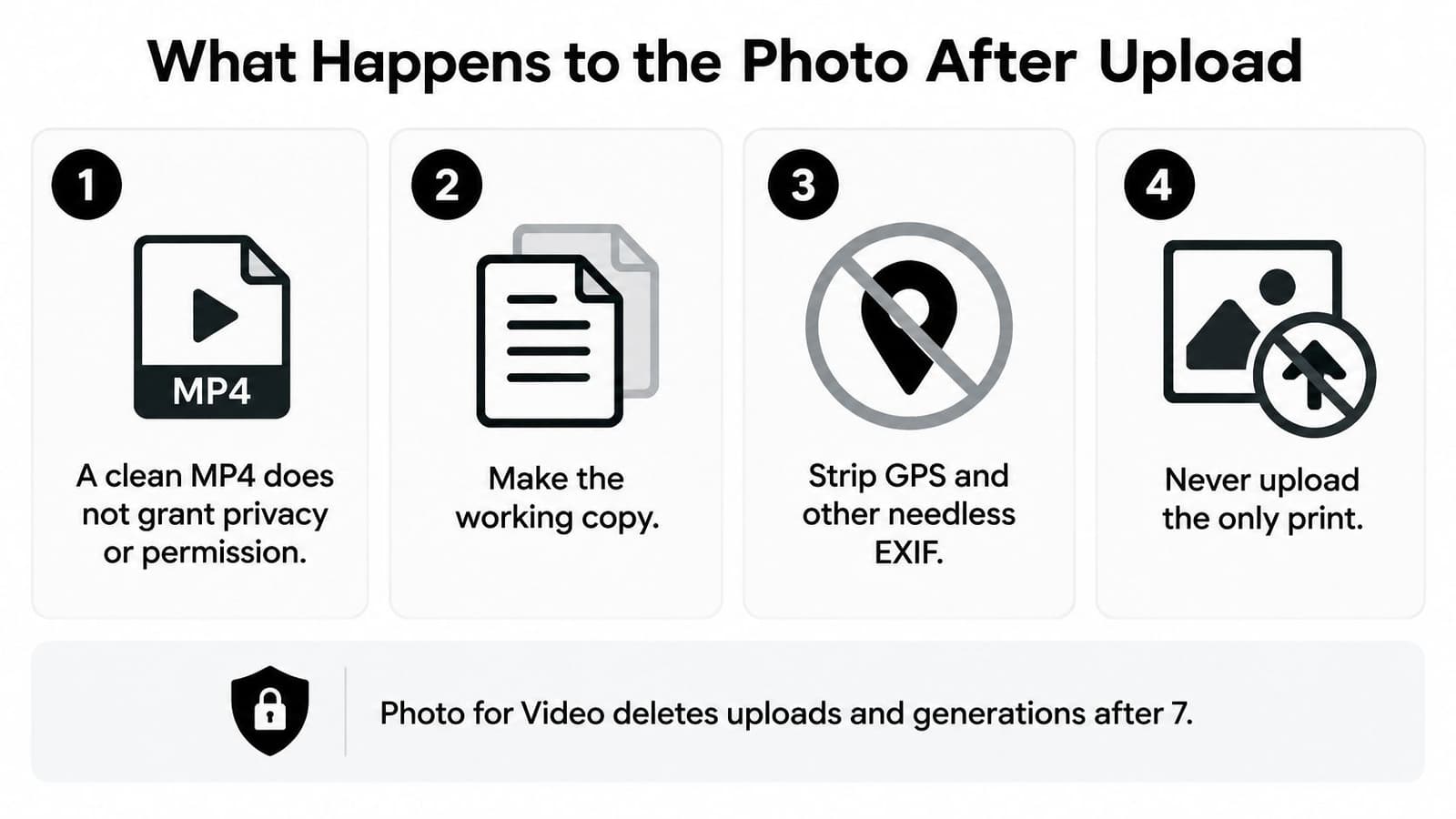
Before the file leaves your desk
- Make a working copy. Keep the original print or scan off the upload path.
- Remove GPS and unnecessary EXIF data. Location metadata can reveal where a photo was taken.
- Get permission from living people in the frame. Consider children and relatives who appear beside the person being remembered.
- Check how uploads are used. If the service's model-training policy is unclear, hold back a one-of-a-kind scan.
Capgemini's 2026 consumer trends report found that 71% of consumers worry about generative-AI data use, and 69% worry about personal data being used for hyper-personalized content. A watermark-free file may be ready to share before you have settled those privacy questions. Read Photo for Video's privacy and retention terms, download the MP4 within the stated seven-day window, and keep your own archive. A seven-day retention window describes how long the service says it keeps files; it is not proof that deletion happens instantly.
The four checks that close the job
After generation, check the duration, frame count, resolution, codec, and audio state. Inspect the opening and closing frames for accidental branding. Then confirm four things: no visible watermark, no stray location metadata, playback in a second player, and a clear plan for removing the source and result after the stated window.
A clean export is not untouched archival footage. The scan's paper grain and fading may remain visible, while animation changes how the image is presented. For client work, test at least 30 images across scans, phone photos, portraits, and group scenes; log face warping, flicker, bad crops, and export errors. Passing the file checks does not decide whether the clip should be posted or whether viewers should be told the photo was animated.
Watermarks That Survive the Export
Most leftover marks are the wrong file, not a broken photograph. The usual miss is saving the preview. The finished download is the file that spent the reserved credits. The preview is the one with the badge.
A memorial planner who crops that badge often sees it return on another screen, because the pixels are still in the file. A wider crop on a phone does not delete them. It only hides them until someone opens the MP4 full frame.
Match the symptom to one fix
Non-logo failures can send you back to a bad download for the wrong reason. A melted face, grain that flickers, or a crop that slices off a head needs a new generation with a quieter prompt. Changing the codec will not repair a face.
| What you see | Usual cause | Fix |
|---|---|---|
| Corner logo | Preview or unpaid render was saved | Download the finished MP4 after the reserved credits run |
| Words burned into the picture | Prompt or template asked for a title | Regenerate with motion only and no on-screen text |
| Mark only on the first or last frame | Preview bumper left in the file | Trim those frames or re-export and recheck both ends at 100% |
| Logo appears only inside the editor | Overlay or nested watermarked preview | Import the MP4 alone and turn overlays off |
| Badge appears after posting | The platform branded the upload | Post the downloaded MP4, not a screen recording |
After the fix, full-frame playback should show no text, grain still present, and the same short duration you generated. If a social app adds its own mark and a second player does not, post the downloaded MP4. A screen recording of the app will carry the platform badge into every later edit.
Save the Clip or Place It in the Edit
A grandparent's wedding print can stay a private, logo-free keepsake. For a reel, shop visual, or public memorial, keep the image free of a vendor logo and disclose in the caption or description that it was animated. For example: “Animated with AI from a 1978 family print.” Keep that wording outside the frame so the photo remains usable in a montage.
Interviews with 21 AI-content creators across China, Germany, and Italy found that visible platform logos were commonly removed, while many creators kept disclosure labels, metadata, or AI-generation tags. Surveys of audiences generally find that people want creators to be open about when they use generative AI. Gentle motion can look like archival footage, so a clean export and clear disclosure serve different purposes.
| Signal | What it does | Use it when |
|---|---|---|
| Visible vendor watermark | Shows the tool brand on screen | Use only for an unpaid preview or trial file, not a tribute or shop visual |
| Plain-language disclosure | States in the caption or description that the photo was animated | Add it to a clip shared outside the household, such as a reel, memorial post, or shop visual |
| Machine-readable provenance | Adds a tag or metadata note that software can read | Use for public or commercial posts where a platform or buyer may check the origin; a private keepsake can omit it if the export adds none |
For a family tribute, the practical choice is usually a logo-free MP4, with a disclosure if the clip leaves the household. Keep the source clip separate from the edit: place it on its own timeline track, trim the ends, and add music in the editor. That keeps the generated file easy to replace without rebuilding the tribute.
With Photo for Video, choose one photograph, write a short motion prompt, confirm the credit reserve, and download the watermark-free MP4. Upload a working copy, since uploads and generations auto-delete after 7 days. The result is a clean file with the original paper texture, not untouched archival footage. You still choose whether to tell viewers it was animated.