How to Transcribe Voicemail to Text on Any Phone
Learn how to transcribe voicemail to text on iPhone, Android and Google Voice, plus accuracy checks and privacy tips before you trust a transcript.

You've missed a call, and the voicemail might contain an appointment change, a customer request, or a family update. You can't listen right now, but you need more than a notification saying someone called. To transcribe voicemail to text, start with the service that received the message, then check the details that could cause trouble if they're wrong.
Built-in transcription is the simplest option when your phone and carrier support it. When they don't, you can work from an exported recording. Either way, treat the text as a reading aid, not an automatically verified record.
Table of Contents
- Which Voicemail Transcription Method Fits Your Phone
- Turn On Transcripts on iPhone, Android and Google Voice
- Transcribe Recordings You Cannot Get Transcripts For
- Check the Parts of a Transcript That Matter Most
- Protect Transcripts After They Are Created
- Fix Missing, Wrong or Partial Transcripts
- Test Your Setup With One Real Voicemail
Which Voicemail Transcription Method Fits Your Phone
| Method | Where the transcript appears | What you need | Limit to check |
|---|---|---|---|
| iPhone Visual Voicemail | Phone app voicemail list | Carrier and region support | Visual Voicemail doesn't guarantee transcription |
| Android Google Phone app | Voicemail list in Phone app | Carrier support and Visual Voicemail | Not all carriers offer transcripts |
| Google Voice | Google Voice app and email | Google Voice number | Check transcription availability and email settings |
| Carrier voicemail with no app | Usually none | Carrier plan | Often a paid add-on or unavailable |
| Third-party or AI tool | Tool's own app or export | Audio file of the message | Check where audio and text are stored |
Find your row before changing settings. If your method isn't supported, turning on a phone setting won't make it produce text.
Choose the service that actually receives your calls
Your mobile number's mailbox and your Google Voice mailbox are separate. Opening Google Voice won't transcribe messages left with your mobile carrier unless you've deliberately configured call forwarding to send calls there. Likewise, installing Google Phone doesn't guarantee that your carrier will supply Visual Voicemail or transcription.
On iPhone, Live Voicemail is another path: where available, it displays text while someone leaves a message. That's distinct from retrieving a carrier-stored message afterward. Don't treat the presence of one feature as proof that the other is supported.
Visual Voicemail itself means you can select messages from a list instead of navigating an audio menu. It isn't synonymous with speech-to-text, a distinction reflected in MVNO Index's explanation of voicemail and Visual Voicemail.
Start with compatibility: Check the carrier's feature listing for your plan, phone, and region before installing another transcription app.
If you only have a dial-in mailbox, ask the carrier specifically about voicemail transcription, not just voicemail access. If it can't provide text, check whether you can download or share individual recordings.
Turn On Transcripts on iPhone, Android and Google Voice
Menu labels change between software versions, so use Settings search when a path doesn't match your screen. Start with the app that owns the mailbox, not a general dictation setting.
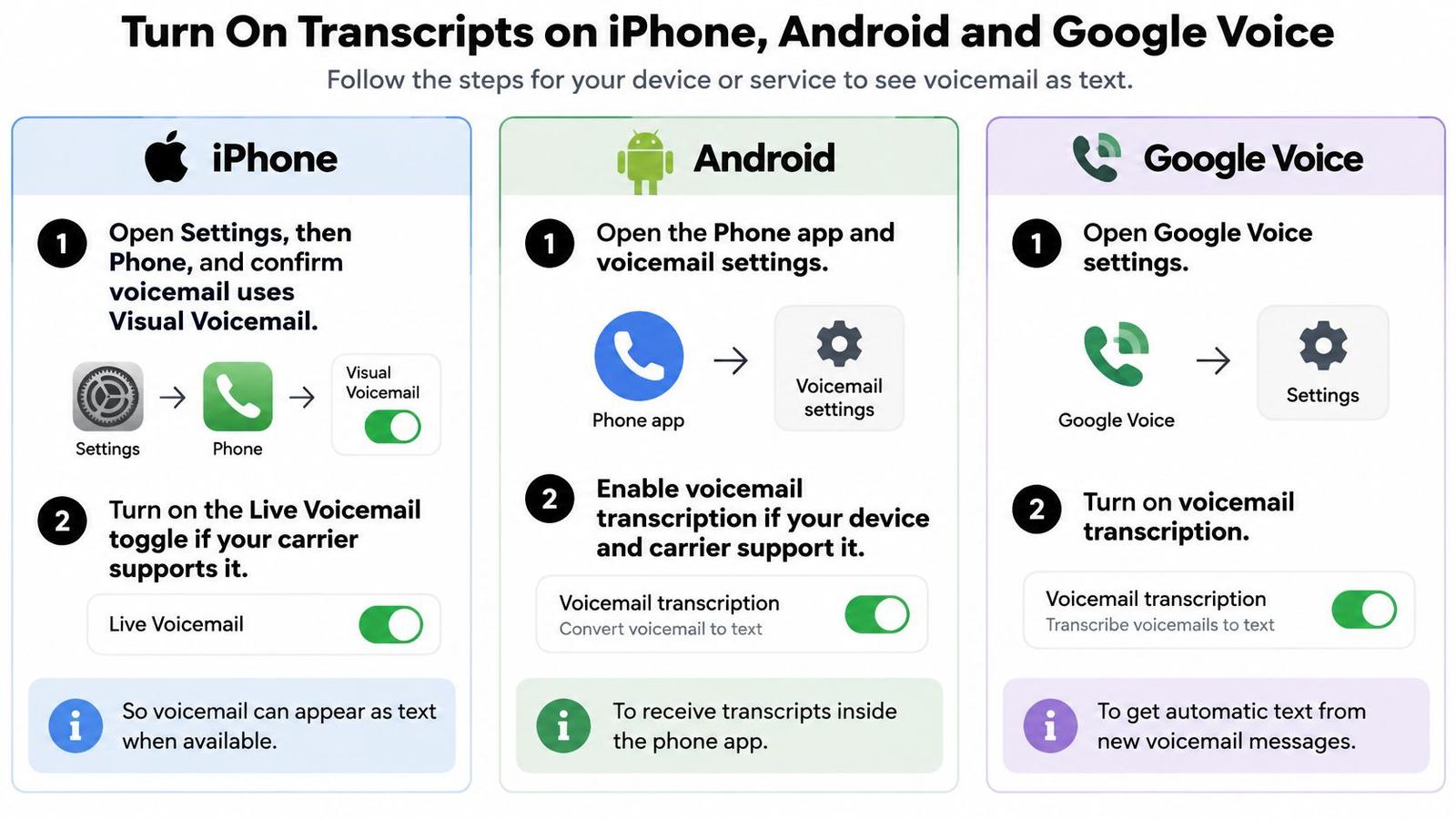
iPhone
- Open Settings, then Apps > Phone, or Phone directly if that's how your Settings app is arranged. In the Phone app, check whether Voicemail displays individual messages, which confirms you have a visual mailbox rather than only a dial-in shortcut.
- Find Live Voicemail in Phone settings and enable it if it's available for your language and region. This lets you see text during an incoming voicemail rather than waiting to retrieve a carrier message.
- Open Phone > Voicemail, select a new test message, and look beneath the playback controls for text. Some Phone layouts place voicemail within a different calls view, so follow the voicemail label rather than expecting a fixed tab position.
Common slip: Assuming Live Voicemail enables carrier transcription. A carrier mailbox without compatible Visual Voicemail won't gain stored-message transcripts because that toggle is on.
Android with Google Phone
- Open Phone, tap its menu, and choose Settings > Voicemail. Confirm you're using Google Phone rather than a manufacturer's dialer with different controls.
- Enable Visual Voicemail, then look for Voicemail transcription if your carrier offers it. If the transcription option is absent, don't assume it's hidden under keyboard voice typing.
- Open a newly received voicemail and check for a text preview. Test the mailbox itself, not an audio attachment opened in another app.
Common slip: Installing a supported dialer on an unsupported carrier plan. The app alone can't supply a carrier feature.
Use this visual guide to identify the relevant setup path.
Google Voice
- Open Google Voice settings in the app or on the web, then locate Voicemail. Make sure you're signed into the account associated with the receiving number.
- Check the transcription options available to your account and enable transcription if a control is offered. Transcripts may appear automatically; Get voicemail via email controls email delivery, not necessarily transcription itself.
- Play a newly received message while reading its text. Enable email copies only if you need another copy.
Common slip: Expecting an email-delivery switch to generate missing transcripts or process an existing backlog.
For every path, test a message left after setup. Check that the opening sentence and callback number match what the caller said.
Transcribe Recordings You Cannot Get Transcripts For
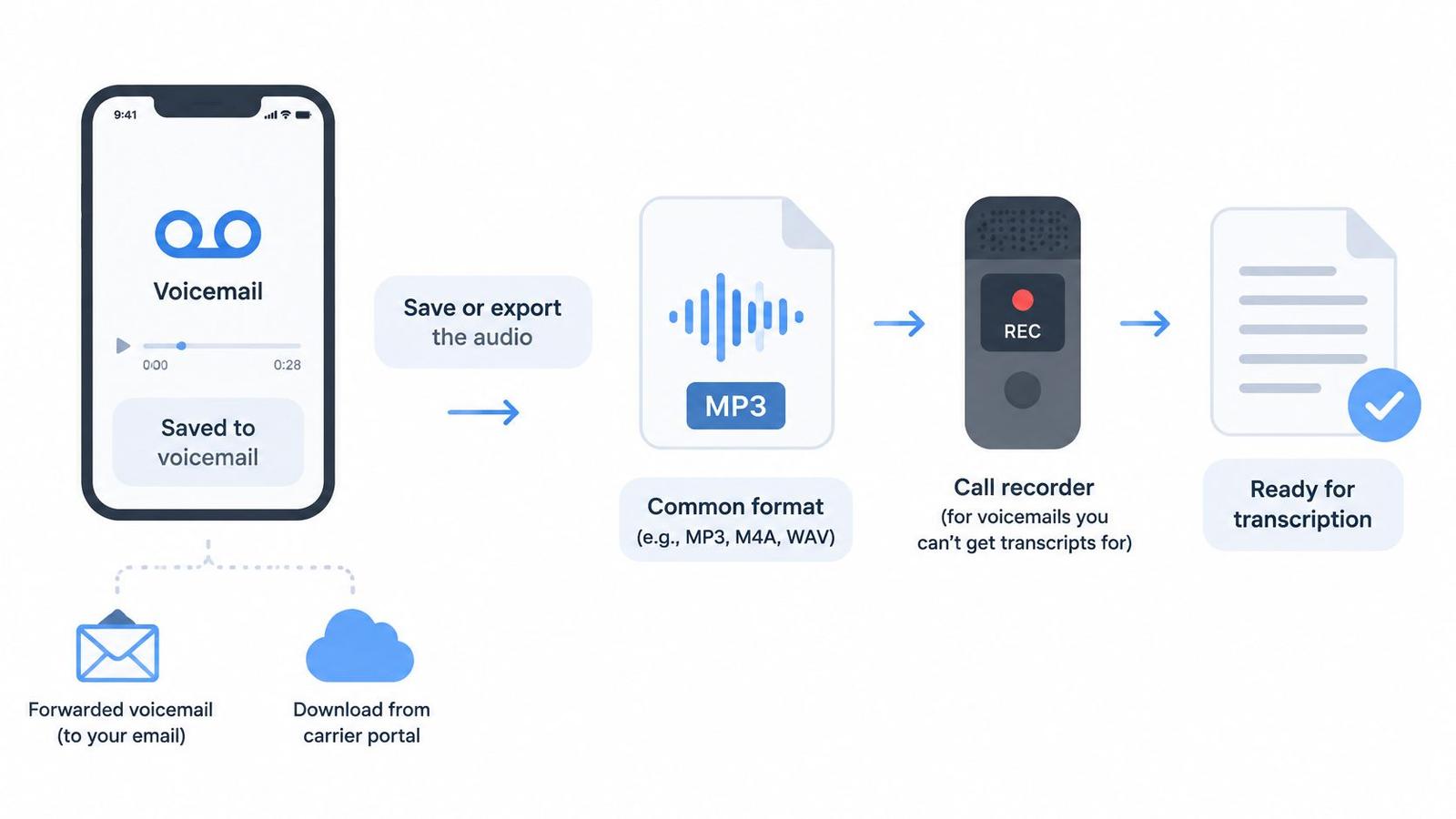
- Save the audio as MP3, M4A, WAV, or another format your chosen tool accepts. Keep the original download untouched.
- Play the file from beginning to end. Confirm it contains the full message rather than just a preview or an incomplete export.
- Choose a tool that explains its storage location, retention policy, and whether uploads are used for model training. Don't upload sensitive audio when those answers are missing.
- Upload a working copy and select the language or locale before transcribing. Don't leave an English default selected for another language.
- Review flagged or low-confidence passages against the recording. Mark unresolved words instead of filling them in from context.
- Export the text, then remove the uploaded file and generated transcript from the tool when they're no longer needed there.
The workflow below helps keep the source recording separate from the working copy.
Prepare audio without damaging speech
Repeated conversion can introduce artifacts, so keep the source format and sampling information with your original. If a tool requires conversion, make a separate file rather than overwriting your only recording.
Remove long silences only when necessary, and leave padding around speech so you don't cut off word edges. Use conservative noise reduction: aggressive filtering can remove the consonants that distinguish similar words.
Telephone speech isn't clean dictation. The NIST OpenASR evaluation plan provides a framework for evaluating speech recognition through Word Error Rate, rather than treating readable output as proof of correctness.
For another walkthrough, use the video alongside your saved recording.
If the message belongs in a family tribute, use the reviewed text when learning how to add closed captioning to a video. Keep private contact details out of the published captions.
For composing a response rather than transcribing an existing recording, VoiceType's resource on how to write emails and documentation by voice addresses a different task: dictating your own words.
A smooth sentence isn't proof that a strange-looking number is correct. Listen before using it.
Check the Parts of a Transcript That Matter Most
| Error type | Why it happens | Check before acting |
|---|---|---|
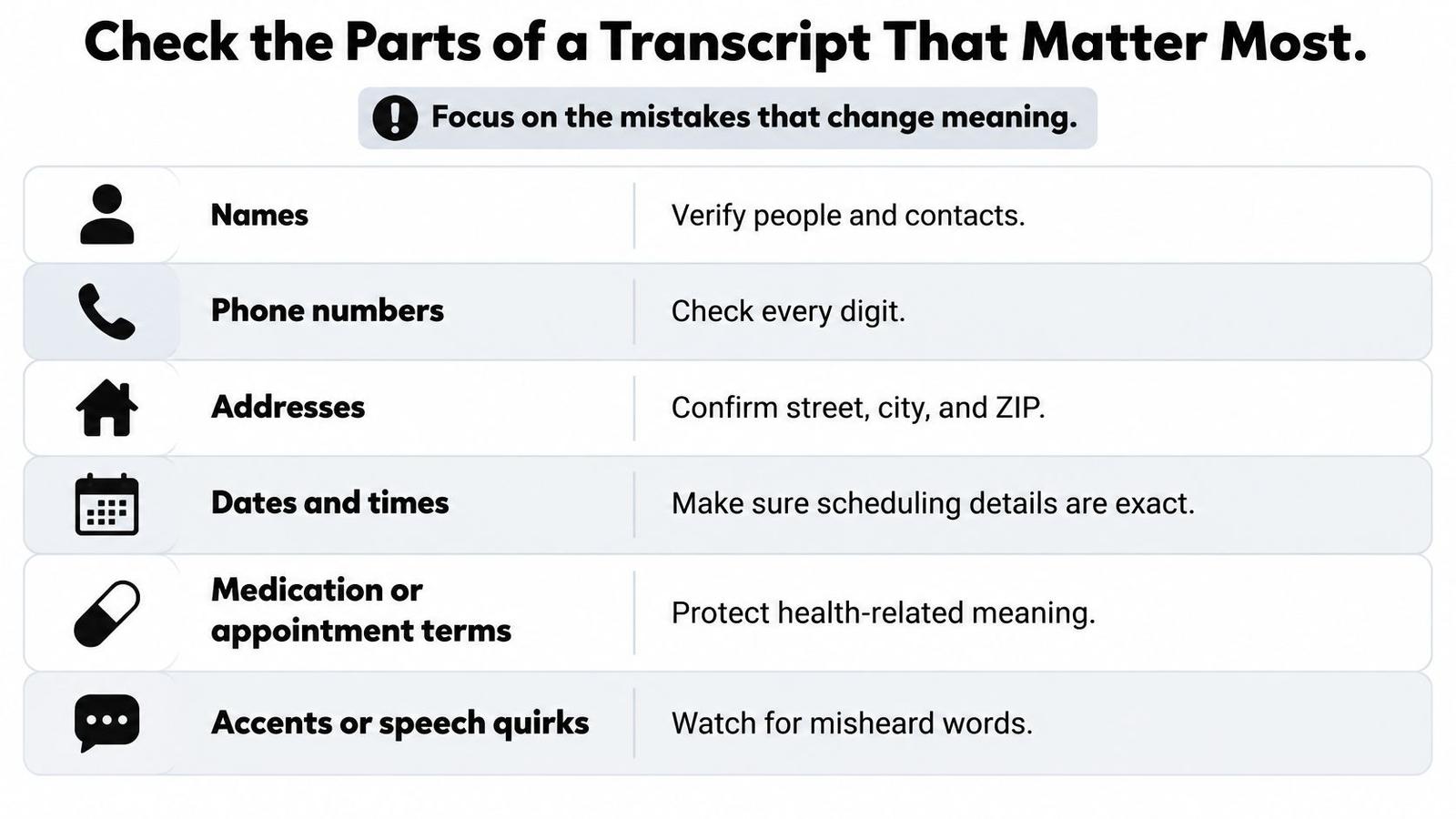
| Names | Uncommon or similar-sounding names | Compare with caller ID or contacts and replay the name |
| Phone numbers | Digits heard as similar words | Replay and confirm every digit |
| Addresses | Street numbers and names merged or dropped | Replay the full address and confirm unusual spellings |
| Dates and times | Similar numbers, such as fifteen and fifty | Confirm day, date, and time with the caller |
| Medication or appointment terms | Specialized words missing from the model's vocabulary | Verify against the audio and keep the original |
| Accents and background noise | Acoustic mismatch or cut words | Treat the segment as uncertain and mark it |
Completion isn't accuracy. In a study published in the Journal of Survey Statistics and Methodology, Whisper produced transcripts for 99.8% of respondents, but only 79.6% were judged valid answers. That's a study of survey responses, not a voicemail accuracy guarantee, but it demonstrates why getting text back isn't enough.
Use this checklist to focus on errors that change what you'll do next.
Review according to consequence
A slightly awkward sentence in a casual update may not matter. A dropped negative in a cancellation message, an incorrect payment amount, or a misheard medication name can reverse the instruction.
- Replay uncertain passages: Follow the text while listening, especially around corrections such as a caller changing the proposed appointment day.
- Confirm actionable details: Check every number and proper noun you'll copy into a calendar, payment form, contact record, or reply.
- Mark unresolved speech: Write unintelligible or uncertain rather than guessing a plausible word.
- Retain high-stakes originals: Keep the recording for medical, payment, or legal messages until the matter is resolved and your retention obligations allow deletion.
Clearer audio helps, but it can't eliminate failures caused by accents, compression, or background noise. Caller ID can support a name check, but it doesn't establish the spelling of another person mentioned in the message.
Ask what must be verified before acting, not merely whether the paragraph reads naturally.
Protect Transcripts After They Are Created
Say a dental office leaves a message containing a date of birth and an appointment time. The transcript appears in a notification preview on a shared tablet, while a forwarded email remains in an inbox nobody monitors. The transcription may be accurate, yet the handling is still wrong.
Privacy covers the entire chain: phone, carrier, transcription provider, email, and backup. Sky Scribe's private voicemail workflow guide highlights how searchable, copyable text can expose information through previews, exports, and shared access.
Check each destination, not just the transcription app.
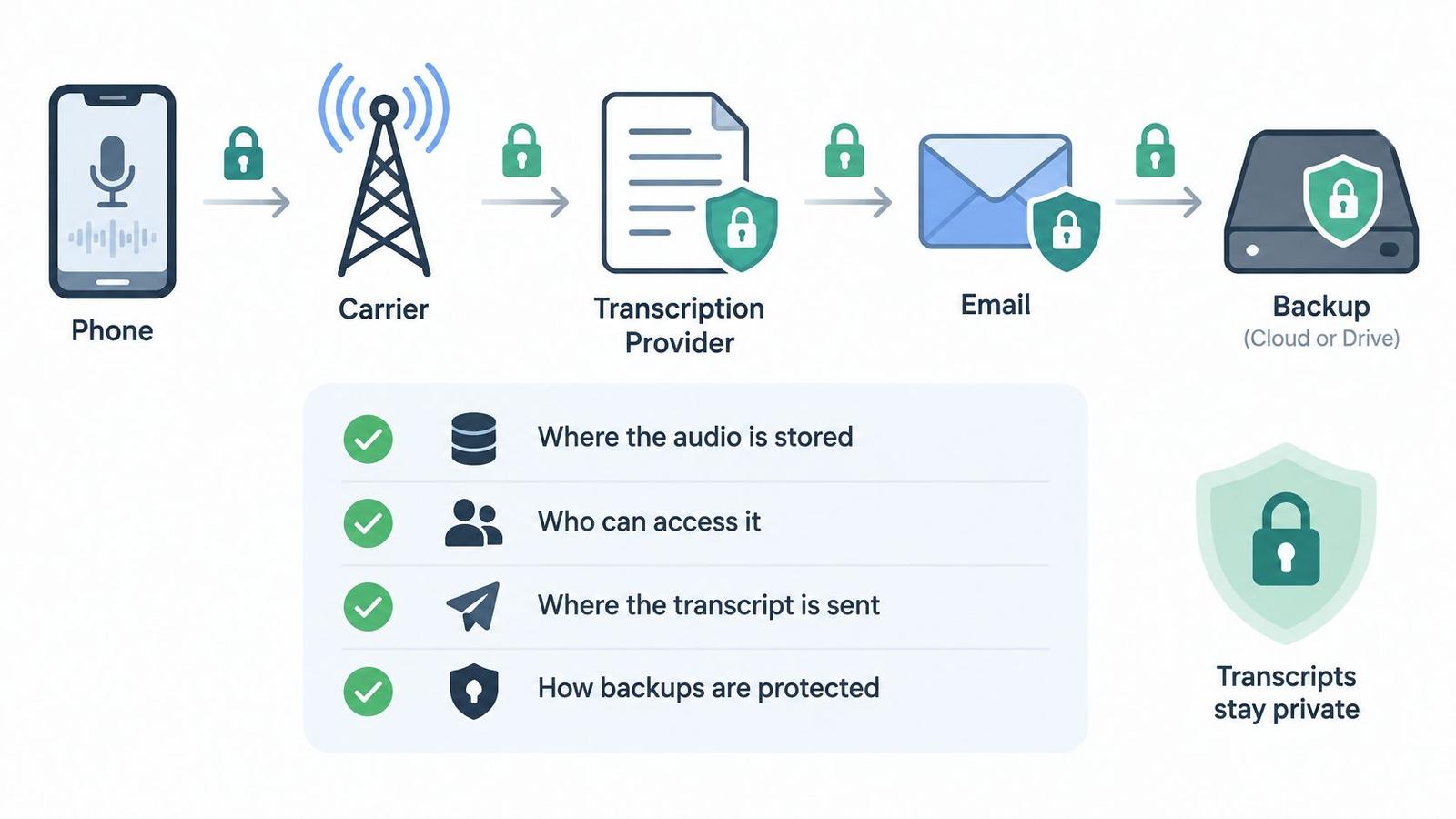
- Audio storage: Is the recording on your phone, with the carrier, or uploaded to another provider?
- Text storage: Does the transcript remain in the app, or also appear in downloads and exports?
- Access: Can family members, colleagues, or anyone using a shared inbox read it?
- Automatic copies: Does it sync to email, notes, another device, or cloud backup?
- Retention: Can you set a deletion period, and does it cover both audio and text?
- Deletion evidence: Does the service explain what removal does, including trash folders and retained backups?
Remove copies deliberately
On-device processing can avoid sending audio elsewhere for recognition, but subsequent syncing can still create cloud copies. Cloud processing introduces another provider into the workflow. Consent requirements for recording, processing, and storing messages vary by location and use, so don't assume receiving a voicemail authorizes every later use.
For sensitive lines, disable unnecessary email copies and hide notification previews. Delete obsolete transcripts from the voicemail app, exported files, and email, then empty the relevant trash folders. Check backup retention separately rather than assuming app deletion removes historical backups.
For family medical, financial, or end-of-life messages, keep the necessary original in a controlled location instead of scattering copies across accounts.
Fix Missing, Wrong or Partial Transcripts
| Symptom | Likely cause | Fix |
|---|---|---|
| No transcript at all | Transcription off or unsupported by carrier | Check settings as a quick task; contact the carrier if support is unclear |
| Start of the message missing | Clipped audio or packet loss on a weak signal | Replay the original now; contact the caller if the opening is absent |
| Wrong names or numbers | Accent, noise, or similar-sounding words | Compare with audio immediately; call back if the detail remains ambiguous |
| Only part transcribed | Multiple speakers, hold music, or silence | Flag the gap and listen to the full recording; retry an exported copy if needed |
| Transcript never arrives | Connection trouble or an older message that wasn't processed | Check connectivity and settings, then test a new message; contact support if it also fails |
A well-built transcription workflow uses segment-level confidence to flag uncertain passages or route them for human review. Your phone may not expose those scores, so the absence of a warning doesn't mean every word is reliable.
Separate recording problems from text problems
Play the voicemail before changing settings. If the missing words are audible, you have a transcription problem and can try another recognizer. If they're absent from the recording, another model can't recover what wasn't captured.
Telephony can introduce codec degradation and transmission errors, issues addressed in ITU guidance on speech transmission performance. That's why repeatedly transcribing the same damaged file isn't always productive.
Stop retrying when the source is incomplete. Ask the caller to repeat the missing instruction instead.
For a supported feature that suddenly stops working, check mobile data or Wi-Fi, restart the Phone app, and test a new message before resetting voicemail. Don't clear app storage or reset the mailbox until you've saved important recordings and know whether the action will remove them.
When contacting the carrier, describe the failure precisely: audio arrives but text doesn't, only certain messages fail, or the voicemail list itself is missing. Tell support which phone app you use and whether a fresh test message reproduces the problem.
For incorrect names and numbers, use the consequence-based checks rather than accepting whichever version a second tool produces.
Test Your Setup With One Real Voicemail
Test the complete path before relying on transcription for an urgent call. A visible toggle confirms a setting, not successful message delivery.
- Enable your chosen method. Use the mailbox associated with the number people call.
- Call that line from another phone and leave a short message containing a name, a callback number, and a date. Wait for it to appear in the receiving app.
- Compare those details word by word. Play the recording while reading the transcript, including any correction you deliberately included.
- Write your own handling rule: verify names, numbers, and dates before acting, and preserve important medical, payment, or legal recordings.
- Inspect the copies. Check whether the test appears in email, notification previews, downloads, or synced devices, then adjust those settings.
Success means the name, number, and date match the audio, and you know where the resulting text is stored. You also know which future messages you'll still play yourself. Keep that rule beside your workflow: read for convenience, verify before acting.
At Photo for Video, we turn a still photo into a short video with natural motion that you can download as an MP4. If you're preserving a family voicemail alongside photographs for a tribute, visit Photo for Video to create a moving visual companion, then use only reviewed, appropriate text in your finished edit.