AI Photo to Video Generator: Create Living Memories in 2026
Use an AI photo to video generator to turn still images into moving memories. Our guide shows you how to animate old photos for tributes, reels, and more.
You probably have the photo open already.
It might be a faded wedding print with soft corners, a scanned portrait of a grandparent, or a phone snapshot of an old album page that someone texted to the family. You don't want a flashy AI trick. You want a small, respectful motion that makes the person feel present again.
That's the actual use case most tutorials miss. They show clean studio portraits and dramatic effects. Real family archives are different. Faces are slightly blurred, prints are scratched, scans are crooked, and the emotional stakes are much higher. When you're making a memorial clip, an anniversary montage, or a birthday tribute, the standard for “good” changes. The motion has to feel gentle. The likeness has to hold. The original character of the photo still needs to stay intact.
Table of Contents
- Turning Still Photos into Living Memories
- Preparing Your Photo for AI Animation
- Crafting Prompts for Natural Motion
- Generating and Exporting Your Living Memory
- Real-World Examples and Quick Fixes
- Important Notes on Privacy and Pricing
Turning Still Photos into Living Memories
A good AI photo to video generator doesn't just add movement. It decides what kind of movement belongs there.
That matters more with emotionally significant images than with social clips. A memorial portrait usually needs a slight head turn, a soft blink, or a slow camera push. It rarely needs aggressive motion, exaggerated facial changes, or cinematic drama. If the effect calls attention to itself first, the memory gets pushed into the background.
The technology is much more capable than it was a short time ago. One 2026 estimate placed the AI video generator market at $946.4 million, and the same report noted that maximum clip length expanded from 4 seconds to over 60 seconds in two years, which is a useful sign of how quickly these tools matured beyond short experiments into more practical outputs (Gradually's 2026 AI video statistics roundup).
The best result usually feels like the photo always wanted to move that way.
That's the standard worth keeping in mind as you work. Not “How impressive is this?” but “Would the family recognize this as them?”
A respectful result has three traits
- The identity stays stable: The person still looks like the original subject, not a polished AI reinterpretation.
- The motion supports the emotion: A gentle camera drift can feel intimate. A sudden zoom can feel intrusive.
- The texture remains believable: Old paper grain, soft focus, and slight tonal variation often belong in the final clip.
Some tools are built for spectacle. Some are better for subtle animation from a single cherished frame. If you're working with old family photos, that distinction matters more than a long feature list.
Preparing Your Photo for AI Animation
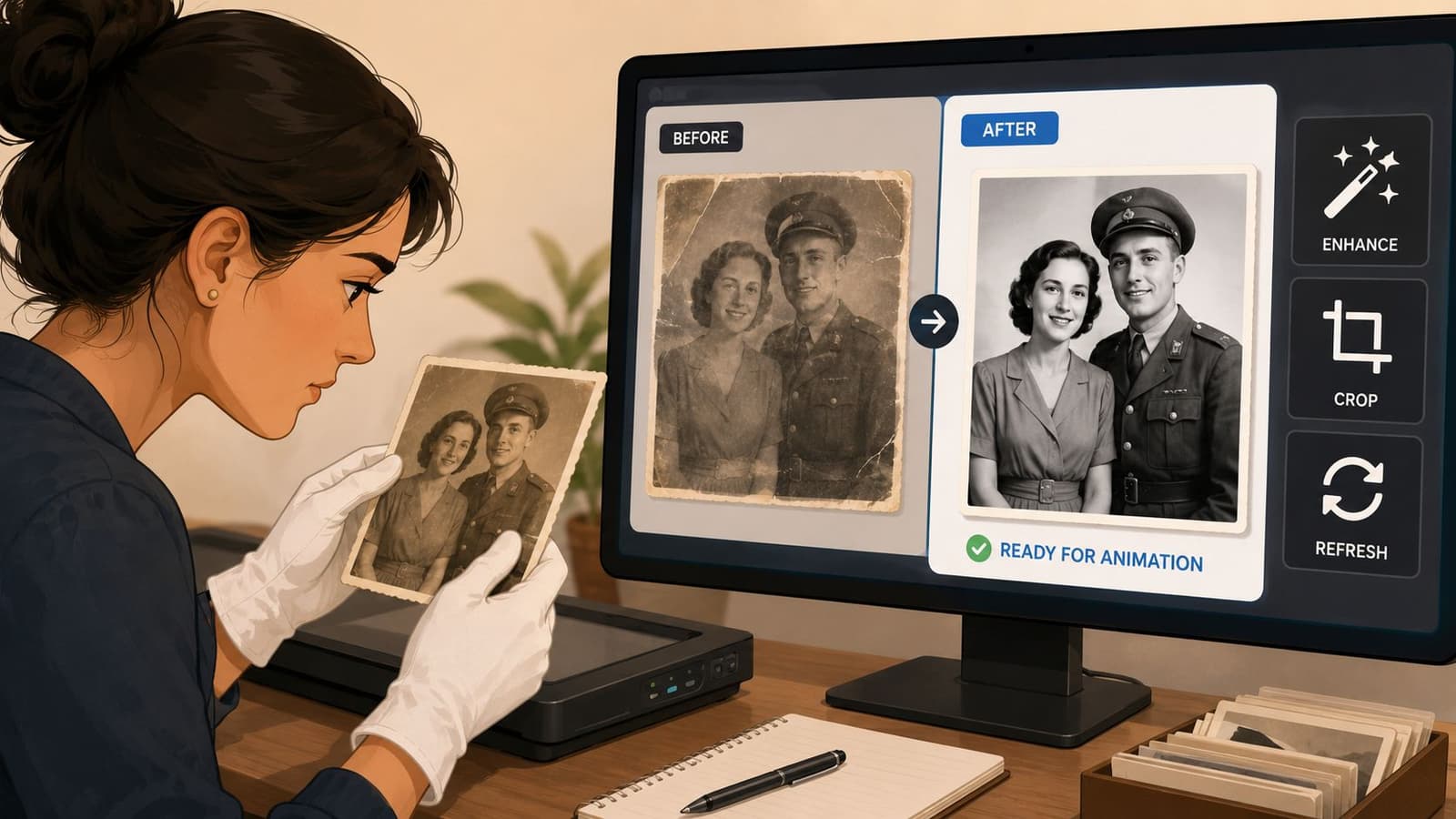
Old family photos are rarely clean inputs. They're often second-generation scans, cropped screenshots, or glossy prints photographed under kitchen lights. That doesn't mean they're unusable. It means prep matters more than people expect.
What makes a photo usable
The biggest factor is source quality. Guidance focused on image-to-video workflows notes that the shortest side should be at least 768px, while 1080px+ gives noticeably better identity stability. It also warns that heavy grain or noise can amplify across generated frames, which is especially important for memorial work where preserving the person's face matters more than creating dramatic motion (Atlas Cloud's guide to image-to-video input quality).
If you're starting with a printed photo, spend a few extra minutes getting a better scan before you animate it. A careful digitization pass often helps more than any prompt tweak later. If you need a practical workflow, this guide on how to scan old photos is a good starting point.
A quick pre-flight check helps:
- Face clarity: The eyes, nose, and mouth should be readable at normal screen size.
- Centered subject: The AI needs a clear main subject. Crowded group shots are harder to animate cleanly.
- Enough pixels: If the image is tiny, the model has to guess too much.
- Controlled damage: Dust and scratches are manageable. Severe blur is harder.
Practical rule: Fix anything that distracts the model from the face. Leave anything that simply makes the photo feel old.
What to fix and what to leave alone
Light restoration usually helps. Heavy restoration often backfires.
Remove obvious scanning problems first. Straighten the image. Crop out table edges or fingers if the photo was captured on a phone. Clean major dust spots and scratches that cut across facial features. Correct harsh color casts if they make skin tones unreadable.
Keep the analog character if it isn't interfering with recognition. Slight paper texture, soft contrast, and natural film grain can support the memory instead of hurting it. The trouble starts when noise becomes so strong that the model interprets it as moving detail.
Here's a practical split:
| Keep | Fix |
|---|---|
| Mild film grain | Large scratches over eyes or mouth |
| Soft vintage contrast | Crooked scan or background clutter |
| Slight paper texture | Extreme yellowing that hides facial detail |
| Gentle edge wear | Compression artifacts from old messaging apps |
When people get disappointing results from an AI photo to video generator, the prompt often gets blamed first. In family-photo work, the image itself is usually the primary bottleneck.
Crafting Prompts for Natural Motion
Most disappointing outputs start with a vague prompt. “Bring this photo to life” sounds intuitive, but it leaves too much open to interpretation.
Guidance from AI video practitioners is consistent on this point. Prompts work better when they explicitly define motion path, camera behavior, and scene tone. That precision helps the model preserve identity and create coherent movement. Ambiguous prompts increase the risk of awkward motion and visual glitches (Troy Lendman's guide to AI video generation prompts).
Use the Motion Camera Tone framework
Think like a director, not a casual user. A useful prompt usually contains three parts.
Motion
Describe what the subject or environment should do. Keep it restrained for family photos.
Examples:
- gentle blink
- slight head lift
- subtle smile
- soft breeze moving hair
- small shift in posture
For memorials and keepsakes, smaller is usually better. A still portrait can tolerate one quiet movement. It rarely benefits from several.
Camera
Tell the tool how the frame should move.
Common options:
- slow zoom in
- slight push forward
- gentle pan
- soft drift left to right
- locked camera
Camera movement shapes the emotional feel. A slow zoom often adds intimacy. A locked camera with only facial movement can feel more formal and respectful.
Tone
Set the mood so the tool doesn't over-stylize the result.
Useful tone phrases:
- nostalgic and soft
- natural and restrained
- warm memorial tribute
- calm and elegant
- documentary feel
If you want ideas for shorter social clips as well, this article on an AI video generator for TikTok shows how prompt tone changes when the destination is a reel instead of a tribute.
If the motion feels too noticeable when you read the prompt, it will probably feel too noticeable in the final clip.
Sample prompts for different emotions
A prompt doesn't need to be long. It needs to be specific.
| Use Case | Example Prompt | Resulting Feeling |
|---|---|---|
| Memorial portrait | gentle blink, very slight head movement, slow zoom in, warm memorial tribute, natural and restrained | Quiet, respectful, intimate |
| Anniversary photo | soft smile, subtle breeze in hair, slow camera push, nostalgic and elegant | Romantic, tender |
| Birthday keepsake | light laugh, tiny shoulder movement, soft camera drift, warm and joyful | Lively without looking exaggerated |
| Vintage childhood portrait | slight eye movement, minimal camera push, soft nostalgic tone, preserve original texture | Reflective, delicate |
| Product photo | subtle rotation feel, gentle highlight shift, clean locked framing, polished commercial tone | Crisp, controlled |
Later in the process, it helps to watch a full example of how these motion choices translate on screen:
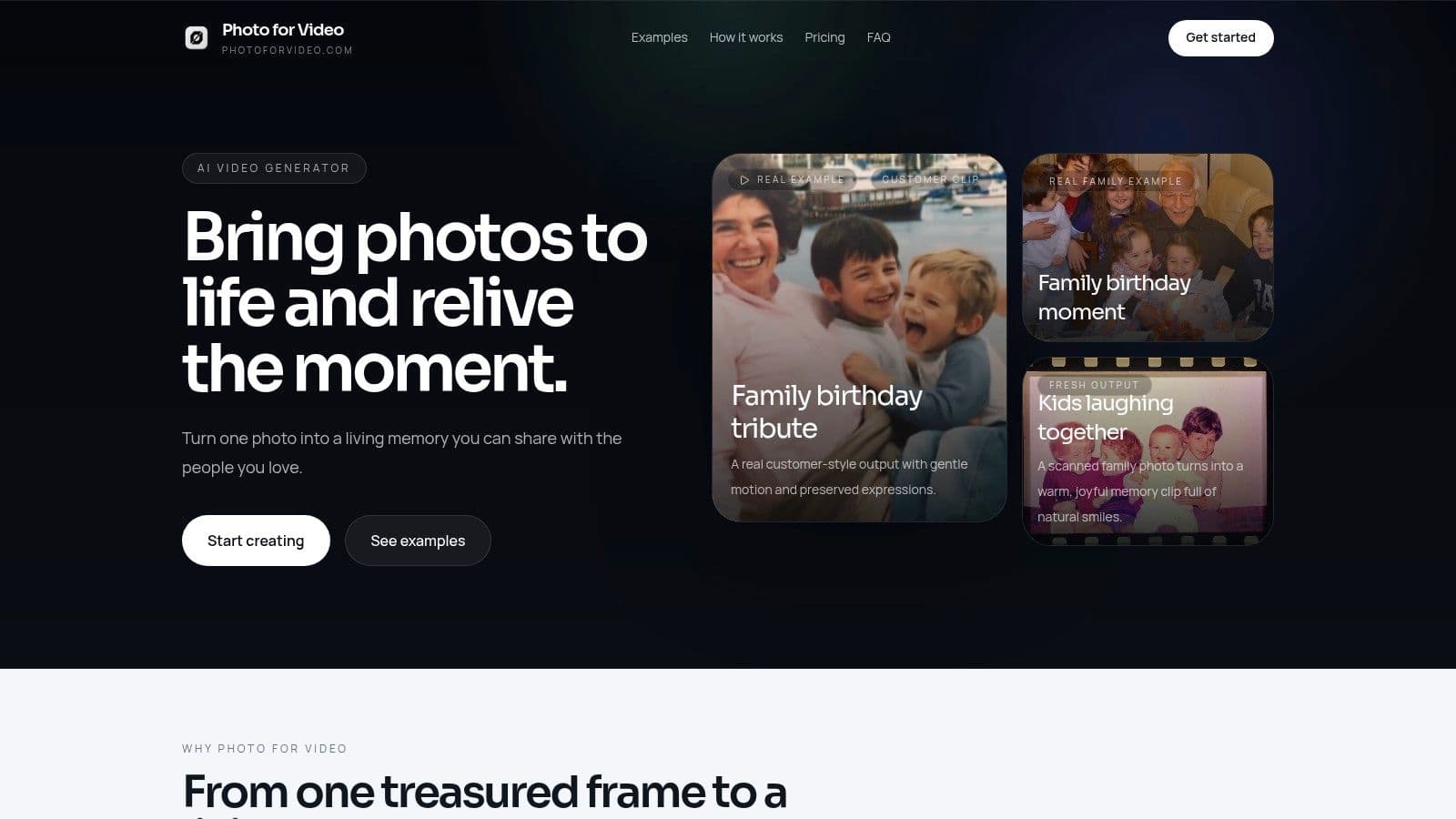
One practical option in this category is Photo for Video, which turns a single still image into a short MP4 clip using a brief prompt about motion, camera move, and tone. That kind of constrained workflow tends to suit keepsake and tribute use cases better than open-ended, effect-heavy generation.
What usually fails
Some prompts look creative on paper but break down in output.
- Too many actions: “Smile, turn, laugh, look around, wind in hair” asks the model to invent too much change from one still frame.
- Contradictory direction: “Static portrait with dramatic camera motion” often pulls the clip apart.
- Mood without mechanics: “Make it emotional” doesn't tell the system what should move.
- Over-cinematic language: Family portraits often look strange when prompted like movie trailers.
The simplest prompt that captures the intended feeling usually wins.
Generating and Exporting Your Living Memory
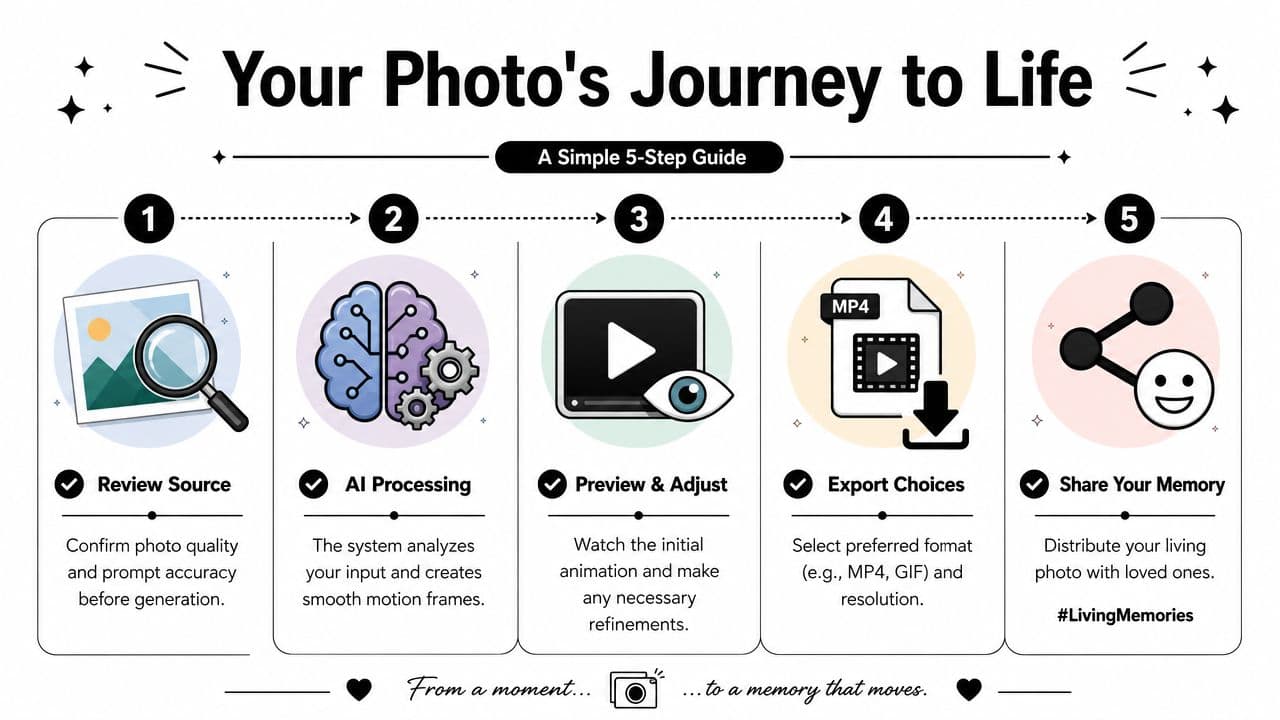
When you click generate, the tool doesn't animate the photo in one step. It moves through a sequence.
What happens after you click generate
Image-to-video systems typically work as a pipeline. The photo is analyzed first, then motion is planned from the prompt, intermediate frames are generated, and the clip is post-processed. For short outputs, that full flow often completes in about 60 to 120 seconds (InVideo's explanation of how image-to-video systems work).
That short wait is useful because it encourages iteration. You don't need to accept the first render if something feels off.
A good review pass is simple:
- Check the face first: The person should still look like themselves throughout the clip.
- Watch the motion path: The movement should read as intentional, not twitchy.
- Look at the background: Curtains, trees, and shadows often reveal artifacts before the face does.
- Judge the emotional fit: A technically clean result can still feel wrong if the movement is too dramatic.
A successful clip doesn't need a lot of motion. It needs the right motion.
How to review before you export
If the first generation misses, don't rebuild everything at once. Change one variable.
If the face drifts, simplify the motion. If the camera feels restless, lock it down or reduce the push. If the clip loses the original mood, soften the tone language in the prompt. Small adjustments usually work better than a total rewrite.
Once the clip feels right, export in a format that travels easily across devices and editing software. MP4 is usually the safe default for tribute slideshows, reels, and digital frames. Some tools also offer GIF or alternate download options, but MP4 tends to preserve quality better for family sharing and video editing.
Store the final file in the same folder as the original image and any project notes. When families return later to make a longer montage, that small bit of organization saves real time.
Real-World Examples and Quick Fixes
The easiest way to judge an AI photo to video generator is by use case, not by marketing language. The right motion for a memorial portrait is different from the right motion for a beach snapshot or a product image.
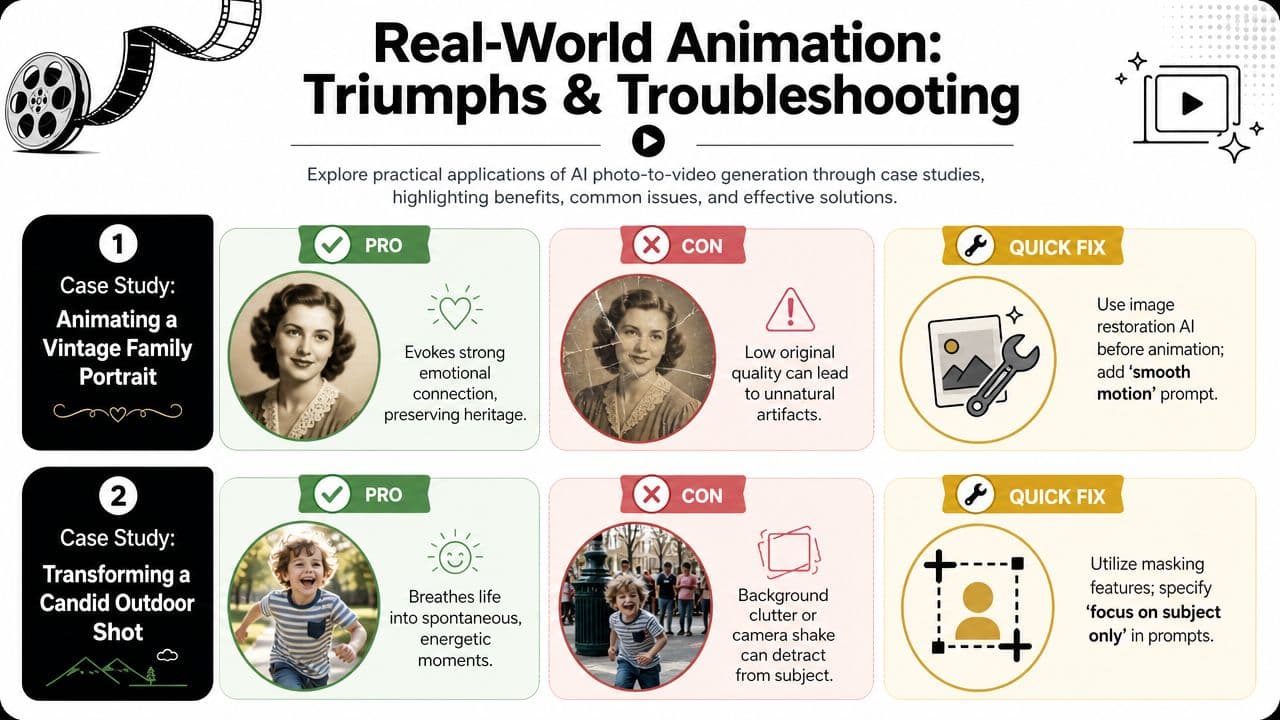
A memorial portrait
Start with a formal portrait of a grandparent. The scan is slightly faded, the edges show wear, and one cheek has a faint crease from the original print.
A strong prompt here is restrained: gentle blink, tiny head lift, slow zoom in, warm memorial tone, preserve original texture.
The reason it works is simple. The original image already carries the emotion. The animation only needs to create presence, not performance. When people go wrong on this type of photo, they usually ask for too much expression or too much camera travel.
A casual family moment
Now take a candid outdoor image. Maybe it's a parent holding a child at a picnic, or siblings laughing in the yard.
This kind of photo can handle slightly more movement because the original moment already feels alive. A useful prompt might ask for subtle breeze in hair, tiny smile shift, gentle lateral camera drift, warm nostalgic tone. The clip can feel lively without turning the scene into a synthetic reenactment.
Background clutter is often the main issue in candids. Trees, fences, and people behind the subject can start moving in strange ways if the framing is too busy.
A product photo for a small business
Not every image-to-video job is emotional. Small businesses use the same workflow to add motion to a candle photo, a jewelry still, or a gift-box product shot.
Here the goal shifts from memory preservation to clarity. You want clean motion, stable edges, and a camera move that suggests dimension. A prompt like subtle forward push, soft lighting shimmer, polished commercial tone often works better than asking the object to “move.”
Quick fixes when the output looks wrong
Most failures repeat. The good news is that the fixes repeat too.
- Jerky face movement: Reduce the number of actions in the prompt. One facial motion is often enough.
- Uncanny expression: Remove words like “big smile” or “dramatic reaction.” Ask for a softer expression change.
- Background warping: Crop tighter around the main subject or simplify the camera instruction.
- Identity drift: Use a higher-quality source image if possible, and avoid prompts that require strong head turns.
- Too much polish: If the clip loses the original feeling, add language such as preserve original texture or natural vintage look.
Old photos don't need to look new. They need to look loved and believable in motion.
Important Notes on Privacy and Pricing
For family photos, privacy isn't a bonus feature. It's part of the product.
Many image-to-video pages focus on speed, presets, or output style. Far fewer explain what happens to the uploaded image after generation. That gap matters most when the photo involves a memorial, a child, or a private family moment. Adobe's image-to-video coverage highlights a wider issue in this category: users need clear answers about retention, access, and deletion because the safest tool for sensitive photos may be the one with the clearest policy, not the one with the flashiest controls (Adobe Firefly image-to-video overview).
When you evaluate a service, look for these basics:
- Retention clarity: How long are uploads stored, and does the service say so plainly?
- Deletion policy: Is there an automatic delete window, or are files kept indefinitely?
- Sensitive-use fit: Does the workflow feel appropriate for memorials and family archives?
- Pricing transparency: Can you tell what one generation costs before you upload?
Photo for Video's pricing page is worth reviewing because it shows how a credit-based model is presented in plain terms, and the product context here uses auto-delete after 7 days for uploads and generations. For emotionally sensitive images, that kind of retention policy is the sort of detail people should check before they generate anything.
Cheap isn't always low-risk, and feature-rich isn't always family-friendly. If the image matters, treat privacy language with the same seriousness as image quality.
If you're ready to turn a single treasured photo into a short, natural-looking keepsake, Photo for Video offers a focused way to animate old scans, portraits, and family pictures with gentle motion, MP4 export, and a workflow built for tribute and memory use cases.