Animation and Music for Photo Tributes
Match animation and music for short photo tributes. Practical beat-syncing, licensing, and export tips for keepsake video clips.
You've got a single scanned photo open on your phone, maybe a grandparent at a kitchen table, a wedding portrait with soft grain, or a birthday snapshot that already feels like a memory. The trap is easy to fall into, add music, let the clip move too much, and suddenly the image stops feeling like your family and starts feeling like a template.
The better target for animation and music in a keepsake is simpler. The photo should stay recognizable, the motion should feel gentle, and the song should make the image easier to hold emotionally, not louder or busier. That matters even more in a 5 to 6 second tribute clip, where every extra effect competes with the reason you chose the picture in the first place.
Table of Contents
- Setting the Scene for a Keepsake Clip
- Choosing the Right Photo and Motion Prompt
- Reading the Music Before You Sync Anything
- A Restraint-First Beat-Sync Workflow
- Licensing Music Without Derailing the Tribute
- Exporting and Reviewing the Finished Clip
- Accessibility, Restraint, and a Reusable Checklist
Setting the Scene for a Keepsake Clip
A lot of tribute clips go wrong for the same reason. The editor starts with the song instead of the photo, then forces the image to react to every beat, every swell, and every chorus hit. The result can look polished on a timeline and still feel wrong to the family watching it.
For a birthday card, memorial reel, or anniversary message, the photo already carries the feeling. Music should reveal that feeling, not overwrite it. That's why a short clip works best when the motion is small enough to preserve the expression, the posture, and the original texture of the scan.
The background here is useful because animation and music have been shaped together since cinema's earliest days. The Lumière family's first public film presentation in Paris on December 28, 1895, used live piano, and by 1909 Thomas Edison's company was distributing musical suggestions for its productions. That history set up the core rule that still matters in tribute work, images and music are planned together, not treated as separate layers (historical overview).
For practical workflow ideas, AIMVG's AI music video guide is a useful companion if you're comparing short-form motion approaches before you build a keepsake.
Practical rule: if the family would recognize the photo with the sound off, don't add enough motion to make that recognition harder with the sound on.
Choosing the Right Photo and Motion Prompt
Start with a photograph that can survive gentle animation. Clean subject separation matters more than high resolution alone. A face with readable eyes, a visible shoulder line, or a clear foreground object gives motion something to breathe around without turning the image into mush.
Single-subject portraits usually animate more safely than crowded group shots, because the motion can stay focused. Group images can still work, but only when the faces are distinct and the light is even. Over-restoring a scan can also erase the warmth you wanted in the first place, especially when sharpening and denoising strip away the tiny imperfections that make old photos feel real.
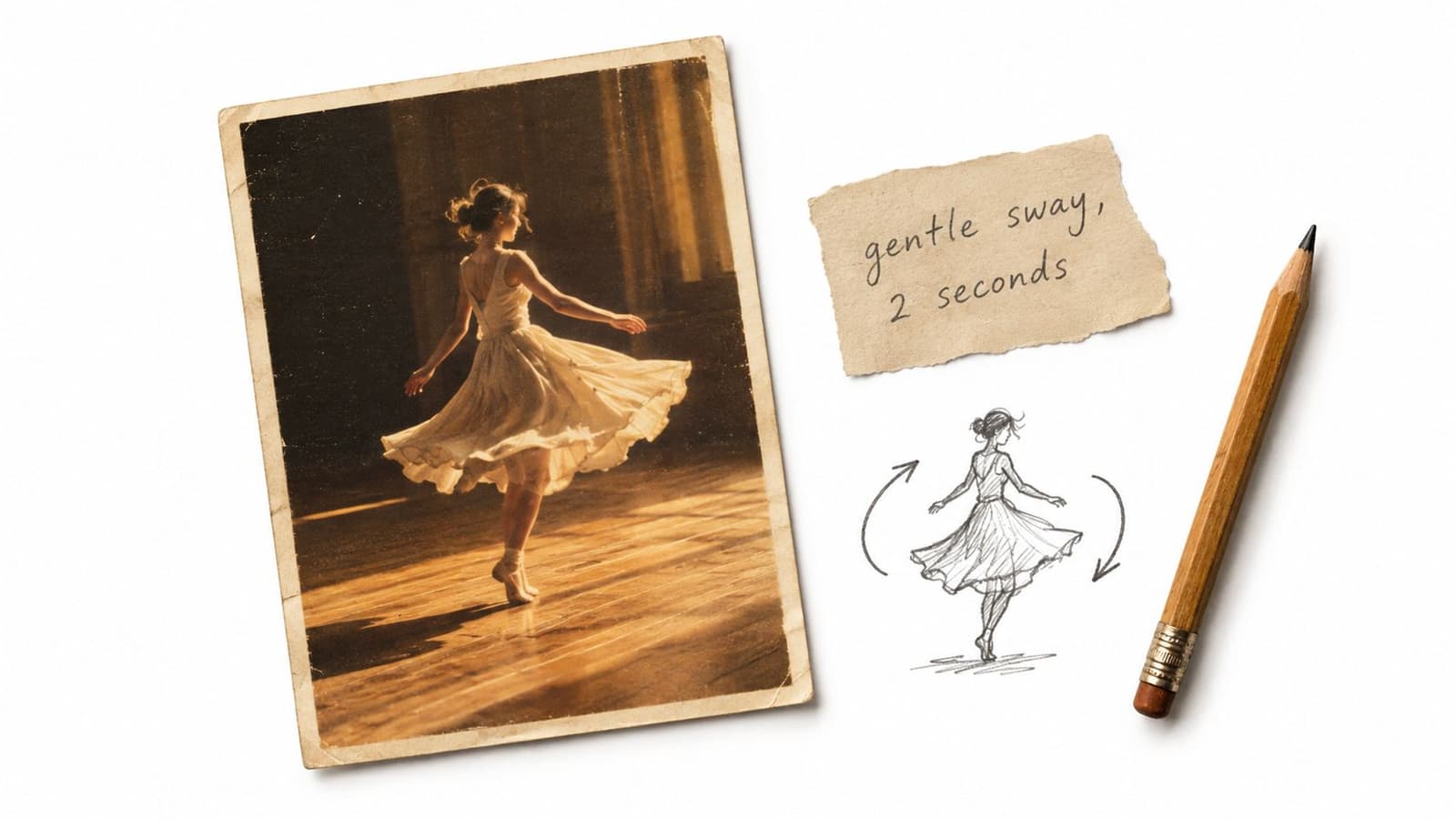
A useful test is to ask whether the photo still feels like itself after you imagine a slow push-in, a small face turn, or a subtle light pulse. If the answer is yes, it's a candidate. If the eyes disappear when you crop tighter, or if the background overwhelms the subject, pick another image.
For a motion prompt, keep it short and literal. A flat scan can become: “gentle slow push-in, slight head turn, soft breathing motion, warm nostalgic tone, preserve grain, no exaggerated movement.” That wording tells the system to protect the original photograph instead of turning it into a performance. The same principle shows up in combine photos with music, where the safest results come from matching a simple motion idea to the emotional shape of the track rather than piling on effects.
Quick photo check before you spend credits:
- Subject clarity: Can you tell who the image is meant to center in one second?
- Light quality: Is the face lit well enough that small motion won't make features drift into shadow?
- Texture value: Does the scan still look like a family photograph, not a filtered poster?
- Crop safety: Can you animate without cutting off hands, hats, hair, or a meaningful background detail?
- Tone fit: Does the image feel calm enough for the song you already have in mind?
Reading the Music Before You Sync Anything
Treat the track like an editor reads a contact sheet. Don't start with the obvious chorus. Start with the places where the song breathes, because that's where a short keepsake usually lands best.
Find the real shape of the track
The first pass is simple listening. Mark the downbeats, listen for the phrase endings, and notice whether the intro settles into a steadier tempo after a few seconds. A lot of tribute clips are built around the first strong hook, but a 5 to 6 second animation often works better with a verse, an intro line, or a stripped section where the motion can stay restrained.
Lyrics change the job. If a vocal line is carrying the message, motion should stay quieter so the words don't compete with the image. Music without vocals gives you more room to let a face turn, a camera push, or a tiny light shift carry the rhythm.
The timing window also matters. Experimental work on audio-visual timing reports that some delays become noticeable at about 20 milliseconds, while other situations tolerate asynchronies beyond 200 milliseconds (timing tolerance overview). That's not a license to be sloppy. It means you should correct the moments that feel off, then stop before you start polishing away the naturalness.
Map the music to one visual idea
For a keepsake clip, don't force a new motion on every beat. Pick the one event that means something, like a subtle head turn, a breathing-like scale pulse, or a camera move that honors the subject. Then place it on the strongest musical onset, not on whatever beat happens to be easiest to cut to.
A useful shortcut is to ask where the photo feels emotionally open. That's usually the section where a gentle push-in reads better than a full beat hit. Slower music gives you a wider feel for timing, but sparse motion still matters because the viewer is reading memory, not dance choreography.
The best sync choices usually disappear into the tribute. If the viewer notices the editing before they feel the person in the photo, the timing has probably done too much.
A Restraint-First Beat-Sync Workflow
A five-second tribute can feel polished with one well-placed movement. Add a cue to every beat, and the same clip can start to resemble a music visualizer rather than a keepsake. Beat-sync works best as a taste decision, supported by timestamps but governed by restraint.
Keep the motion budget tiny
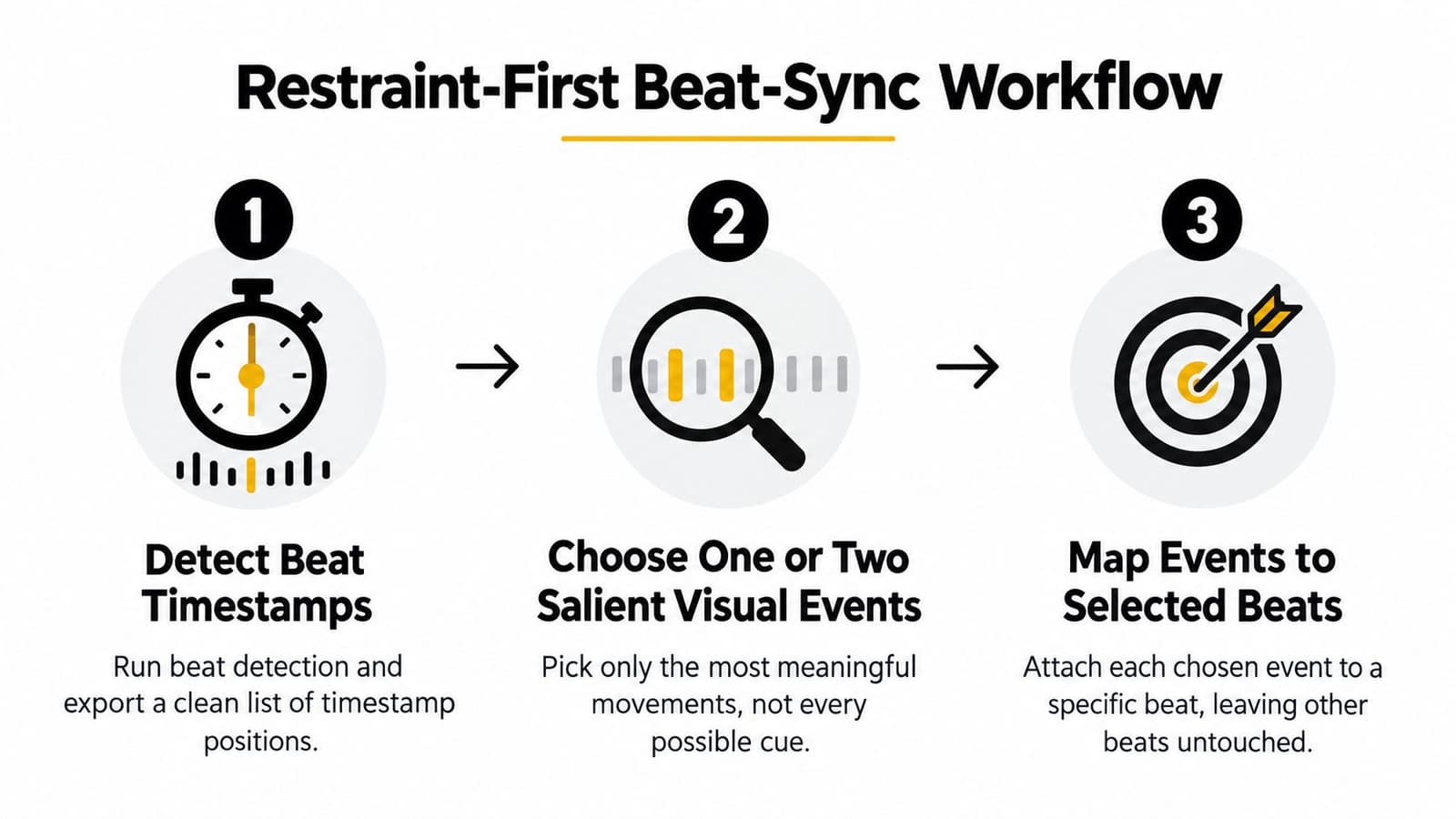
Start by detecting beat timestamps in the soundtrack. Select one or two salient visual events rather than assigning movement to every cue. A face turn, slow inhale-like scale shift, or soft camera push is enough for most family tribute edits.
Map those events to selected beats, preferably clear musical onsets, instead of chasing every beat in the bar. Research on visual rhythm study found that matching visual motion beats with musical beats can make movement appear more coordinated. A 26-person blind study also found that viewers generally preferred beat-synchronized versions, even when timing differences were small. That finding supports selective sync, not a metronomic edit.
A memorial image pulsing on every beat can feel synthetic or disrespectful. For a 5 to 6 second clip, one primary event and one optional accent usually provide enough structure. Slow piano may need only a single push-in tied to the first clear onset. A faster acoustic track can support one small secondary accent, while the image should remain still at heart.
Render a preview with audio and video locked to the same timeline. Inspect the transient in an enlarged waveform view, then test tiny offsets if the motion feels early or late. The internal guide to syncing audio with video offers a practical reminder for diagnosing drift before changing creative choices. If drift persists, fix audio video desync with waveform-level diagnosis before you retime the animation.
Two practical motion budgets
A slow piano track can carry one push-in across the clip, plus a soft face or light accent at the strongest phrase turn. A faster acoustic track may support a tighter camera move and one brief accent, but not a pulse loop or repeated beat wobble. If you are trying to use every beat, remove movement instead. The tribute should preserve the person's presence, not advertise the edit.
Licensing Music Without Derailing the Tribute
The wrong song can sink a good clip faster than a bad transition. Families usually have three workable paths: royalty-free libraries, platform-licensed catalogs, and personal or commissioned tracks with lyrics.
| Music Licensing Paths for a Family Tribute Clip | ||
|---|---|---|
| Source type | Typical use | Watch out for |
| Royalty-free libraries | Safe background music for quick family edits | Check whether social sharing, memorial screening, or commercial use is included |
| Platform-licensed catalogs | Music available inside some editing or publishing platforms | The catalog may cover playback in one place but not every export or repost |
| Personal or commissioned tracks with lyrics | Emotion-heavy tributes, especially when the song has family meaning | Lyrics can fight the image, and written permission may be needed if you don't control the rights |
If you can't trace the license in two clicks, swap the track. That rule saves time and avoids the worst failure mode, an upload getting pulled or muted after the family has already shared it. Gain levels matter too, because clipped audio sounds harsh on phone speakers even when the edit looks clean.
A song with lyrics can work, but only when the words support the image instead of arguing with it. For a quiet memorial portrait, a vocal that explains too much can weaken the emotional space the photo already creates. Keep the music clear, legal, and emotionally aligned.
Exporting and Reviewing the Finished Clip
The finish line is not “looks good on the desktop timeline.” The finish line is a clip that still feels calm when someone watches it on a phone, in a living room, or at a memorial gathering.
Export clean, then test twice
Export with motion and audio locked to the same timeline, and keep an audio-ready version if you might want to replace the track later without regenerating the animation. A clean master matters because family edits often get revised after the first viewing. If the structure is preserved, you can swap music without rebuilding the visual work.
Then review it at normal speed on headphones and again on phone speakers. Have someone who hasn't looked at the photo watch once if possible, because fresh eyes catch the things you've stopped noticing. That second viewer is usually the first person to hear clipping, notice an offbeat camera hit, or feel that a lyric is crowding the emotional center.
Video quality settings matter here because an export that degrades the image can make gentle animation look muddy before the music even has a chance to work. Keep the motion subtle, keep the audio clear, and don't let the render process erase the texture you were trying to preserve.
The common failures are easy to name. Clipping, lyrics that compete with the memory, motion on weak offbeats, and exports tied to music you can't legally keep. Each one is fixable if you catch it before sharing.
Accessibility, Restraint, and a Reusable Checklist
Accessibility is part of good tribute editing, not a separate feature. Visual motion can help some viewers follow the rhythm, but recent accessibility work also points to a gap, existing visual and vibrotactile systems often help Deaf and hard-of-hearing people appreciate music without fully conveying rhythm, emotion, lyrics, and melody. Recent design research has called for expressive facial animation, instrument highlighting, synchronized captions, and lyric or scat lip-syncing, alongside broader adaptive tools such as haptic, vibrotactile, visual-feedback, Braille, and multimodal systems.
For a family keepsake, that doesn't mean rebuilding the clip into a different product. It means making the motion legible, the pacing sparse, and the supporting text useful. Captions, a short descriptive note, and a calm rhythm help the tribute travel better across sensory conditions, especially when the photo itself is doing the emotional heavy lifting. The same restraint that protects the image also helps viewers who rely on clearer visual structure rather than dense movement.
Useful standard: if a chosen effect only helps after you hear the song loudly, it probably isn't helping the clip enough.
A reusable checklist keeps the work honest:
- Choose the photo with clear subject separation and preserved texture.
- Choose the song for tone, legal use, and emotional fit.
- Pick one motion event that supports the image instead of replacing it.
- Sync to one beat or one musical onset, not every beat.
- Confirm the license before you export and share.
- Export clean with an audio-ready version if you may need revisions.
- Review at normal speed on headphones and phone speakers.
- Add accessibility support with captions or descriptive text when the audience needs it.
The quietest clip is often the one people keep. It doesn't beg for attention, and it doesn't need an explanation every time someone opens it again.
Photo for Video turns a single still image into a short living memory with gentle motion, which makes it a practical fit for the kind of restrained tribute work covered here. If you're building a birthday, memorial, or anniversary clip and want the photo to stay recognizable while the music does the emotional lifting, visit Photo for Video and try it with one favorite image.