Create an App Video Loop from One Photo: A 2026 Guide
Learn to create a seamless app video loop from a single photo. This step-by-step guide covers AI prompts, editing, and tips for Instagram or TikTok.
You're probably here with a photo open on your phone or laptop. It might be a scanned print of a grandparent, a wedding portrait with soft grain, a birthday snapshot where someone is laughing mid-turn, or the last really good photo you have of someone you miss. You don't want a gimmick. You want a little motion. Just enough to make the memory breathe.
That's the difference between a good loop and a forgettable one. A tasteful app video loop doesn't shout. It lets the photo stay itself while adding a small pulse of life: hair shifting, a slow push-in, light moving across a face, a background easing forward and back. When it works, people don't think about the effect first. They feel the person in the frame.
Table of Contents
- Beyond the Still Frame The Power of a Looping Memory
- Choosing the Right Photo for Animation
- Writing AI Prompts That Create Lifelike Motion
- Editing and Exporting for a Perfect Seamless Loop
- How to Adapt Your Loop for Instagram TikTok and Apps
- Creative Examples From Tributes to Product Highlights
Beyond the Still Frame The Power of a Looping Memory
A single photo can carry an enormous amount of weight. People often find that out when they're assembling a memorial slideshow, an anniversary reel, or a birthday tribute and realize one image says more than a whole folder of casual snapshots. The problem is that a still frame can feel abrupt on screen, especially when everything else around it moves.
A loop solves that subtly. Instead of adding a flashy transition, you create a tiny repeated moment. A soft zoom. A sleeve lifting in the breeze. A slight drift in the background. The memory holds its shape, but it doesn't sit frozen.
A good looping memory feels less like an effect and more like time passing gently inside the photo.
This isn't some niche editing trick anymore. The basic mechanic goes back to the HTML loop attribute for video, which restarts playback automatically and has long been part of common video behavior across the web, as documented by W3Schools' reference to the HTML video loop attribute. The same source also notes that Videoleap's looping tool sits inside a product with 95M+ downloads and 1M+ social followers, which tells you loop creation has moved firmly into mainstream mobile use rather than specialist software alone.
What matters creatively is what that mainstreaming makes possible. You no longer need to build motion from scratch or fake it with awkward slideshow pans. You can take one meaningful image and shape a restrained, repeatable clip that works as a tribute post, a digital frame asset, or a background inside an app.
The best results usually come from restraint. If you're animating a loved one's portrait, the goal isn't to make them perform. It's to preserve the feeling of the original photograph while letting it breathe.
Choosing the Right Photo for Animation
Some photos seem perfect emotionally but fight you technically. Others look ordinary at first and animate beautifully. Choosing the right image is less about picking your favorite shot and more about picking the frame that can support motion without breaking its mood.
Look for depth and a clear subject
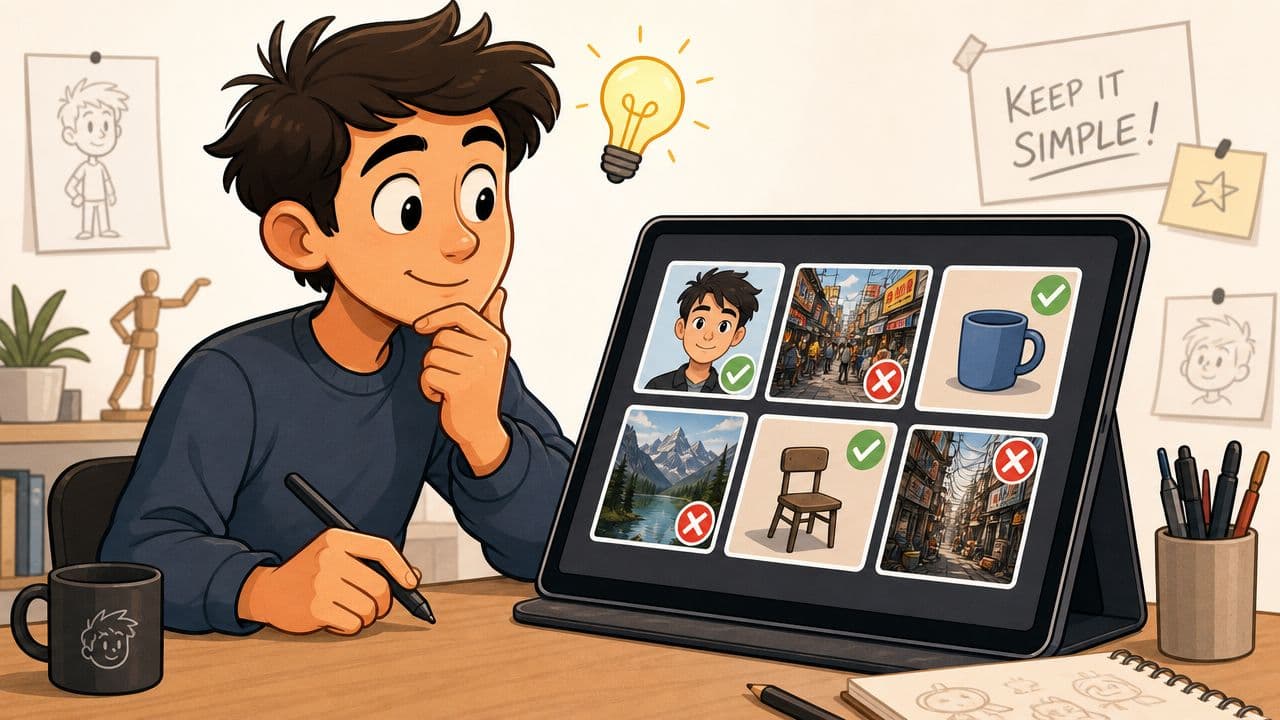
The easiest still photos to animate have one obvious subject and at least a little separation between foreground and background. A portrait with someone in front of trees, curtains, a hallway, or a window gives motion tools room to create believable drift. If the entire image is flat and crowded, movement often looks smeared or arbitrary.
Use this quick filter when choosing:
- Clear focal point. The viewer should know immediately who or what matters.
- Visible edges around the subject. Hair, shoulders, hands, hats, flowers, or clothing contours help motion read naturally.
- Background texture. Leaves, curtains, clouds, light falloff, or room depth give subtle movement somewhere to live.
- Emotional readability. Expressions should still be understandable after a slight crop or zoom.
A common mistake is picking a photo because it's dramatic, not because it's animatable. Group shots are the usual trap. If six people overlap heavily, the app may struggle to move anyone without creating strange seams.
Prep the image before you animate it
If you're working from an old print, scan it cleanly and resist over-restoring it at first. A little paper texture or grain often helps a memory piece feel authentic. Remove only what distracts, such as deep scratches across a face or harsh discoloration that pulls the eye.
Then crop with intention:
| What to adjust | Why it helps |
|---|---|
| Tighten the frame slightly | It tells the motion engine what to prioritize |
| Leave breathing room above the head | It gives space for a slow push-in |
| Avoid cutting through hands or hair awkwardly | Those edges are where motion artifacts often show |
| Keep the horizon or architectural lines level | Crooked framing becomes more obvious once the image moves |
Practical rule: If the photo already feels calm and focused before animation, the loop usually feels calm and focused afterward too.
Photos that work especially well for an app video loop often share one quality. They imply movement already. A laugh caught mid-breath, fabric lifted by wind, someone looking just past camera, a candlelit table, or a child turning their head. You're not inventing a new scene. You're extending a moment that was already there.
Writing AI Prompts That Create Lifelike Motion
Prompting goes wrong when people describe an effect instead of a moment. “Make it cinematic” doesn't tell the model what should move. “Animate this photo” is even weaker. The strongest prompts describe motion that belongs inside the original frame.
Start with motion that could have existed
The safest emotional choice is plausible movement. If you're animating a memorial portrait, subtle motion tends to preserve dignity. Think breeze, breathing, candle flicker, soft camera drift, or shifting light. If you ask for too much, the loop stops feeling like memory and starts feeling synthetic.
Good motion sources include:
- Natural elements such as hair, leaves, lace, smoke, water, or curtains
- Micro-expressions like a softened smile or tiny head turn
- Camera movement such as slow push-in, slight pan, or gentle parallax
- Atmosphere like warm sunlight, soft grain, or floating dust in a window beam
For extra ideas on structuring prompts for photo animation, this guide on photo to video AI workflows is useful because it focuses on describing motion clearly instead of stuffing prompts with style buzzwords.
Here's a visual walkthrough before getting into examples:
Use a simple prompt formula
The most reliable formula is:
- Subject
- Motion
- Camera behavior
- Mood constraint
That gives you enough control without overloading the tool.
Compare these:
-
Weak prompt
Make the old photo move and look emotional. -
Stronger prompt
Elderly woman seated by the window, a gentle breeze moves a few strands of hair and the curtain behind her, slow camera push in, warm quiet mood, natural motion only. -
Weak prompt
Turn this into a dramatic cinematic loop. -
Stronger prompt
Young couple in wedding portrait, bouquet shifts slightly, veil lifts softly, subtle light shimmer in the background, slow zoom toward their faces, elegant and restrained. -
Weak prompt
Animate the birthday photo. -
Stronger prompt
Child at birthday table, candle flame flickers, tiny movement in the confetti and background balloons, slight handheld-style camera drift, joyful but gentle.
If you can picture the movement with your eyes closed, the prompt is probably specific enough.
Prompts that usually fail
Some wording produces motion, but not the kind you want for an emotionally resonant app video loop.
Avoid these habits:
- Stacking too many actions. If hair, eyes, hands, clothing, background, and camera all move at once, the result usually feels restless.
- Using abstract adjectives only. “Nostalgic,” “beautiful,” and “cinematic” can help as tone words, but they can't replace physical instructions.
- Requesting impossible motion. A stiff studio portrait won't suddenly support a dramatic body turn without looking wrong.
- Forgetting the loop seam. Motion that starts aggressively and stops abruptly is hard to loop cleanly later.
A practical prompt often reads like quiet direction on set. Name the person or object, describe one or two believable movements, add one camera instruction, then state the mood. That's usually enough.
Editing and Exporting for a Perfect Seamless Loop
The most moving animation in the world still falls apart if the restart is obvious. A loop should return to the beginning without yanking the viewer out of the moment. Most of the work happens in tiny decisions near the start and end of the clip.
Find the seam before you export
Watch the first pass with sound off. You're checking only for visual rhythm. If the motion ramps up from stillness or fades down at the end, trim a little from both sides. That small cut often removes the giveaway that says, “a generated clip starts here and stops here.”
Brightcove's player documentation describes loop playback as replay after the ended event and shows that looping can be configured to stop after 3 plays or continue indefinitely with the loop attribute in this Brightcove example of programmable video looping. That technical idea matters in editing too. A clean loop is less about the button and more about whether the end state naturally hands off to the beginning.
A few fixes work often:
- Trim abrupt opening frames if the image “wakes up” too quickly.
- Remove final drift if the camera keeps moving right up to the cut.
- Duplicate and reverse-test the clip just to inspect whether the motion arc feels balanced, even if you don't use the reversed version.
- Check eye lines and hands because viewers notice those first when something jumps.
For practical editing approaches, this walkthrough on how to make a video loop gives a useful reference for trimming and testing the seam.
Export choices that keep the loop clean
Export in MP4 unless your destination needs something else. It's broadly compatible and easy to preview across phones, social apps, and app workflows. Keep the frame rate consistent from timeline to export. Changing it late can create odd cadence in gentle motion.
Use aspect ratio based on destination, not personal preference:
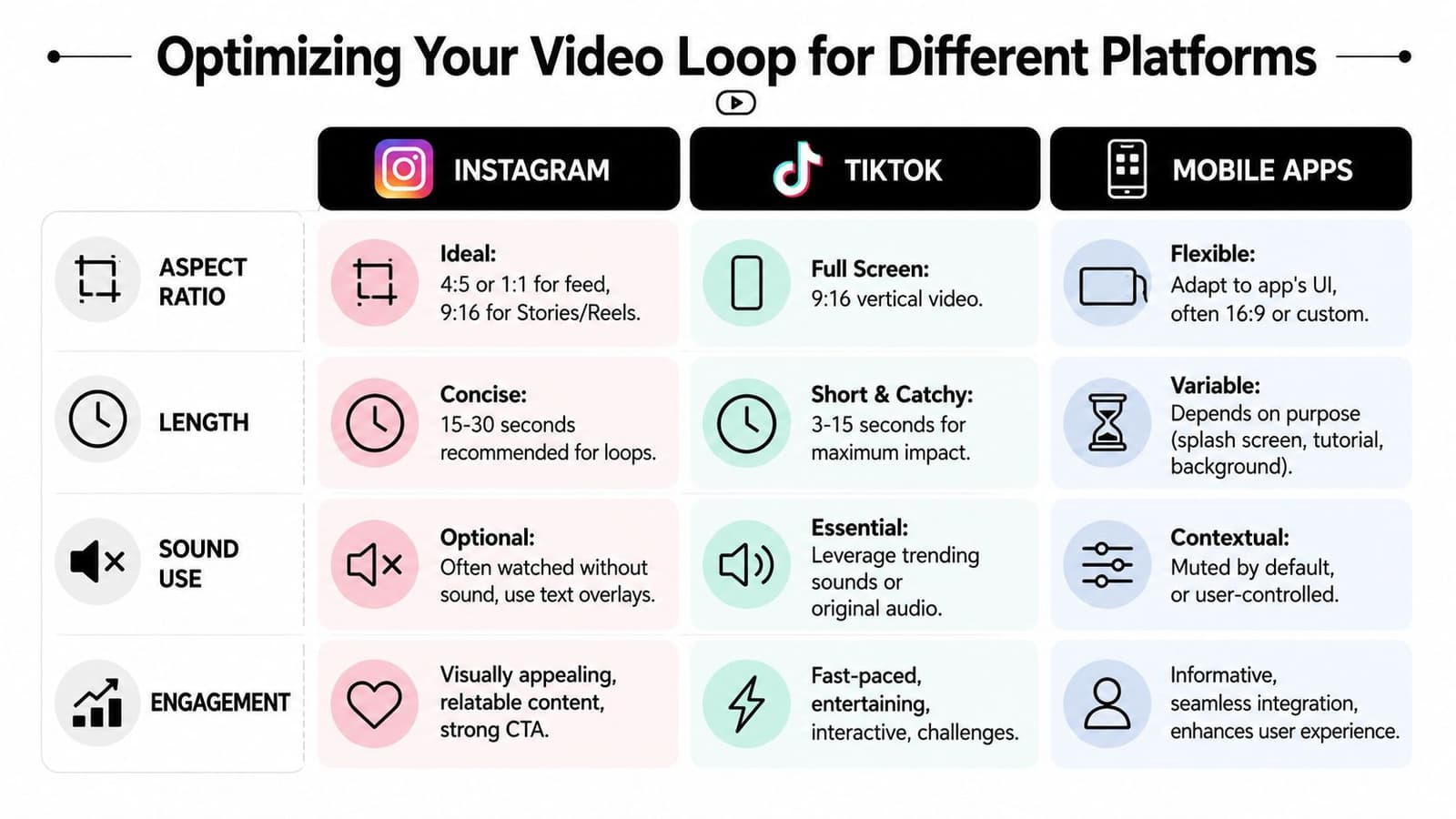
- 9:16 vertical for Stories, Reels, TikTok, and phone-first tribute videos
- 1:1 or 4:5 for feed posts where you want the image to hold more screen space
- Horizontal format or custom crop for app backgrounds, web banners, or memorial display screens
Export once for each destination. Reusing one master crop everywhere is where elegant loops start to look compromised.
If you're creating a background asset for repeated use, also preview the clip on the actual device where it will live. A loop that feels delicate on a desktop monitor can look too busy on a small phone screen. The right export is the one that still feels calm after the fifth replay.
How to Adapt Your Loop for Instagram TikTok and Apps
A loop lives differently depending on where people see it. The exact same clip can feel heartfelt on Instagram, too soft for TikTok, and distracting inside an app. Distribution changes the creative decision.
Most tutorials stop at “make it an unbroken loop.” That's incomplete. Creator guidance increasingly treats unbroken looping as a retention tactic, but there's still little benchmark data showing whether a visible reset, a match cut, or a perfectly continuous loop performs best on platforms like TikTok or Reels, as noted in this creator discussion about seamless loops and viewer retention.
What feels right on Instagram
Instagram tributes, anniversary edits, and memorial posts usually reward restraint. People often watch in a more reflective mode, especially in Stories or Reels paired with sentimental music and captions. For that setting, an invisible loop usually feels strongest.
A few practical calls:
- Use a slower camera move so the clip feels intentional, not promotional.
- Keep the text simple if you're adding dates, names, or a short dedication.
- Let the first frame read clearly because many viewers decide to stay based on that first still-looking moment.
If your goal is a remembrance post, a visible reset can feel clumsy. Better to let the loop disappear.
For platform-specific animation ideas, this guide to animating a photo for Instagram is helpful because it frames motion around presentation and audience context, not just generation.
What usually works better on TikTok
TikTok is less forgiving of slow ambiguity. If the movement is too faint, viewers may treat the post like a static image and pass by. That doesn't mean you need chaos. It means the motion cue has to register quickly.
What tends to help:
| TikTok need | Better loop choice |
|---|---|
| Immediate visual signal | Slightly clearer motion in hair, light, or camera push |
| Fast comprehension | One obvious subject, uncluttered frame |
| Rewatch appeal | A loop point that feels satisfying on repeat |
| Sound-led viewing | Motion that lands well with audio beats or spoken text |
A soft match cut can work here if it feels intentional. For example, a tiny light pulse or background sway that resets on rhythm may be more noticeable than a fully invisible seam, and that can be useful.
Loops used inside apps need a different mindset
When the loop isn't a post but a background, splash visual, or ambient asset, calm matters more than surprise. The clip has to support another task. It can't steal attention every few seconds.
The best app video loop for product use often feels almost static at first glance.
That's also where practical use cases become more interesting than novelty. The app ecosystem already includes looping tools aimed at repeated review and control, not just entertainment. The App Store listing for Infinite Loop Video Reverse reflects that broader demand around repeating playback and segment-focused use, and it points to needs that go beyond “make a cool clip.” That matters because repeated-review scenarios such as language learning, music practice, and sports analysis remain underserved in mainstream loop content, as reflected in the Infinite Loop Video Reverse app listing.
For in-app use, reduce motion, mute by default unless audio is necessary, and test whether the loop still feels acceptable after several repeats. That's a higher bar than social posting, but it leads to better assets.
Creative Examples From Tributes to Product Highlights
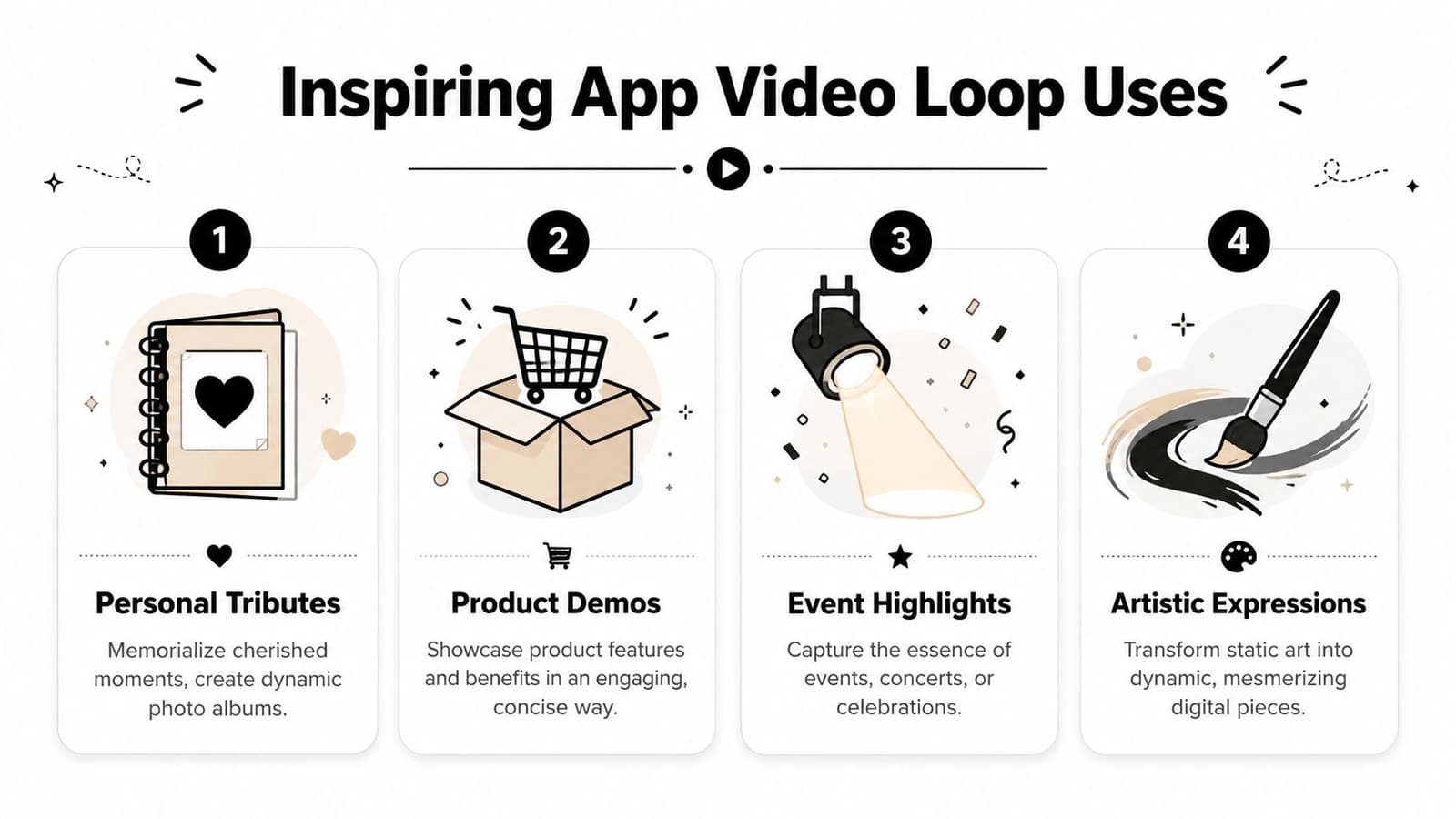
The emotional use case is often the reason people try this first. A daughter animates a photo of her father for a memorial table display. A sibling turns one wedding portrait into a loop for an anniversary reel. A family uses a childhood snapshot as the quiet opening moment in a birthday montage. In each case, the movement is modest. The point isn't spectacle. It's presence.
Personal memory pieces
One of the nicest uses for an app video loop is the digital keepsake that isn't really made for public posting at all. It might live on a phone lock screen video, a private family album, a service display, or a message sent to relatives who couldn't attend an event.
The strongest memory loops usually use one of these treatments:
- Portrait tribute. Slow push-in, subtle hair or fabric motion, warm tone.
- Celebration photo. Candle flicker, slight background movement, brighter pacing.
- Scanned vintage image. Preserve grain and paper feel, add only minimal parallax.
- Invitation or event opener. Add gentle motion behind names, dates, or a short line of text.
Commercial and practical uses
Small brands can use the same technique on product stills. A bottle label catches light. Steam drifts from a mug. Fabric shifts on a folded garment. Jewelry gets a restrained glint. These work because they hold onto the clarity of the original product photo while making it more scroll-stopping.
There's also a less obvious lane for loops that deserves more attention: repeated-review workflows. Many loop apps are marketed as novelty tools, but the need is often practical. People want to replay a movement, a phrase, a musical fingering, or a sports mechanic until it sticks. That gap between entertainment framing and real repeated-review use is exactly why loop tools remain more useful than their branding often suggests.
If you're making something meaningful, trust the quiet version first. The loop that feels almost too subtle in the editor is often the one people replay the longest.
If you want a fast way to turn one treasured image into a gentle moving memory, Photo for Video is built for exactly that. It takes a single still photo, lets you describe the motion and mood in one short line, and returns a polished clip that fits tribute edits, keepsakes, reels, and family storytelling without pushing the image into gimmicky territory.