Family Memories Video: A Step-by-Step Creation Guide
Create a beautiful family memories video for birthdays or memorials. Our guide covers storyboarding, animating photos with AI, editing, and choosing music.
You're probably starting with a pile, not a polished archive. A shoebox of prints. A phone album full of recent snapshots. A few scans someone made years ago that are slightly crooked. Maybe a VHS tape with no label except “Christmas” in fading marker. And somewhere in that mix is the feeling that these fragments deserve more than staying scattered.
That's where a family memories video becomes so powerful. It lets one photo lead to another, one voice open a door, one ordinary clip of someone laughing in the kitchen become part of a fuller family record. The goal isn't to make your family look flawless. It's to make them feel present.
Old family materials are rarely neat. Faces are soft, colors have shifted, and some of the most meaningful pictures were taken quickly, in bad light, by someone who wasn't trying to make art. Keep them anyway. Those imperfect images often carry more truth than the posed ones.
Table of Contents
- The Enduring Power of a Family Memories Video
- Planning Your Story and Gathering Materials
- Preparing Your Photos and Old Video Clips
- Bringing Still Photos to Life with AI Animation
- Editing Your Montage with Music and Voiceover
- Navigating Family Dynamics and Permissions
- Exporting and Sharing Your Finished Video
The Enduring Power of a Family Memories Video
A single photograph often creates a strange ache. You can see the haircut, the dress, the wallpaper, the old car in the driveway. But you also want what the frame can't give you. The way your father laughed. The pause before your grandmother answered a question. The movement of people getting ready before the birthday cake came out.
That longing is part of why home video mattered so much when it became practical for families in the videocassette era. Families could finally record, replay, and archive personal events instead of relying only on albums and written notes. The value has always been preservation, and modern digital workflows extend that same idea into files that can be backed up, shared, and revisited by children and grandchildren, as noted in this guide to capturing family history memories.
A good family memories video doesn't need studio lighting or perfect originals. It needs judgment. You're deciding which moments belong together, what tone feels honest, and how much context a future viewer will need to understand why this person mattered.
What families usually regret leaving out
The biggest omissions are rarely technical. They're human.
- Transition moments: People setting the table, waiting in the hallway, fixing a collar, hugging hello.
- Everyday routines: A parent making coffee, a child playing on the floor, someone watering the garden.
- Voice and mannerisms: Even a short spoken clip can change how a future generation experiences the whole piece.
- Context around the event: Not just the wedding or funeral, but the travel, preparation, and small interactions around it.
The details that feel too ordinary today often become the most moving details later.
If you're building from photos rather than long video clips, the same principle applies. Don't choose only the “best” images. Choose the ones that reveal relationships.
For a lighter montage structure, a simple memory slideshow approach can work well. But even then, the heart of the project is still narrative. Viewers remember emotional sequence more than visual perfection.
What makes the finished tribute last
Some family videos are watched once at an event and forgotten. Others become part of the family archive. The difference usually comes down to three things:
| Element | What works | What falls flat |
|---|---|---|
| Selection | Specific, personal images and clips | Generic “best of” sorting |
| Pacing | Time to notice faces and reactions | Constant fast transitions |
| Preservation | Backed-up digital files and easy sharing | One export saved in one place |
A family memories video is a record, not just a presentation. Treat it like something people may return to years from now, when different details will matter.
Planning Your Story and Gathering Materials
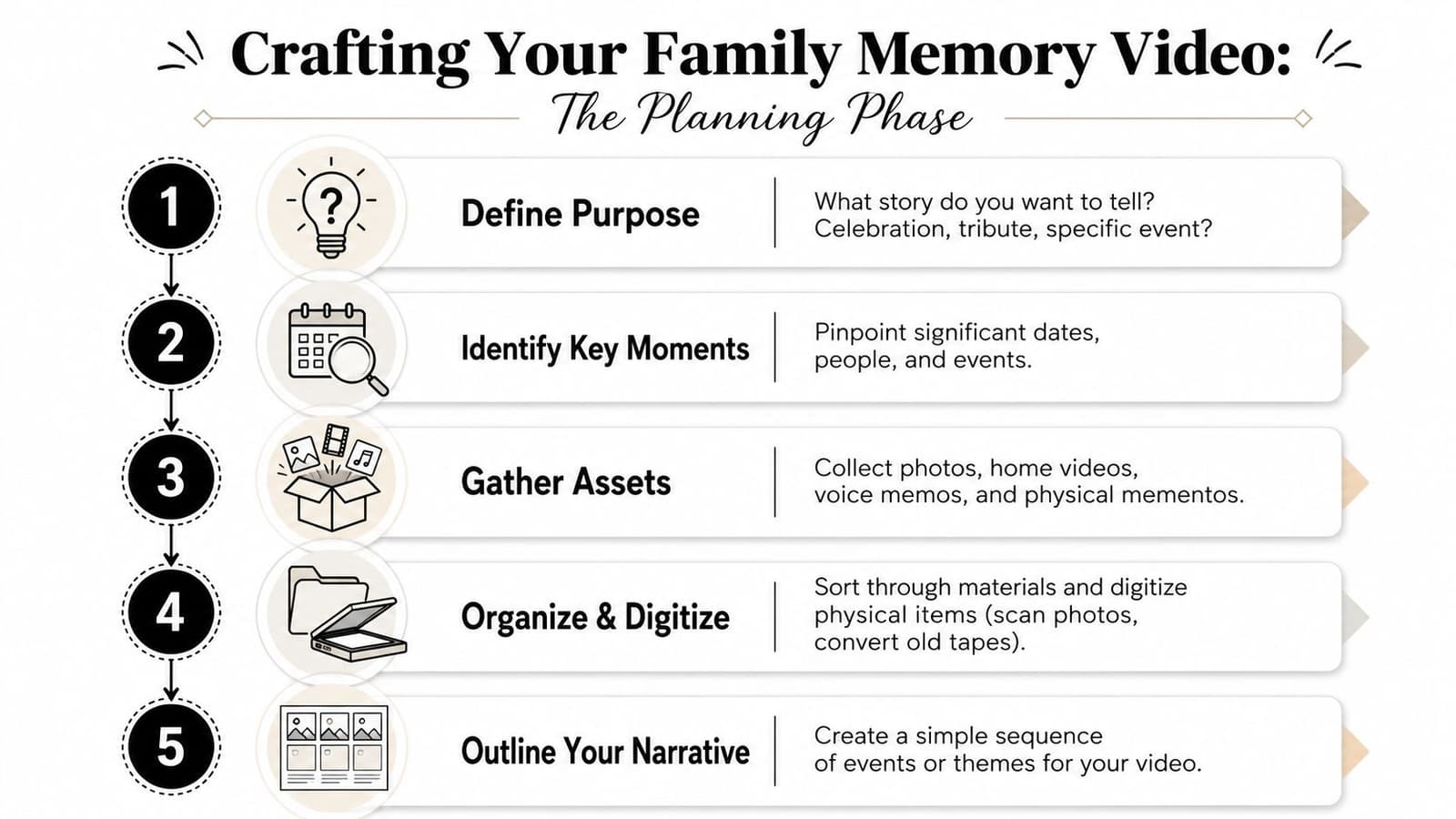
Before you open any editing software, decide what this video is trying to do. A birthday tribute, memorial piece, anniversary surprise, and broad family history montage may all use the same materials, but they don't ask the viewer to feel the same thing.
Start with the emotional job
Ask one plain question: what should someone feel by the end?
If it's a memorial, you may want warmth, dignity, and recognition of a whole life, not only grief. If it's a birthday montage, you may want energy, affection, and a sense of shared history. If it's for an anniversary, the story may center on continuity, partnership, and family growth around the couple.
A useful way to plan is to build around three simple movements:
-
Beginning
Who are we meeting, and what world are they in? -
Middle
What relationships, milestones, or recurring habits define this life? -
Ending
What feeling should remain after the last image?
This isn't formal screenwriting. It's a way to stop the project from becoming a random folder of nice pictures.
Gather broadly, then reduce carefully
Most families start too narrow. They look for polished portraits and major holidays. But strong tribute videos usually rely on a wider emotional range.
Look for:
- Candid photos: Slight blur is fine if the expression is real.
- Short home video clips: Even a few seconds of movement can anchor the whole montage.
- Voice recordings or voicemail: A familiar voice can carry enormous weight.
- Objects with memory attached: Letters, recipe cards, uniforms, handwritten captions, ticket stubs.
- Scans of imperfect prints: Creases, faded edges, and lab stamps can add texture rather than damage the experience.
If you're sorting printed material, a careful old photo scanning workflow helps you avoid rushing through originals or creating inconsistent files.
Practical rule: Don't ask, “Is this photo good?” Ask, “Does this photo reveal something?”
Make a scene list, not a masterpiece outline
A full storyboard can intimidate people. A scene list is easier. Use plain language, one line per moment.
For example:
- Arrival at the family home
- Childhood and school years
- Young adult photos with siblings and friends
- Marriage or partnership
- Parenting and holidays
- Ordinary routines and jokes
- Later years and family gatherings
- Final message or dedication
That list gives you structure without locking you in.
Sort materials by role
Not every item serves the same purpose. Organizing by role speeds up the edit and improves decisions.
| Role in the video | Good examples |
|---|---|
| Anchor images | Portraits, group photos, major milestones |
| Texture shots | Household details, handwritten notes, candid side moments |
| Transition pieces | Travel shots, room setups, arrival scenes |
| Emotional peaks | Laughter, hugs, speeches, dancing, quiet close-ups |
One more trade-off matters here. Completeness and watchability aren't the same thing. You may have enough material to make a long family record, but the stronger tribute is often the one that keeps only what advances the feeling. Save the extra materials in the archive, even if they don't all belong in the final cut.
Preparing Your Photos and Old Video Clips
This stage determines how good the final piece can become. Editing can improve rhythm, tone, and flow. It can't rescue badly digitized material in any reliable way.
Handle prints and scans with care
For printed photographs, clean organization matters more than fancy gear. Separate originals into small groups before scanning. Keep names, approximate dates, and relationships attached to the files while they're still obvious. Once photos are digitized into generic filenames, a lot of family knowledge gets lost.
Crooked scans, glare from phone captures, and overly aggressive auto-enhancement can make old photos feel harsh. If a print has faded color or soft focus, preserve that character. You're making it viewable, not rewriting the past.
Some of the most affecting archive videos include photos with bent corners, matte paper texture, or handwritten notes on the back. Those details can become part of the memory.
Be cautious with old tapes
VHS and similar formats need more than a cable and good intentions. One of the most common DIY mistakes is failing to correct signal problems such as jitter and color bleeding. According to this overview of videotape preservation methods, that pitfall affects about 40% of DIY digitization attempts, while professionals using a Time Base Corrector (TBC) achieve over 95% success rates compared with less than 60% for standard consumer models.
In plain terms, the image can wobble, smear, or break in subtle ways before it even reaches your computer. Once those problems are baked into the file, they limit everything that comes after.
Decide when DIY is worth it
Sometimes it makes sense to do the work yourself. Sometimes it doesn't.
- DIY can work if you have a small set of materials, reasonable patience, and you're working from printed photos or already-stable digital files.
- Get help if you're dealing with VHS, camcorder tapes, damaged media, or anything emotionally irreplaceable.
- Pause before editing if the material exists in only one fragile original. Duplicate or digitize first.
A weak source file creates a ceiling on the whole project. The tribute may still be moving, but it won't have the stability or clarity it could have had.
Prepare assets for the edit
Once materials are digitized, do a practical pass before importing anything into a timeline.
Use a short checklist:
- Rotate files correctly: Fix sideways images now, not during editing.
- Rename clearly: “1994_Christmas_GrandmaKitchen” is better than “IMG_2048.”
- Group by period or theme: Childhood, holidays, military service, vacations, everyday life.
- Pull aside damaged but meaningful items: These often work better as brief inserts than long holds.
- Listen through audio clips once: Mark the strongest phrases or moments of laughter.
If your family archive is messy, that's normal. Most real archives are. Good preparation isn't about making the materials perfect. It's about making your decisions calmer later.
Bringing Still Photos to Life with AI Animation
Still photos can carry a montage, but static slideshows often flatten emotion when every image enters and leaves the same way. Gentle motion changes that. A slight shift in posture, a soft blink, or a restrained camera move can make an old portrait feel present without turning it into a gimmick.
The key word is gentle. With family archive material, the strongest choice is usually the least showy one. If the motion calls attention to the software, the spell breaks. If it feels like a natural extension of the original photo, the viewer tends to stay with the person.
What kind of photos respond well
AI animation is especially useful when you have one meaningful frame and no video from that period. That might be an old studio portrait, a candid snapshot of two siblings on a porch, or a faded anniversary photo that carries emotional weight even though the scan quality is modest.
It also helps with real-world archive problems:
- Low-quality prints: Motion can add life without over-sharpening the file.
- Single surviving images: One image can become a usable clip in a larger sequence.
- Memorial tributes: Quiet movement can create presence without forcing sentimentality.
- Mixed-source edits: Animated stills can sit more naturally beside true video clips than static images can.
Restraint matters more than novelty
A flashy animation style can feel wrong for family material. Exaggerated face movement, dramatic morphing, or hyperactive camera motion tends to reduce trust. Viewers stop thinking about the person and start noticing the effect.
A better approach is to decide what the image already suggests. If the subject is looking out a window, a small breathing motion and light camera drift may be enough. If two people are dancing in a snapshot, a subtle motion cue can support the feeling already present.
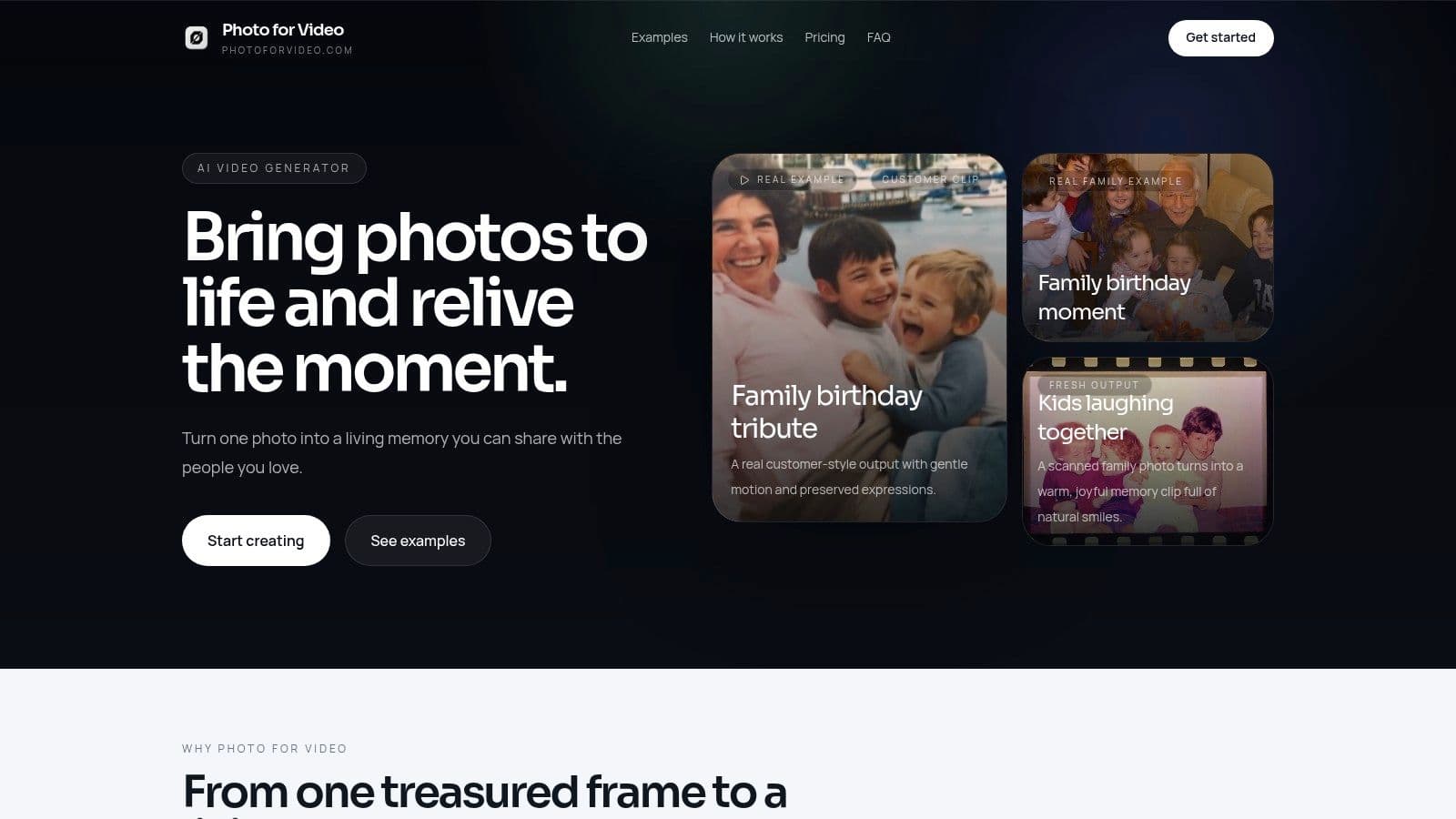
One practical option is Photo for Video's photo-to-video AI guide, which describes turning a single still image into a short moving clip by uploading the photo and adding a short prompt for motion, camera move, and tone. That format fits family tribute workflows because you can use a digitized print, an old scan, or a phone capture of a physical photo.
The motion should support memory, not perform for it.
A short example of this style helps clarify the difference between tasteful movement and overdone effects:
A simple decision filter
Before generating any animated clip, ask three questions:
| Question | If yes | If no |
|---|---|---|
| Does the original photo already have emotional weight? | Animate subtly | Use it as a still |
| Will motion clarify the moment? | Add restrained movement | Don't force it |
| Would a relative recognize this as respectful? | Keep it in the cut | Rework or skip |
This is one of those tools that works best when nobody comments on the tool itself. They just feel, for a moment, that the photo opened.
Editing Your Montage with Music and Voiceover
Editing is where family history turns into experience. You're deciding how long someone stays on screen, which memory leads into the next one, and when to let silence do some of the work.
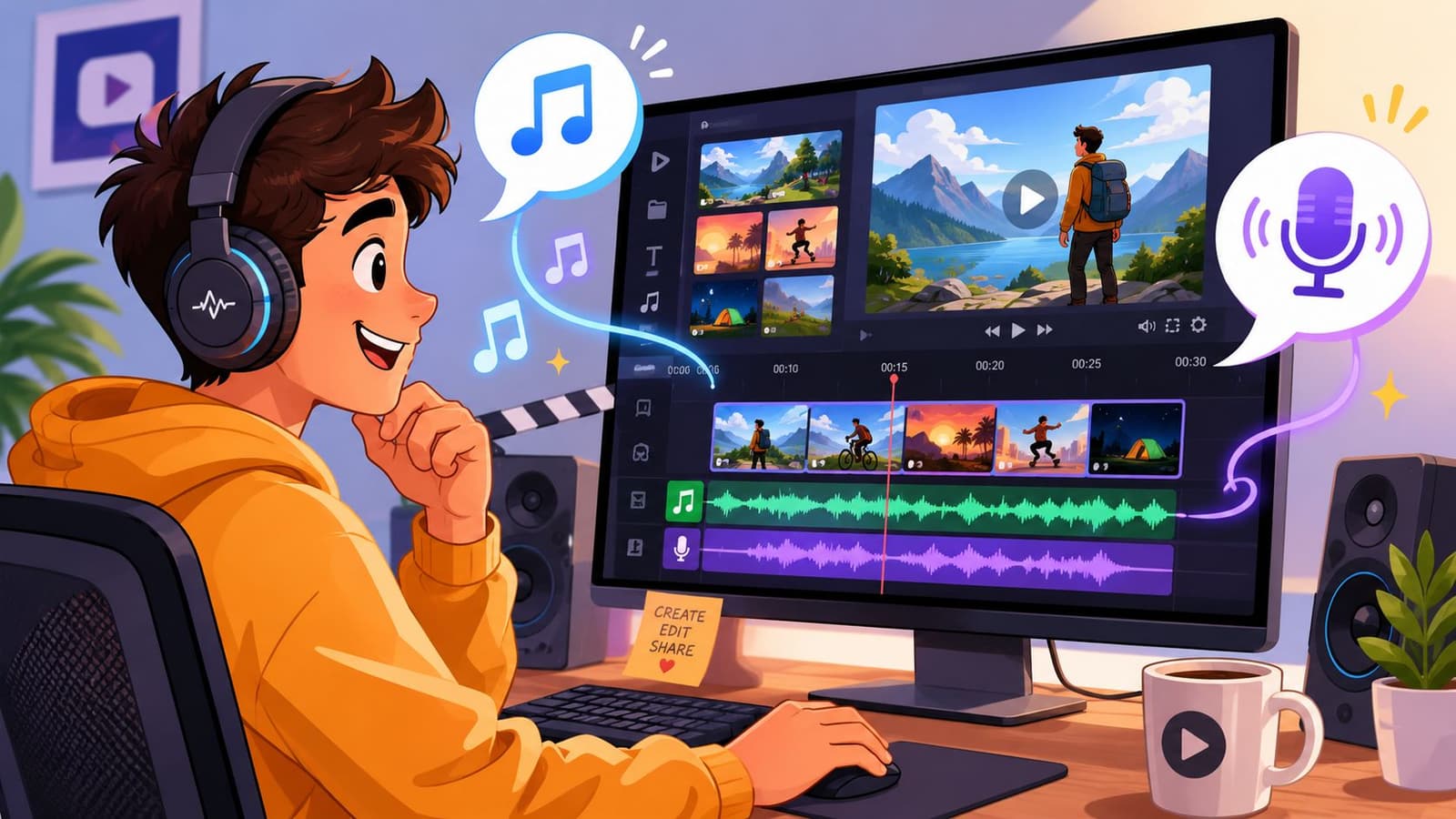
Most basic editors can handle this job well. Adobe Premiere Pro, DaVinci Resolve, iMovie, and CapCut all let you place photos and clips on a timeline, trim them, add music, and record voiceover. The software matters less than your pacing.
Build rhythm before you decorate
A common mistake is adding transitions, music swells, and text too early. First, place your images and clips in order. Then watch the sequence without effects and ask where your attention drifts or where a moment ends too quickly.
Family tribute pacing usually improves when you:
- Hold longer on faces: People need time to recognize relatives and absorb expression.
- Shorten repeated ideas: If five photos show the same moment, keep the strongest one or two.
- Alternate scale: Move between close portraits, wider group shots, and detail images.
- Use real video strategically: Even a brief moving clip can refresh the whole piece.
Use motion on stills with discipline
The Ken Burns Effect is a slow pan or zoom across a still image. It remains a documentary staple because it guides attention without overwhelming the original frame. According to this video tutorial on the Ken Burns Effect, using it with a 10-second rule (panning or zooming every 10 seconds) can lead to 25% higher viewer retention than static slideshows.
That doesn't mean every image needs motion. It means stillness and movement should both feel chosen.
A simple approach works well:
- Start on the emotional center of the image.
- Move slowly enough that the viewer notices the content before the movement.
- Stop before the motion becomes visible as a trick.
Editing instinct: If the movement is the first thing you notice, it's too much.
Choose music that leaves room for memory
Music should set tone, not over-explain emotion. Family montages often improve when the track is simpler than your first instinct. Music without lyrics usually gives narration and natural visual emotion more space. If lyrics are important, keep them from colliding with voiceover or key visual beats.
Consider matching music to memory type rather than event type. A memorial doesn't always need somber music. Sometimes warmth, tenderness, or steadiness is the more truthful choice.
Record voiceover like you're speaking to one person
Voiceover can become the emotional spine of the video, but only if it sounds human. Don't write a formal tribute unless formality matches the family. Short, direct sentences work better than ornate language.
Try this structure:
- A sentence that places the viewer in time
- One concrete memory
- A detail only family would know
- A closing line that widens back out
For example, instead of summarizing a whole life, say what someone always cooked, how they answered the phone, or what joke they repeated. That kind of line gives a montage its voice.
If multiple relatives contribute, use brief excerpts rather than long speeches. Different voices can add richness, but too much spoken audio can slow momentum.
Navigating Family Dynamics and Permissions
This part gets overlooked, and it causes more pain than most technical mistakes. A family memories video may look like an editing project, but it's also a decision about representation. Who appears, how they appear, and what the video implies about family history all matter.
Guidance on privacy, consent, and disagreement is still thin in most how-to content, even as memorial and tribute demand grows, which is why this discussion of homemade video memory preservation is useful for surfacing the gap.
A simple framework for agreement
Before you lock the cut, identify the people whose approval or input matters most. That usually includes close relatives, especially if the video involves a deceased family member, sensitive life events, or private photos.
Use a short review process:
- Ask about boundaries early: Are there images anyone considers too private, painful, or misleading?
- Clarify the tone: Warm tribute, broad family history, playful celebration, or quiet memorial.
- Share a draft with a small circle first: Too many opinions too early can derail the work.
- Invite corrections, not committee editing: Dates, names, context, and major sensitivities matter. Minor taste differences don't all need to be solved.
Treat exclusion as a real creative risk
People don't only react to what you include. They react to what seems missing. A sibling left out of a sequence, an ex-partner shown in a way that creates tension, or a piece of music that one branch of the family finds inappropriate can change how the whole tribute is received.
Respect in a family video isn't just about tasteful images. It's about making careful relational choices before the audience ever sees the final export.
When there's disagreement, the calmest solution is often to narrow the video's scope. Instead of trying to tell every chapter of a complicated family story, focus on one person, one season, or one occasion.
Exporting and Sharing Your Finished Video
The export should match the job. One file rarely serves every purpose well. A version for a memorial service screen, a copy for a family group chat, and a master kept for long-term storage can all come from the same edit.
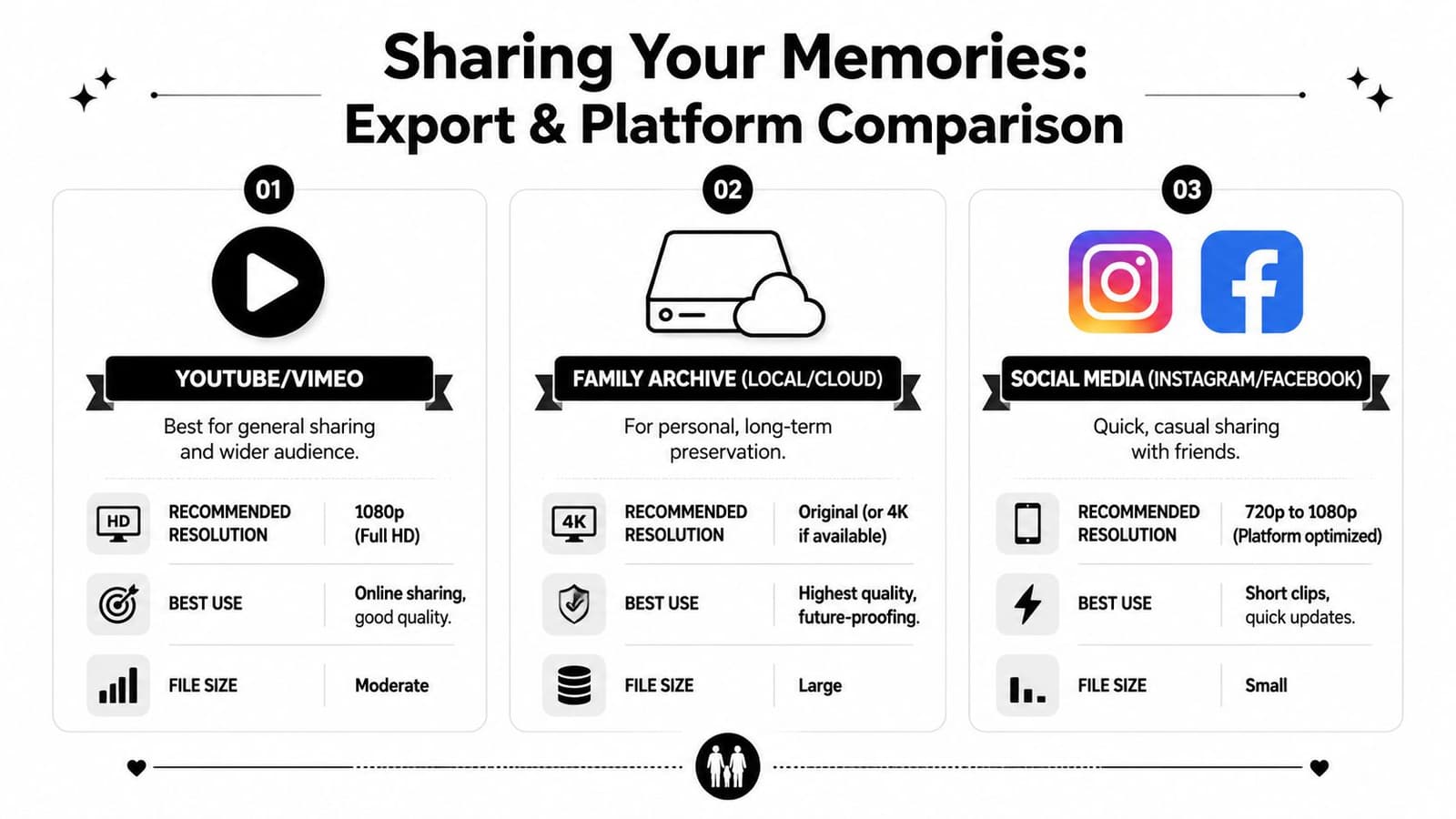
For sharing, think in three buckets:
| Use | What to prioritize |
|---|---|
| Family archive | Highest-quality export, original project files, and backups |
| TV or event playback | Reliable compatibility and smooth playback |
| Social sharing | Smaller files and shorter edits or excerpts |
MP4 is usually the easiest format for broad compatibility. Keep one high-quality master in your archive, then make smaller copies for email, messaging, or social platforms. Also save the raw materials and project file if you can. Families often return later to make a new version for another birthday, anniversary, or memorial.
This isn't a niche hobby anymore. Services built around digitizing family photos, slides, film, and keepsake video projects now operate with strong trust signals, including one San Jose provider listed on Yelp with a 4.9-star rating from 188 reviews, which reflects how seriously families treat these archives as lasting personal records, as shown on this Family Memories Video Yelp listing.
A thoughtful premiere helps, too. Show it at a gathering. Send it as a private link. Build a short cut for social media and keep the full version for family.
If you're working from old scans, faded prints, or a single meaningful photo, Photo for Video can help you turn that still image into a short moving clip for a tribute, memorial, birthday, or anniversary montage. It's built for simple family workflows where you want gentle motion, a clean MP4 output, and a result that still feels like the original memory.