How to Make a Memory Slideshow: A Complete 2026 Guide
Learn how to make a memory slideshow from start to finish. Our 2026 guide covers photo selection, storytelling, music, and animating old pictures.

You're probably staring at a mixed pile of memories right now. A few clear phone photos. A shoebox of printed snapshots. Maybe some faded scans with creases, fingerprints, or dates written on the back. You want to make something beautiful, but the process feels bigger than it should.
That feeling is normal. Learning how to make a memory slideshow isn't only about software. It's about choosing which moments carry the story, deciding how long to linger on a face, and figuring out what to do when the most meaningful photo is also the blurriest one.
Families often assume the hard part is clicking buttons in PowerPoint, Canva, Google Slides, iMovie, or another editor. In practice, the core work starts earlier. You're shaping a story from imperfect material. That's why the most moving slideshows rarely feel polished in a flashy way. They feel honest, paced, and intimately personal.
Table of Contents
- Gathering Your Story's Ingredients
- Weaving a Narrative with Photos
- Bringing Key Images to Life with Motion
- Choosing the Perfect Soundtrack and Transitions
- Final Touches Exporting and Sharing Your Slideshow
- Your Finished Slideshow A Lasting Tribute
Gathering Your Story's Ingredients
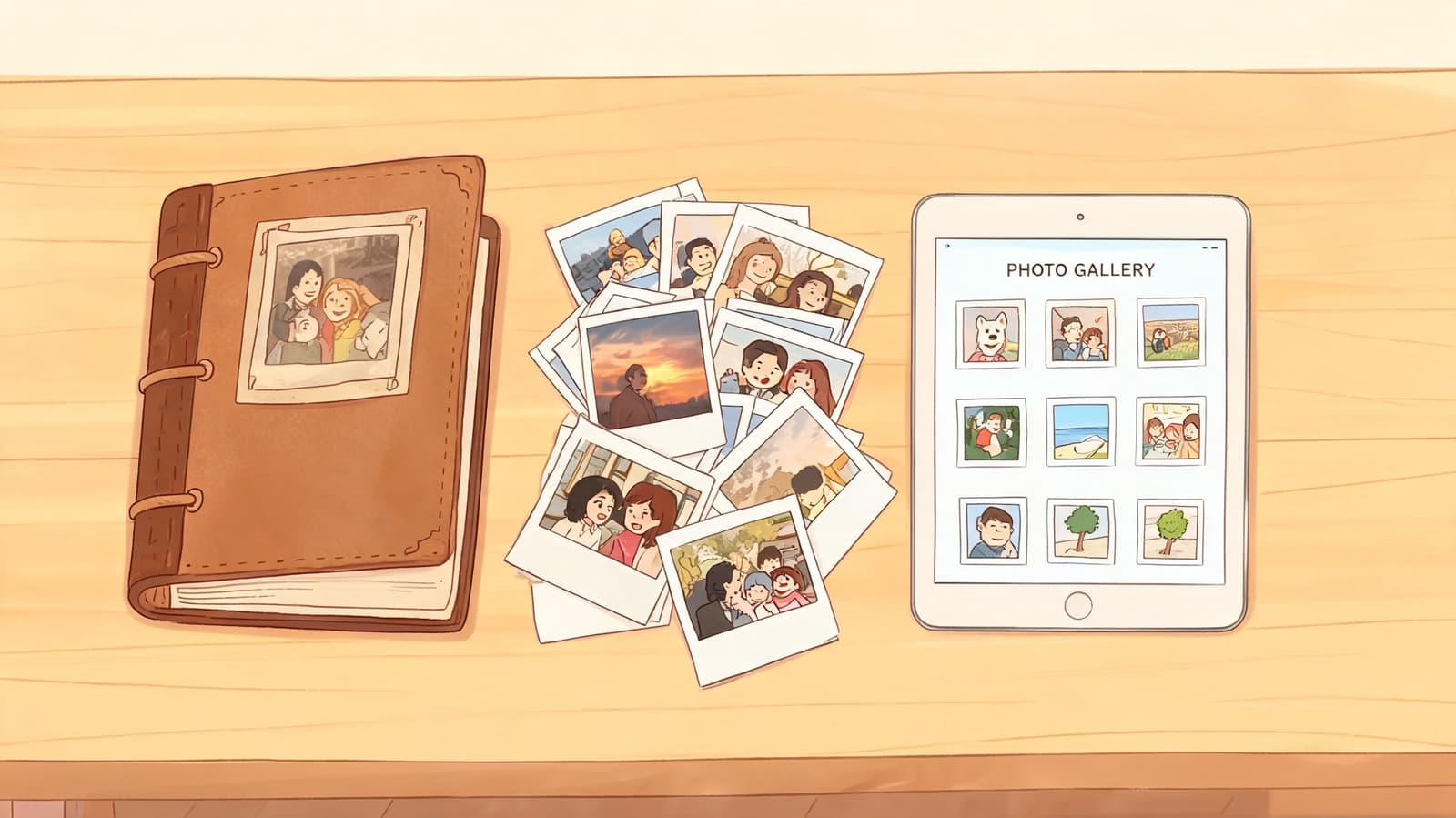
The best slideshows begin away from the timeline. Before you drag anything into an editor, collect more than you think you'll need. A broad collection gives you freedom later. It also lowers the pressure on any single photo to “carry” the whole tribute.
Start with reach, not perfection
Gather images from every place family memories tend to live:
- Printed albums and loose boxes. These often contain the oldest and most emotionally important images.
- Phones and shared family chats. Candid moments often live here, even if they were never formally organized.
- Cloud folders and social media. These can help fill in later years, celebrations, and group shots.
- Relatives' devices. One cousin may have the only clear graduation photo. An aunt may have holiday pictures no one else saved.
A useful first pass is to sort into broad folders such as childhood, teen years, early adulthood, family life, celebrations, and everyday moments. Don't worry about exact order yet. Just create a workable library.
If you're scanning prints, favor consistency over speed. Clean the photo gently, scan it straight, and save a full-size file before making any edits. If you're unsure whether a scan is detailed enough, this guide on getting a high resolution photo can help you judge what will hold up better on a larger screen.
Practical rule: Keep the original scan untouched. Make edits on a copy, not the master file.
How to handle damaged or low-quality photos
Often, people struggle with this step. Old family photos are often faded, soft, torn, or marked by age. That doesn't make them unusable. It makes them real.
A documented frustration for creators is working with imperfect images. Guidance around this problem is still thin, even though interest is rising. One cited summary notes a 40% year-over-year increase in searches for “animate old family photos” since May 2025 and 150% growth in queries for AI photo restoration tools in the last year, highlighting how common this challenge has become (background summary with those figures).
Use a simple triage system:
| Photo condition | What to do first | What to avoid |
|---|---|---|
| Slightly faded | Adjust brightness and contrast gently | Heavy sharpening |
| Dust or tiny marks | Spot-heal only the distractions | Removing every sign of age |
| Torn or creased | Repair the break if it interrupts the face or hands | Over-smoothing skin and fabric |
| Soft or low-res | Use a better scan or careful upscaling | Enlarging too far too fast |
Some photos should stay imperfect. A little grain, paper texture, or edge wear can preserve the feeling of the original print. Your goal isn't to make an old image look newly shot. Your goal is to make it readable, respectful, and ready for screen viewing.
A good collection usually includes a mix of portraits, ordinary moments, and relationship photos. Formal shots help identify chapters of life. Everyday images provide warmth. Group photos remind viewers that memory is shared.
Weaving a Narrative with Photos
A slideshow becomes memorable when the viewer feels carried, not merely shown. You're not placing pictures in a line. You're building emotional sequence.
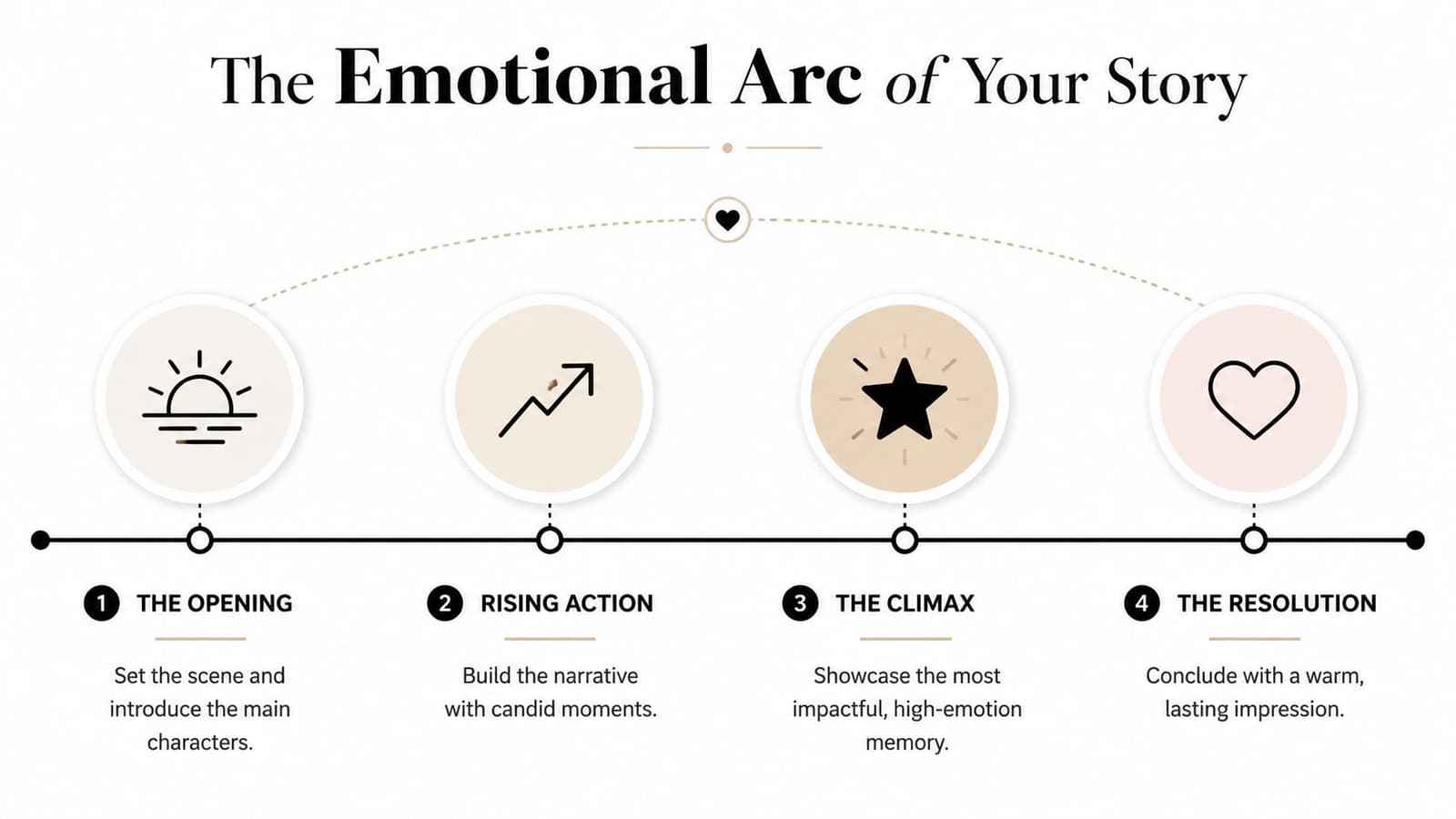
A strong reason to shape the slideshow as a story is memory itself. A 2023 Harvard Business School study found that people recall information wrapped in a story 22% longer than raw data. The same summary notes 65% remembrance for story-embedded messages versus 43% for statistics-only versions (Harvard Business School Working Knowledge summary). For a tribute, that means sequence matters. The order of your images affects what people carry with them after the room goes quiet.
Think like a gentle film editor
Suppose you're making an anniversary slideshow. You could begin with the oldest available photo. That works. But often a warmer opening is a photo that immediately introduces the relationship at its heart: a wedding smile, a hand on a shoulder, a laughing candid from later years.
Then you widen the frame.
You might move from:
- a striking opener,
- to childhood or early life,
- into meeting, courtship, or family growth,
- and finally into legacy, community, and quiet closing images.
That pattern gives viewers orientation. It also creates emotional rise. The most powerful image doesn't always belong first. Sometimes it belongs later, after the audience has context.
A good slideshow answers three quiet questions. Who is this person? Who loved them? What stays with us now?
Three story shapes that work well
Not every tribute needs strict chronology. These shapes work across birthdays, memorials, anniversaries, and family reunions.
-
Chronological arc
This is the easiest for mixed audiences to follow. Start early, move forward, and let viewers see change over time. It works well when you have enough photos from many life stages. -
Theme-based arc
Group photos by roles or relationships: parent, friend, traveler, musician, grandparent. This can be stronger than chronology when dates are unclear or when you want to highlight character over timeline. -
One-event centerpiece
Build around a central occasion such as a wedding, retirement, milestone birthday, or memorial service. Then use surrounding photos as context. This shape is especially useful when you don't have a huge archive.
Pacing matters as much as structure. Some images need room. A formal portrait, a hard-won graduation, or the last good family photo may deserve a longer pause than a casual vacation snapshot. Don't rush every slide at the same emotional speed.
If you're deciding between two similar images, ask which one creates a feeling, not which one is technically better. A slightly imperfect laugh often lands harder than a perfectly posed face.
Bringing Key Images to Life with Motion
Subtle movement can turn a still frame into a felt moment. Used well, it helps the eye settle on what matters most. Used too often, it becomes distracting.

Use motion to guide attention
The simplest form of animation is a slow pan or zoom, often called the Ken Burns effect. It works because it gives the viewer a path. Instead of looking everywhere at once, they're gently led toward a face, a hand, or a small expression that might otherwise be missed.
This is especially helpful with old scans. A wide family photo can feel static at first glance, but a slow move toward the child leaning into a parent can reveal the emotional center of the image.
Keep the movement restrained:
- Slow zoom in works well for portraits and intimate moments.
- Slow zoom out can reveal context, such as a house, a church, or a crowd.
- Gentle side pan suits horizontally oriented group shots.
- No motion at all is sometimes the best choice, especially for already busy images.
When you want to see how a single image can be turned into a short motion clip, this photo animation tool shows the kind of subtle movement that fits tribute work well.
Which photos deserve animation
Not every slide needs it. Choose a few anchor images instead.
Good candidates include:
- a wedding portrait,
- a graduation photo,
- a childhood close-up,
- a family table scene,
- or a picture that captures a person's expression in a way everyone remembers.
Poor candidates are often cluttered collages, heavily damaged scans that haven't been cleaned up, or images where the subject is too small in frame.
Here's a visual example of how editors think about gentle movement in tribute footage:
A useful habit is to animate the emotional peaks, not the entire slideshow. If one image marks the heart of the story, motion can help signal that importance without needing extra text.
Motion should feel like remembering. Not like special effects.
Choosing the Perfect Soundtrack and Transitions
Music and transitions influence mood fast. That's exactly why they need restraint. If they call attention to themselves, they pull attention away from the people in the photos.

Why simple choices are usually stronger
There's a clear learning principle behind the “less is more” advice. Cognitive Load Theory says working memory can hold only 3 to 5 items at once, and overly complex slideshows with too much text, frantic music, and flashy transitions can increase extraneous load by up to 50%. The same source notes that simple, focused visuals improve recall by 20 to 30% (Chartered College summary on Cognitive Load Theory and slideshows).
For family tributes, this has a practical meaning. If the audience is trying to process song lyrics, decorative fonts, animated captions, and dramatic transitions all at once, they have less attention left for the faces on screen.
The safest transition choices are usually:
- Crossfade or dissolve for gentle continuity
- Simple fade to black for chapter breaks
- Hard cut when two images are clearly connected and don't need decoration
Avoid novelty transitions. Star wipes, page curls, spinning cubes, and rapid motion effects age a tribute instantly. They also create a tone that fights the sincerity of the material.
A practical way to choose music
Start by naming the feeling you want the room to hold. Not the genre. The feeling.
If the slideshow is for a memorial, you might want reflective, warm, or comforting. For a birthday, maybe light, affectionate, or joyful. For an anniversary, tender and steady often works better than grand and cinematic.
Use this quick filter:
| If the slideshow feels | Choose music that is | Avoid |
|---|---|---|
| Reflective | Gentle, spacious, unobtrusive | Tracks with dramatic swells every few seconds |
| Celebratory | Light and uplifting | Overly comic or bouncy cues |
| Mixed emotion | Calm with a soft build | Songs that force one mood too strongly |
Non-lyrical music is often easier to fit than lyrical songs because lyrics compete with memory. If you do use a song with words, make sure the lyrics support the tribute and don't overwhelm it.
Keep text sparse as well. A short opening title, a few names, and perhaps a closing line are usually enough. When every slide carries a caption, the slideshow begins to feel like a document instead of an experience.
Final Touches Exporting and Sharing Your Slideshow
This last stage is where many thoughtful slideshows run into avoidable problems. The story is good. The pacing works. Then the captions are too small, or the file looks washed out on the venue projector.
A commonly cited practical benchmark for a tribute is 35 to 40 photos over a 3-minute runtime, with each slide visible for 5 to 6 seconds. That pacing is associated with 92% audience engagement. The same workflow guide warns that 55% of non-expert slideshows fail projector tests because of color and gamma issues, and recommends exporting in the sRGB color space to avoid common display problems (memorial slideshow workflow guide).
Keep captions readable and rare
If you include text, use it to orient, not narrate everything. Good caption moments include:
- an opening title with a name,
- a date range when appropriate,
- a location or event marker,
- or a closing line.
Choose a plain sans-serif font and make it large enough to read from the back of a room. High contrast matters more than style. White text on a darkened image, or dark text on a light background, usually works best.
Before exporting, step back from your screen. If you can't read the caption easily from a few feet away, guests at the venue won't read it either.
Export for the room, not just your laptop
Most editors give you many format options. Don't overcomplicate the choice. Export to a standard video file that plays reliably across devices, then test it on the actual screen if possible.
Your final checklist should include:
- Export in a common video format so the venue doesn't need special software
- Use sRGB color space to reduce projector surprises
- Watch the full file once after export and listen for abrupt audio cuts
- Bring backups on a USB drive and in cloud storage
- Send a test copy ahead of time if a church, funeral home, event hall, or planner can preview it
If you're sharing online after the event, compression becomes the next concern. A file that looks perfect on your computer can lose clarity after upload. This guide to YouTube video compression can help you protect quality when posting a tribute for family members who couldn't attend.
A slideshow isn't finished when the timeline is done. It's finished when it plays smoothly in the place where people need it.
Your Finished Slideshow A Lasting Tribute
People often think the slideshow is the final task. Pick the photos. Add music. Export the file. Done.
That view is too small.
What you've made can become part of family memory itself. It may be shown at a birthday this year, an anniversary later, or a memorial gathering years from now. It may be the version of the story younger relatives come to know first. That gives the work a quiet importance.
The strongest slideshows usually share the same traits. They respect imperfect photos instead of hiding them. They shape images into a clear emotional arc. They use motion sparingly, music carefully, and text only where it helps. They also get the practical details right, so the story arrives intact when it matters.
If your first version feels simple, that's not a failure. Simplicity often means the memories have room to breathe.
Save the project files. Keep the scans. Ask relatives to keep sending images even after the event is over. A memory slideshow doesn't have to be a one-time assignment. It can become a living family archive that grows more valuable each time someone opens it and says, “I remember that.”
If you'd like to turn one treasured still into a short, natural-looking clip for a tribute, Photo for Video helps you animate old scans, phone captures, and family prints into gentle 5 to 6 second living memories that fit beautifully into birthday, memorial, and anniversary slideshows.