How Long Can a Video Be on Twitter: Limits for 2026
Find out how long can a video be on Twitter: 140 seconds for standard accounts, plus file size, format and fixes for upload errors.
Standard X accounts can post videos up to 140 seconds, or 2 minutes 20 seconds. Premium accounts get longer uploads, up to 4 hours, with a larger 16 GB file size ceiling.
That gap is why upload failures confuse people. A clip that posts fine from one account gets rejected from another, and the file hasn't changed at all. If you're asking how long can a video be on Twitter, you're really asking two questions: what will X accept from your account, and what length will people in a fast moving feed watch.
I would separate those questions before you export anything. Eligibility is a hard gate set by your account and posting route. Effective length is a storytelling choice, and the longest file you're allowed to upload is rarely the best file to post.
Table of Contents
- Current Video Length Limits by Account Type
- Which Limit Applies to Your Account
- One Long Upload or Several Short Clips
- Duration Lookup for Autoplay and Looping
- Export Settings for X Video Uploads
- How to Prepare a Short Photo Clip for X
- Upload Errors and How to Fix Them
- Choose Your Length Before You Post
Current Video Length Limits by Account Type
A standard, non Premium X account can post a video up to 140 seconds from supported platforms, and that account has an 8 GB file size cap. For ordinary, non Premium X accounts, the X help documentation on Premium longer videos states the standard maximum is 140 seconds, or 2 minutes and 20 seconds. If you don't have Premium, that's your ceiling, no matter which supported platform you use to post.
Premium changes the allowance, but it doesn't remove limits. You still have a duration cap and a file size cap, and both sit on top of resolution rules that apply to very long uploads. Because Premium terms can change, confirm your current entitlement in your account settings before you export a long master.
The Account Rows Side by Side
Maximum video length and file size by account type
| Account type | Maximum length | Maximum file size |
|---|---|---|
| Non-Premium accounts | 140 seconds (2 min 20 sec) | 8 GB |
| Premium accounts | Up to 4 hours (confirm current cap) | 16 GB |
| Professional publishing partners | Up to 10 minutes | Set under the partner publishing agreement |
Read the Premium row carefully. The 4 hour and 16 GB figures come from X's technical specifications for post video, and you should confirm the current cap before posting a file anywhere near that size. Read the partner row even more carefully, because the 10 minute figure comes from a 2016 announcement and describes a separate publishing arrangement, not a perk you get by having a large follower count.
Where the 140 Second Number Came From
On June 21, 2016, Twitter increased the regular video Tweet cap from 30 seconds to 140 seconds, an increase of 110 seconds. The number matched the then famous 140 character post limit, and the change applied specifically to videos embedded in Tweets. Some professional publishing partners were treated separately at that time and could distribute videos up to 10 minutes long.
That history still trips people up today. A creator reads an old publisher figure, exports a 9 minute clip, and assumes the upload form is broken when it's rejected. It isn't broken. The account was never eligible for that row.
For a second view of how these account tiers interact in practice, the SuperX guide to Twitter video limits is a useful cross check before you commit to a long export. Notice where it places the burden. It's on account status first, then on file specs second, which is the order that prevents failed uploads.
Practical rule: Find your account row first and treat it as the ceiling for every edit, export, and caption decision that follows.
A gentle 5 to 6 second animated family photograph sits comfortably inside the standard row, leaving roughly 134 to 135 seconds of headroom. That headroom is useful if you later combine several photos into one montage, add titles, or leave a beat at the end for a name and date. It also means short tribute clips rarely fail for length, so when one does fail, the cause is usually somewhere else in the file.
Which Limit Applies to Your Account
The limit depends on the account and the posting route, not on the video file alone. Two people can upload the identical MP4 and get different results because one is on Premium, one is not, or because one posts through a publishing arrangement the other doesn't have. Run this check before you export, while changing the file is still cheap.
A Five Minute Preflight Check
-
Confirm your subscription status: Open your account settings and verify whether you're Premium or standard. Don't rely on memory, because plans lapse, get paused, and get switched by whoever manages the account.
-
Check the posting route: Note whether you'll post from X's own apps or web, another supported platform, or a publishing tool such as Media Studio. Each route can apply its own allowance, so the destination field in your editor should match the tool you'll use in practice.
-
Separate partner arrangements: If you publish through a professional partner, confirm that partner's maximum directly with them. The 10 minute figure belongs to publishing partners, not to regular accounts, and borrowing it on a standard account is the most common self inflicted rejection.
-
Recheck after any plan change: If your subscription changed recently, verify the new status before uploading a longer file. A file accepted under one plan can be rejected under another, and the rejection arrives after you've already spent the upload time.
-
Default to the lower limit: When you're unsure, export to the 140 second standard. Every account can post that length, so you lose nothing except runtime you probably didn't need.
Why the Order Matters
An upload that exceeds the cap fails at upload, not during editing. That timing is what makes it expensive. You've already rendered, transferred, and waited, and then you start again with a trim and a fresh export.
The check itself takes seconds. A failed batch of twelve tribute clips takes real time, especially if each one needs a different caption and crop.
Match the account, then match the route, then export.
Write the result down somewhere your team can see it. Put it in the project folder, the brief, or the file name, so the person posting at midnight isn't guessing which ceiling applied when the master was rendered.
One Long Upload or Several Short Clips
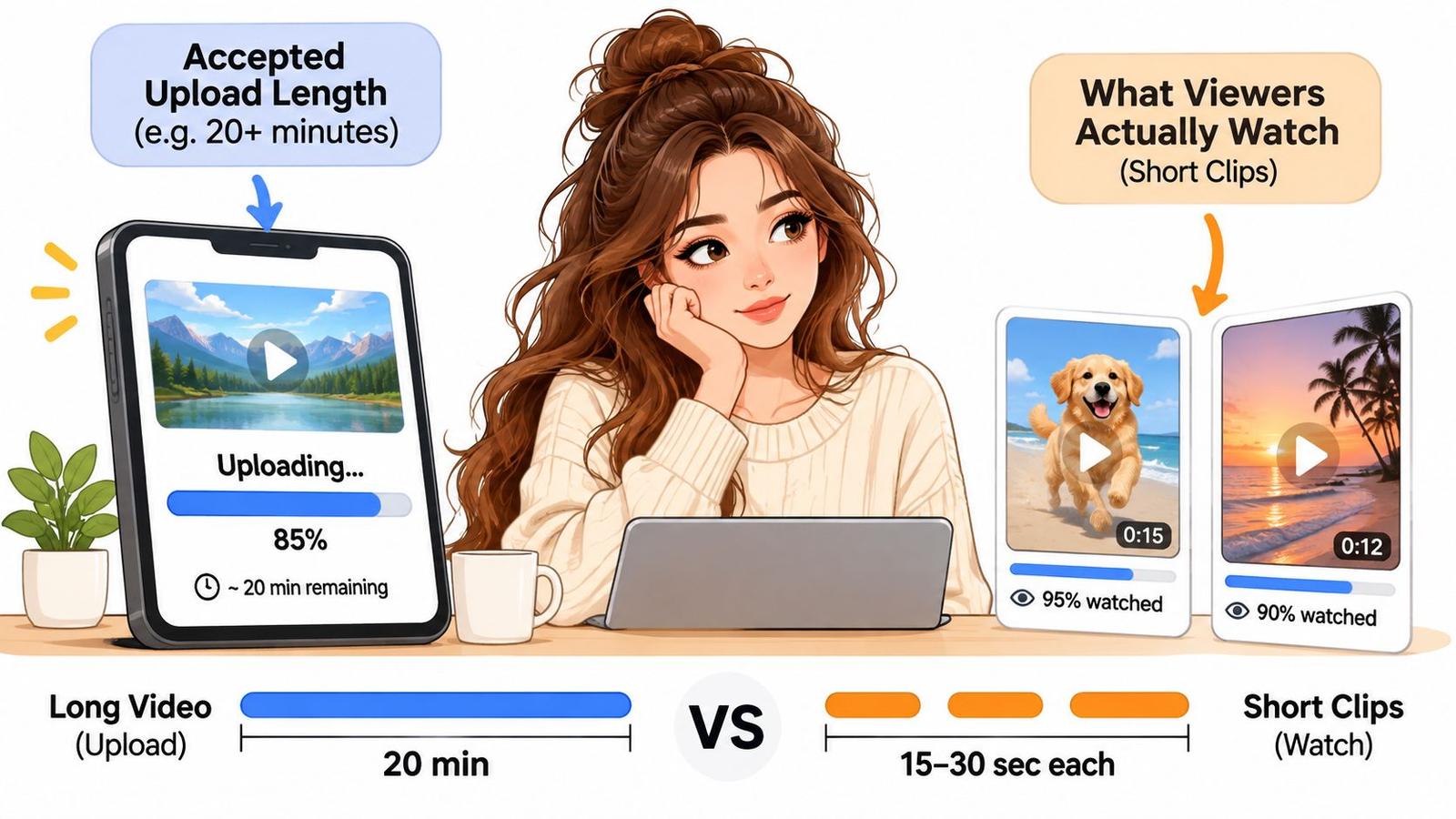
Platform eligibility tells you what X will accept. It says nothing about what a person scrolling through a feed will finish. Creators merge those two ideas constantly, and the result is a tribute that's technically compliant and practically unwatched past the first few seconds.
The distinction has teeth because duration changes playback behavior. Publishing guidance from the Meltwater guide to posting videos to Twitter notes that videos of 2 minutes 20 seconds or less may autoplay in feeds, while clips of 60 seconds or less can loop. A 5 to 6 second animated photo segment can therefore work as a loopable visual beat, which is a very different job from a single uninterrupted upload.
Two Ways to Post a Twelve Photo Memorial
Option A, one 2 minute 15 second upload. You build a single continuous story with music, transitions, and a closing title card. It fits inside the standard cap and preserves the arc exactly as you cut it. The cost is that it can't loop, and anyone who scrolls past in the first seconds never reaches the final photograph, which is often the one the family cares about most.
Option B, twelve clips of 5 to 6 seconds each. For example, 12 photos at 6 seconds each total 72 seconds of material. Posted in sequence or as a thread, each clip becomes its own looping beat with its own caption, so a grandmother's portrait can carry her name and dates while a wedding photo carries a different line. A reader can land on any single clip and still get a complete moment.
Choosing Between Them
- Post one complete montage: Choose this when continuity is the point and your viewers will sit with the piece to the end, such as a memorial page, an anniversary post pinned to a profile, or a link shared privately with family.
- Post short sequential clips: Choose this when you want a feed impression, a caption for each memory, or a teaser that points to the full piece elsewhere.
- Post both: Publish two or three short loops in the feed and place the complete montage in a reply or on a profile, so the clips do the discovery work and the montage does the keeping work.
Guidance that suggests about 15 seconds is helpful as a starting point, but it doesn't answer the key questions for a multi photo story. It can't tell you where captions belong, whether the ending needs its own clip, or whether a teaser serves the family better than the whole film.
Maximum duration is a posting constraint, not an engagement recommendation.
I would not use the longest permitted file by default. Match the length to the job the post has to do, then check the lookup for autoplay and looping to confirm the length you picked behaves the way you expect in the feed.
Duration Lookup for Autoplay and Looping
Find your clip length, then read across to see whether it fits the standard cap, whether it may autoplay in feeds, and whether it can loop. Use it as a planning tool rather than a record table, because the useful information is in the last two columns.
Clip length fit, autoplay and loop behavior
| Clip length | Fits standard limit | Autoplay in feeds | Loop |
|---|---|---|---|
| 5 to 6 seconds (animated photo) | Yes, with about 134 to 135 seconds spare | Yes | Yes |
| 15 seconds | Yes | Yes | Yes |
| 60 seconds | Yes | Yes | Yes (60 seconds or less) |
| 2 minutes 20 seconds (140 seconds) | Yes, at the limit | May autoplay | No |
| Over 2 minutes 20 seconds | No for non Premium accounts | No upload access on a standard account | No |
| 10 minutes | Only for professional publishing partners | Not confirmed for partner uploads | Not confirmed for partner uploads |
Reading the Rows From Shortest to Longest
A 5 to 6 second animated photo fits easily, can autoplay, and can loop, which is why it works as a single memory in the feed. A 15 second clip also fits and loops, giving you room for a slow push in or a name card. A 60 second clip still loops because it sits at the bottom of that threshold.
At 2 minutes 20 seconds you're exactly at the standard cap, the clip may autoplay, and looping is gone. Anything longer exceeds the standard cap for non Premium accounts. The 10 minute row belongs only to professional publishing partners, and its autoplay and loop behavior isn't confirmed, so treat those cells as unknown rather than assuming they'll behave like a short clip.
Pick the row that matches the job the clip must do, not the row with the highest number.
Export Settings for X Video Uploads
Length gets you through the door. Encoding decides whether the post looks good once it's there, so set these values before you upload rather than after a blurry preview.
Recommended export settings for X video uploads
| Specification | Recommended value | Why it matters |
|---|---|---|
| File size limit | 8 GB non Premium; 16 GB Premium | Far above a 5 to 6 second clip |
| Video bitrate | 5 to 8 Mbps | X's recommended range for Media Studio uploads |
| Landscape resolution | 1280x720 | Recommended landscape size for X video |
| Square resolution | 720x720 | Recommended square size for X video |
| Aspect ratio | Match the source photo | Photo for Video keeps the source image's aspect ratio |
| File format | MP4 | Standard export format for sharing and reposting |
What Each Number Means in Practice
The X Media Studio FAQs state that a post video is limited to 8 GB for non Premium users and 16 GB for Premium users, and recommend a 5 to 8 Mbps video bitrate for Media Studio uploads. The same specifications identify 1280x720 as a recommended resolution, with 720x720 recommended for square video.
Those file size ceilings sit far above anything a 5 to 6 second clip needs, so file size is rarely your binding constraint on short animated photos. Length and cropping cause far more rework than weight does. Very long uploads are a different story, since videos longer than 2 hours and up to 4 hours must use 720p, while videos shorter than 4 hours may be 1080p.
Aspect ratio is the row people skip. Our generated video keeps the aspect ratio of the source image, so a portrait scan stays portrait and a square print stays square. Decide the destination shape first, then crop or reframe the photograph before generation, because fixing the framing afterward means either losing edges or adding bars.
A moderate bitrate inside the 5 to 8 Mbps range gives you headroom for direct upload and later reposting without unnecessary recompression. Push far above it and you gain file weight without a visible in feed benefit. Drop well below it and soft old photographs turn muddy, which is exactly the texture you're trying to preserve.
While a render is running, it's worth keeping your monitoring setup simple and quiet, and the practical walkthrough on how to connect AirPods to your TV is a handy reference if you review edits on a larger screen without waking the house. For the finer points of resolution and bitrate trade offs on photo based clips, our own notes on practical video quality settings for photo clips go deeper than a single table can.
Before upload, check three things only: resolution, bitrate, and aspect ratio against the table.
How to Prepare a Short Photo Clip for X
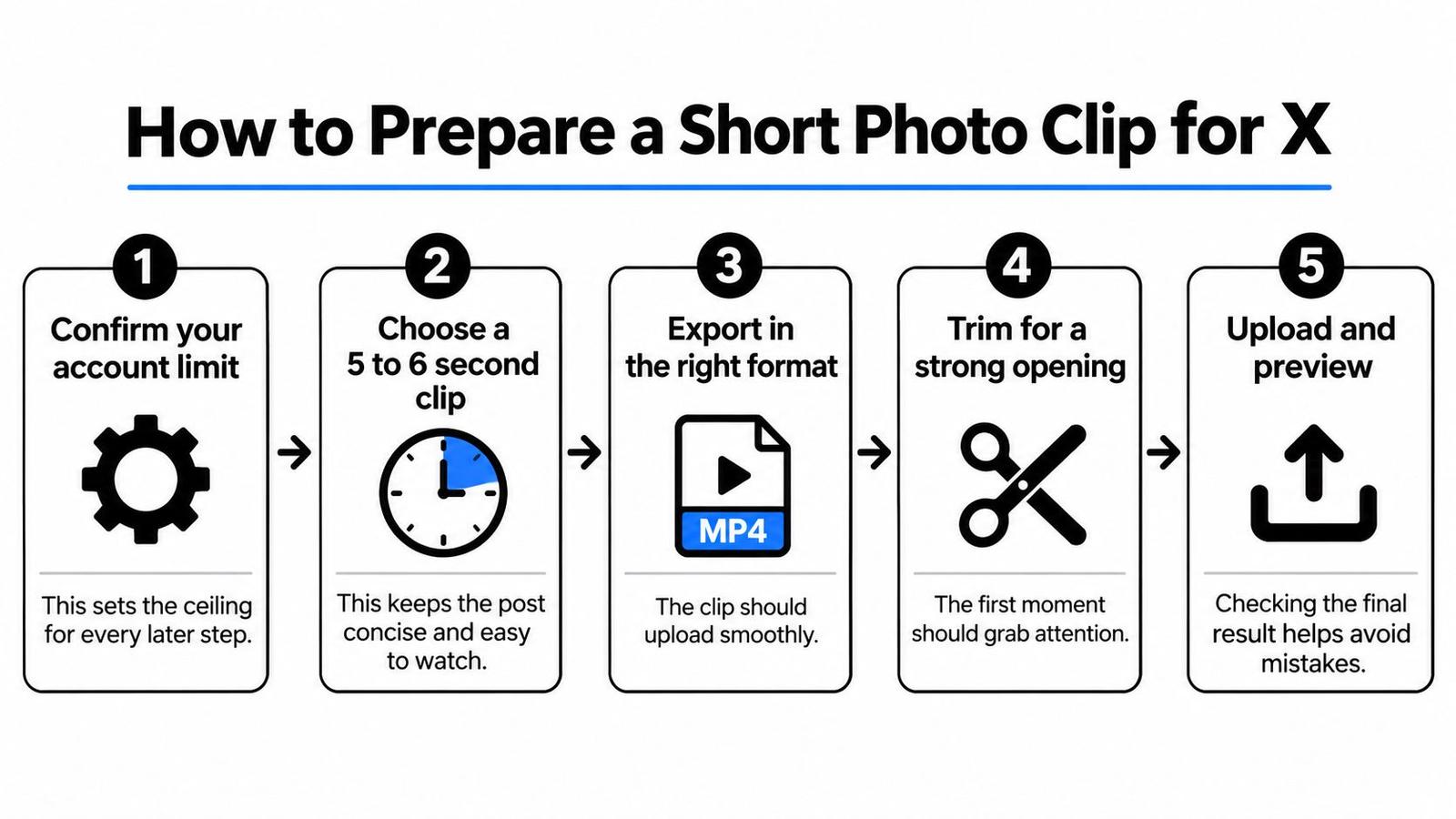
This workflow assumes a still photograph, old or new, that you want to post as a short motion clip. Each step removes one specific cause of failure, so do them in order rather than jumping straight to export.
The Seven Steps
-
Confirm your account limit: Check your account row before anything else, because it sets the ceiling for every later step. If you're on a standard account, plan around 140 seconds and don't design an ending that only works at 3 minutes.
-
Choose a 5 to 6 second clip length: One short motion beat stays far below every limit and autoplays cleanly. A slow blink, a turning head, a dress moving slightly in a breeze. Ask for one gesture, not three, and the clip reads as a living photograph instead of a performance.
-
Pick the destination shape first: Decide square or square, then match the source photo's framing to it, since the output keeps the source aspect ratio. Leave breathing room around faces, because feed crops are unforgiving at the edges.
-
Export as MP4: Use the bitrate and resolution from the export table rather than your editor's default preset. Defaults are tuned for other platforms and frequently overshoot on bitrate or undershoot on resolution.
-
Check the file size: A clip this short should land far below the 8 GB ceiling. If it doesn't, something in the export is wrong, usually an archival bitrate or an uncompressed intermediate codec.
-
Upload and preview at feed size: Watch it at the size a phone will show, not full screen on a monitor. Confirm the crop holds, the motion doesn't stutter, and the loop point doesn't jump so hard that it looks like a glitch.
-
Add a short caption that names the moment: Say who it is, where, and roughly when. A 5 to 6 second clip leaves plenty of room for text without competing with the visual, and the caption is what turns a moving image into a memory people can respond to.
What Finished Looks Like
The clip plays without stutter, the crop keeps the subject whole, and the file uploads on the first attempt. Nothing about it asks the viewer to work. They see the face, they read one line, they understand why you posted it.
If you're building these for more than one platform, our social media photo to video workflow guide covers how the same source photograph can be reframed for different feeds without regenerating from scratch. Keep a single clean master of each scan so every platform version starts from the same file.
One clip, one moment, one line of text. That's the whole discipline.
Upload Errors and How to Fix Them
The most common error is a file rejected as too long, and it almost always means a non Premium account tried to upload more than 140 seconds. Trim to 140 seconds or less, or confirm that the account really is Premium before you try again. Don't re upload the same file hoping for a different result.
Upload symptoms, causes and fixes
| Symptom | Likely cause | Fix |
|---|---|---|
| Upload rejected as too long | Non Premium account with a file over 140 seconds | Trim to 140 seconds or less, or confirm Premium status |
| File rejected for size | File above 8 GB (non Premium) or 16 GB (Premium) | Re-export at 5 to 8 Mbps |
| Soft or blurry in the feed | Bitrate too low or resolution under 720p | Export at 1280x720 with 5 to 8 Mbps |
| Subject cropped in a square post | Landscape source used for a square post | Export at 720x720 or reframe before generation |
Working Through the Four Symptoms
A file size rejection means the file crossed 8 GB on a standard account or 16 GB on Premium, which for short work usually points to an oversized intermediate export rather than a long video. Re-export at 5 to 8 Mbps and the weight falls fast. Our guide on how to compress an MP4 without wrecking quality walks through that re-export step by step.
A soft or blurry result is different. The upload succeeded, so people assume the platform degraded it, when the cause is usually a low bitrate or a resolution under 720p in the source export. Export at 1280x720 with 5 to 8 Mbps and compare the two versions side by side before you blame the feed.
Cropping problems come from a shape mismatch. Put a wide source into a square post and you lose the edges, which on a group family photo means losing people. Export at 720x720 from a square framing, or reframe the scene before generation so the square crop is a choice rather than an accident.
Which Fixes Are Quick
- Minutes: Trimming a few seconds off the tail, and changing a crop you've already framed.
- A full re-export: Bitrate and resolution changes, since the whole file has to render again.
- A regeneration: A source photograph framed for the wrong shape, because the motion has to be rebuilt on the new crop.
I would upload one clip from the batch first and check playback before posting the rest. Catching a crop error on clip one costs a minute. Catching it after twelve posts costs you twelve deletes and a thread that no longer reads in order.
Choose Your Length Before You Post
Bring the decisions together in this order, because each one narrows the next. Skip to the export settings and you'll keep solving the wrong problem.
A Five Step Decision Sequence
- Confirm your account row: Treat that ceiling as fixed for this project, whether it's the standard 140 seconds or a longer Premium allowance you've verified today.
- Name the goal: Decide whether this post needs a feed impression, a single kept memory, or a complete montage, and let that answer drive the structure.
- Pick the length from the lookup: Choose a 5 to 6 second clip for one animated memory, or a sequence of short clips for a multi photo story where each image deserves its own caption.
- Export to spec: Render MP4 at 5 to 8 Mbps, using 1280x720 for horizontal or 720x720 for square, and check the crop against your source framing.
- Test before the batch: Upload one clip, check playback at feed size, then post the rest.
If you use our tool, the output keeps the source aspect ratio, so check the crop before generating rather than after. You can set video duration from 5 seconds to 15 seconds in one second steps, which means you can hold a moment a little longer without leaving loop friendly territory. For budgeting a batch, a 5 second video at 768P with native audio costs 400 credits, and the cost is shown before you generate.
When several people post from the same account, scheduling also prevents a thread from going out in the wrong order, and a dedicated tool for X scheduling for social media teams can hold the sequence so each memory lands where you intended. That's a small operational detail that matters a lot when the posts are about someone's parent.
Do one thing today. Match your account, choose your length, export to the spec, and upload one test clip before you build the rest of the set.
Turn one treasured photograph into a short, natural motion MP4 that's sized for an X feed, with gentle movement that keeps the texture of the original print intact. Upload a photo, describe the motion in one short line, and download a ready to share clip in minutes for a birthday, memorial, or anniversary post. Start with a single frame at Photo for Video and post your first test clip today.