Images with Movement That Still Feel Real
Learn how to turn still photos into images with movement that feel real. Practical workflow, prompt tips, and export settings for families and creators.
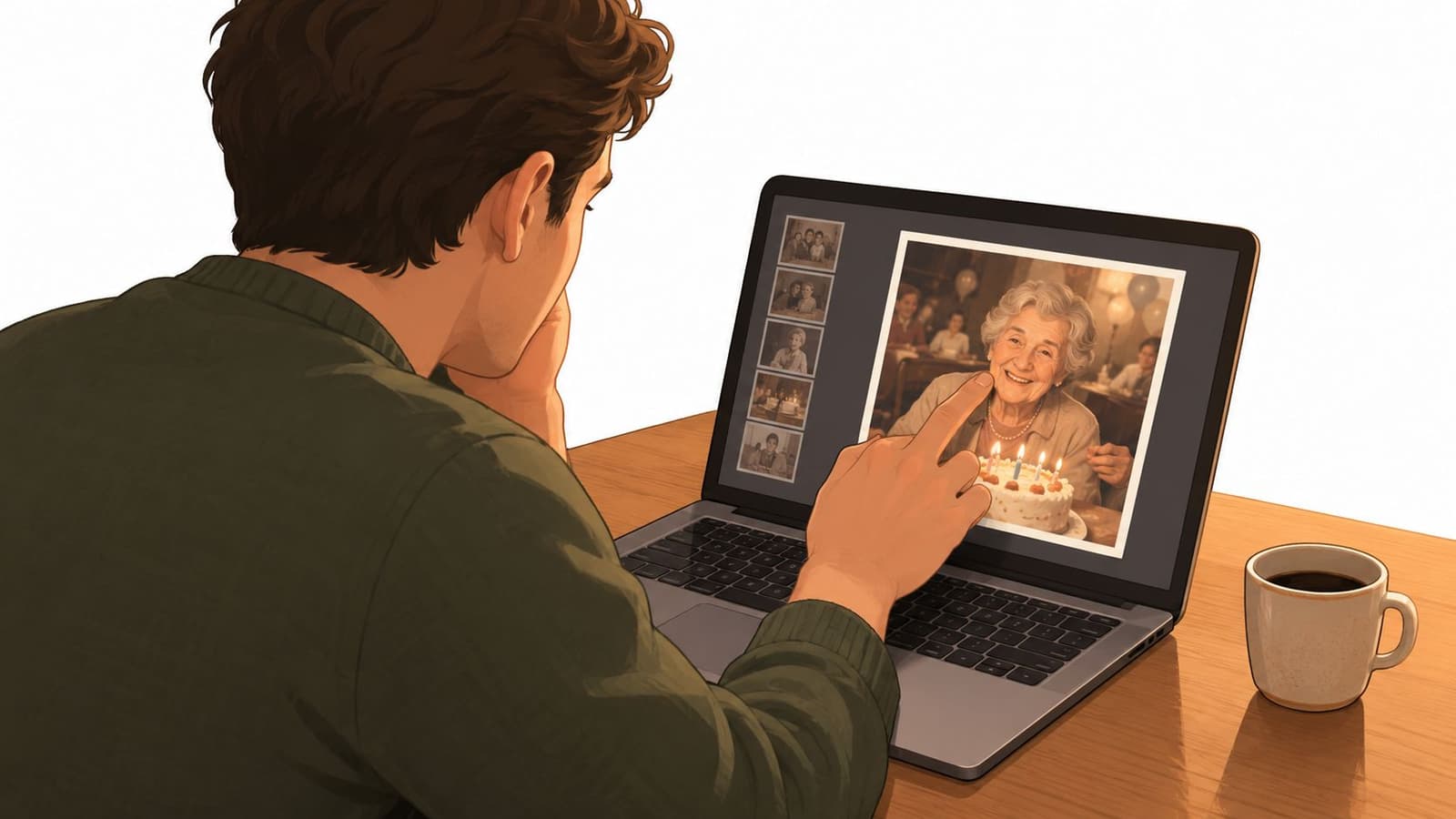
You're sorting through a folder of family scans, looking for one picture to include in a birthday video or memorial tribute. One frame catches you: the familiar face, the crooked smile, the room you remember. You want it to move, but not so much that it stops feeling like the photograph you chose.
That's the challenge with images with movement. An animated still isn't a recording of what happened; software generates a short sequence of plausible changes around the source image. The most successful result doesn't make the person perform. It gives the photograph a little room to breathe while keeping its original character intact.
Table of Contents
- The Photo That Stays Still in Your Head
- Choosing a Photo That Will Animate Well
- Writing Prompts That Create Real Movement
- AI Tools and Manual Techniques Side by Side
- Exporting and Pairing Motion With Sound
- Motion Intensity and Viewer Comfort
- Privacy, Permission, and Pricing in Practice
The Photo That Stays Still in Your Head
A family photo sits beside you as you prepare a birthday video or memorial tribute. You recognize the expression and the room, and you want the image to move without changing what you remember. Animation asks software to fill in motion the camera never captured, so restraint matters.
The idea behind moving images predates modern video tools. In 1877, Eadweard Muybridge used a sequence of cameras to photograph a galloping horse, revealing that all four hooves could leave the ground at once. He later projected sequential photographs with his Zoöpraxiscope. Britannica identifies his 1880 presentation as the first motion-picture presentation, an early demonstration of how still images shown in sequence can suggest movement (Britannica's account of motion-picture technology).
A family tribute needs much less than a dramatic action. A slight glance or slow camera drift can make a portrait feel present while leaving the person's expression and identity intact. The source photo is a contract: add a small visual change, not a new event, emotion, or identity.
That boundary matters most when a print is old or irreplaceable. A technically convincing clip can still feel wrong if it invents a broad smile, changes someone's posture, or removes the grain and softness that belong to the photograph. Aim for emotional accuracy. Respecting the image often means choosing less motion, even when the software can produce more.
Choosing a Photo That Will Animate Well
Start with the face, not the file size. Choose a photograph where the eyes and mouth are reasonably clear, the face isn't hidden by deep shadow, and the subject's outline separates from the background. A slight turn toward the camera often gives an animation model useful visual information about the face; a dead-on pose can work, but it leaves less room for natural head movement.
Select before you restore
Look for a frame with one clear subject and a calm composition. Busy backgrounds, hands crossing the face, strong glare, and objects touching the subject's outline make it harder to generate movement without bending or inventing details. If you're choosing among several similar photos, start with the one that needs the least interpretation.
- Keep the framing generous. Leave room around the head and shoulders if you want a gentle camera move. Crop only when distracting edges matter more than the space needed for motion.
- Upscale only when needed. Enlarging a tiny scan may help a workflow accept the image, but it can't recover facial detail that was never captured.
- Don't over-clean the print. Aggressive denoising and sharpening can flatten grain, erase fine features, and make old skin or fabric look artificial. Preserve the original scan before experimenting.
Scan with a light touch
For prints and negatives, make a clean scan at a useful resolution, keep the image straight, and avoid automatic sharpening that adds halos around eyes, hair, or clothing. The right preparation preserves information. It doesn't try to make a family snapshot look newly photographed.
A faded image can still be a strong candidate if the face reads clearly and the pose is simple. A sharp photo can fail if the subject is partly hidden or the background is visually tangled. If you're comparing styles before committing, cinematic examples from Image Studio can help you think about framing and camera language, but choose effects that suit the photograph rather than forcing the photo to suit an effect.
Save the complicated picture for later. Begin with a well-lit portrait, a clear face, and a restrained composition. That gives the animation fewer opportunities to guess.
Writing Prompts That Create Real Movement
A useful motion prompt doesn't ask an old photograph to become a scene from a film. It tells the tool what should move, how little it should move, how the camera should behave, and what emotional register to preserve.
Compare a vague instruction, “Make this photo move,” with a controlled version: “The woman gently turns her eyes toward the camera and settles into a soft, natural expression. Slow camera push-in. Quiet, affectionate tone.” The second prompt gives the system boundaries. It also avoids claiming that the subject should speak, wave, or react to something outside the image.
Build the prompt in parts
- Subject: Identify the person or group clearly, such as “the seated grandfather” or “the child in the foreground.”
- Motion: Describe one small action or micro-expression. “Breathes gently,” “tilts their head slightly,” or “glances toward the camera” is more controllable than “comes to life.”
- Camera: Choose a restrained movement that doesn't compete with the subject. A slow push-in or gentle parallax usually suits a keepsake better than a sweeping orbit.
- Tone: Add a word such as “tender,” “calm,” or “nostalgic.” Mood can guide the style without requiring a new expression.
For more prompt examples and phrasing ideas, see this guide to image-to-video prompts. Treat the prompt as motion direction, not a rewrite of the photograph. It can suggest a glance, but it can't make a generated expression historically true.
| Element | Best Choices for Keepsakes | Mood It Tends to Produce |
|---|---|---|
| Motion verb | Breathe, settle, glance, tilt | Intimate and restrained |
| Camera move | Gentle parallax, slow push-in | Present, without spectacle |
| Subject action | A slight eye movement or small head turn | Personal and believable |
| Tone | Warm, quiet, affectionate | Reflective rather than theatrical |
“Just make it move” leaves too many decisions open. The tool may animate the face, the camera, the background, or all of them at once. When the result stretches hair or shifts the jaw, simplify the prompt: reduce the number of moving elements and ask for a smaller change.
A good prompt sounds almost modest. That's a strength. If the photograph already holds the emotional weight, the animation only needs to help the viewer notice it again.
AI Tools and Manual Techniques Side by Side
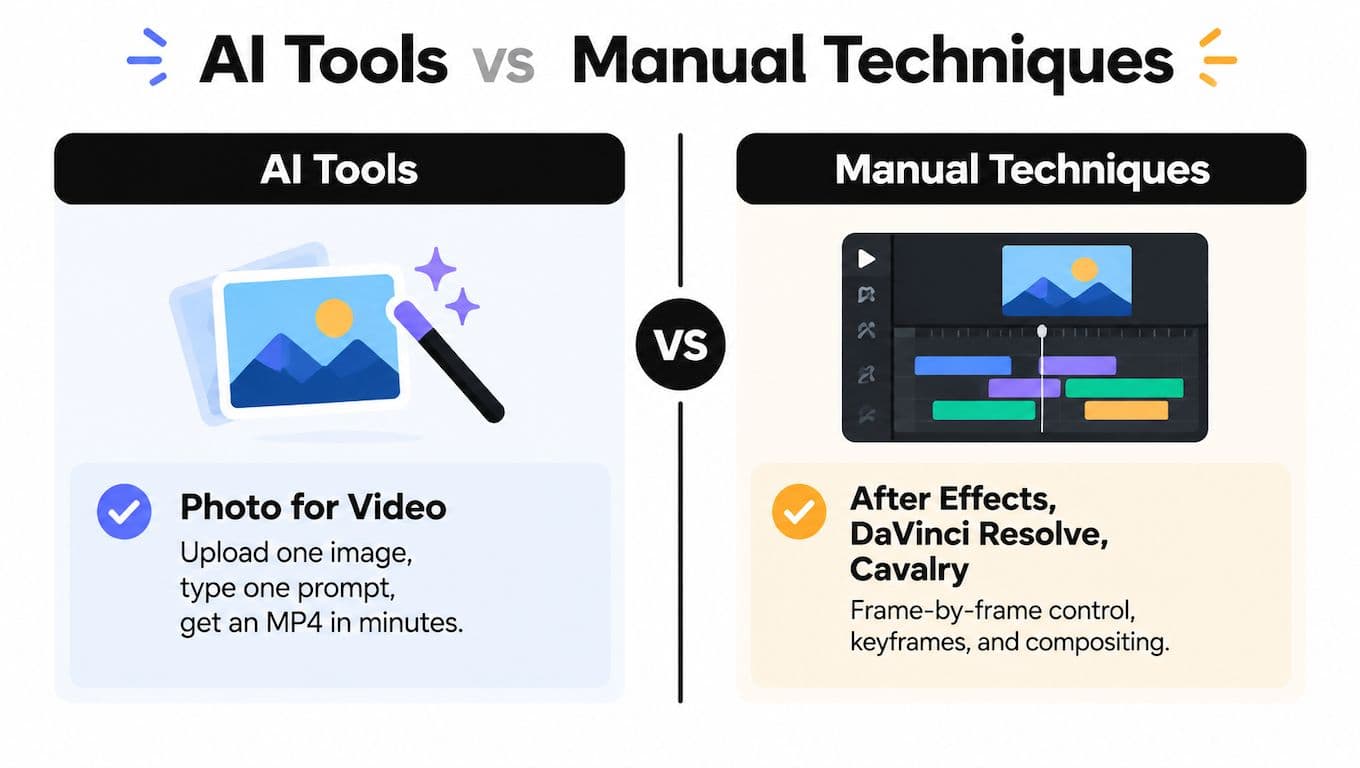
AI tools and manual editing solve different problems. An AI generator can turn a single upload and a short prompt into a moving clip without requiring you to build a scene by hand. Manual workflows in After Effects, DaVinci Resolve, or Cavalry let you control layers, masks, keyframes, and compositing, but that control comes with setup and editing work.
Choose based on control, time, and stakes
| Workflow | Where It Fits | Main Trade-Off |
|---|---|---|
| AI generation | A quick draft from a single still | Fast to try, but the model may invent or distort details |
| Manual compositing | Precise movement on separate layers | More control, but masks, keyframes, and cleanup take skill |
| Hybrid editing | A generated starting point refined by hand | Better control over defects, with extra review and editing |
Manual techniques such as parallax rigs separate foreground and background layers to create depth. Mesh warps can add controlled movement to a face or garment, while rotoscoping isolates subjects from their surroundings. Those methods are useful when the source image has clear layers and the editor has the time to refine them. If the photo is a delicate scan, aggressive warping can damage the very texture you're trying to preserve.
An AI pass may be a practical first draft, especially for a short tribute with a deadline. Photo for Video offers guided demos, real customer examples, credit-based Lite, Plus, and Pro options, and watermark-free exports ready in minutes (Photo for Video). Compare the workflow with your skill level and the importance of the clip; a fast result still needs a careful human review.
For a high-stakes memorial, a hybrid approach can make sense. Generate a restrained motion pass, then use an editor to trim the clip, adjust the camera movement, or mask an area that warps. Keep expectations realistic: hand cleanup can address visible defects, but it can't establish what an unseen part of the original scene looked like. If you're also building a larger creative workflow around AI, the SleekPost AI content guide offers broader context for using generated assets.
Exporting and Pairing Motion With Sound
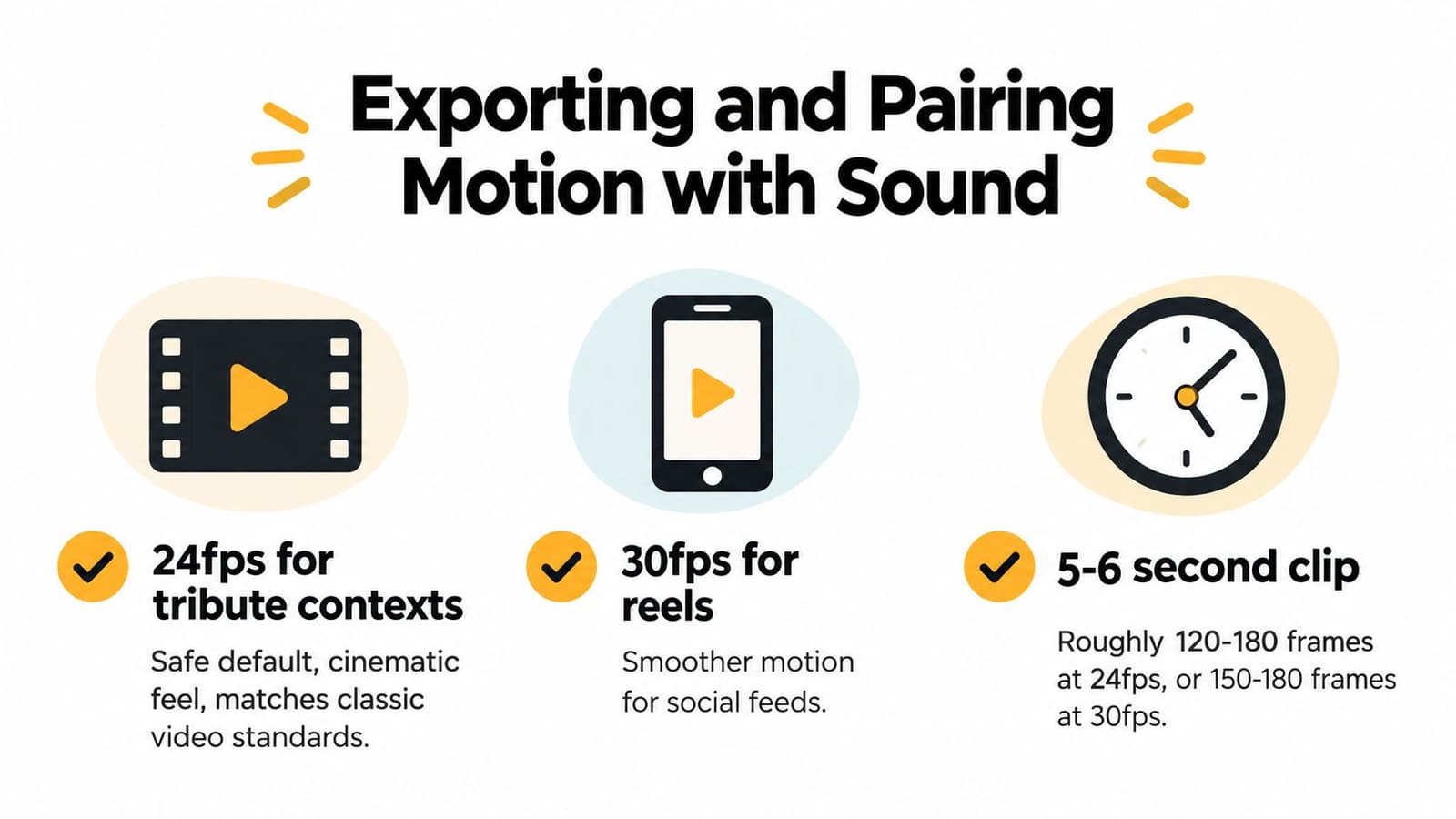
Frame rate is part of the look, but it won't rescue unstable movement. For a tribute or montage, 24 fps is a practical default; for a reel, 30 fps may fit the surrounding footage. A five-to-six-second clip at 24 fps contains about 120 to 144 displayed frames, while the same duration at 30 fps contains about 150 to 180 frames. Those are separate frame counts for each setting, not a guarantee that every frame will look natural (NYU's film-history reference).
Export for the place the clip will live
For everyday sharing and montage edits, an MP4 is a practical delivery format. Use the frame size that matches your project, avoid unnecessary extra compression, and watch the exported file rather than trusting the preview. If you need a high-quality intermediate for further grading or compositing, a ProRes file or another high-bitrate master may suit the editing pipeline, but it will take more storage than a share-ready MP4.
Sound can make a quiet animation feel grounded. Natural room tone or soft music may support the image, but a long silence at the opening often feels more honest than a generic track that starts immediately. If you need to replace or adjust audio in an edit, this guide to replacing video audio outlines the kind of workflow to consider.
The player below offers an additional example of video presentation:
Before exporting, confirm that the motion stays gentle, the sound starts where you intend, and the file plays correctly on the device or screen that will show it. Keep the original scan alongside the finished clip so the generated version never replaces the source. Photo for Video's stated upload and generation policy is automatic deletion after 7 days, a privacy detail worth checking when choosing a service.
Export check: Pick a frame rate that matches the destination, watch the whole clip at normal speed, listen from the beginning, confirm the MP4 plays, and save the original scan separately.
Motion Intensity and Viewer Comfort
More movement isn't always more moving. A tribute may be watched on a phone, a television, or a screen at an event, and the audience may include people who find intense motion physically uncomfortable or emotionally jarring.
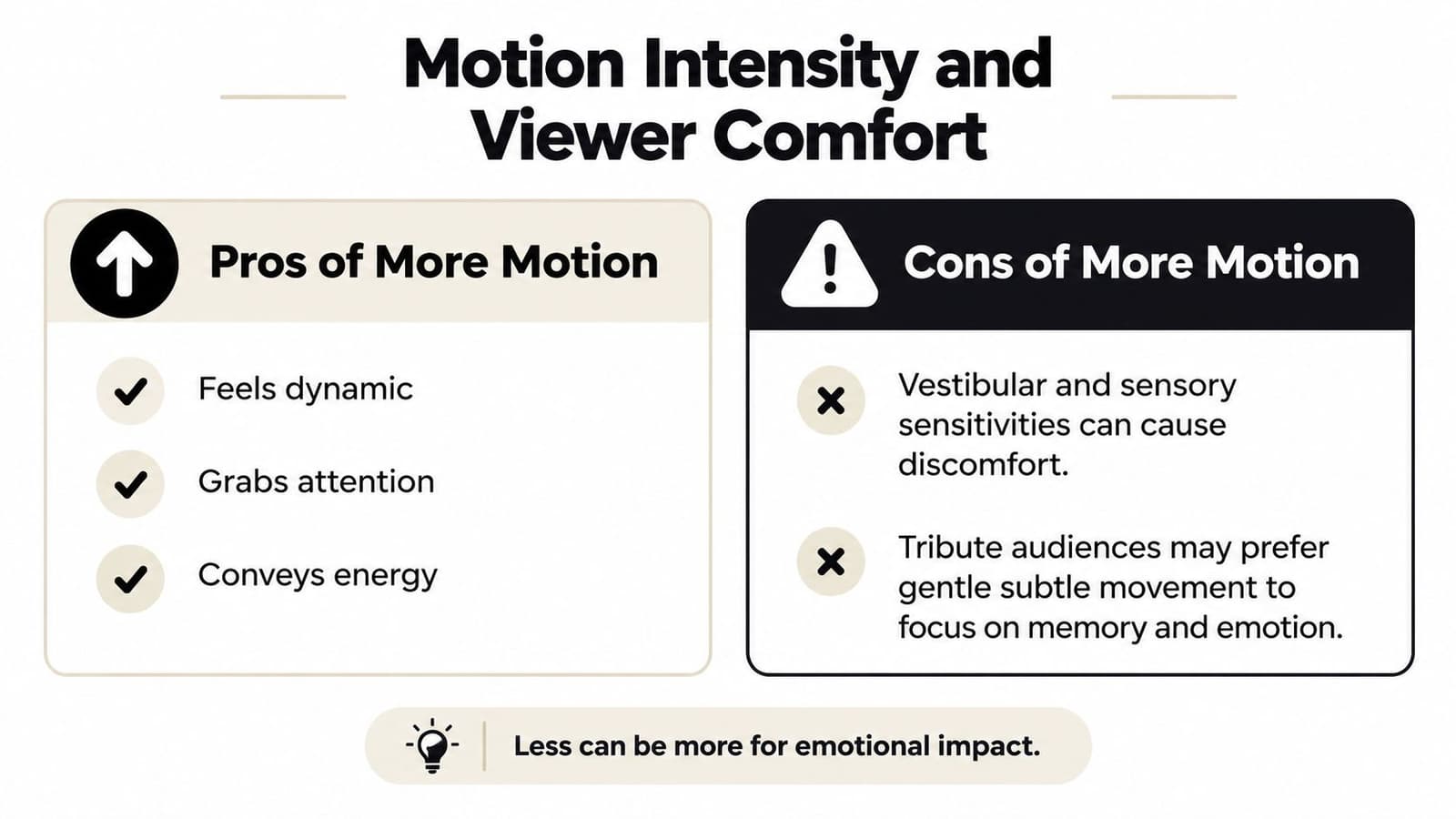
A cited accessibility review reports that up to 35% of participants with vestibular disorders had difficulty using websites featuring heavy motion (accessibility discussion of motion-heavy interfaces). That finding concerns website use, not a direct test of animated family photos, but it reinforces a practical point: motion intensity can affect viewers differently. For memorial and family work, choose movement that doesn't demand attention or make someone feel they need to look away.
Turn down the visual volume
Avoid rapid zooms, looping camera shake, aggressive depth separation, and sudden facial changes. These effects can feel theatrical, create visual instability, or distract from the person the photograph is meant to honor. Use restrained parallax, a slow camera drift, or a small breathing-like movement instead. A short clip can also be easier to include in a longer tribute without making the animation dominate the sequence.
Keep a still-image version available. Some people may prefer it, and some venues or playback situations may make motion difficult to watch. Add captions or descriptive context when they help viewers understand who or what the image shows, rather than assuming everyone has the same access to the visual information.
Think of movement like audio volume. A quiet level can add feeling; a loud one can overwhelm the memory it was supposed to serve. For examples of where animation can cross into discomfort or distortion, see this guide to the uncanny valley in animation.
Privacy, Permission, and Pricing in Practice
Ask a living relative before you animate their likeness. Two minutes of conversation costs far less than repairing a family rift over a clip nobody agreed to, and I keep that permission in writing even when it is just a short text thread. When you share an AI-assisted video publicly, label it so viewers can tell generated movement from captured footage. Microsoft's 2025 Global Online Safety Survey covered 15 countries and 14,800 respondents; participants correctly identified only 38% of tested real-versus-AI images, although 46% initially believed they could tell the difference (Microsoft's 2025 survey). Separate U.S. polling found broad support for protecting a person's voice and visual likeness from unauthorized use, and for labeling or watermarking AI-generated content. Clear labeling does not diminish the keepsake; it preserves trust around how it was made.
Price the tool to the job. A single memorial clip fits a one-time credit refill or custom checkout, while someone producing reels every week will burn through that and do better on a subscription tier. Check whether unused credits expire and what each plan includes before you pay. If your project involves generated speech or a talking-photo format, review this overview of photo talk apps, and never present invented speech as something the person said.
Before you publish: Get permission where appropriate, label AI-assisted motion, keep the original file, and review the clip slowly for flicker, stretching, and identity drift.
Choose a photograph with a clear face, write a prompt that asks for one restrained movement, and keep the original scan untouched. If you want to try that workflow, Photo for Video offers guided demos and turns a still image into a short MP4 for family tributes and keepsakes.