Photo Talk App Guide: How to Animate Old Photos
Discover how a photo talk app turns still images into moving memories. Learn how it works, best use cases, privacy tips, and how to choose the right one.
You may be looking at a family photograph right now: a grandparent at a celebration, a parent holding a child, or someone whose face you wish you could see once more. A photo talk app can add a little movement to that still image, but the question isn't only whether it can move. It's whether the result still feels like the person and the moment you wanted to preserve.
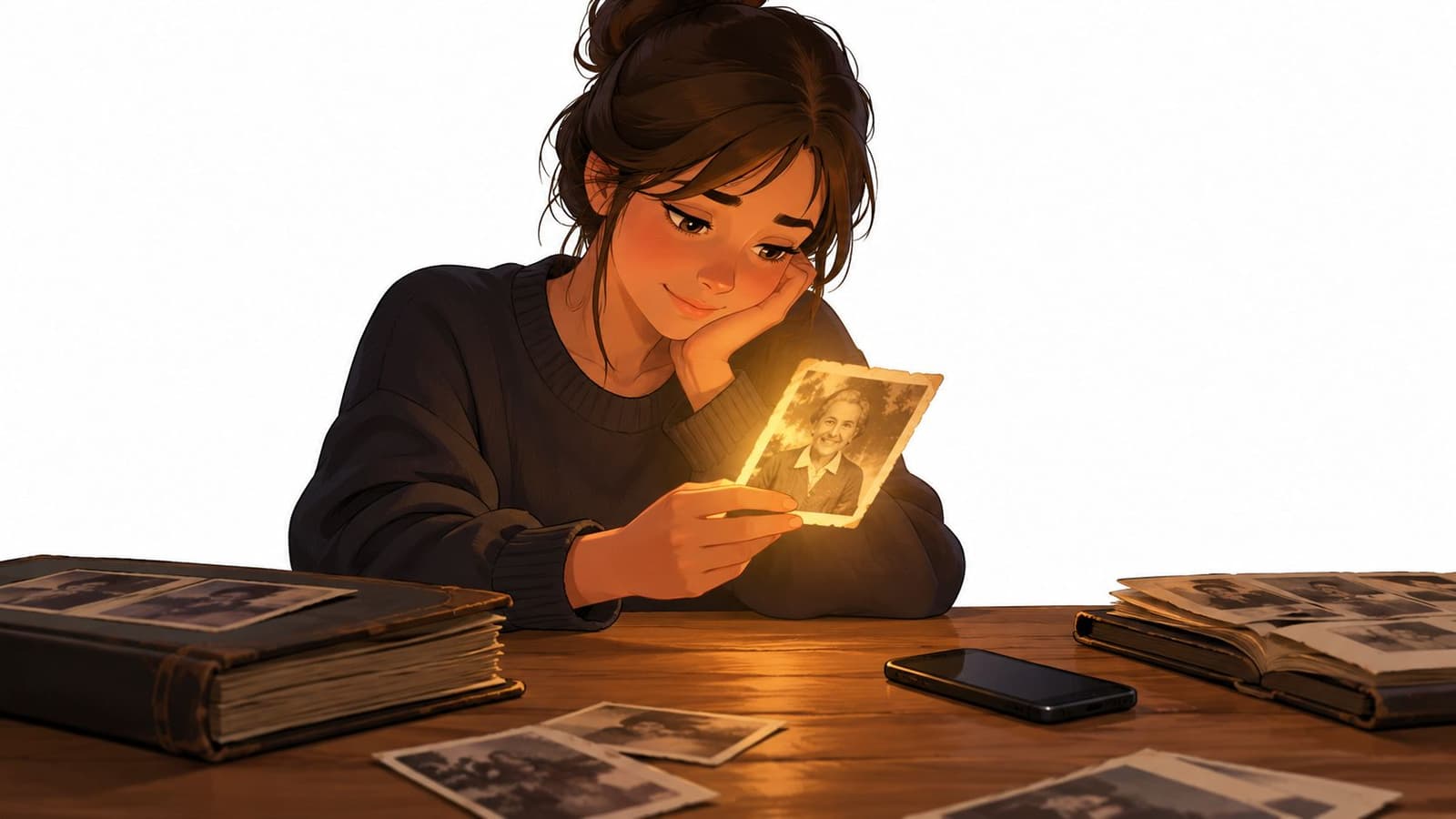
Photos already carry meaning beyond what they show. A Pew Research Center survey conducted in 2013 found that 54% of adult internet users posted original photos or videos online, an early measure of images becoming ordinary social communication (Pew Research Center's survey analysis). A photo talk app builds on that familiar role by turning a still image into a short visual moment.
The appeal is easy to understand. A gentle camera move can make an old portrait feel present in a birthday montage, while a small shift of expression may add warmth to a family keepsake. But animation can also alter the texture, expression, and emotional tone that made the original worth saving. The aim isn't to make every photograph look alive. It's to choose motion that supports the memory without taking it over.
Table of Contents
- What Is a Photo Talk App and Why People Use One
- How a Photo Talk App Actually Works
- The Main Ways People Use Photo Talk Apps
- Why Subtle Motion Beats Realistic Motion for Old Photos
- Privacy and Consent When Animating Personal Photos
- How to Choose a Photo Talk App Worth Trusting
- A Simple Workflow With Photo for Video
- Best Practices and Common Mistakes to Avoid
What Is a Photo Talk App and Why People Use One
A photo talk app turns a still image into a short animated clip. Depending on the tool, it may move a face, shift the camera, add a subtle blink, or animate parts of the background. Some apps also generate speech or lip-sync, but those features aren't necessary for a meaningful result.
People usually arrive with a particular use in mind. Someone may want to add an old portrait to a birthday video, make an anniversary tribute feel less static, or create a respectful memorial clip. Others are exploring the effect because a cherished photograph feels like it holds a moment they'd like to revisit.
The category grew from a wider change in how people use pictures. As phones and social apps made capturing and sharing images part of everyday communication, photographs became messages as much as records. A photo can say, “I'm thinking of you,” “Look where we are,” or “I remember this day.” Animation adds another layer to that visual language, but it also changes what the image communicates.
That change creates a useful distinction: animation is interpretation, not restoration. A moving portrait may feel vivid, but the motion is generated from the image rather than recovered from an actual recording. If an app creates a blink, a smile, or a turn of the head, it's estimating what that movement might look like. It isn't revealing what the person did outside the frame.
The most successful result often feels modest. A little movement can help a still photo fit naturally into a video without turning it into a performance. Before choosing an effect, consider the photograph's purpose: Is it meant to celebrate, remember, or bring visual variety to a montage? That answer can guide how much motion feels right.
How a Photo Talk App Actually Works
Think of the app as a puppeteer working behind a curtain. It can move parts of a picture, but it has to infer where the face is, how it's angled, and which areas belong together. The clearer the original image, the easier it is for the system to make those estimates without producing distracting distortions.
From original photo to working image
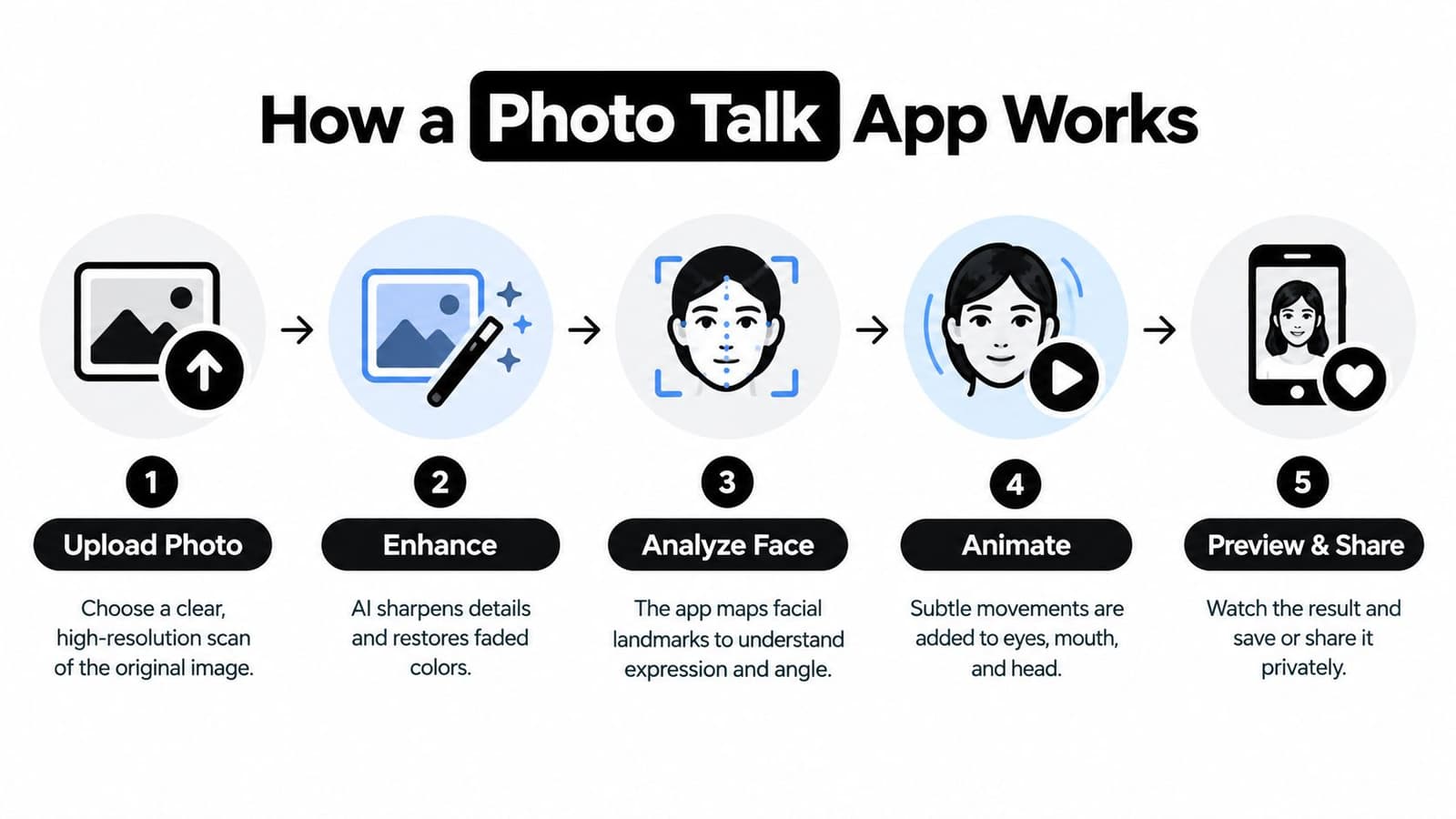
The process begins with an upload. The app may then adjust orientation, contrast, color, or sharpness before analyzing the face. This preparation can make the image easier to process, but it can't recover details that aren't in the source. A blurred eye or missing section of a damaged print may remain difficult to animate convincingly.
For archival work, the Library of Congress describes workflows using uncompressed TIFF masters and approximately 5,000 pixels along the long side. For ordinary 4×6-inch or 5×7-inch prints, 300 pixels per inch is a practical baseline for screen use, while 400–600 pixels per inch can help when preserving fine facial detail matters (Library of Congress digitizing guidance). These are useful reference points, not a promise that every app needs an archival scan.
How the app plans movement
The system identifies facial features such as eyes, nose, and mouth, then estimates the face's position and shape. It may also infer depth, which helps it create the appearance of a slight turn or camera move. This is why a face that's small, partly hidden, blurred, or photographed at an extreme angle can produce unstable results.
The app then generates a sequence of frames and smooths the transitions so the clip plays as continuous motion. The output is commonly an MP4, a format that can be placed in a tribute edit or shared as a video. Short, specific instructions tend to be clearer than elaborate descriptions: for example, request a gentle camera push-in and natural, restrained movement rather than a dramatic performance.
For readers thinking about AI in other remembrance settings, Cremation.Green's guide to using AI for funeral services offers context on how these tools may fit into memorial planning. It's a useful reminder to consider the people and purpose behind a generated image, not only the technical effect.
The Main Ways People Use Photo Talk Apps
A 2018 industry analysis estimated that approximately 1.2 trillion photographs were taken worldwide in 2017 and described communication apps as overtaking traditional social networks for direct photo sharing (the industry analysis of visual communication). That shift helps explain why people now expect images to work naturally inside messages, reels, and videos. The best animation depends on where the clip will be used.
Birthday tributes
For a birthday montage, the photo may show a person at a past celebration or surrounded by family. A gentle camera move can give the editor a transition between still images, while a subtle expression change can add warmth. Avoid movements that draw attention away from the person or make the clip feel like a scripted performance.
Memorial and remembrance clips
A memorial calls for a different standard. A quiet camera push or restrained movement in the background may suit the photograph better than speech or exaggerated facial animation. The goal is usually to help the image sit thoughtfully within a tribute, not to suggest that the person is communicating.
Anniversaries and family keepsakes
For an anniversary, a couple's portrait may benefit from a slow, soft zoom that draws the viewer toward the original image. If the photograph is already intimate, extra facial movement may add little. Keeping the source's grain, faded color, or worn edges can also preserve the sense that this is a real photograph with its own history.
Ecommerce and creator visuals
A product photograph has a different job: show an item clearly and hold attention in a short visual. A slow camera move or a controlled shift in framing can add motion while keeping the product legible. If the animation alters the product's shape, color, or details, it may undermine the image's purpose.
A practical test is to watch the clip once without sound and ask what you notice first. If the movement overwhelms the person, product, or memory, reduce it. For family reels, the original photo should remain the focus, with animation serving as a transition or accent rather than the main event.
Why Subtle Motion Beats Realistic Motion for Old Photos
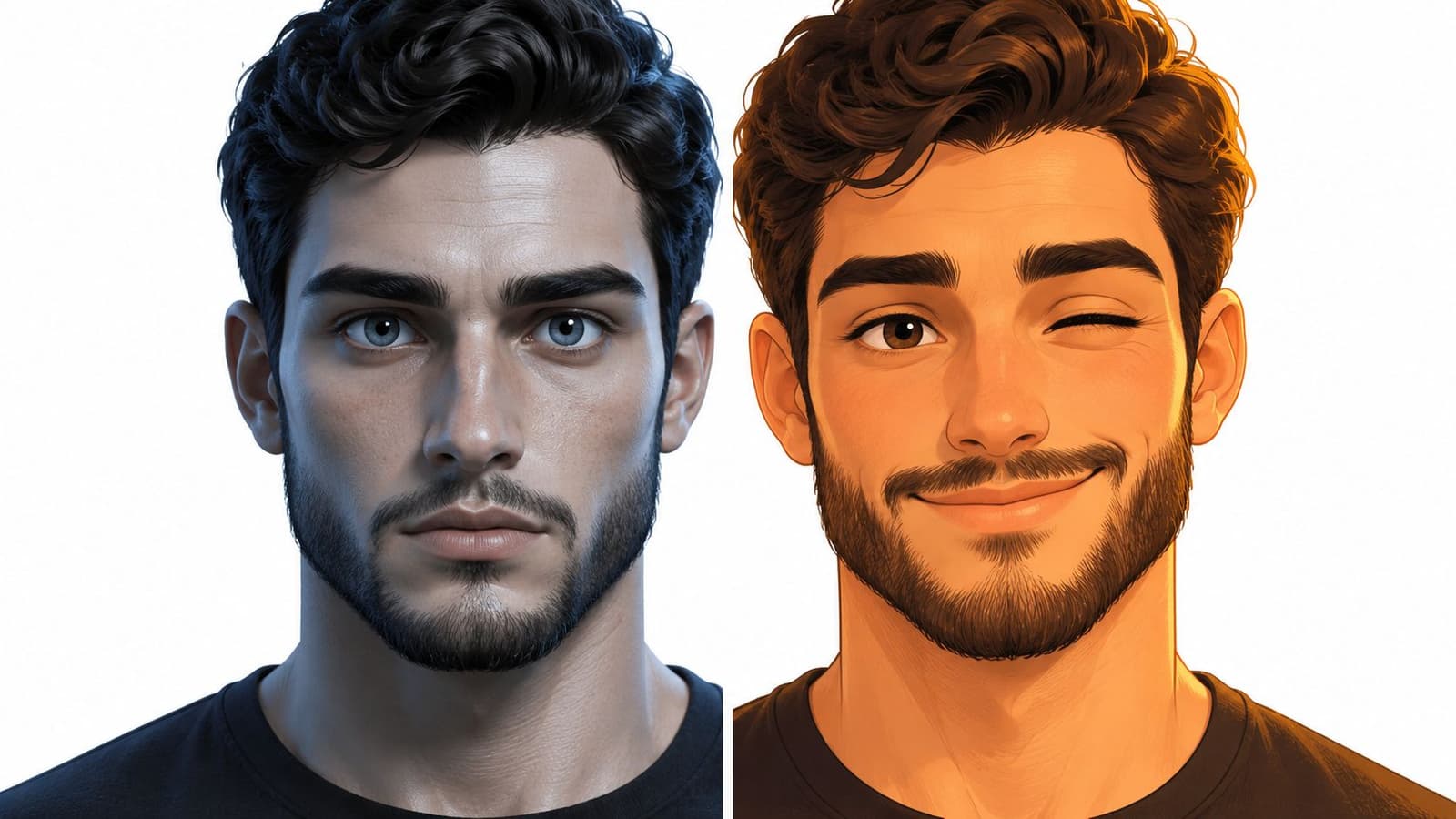
“More lifelike” sounds like an obvious goal, but realism isn't always the most respectful choice. An old photograph records a specific frame. When an app adds a wide smile, a speaking mouth, or a pronounced head turn, it may change the expression people remember rather than adding movement.
This matters especially when animating someone who has died. Research involving mental-health care workers and bereaved people has raised concerns that simulations can blur the line between reality and fiction, misrepresent the person, or complicate grieving (research on digital simulations of deceased people). These concerns don't mean families should avoid animation. They do suggest that the family's comfort should matter more than an app's ability to create an impressive effect.
A small camera movement can preserve the feeling of looking at a photograph. A soft shift in lighting or an understated background effect may add dimension without assigning a new expression to the person. By contrast, lip-sync and invented speech can imply intention or words the photograph cannot support.
A useful test: If the movement makes you wonder whether the person really looked or behaved that way, try a gentler effect or keep the image still.
You can also ask family members how they feel before sharing a memorial clip, especially if the photograph is emotionally sensitive. A family may agree that a soft zoom feels comforting but disagree about a simulated smile. That difference deserves a pause, not a debate over which version is more technically impressive.
For a closer look at why some animation feels uncomfortable, see this guide to the uncanny valley in animation. The aim isn't to eliminate every hint of motion. It's to choose an effect that viewers can recognize as an artistic treatment of a photograph, rather than a claim about what the person did or would say.
The video below can help illustrate the difference between animation styles. As you watch, notice whether the motion supports the portrait or competes with it.
Privacy and Consent When Animating Personal Photos
Uploading a family photograph involves more than choosing an effect. The image moves through a data lifecycle: upload, processing, storage, possible model training, sharing, and deletion. Before selecting an app, find out what happens at each stage. A playful interface can make a sensitive upload feel casual, even when the image contains a child, a private family moment, or someone who can no longer give consent.
A 2025 analysis of more than 2.5 million Reddit posts found that users wanted clearer retention policies, privacy controls, and transparency around conversational AI. The same research summary notes that increased interactivity lowered users' privacy concerns in measurable ways (analysis of AI privacy expectations). In practical terms, an engaging demo shouldn't replace a clear look at the service's policies.

Questions to answer before uploading
Read the privacy information and check whether the service explains how it stores images, how long it retains originals and generated clips, whether uploads can be used to train models, and how to request deletion. Don't assume that deleting a finished video also removes the original photo, or that private generation means the clip can't be shared later.
For a living relative, ask permission before animating their image, especially if you plan to post the result publicly. With children, consider whether sharing the animation is appropriate even if a parent or guardian approves. For someone who has died, consent may be impossible to obtain, so use family preferences, the context of the photograph, and the likely impact on viewers as guides. These consent and likeness basics can help clarify the questions involved when creating a digital representation of another person.
Before uploading, check:
- Storage: Does the service keep the original, the generated clip, or both?
- Training: Does the policy say whether uploads may be used to improve AI models?
- Sharing: Is the output private by default, and what happens if you share a link?
- Deletion: Can you remove the original and generated file, and are those controls clear?
- Permission: Are the people in the photograph comfortable with the intended use?
When a photograph is irreplaceable, keep a copy of the original scan in a place you control. That simple habit lets you experiment with an animation without making the app the only home for the image.
How to Choose a Photo Talk App Worth Trusting
A useful app should help you make an informed choice before you upload a meaningful image. Look beyond the preview animation. The app's handling of the source photo, the control it gives you over motion, and the clarity of its policies all shape the finished result and the experience of making it.
| Criterion | What to look for | Red flag |
|---|---|---|
| Input handling | Clear guidance on image quality, cropping, and preserving the original | The app accepts any image but gives no warning about blur, damage, or small faces |
| Motion style | Controls or prompts that support restrained movement | One dramatic effect is presented as the best option for every photo |
| Privacy practice | Plain explanations of retention, training, sharing, and deletion | Vague language about uploads or no clear deletion process |
| Export format | A video file that fits the editing or sharing workflow you need | No explanation of export options or restrictions |
| Pricing transparency | Clear information about what an export costs and what a plan includes | Charges or usage limits appear only after you've uploaded and edited |
Start with the photograph and your intended use. A tool that offers extensive creative controls may be unnecessary for a simple memorial clip, while a creator working on product visuals may want more control over camera movement and output.
Then inspect privacy and pricing before starting. Check whether the app distinguishes between the original image and generated file, and whether its deletion rules are easy to find. Pricing should be understandable before you commit to a finished export. If those basics are hard to establish, choose a service that communicates them more clearly.
A short test with a non-sensitive photo can help you judge the interface and motion style without exposing a treasured family image. Once you understand how the app behaves, decide whether it feels appropriate for the photograph you want to animate.
A Simple Workflow With Photo for Video
A good workflow starts with the photograph, not the prompt. Choose an image where the person's face is clear and large enough to read. If you're digitizing a print, use even lighting and keep the camera or scanner parallel to the photograph. For detailed scanning advice, follow this guide to scanning old photos.
Write one short instruction describing the movement, camera move, and tone. For example: “Gentle camera push-in, slight natural movement, calm and respectful.” This gives the app a direction without asking it to invent a story. If you're working on a memorial, leave out simulated speech unless the family has explicitly agreed that it fits the tribute.
Review before you share
Watch the result and compare it with the still image. Look for changes that feel unlike the person, unstable facial details, or movement that distracts from the photograph. If the result feels too active, simplify the instruction or try a still version instead. You're not required to use every generated clip.
For an anniversary montage, you might choose a slow camera move and keep the original colors. For an ecommerce listing, you might favor a restrained push-in that keeps the product's shape and details consistent. If you're assembling a broader photo video, a photo video creation tool can help place the clip among other images and titles.
Export choices should suit the final project. A silent MP4 can be easier to place in a montage, while audio may make sense when the clip is part of a narrated tribute. If you include sound, consider captions as part of the deliverable. W3C guidance recommends captions that include meaningful sound effects and music cues, not just dialogue, and advises using safe margins and sufficient contrast so captions don't cover the main subject (W3C guidance on video captions).
For editors working with a memorial montage, keep a plain-text transcript alongside the video when narration or meaningful audio is present. That gives the editor a clear reference and makes it easier to revise the captions without rebuilding the animation.
Best Practices and Common Mistakes to Avoid
The best result doesn't show off how much an app can do. It preserves what matters in the source photograph and adds only the movement needed for the intended use. A clip that feels natural is not necessarily one that looks maximally realistic. It's one that viewers can watch without losing sight of the photograph itself.
Do:
- Start with the best available original. Preserve the scan before making edits or uploads.
- Describe one clear movement. A gentle camera move is often easier to evaluate than several simultaneous effects.
- Match motion to the moment. A birthday tribute and a memorial don't need the same tone.
- Review with care. Ask whether the result still feels right to you and, where appropriate, to your family.
- Keep an unanimated version. Some photographs are already complete as still images.
Avoid:
- Repeatedly recompressing the source. Keep a clean master and work from a separate copy.
- Adding movement just because it's available. An effect can distract from a face, product, or memory.
- Treating a generated expression as historical fact. Animation estimates motion; it doesn't reveal what happened beyond the frame.
- Sharing before checking consent and privacy settings. A personal keepsake can become public once it's posted.
If the source image is faded or damaged, you may want to improve its appearance before animation. This guide to old photo enhancement can help you think through restoration while keeping the original intact.
The still image remains the record. The animation is an interpretation of it, and the most thoughtful version is one you and your family are comfortable returning to.
Photo for Video turns a single still image into a short MP4 with gentle movement, designed for birthday, anniversary, memorial, and family tribute edits. Choose a treasured photo, describe the motion and tone you want, and visit Photo for Video to explore whether a restrained animation suits your memory.