Improve the Quality of Photo-Video Animations: 2026 Guide
Learn to improve the quality of photo-to-video animations. Our 2026 guide covers photo prep, motion, & export for beautiful results.
You're probably starting with a photo that matters more than the software. It may be a creased print from a family album, a phone snapshot of a framed portrait, or the only clear image you have of someone you want to include in a birthday, anniversary, or memorial video. The pressure isn't technical first. It's emotional. You don't want a gimmick. You want the face to move gently enough that it still feels like them.
That's why it helps to think differently about what it means to improve the quality of an animation. Better quality doesn't always mean sharper, cleaner, or more dramatic. With old photos especially, the best result often keeps some grain, some paper texture, and some restraint. A living memory works when the motion feels believable and the original photograph still feels intact.
Table of Contents
- Why Better Quality Means More Than Just Sharper Pixels
- Start with the Source to Prep Your Photo for Animation
- Crafting Prompts That Create Lifelike Motion
- Fine-Tuning Your Video with Export and Audio Settings
- Managing Privacy and Giving Proper Credit
- From a Still Frame to a Lasting Memory
Why Better Quality Means More Than Just Sharper Pixels
When people say they want to improve the quality of an old-photo animation, they often mean one of two very different things. Sometimes they mean higher resolution. More often, they mean they want to stop the clip from looking fake.
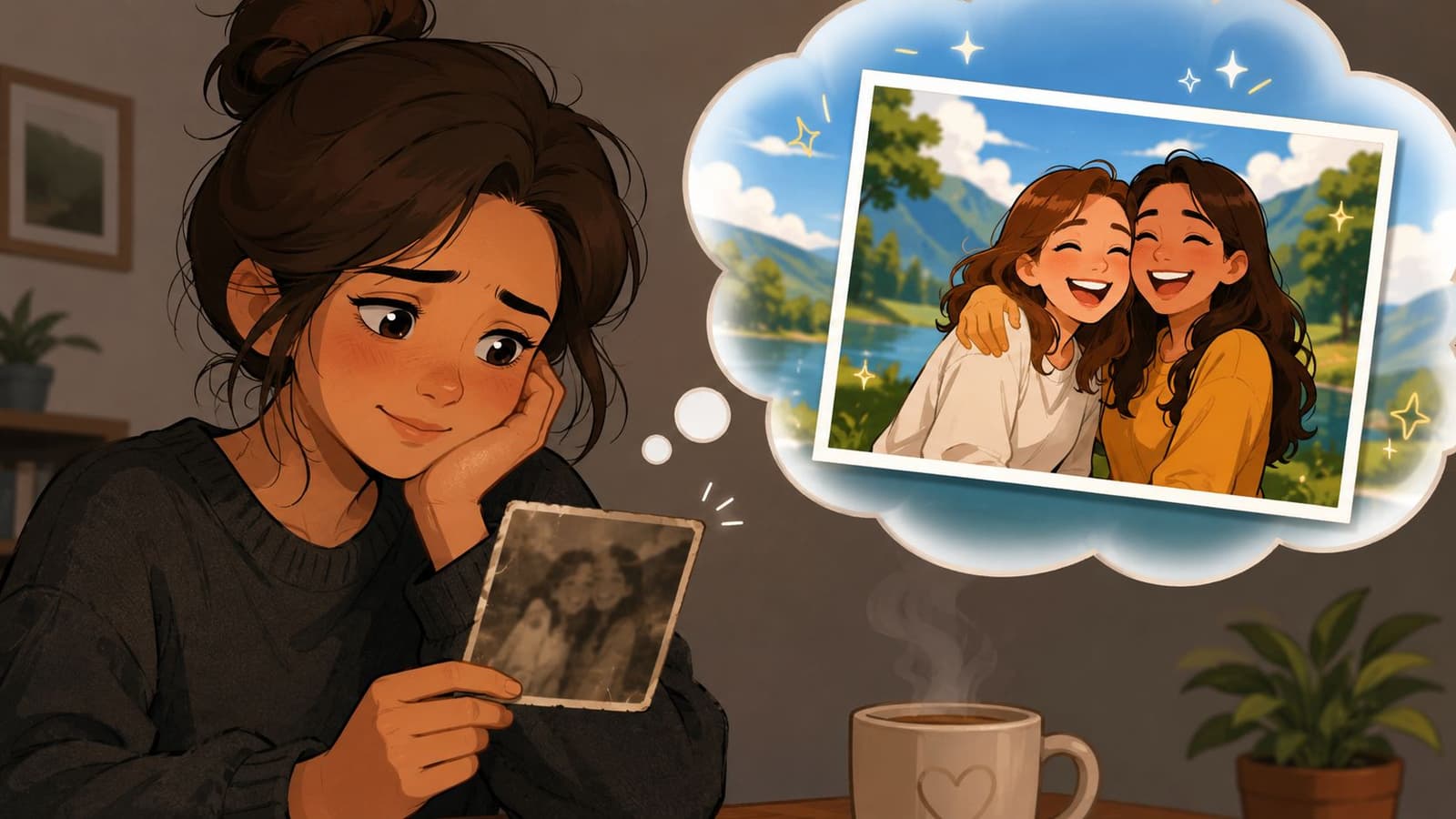
Quality is emotional before it is technical
That distinction matters. A smooth face with strange eye movement or exaggerated head motion doesn't feel higher quality. It feels less trustworthy. In a 2025 International Digital Heritage Association finding referenced here, 74% of users abandon AI video tools when motion feels "too synthetic." That's the core issue for tribute work.
The old print already carries part of the emotional truth. The faded tones, film grain, paper softness, and even tiny imperfections are often part of how the memory is held. If you scrub all of that away, the result may become cleaner but less human.
Practical rule: If the animation draws attention to the software instead of the person, quality has gone down.
In archive and memorial work, restraint usually beats spectacle. A slight blink. A small breath-like rise in the shoulders. A mild camera drift. Those choices preserve the dignity of the original image.
What authentic motion usually looks like
The strongest animations tend to share a few traits:
- Motion stays local: Eyes, mouth, shoulders, or a gentle head turn move a little. The whole frame doesn't lurch.
- Texture stays visible: Grain, soft focus, and analog character remain present instead of being polished into plastic skin.
- Timing stays calm: Slow movement gives the viewer time to recognize the face before they notice the effect.
- Intent matches the photo: A formal portrait needs a different kind of motion than a candid family snapshot.
A common mistake is chasing “wow” on first playback. That can work for novelty clips, but not for keepsakes. Family tribute videos need a second kind of reaction. Not “How did you make that?” but “That feels like them.”
If you keep that standard in mind from the first scan to the final export, every later decision becomes easier.
Start with the Source to Prep Your Photo for Animation
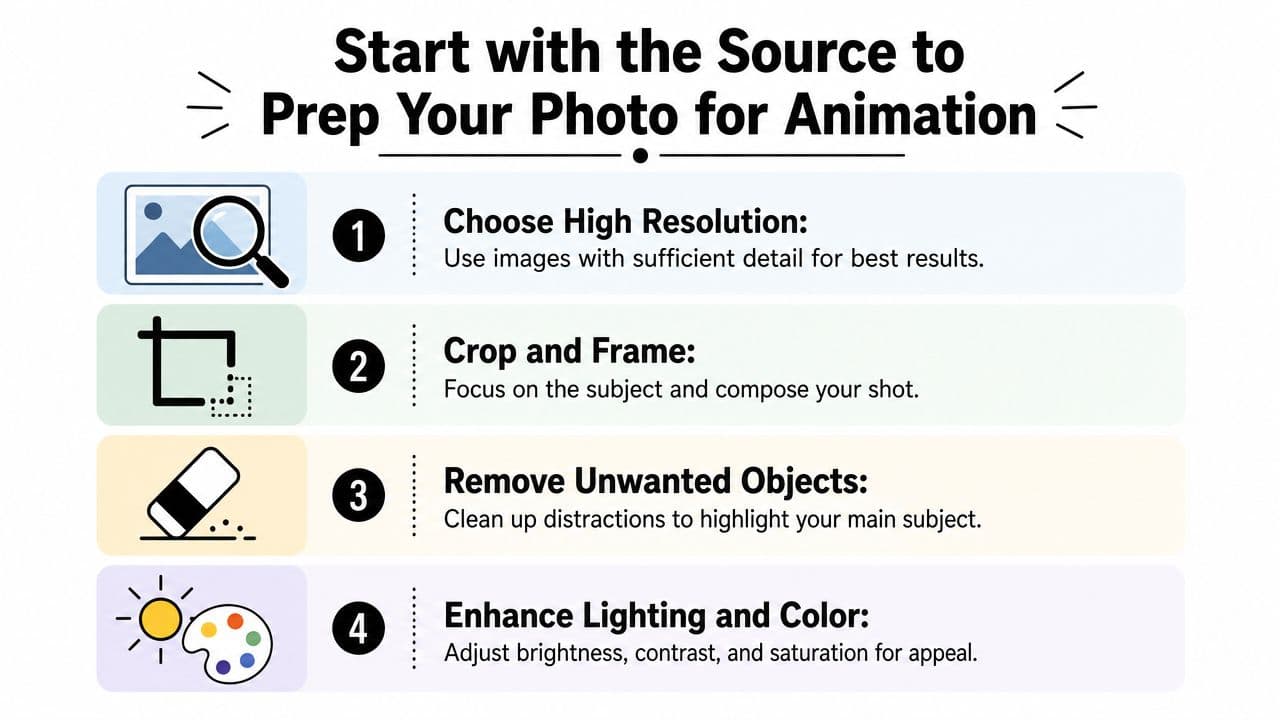
Most animation problems start before animation begins. The tool can only interpret what you give it. If the source image is low-detail, badly cropped, or covered in scratches, the motion engine has to guess. Guessing is where old faces start to drift away from themselves.
Scan and restore with restraint
The first job is to capture enough information from the original print. Guidance from Nero AI's old-photo animation guide) recommends scanning physical photos at 300 DPI or higher and using scratch removal during pre-restoration. The same guide notes that successful animation requires a minimum input resolution of 512x512 pixels.
That minimum is a floor, not a target. If you have a larger clean scan, keep it. More facial information gives the motion model more to work with.
Use this sequence:
- Clean the print gently: Remove surface dust before scanning if you can do it safely.
- Scan flat and straight: Keep the photo aligned so you don't lose edge detail during correction.
- Repair obvious damage first: Scratches, dust spots, tears, and stains can distract the model.
- Stop before the image turns waxy: You're restoring legibility, not repainting the face.
If your original is a phone capture rather than a scanner file, take time to reduce glare and square the frame. A careful recapture often beats trying to force an animation out of a crooked, reflective snapshot.
Leave some age in the image. Removing every crease and pore can make an old family photo look less alive, not more.
For digital cleanup, focus on distractions that compete with the subject. A bright scratch across the cheek matters. Tiny paper texture usually doesn't.
Prepare the frame before you animate it
Composition matters more than many people expect. AI motion reads the image as a scene, not just a face. A cluttered crop creates extra movement opportunities you probably don't want.
A practical prep pass usually includes:
- Crop for the subject: Give the face enough presence in the frame. Tiny distant faces rarely animate gracefully.
- Keep natural headroom: Don't crop so tightly that the forehead or chin feels boxed in.
- Balance exposure lightly: Lift shadows if facial features are buried, but don't flatten the tonal range.
- Correct color carefully: Neutral skin tones help. Over-saturated restoration often looks harsh once motion begins.
If you're working from a very small file, it's worth reviewing a guide on turning low-resolution images into higher-resolution files before you animate. The goal isn't to fabricate detail aggressively. It's to give the model a cleaner, more stable base image.
A final check helps avoid wasted generations:
- Eyes visible
- Face unobstructed
- Resolution comfortably above the minimum
- No major glare
- No heavy over-sharpening halos
The best prep work is often invisible. You don't notice it directly in the final clip. You notice that the motion feels calmer, facial structure holds together, and the person still looks familiar.
Crafting Prompts That Create Lifelike Motion
Prompting matters, but not in the way many beginners assume. More words don't usually produce better motion. Detailed cinematic instructions often push an old photograph into movements it was never built to support.
Use a short subject-plus-motion formula
The most reliable prompt structure is simple. According to the same Nero guidance cited earlier, 1 to 2 short sentences describing “subject + motion” yield 70% higher success than vague descriptions, and leaving prompts blank can improve results by 30% for low-quality sources. That advice belongs in every beginner workflow, even though it feels almost too simple.
A good prompt names the person or relationship, then adds one gentle action. For example:
- young woman smiles softly and blinks
- grandfather looks slightly toward the camera
- mother and child lean gently together
- couple shares a subtle head turn toward each other
That's enough. The AI doesn't need a screenplay.
Short prompts work because they limit interpretation. Old photos usually respond best to one clear action, not layered instructions.
If the scan is weak, damaged, or soft, try no prompt at all before forcing specificity. Some systems handle fragile source material better when they infer minimal motion on their own.
For more examples, a dedicated guide to the best prompts for image-to-video generation can help you match motion to the type of photograph you have.
Prompting for Natural Motion
Here's a practical comparison I use when reviewing family-photo animations:
| Photo Type | Effective Prompt (Do) | Ineffective Prompt (Don't) |
|---|---|---|
| Solo portrait | woman blinks gently and gives a slight smile | dramatic expression change, full head turn, cinematic zoom, wind in hair |
| Couple photo | couple look softly toward each other | both subjects dancing, laughing broadly, camera spinning around them |
| Parent and child | mother holds child close with a subtle sway | emotional reunion with large body movement and active background |
| Formal studio image | man lifts chin slightly and breathes calmly | walking forward, talking to camera, exaggerated facial acting |
| Group family photo | family remains mostly still with small natural movement | every person waving, turning, smiling differently at once |
The pattern is consistent. Good prompts are limited, physically plausible, and matched to the original pose. Bad prompts ask the image to invent too much anatomy, too much motion, or too much scene depth.
A few prompt habits improve the quality of almost every result:
- Prefer one motion over many: Blink plus slight smile is manageable. Blink plus head turn plus laugh plus zoom usually isn't.
- Match the mood of the original: A solemn memorial portrait shouldn't be prompted like a social media skit.
- Respect what isn't visible: If hands, shoulders, or teeth are unclear, don't ask them to do much.
- Avoid film-language clutter: Terms like “epic camera arc” or “dynamic motion” are rarely helpful for keepsake work.
Prompting isn't where you prove creativity. It's where you protect credibility.
Fine-Tuning Your Video with Export and Audio Settings
By the time the motion looks right, you're close. But the final polish can still improve the quality in ways viewers immediately feel, even if they can't name the settings.
Choose export settings that preserve texture
Export is where many good animations lose their character. Compression can flatten subtle grain, blur facial edges, and make delicate movement feel choppy. Post-processing guidance from this YouTube workflow reference notes that upscaling and smoothing to 24 fps can reduce motion jitter by 55%, and that 720P output retains 90% more detail than 480P versions.
Those figures line up with what careful editors already notice in practice. If the final clip will be shown on a larger screen, inserted into a memorial montage, or sent around the family for repeated viewing, the export choice matters.
A practical hierarchy looks like this:
- Use the higher-resolution export when available: It preserves more of the original photo's paper texture and facial detail.
- Smooth frame motion carefully: 24 fps can make movement feel more natural when the original animation jitters.
- Don't sharpen aggressively at the end: Oversharpening creates crisp edges that fight the softness of old prints.
- Review on the device that matters most: A phone-friendly clip can behave differently on a TV or projector.
If you want a deeper breakdown of format trade-offs, video quality settings for AI-generated clips are worth understanding before a final render.
A short demonstration can help you see how subtle motion holds up in a finished tribute-style clip.
Use sound to support the image, not overpower it
Audio changes how viewers judge quality. A silent animation can feel like a test render. The same clip with fitting music or light ambient sound starts to feel intentional.
That doesn't mean adding a swelling soundtrack to everything. Old-photo animation works best when the sound stays in service of the image.
Consider these choices:
- For memorials: Use restrained non-vocal music with space in it. Let the image lead.
- For birthdays or anniversaries: A warm song can work, but avoid tracks that turn the clip into a slideshow cliché.
- For social edits: Keep levels balanced so the viewer still notices the motion, not just the soundtrack.
- For spoken tributes: Fade music low under narration so the face remains the emotional anchor.
If the sound tells the viewer what to feel too aggressively, the clip starts losing the quiet power that made the photo worth animating in the first place.
When I review final exports, I look for one thing above all: does the clip still feel like a photograph that briefly came to life, or has it become a generic video effect? The closer you stay to the first outcome, the better the result usually lands.
Managing Privacy and Giving Proper Credit
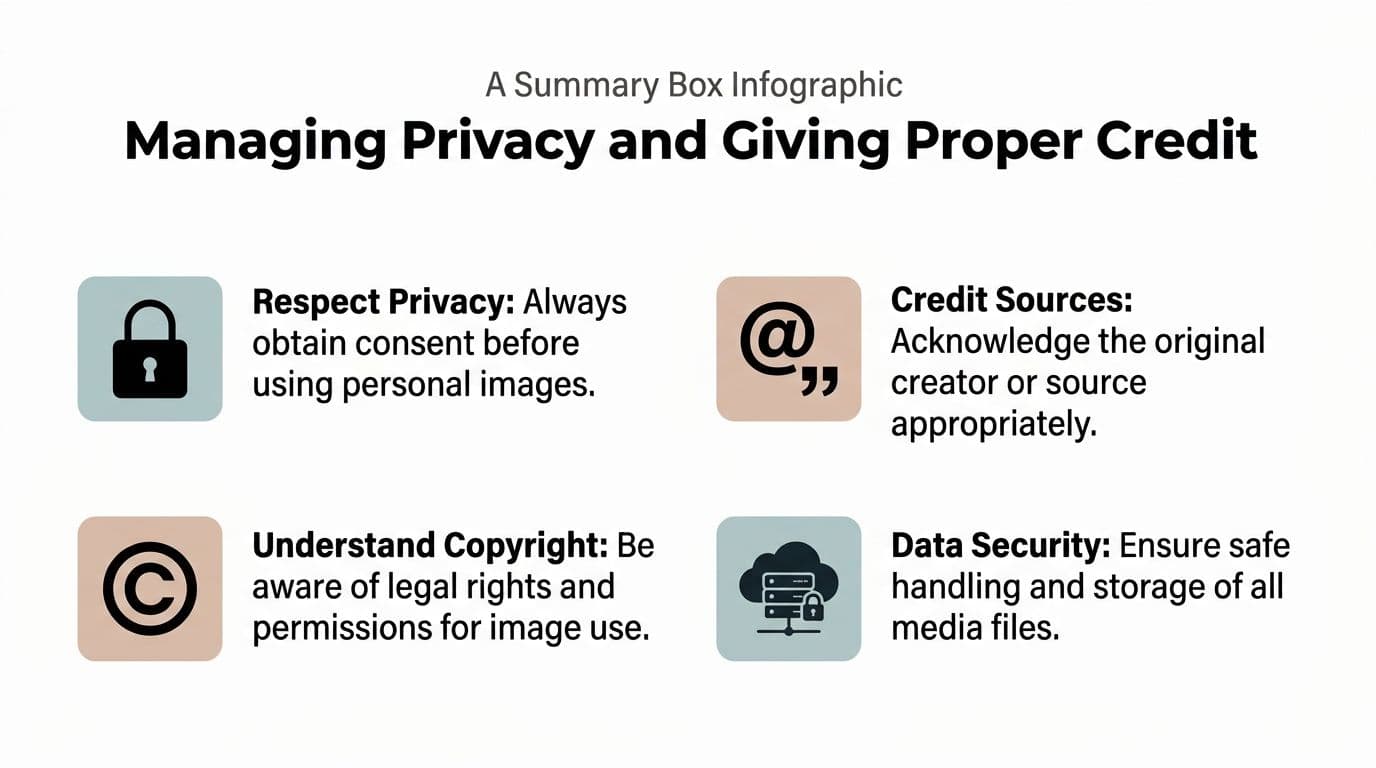
People hesitate with AI photo tools for good reasons. Family images are personal, memorial images are sensitive, and old archives often contain faces from several generations. Quality isn't only about output. It's also about whether the handling of the image feels trustworthy.
Trust matters as much as output
That concern mirrors a wider AI problem. Qlik reports that 81% of companies still struggle with AI data quality, a gap tied to trust and reliability. For everyday users, that broader trust issue shows up in a more personal way: Who sees the image? How long is it stored? What happens after the video is generated?
Good privacy practice should be plain, not buried. Before uploading any family photo, check:
- How long files are retained
- Whether uploads and generations are deleted automatically
- Whether public sharing is optional or default
- Whether the provider explains storage clearly
If you're preparing a memorial or anniversary piece for a family, ask these questions before anyone presses upload. Technical quality won't fix a process that makes relatives uncomfortable.
Credit and consent are part of quality
The ethical side is simpler than people make it. If the photo was taken by someone in the family, credit them when you share the animation publicly. If the image comes from a studio portrait, archive, or old family collection with a known source, mention that source in the caption or end card.
A few habits keep things respectful:
- Ask first when the subject is identifiable: This matters even more for recent photos.
- Get family alignment on memorial edits: One relative may love animation. Another may find it unsettling.
- Credit the photographer or archive when known: It preserves context, not just legal caution.
- Avoid rewriting history through edits: Don't animate a solemn portrait with playful motion if the tone is wrong.
Quality, in this sense, includes stewardship. You're not just making a clip. You're handling a record of a person's life.
From a Still Frame to a Lasting Memory
The strongest old-photo animations usually come from a surprisingly quiet workflow. A careful scan. Gentle cleanup. A prompt that asks for very little. An export that preserves softness instead of sanding it off. A sound bed that supports the moment without flooding it.
The best result is the one that still feels true
That's the standard worth keeping. Not maximum movement. Not the most dramatic transformation. Just enough motion to let the viewer feel the person in the frame again.
When people try to improve the quality of these animations, they often begin by looking for sharper detail or more advanced settings. Those tools have their place. But the better question is usually this: does the finished clip still honor the original photograph?
A good animation doesn't replace the old photo. It extends it for a few seconds.
That mindset changes every creative choice. You stop scrubbing away the past. You stop forcing expression changes the image never invited. You start treating the print as a memory object, not raw material.
A simple workflow usually wins
If you want a practical benchmark, keep it modest:
- start with the cleanest source you can get
- restore damage, not personality
- prompt for one believable motion
- export for smoothness and texture
- share with permission and context
That's enough to create something people keep.
Some clips will still need a second attempt. Old photos vary wildly. Scans come in damaged, tiny, off-color, or poorly lit. That doesn't mean the image is unusable. It usually means the best version will come from less force, not more. Back off the motion. Keep the face recognizable. Let the original photograph do more of the work.
If you're ready to turn a cherished print or phone scan into a gentle living memory, Photo for Video makes that process simple. You upload one image, add a short motion prompt, and get a polished clip designed for tributes, anniversaries, birthdays, and keepsakes, with privacy-minded handling and automatic deletion after 7 days.