Moving on Pictures
Transform still photos into stunning moving on pictures with our 2026 guide. Learn photo prep, motion prompts, and tips for creating captivating animations.
You're probably looking at a photo that already carries weight on its own. A grandparent at a kitchen table. A wedding portrait with soft film grain. A slightly faded snapshot of someone who's gone. The temptation is to make it “come alive,” but the actual task is more delicate than that. You want motion without losing the reason the image matters.
That's where most advice on moving on pictures goes wrong. It treats every photo like a modern selfie and every animation like a demo reel. Older family photos, scanned prints, and sentimental images need restraint. They don't need dramatic camera sweeps, rubbery facial motion, or synthetic flourishes that announce the software louder than the memory.
A good moving picture feels like the photo took a breath. Nothing more. When it works, people don't admire the effect first. They feel the moment first.
Table of Contents
- From Still Frame to Living Memory
- Choosing and Prepping Your Photo for Animation
- Writing Prompts for Natural Motion and Tone
- Bringing Your Vision to Life with an AI Generator
- Common Pitfalls and How to Avoid Them
- Where to Use Your New Moving Pictures
From Still Frame to Living Memory
The hardest part of moving on pictures isn't the tool. It's judgment.
You're deciding what kind of movement belongs inside a memory. A little push-in can feel intimate. A small shift in expression can feel human. Too much invented motion, though, can flatten the original emotion and turn a treasured image into a novelty.
There's also a practical gap in the advice people find online. Much of what shows up for “moving on pictures” still points toward camera-angle photography tips rather than the problem most families and editors have, which is how to animate a still while preserving its texture and emotional realism. That gap matters because current AI tools can alter perspective or add motion, but guidance on what feels natural versus uncanny is still thin and often promotional, as noted in this discussion of the search gap around low-angle photography and related results from Color Clipping's article on low-angle photography.
Practical rule: If the viewer notices the trick before they feel the memory, pull the motion back.
The best source photos usually share a few traits. The subject is clear. The emotional center is obvious. There's enough separation between person and background that slight motion has somewhere to go. A portrait near a window, a seated couple with room around them, a child standing in a yard. These images give you options.
A cluttered group photo can still work, but it asks more from the animation. Every extra face is another chance for the image to drift off-model. Every busy detail in the background invites weird motion where none should exist.
Before you animate anything, ask one simple question: what is the feeling you're protecting? Comfort, warmth, longing, joy, quiet pride. That answer should guide every choice after it, from crop to prompt to pacing.
Choosing and Prepping Your Photo for Animation

A rushed photo choice creates most of the problems people blame on the generator. Start upstream. The photo itself decides more than the prompt does.
What makes a photo animate well
A single subject or a clearly dominant subject is easiest to handle. The software has a straightforward visual hierarchy to follow, and you have a cleaner emotional focal point. That's why portraits, half-body shots, and simple candid moments usually outperform wide family tables or crowded event snapshots.
Use this quick filter before you commit:
- Clear subject: One person, one couple, or one obvious focal point tends to produce steadier results.
- Visible depth: Background space, even a little, helps subtle camera motion read as believable.
- Readable features: Eyes, hands, jawline, and hair shape should be reasonably visible.
- Emotional clarity: The photo should already communicate something before motion is added.
If you're working from an old print, use the highest-quality version you can get. A careful scan beats a compressed message attachment. A phone capture of a print can work, but only if it's sharp, evenly lit, and free of glare. If you need a better source file, this guide on getting a high-resolution photo for video use is worth reviewing before you start.
Prep before you prompt
Don't over-retouch. You're preparing the image, not remaking it.
A few non-destructive adjustments usually help:
| Prep move | Why it helps | What to avoid |
|---|---|---|
| Tighten the crop | Strengthens the emotional center | Cropping so tightly that the frame feels cramped |
| Lift contrast slightly | Helps features separate cleanly | Crunchy blacks or blown highlights |
| Clean obvious dust or scratches | Removes distractions the model may misread | Wiping away age texture that belongs to the photo |
| Straighten the frame | Prevents accidental “drift” in the final motion | Rotating so much that edges become awkward |
Old-photo texture is often part of the memory. Keep the grain, paper softness, and slight imperfection unless they block the subject.
There's another useful way to think about prep. You're not only improving an image. You're narrowing ambiguity. The clearer the subject, edges, and scene relationship, the easier it is to ask for subtle movement later without the tool inventing extra behavior.
If I'm directing a junior designer on a memorial edit, I usually say this: make the photo easier to read before you ask it to move. That one habit prevents a lot of bad animation.
Writing Prompts for Natural Motion and Tone
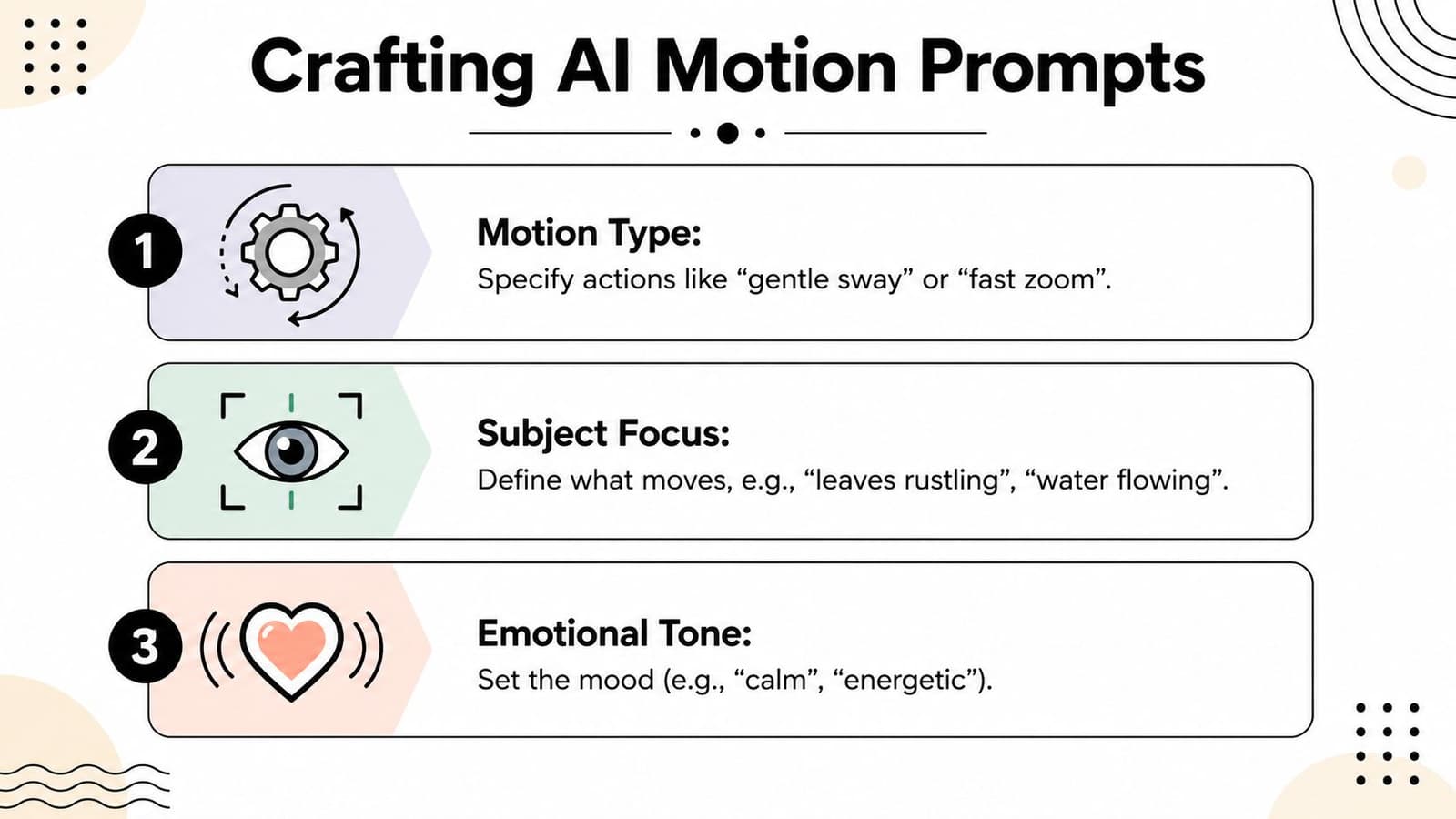
Prompting gets easier when you stop treating it like magic and start treating it like direction.
Think like a director, not a technician
A useful prompt for moving on pictures usually contains three parts: subject motion, camera movement, and emotional tone. If one of those is missing, the result often gets generic. If all three are over-specified, the result gets stiff.
The sweet spot is brief and intentional.
Try building prompts in this order:
- Subject motion
Ask for one small action. A slow blink. A soft smile. Slight hair movement. Gentle breathing. - Camera movement
Add one controlled move. Slow push in. Mild pan right. Subtle drift. Static camera with depth. - Emotional tone
Name the feeling. Peaceful. Warm. Nostalgic. Reverent. Joyful.
Smooth motion depends on small changes, not dramatic jumps. Educational guidance on still-image animation stresses that smaller changes between frames produce better motion, and the same source recommends a 6 to 7 photos-per-second rhythm as a starting point when sequencing stills manually in an edit timeline, as explained in Kinoumeno's stop-motion preparation guide. Even when AI handles the interpolation, the artistic principle stays the same. Subtle increments read as human. Big swings read as fake.
For more examples of how phrasing changes output, this collection of best prompts for image-to-video work can help you refine your wording.
Good versus better prompt language
Here's how that plays out in practice.
Good:
“Make the photo move naturally.”
Better:
“Gentle blink, slight softening of the smile, very slow push in, peaceful and nostalgic.”
Good:
“Animate the couple.”
Better:
“Subtle breathing and a tiny head shift, slow camera drift forward, warm anniversary tone.”
Good:
“Bring this old picture to life.”
Better:
“Preserve the vintage texture, minimal movement, soft eye motion, slight parallax in the background, quiet memorial mood.”
Ask for one memorable motion, not five competing ones.
The most common prompting mistake is stacking actions because it feels productive. Blink, smile, turn head, wind in hair, zoom in, pan left, make background move. That reads like a wishlist, not direction. The tool will try to satisfy everything, and the image often loses dignity in the process.
A better approach is to decide where the life should sit. Sometimes it belongs in the face. Sometimes it belongs in the camera. Sometimes the most tasteful choice is almost no subject motion at all, just a slow cinematic push through a still image with preserved texture.
When you're unsure, cut the prompt in half. Restraint is usually what makes a moving picture feel expensive, careful, and emotionally true.
Bringing Your Vision to Life with an AI Generator

Once the photo is prepared and the prompt is clear, generation itself should be the easy part. The work is already in the decisions you made before clicking upload.
A simple working process
Use a photo-to-video tool that lets you upload one still image, enter a short motion prompt, and export an MP4. One example is Photo for Video's AI photo-to-video generator, which is built around turning a single still into a short living-memory clip and notes that uploads and generations auto-delete after 7 days. That kind of privacy detail matters on memorial projects and family work, where people are often handling sensitive personal images.
A clean workflow looks like this:
- Upload the strongest prepared file: Don't swap in a lower-quality version just because it's nearby on your desktop.
- Paste one restrained prompt: Use the motion, camera, tone structure from above.
- Generate and review without sound first: Silence helps you judge whether the movement itself feels honest.
- Watch for face integrity and texture preservation: If skin, eyes, or paper texture look synthetic, simplify the prompt and try again.
I usually review the first pass with one question in mind: would a family member feel comforted by this, or distracted by it? That keeps the work anchored to outcome instead of novelty.
Later in the process, a short product demo can help you see how the upload-to-export flow works in practice.
Finishing the clip so it fits a tribute edit
A generated clip is rarely the final piece. It's usually an ingredient inside a larger montage, memorial slideshow, anniversary reel, or social edit.
A few finishing moves make a big difference:
- Trim aggressively: If the strongest moment happens in the middle, use that section.
- Add handles for editing: Leave enough room before and after the key motion to dissolve cleanly.
- Match the surrounding material: If the tribute uses gentle pacing, don't drop in a clip that feels mechanically active.
- Respect the original color: A slight grade can unify the project, but don't polish away the age of the image.
The clip should feel like it belongs in the edit you're building, not like a separate effect pasted on top.
If the animation will sit between still photographs, use transitions with a light touch. The moving image already carries enough emotional emphasis. It doesn't need extra decoration.
Common Pitfalls and How to Avoid Them
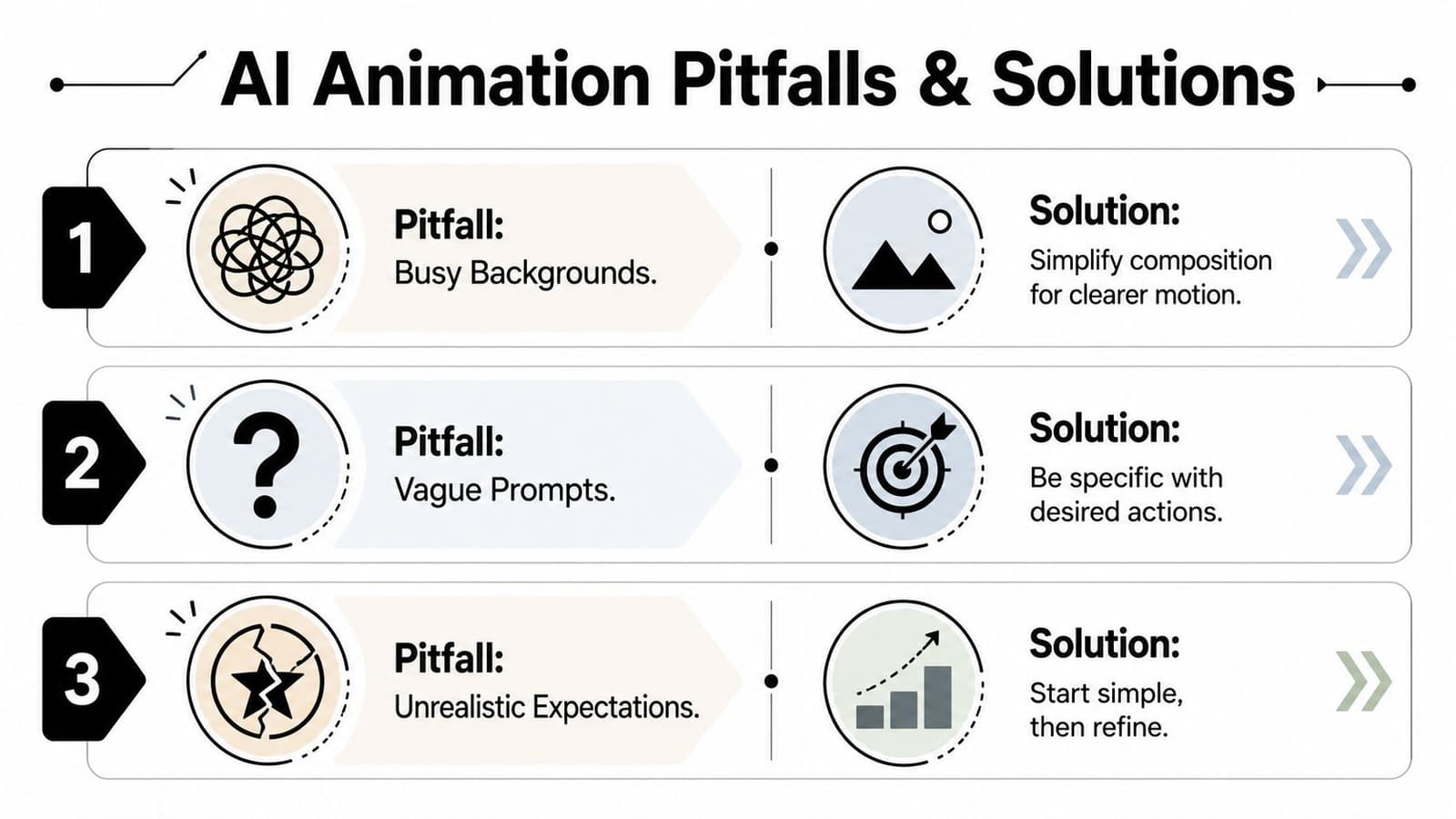
Most weak results come from one false assumption. People think more motion makes a moving picture feel more alive. In practice, more motion often makes it feel less believable.
Why tasteful motion often means less motion
Jerky movement usually comes from asking the image to travel too far, too fast, or in too many directions. Motion perception depends on persistence of vision, and Britannica notes that continuous movement is perceived when still images are shown above 15 frames per second, which is why under-sampled motion or large jumps tend to look stuttery instead of fluid, as described in Britannica's overview of motion-picture technology.
That principle shows up in AI outputs too. If the generated clip appears to twitch, snap, or wobble, the problem often isn't that the software “failed.” It's that the requested movement exceeded what the image can support gracefully.
Three common failures show up again and again:
- Too much face motion: Large smiles, pronounced head turns, or exaggerated eye movement can make sentimental photos look uncanny.
- Busy backgrounds moving independently: Curtains, trees, wallpaper, and crowd details often create visual noise if the prompt isn't specific.
- Texture loss: Aggressive animation can smooth away grain, paper softness, or age marks that made the original photo feel real.
A quick diagnosis table
| If you see this | The likely cause | Better fix |
|---|---|---|
| Rubbery facial movement | Prompt asks for too many facial changes | Limit motion to blink or slight expression shift |
| Floating background details | Composition is cluttered or motion is too global | Crop tighter and ask for gentle camera motion instead |
| Stutter or jumpiness | Movement spans too much distance | Reduce the action and keep the motion path simpler |
| Polished, synthetic look | Tool is inventing too much detail | Prioritize preservation of original texture in the prompt |
Don't chase realism by piling on instructions. Chase it by reducing friction between the source photo and the motion you're asking for.
If a first result feels awkward, the correction is usually subtraction, not addition.
That mindset saves time. It also protects the tone of the project, which matters more than any clever effect.
Where to Use Your New Moving Pictures
A tasteful moving picture earns its place when it supports a real moment. It isn't just an animation test. It becomes the beat in the sequence that people remember.
Memorials, anniversaries, and family reels
Memorial work is where restraint matters most. A short moving portrait at the start of a tribute video can establish warmth without overwhelming the viewer. Used well, it feels like a quiet welcome into the person's presence.
Anniversary montages benefit from a different kind of motion. A gentle push into a wedding photo or a subtle living moment from an early snapshot can add tenderness without making the piece sentimental in a forced way. Birthdays and family celebrations can handle a little more lift, but the same rule still applies. Keep the motion connected to the emotion.
Moving visuals also make practical sense in digital spaces where attention is scarce. One marketing benchmark reports that posts with images can generate a 650% higher engagement rate than text-only posts, according to Gary Nealon's roundup on image performance in digital content. For family tribute pages, event announcements, and social reels, that reinforces a simple point. Motion-enhanced imagery gives people a stronger reason to pause.
Social posts and client work
Editors, memorial providers, and event planners can use these clips as emotional anchors inside larger edits. The MP4 format slots easily into standard video timelines, so the moving picture can open a reel, bridge between stills, or sit under a voiceover section without special handling.
Small businesses can also use the same taste principles for product or founder storytelling, though the tone shifts. Commercial work can support more visible motion than a remembrance piece. Even then, subtlety tends to age better than spectacle.
The strongest use case is still the most human one. A single scanned photo. A modest movement. A few seconds that let someone feel close to the memory again.
If you want a straightforward way to turn a cherished still into a short, editable MP4, Photo for Video is one option built for family tributes, anniversaries, memorials, and keepsake workflows. Start with your best photo, keep the prompt restrained, and treat the motion as support for the memory, not the main event.