Step by Step Tutorial to Animate One Photo
A step by step tutorial for turning one family photo into a gentle 5-second clip, from scan and prompt to a watermark-free export.
You've set aside a faded birthday portrait for a family tribute. There's soft grain across the cake, a recognizable face above the candles, and a print corner that won't quite lie flat. You want a little movement, but not a stranger wearing your relative's face.
Keep the untouched photograph beside you. It's the reference for every decision, including the decision to leave the person still.
Table of Contents
- The Quiet Clip You Are Aiming For
- One-Line Prompts for Each Kind of Memory
- How to Animate One Photo from Scan to Export
- Stop and Fix a Broken Preview
- Credits Privacy and Honest Disclosure
- Place One Clip in the Tribute Edit
The Quiet Clip You Are Aiming For
Say the finished clip opens on that birthday portrait. The girl's eyelids close gently and reopen, while the camera eases closer. Her mouth keeps its original shape, the candles stay upright, and the paper texture remains visible.
This is the kind of source photograph to start with.
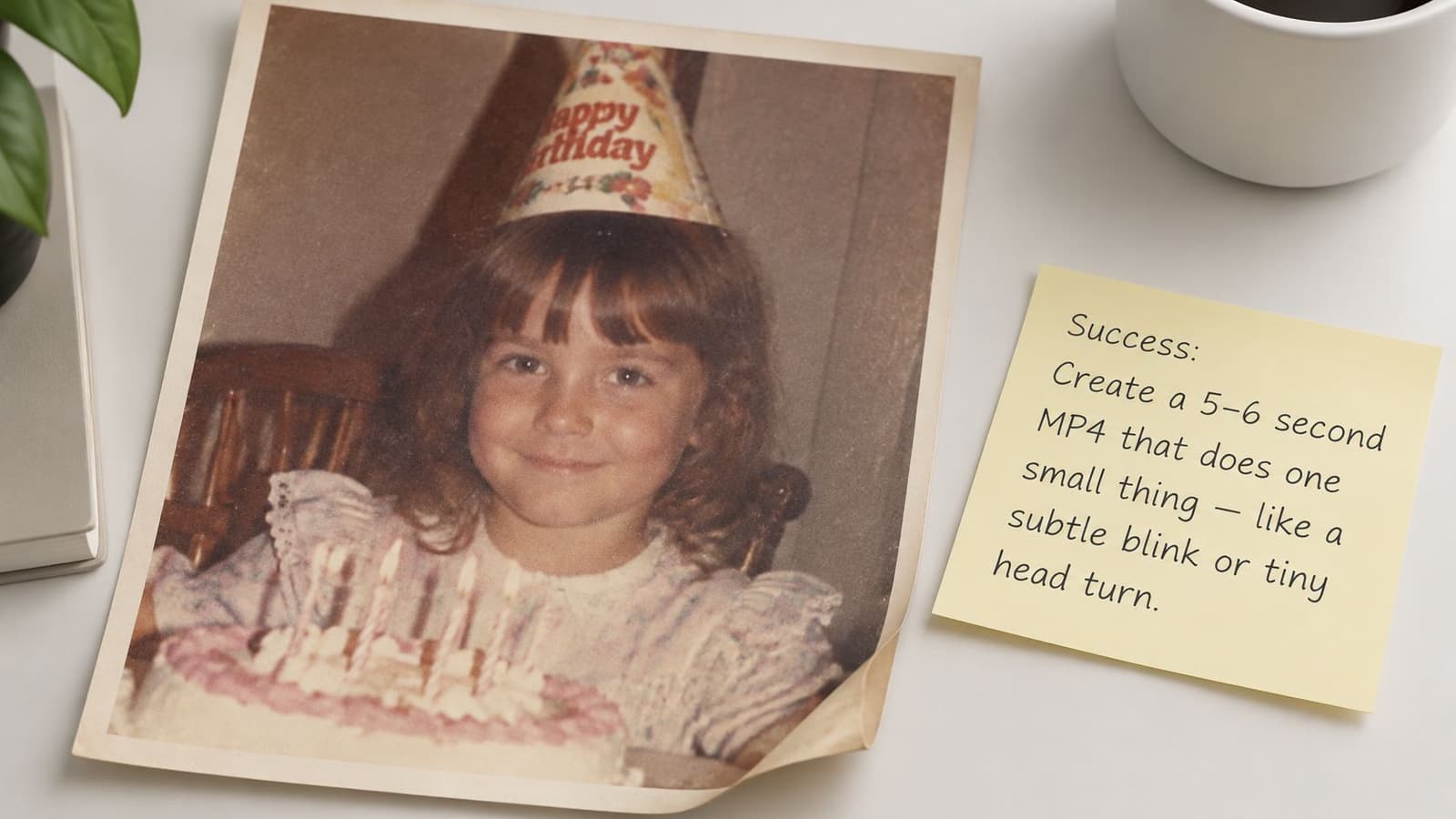
Success isn't how much movement you can produce. It's whether a relative recognizes the person without having to overlook something odd. A spinning camera, an unfamiliar smile, or skin polished into plastic defeats that purpose, even if the animation looks technically elaborate.
A worked example gives you a finished outcome to judge before you start choosing settings. MIT's guide to worked examples describes how showing the relevant operations and decisions in sequence helps beginners learn without carrying the entire problem in their heads.
Gather only what you need
For this step by step tutorial, start with a small, manageable set of inputs:
- A source image: Use a scan, a phone photograph of a print, or an existing digital picture.
- A motion sentence: Describe the subject's movement, the camera movement, and the tone.
- An original reference: Keep an unedited copy available for comparison.
- An uninterrupted pause: Give yourself enough quiet to watch the result rather than approving a thumbnail.
Photo for Video is an option for turning a single photograph and a short motion prompt into an MP4; an editor's camera move over an unchanged still is another. Choose facial animation only when it adds something the family wants.
For the birthday example, the test line is:
She blinks once and the camera eases closer, warm and still.
Read that sentence against the photograph. If the face is turned away, the eyes are indistinct, or a blink would draw attention to damaged detail, remove the facial movement. The camera can do the work.
Keep the photograph's limits visible
A curled corner and faded color aren't automatically defects. They may be part of how the family remembers the print. Clean enough to make the image readable, but don't turn preparation into a speculative reconstruction.
The path is straightforward: prepare the file, write the prompt, inspect the preview, change a single element if necessary, and export. The important judgement comes before the export button: does this still feel like the person?
One-Line Prompts for Each Kind of Memory
Use this formula: what the subject does + how the camera moves + the emotional temperature. Keep it to a sentence you can read aloud without losing track of the request.
For the birthday portrait, that might be A soft blink, a slow push-in, warm and celebratory, with the original expression preserved. Don't add head turns, moving candles, waving hands, and drifting decorations just because the prompt box has space.
Motion, camera, and tone by occasion
| Occasion | Motion | Camera | Tone | Do not ask for |
|---|---|---|---|---|
| Birthday portrait | Soft blink and a small smile, only if a smile is already present | Slow push-in | Warm and celebratory | Fast zoom or chaotic effects |
| Memorial portrait | Barely-there presence, eyes mostly still | Very slow drift | Solemn and respectful | Invented laughter or a dramatic orbit |
| Anniversary couple | Slight lean toward each other | Gentle pan | Tender and film-like | Faces merging or separate identities changing |
| Old scanned print | Minimal blink, grain kept visible | Locked frame or tiny push-in | Vintage and calm | Skin smoothing that erases texture |
| Keepsake or product object | Subtle light shift only | Slow steady push | Clean and restrained | A facial expression on an object |
Copy the choices from a row that matches your photograph, then join them into a line. Treat the table as a starting vocabulary, not a requirement to animate every face.
A birthday portrait with a serious expression should stay serious. Warmth can come from the camera's pace and the surrounding edit; you don't need to manufacture a grin.
For a memorial, I would start with camera-only movement. Keep the person still; use a very slow camera drift, solemn and respectful, preserving the original expression gives you a clear request without suggesting speech or laughter.
Choose movement the image can support
A couple's slight lean is more demanding than a pan across their existing pose. If shoulders overlap, hands touch, or the faces are close together, the simpler camera move is the safer starting point. Tenderness doesn't require changing the space between them.
An old scan needs a different priority: retain the surface. Try Minimal movement, a tiny push-in, vintage and calm, preserving grain and facial texture. Avoid requests such as flawless skin or perfect restoration when the purpose is to keep the photograph recognizable.
For a keepsake, describe light and framing rather than personality. A recipe card, brooch, or worn toy can carry family meaning without being made to behave like a character.
The image-to-video prompt guide can help you find alternative wording, but don't paste several examples together. More adjectives can introduce competing instructions rather than greater precision.
If expression and camera movement compete, keep the camera movement. The tool can't infer a private habit from a still photograph, so avoid biographical requests such as making someone move exactly as they always did. Finish with a modest, observable sentence ready to paste.
How to Animate One Photo from Scan to Export
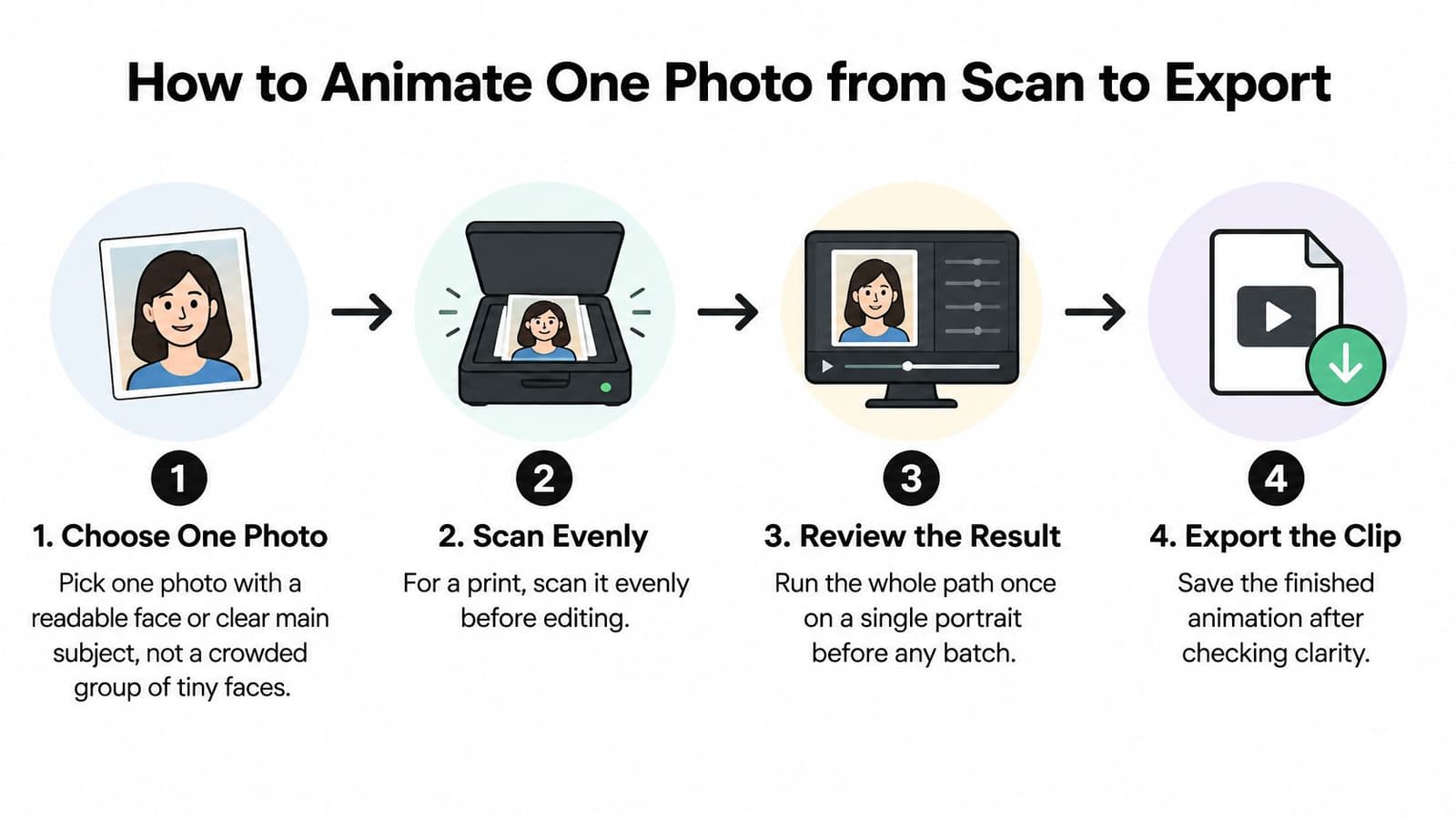
Complete the workflow on a portrait before preparing a collection. That gives you a usable test of the source image, the prompt, and the export process without committing the whole tribute.
A meta-analysis of worked examples in mathematics found an average effect size of g = 0.48 compared with less structured alternatives. That finding concerns learning, not animation quality; the practical reason for a complete example here is that you can see what each action should produce.
Use this visual as a compact reminder of the workflow.
Prepare the source before generating
-
Choose the photograph. Pick a readable face or a clear main subject. A crowded group with tiny faces makes it harder to judge identity. Your result is a selected file, not a folder of candidates.
-
Digitize the print evenly. Use a flatbed scanner if you have one. With a phone, place the print in soft, even light and keep the camera parallel to it. Check for reflections across the eyes before accepting the capture.
-
Remove obvious dust. Work on a duplicate in a familiar photo editor. Repair loose specks rather than every wrinkle, crease, or patch of grain. Save the cleaned copy separately from the original.
-
Check the face at a useful viewing size. Make sure the eyes and mouth are readable and the head isn't cut by the edge. Crop unnecessary surroundings, but leave breathing room around the subject. If the face is already indistinct, consult the guide to low-resolution photos before spending credits.
The distinction between cleanup and replacement matters. Photo Speak's guidance on how to protect key elements during AI edits is useful when you need to identify what must remain unchanged, such as facial proportions, clothing, and meaningful background details.
Run a restrained test
-
Paste the motion sentence. For the worked birthday portrait, use Soft blink, slow push-in, warm and quiet, preserving the original expression and paper texture. Your result is a brief you can compare directly with the output.
-
Set the simplest available test. Choose a short clip, keep the selected face prominent, and leave audio off. Use the standard generation option rather than adding storytelling features. Don't change controls you don't need.
-
Read the credit reservation before starting. Check the live cost shown for that configuration, then generate. Keep the browser open while the request processes rather than submitting duplicate attempts because nothing appears immediately.
-
Watch the entire preview. Compare the beginning, middle, and end with the original. Stop if the face warps, the eyes melt, or the subject leaves the frame. A pleasing opening frame doesn't make the whole clip acceptable.
-
Revise a single element if needed. Usually, simplify the motion first. Keep a copy of the previous sentence so you know what changed, rather than trying to remember it.
A demonstration can help you recognize the handoff between choosing the image and checking the result.
Save the approved file
-
Export the MP4. Select the watermark-free export option when available, after identity holds throughout. Match the intended edit's orientation without cutting into the face.
-
Download the file locally. Open the downloaded copy outside the browser and check that it plays. Use a filename that identifies the photograph and marks the clip as an animation, so nobody later mistakes it for archival footage.
Keep the original, cleaned source, prompt, and approved export together. That small amount of organization makes revisions possible without starting from a compressed copy sent through a messaging app.
Stop and Fix a Broken Preview
If the face warps, stop. Don't export it on the assumption that music, a dissolve, or a small screen will hide the problem.
Separate failures in the generated movement from failures already present in the source. A prompt can reduce an excessive head turn; it can't recover the actual appearance of an eye that's missing from a damaged print.
Preview problems and the one change that fixes them
| What you see | Likely cause | Do this next |
|---|---|---|
| Face warps or melts | Motion too strong or face too small | Stop; reduce motion first, or crop closer if the face is tiny |
| Subject leaves the frame | Camera move too wide | Return and use a slow push-in or locked frame |
| Plastic skin, grain gone | Prompt asked to beautify | Regenerate while preserving facial texture |
| Whole image stays blurry | Source scan is too soft | Rescan evenly; don't invent detail first |
| Upload stalls | File type, size, or connection | Try a common image format; then test a smaller copy if needed |
| Unnatural smile in a memorial | Expression was invented | Switch to still, respectful, camera-only motion |
| Eyes flicker | Identity is unstable | Retry without adding complexity; if repeated, drop facial motion |
The table gives alternatives, not a bundle of instructions to apply together. For a warped face, decide whether the face is clearly readable in the source. If it is, reduce movement; if it isn't, improve the source before another generation.
A study of video-learning design emphasizes segmentation, decision checkpoints, and recovery rather than demonstrating success alone. Use that principle here: pause at the visible failure and choose a reversible response.
Decide whether to rewrite or rescan
Rewrite the prompt when the source is sound but the output introduces an unwanted action. Replace a head turn with stillness, remove the smile request, or exchange a broad camera move for a locked view. Keep everything else unchanged.
Return to the source when blur, glare, or poor framing prevents you from reading the person's features. A tighter crop helps only when useful detail exists in the file. Enlarging a tiny face doesn't reveal the detail that wasn't captured.
Practical rule: Change a variable you can name, not a collection of settings you hope will help.
For a stalled upload, keep the original safely stored while testing a JPEG or PNG copy. Check that the file opens locally and that your connection is working. Avoid repeatedly refreshing a page that may already be processing a request.
An emotionally wrong result also counts as a broken preview. If a solemn portrait suddenly looks cheerful, don't spend time debating whether the animation is technically convincing. Remove the expression change.
Before continuing, finish this sentence: The next action is… If you can't name that action plainly, don't spend another credit yet.
Credits Privacy and Honest Disclosure
Treat the clip as an interpretation, not evidence of how someone moved or felt. A convincing animation can still suggest an expression the photograph never contained.
This distinction matters when viewers don't know how the clip was made. Deloitte's discussion of generative-AI trust standards reports that 68% of people familiar with generative AI worry synthetic content could deceive or scam them, while 84% believe AI-developed content should always be clearly labeled.
Ask permission before asking for movement
For a living subject, ask whether they're comfortable with animation and where it will appear. Permission for a private birthday screening isn't automatically permission for a public social post.
For a deceased relative, involve someone close to them before publishing. A person may approve the original portrait but find an animated blink unsettling. That response doesn't need a technical justification.
- Check the audience: Identify whether the clip is for a family room, a service, or an open account.
- Check the subject: Consider whether the person would have welcomed this treatment.
- Check other people pictured: Don't overlook relatives in the background or a child beside the main subject.
- Accept a refusal: Use the untouched still if someone close to the subject is uncomfortable.
Keep these decisions visible while you work.
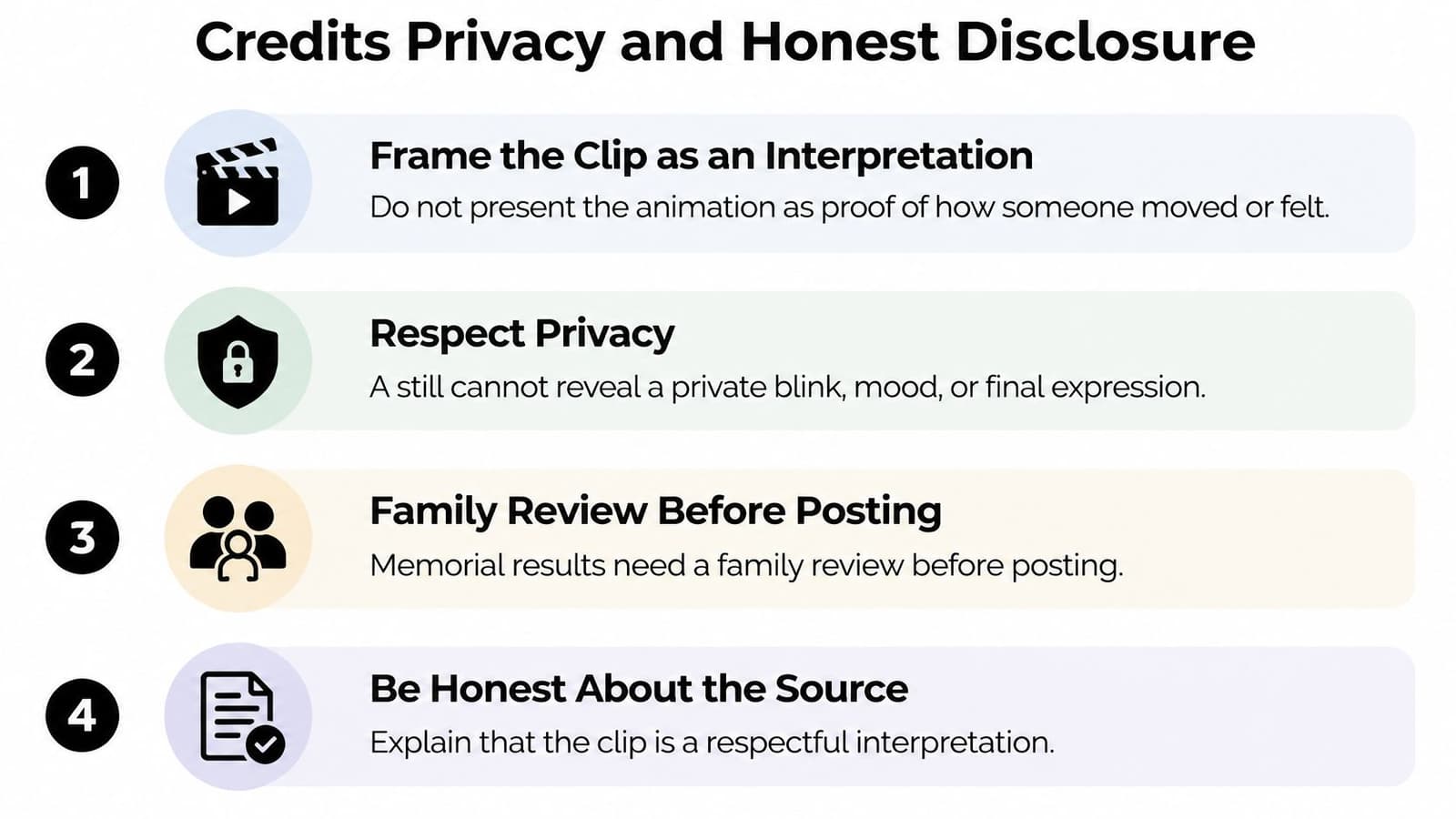
A plain disclosure is enough. You can use this caption:
This short clip gently animates a still family photo with AI; it is a tribute, not a recording.
Put the explanation where the audience will encounter the clip. Don't rely on a comment buried below a post or on an export filename that viewers will never see.
Read the payment and privacy details
Choose a plan for the work you need, not for a hypothetical future collection. Lite, Plus, and Pro subscriptions, one-time refills, and custom credit checkout offer different purchasing routes; compare the live credit cost before committing. Audio-ready and multi-photo storytelling options aren't necessary for a restrained portrait test.
A credit reservation tells you what the run will commit before generation. It doesn't guarantee that you'll approve the creative result. Set a spending boundary before experimenting, especially if you're working under the emotional pressure of a service deadline.
Check the current retention policy before uploading irreplaceable or sensitive photographs. Automatic deletion isn't a substitute for understanding access, storage, and your own sharing choices. Keep an approved local copy rather than treating the generation page as an archive.
On a shared phone, also check shared albums, cloud synchronization, and who can open the device. LuminaClean's guide to keep personal photos safe on iPhone is a useful companion for those device-level decisions.
Share or wait: share only when a relative has reviewed the clip, the intended audience is agreed, and the disclosure is ready. Otherwise, wait.
Place One Clip in the Tribute Edit
An approved animation should sit comfortably among the photographs, not turn the tribute into a demonstration of effects. Give viewers enough context to recognize the original before anything moves.
Keep the surrounding editing simple. The movement is already inside the exported clip, so an additional editor zoom can exaggerate it or push the face out of the crop.
Choose an edit pattern for the occasion
For a birthday reel, begin with the untouched still, play the animation through, then return to the still. That lets guests recognize the face and see that the original print hasn't been replaced. Cut away before repetition makes the blink feel mechanical.
For a memorial, use the portrait as a quiet pause. Place the name and dates where they don't cover the face, and lower music beneath spoken words. Leave neighboring photographs unchanged instead of presenting several moving faces at once.
For an anniversary, place the couple's clip between untouched photographs from the same occasion. Keep the pan already generated in the clip; don't add another pan in the editing app. A simple cut or restrained dissolve usually serves the sequence better than a decorative transition.
The guide to making a video montage can help with arranging the larger tribute. Let the story determine where the animation belongs, rather than opening with it because it moves.
Help a relative stay in control
The Building Digital Literacy Among Older Adults report describes the value of piece-by-piece guidance, repetition, visual aids, printable instructions, and hands-on practice. Apply that approach without taking over the device.
- Enlarge the text: Make the prompt and controls comfortable to read before starting.
- Read the sentence aloud: Confirm that it describes movement the relative wants.
- Keep a printed card: Write only the action words: photo, sentence, preview, save.
- Let them operate the controls: Offer help at the point of uncertainty rather than clicking ahead.
The person helping should make the task easier, not make the decisions invisible.
Tonight, choose the photograph you'd genuinely show at the gathering. Place its approved clip in the intended sequence and watch it with a family member, with the sound and captions as the audience will receive them.
Ask whether it belongs, not whether the technology is impressive. End the lesson on that screening. There's no need to open another feature when the family already has a moment they're comfortable sharing.
Photo for Video offers single-photo animation from a short motion prompt, with MP4 output for tribute edits and keepsakes. Visit Photo for Video to try a restrained portrait workflow, then judge the result beside the original before adding it to your family film.