4K Video Upscaling: Bring Your Old Videos to Life
Learn the secrets of 4k video upscaling. Our guide explains how to turn blurry family videos and animated photos into sharp, clear memories for 2026.

You've probably done this already. You found an old phone clip of a birthday, a camcorder recording of a grandparent, or a scanned photo you turned into a short motion piece. Then you played it on a modern TV or large monitor and saw the problem right away. The memory still lands, but the image looks soft, blocky, or oddly fragile.
That's where 4K video upscaling enters the conversation. But most advice online treats it like a simple quality upgrade, as if pressing “4K” automatically makes old footage look new. It doesn't. For families making tribute videos and creators building short reels from old photos, the primary question is simpler: does this version feel more natural, more watchable, and more faithful to the original memory?
That's the lens worth using. A crisp result matters. So do skin texture, gentle motion, film grain, and avoiding that plastic, over-processed look that can make a precious clip feel less human.
Table of Contents
- What Is 4K Video Upscaling Really Doing
- Old-School Interpolation vs Modern AI Upscaling
- How Upscaling Affects Animated Photos and Clips
- A Practical Workflow for Better Quality Video
- When Is 4K Upscaling Not Worth the Effort
- Quick Fixes for Common Upscaling Problems
- Frequently Asked Questions About Video Upscaling
What Is 4K Video Upscaling Really Doing
4K video upscaling is not the same as zooming in. It's closer to a careful restoration job.
Think of an old painting. If you enlarge a photo of it, the cracks, blur, and missing detail get bigger too. But if a restorer studies the surface, edges, and texture, they can rebuild what the eye expects to see. Good upscaling works in a similar way. It tries to fill in missing visual information so older footage fits modern screens more gracefully.
Why this became necessary
A big reason upscaling matters today is the jump in screen resolution. A 4K screen is 3840×2160 pixels, while full HD is 1920×1080. That means 4K has about 8.3 million pixels and 1080p has about 2.1 million, so a 4K display has roughly 4 times as many pixels to fill according to this explanation of 4K display pixel counts and why upscaling became essential.
If your original video doesn't have enough information for that larger canvas, something has to decide what those extra pixels should look like. That “something” is the upscaling process.
What software is trying to add
At a practical level, upscaling asks questions like these:
- Edges: Should this line look sharp or soft?
- Texture: Is that sweater knit, skin detail, hair, or just compression noise?
- Contrast: Where should light and shadow be separated more clearly?
- Motion continuity: If the subject moves, how can the image stay believable from frame to frame?
Practical rule: Upscaling doesn't create true native detail. It predicts or reconstructs missing detail so lower-resolution footage displays more cleanly on an Ultra HD screen.
That's why results vary so much. A weak upscale just stretches the image and smooths it over. A good one tries to preserve identity. Faces still look like your family. Fabric still looks like fabric. The image feels more settled on a large screen.
What readers often get wrong
People often expect 4K video upscaling to rescue anything. It won't.
If the original clip is heavily compressed, poorly lit, or blurry, the software has less trustworthy information to work with. It can improve presentation, but it can't travel back in time and recover detail the camera never captured.
A healthier expectation is this: 4K upscaling can make old video and animated photo clips look cleaner, more stable, and more comfortable to watch on modern displays. That's already valuable, especially when the point is to preserve a memory with dignity.
Old-School Interpolation vs Modern AI Upscaling
There are two broad ways software enlarges video. One uses math rules. The other uses learned reconstruction.
That difference matters because the output looks different. One tends to make footage bigger. The other can make footage feel more convincingly restored.
What interpolation does well
Traditional methods such as bicubic and Lanczos estimate new pixels by looking at nearby ones. That sounds technical, but the effect is familiar. The software smooths blockiness, rounds edges a bit, and reduces the harsh “pixel stair-step” look.
That can be useful when you want something fast and controlled.
Here's the trade-off in plain terms:
| Method | What it does | Common visual result | Best fit |
|---|---|---|---|
| Bicubic | Smooths based on surrounding pixels | Softer image, fewer jagged edges | Quick enlargement |
| Lanczos | Uses a sharper mathematical resampling approach | Crisper than basic smoothing, but can still look synthetic | Cleaner source footage |
| AI super-resolution | Reconstructs likely detail using learned patterns | Better texture and edge definition, but can overdo detail | Restoration and large-screen playback |
Interpolation is often the safer choice when you don't want the software inventing much. But it rarely makes old family footage look newly alive. It usually makes it look less rough.
What AI upscaling changes
Modern AI upscalers treat the job less like smoothing and more like reconstruction. Independent conference material describes this split between mathematical methods and deep-learning systems, and notes that deep-learning approaches can deliver better quality while demanding more compute and adding latency in this discussion of video playback upsampling and AI market growth.
That same source also notes a commercial shift. Market research estimates the AI video upscaling software market at USD 550 million in 2024, USD 670 million in 2025, and a projected USD 5 billion by 2035, implying a 22.3% CAGR from 2025 to 2035. The numbers matter because they show this isn't a novelty feature anymore. It has become a real software category tied to streaming, post-production, and consumer viewing habits.
Why AI can look better and also worse
AI models are often better at reading image context. They can treat eyelashes differently from brick texture, and fabric differently from sky. That's why they often produce more believable detail than a purely mathematical resize.
But “more detail” isn't always “more truth.”
Sometimes the most obvious upscale is not the most faithful one. If a face becomes waxy or hair turns into crunchy outlines, the software is drawing attention to itself.
For family projects, that's usually the wrong outcome. You want viewers to feel the moment, not inspect the processing.
A simple side-by-side way to consider:
- Interpolation is a smart guess from nearby pixels
- AI upscaling is a learned guess from image patterns
- Interpolation usually softens
- AI can sharpen and reconstruct
- Interpolation is less ambitious
- AI can impress you, or overreach
A better choice for family footage
If you're restoring a speech, a wedding clip, or an old holiday video for TV playback, AI often has the edge because it can preserve facial structure and texture better.
If you're working with very rough material and you want a restrained result, a simpler upscale can sometimes protect the original feel better. Not every project needs the strongest enhancement setting. In memory work, “gentle and believable” often beats “dramatic and ultra-sharp.”
How Upscaling Affects Animated Photos and Clips
Short animated photos sit in a tricky middle ground. They aren't traditional still images, and they aren't full live-action footage either. That's why 4K video upscaling can help them, but it can also break the illusion fast.
A gentle photo animation usually depends on tiny things. A slight camera move. A subtle blink. Soft depth. A little motion in hair or clothing. If the upscale is too aggressive, those delicate cues can start looking artificial. Skin becomes too smooth. Eyes get over-defined. Old paper texture disappears.
Resolution is only part of the picture
Recent product pages increasingly pair 4K output with frame-rate boosts to 60 fps, and some browser tools combine super-resolution with frame interpolation, as noted in this overview of AI video upscaling and motion enhancement. That reflects a real issue people notice right away. Motion problems often look worse than resolution problems.
If you animate an old photo of a parent or grandparent, viewers may forgive a little softness. They're less likely to forgive strange motion, rubbery facial movement, or over-sharpened details around eyes and mouths.
What matters most for keepsake clips
For this type of project, I'd judge quality in this order:
- Natural motion: Does the movement feel calm and believable?
- Texture retention: Does the original paper grain, film softness, or camera character still exist?
- Face integrity: Does the person still look like themselves?
- Clean scaling: Does the clip hold together on a larger screen?
That order surprises people. Many assume the 4K label should come first. For tribute reels and social clips, it usually shouldn't.
A living-memory clip works because it feels emotionally true. If the upscale strips away the original texture, the result may look newer but feel less real.
If you're starting from a small scan or phone photo, it helps to improve the source before animation or upscaling. A practical starting point is learning how to get a high-resolution photo for video projects, because every later step depends on what the system can see in the original image.
The common mistake with social-ready clips
Many creators build a short animated photo, upscale it, export it, upload it, and only then notice that platform compression softened everything again. In that situation, the smartest workflow often isn't “maximum sharpness.” It's restrained detail recovery plus smooth motion.
That balance tends to preserve emotion better, especially for memorial edits, anniversaries, and birthday montages where viewers care more about presence than technical bragging rights.
A Practical Workflow for Better Quality Video
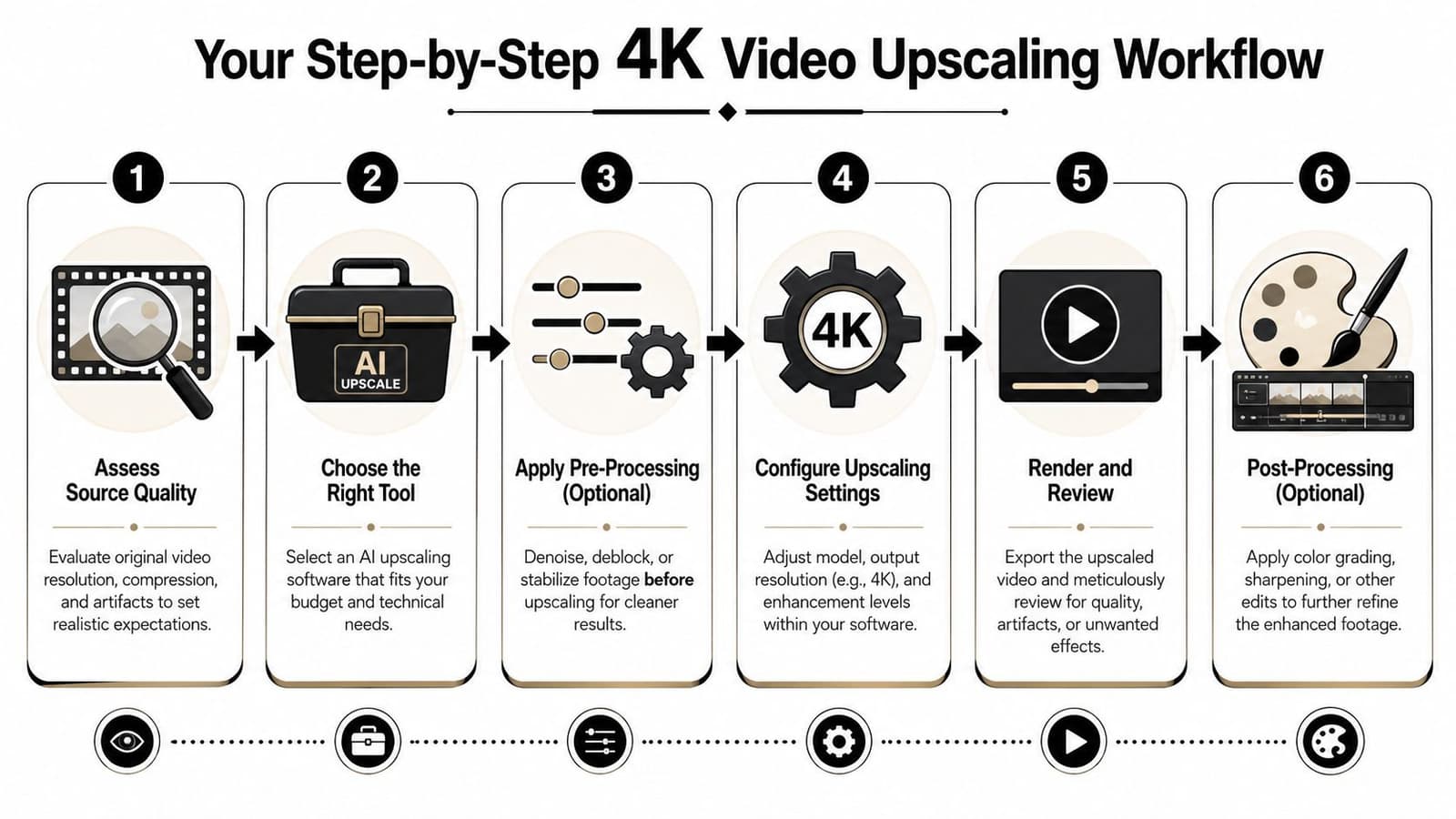
The cleanest 4K video upscaling results usually come from a boring habit. Start with the best source you can find, then fix obvious problems before you enlarge anything.
That order matters because upscaling magnifies flaws too. If your clip has noise, blocky compression, or blur, those issues can become more visible after enhancement.
Start with inspection, not settings
Before opening any software, pause on a few frames and look closely.
Ask yourself:
- Is the source blurry or just low resolution
- Do faces look blocky from compression
- Is there visible noise in shadows
- Does motion wobble or jitter
- Will this be watched on a TV, laptop, or phone
This simple review tells you whether you need restoration first, or only mild enlargement.
Clean first, then upscale
A technically sound workflow uses AI reconstruction to infer plausible high-frequency detail, but source quality still limits the outcome. Low-bit-rate or noisy footage may look sharper after upscaling, yet artifacts can also be amplified unless denoise or deblur steps come first, according to this guide to AI video upscaling and source cleanup.
That's especially important for family tributes. Old clips often contain tape noise, grain, scan defects, or mobile compression. If you enlarge them first, the software may mistake damage for real detail.
Working rule: If the source is messy, clean the mess before asking the upscaler to invent detail.
A practical beginner workflow
Here's a simple approach that keeps you out of trouble:
- Find the highest-quality original: Use the earliest export, original camera file, or best scan you have. Don't start from a clip that has already been shared through multiple apps.
- Apply light cleanup first: Denoise, deblock, or stabilize only as much as needed. Heavy cleanup can erase texture you intend to keep.
- Choose an upscale style: Use conservative settings for faces, old family footage, and memorial content. Save stronger enhancement for scenic imagery, product shots, or synthetic visuals.
- Render a short test: Export a small section before processing the full piece. Check faces, hair, text, and motion.
- Review on the destination screen: A clip can look fine on your editing monitor and strange on a living room TV.
- Export for delivery, not ego: If the final use is a slideshow on a large display, 4K may make sense. If it's a family group chat, a cleaner lower-resolution export may be enough.
If you want to see one example workflow in motion, this video gives a useful visual reference before you commit to your own settings:
Tool choice matters less than restraint
Desktop tools usually offer more control over denoise, sharpening, and model selection. Browser tools are often quicker for simple jobs. The right pick depends on whether you need precision or convenience.
One factual example from this space is Photo for Video, which offers AI-generated motion clips and supports export sizes including HD, Full HD, 2K, and 4K. That makes it relevant when you're turning a still family photo into a short keepsake clip and deciding how large the final file needs to be.
The bigger point is not the brand. It's the sequence. Inspect, clean, test, then upscale. Most disappointment comes from reversing that order.
When Is 4K Upscaling Not Worth the Effort
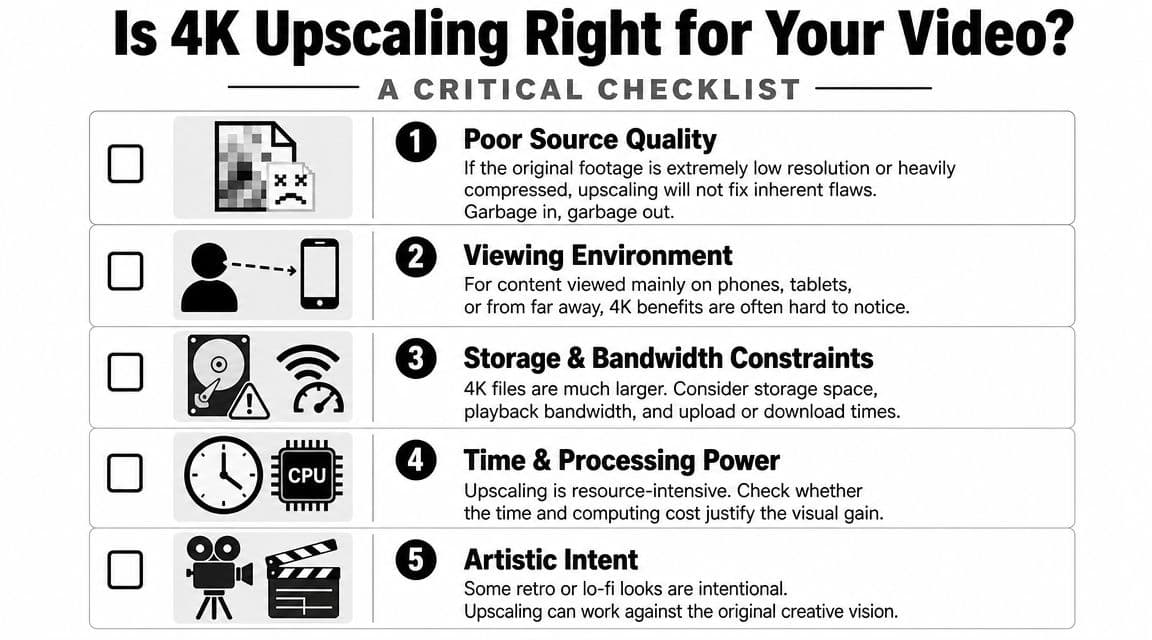
Sometimes 4K video upscaling is a smart finishing step. Sometimes it's extra work that won't survive delivery.
This is the question I'd ask first: where will people watch the video?
Cases where 4K makes sense
A 4K export is easier to justify when the video is meant for:
- Large-screen playback: memorial services, family event displays, TV viewing, or archival storage
- Future reuse: you may want to re-edit or crop later
- Detailed source material: good scans, cleaner footage, or carefully restored clips
- Motion-sensitive projects: where cleaner processing helps stabilize the final presentation
In those situations, the extra effort can hold up visually.
Cases where it often doesn't
Many major platforms still compress video heavily. YouTube supports 4K uploads, but actual viewing quality depends on the device and connection, and for family tributes or reels the more useful question is whether viewers on phones will notice the difference after compression, as discussed in this breakdown of YouTube playback limits and compression reality.
That's why 4K often isn't the priority for:
| Delivery channel | Better question than “Is it 4K?” |
|---|---|
| Family group chat | Is it easy to send and pleasant to watch? |
| Social reel | Does the motion survive recompression? |
| Email attachment | Is the file manageable? |
| Phone-first audience | Will anyone see the extra detail on a small screen? |
If you're posting online, it also helps to understand how YouTube video compression changes what viewers actually see.
A more useful standard
Don't chase 4K just because the option exists.
Ask these instead:
- Does the upscale improve the emotional experience
- Does it look better on the final screen
- Did it preserve faces and original texture
- Will platform compression undo most of the benefit
If the final audience mostly watches on phones, a clean and natural export often beats a larger file with invisible gains.
For many short tribute clips, reels, and animated photos, a thoughtful lower-resolution delivery can be the more professional choice.
Quick Fixes for Common Upscaling Problems
Even a good workflow can produce odd results. Most problems come from pushing detail too hard or asking the software to “fix” damage it doesn't really understand.
Faces look waxy or plastic
This usually means the enhancement setting is too aggressive, or the model is smoothing skin while trying to remove noise.
Try this:
- Lower enhancement strength: Back off sharpening or detail recovery a little.
- Keep some original texture: Old photos and videos need a bit of grain or softness to look believable.
- Use a more conservative model: If your software offers style choices, pick the one that preserves structure rather than inventing extra detail.
Compression blocks became more obvious
Upscaling can make old codec damage stand out. Those square patterns around faces and in dark areas often need cleanup before enlargement.
Your fix is simple. Apply deblock or denoise first, then run the upscale again. If you need a starting point for that cleanup mindset, this guide on how to fix resolution problems in video and images is a useful companion.
Motion looks strange or jittery
This often happens with animated photos and old clips where the software sharpens individual frames but doesn't preserve a stable look across time.
Use a lighter touch:
- Reduce frame interpolation if available
- Test a shorter clip first
- Prioritize motion stability over maximum crispness
A slightly softer clip with natural movement usually feels better than a sharper one with twitchy motion.
Text and hair look crunchy
Fine detail is where over-processing shows up first. Hair can turn into outlines. Text can gain halos.
The fix is usually to reduce sharpness and compare exports side by side. If one version feels less “impressive” but more natural after a full watch, that's usually the right one.
Frequently Asked Questions About Video Upscaling
Can you turn a very low-quality clip into true 4K
You can upscale it to a 4K file size, yes. But that doesn't mean it becomes true native 4K detail. The software is reconstructing or predicting information, not recovering everything that was lost in the original capture.
Will upscaling make my file larger
Usually, yes. Higher-resolution exports tend to produce larger files, especially if you also choose higher-quality encoding settings. That matters if you plan to upload, email, or store many tribute videos.
Is 4K worth it for a memorial slideshow or birthday montage
It depends on where people will watch it. If the video will play on a large TV or event screen, 4K may be worth the effort. If most viewers will see it on phones through social apps, preserving natural faces and motion is often the smarter target.
Should I upscale before or after editing
In many family and creator workflows, it makes sense to clean and edit first, then upscale the final sequence or near-final clips. That helps you avoid processing material you may not even use.
Why does my upscaled video look sharper but less real
Because “sharp” and “natural” aren't the same thing. A tool can add edge contrast and micro-detail that catches the eye while also damaging skin texture, film character, or subtle motion. For memory-based projects, believable usually wins.
How do I know if my export is good enough
Watch it where your audience will watch it. Test it on a phone, laptop, or TV, depending on the destination. If viewers notice the people and the feeling before they notice the processing, you're in a good place.
If you're turning a treasured still photo into a short keepsake clip, Photo for Video is one practical option to explore. It creates brief living-memory videos from a single image, which can then fit into tribute edits, reels, anniversaries, and family montages where natural motion and respectful texture matter more than a flashy look.