AI Video Generator Tools: 10 Picks for 2026
Compare 10 AI video generator tools for families, creators, and ecommerce, with honest strengths, limits, pricing notes, and how to pick the right fit.
You've got a treasured family photo, a product packshot, or a folder of raw clips, and you need a short video by tonight. The deadline is the same, but the work isn't. A memorial portrait needs restraint, a creator reel needs pacing, and a product ad needs accurate details plus a clear reason to buy.
That's why choosing AI video generator tools by the job makes more sense than choosing by a leaderboard. A platform that creates dramatic scenes might be cumbersome for animating an old photograph. An editor that adds captions and branding might save a creator more time than a generator with more elaborate camera controls.
There's also a difference between generating new footage and repurposing footage you already have. If you're turning Twitch VODs into social clips, finding and cutting the right moments matters more than inventing new scenes.
The picks below serve families, creators, and ecommerce teams, with limitations spelled out alongside the useful features. None should be treated as a guaranteed finished-video button. Choose the tool that handles your hardest task, then leave time to inspect the result before you share it.
Table of Contents
- 1. Photo for Video
- 2. Google Flow
- 3. Runway
- 4. Kling AI
- 5. Adobe Firefly
- 6. Luma Dream Machine
- 7. Pika
- 8. HeyGen
- 9. VEED
- 10. InVideo AI
- All 10 AI Video Generator Tools at a Glance
- How to Choose Your Tool and Get a Clip You Will Actually Share
1. Photo for Video
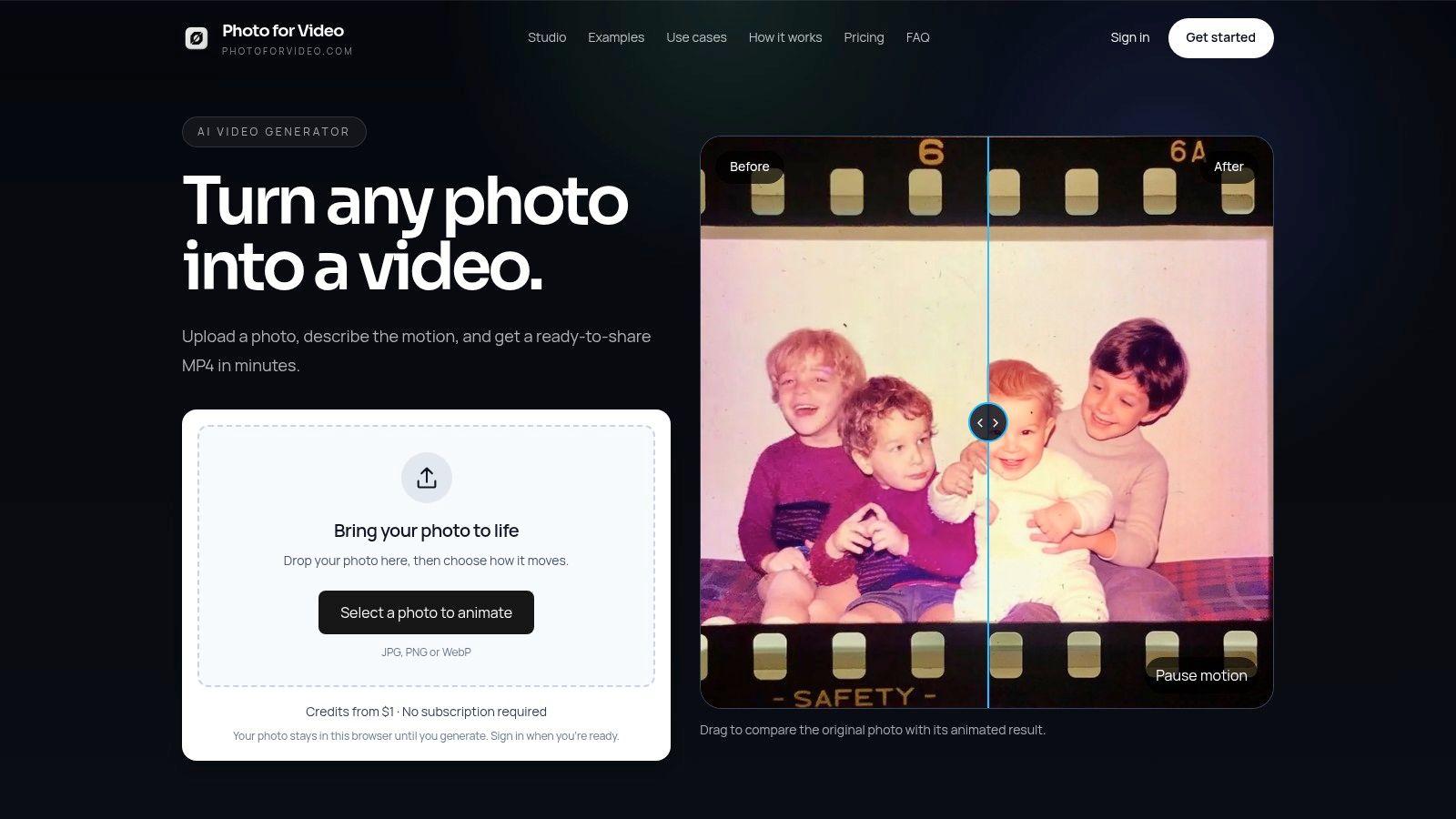
Best for family keepsakes and restrained photo animation. Our workflow starts with a still photograph rather than a script or an empty timeline. Upload an old scan, digitized print, or phone photo, describe the movement, and generate a downloadable MP4.
For birthday tributes, anniversary films, and memorial pieces, that narrower starting point is useful. You're adding motion to an existing memory, not asking a generator to invent the people, setting, and mood. Our AI photo-to-video guide provides a practical starting point for preparing images and describing movement.
Keep the memory recognizable
Start with a gentle camera push or modest environmental movement. Asking a person to turn fully, speak, and gesture introduces more opportunities for the result to depart from the photograph.
Our composer generates one video at a time and keeps the source image's aspect ratio. Prepare the crop before generating, especially when the finished clip needs to sit inside a vertical reel or a widescreen tribute.
- Useful strengths: Guided workflows, downloadable MP4 files, and an ecommerce workflow for animating existing packshots and lifestyle photographs.
- Clear spending: We show the cost of each video before generating, so you can assess the selected settings before committing credits.
- Real limitation: A short animated photograph isn't a complete tribute film. You may still need an editor for titles, sequencing, and recorded family messages.
I'd choose this approach when preserving identity matters more than dramatic action. Review faces, clothing, and background details carefully, and keep the original photograph alongside the generated version.
2. Google Flow

A creator developing connected scenes needs more than an isolated animation. Google Flow is a workspace for text-led and image-based generation, scene building, video extension, and editing through its available video models.
Best for creators planning sequences. Say you're building a travel reel with an opening vista, a closer architectural detail, and a closing street scene. Flow is worth considering when you want to develop those shots together rather than download unrelated clips and solve everything afterward.
The practical challenge is continuity. Similar prompts don't guarantee that lighting, clothing, geography, or subject details will remain compatible across shots.
Practical rule: Establish the subject, setting, and camera direction before generating variations. Change the action deliberately instead of rewriting the entire scene each time.
Where the workspace earns its complexity
Scene-building and extension tools are useful when you already know what should happen before and after a shot. They're less valuable when all you want is a quiet animated portrait for a family message.
The trade-off: You gain a broader creation environment, but you also have more decisions to manage. Credit allowances and feature access depend on the plan, so assess the particular workflow you need rather than assuming every demonstrated capability comes with your account.
3. Runway

Choose Runway when generating footage is part of a larger creative process. Runway combines text-to-video and image-to-video generation with image, audio, and editing tools. It suits creators who expect to refine a shot rather than accept the initial output unchanged.
For a tribute montage, that might mean animating a photograph and then preparing it for a broader edit. For a creator reel, it might mean developing alternative visual treatments around the same concept.
Control costs attention
A broader workspace gives you more ways to solve a problem, but it also makes casual experimentation expensive in time and credits. Decide whether a failed shot needs a clearer prompt, a different source image, or a different creative direction before generating again.
- What works: Image-based generation when you have a defined starting composition, plus creative tools for work beyond the initial clip.
- What needs discipline: Repeated variations without a written acceptance criterion. Attractive footage isn't necessarily footage that fits your edit.
- Who should skip it: Occasional users who only need a simple photograph animation and don't want to use a larger toolset.
I'd shortlist Runway for editors comfortable making shot-level decisions. Set a specific target, such as a stable face, a controlled camera move, or usable space for titles, and judge the output against that target.
4. Kling AI
Need movement that goes beyond a slow camera drift? Kling AI combines text-to-video and image-to-video generation with motion-control, lip-sync, and restyling tools.
Best for deliberate motion experiments. It's a relevant option when the action itself matters, such as a fashion concept, a stylized character clip, or a photograph you want to transform rather than just preserve.
That distinction matters for family images. A technically convincing talking portrait can still feel inappropriate, particularly when it suggests someone said something they never recorded.
For a keepsake, believable movement isn't enough. The animation should also feel appropriate to the person and the occasion.
Separate the motions you're requesting
Describe subject movement and camera movement separately. A slow camera push with a mostly still subject is a different instruction from a fixed camera watching someone turn toward it.
The guide to animating a photo can help you structure that distinction before experimenting with more elaborate effects.
The limitation: A long feature list doesn't make generation costs easy to compare. Estimate the actual model and settings you'll use, and keep room for rejected outputs. Kling makes more sense for someone exploring motion controls than for someone who wants the shortest route to a restrained keepsake.
5. Adobe Firefly
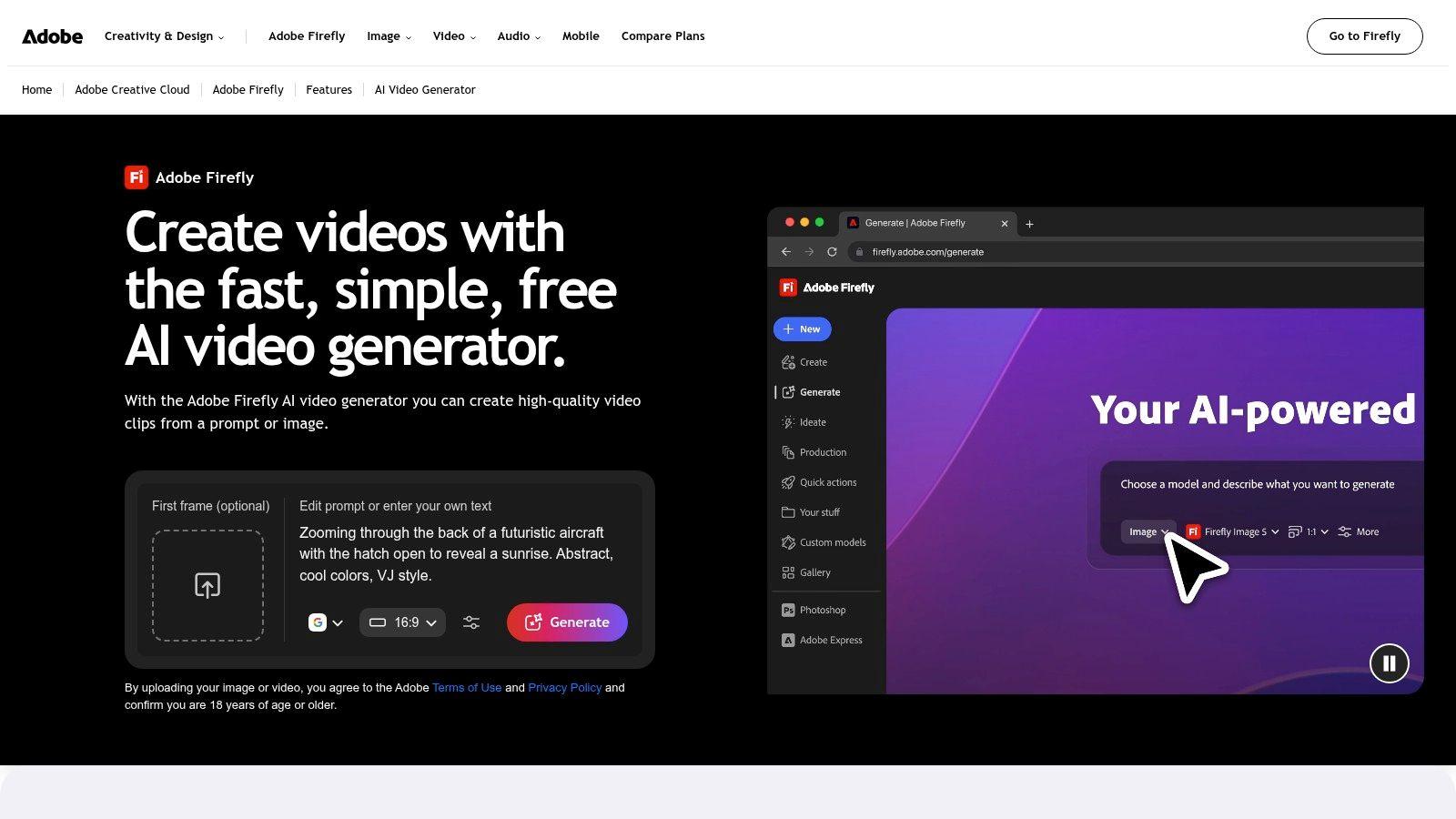
Best for creators already working in Adobe's ecosystem. Adobe Firefly generates short clips from prompts and connects with a wider collection of creative tools.
The strongest reason to choose it isn't that every generated shot will be perfect. It's that a generated visual can become an ingredient in a workflow you already understand, whether you're building social content, storyboards, or supporting footage.
For example, an event editor might need an atmospheric establishing shot between a title card and real family photographs. Firefly can be considered for that supporting visual without treating generated footage as a replacement for the family's actual record.
Think in usable inserts
Write the prompt around the gap in your edit. Describe the composition, camera movement, lighting, and space needed for text instead of requesting a complete cinematic story.
- Useful fit: Short supporting clips, visual concepts, and creative work that will continue in Adobe tools.
- Budget constraint: Generative credits limit experimentation, so plan the shots you need before exploring unrelated variations.
- Finishing requirement: A generated clip may still need trimming, sound work, color adjustment, and titles.
Don't confuse ecosystem convenience with automatic approval. Inspect the output as closely as you would footage from another generator, particularly when recognizable people, product details, or important visual claims appear.
6. Luma Dream Machine
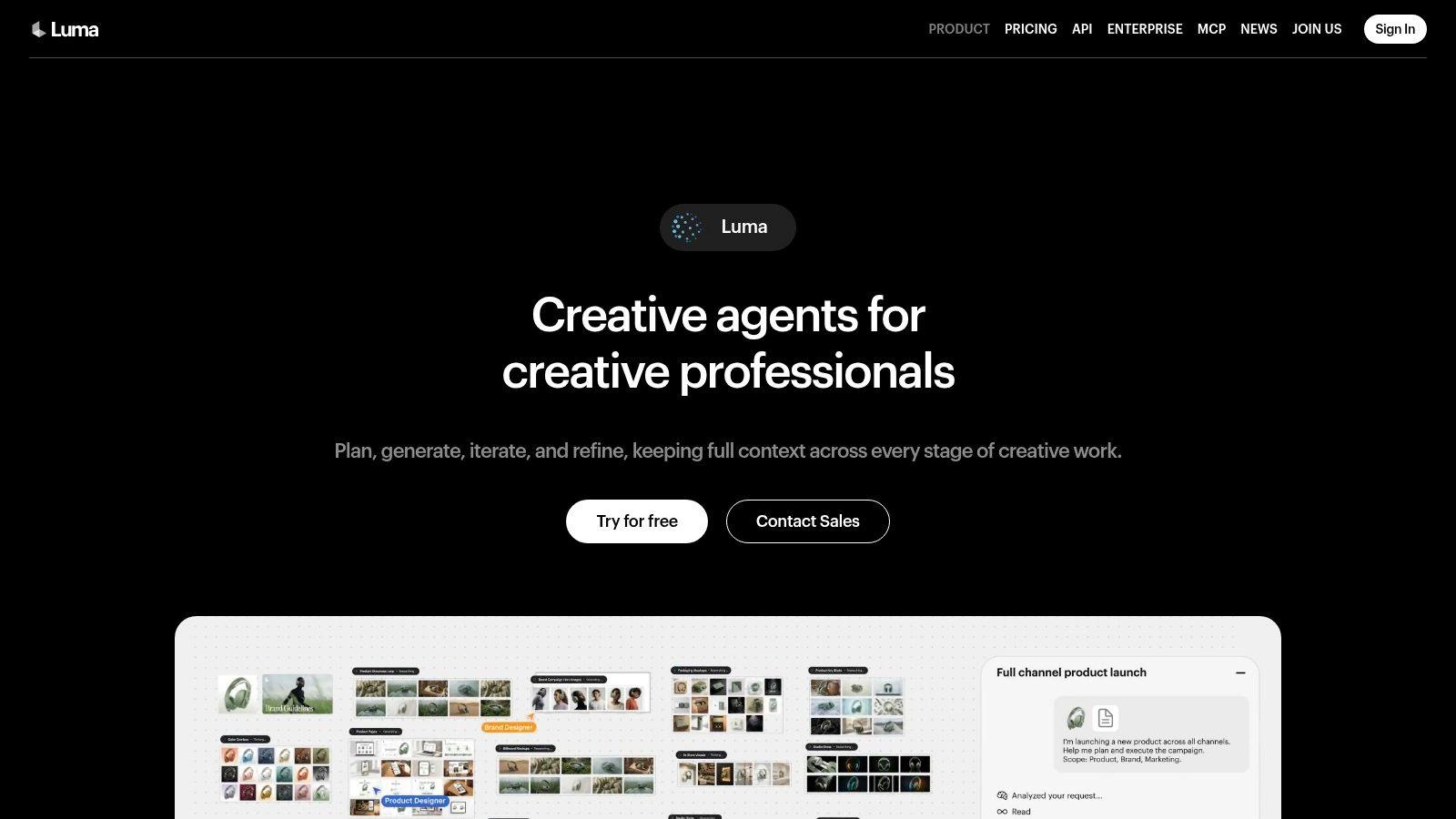
Already have footage with the movement you want? Luma Dream Machine deserves consideration for its video-generation and video-modification workflows.
Best for transforming existing footage. Starting with recorded motion gives you a different creative task from animating a still. You can focus on changing the visual treatment while evaluating whether the original movement remains useful.
Say a small shop has a handheld lifestyle clip with a good camera path but wants to explore another visual treatment. A modification workflow may be more relevant than repeatedly describing that same camera move from scratch.
Preserve what already works
Choose source footage with a readable subject and purposeful movement. If the original shot has awkward framing or an obscured product, transforming its appearance won't necessarily solve those problems.
The main trade-offs are billing and permissions. Credit use varies with the model and output settings, while some lower-priced plans include watermarks or restrict commercial use. A clip suitable for a personal experiment may therefore require a different plan before it belongs in a paid campaign.
I'd compare Luma on the task you really have: generating a new shot or modifying an existing one. Those are different workflows, and a platform that suits one project may add unnecessary complexity to the other.
7. Pika
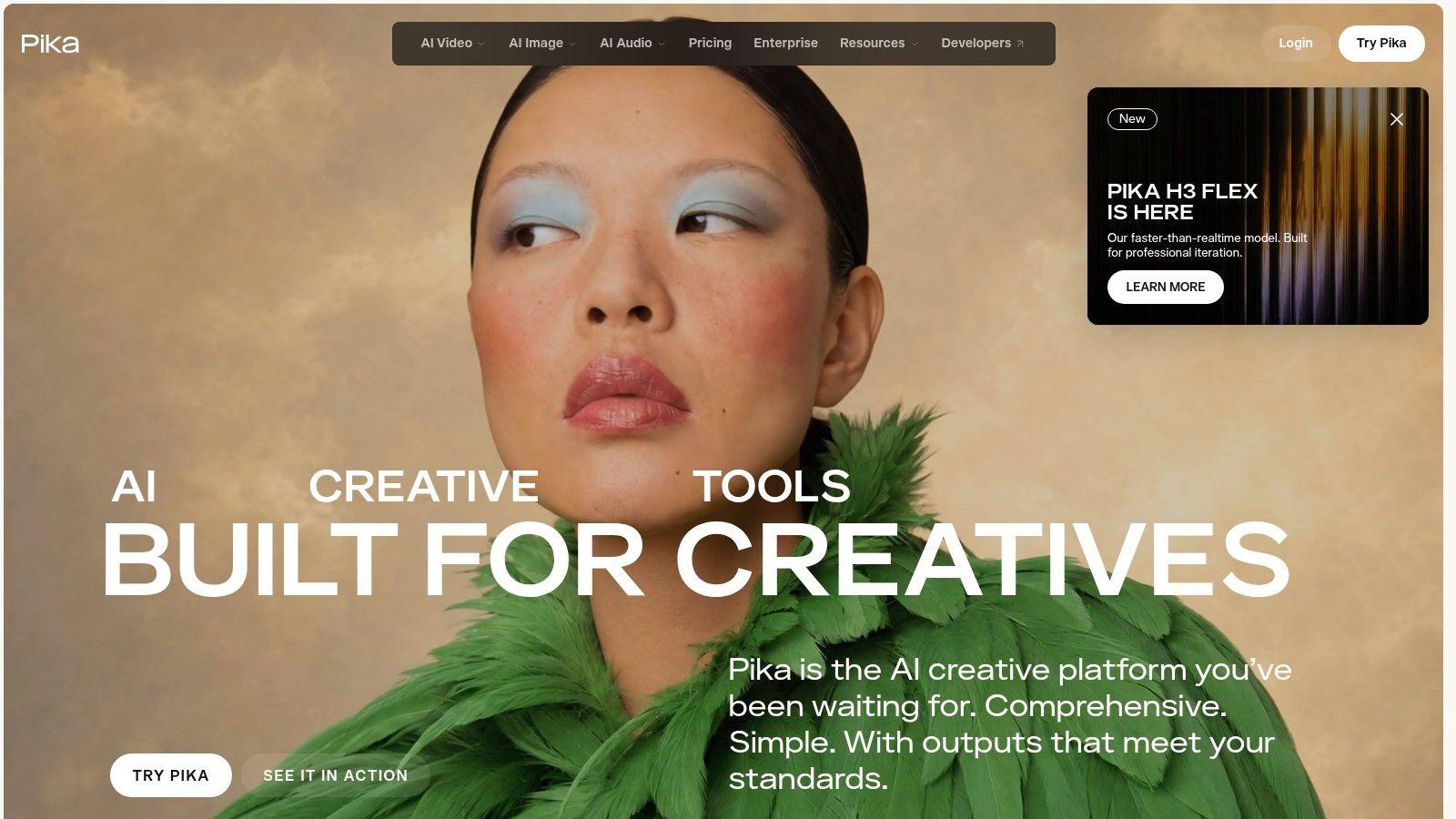
A playful product reveal and a memorial portrait shouldn't follow the same creative brief. Pika is most relevant when you want effects-led short clips, image animation, or visual transformations rather than strict photographic restraint.
Its tools include text-to-video, image-to-video, and treatments such as Pikascenes and Pikaswaps. For creators, those options provide ways to explore transitions and attention-grabbing visual ideas.
The caution is straightforward: a memorable effect can distract from the subject. In ecommerce, an entertaining transformation is a poor trade if viewers can't identify the item being sold.
Give the effect a purpose
Choose the desired audience response before choosing the treatment. A whimsical reveal may suit a novelty gift, while a sober anniversary film calls for a different approach.
- Good fit: Stylized social clips, playful concepts, and visual experiments where transformation is intentional.
- Weaker fit: Sensitive portraits that need quiet, natural-looking movement.
- Spending consideration: Credit costs vary by generation type, model, and effect, so compare the specific action you plan to use.
Keep the source image and product reference visible during review. Judge not only whether the effect looks interesting, but whether the face, object, or brand remains recognizable throughout. An effect should support the message, not replace it.
8. HeyGen
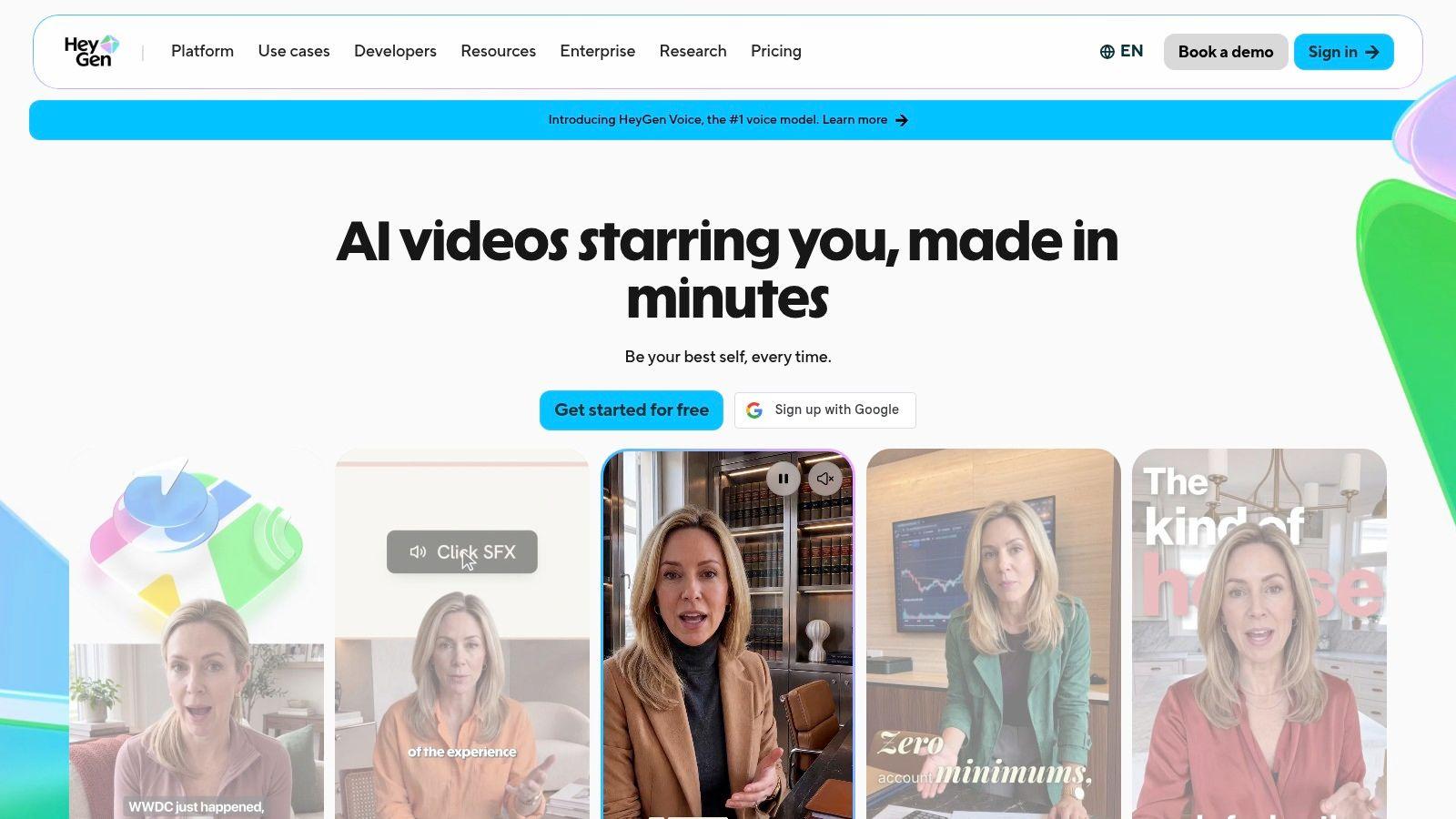
If the script is the main asset, start with a presentation tool rather than a silent-photo animator. HeyGen specializes in avatar- and presenter-led videos, with voice generation, translation, and additional video-generation options.
Best for explainers and narrated messages. A business owner explaining a service, an organizer introducing an event, or a team preparing instructional content has a different need from a family animating a treasured portrait.
The useful distinction is whether the presenter helps the audience understand the message. If the video works better with original photographs and a real recorded voice, an avatar can add distance rather than clarity.
Editorial boundary: Don't make a real person appear to deliver words they never agreed to say. Use authorized presenters and clearly distinguish synthetic narration from original recordings.
Edit the script before the performance
Read the script aloud before generating. Shorten tangled sentences, spell out ambiguous terms, and decide which words need emphasis.
HeyGen's presentation workflow makes sense when narration is central, but it can be unnecessary for a quiet family keepsake. Its free plan also has limits and includes a watermark, so use it to assess the workflow rather than assuming the test export is ready for a formal event or branded campaign.
9. VEED
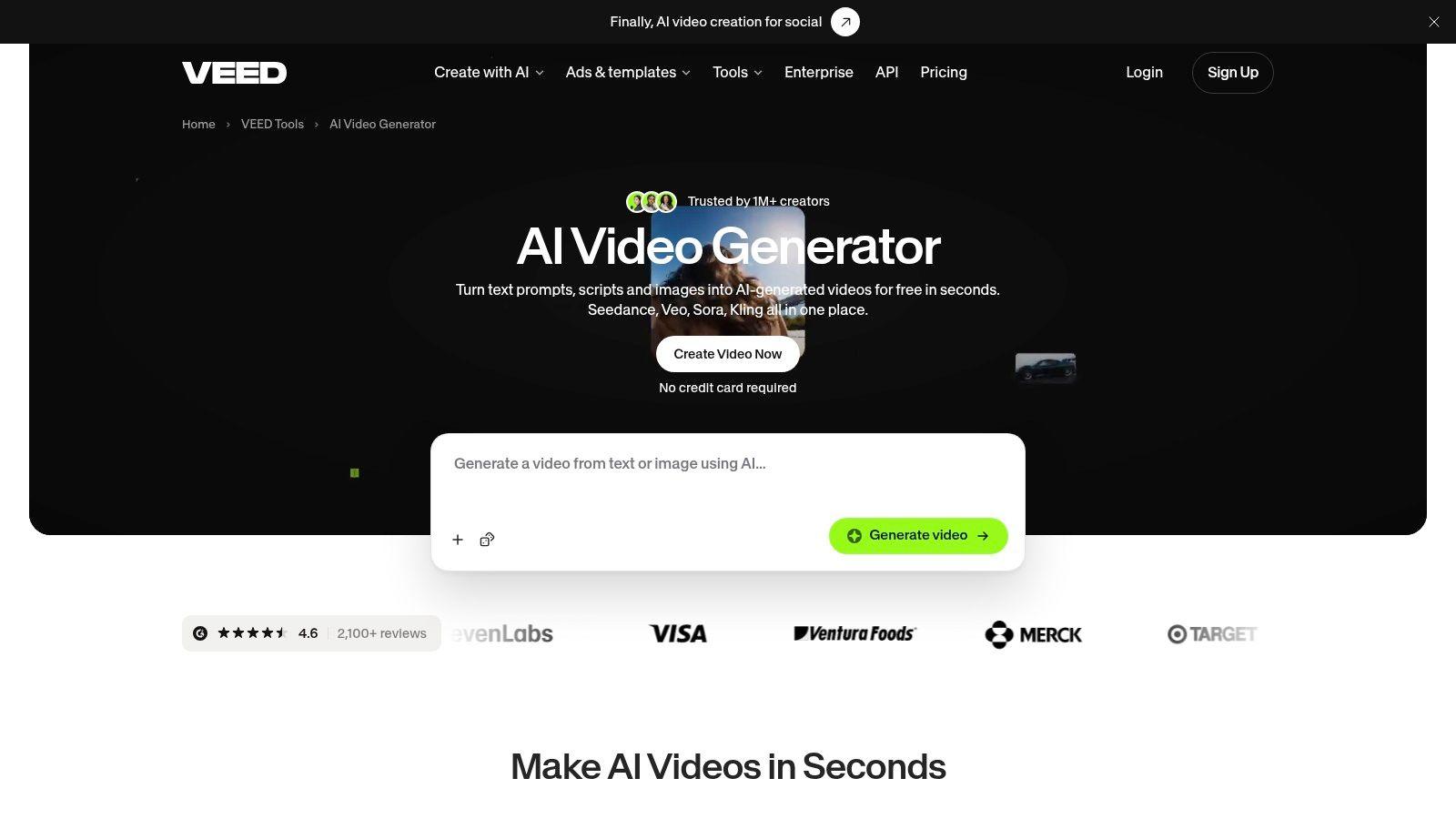
VEED suits creators whose bottleneck is finishing. VEED's AI video tools combine generation and image animation with captions, branding, editing, and export.
That combination matters when the generated clip is only part of the deliverable. A social video may also need a hook, readable captions, a logo, and an ending that tells viewers what to do.
For an ecommerce reel, you could generate a supporting visual, combine it with accurate packshots, and finish the presentation in the same product. The convenience comes from reducing handoffs, not from avoiding editorial decisions.
Evaluate the finished post
Don't assess VEED only by the initial generation. Test whether you can bring the output into the editor, correct the captions, position branding safely, and export the version you need.
- Useful strength: Generation and practical social-video finishing tools in the same environment.
- Cost visibility: Estimated credit costs appear before generation, helping you assess an experiment before running it.
- Plan limitation: Model access and generation allowances depend on the plan.
A broad editor can still be excessive for a simple animated photograph. I'd choose VEED when captions, layout, and delivery are recurring tasks, rather than paying for a larger workflow solely to produce an occasional moving image.
10. InVideo AI
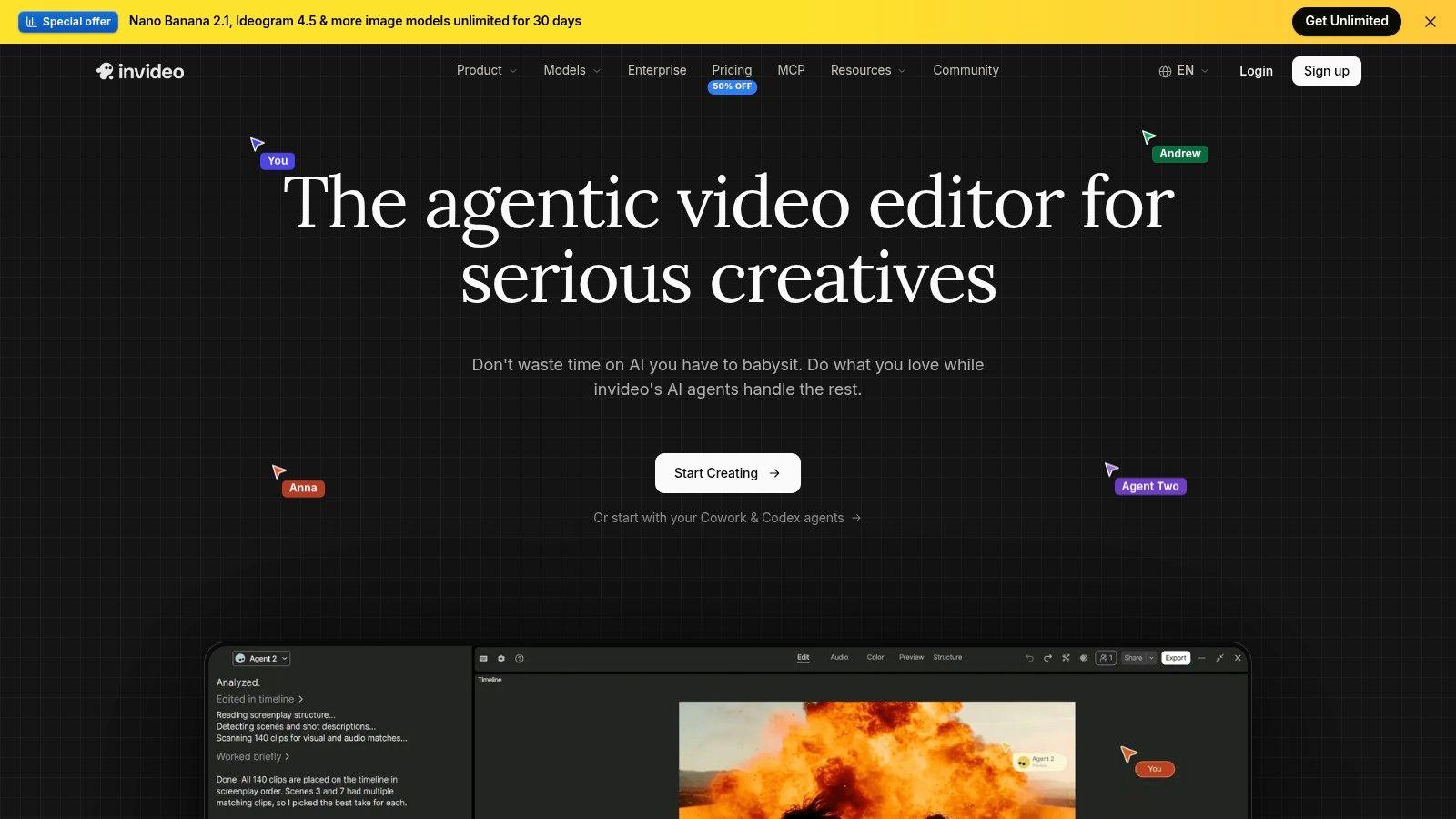
A small business starting with a script needs a different product from a family starting with a portrait. InVideo AI is designed around building more complete videos from prompts and other inputs, with editing and stock-footage workflows alongside generation.
Best for full ad builds and explainers. Consider it when you need a sequence with a beginning, supporting visuals, and a closing message, rather than a standalone animated shot.
Its broader workflow also creates more to review. Stock footage can look polished while showing the wrong activity, product category, or customer situation.
Review the argument before the visuals
Approve the script's claims and sequence first. Then inspect whether each visual supports what the narration says.
The practical considerations in scaling video content with InVideo are more relevant to recurring marketing production than to an occasional keepsake. For short-form planning, the TikTok video-generation guide can help you think about the hook and pacing before building the edit.
The trade-off: You gain a fuller production workflow, but credit costs vary by model and unused monthly credits don't roll over. Compare plans against your expected production schedule, not an ambitious publishing target you haven't yet established. For animating a solitary photograph, this much machinery may be unnecessary.
All 10 AI Video Generator Tools at a Glance
The right tool depends on the job: a family keepsake calls for a different workflow from a creator reel or a complete marketing video. Use the comparison to narrow the list by what you need to make.
| Tool | Best For | Photo-to-Video | Free Option | Pricing Model |
|---|---|---|---|---|
| Photo for Video | Family keepsakes, tributes, and subtle photo animation | Yes; turns one still photo into a short MP4 that keeps the source image's aspect ratio | No free option listed; one-time credit packs start at $1 | One-time credit packs or monthly plans |
| Google Flow | Building connected video scenes and sequences | Yes; image-based video creation | Yes; daily credits | Plan-based access and credits |
| Runway | Generating and editing clips with creative control | Yes | Yes; one-time credits to try the platform | Credit-based plans |
| Kling AI | Photo animation with motion controls and creative effects | Yes | Free access is available | Paid tiers and credit-based costs |
| Adobe Firefly | Short clips within Adobe creative workflows | Text-to-video; photo-to-video availability varies by workflow | Yes; limited daily generations | Plans include generative credits |
| Luma Dream Machine | Generating or transforming video footage | Image-to-video generation is available | Free access is available | Paid plans with monthly credits |
| Pika | Short clips with creative effects and variations | Yes | Free access is available | Credit-based plans and extra credit packs |
| HeyGen | Presenter-led, narrated videos and explainers | Yes | Yes; limited free plan with watermark | Free and paid plans |
| VEED | Creating and editing social videos in one platform | Image-to-video generation is available | Free access is available | Plan-based access and generation allowances |
| InVideo AI | Complete marketing, explainer, and social videos | Image-to-video availability varies by workflow | Free access is available | Credit-based access; plans vary by features |
How to Choose Your Tool and Get a Clip You Will Actually Share
Choose according to the material you already have and the work still required. Families honoring a loved one should start with a single-photo specialist. Creators assembling reels should compare Runway, Google Flow, and VEED according to whether they need shot creation, connected scenes, or finishing tools.
Ecommerce teams should separate product animation from complete ad production. Our product-photo workflow turns existing packshots and lifestyle images into motion without a new studio shoot; InVideo AI is more relevant when the task includes a script, supporting footage, and a complete sales message.
Write motion prompts that protect the original
For an old photograph, use the cleanest scan available, straighten it, and remove distracting borders before uploading. Describe a restrained action: a slow camera push, gentle movement in nearby foliage, and a calm tone. Ask to preserve the expression, clothing, lighting, and photographic texture rather than adding unrelated cinematic flourishes.
Evaluate identity and motion separately. The NTIRE quality-assessment paper distinguishes technical quality, temporal consistency, motion quality, and prompt alignment, a useful reminder that a sharp frame doesn't guarantee a coherent video.
Watch the whole clip for facial changes, flicker, warped hands, and shifting product labels. For memorial content, also ask whether the movement feels respectful to the people who will see it.
Set duration and spending before generating
At Photo for Video, duration can be set from 5 to 15 seconds in one-second steps, and native audio is always included. We show the generation cost before you commit, and credits start at $1 with no subscription required.
We automatically delete uploaded photographs and generated videos after 7 days, so download the result you want to keep. Across other tools, verify export conditions before investing in a project; this guide to AI video editor watermark limits highlights an important finishing constraint.
Use this final checklist before committing:
- Starting material: Does the tool suit a photograph, existing footage, or a script?
- Acceptable change: Must it preserve identity and product details, or is stylization welcome?
- Finishing needs: Can you add the captions, titles, and sound the deliverable requires?
- Real cost: Have you allowed for rejected generations and the export plan?
- Approval: Has someone reviewed both visual accuracy and emotional appropriateness?
The best choice is the tool that gets your actual material to an acceptable finished video, not the one with the most spectacular demo.
Photo for Video turns a still photograph into a downloadable MP4 with natural AI motion, with guided workflows for family keepsakes and product visuals. Visit Photo for Video, choose a photograph, and describe a gentle camera move or subject action to begin your clip.