How to Animate a Photo: Bring Memories to Life
Learn how to animate a photo for tributes and keepsakes. Discover gentle motion techniques, old photo restoration tips, and the best tools for natural results.
You're probably looking at one specific picture right now. A wedding print that's faded at the edges, a grandparent in a front-yard chair, a parent laughing before you were born. You don't want it to dance or wave. You want it to breathe for a few seconds, just enough that a tribute montage feels less like a slideshow and more like a memory you can sit with.
That's the right instinct. Learning how to animate a photo for a family keepsake is mostly learning what to leave alone.
Table of Contents
- Choosing the Right Animation Approach
- Preparing and Restoring Old Family Photos
- Animating Photos with AI and Manual Tools
- Designing Natural Motion and Camera Moves
- Navigating Ethics and Dignity in Memorials
- Troubleshooting Artifacts and Exporting Clips
Choosing the Right Animation Approach
Your first decision isn't which button to press. It's how much change the photo can tolerate before it stops feeling like itself. A sharp, recent phone portrait can handle a blink or a slight head turn. A soft, damaged print from decades ago usually can't, and asking software to invent that detail will cost you the likeness you started with.
That restraint has a long history. Motion from stills began with sequential photography, where creators displayed slightly different visual states in rapid succession instead of altering one image. In the 1870s, Eadweard Muybridge photographed a racehorse with multiple cameras at successive moments, and his later zoopraxiscope helped bridge still photography and motion pictures, as traced in the Franklin Institute history of animation and motion. Modern tools adapt that same principle computationally, estimating depth and movement from one frame and generating the frames between.
Practical rule: Preserve the photograph first. Add time to it second.
Three Paths Worth Considering
Each workflow trades speed for control in a different way.
- AI generators: You upload one image, describe the motion in a short prompt, and receive a short clip. They're fast and forgiving for beginners, but you'll need to inspect faces frame by frame because the model decides details you didn't specify.
- Mobile apps: These favor preset effects and quick sharing. They're useful for a light birthday post, less useful for a memorial where a waving hand or party effect would feel out of place.
- Manual 2.5D parallax: In Photoshop or After Effects, you separate subject and background yourself, then move a virtual camera. It's slower, but nothing moves unless you told it to.
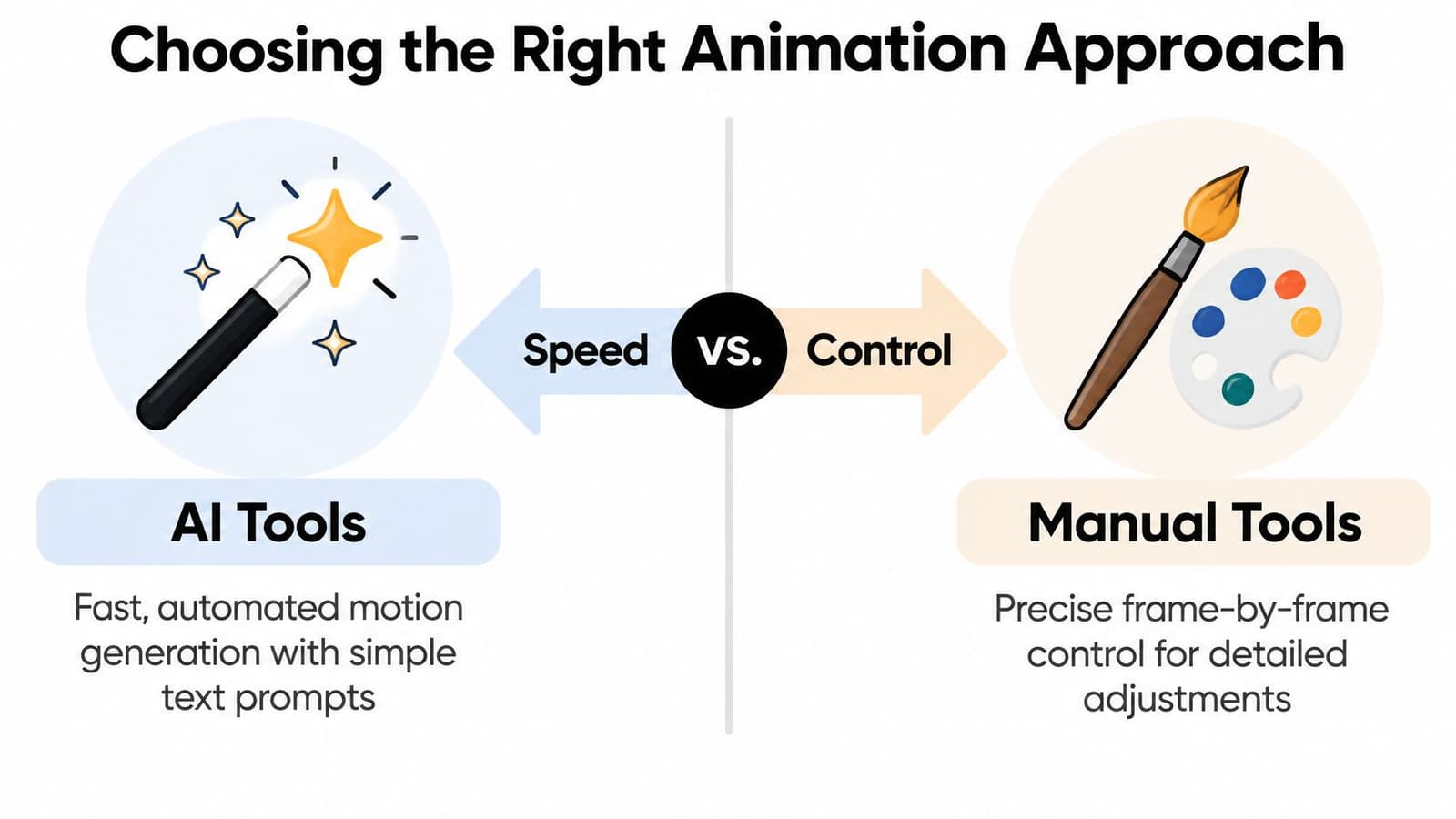
For most family tributes, the practical middle ground is an AI generator with a very modest prompt, followed by a hard review pass. You'll get depth and intermediate frames without spending an evening cutting out hair. If the photo is historically important, heavily damaged, or emotionally sensitive, manual parallax gives you a result that can't surprise you with a new expression.
Ask one question before you choose. If this clip plays on a screen in front of people who knew this person, will they notice the person or the effect? Pick the method that makes the effect disappear.
Preparing and Restoring Old Family Photos
Don't animate your only copy. That's the whole preparation philosophy in one sentence, and everything else supports it. Restoration, upscaling, face enhancement, and animation are separate steps, and each one can invent detail or erase texture if you let them run as a single automatic pipeline.
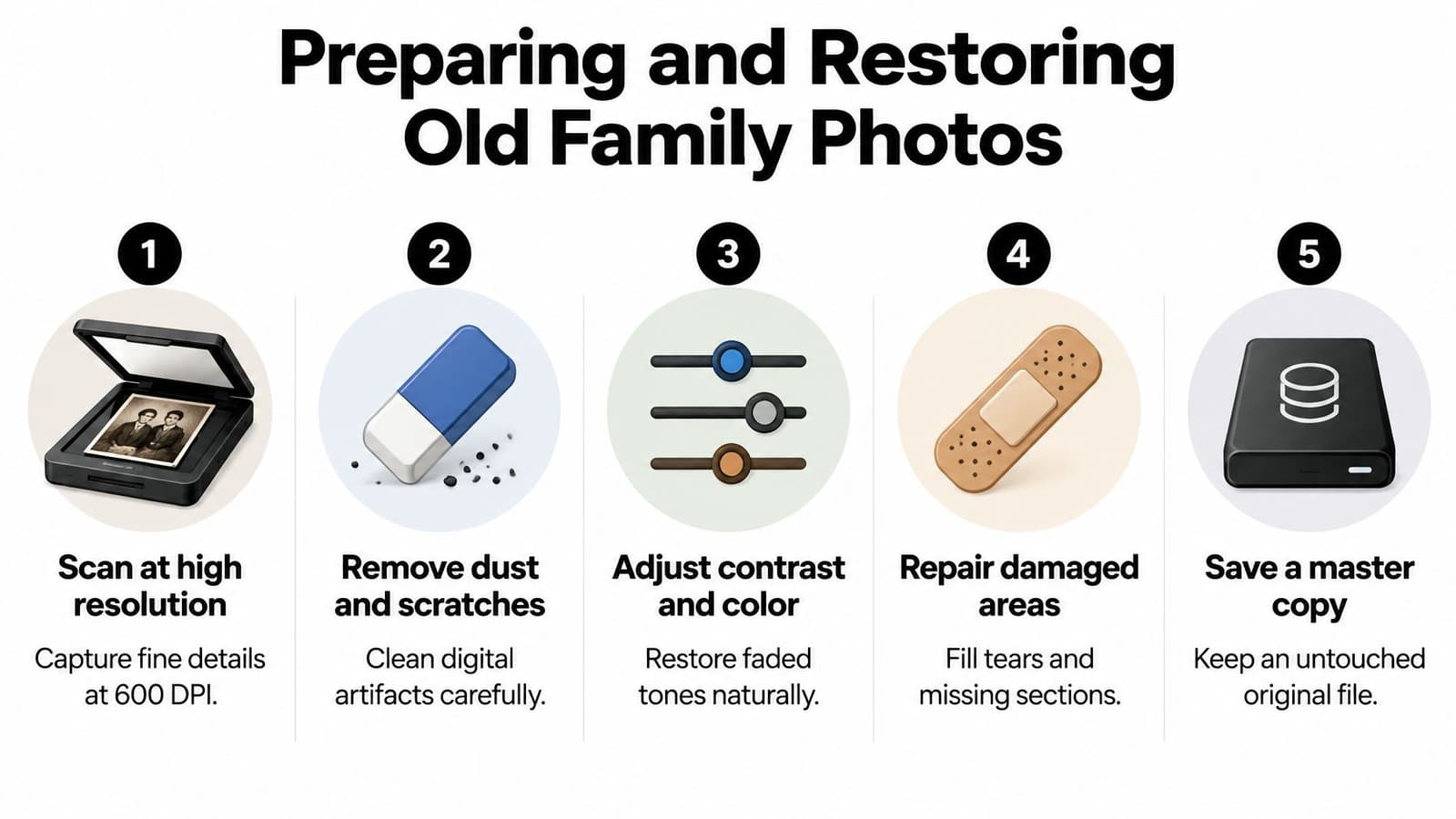
Start with a preservation scan and keep an untouched master file that you never edit. Work only from a duplicate. If you don't own a good flatbed scanner, local print shops can help you evaluate high-quality scanning options without handing a fragile print to a sheet feeder that might crease it. Handle originals by the edges, and don't try to flatten a curled print by force.
A Non-Destructive Cleaning Order
Work in this sequence so you can step back when a fix goes too far.
- Scan and archive: Save the master, then duplicate it for editing.
- Remove dust and small scratches: Clean spots in skies, clothing, and walls first, where mistakes are hard to see.
- Adjust contrast gently: Lift faded tones without crushing shadows that hold facial shape.
- Repair tears away from faces: Patch borders and backgrounds before you touch skin or eyes.
- Compare against the master: Toggle back and forth at full size after every major change.
Storage of the physical original matters too. The U.S. National Archives notes that preservation depends on film type and storage conditions, with cold storage at 35°F or lower particularly important for cellulose nitrate and acetate film, in its film-based holdings maintenance guidance. You may never use cold storage at home, but the point stands. The original is evidence, not raw material.
Be especially careful with AI face enhancement. It can sharpen an eye by inventing one, smooth skin that had real texture, or subtly change a mouth. If a scratch crosses an eye, the honest answer may be to leave the face still and animate only the camera. Our separate walkthrough on restoring older images before video work covers enhancement choices in more depth.
Handwritten notes on the back, uniforms, street signs, and furniture are context, not clutter. Don't crop or clean them away just to make the animation easier. A truthful, slightly imperfect source will produce a more trustworthy clip than a polished reconstruction that rewrote the record.
Animating Photos with AI and Manual Tools
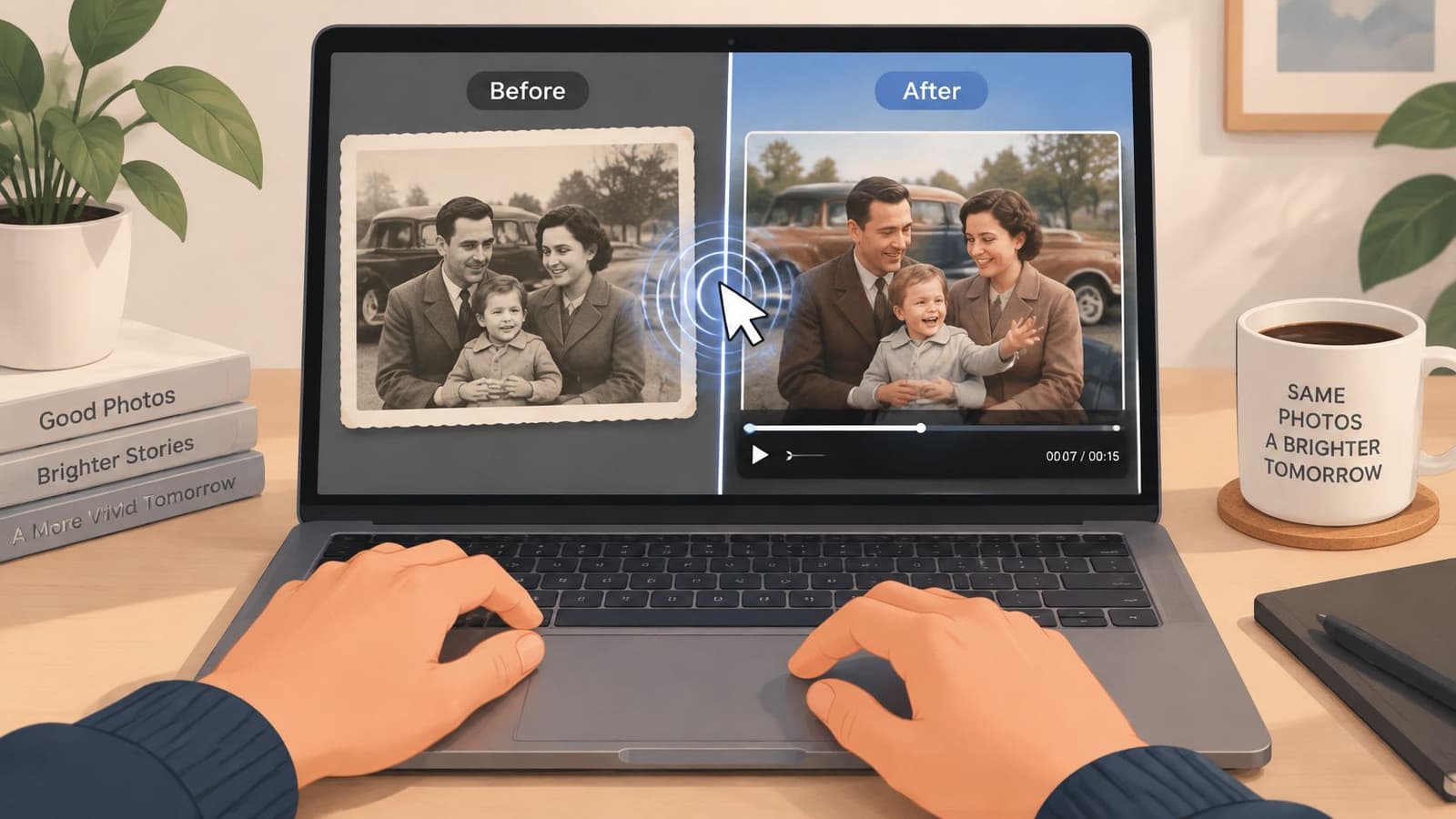
With a clean duplicate ready, the two workflows diverge. The edit below shows the typical working setup, one still image on a laptop becoming a short clip.
The AI Prompt Workflow
Upload your working copy, then write one short prompt that names one subject motion, one camera move, and one tone. For example, gentle breathing, slow push in, quiet and natural. Don't stack requests. A prompt asking for smiling, waving, wind, and a zoom gives the model four chances to distort something you care about.
Photo for Video follows this pattern, turning a single still image into a short MP4 from a brief motion description. Whatever tool you use, generate, then watch the result at full screen and again at small size. Faces that look fine large can swim strangely when shrunk into a montage.
The Manual Parallax Workflow
Manual work treats the photo as a layered scene instead of warping the whole frame. You cut out the subject, fill the background behind them, separate foreground objects, then move each layer at a slightly different rate under a virtual camera. That difference in rate is what creates depth.
That layered logic matches how single-photo animation is described technically, combining depth prediction, layer separation at depth discontinuities, inpainting of newly visible background, and rendering intermediate views, as detailed in research on animating still images through layered 3D representation. Doing it by hand teaches you why AI results fail. When depth ordering is wrong, you get halos. When the filled background is weak, textures stretch.
The following walkthrough shows these layer and camera decisions in practice.
Neither path is automatically better. AI wins on speed and on environmental motion like water or foliage. Manual wins when the face must not change at all, because you can lock that layer completely. Many editors combine them, generating a base clip with AI, then covering a flawed section with the original still and a slow scale in their editor. That's not cheating. That's craft.
Designing Natural Motion and Camera Moves
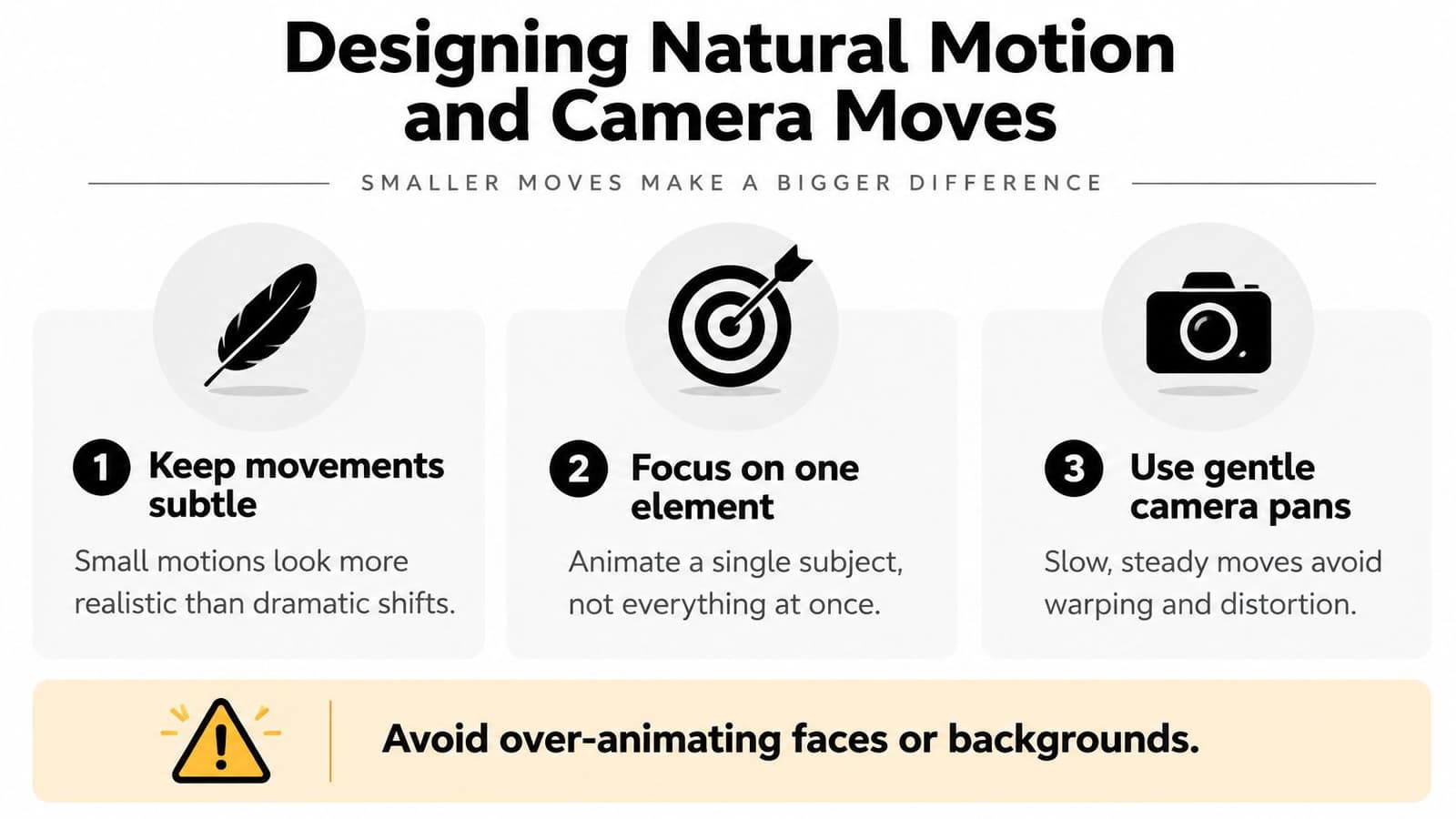
Most bad photo animation fails the same way. The editor asks for too much, the software obliges, and the face melts. Believable motion is small, consistent, and spread evenly across the clip.
History makes the point clearly. Émile Reynaud's Théâtre Optique presented hand-drawn images as projected sequences, and one account reports his film Pauvre Pierrot used approximately 500 pictures over about 15 minutes, roughly one image every two seconds, while J. Stuart Blackton's 1906 film Humorous Phases of Funny Faces photographed drawings sequentially onto film, as chronicled in this pre-cinema history of early animation. The method was photograph, change slightly, photograph again. Your software automates the in-between steps, but the logic hasn't changed. Incremental change reads as life. Large change reads as distortion.
Direct Motion Like a Flow Problem
Think in terms of regions, direction, and speed rather than a free-form wish.
- Mask what stays still: Protect text, frame borders, hands, and fine hair edges explicitly.
- Assign one direction per region: Smoke drifts up, fabric settles down, foliage sways sideways.
- Keep vectors slow and coherent: Neighboring areas should move similarly, or edges will tear.
- Lock facial features by default: Add a blink only if the source resolution supports it.
This constrained approach reflects how optical flow works, representing the image-space velocity field between frames, where uncontrolled vectors produce foldovers, boundary leakage, and temporal jitter, concerns emphasized in benchmarking research on optical flow evaluation. You don't need the mathematics. You need the discipline it implies.
If you can describe the motion in one quiet sentence, the software can probably render it. If you need three sentences, split it into separate clips.
Camera moves deserve the same restraint. A gentle push-in or a slow lateral drift with shallow depth offsets will make a portrait feel present without touching the person. Fast zooms magnify every inpainting flaw behind the subject. For editors planning those moves inside a larger edit, our notes on building smooth zoom movement in video pair well with this restraint-first approach. When in doubt, move the camera and leave the person alone.
Navigating Ethics and Dignity in Memorials
Technical permission and family permission aren't the same thing. You may own the scan and still not have agreement from the people who will watch a deceased parent blink on screen. Ask before the service, not during it, and show the actual clip privately to the closest relatives first.
Public unease here is measurable. A 2025 Boston University and Ipsos survey found 84% of Americans supported protecting a person's voice and visual likeness from unauthorized AI replicas, and separate 2025 research found 74.8% of respondents were only somewhat confident or less in telling AI media from real media, figures reported alongside Boston University coverage of deepfake protection polling. Your audience may not know what they're looking at unless you tell them.
Practical Consent and Disclosure Habits
- Consult surviving family: One person's comfort object is another person's distress. The closest next of kin gets a veto.
- Label clearly: A small caption reading AI-animated photograph preserves trust when the clip gets shared beyond the room.
- Avoid invented speech: Don't add lip-sync or a generated voice unless the family has explicitly authorized words the person never said.
- Keep the original visible: Pair the clip with the untouched photo in albums and programs so the source stays traceable.
Here's the contrarian truth from years of tribute editing. More lifelike is not always better. A new smile can create a false memory. An aged-down face can unsettle grandchildren who only knew the older version. Subtle breathing, a slow push-in, or moving curtains in the background usually honors the person more than a performance they never gave.
Children deserve extra care, since they can't meaningfully consent to how their image moves online. Keep those clips private by default and reconsider before posting publicly. The same dignity applies beyond people, which is why many families treat keepsakes thoughtfully across formats, from framed pet remembrance art to a short animated portrait of an animal they lost.
If a relative flinches, believe them. Swap the animated clip for the still photo with a slow editor-applied zoom. The uneasy feeling viewers describe has a name and real causes, explored further in our piece on why some animated faces feel unsettling. A tribute succeeds when people remember the person, not their discomfort with the medium.
Troubleshooting Artifacts and Exporting Clips
Review your clip like an editor, not a fan. Play it three times. Watch the face once, the edges once, and the background once. A single freeze frame can look perfect while the motion between frames falls apart.
A Quality Control Checklist
- Jittery edges: Hair and shoulders shimmer when motion vectors conflict. Reduce motion speed or mask those edges out of the animation entirely.
- Warped backgrounds: Door frames bend and wallpaper stretches when depth ordering is wrong. Shrink the camera move until straight lines stay straight.
- Drifting facial features: Eyes slide or teeth reshape across frames. Reject the take. Don't try to hide a changed face with music or text.
- Loop mismatch: The last frame jumps back to the first. Trim to the calmest middle section or fade through the seam.
- Invented objects: New jewelry, buttons, or background items appear. Regenerate with a tighter mask or fall back to parallax only.
Validate by loop continuity, edge stability, and motion discontinuities, not by how impressive one screenshot looks. Compare the final frame directly against your untouched master. If you'd need to explain a difference to a family member, that difference is too big.
Export rule of thumb: The clip should survive being paused at any moment. If a random pause embarrasses you, it isn't finished.
Export a clean MP4 master for editing and projection, then make copies for sharing rather than re-editing the master. Keep the file name paired with the original photo's name so future relatives can trace which still produced which clip. If family members send you HEIC phone photos to convert for a looping frame or a lightweight shareable version, ConvertHEICto's GIF guide is a handy reference for that conversion step.
Test on the actual screen when you can. A clip that looks gentle on your monitor can look frantic projected large in a quiet room. Slow it down, leave a beat of stillness before it starts moving, and let the photo be a photo for a moment before it becomes anything else. That pause is often the most respectful edit in the whole tribute.
Bring one treasured photo, an old scan, a phone capture, or a digitized print, add one short line describing the gentle motion, camera move, and tone you want, and Photo for Video will return a short living memory clip that preserves the texture of your original. It's built for memorials, birthdays, anniversaries, and family keepsakes, with private handling and exports ready to drop into your tribute edit. Start with the photo you're holding now and see it breathe.