How to Animate a Photo: A Guide to Lifelike Motion
Learn how to animate a photo with our complete guide. Discover AI tools, professional 2.5D techniques, and mobile apps to bring your memories to life.
You're probably here with one image open on your screen and a hard question in front of you: how do you animate a photo without turning a real person into a gimmick?
That question matters even more with old family pictures, memorial slideshows, anniversary edits, and birthday tributes. A moving photo can feel astonishingly intimate. It can also feel wrong in seconds if the motion is too big, the face warps, or the software invents gestures that were never there. The best results don't try to impress first. They try to preserve the feeling of the original frame.
Animating still photographs isn't a new urge. The practice reaches back to the mid-19th century, before modern film, when early photographic sequences showed subjects in successive positions. Those experiments are now seen as a foundation for stop motion and a direct ancestor to the tools we use today, as noted in Wikipedia's history of stop motion. What's changed is speed. What hasn't changed is intent. You're still deciding how much life to add, and what should remain still.
Table of Contents
- Starting with Heart Preparing Your Photo for Motion
- The 5-Minute Method Using AI for Quick Animation
- The Professional Method Creating 2.5D Parallax Effects
- Animation on the Go Exploring Mobile App Options
- Pro Tips for Lifelike Results and Common Fixes
- From Still Frame to Living Memory
Starting with Heart Preparing Your Photo for Motion
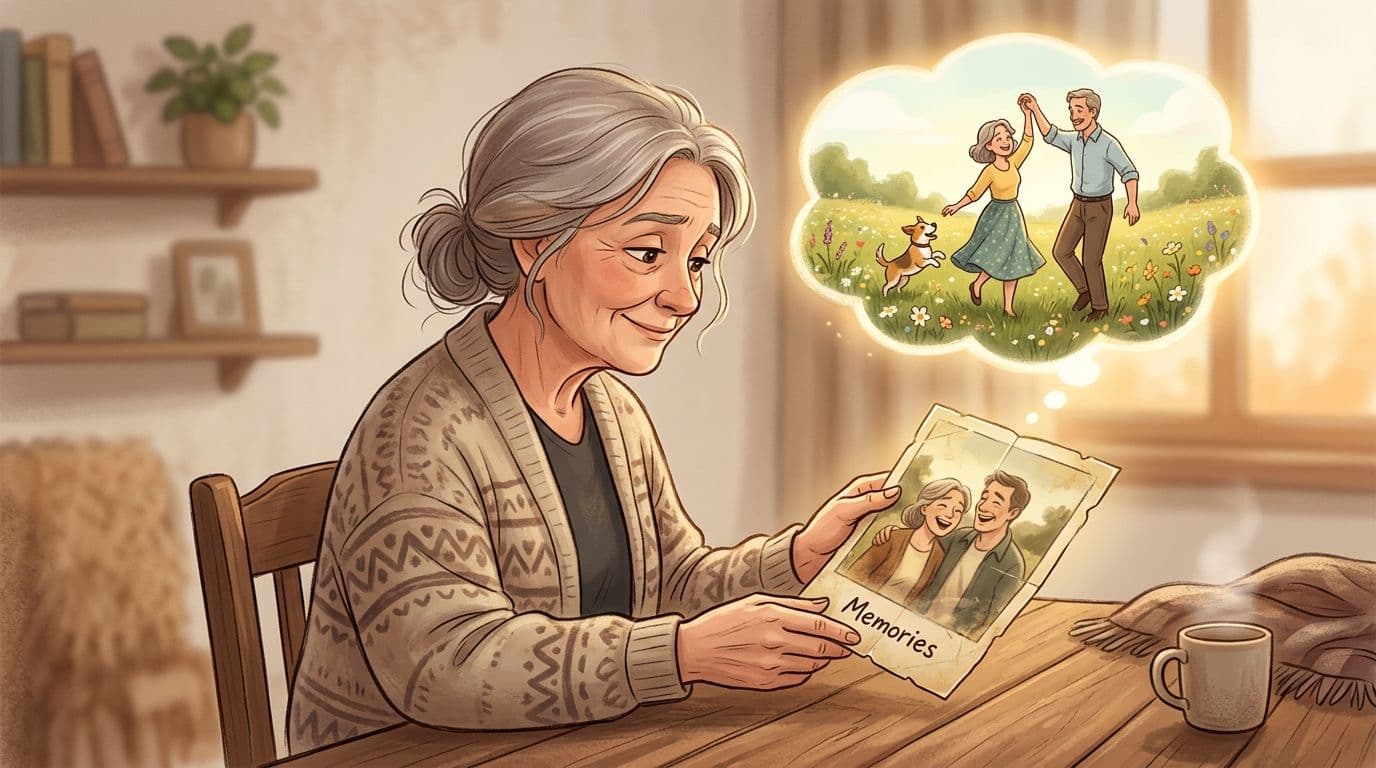
If you're holding a treasured scan of a parent, grandparent, spouse, or child, the first decision isn't software. It's restraint.
Some photos ask for movement. Others ask to be left alone. A successful attempt to animate a photo starts when you look at the image as a memory first and an asset second. If the emotional weight comes from stillness, don't fight that. If the image already feels alive and you can imagine one soft breath of motion making it feel closer, that's your opening.
Choose the photo that can carry motion
Not every beautiful photograph is a good animation candidate. The strongest choices usually have a clear subject, readable facial features, and some visual separation between foreground and background. A side-lit portrait, a seated figure near a window, a wedding photo with obvious depth, or a scanned print with one main face often works better than a crowded group shot where every person competes for attention.
Look for these qualities before you begin:
- A single emotional focal point. One face or one relationship in the frame is easier to animate tastefully than six people all moving at once.
- Visible depth cues. Background walls, furniture, trees, curtains, or a horizon line give the animation somewhere to breathe.
- Stable expression. Neutral, warm, or gentle expressions tend to translate better than exaggerated laughter or complicated poses.
- Enough detail in the original. Faded prints can still work, but if the eyes, mouth, and jawline have almost disappeared, motion will expose every weakness in the scan.
A damaged image isn't disqualified. It just changes the goal. Instead of chasing realism, aim for a small camera drift or parallax-style depth that honors the texture of the print.
Decide what respectful motion looks like
Memorial work differs from novelty animation because the question isn't “What can the tool do?” It's “What would feel true to this person?”
A lot of families don't want creative embellishment. They want quiet fidelity. In a discussion focused on memorial photo animation, 68% of users in tribute workflows rejected “creative” AI additions and preferred gentle, natural motion that preserved the photo's historical integrity, according to the discussion summarized in this Reddit thread about animating memorial photos.
Practical rule: If the movement would draw attention to the tool instead of the person, it's too much.
Good memorial motion is usually one of these:
- A slight blink or breath-like stillness. Very small facial motion, if the source image supports it.
- A slow camera move. Push in, drift left, or a gentle depth move often feels more respectful than making a person perform.
- Subtle environmental movement. A small shift in hair, fabric, or background depth can add life without rewriting the moment.
Avoid anything that implies a specific action the original photo never contained. Don't make someone wave, turn sharply, grin wider, or look around unless you're comfortable with the fact that the software is inventing behavior.
If you're unsure, write down a one-line intention before you touch a tool: “I want this to feel like a quiet presence, not a performance.” That sentence will save you from a lot of bad decisions later.
The 5-Minute Method Using AI for Quick Animation
AI is often the fastest path from still image to usable tribute clip. You upload one photo, describe the movement, review the result, and refine it once. That's often enough for a memorial reel, a birthday montage, or an anniversary insert.
The key is knowing that fast doesn't mean random. The better AI tools follow a pattern: they analyze depth, interpret your motion intent, and then improve through revision. When that middle step is vague, results fall apart fast.
What makes fast AI animation work
A strong AI workflow depends on three phases: depth-layer analysis, motion-intent prompting, and iterative refinement. Natural results improve when you enable enhanced prompting and do at least one refinement pass, and 70% of failure cases come from ambiguous prompts, according to guidance from Animate Image's photo animation methodology.
That lines up with what goes wrong in practice. People type “animate this photo” and hope the model reads their mind. It won't. It needs direction about movement style, camera behavior, and intensity.
If you want a quick walkthrough of a one-photo workflow, this guide on how to create video from a single image shows the basic process clearly.
A simple prompt structure that gets cleaner motion
Most readers don't need cinematic prompting. They need a prompt that stops the software from overreaching.
Use this four-part structure:
-
Subject movement
Keep it tiny. “Slight blink,” “gentle breathing presence,” or “soft natural stillness.” -
Camera movement
Add one move only. “Slow push in,” “subtle drift to the right,” or “very light parallax depth.” -
Tone
Tell the model how the clip should feel. “Respectful,” “warm,” “nostalgic,” “calm,” or “memorial tone.” -
Protection language
Add boundaries. “Preserve original image identity,” “avoid exaggerated motion,” “maintain analog texture.”
Here are examples that usually work better than generic commands:
- Weak prompt: Animate this old photo.
- Better prompt: Add a slow push in, very subtle blink, calm expression, preserve original photo texture, avoid dramatic movement.
- Better for a memorial portrait: Gentle natural motion only, slight breathing presence, no large facial changes, respectful tone, preserve original identity and historical feel.
- Better for a wedding photo: Subtle camera drift with soft depth, minimal movement in faces, warm romantic tone, keep the original composition intact.
Later in the process, it helps to watch a working example before you regenerate. This short demo shows the kind of restrained output many people are after:
Refine once before you export
The first generation is a draft. Treat it that way.
Check three things on preview:
- Eyes and mouth. If they twitch, smear, or stretch, lower motion intensity.
- Edges around hair and shoulders. That's where rushed generations often break.
- Depth feel. If it still looks flat, clarify left-right, up-down, or forward-back camera direction in your prompt.
Keep the first version only if it feels invisible. Good tribute animation rarely announces itself.
If the clip feels “AI-made,” reduce the ask. Smaller motion nearly always looks more believable than a bigger one.
The Professional Method Creating 2.5D Parallax Effects
A daughter wants to use one full-screen photo of her father at his memorial. The family does not want a generated smile, a blink, or any expression he never made. They just want the image to feel present for a few seconds. That is where 2.5D parallax earns its place.
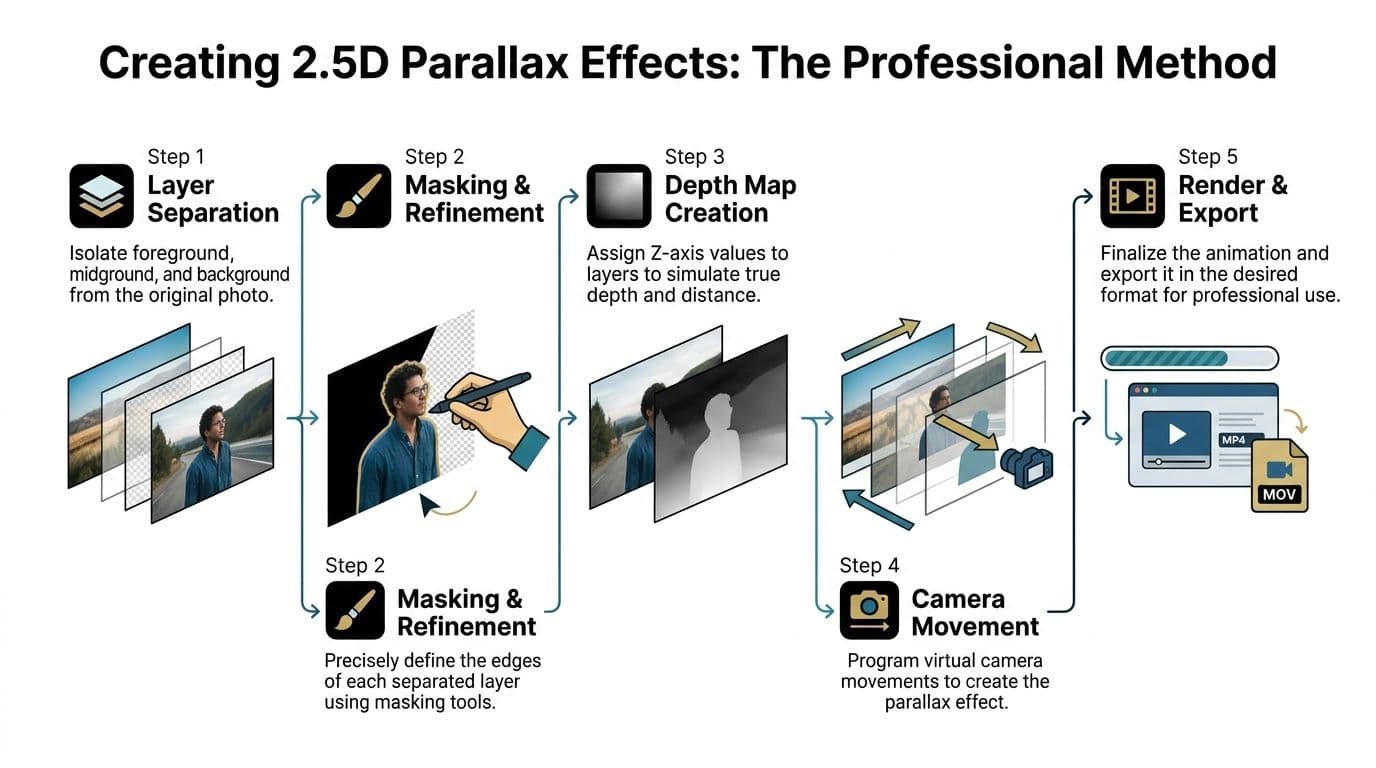
This method gives editors precise control. You separate the photo into depth layers, place those layers in 3D space, and animate a virtual camera through them. The subject stays true to the original frame, but the image gains a quiet sense of depth.
Why editors still use parallax
The workflow is straightforward if you know Photoshop and After Effects. Cut the image into foreground, midground, and background. Repair the areas hidden behind the subject. Then animate a slow camera move so near objects shift more than distant ones.
For tribute work, that restraint matters. Parallax usually holds up better than face animation when the scan is soft, the face is small, or the family wants no invented expression at all. If you want to study that visual language, this guide to the 3D photo effect shows the style clearly.
I use this approach when the emotional goal is presence, not performance. A gentle push-in on a wedding portrait or a slight lateral drift across an old family snapshot can feel more respectful than any automated facial movement.
When manual control is worth the time
Use parallax when one of these is true:
| Situation | Why parallax helps |
|---|---|
| The face is low-detail or partially obscured | You can add motion without forcing facial animation |
| The photo has strong foreground and background separation | Layered depth looks convincing |
| You need a specific camera move | Manual keyframes give you predictable control |
| The project will be shown on a large screen | Controlled motion usually looks cleaner at full size |
The trade-off is time. Clean masking, patching hidden areas, and checking edge integrity can take far longer than a one-click AI pass. But the extra labor often prevents the problems families notice right away: warped features, floating hair, broken shoulders, and movement that feels too alive for the context.
Start simple. Three depth zones are usually enough. If you cut every finger, curl, and clothing fold into separate layers, you often create halos and perspective errors that pull attention away from the memory itself.
Parallax preserves the dignity of the original photo while adding just enough motion to hold the eye.
That is why many memorial editors keep it in their toolkit. It asks for more craft, but it gives you a safer way to animate a still image with care.
Animation on the Go Exploring Mobile App Options
Mobile apps are useful when you need speed, convenience, and a low-friction way to test an idea. They're less useful when you need careful control for a memorial centerpiece or a full-screen tribute film.
The market is crowded, but most apps fall into three broad categories. Once you sort them that way, the decision gets easier.
Three kinds of mobile apps
Overlay apps add movement effects to specific parts of a still image. Think drifting clouds, rippling water, floating dust, or light leaks. These are quick and fun, but they can feel decorative rather than personal. For a remembrance piece, they work best when the photo already contains a natural setting or environmental detail that can move naturally.
Face-animation apps detect facial features and generate short movements such as blinking, smiling, or head motion. These can create an immediate emotional response, but they're also the easiest way to slip into uncanny territory. They're best used for experimentation, not for blindly generating your final tribute clip.
Mini-editor apps offer light masking, keyframing, and timeline control. They usually require more effort, but they let you animate depth or camera movement without handing everything over to a one-click model. If you want a mobile-first entry point with more control, this roundup of an app that makes images move is a useful starting place.
How to pick the right one fast
Don't choose by app popularity. Choose by output.
- For a social story or quick family share. Use an overlay or simple AI animation app. Keep the clip short and the movement minimal.
- For a memorial service screen. Avoid aggressive face animation unless you've reviewed it carefully on a larger display.
- For trying ideas before moving to desktop. A mini-editor app can help you test pacing and crop decisions.
The trade-off is straightforward. Mobile is convenient, but it often comes with less nuanced motion, fewer repair tools, export limitations, and less precise control over faces and edges. That doesn't make it bad. It makes it a sketchbook.
If the first mobile result makes you emotional in the right way, keep going. If it makes you notice the software first, stop there and switch methods.
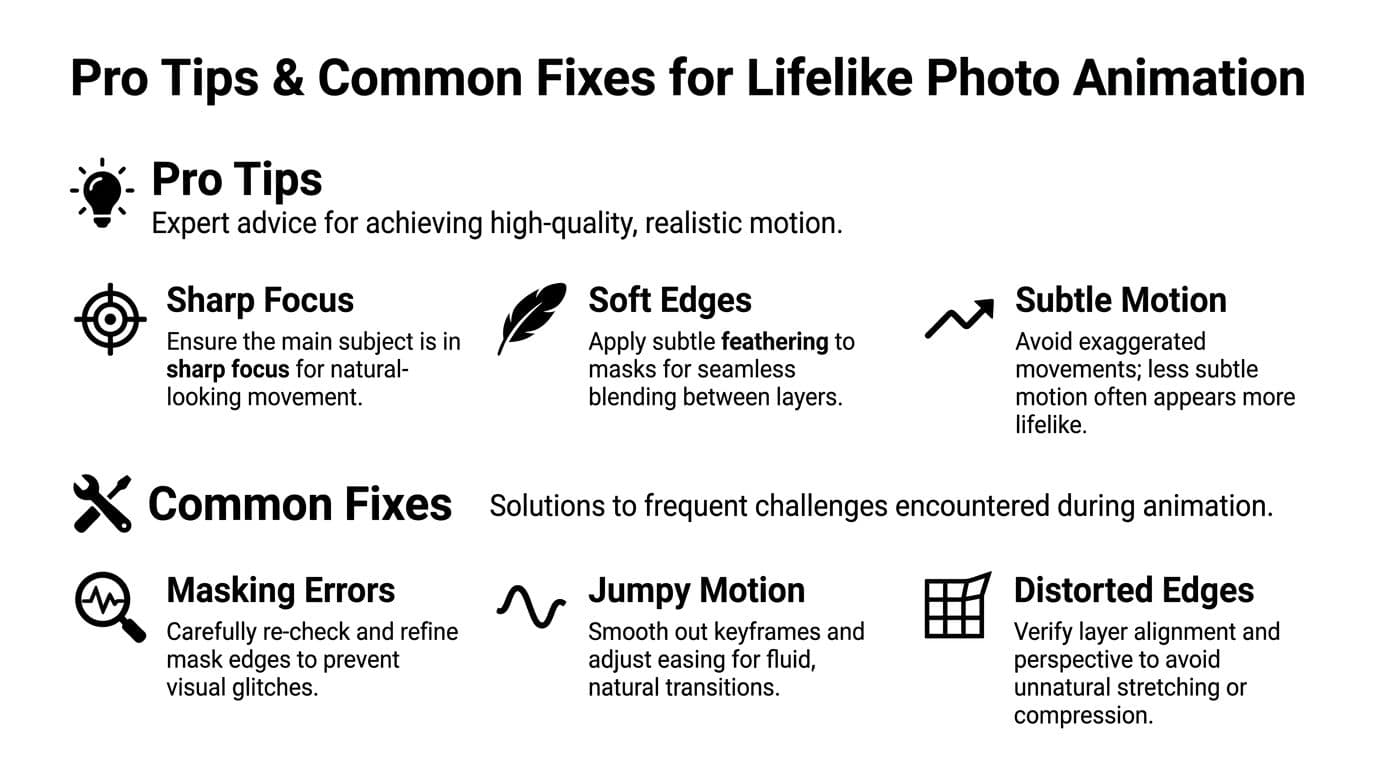
Pro Tips for Lifelike Results and Common Fixes
A tribute photo can fall apart in a very quiet way. The expression stays almost right, but the eyes drift, the mouth tightens, or the skin takes on that synthetic, over-processed look. In memorial work, those small errors matter because family members know the face better than any software does.
The strongest results usually come from restraint. Subtle motion protects the original feeling of the image and gives viewers room to recognize the person, rather than the effect.
Write prompts like a director
AI tools respond better to clear movement instructions than emotional requests. “Make this moving” leaves too much room for invention. “Slow push in, minimal blink, preserve original expression and skin texture” gives the model limits it can follow.
Specific language also helps you protect what should stay unchanged:
-
Too vague: animate head
-
Usable: slight head presence only, no turn, maintain posture
-
Too broad: make it cinematic
-
Usable: slow camera push, shallow depth feel, restrained tone
-
Too risky: smiling and looking around
-
Usable: keep existing expression, minimal eye movement, no mouth change
If your tool supports negative prompts, use them. Ask it to avoid facial deformation, head turns, rubbery skin, unstable pupils, and large camera moves. That one step prevents a lot of cleanup.
Fix the portrait issues that break realism
Portraits need the most care. According to Adobe's guidance on AI animation, users frequently run into unnatural facial distortion when portrait motion is pushed too far, and depth-aware tools produce cleaner results than text-only approaches. The same guidance also recommends export settings around 1080p or higher for polished output. See Adobe Firefly's AI animation information.
Here are the fixes I use most often:
- If the face warps: lower motion intensity first. Rewriting the prompt is not always necessary.
- If the eyes look jumpy: remove blink instructions and rely on camera movement or parallax instead.
- If the mouth shifts: do not ask the tool to change expression. Keep the original smile, closed lips, or neutral face exactly as captured.
- If the skin looks plastic: turn off extra smoothing and sharpening, and ask the model to preserve photo texture.
- If the background bends or breathes: mask the subject more tightly or switch to a manual depth setup.
One practical rule helps here. If viewers notice the motion before they notice the person, the effect is too strong.
Export for the place it will actually be seen
Good animation can still fail at export. A clip that looks fine on a phone may show edge chatter, warped hands, or unstable masking on a projector at a service.
Use a short review checklist:
- Start with the cleanest file you have. Low-resolution scans limit every method.
- Choose the frame for the final destination. Vertical works for stories. Widescreen fits memorial slideshows and display screens better.
- Keep the clip brief. Five to eight seconds is often enough for a respectful moment.
- Preview on the actual screen. TV, tablet, projector, and phone all reveal different problems.
For longer montages, animated photos work best as accents. A few gentle motion shots among still images usually carry more weight than constant movement across every frame.
From Still Frame to Living Memory
There isn't one correct way to animate a photo. There's the quick AI route when you need a polished clip in minutes. There's the manual parallax route when you need exact control. There are mobile apps when you want a rough first pass from your phone.
The right method depends on what the image is carrying. A playful birthday portrait can handle a little more motion. A memorial photo usually can't. The image decides the approach more than the software does.
Modern AI exists because animation moved from hand-drawn cel workflows into computer-driven 3D systems in the 1990s, powered by GPUs and software such as Maya. That shift created the technical foundation for today's photo-to-video tools and made it possible for families and independent creators to produce tribute animations in minutes, as described in this piece on the evolution from traditional to digital animation. The tools are newer. The impulse isn't. People have been trying to bridge stillness and memory for a very long time.
Pick the method that matches the moment
If you need something fast and gentle, use AI with a tight prompt and one refinement pass. If you need precision and zero invented behavior, build a parallax shot manually. If you're testing ideas on the train or at the kitchen table, use a mobile app and treat the result as a draft.
That's the practical side.
A good animation leaves the memory intact
The emotional side is simpler. The best result doesn't feel like technology showing off. It feels like the original photograph is being handled with care.
When you get it right, the motion doesn't replace the still image. It deepens your connection to it for a few seconds. That's enough. Pick the one photo that matters most, keep the movement subtle, and let the original truth of the image lead every decision.
If you want a fast, respectful way to turn one cherished image into a short moving keepsake, Photo for Video is built for exactly that kind of work. It helps families and creators transform a single still into a gentle 5 to 6 second clip for memorials, birthdays, anniversaries, and tribute edits, with motion that stays focused on the person rather than the effect.