Best AI Video Generator Free: 10 Options Compared for 2026
Looking for the best AI video generator free? Compare 10 free tools by limits, watermarks, export formats and privacy, plus tips for tributes and reels.
You have a photo of your grandmother at her wedding and want a few seconds of gentle motion for a family video by Sunday. A free plan sounds ideal, until you discover the watermark, credits that expire before you finish, or an export that looks soft on the television.
The best free AI video generator is the one that lets you finish the video you need. For a memorial, that means recognizable faces and restrained movement. For a product reel, it might mean repeatable camera motion, clean packaging details, and permission to publish commercially.
The options below separate recurring free access, limited trials, and paid alternatives worth considering. Photo for Video belongs in that last category, not in a misleading list of supposedly free services. Exact allowances can change, so treat the generation screen and export conditions in your account as the final decision point.
Start with the deliverable: A free preview isn't a free finished video. Check the downloadable file, watermark, resolution, and usage rights before spending your remaining credits.
General-purpose filmmaking also involves more than choosing a model. The Seedance 2.0 short film summary offers useful context for thinking in shots rather than expecting a complete film from a prompt.
For a family keepsake, though, you can start much smaller: a clear photo, a restrained movement instruction, and an editor for joining the successful clips.
Table of Contents
- 1. Photo for Video
- 2. Google Flow
- 3. Adobe Firefly
- 4. Kling AI
- 5. PixVerse
- 6. Hailuo AI
- 7. Runway
- 8. VEED
- 9. Canva
- 10. Pika
- Free access, watermark status and best use at a glance
- Matching the Free Tool to the Job You Actually Have
1. Photo for Video
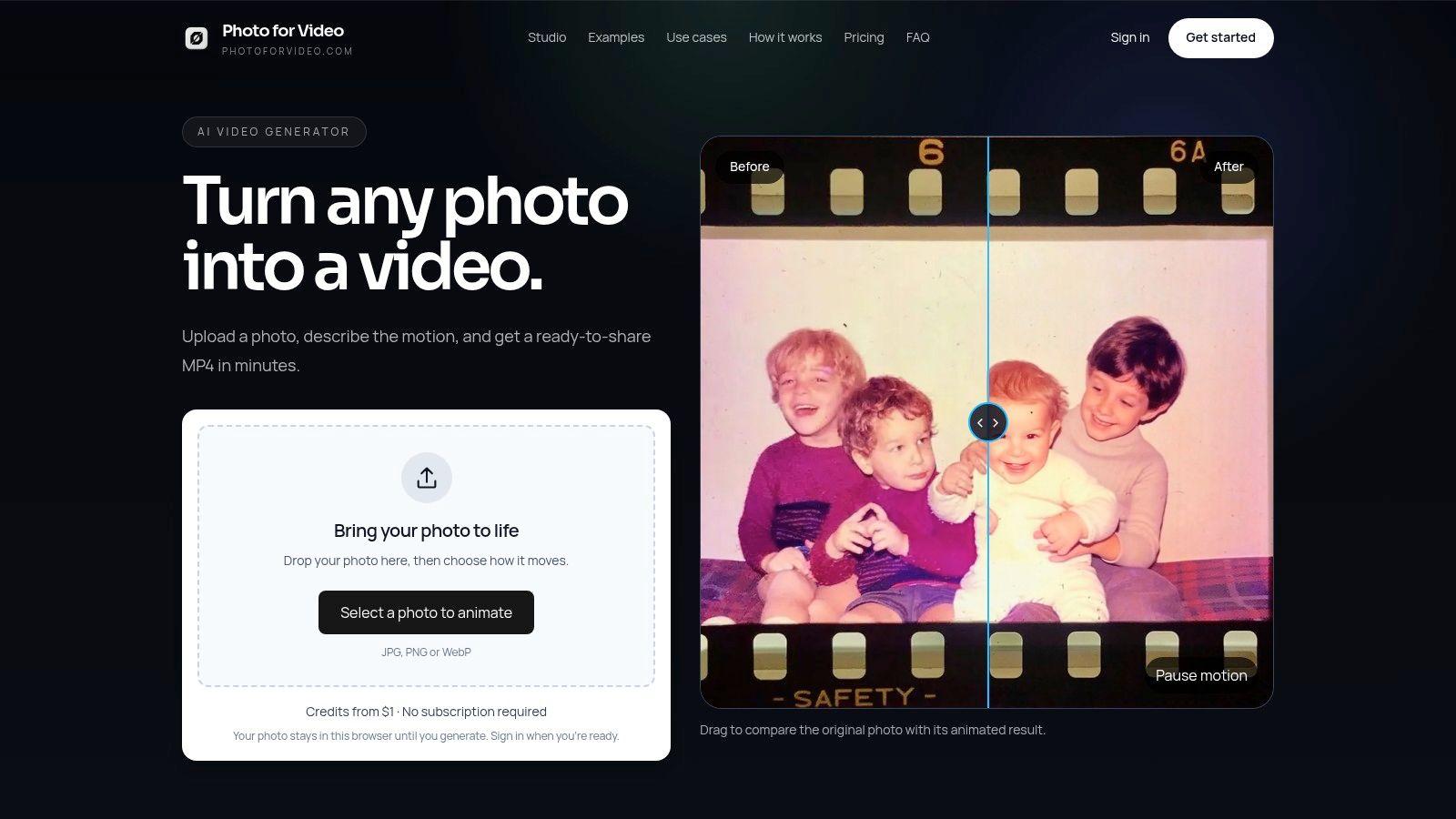
Best for a treasured photo when predictable spending matters more than a free allowance. Photo for Video turns a still image into a downloadable MP4 using a short instruction about movement, camera direction, and mood. It's built for birthday tributes, memorial pieces, anniversaries, reunions, and family keepsakes, with a separate practical use for animating ecommerce photographs.
This is a paid option, not a recurring free generator. Our credits start at $1 without a subscription, and the composer shows the cost before you generate. A 5-second video at 768P with native audio costs 400 credits; other settings can change the cost.
What matters for sentimental photos
Upload the original scan or phone photo, then describe a modest action: gentle breathing, a slight movement in the veil, and a slow camera push. Avoid asking a person in a formal portrait to walk, turn around, and speak. Those instructions introduce more opportunities to change the face or invent unseen details.
Our composer generates one video at a time and keeps the source image's aspect ratio. Native audio is included, so review the soundtrack before adding the clip to a quiet tribute. The image-to-video insights from Synchronicity Labs provide further context for working from an existing visual rather than generating a scene from scratch.
- Export fit: Downloadable MP4 files work as individual shots in a larger montage; the Lite plan includes watermark-free exports.
- Privacy boundary: Uploaded photos and generated videos automatically delete after 7 days, so download and back up anything you want to keep.
- Credit trade-off: One-time refill credits expire after 90 days. Buy for the project you're making, rather than stockpiling for an unspecified future tribute.
The practical advantage is a focused photo-to-video workflow. The limitation is equally clear: if spending nothing is nonnegotiable, start with a genuine free allowance elsewhere.
2. Google Flow

Choose Google Flow when you want to explore scenes rather than just animate a portrait. It combines text-led and image-led generation with reference assets, extension, editing, and scene-building tools.
Its recurring free-credit approach makes it a useful starting point for ongoing experimentation. Don't translate a credit balance into a promised number of finished clips, though. The selected model and generation settings determine how far that balance goes, while account and plan conditions affect available tools.
Where the broader studio helps
Say you're making a reunion video with a photographed family home, a title sequence, and an atmospheric garden shot. Flow gives you room to develop those as separate visual elements and arrange generated material into a sequence. That's a better fit than treating every shot as a portrait animation.
For your grandmother's wedding photograph, the extra studio controls may be unnecessary. Start with an image-led workflow and a restrained instruction before experimenting with references or extensions.
- Useful strength: Multiple creation and editing modes let you develop an idea beyond the initial generation.
- Real cost: Learning the studio and spending credits on experiments can take longer than using a focused image animator.
- Before committing: Inspect download resolution, visible branding, and the conditions attached to your selected model.
I'd shortlist Flow for repeat experimentation and short scene construction. For a deadline-sensitive family clip, keep the workflow simple and secure a usable download before expanding the idea.
3. Adobe Firefly
A product photograph needs a different test from a family portrait. With packaging, watch the label, bottle shape, and edges throughout the clip. An attractive camera move isn't useful if the product name changes halfway through.
Adobe Firefly supports text-to-video and image-to-video, with limited free generation access and MP4 downloads. Duration, resolution, and capabilities depend on the selected model, so compare the actual settings rather than assuming every generation has the same export options.
This is a sensible candidate for B-roll, product visuals, social clips, and concept work, especially if you already finish projects with Adobe tools. Its connection to a broader creative workflow matters more than having another prompt box.
Test the object before the atmosphere
For a candle photograph, request a stationary jar, restrained flame movement, and a slow camera approach. Check the brand lettering before judging the lighting. If the label becomes unreadable, simplify the movement rather than adding more descriptive adjectives.
- What works: Starting from an existing image gives you a concrete composition to assess.
- What doesn't: A limited free allowance isn't a dependable production budget for repeated revisions.
- Export decision: Confirm the selected model's duration and resolution before generating, then inspect the downloaded MP4 in your intended editor.
For sentimental work, apply the same discipline to faces. A pleasing overall scene doesn't compensate for changed eyes, jewelry, or expressions.
4. Kling AI
Kling AI is worth comparing when motion control is your priority. Kling supports prompt-led and image-led video, with duration and aspect-ratio settings alongside motion, reference, and effect-oriented tools.
Its free access is less suitable for planning a fixed production schedule. Limited-time credits and account-dependent benefits mean you should inspect the balance and submission cost before preparing a large batch. Higher-resolution output and additional capabilities may require paid access.
The useful question isn't whether a demonstration looks cinematic. It's whether Kling follows your particular instruction without changing the subject.
Keep the source image and motion prompt identical when comparing tools. Otherwise, you're comparing different creative briefs rather than different generators.
VBench's evaluation framework separates dimensions including prompt adherence, realism, motion quality, and temporal consistency. That distinction is useful in practice: score the movement separately from facial stability instead of giving the whole clip a vague quality rating.
A fair portrait test
Use a clear portrait and request a subtle camera push with minimal head movement. Check facial identity, clothing, background texture, and whether details flicker as the shot progresses.
The AI photo-to-video generator guide can help you frame an image-led workflow before spending trial credits. Kling suits deliberate motion experiments, but a more configurable interface doesn't guarantee a better memorial clip. Sometimes the best result comes from asking for less.
5. PixVerse
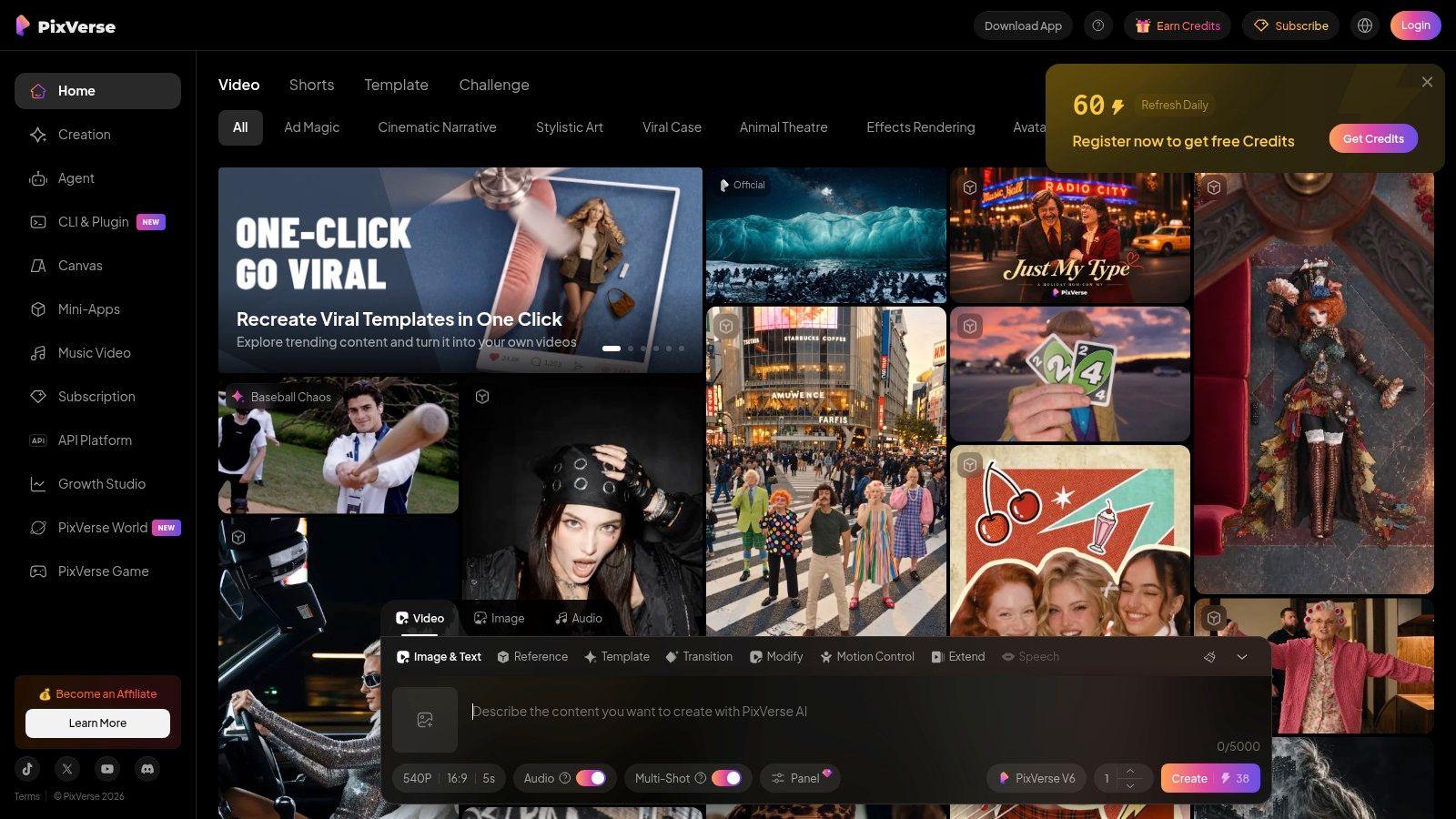
For someone making short social experiments regularly, renewing credits are more useful than a generous signup balance that disappears. PixVerse offers browser-based prompt and image generation with a daily-credit free tier.
The catch is that unused free credits expire, and different models and settings consume different amounts. That makes it better suited to a regular testing habit than saving up for a large weekend montage. Higher resolutions and some model choices can require payment.
Use the allowance to answer a question
Don't spend your balance producing unrelated effects. Pick a specific problem, such as whether a product stays recognizable during a camera move or whether a portrait can hold a natural expression.
- For social clips: Test the intended framing early, leaving space for captions and interface overlays.
- For product shots: Check lettering and silhouette before accepting a dramatic effect.
- For family photos: Begin with restrained movement rather than a transformation that changes the subject's appearance.
The AI video generator for TikTok guide is useful when the destination is a vertical social post rather than a family-screening montage.
I'd consider PixVerse for repeatable, low-stakes experimentation. I wouldn't rely on a nominal daily balance to promise a finished batch to a client or event organizer. Save successful exports as you go, and verify watermark and download conditions before building an edit around them.
6. Hailuo AI
A watermarked trial can answer a quality question without producing a deliverable. That's the most useful way to approach Hailuo AI if its free output restrictions don't match your final project.
Hailuo generates video from images and prompts. Its free access is limited, with lower-resolution, watermarked output and a different selection of capabilities from paid access. Treat it as an opportunity to assess motion and image handling, not as a guaranteed source of event-ready footage.
A portrait test should concentrate on the face, hands, and edges of clothing. For a product photograph, concentrate on rigid geometry and branding. Choose the test that matches the footage you'll publish.
Separate evaluation from delivery
A small preview can help you reject an unsuitable motion direction. It can't establish how a clip will look on a large display, nor does it resolve commercial-use permission.
- Useful trial outcome: You learn whether the generator follows a restrained prompt and keeps the subject recognizable.
- Unusable final outcome: The clip looks acceptable in the browser but carries branding or lacks enough detail for your destination.
- Budget consequence: Recreating a successful test under a paid model or different settings may require further attempts.
For a memorial due soon, don't assemble your entire sequence around trial previews and leave export restrictions until the end. Download an example first, place it in your editor, and inspect it at the intended viewing size. That simple step can prevent a late rebuild.
7. Runway

Runway makes more sense as a creative-toolkit trial than an ongoing free video supply. Its free access uses a one-time credit allocation, offers limited models and features, and adds a watermark to free-plan videos.
That distinction matters if you're comparing it with tools that replenish credits. A trial can be valuable for deciding whether the broader workflow fits your editing needs, but it won't sustain regular production because opening the account costs nothing.
Use the available balance on representative tasks. For a tribute editor, that means a portrait, an archival group photograph, or a difficult background, not an unrelated spectacle.
Judge successful exports, not attempts
The Artificial Analysis adoption report identifies instruction adherence and realism as important selection criteria among video-generation users. Translate those priorities into a practical log: whether the instruction worked, whether the subject remained believable, and whether the export needed repair.
- Workflow advantage: You can evaluate a broader set of generative and editing capabilities.
- Free-plan boundary: Available models are limited, and a watermarked result may serve only as a draft.
- Spending discipline: Read the generation cost before submitting and reserve some balance for a revised prompt.
Runway is a useful shortlist candidate when you want to assess a larger creative environment. If your only task is a gentle animation of a wedding photograph, that breadth may add more decisions than you need.
8. VEED
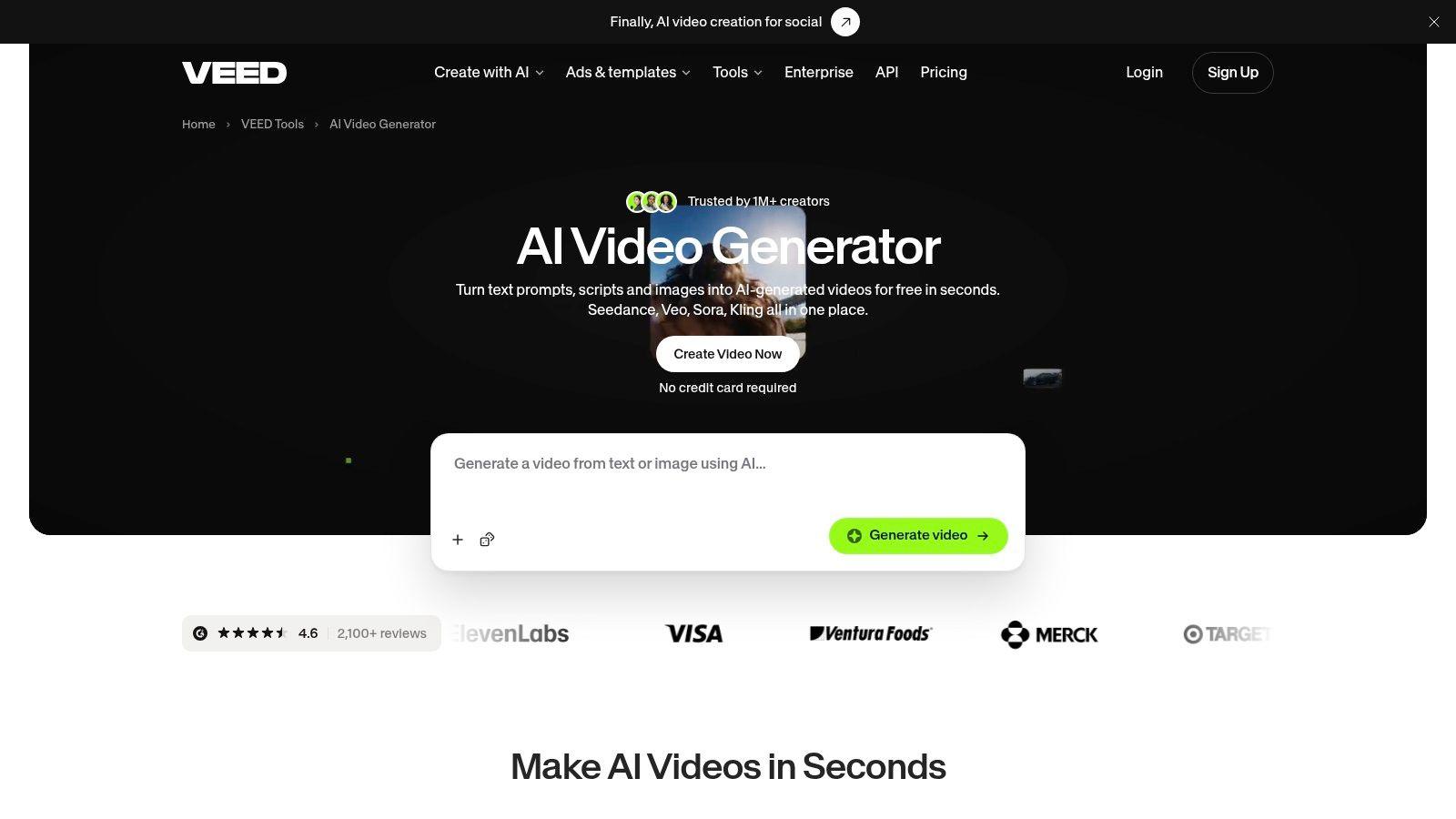
Generating a clip is only part of making a tribute. You still need to trim it, add names and dates, balance music, and combine it with the photographs that work better as stills.
VEED combines AI generation with a browser-based editor, including captions, branding, music, and timeline editing. That makes it particularly relevant when your main challenge is finishing a social post or montage rather than finding another standalone generator.
Free AI credits may be available to new users, but access can vary by region and model. Don't assume that access to the editor includes unrestricted generation or a clean final export.
Check the whole route to download
Build a small draft with a generated clip, a still photograph, and a title. Attempt the intended export before committing to a full project.
- Generation check: Confirm which model is selected and how it spends credits.
- Editing check: Avoid premium elements you don't intend to purchase.
- Delivery check: Inspect the actual downloaded file for branding, dimensions, and playback.
The photo video maker without a watermark guide addresses the distinction between creating a sequence and obtaining a clean export.
VEED's appeal is convenience: fewer transfers between generation and editing. Its trade-off is that each stage can have separate restrictions. A usable generated shot doesn't automatically mean the assembled montage is free to download in the format you need.
9. Canva
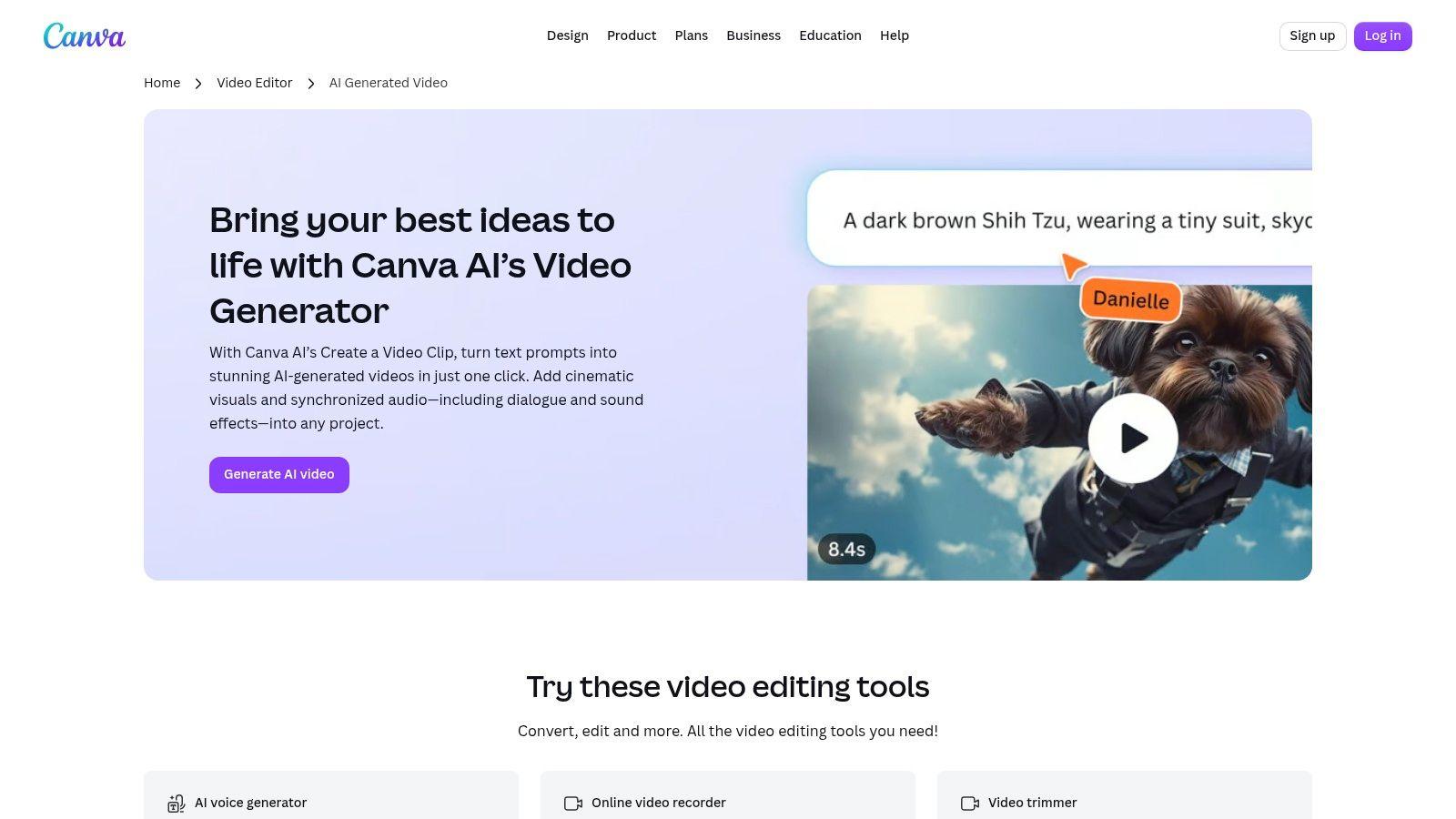
A birthday invitation, memorial title card, or anniversary slideshow needs design as well as movement. Canva is a practical choice when the animated clip belongs inside a larger designed project.
Its AI video access is feature-specific, not a blanket promise of free generation. Some functions have limited allowances where available, while certain cinematic features require a paid plan. Check the particular tool you're opening rather than assuming every AI button follows the same rules.
Canva's strongest role here is assembly. You can place a generated clip beside still photographs, add readable titles, and maintain a consistent visual style across the event materials.
Keep the tribute readable
Use the original photograph as a reference while designing the animated section. Don't crop a face just to fill a template, and don't place decorative text over the subject's eyes or important details.
An animated photograph doesn't need to fill every moment. Still images give viewers time to recognize people, read names, and remember the occasion.
For sensitive images, review upload and training policies before using any hosted design tool. A review in Frontiers in Computer Science describes concerns about privacy, unauthorized replication of people's likenesses, and control over generated content.
Canva suits the finished presentation around the clip. For subtle portrait animation, compare a dedicated image-to-video workflow first, then bring the chosen result into the design.
10. Pika
A free account isn't necessarily free generation. Pika belongs on this list because that distinction can save you a signup and an unnecessary purchase.
Its free tier doesn't provide a recurring monthly credit allowance, although credit packs offer an alternative to a subscription. The free tier is listed as watermark-free, but generation availability and commercial licensing remain separate questions. Don't choose it on watermark status alone.
Pika's effect-oriented tools are more naturally suited to playful or stylized work than a restrained memorial. A lively birthday transition might benefit from an obvious transformation; a tribute portrait usually needs the opposite approach.
Choose effects intentionally
If the purpose is humor, make the effect part of the brief. If the purpose is remembrance, test minimal movement and reject anything that changes the person's character or expression.
- Good fit: Stylized social clips, playful transformations, and occasional experiments.
- Poor fit: A dependable stream of recurring free generations.
- Rights boundary: Don't assume a watermark-free download includes permission for commercial delivery.
Krea's free-generator comparison highlights the broader distinction between nominal free access and the practical costs of export restrictions, licensing, and hardware alternatives. That's the right lens for Pika: evaluate what you can generate and use, not whether the account has a free label.
I'd shortlist it for a deliberately effect-led project, not as the default choice for animating a sensitive family photograph.
Free access, watermark status and best use at a glance
| Item | Free Access | Watermark on Free Output | Best For |
|---|---|---|---|
| Photo for Video (Recommended) | Paid credits and plans; no free tier specified | Not specified | Animating treasured photos into shareable keepsake videos |
| Google Flow | 50 daily credits listed | Not specified | Experimenting with video creation and editing workflows |
| Adobe Firefly | Limited daily free generation allowance | Not specified | Generating short clips within the Adobe creative ecosystem |
| Kling AI | Limited-time credits may be available | Not specified | Exploring image-led video with motion controls |
| PixVerse | 60 daily credits listed | Not specified | Repeated prompt- and image-based experiments |
| Hailuo AI | 160 monthly credits; up to five videos listed | Yes | Trying short image- or prompt-based videos |
| Runway | 125 one-time credits and 5 GB storage | Yes | Testing a broader generative and editing toolkit |
| VEED | Free AI credits may be available; varies by region | Not specified | Generating and editing videos for social posts or montages |
| Canva | Limited, feature-dependent free AI use | Not specified | Adding AI clips to designed event or social projects |
| Pika | Free-tier access; no monthly credits listed | No, listed as watermark-free | Occasional playful or stylized video experiments |
Matching the Free Tool to the Job You Actually Have
Start with the output you need, not the feature list. For a single family photo, prioritize recognizable faces, suitable watermark conditions, and a clear generation cost. For reels or product clips, recurring credits and broader scene controls may be more valuable than a specialized sentimental workflow.
Test the same photo on a pair of tools, using the same restrained movement instruction. Compare each result with the original side by side, then watch the full clip rather than judging its opening frame. Reject changed facial features, flickering clothing, distorted lettering, or movement that feels wrong for the occasion.
The cheapest usable workflow isn't always the one with the largest free balance. A tool that requires repeated retries, paid watermark removal, and extra repair can demand more time and money than a modest paid animation. Keep a simple record of attempted generations, accepted clips, export restrictions, and any money spent.
Turn short clips into a coherent montage
Build the story before generating every photograph. Open with an original still, introduce movement where it adds meaning, and return to still images when viewers need time to absorb a name or memory.
- Prepare the photographs: Straighten scans, correct obvious exposure problems, and keep untouched originals in a separate folder.
- Generate selectively: Animate moments that benefit from gentle movement rather than forcing motion into every image.
- Assemble consistently: Place successful clips in your editor, use restrained transitions, and avoid stretching portrait footage to fill a wide frame.
- Review the sound: Mute generated audio when it conflicts with narration, recorded memories, or your chosen music.
- Export and inspect: Watch the finished file on the kind of screen your family or audience will use.
For marketing, start with the message and destination. A product demonstration needs a recognizable item and a clear action, not merely attractive motion. Clipatra's short-form marketing guide offers context for shaping those clips into audience-focused content.
For private family work, add a consent and privacy decision before uploading. Confirm that relatives are comfortable with the animation, review retention and training terms, and avoid creating speech or behavior that could misrepresent the person.
Choose the tool that gets you to an appropriate, downloadable result. Keep the original photographs, save accepted clips promptly, and leave room in the edit for memories that don't need animation at all.
Photo for Video offers a focused way to turn a treasured still image into a natural-motion MP4, with the generation cost shown before you commit and no subscription required to buy credits. Visit Photo for Video, choose a photograph for your tribute or keepsake, and start with a short instruction for gentle movement.