Make a Birthday Video Free: AI Animated Photos
Create a unique birthday video free from one photo. Our guide uses AI to animate pictures, add music, & share a heartfelt gift in minutes.
You probably landed here with a birthday coming up fast, a camera roll full of photos, and no desire to build a long slideshow from scratch. That's a common spot to be in. You want something that feels personal, not like a generic e-card sent in a rush.
A good free birthday video doesn't have to mean collecting dozens of clips, learning an editor, or settling for a template that looks like everyone else's. Sometimes the strongest gift is much smaller than that. One meaningful photo, animated with care, can feel more intimate than a full montage because it asks the viewer to linger on a single memory.
Search behavior backs up how common this need has become. Treendly estimates that “happy birthday video” gets about 6,600 monthly searches with 2.49% month-over-month growth over the past 5 years, which points to a steady audience looking for fast birthday-video tools rather than a one-off trend, as shown in Treendly's happy birthday video trend page.
Table of Contents
- Why a Moving Photo Is the Best Last-Minute Gift
- Choosing and Prepping the Perfect Picture
- Crafting a Prompt to Bring Your Photo to Life
- Generating and Sharing Your Animated Birthday Wish
- Important Notes on Privacy and Troubleshooting
- Alternative Free Birthday Video Workflows
Why a Moving Photo Is the Best Last-Minute Gift
The problem with most last-minute birthday ideas is that they feel last-minute. A stock greeting card, a rushed social post, or a quick slideshow with random transitions gets the job done, but it rarely feels memorable.
A moving photo changes that. Instead of spreading the attention across fifteen images, it lets one moment breathe. A favorite portrait, an old family snapshot, or a funny candid can become a short animated birthday clip that feels warm, modern, and surprisingly emotional.
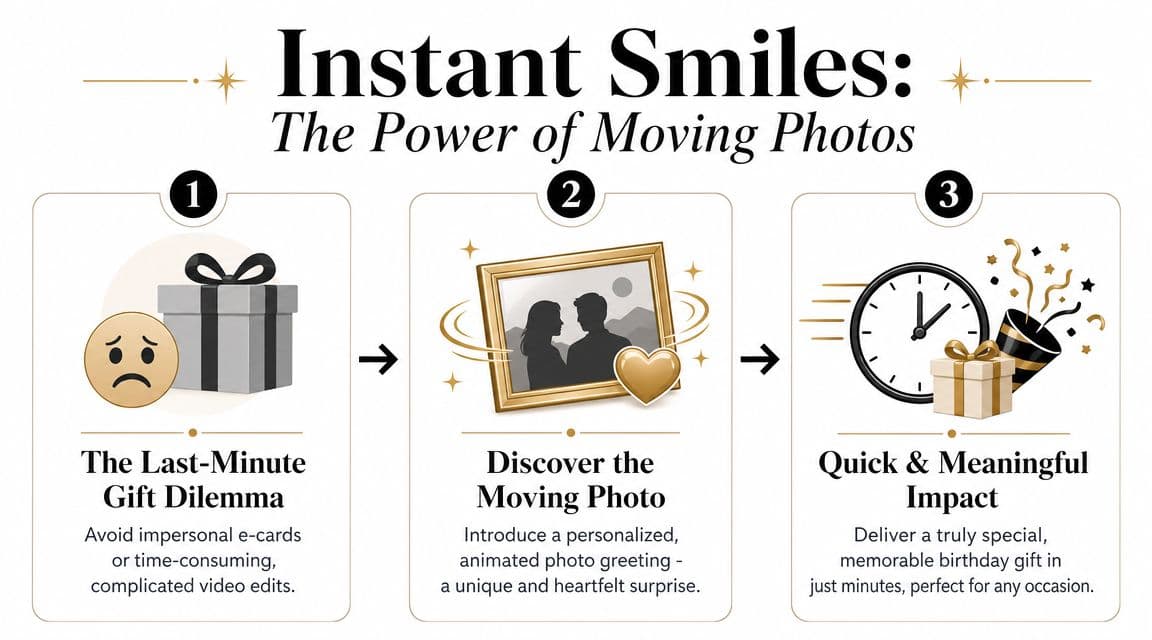
A short clip can feel more personal than a long slideshow
In practice, long birthday slideshows often fail for one simple reason. They dilute the best moment by surrounding it with filler. If you only have one image that instantly says, “This is them,” that's enough.
The best birthday video free workflow for a last-minute gift is often the one with the fewest decisions:
- Pick one photo that already means something. A childhood picture, a vacation smile, or a quiet family moment usually lands better than a collage of random screenshots.
- Add gentle motion, not spectacle. Small movement feels sentimental. Heavy motion can make the result feel gimmicky.
- Keep the message short. One line like “Happy Birthday, we love you” often works better than a paragraph.
Practical rule: If the image already makes you pause for a second, it's probably strong enough to carry the whole birthday message.
Why this works when time is tight
Template-based editors are useful, but they ask you to choose layouts, fonts, scenes, and image order. That's fine when you want a recap video. It's less helpful when you need a heartfelt gift tonight.
A single-photo animation is faster because the emotional work is already inside the image. You're not building a story from pieces. You're uncovering one that's already there.
That's what makes this format so effective for birthdays. It doesn't try to impress with editing. It brings one memory a little closer.
Choosing and Prepping the Perfect Picture
The photo matters more than anything else. If you choose well, the animation feels natural. If you choose badly, even a strong tool can't fully save it.
Adobe notes a practical issue that shows up in birthday-video editing all the time. When images vary a lot in aspect ratio or quality, people often need extra trimming, filtering, or repositioning to avoid awkward crops and uneven flow. For a single-image animation, that means one thing matters most: start with a well-composed source photo, as Adobe explains in its birthday video creation guide.
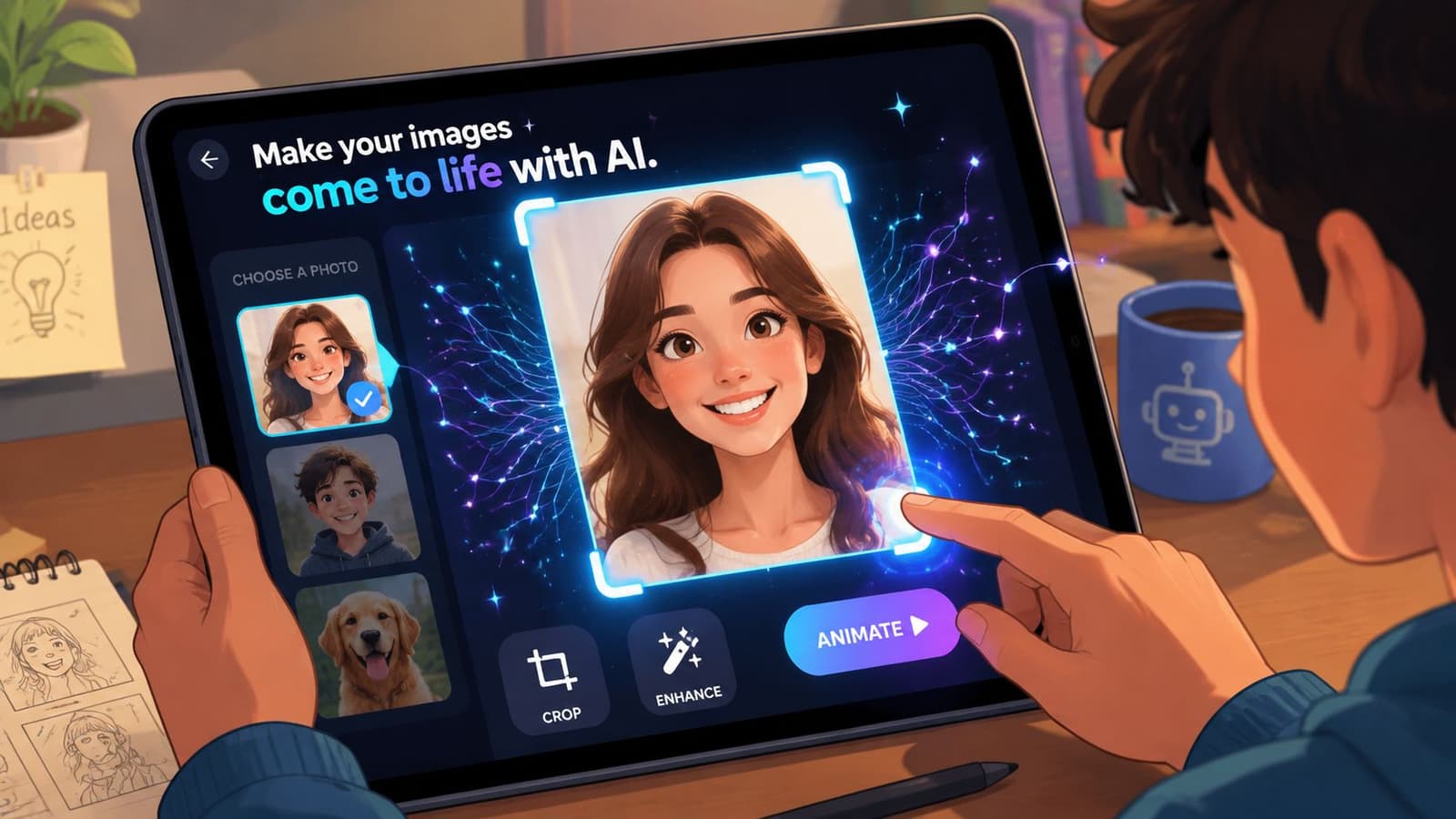
What makes a photo work well
Look for an image with a clear subject and a readable background. Portraits tend to work well because the viewer instantly knows where to look. Photos with a little depth also help. A person in front of a room, street, garden, or window gives the animation room to breathe.
A strong candidate usually has these traits:
- Clear focal point. One face or one main subject is easier to animate than a crowded group.
- Natural framing. Avoid extreme crops that cut through the top of the head, chin, or shoulders in awkward places.
- Decent light. The photo doesn't need studio quality, but the subject should be visible without heavy shadows.
- Emotional clarity. A technically average photo can still be great if it carries a real memory.
Here's a quick comparison:
| Photo type | Usually works well | More challenging |
|---|---|---|
| Portrait | One person, centered or slightly off-center | Face partly hidden, heavy blur |
| Group shot | Small group with clear spacing | Large crowd with overlapping faces |
| Old family print | Clean scan with visible details | Faded scan with torn edges across faces |
| Phone photo | Sharp candid with simple background | Dark image with digital noise |
How to rescue a less-than-perfect image
A lot of birthday-worthy photos aren't pristine. They're old prints, screenshots from family chats, or slightly soft phone captures. That's okay. You don't need to turn them into magazine images. You just need to make them readable.
Simple prep helps:
- Crop first. Remove distractions near the edges.
- Straighten the image. Even a slight tilt can feel sloppy in motion.
- Lift brightness gently. Don't overdo it.
- Reduce clutter if possible. A tighter crop often solves more than filters do.
If you're working with an older or damaged photo, basic cleanup can make a big difference before animation. A quick pass with a free online photo retouching workflow can help remove distractions without turning the picture into something artificial.
Old scans don't need to look new. They need to look cared for.
If a photo feels almost right but not quite, trust that instinct. The best source image usually feels calm and easy to read before any motion is added.
Crafting a Prompt to Bring Your Photo to Life
The prompt is where the emotion gets shaped. You don't need animation jargon. You just need to describe movement in plain language.
That's why simple prompts usually beat overly detailed ones. If you stuff the line with too many actions, the result can feel busy. For a birthday message, subtle direction almost always works better.
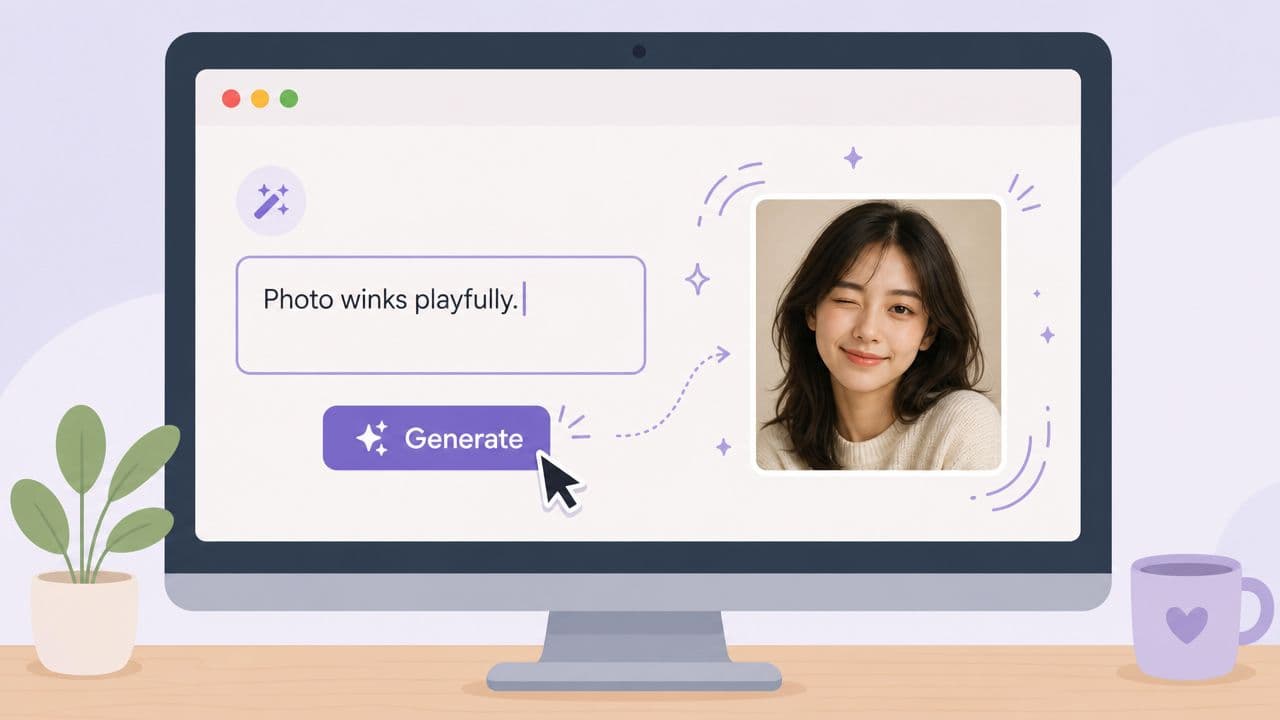
Use a simple three-part prompt
A useful formula is:
[Subject motion] + [Camera move] + [Atmosphere]
That structure works because it keeps you focused on the feeling instead of the mechanics. You're deciding what moves, how the viewer approaches it, and what mood the clip should carry.
Examples of each part:
- Subject motion could be a soft smile, a blink, a gentle head turn, or subtle hair movement.
- Camera move could be a slow zoom in, slight push forward, or a calm drift.
- Atmosphere could be warm, nostalgic, celebratory, soft afternoon light, or quiet and loving.
Keep the motion believable. Birthday clips usually feel strongest when the person seems present, not over-animated.
A visual example helps if you haven't tried this kind of tool before:
If you want to test your own image directly, an AI photo animation tool makes it easy to try short prompt variations and see which mood feels right.
Copy and paste prompt ideas
You don't need to write from scratch every time. Start with one of these and adjust a few words.
-
Portrait of a parent
Gentle smile, slight head movement, slow camera push in, warm and loving atmosphere. -
Childhood photo
Soft natural motion, subtle zoom in, nostalgic atmosphere with gentle warmth. -
Couple or grandparents
Slight sway and relaxed expression, slow cinematic move, tender and memory-filled mood. -
Group birthday memory
Gentle motion across faces, light camera drift, cheerful and affectionate feeling. -
Outdoor candid
Soft breeze in the background, slow zoom forward, bright and celebratory mood.
If the first result feels too dramatic, shorten the prompt. If it feels flat, add one emotional phrase like “warm birthday feeling” or “quiet family nostalgia.” Small wording changes often matter more than adding more instructions.
Generating and Sharing Your Animated Birthday Wish
You've got the photo. You've got a prompt that feels right. Now the job is to turn that one memory into something the birthday person can open in seconds and feel immediately.
Keep this part simple. The strength of a moving-photo birthday gift is that it feels personal without becoming a project. A single animated image with a short message often lands better than a longer slideshow built from generic templates, especially when you're working last minute.
A practical workflow looks like this:
- Upload the photo.
- Paste your prompt.
- Generate the clip.
- Watch it once with the sound off.
- Regenerate only if the motion looks distracting or the face stops feeling like the person you know.
That quick review matters. Small issues stand out fast in a portrait. An odd blink, a warped smile, or movement that feels too dramatic can pull attention away from the memory itself.
Good results usually have three things in common:
- The person still looks like themselves
- The motion is subtle enough to feel believable
- The clip is short enough to watch and rewatch on a phone
I usually stop as soon as the clip feels warm and recognizable. More versions do not always make it better. In practice, too much tweaking often pushes an intimate birthday wish toward something polished but less heartfelt.
Add sound only if it helps
Music can finish the piece, but it can also flatten it if the tone is off. Start by asking what kind of feeling the photo already carries.
- For a parent or grandparent, choose something soft and warm.
- For a close friend, light and upbeat usually works better than overly sentimental piano.
- For a child's birthday, playful music keeps the clip lively.
- For a reflective birthday message, quiet background music is often enough.
If the music would feel awkward under a real home video, skip it.
Silence is a valid choice, especially if you're sending the clip by text with a personal note. In many cases, a moving photo and one honest line, such as “Happy birthday, I love this memory of you,” feels more affecting than background music and extra effects.
Export in MP4 if the tool gives you options. It plays well across phones, messaging apps, email, and social platforms without asking the recipient to download anything special.
Before you send it, watch the final version on your phone, not just on a desktop preview. That one check catches most sharing problems. Text that feels readable on a laptop can look tiny on mobile, and a clip that seemed slow in the editor may feel just right once it's in a message thread.
A short animated photo works best when it feels like a real memory coming back to life. That is the advantage of this approach. You are not assembling a generic birthday video. You are giving one moment the attention it deserves.
Important Notes on Privacy and Troubleshooting
Birthday videos often use personal material. Old family scans, pictures of children, voice notes, photos from private chats. That means convenience isn't the only thing that matters. Trust matters too.
That concern is easy to overlook because most birthday-video content focuses on making and sharing, not what happens to the uploaded files afterward. But that gap becomes more important when the video includes family keepsakes or sensitive images, as discussed in VidDay's birthday video page.
Privacy matters more than most birthday guides admit
Before you upload anything, ask two basic questions. Do you have the right to use this photo, and would the person in it feel okay with it being animated and shared?
That matters most in a few situations:
- Children's photos. Keep the audience limited and share thoughtfully.
- Old family archives. One relative may treasure a scan that another sees as private.
- Group images. A birthday post that feels sweet to you might surprise someone else if it goes public.
If the clip is for a private birthday text or family group chat, say that clearly. If you plan to post it publicly, get consent first when possible.
What to do if the result looks off
Most weak results come from one of two issues. Either the source photo is fighting the animation, or the prompt is asking for too much.
Try these fixes:
- If the face looks odd, switch to a cleaner image with better visibility.
- If motion feels exaggerated, remove extra actions from the prompt.
- If the crop feels awkward, recrop before generating again.
- If the background distracts, tighten the frame around the subject.
- If generation feels slow, be patient before refreshing or restarting, since interrupted attempts can create more confusion than waiting a little longer.
A birthday clip doesn't need perfect realism to work. It just needs to preserve the feeling of the original photo. When in doubt, simplify.
Alternative Free Birthday Video Workflows
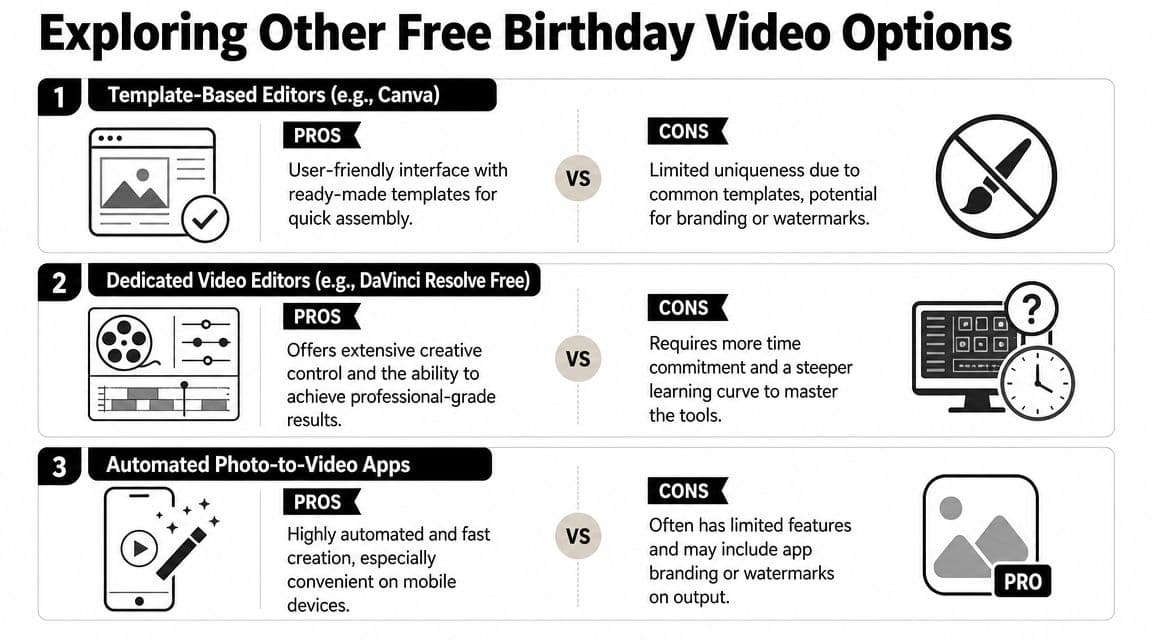
A single moving photo is the strongest choice when one memory carries the whole message. Still, some birthday videos need a different structure. A family recap, a friend group collage, or a party highlight reel usually works better in a template editor or a basic video app.
Those tools all follow the same general workflow. You drop in photos or short clips, add text, pick music, adjust timing, and export. The trade-off is simple. They give you more room for quantity and captions, but the final result can feel more designed than personal if the template starts to lead the emotion.
When templates make sense
Template-based editors are a good fit when the goal is to include more than one moment. They help with:
- Birthday recaps with lots of photos
- Group tributes with names, captions, or inside jokes
- Short social posts that need text on screen
- Projects where the sender wants guidance instead of starting from scratch
If you want to compare those options side by side, this guide to an app for making videos from photos gives a clearer sense of what each type of tool handles well.
Why one moving photo still feels more personal
Slideshows are useful, but they often spread attention across too many moments. The viewer remembers the format, the transitions, and the music. The actual memory can fade into the sequence.
A single-photo AI animation does the opposite. It puts emotional weight on one image and lets that moment breathe. For a birthday message, that focus often feels more intimate than a polished montage.
| Workflow | Best for | Trade-off |
|---|---|---|
| Template slideshow | Recaps, collages, many contributors | Can feel generic if the template dominates |
| Dedicated video editor | Full control and custom timing | Takes longer and asks for more skill |
| Automated photo-to-video app | Fast mobile-friendly output | Often less distinctive |
| Single animated photo | Personal, emotional, quick birthday message | Shares less information, but creates more feeling |
For a last-minute gift, that trade-off is often worth making. One carefully chosen photo, animated with restraint, can feel like a real birthday wish instead of a prebuilt design with someone's name dropped in.
If you want to turn one treasured image into a short birthday clip without wrestling with a full editor, Photo for Video is built for exactly that. You upload a single photo, add a short motion prompt, and create a polished, watermark-free MP4 designed for birthdays, family keepsakes, and other personal moments.