Content Creator Tools: Compare 10 Top Picks
Compare 10 content creator tools for animation, editing, audio, design, and repurposing. Explore pricing, pros, cons, and workflows to find your fit.

You've got a scanned family portrait to animate for a memorial, a reel due tomorrow, and a podcast recording that needs cleanup. Your browser is full of content creator tools, but choosing another subscription won't necessarily help you finish any of those projects.
The problem with popularity-based roundups is that they treat different jobs as interchangeable. Animating a still photograph isn't the same as editing a tribute. Finding a strong interview excerpt isn't the same as making that excerpt sound natural after a cut.
Choose the job first, then choose the tool. The useful categories are photo animation, design and product visuals, video editing, audio and transcript editing, and repurposing or AI generation. Some products overlap, but their strongest workflows differ.
That distinction matters when you're paying for experiments. In the Adobe–Harris Poll creator survey, 60% of creators used multiple creative generative-AI tools during the preceding three months.
- Production: Match the source material to the transformation you need.
- Export: Check credits, premium assets, watermarks, and delivery requirements before committing.
- Handoff: Keep originals, approved versions, and rights information outside the editing session.
Asset management has no dedicated entry here, so that last responsibility stays with you. Scheduling is also a separate decision; these top apps for scheduling creator content are relevant once you have approved files, not unfinished drafts.
Table of Contents
- 1. Photo for Video
- 2. Canva
- 3. Adobe Express
- 4. CapCut
- 5. Descript
- 6. VEED
- 7. OpusClip
- 8. DaVinci Resolve
- 9. InVideo
- 10. PhotoRoom
- How the 10 content creator tools compare on free access, pricing model, and best use
- Building a Stack That Fits the Job, Not the Hype
1. Photo for Video
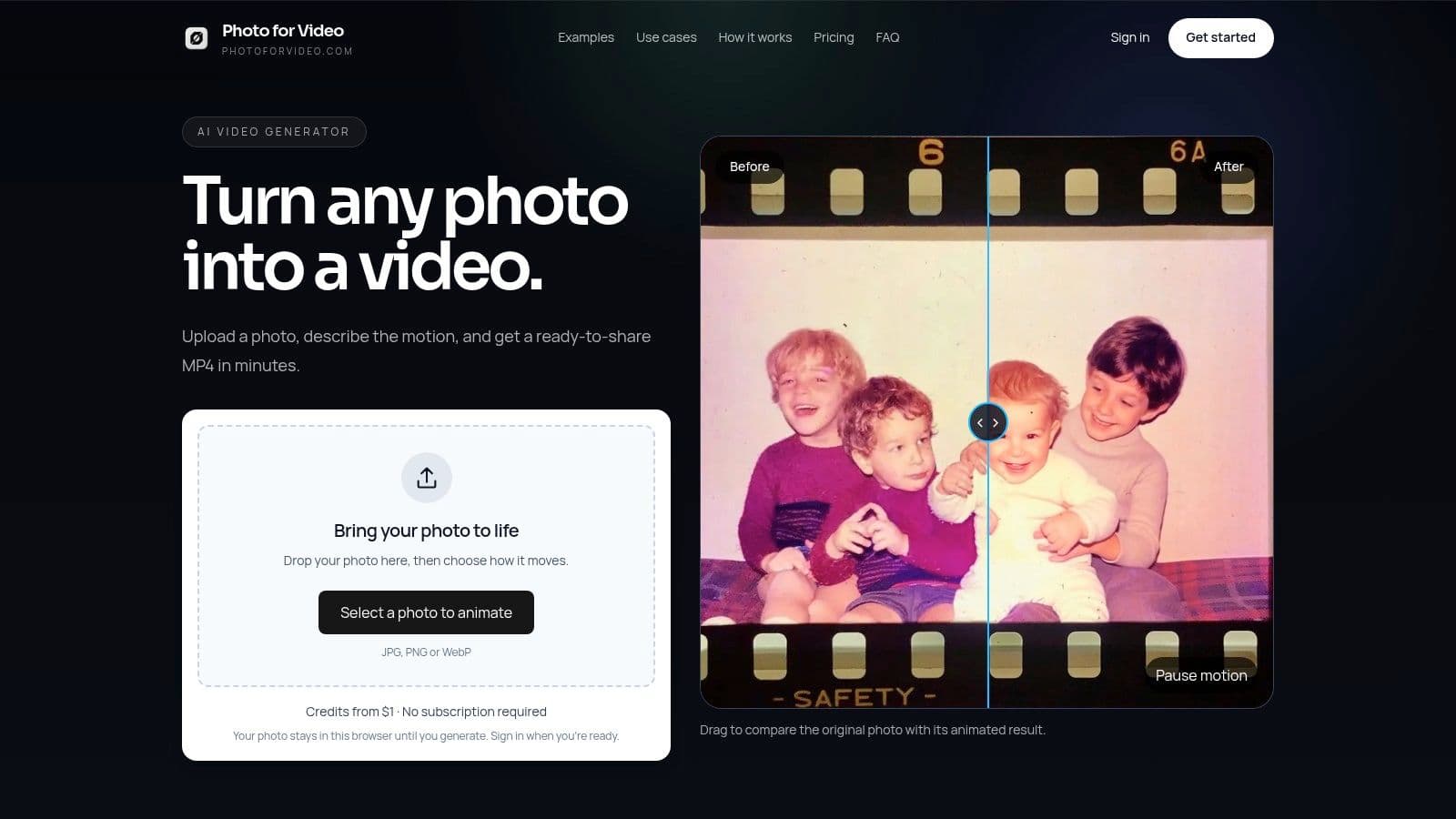
Best job: animating a single photograph for a tribute or product sequence.
A memorial portrait calls for restraint. The usable result is a recognizable face, a gentle camera move, and just enough motion to sit naturally beside other family photographs.
Photo for Video is built around that one transformation. You upload a still image, describe the motion and mood, and download an MP4. The service describes watermark-free output, but confirm its current export terms before delivering a client or public file. The exported clip then works as a component inside a montage, reel, event edit, or ecommerce story.
Keep the Motion Brief Specific
For a family portrait, request subtle movement and a calm camera direction. For a product photograph, describe the camera move rather than asking the product itself to transform. Treat these prompts as creative direction, and expect to regenerate at least once before you get a keeper.
I treat the tool as a shot generator. It produces the moving clip. Arranging photographs, recording narration, adding titles, and balancing music still happens in a full editor.
- Credit limit: Usage depends on the selected model and settings. Review the displayed cost before generating, and leave budget for a second attempt.
- Source quality: Start with the cleanest scan or photograph available. Inspect the generated face, hands, background, and product details before approving.
- Privacy: The service describes automatic deletion of uploads and generations. Save approved files locally and review its current retention terms before uploading sensitive material.
Production note: For a tribute, recognizable features and emotional restraint matter more than visible motion.
Choose Canva when you only need a static-photo montage with titles. Choose CapCut or DaVinci Resolve when you already have the animated shot and need to finish the story around it.
2. Canva
A weekly series lives on visual consistency. The thumbnail, opening title card, and end screen need to look like they came from one channel, episode after episode.
Canva handles that design-and-assembly workflow. Build a thumbnail layout once, duplicate it, and swap only the photograph and headline each week. I have run exactly this kit for a recurring show, and the time saving came from never redesigning the frame.
Lock the Template Before Decorating
Set the grid, fonts, and color palette first. Decorative elements come last, and only if the text still reads at phone size. When a layout calls for a combined still, the guide on merging photos into one photo shows how to plan that composition before it enters the sequence.
- Plan limit: Some stock assets and AI features sit behind paid tiers or usage allowances. Check every premium element before final export, since a single flagged asset can block a clean download.
- Real strength: A shared template keeps a whole series consistent without hiring a designer.
- Trade-off: Timing control is shallow. Frame-by-frame cuts and audio balancing belong in a dedicated editor.
PhotoRoom is the better call when the actual problem is cleaning product photographs. CapCut takes over once the design is settled and the footage needs tighter cuts and caption work.
3. Adobe Express
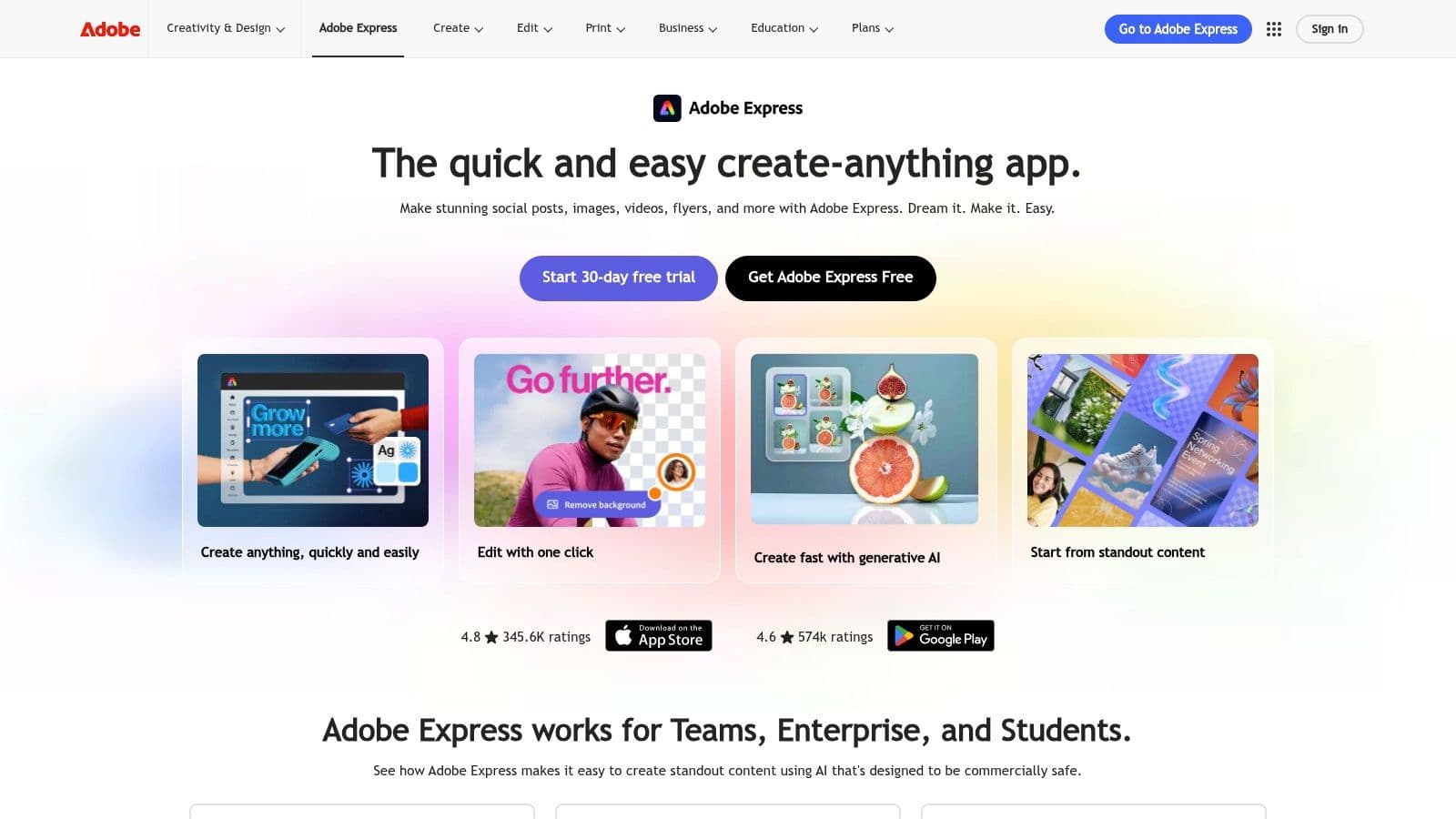
Adobe Express fits quick campaign production, especially when you already work with Adobe assets and applications. A practical project is an event announcement that needs a flyer, a social post, and a short promotional video built from the same approved material.
Adobe Express offers templates, lightweight video creation, and generative features in browser and mobile workflows. Its appeal is keeping related pieces together without opening a full post-production environment.
The trade-off is breadth rather than depth. You can prepare varied promotional material, but that doesn't make it the right place for a complicated montage or a demanding audio edit.
Separate Approved Assets From Experiments
Start with the confirmed logo, copy, photographs, and event details. Use generated imagery only where you're comfortable reviewing and replacing it.
- Allowance limit: Generative usage and premium assets depend on the plan. Confirm access before building a deliverable around them.
- Useful workflow: Make a title treatment, adapt it across campaign graphics, then assemble a short accompanying video.
- Better alternative: Use DaVinci Resolve when the project depends on precise timing, layered sound, or detailed finishing.
Before export, check spelling, cropping, and text placement in every version. Shared assets help maintain consistency, but you still need to inspect each composition.
Canva is the alternative worth testing when template selection and general design assembly are your main priorities. Choose between them using the actual campaign file, not an empty-project tour.
4. CapCut
The reel is due tomorrow. You have usable footage, a clear opening line, and no need to generate a new scene.
That's a sensible job for CapCut: cutting and finishing short-form video with captions, music, transitions, and effects. Its mobile, desktop, and web workflows give you options for where to work, though available features and offers can differ.
Start with the sequence, not the template. Remove weak material, establish the opening, and make the story understandable before adding styling.
A reel that needs fewer cuts is usually easier to finish than a reel buried under effects.
Check the Actual Export Path
CapCut's plan details can vary by account, region, device, and offer. Don't assume a feature shown in a tutorial is available in your current setup.
- Credit and access limit: Check whether the selected AI feature, effect, or template requires a paid plan or credits.
- Export check: Run a test using the exact assets and workflow you intend to deliver. Don't promise watermark-free output based on a different project.
- Trade-off: Fast social production is its natural fit; demanding finishing calls for more deliberate post-production controls.
Review captions manually, especially names and product terminology. Listen to the exported file rather than relying only on playback inside the editor.
Choose VEED if browser-based captioning and formatting are your priority. Choose DaVinci Resolve when the edit needs detailed color, audio, or timeline work beyond a quick social deliverable.
5. Descript
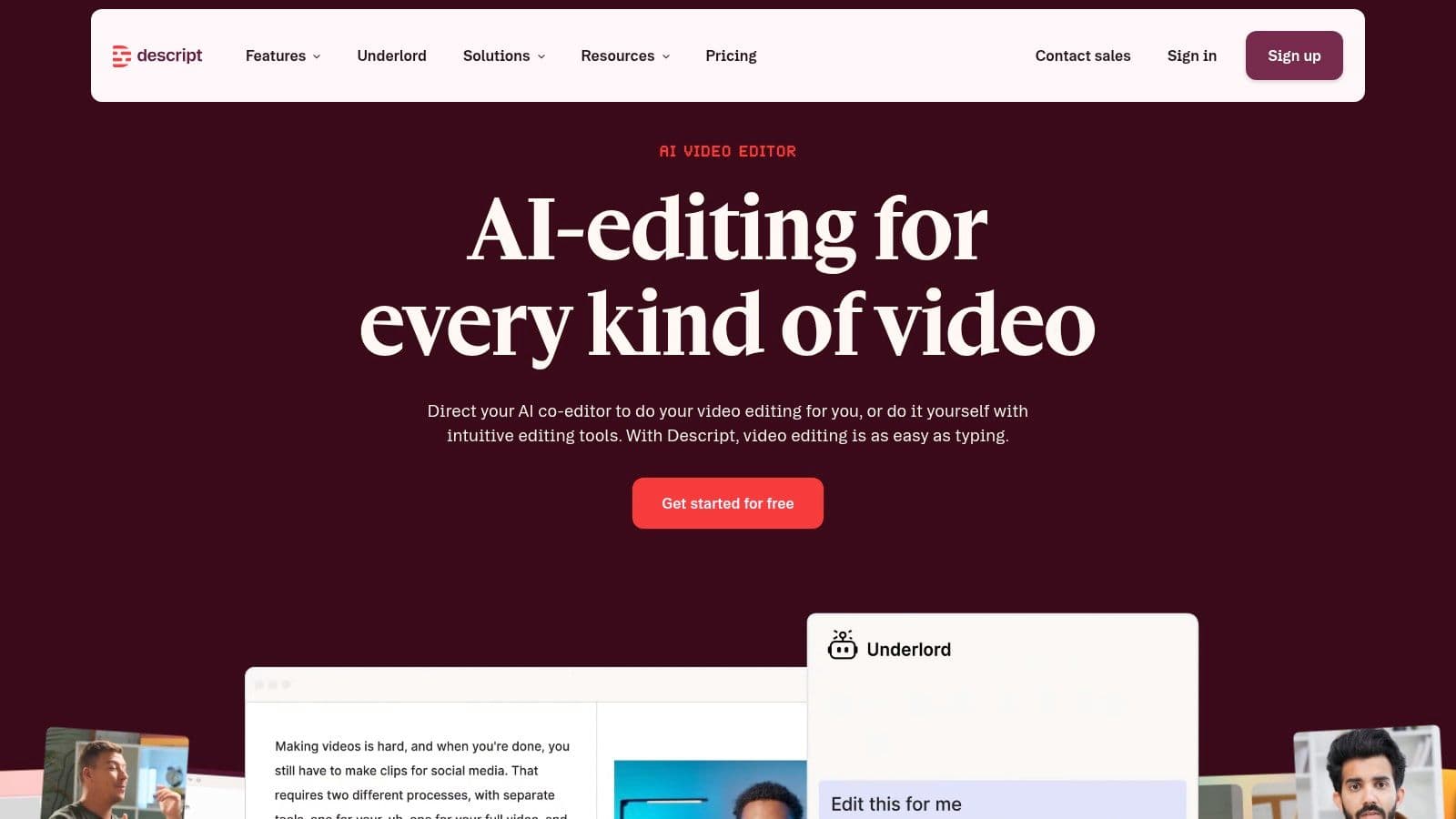
A two-hour interview recording usually holds twenty minutes worth keeping. The job here is cleaning a podcast: find the substantive answer, cut the rambling detour, and keep the speaker sounding like themselves.
Descript handles that through text-based audio and video editing. Delete a sentence in the transcript and the matching audio goes with it. That makes it a strong fit for interviews, podcasts, tutorials, and talking-head footage where dialogue carries the piece.
Work structurally first. Cut whole tangents before touching filler words, then listen across every join you made.
Where the Transcript Misleads
Text reads clean while the audio underneath sounds rushed or chopped. Keep the breaths and pauses that support the delivery, and proof the automated transcript against the recording before publishing it as captions.
- Usage limit: Monthly media allowances and AI feature caps matter if you process long or frequent recordings. Confirm them against your export needs.
- Best workflow: Edit the conversation on paper, fix the sound problems the text hides, then export a captioned excerpt.
- Trade-off: Transcript editing gives you little on a music-led montage or a piece with sparse dialogue.
If the job stops at transcription, a workflow that can convert MP4 videos into text may be enough on its own. For delivery, keep two outputs distinct: a readable transcript and timed captions. This walkthrough explains how to add closed captioning to a video when you need the second.
Choose OpusClip when the priority is pulling candidate excerpts out of a long recording. Choose DaVinci Resolve when detailed sound work and picture finishing have to happen in the same timeline.
6. VEED
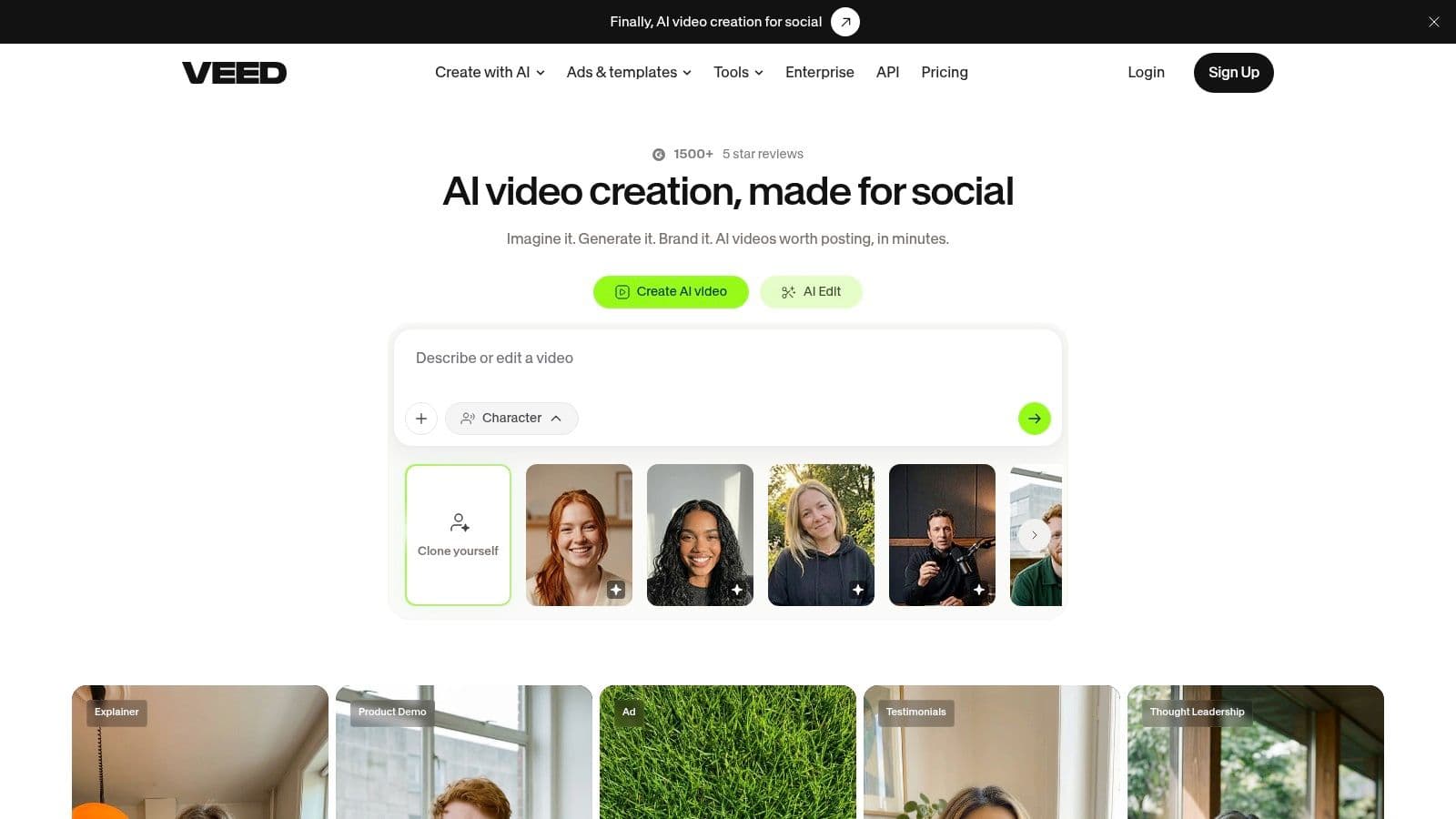
VEED is a browser-based finishing option for a clip that already has a clear purpose. Think of an approved interview excerpt that needs trimming, subtitles, a different crop, and a closing title.
VEED combines those tasks with online editing and AI-assisted features. It's useful when you want to prepare a social deliverable without installing desktop software.
The important boundary is project complexity. A straightforward captioned clip is a different proposition from a layered event film with extensive footage and sound work.
Test With a Representative File
Upload material similar to what you'll deliver. Check subtitle placement, crop the picture carefully, and watch the exported result on the device your audience is likely to use.
- Watermark limit: Free exports include a watermark. Paid plans provide watermark-free output and access to higher-resolution options.
- Feature limit: Advanced tools and AI allowances depend on the subscription.
- Trade-off: Browser convenience is valuable, but a large or complicated project may be better suited to desktop editing.
Don't leave the watermark decision until a client has approved the preview. Establish the required export quality and subscription cost before treating the project as ready for delivery.
Choose CapCut if its editing workflow better matches how you cut social footage. Choose DaVinci Resolve when detailed finishing matters more than avoiding an installation. VEED makes the most sense when captions, resizing, and straightforward browser editing are the work you need to finish.
7. OpusClip
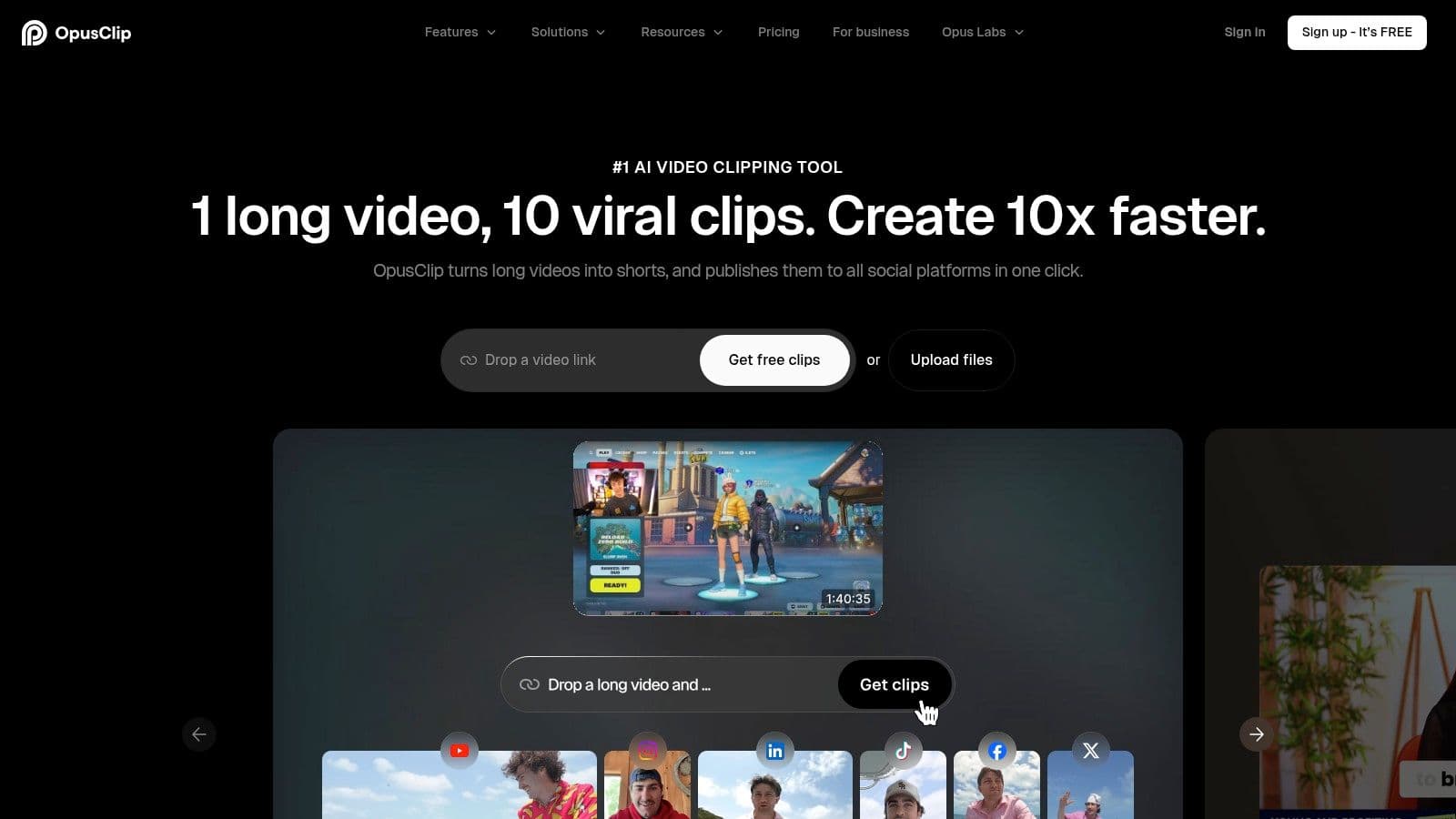
A long podcast usually hides a few strong minutes, but the usable moments are buried under setup, tangents, and repeated context. OpusClip is built for the repurposing job: turn one finished recording into candidate Shorts, reels, and clips with captions and reframing already applied.
A realistic workflow involves review, not blind batch export. Feed it a completed interview, generate a set of candidates, then watch each pick against the timestamped source. Keep excerpts that stand on their own; cut the ones that rely on a question, caveat, or earlier joke.
Automation can surface candidates; it cannot judge fairness. A punchy sentence can become misleading once separated from the qualification around it.
Approve a clip only after checking the words around it.
Package After the Edit Holds Up
Once the excerpt survives review, handle title, description, crop, and posting metadata. That is where guidance on hashtags for YouTube Shorts is useful, after the clip itself is sound.
- Watermark and export limit: Free clips carry a watermark and a limited export window, so test downloads early and confirm paid-plan rules before client delivery.
- Input limit: It needs substantial source material; a sparse short video gives it little to mine.
- Trade-off: Fast candidate selection saves search time, but editorial judgment still decides what represents the speaker accurately.
Choose Descript when the work is rewriting the conversation through the transcript. Choose CapCut when the excerpt is already known and the job is manual trimming, captions, and finish. OpusClip earns its place when discovery inside long footage is the bottleneck.
8. DaVinci Resolve
A tribute film may combine scanned photographs, generated motion, phone footage, narration, and music. When those pieces need careful finishing, DaVinci Resolve offers a fuller post-production environment than a lightweight assembly tool.
DaVinci Resolve brings editing, color, visual effects, and audio tools into a desktop application. Its detailed controls suit projects where timing, consistency, and sound deserve close attention.
The trade-off is learning and setup. More control means more decisions, and the computer needs to be suitable for the material you're editing.
Use the Detail Where It Matters
For a memorial montage, concentrate on readable titles, comfortable pacing, consistent image treatment, and narration that remains clear under music. You don't need to use every available feature.
- Version limit: A substantial free version is available, while Studio adds capabilities. Verify whether a required effect or workflow depends on Studio before building around it.
- Credit distinction: Evaluate version restrictions and computer requirements rather than treating it like a generation-credit service.
- Better alternative: Use Canva or CapCut when the deliverable is simple and you don't need detailed finishing.
Keep source photographs separate from generated clips, and retain approved exports outside the project file. That makes revisions easier to manage without confusing originals and derivatives.
Resolve is the stronger choice when you need to inspect and adjust the final piece closely. It's unnecessary overhead when the job is just adding a title to an already approved social clip.
9. InVideo
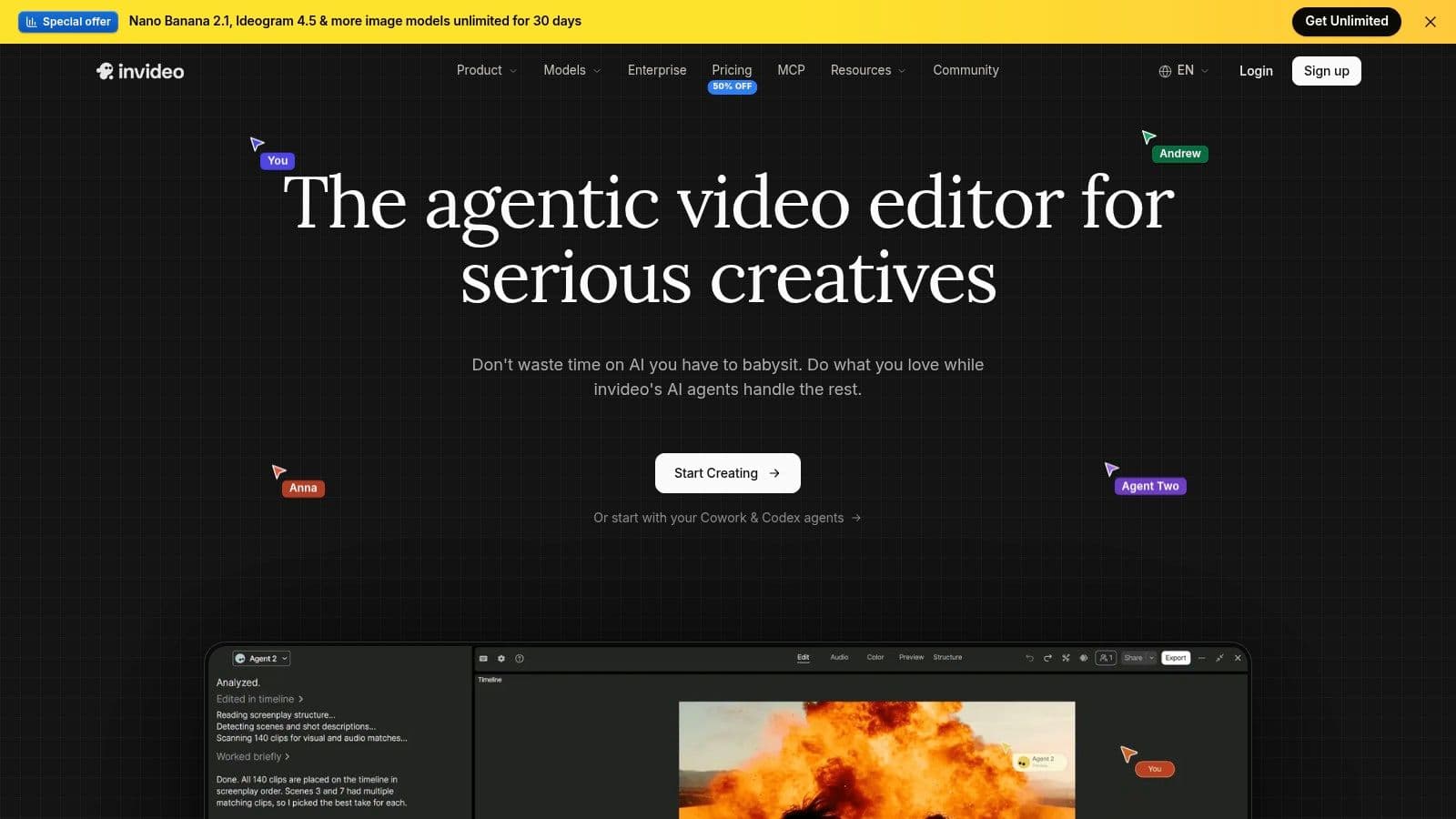
A product teaser can stall for a simple reason: the script is ready, but there is no usable b-roll.
InVideo combines AI-assisted creation with timeline editing for projects built from prompts, scripts, and media assets. A realistic workflow is drafting a short marketing video when you need generated or sourced shots to fill gaps, then tightening the result by hand.
The trade-off is generation convenience versus editorial specificity. A draft can communicate the general idea while missing product details, emotional tone, or visual continuity.
Budget for Rejected Outputs
Generation-led editing needs a rejection budget. Some clips will be close but unusable because a label is wrong, a hand looks odd, or the setting does not match the brand.
Define the message and required assets before generating. Review each proposed shot for accuracy and relevance instead of accepting a sequence because it looks polished.
- Credit limit: Generation costs vary by model and task. Check the charge before experimenting and reserve budget for revisions.
- Editing distinction: Manual timeline editing is described as free, separate from generation-credit use.
- Delivery check: Confirm the current plan's export and watermark terms before promising a finished client file.
Choose Photo for Video when the task is narrowly focused on animating an existing photograph. Choose CapCut when you already have the footage and do not need generation. InVideo fits when creating missing material and assembling the resulting video belong in the same workflow.
10. PhotoRoom
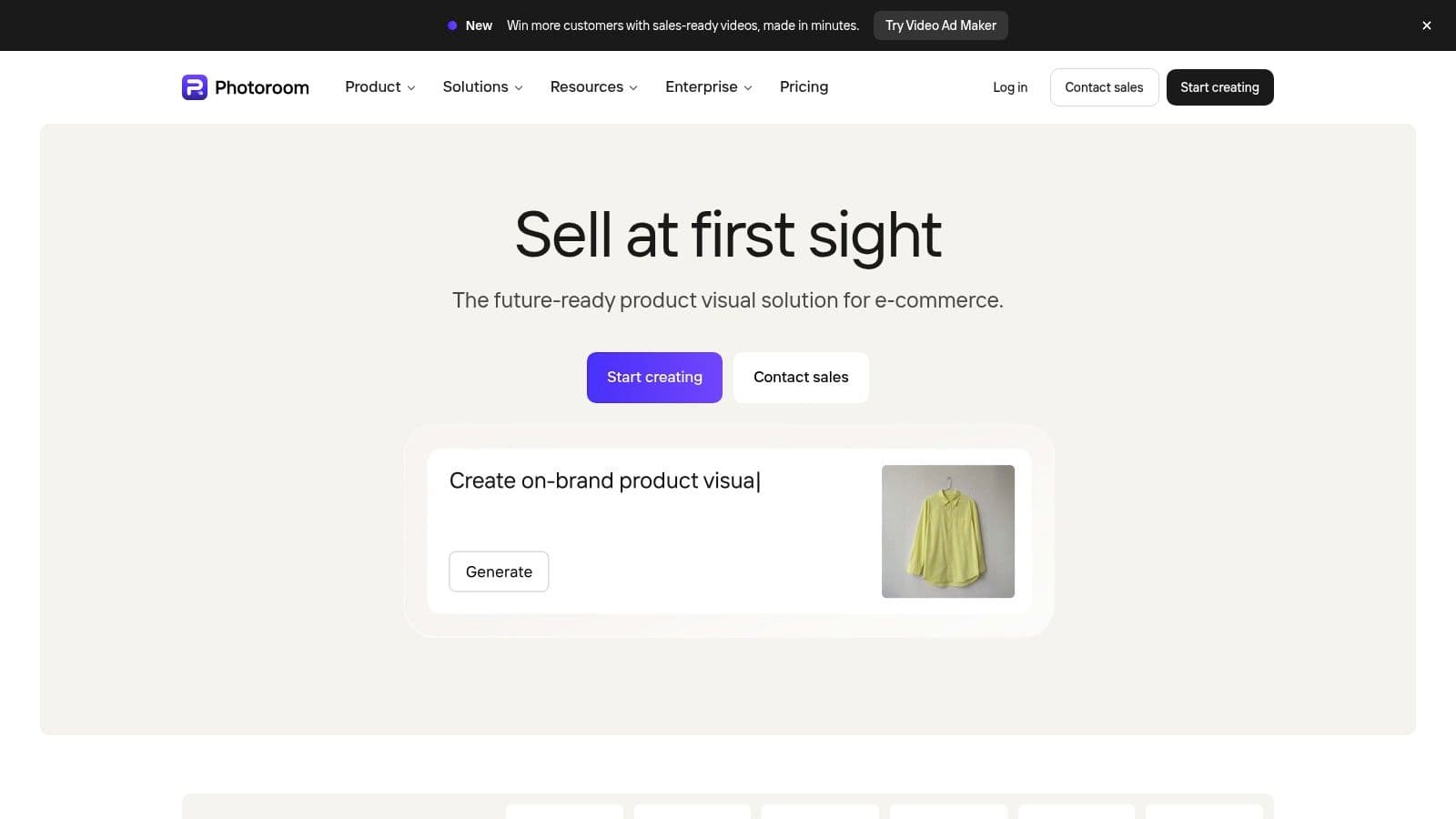
Product content often needs a better still image before it needs motion. An uneven background, distracting surface, or inconsistent crop can make a campaign feel unfinished.
PhotoRoom focuses on product-image preparation, including background removal and replacement. It fits small-business and ecommerce workflows where the immediate task is producing cleaner, more consistent listing or promotional visuals.
Start with the actual product photograph. Inspect edges, transparent areas, labels, and the relationship between the product and its new background.
Approve the Still Before Animating It
If you plan to turn the image into a moving product shot, finish and approve the still first. That gives you a clear reference for judging whether the animated version preserves the item accurately.
- Plan limit: Features and usage allowances depend on the selected plan. Check the relevant editing, AI, and export conditions before processing a campaign.
- Workflow strength: Prepare product imagery, then hand the approved assets to a design or video tool.
- Trade-off: PhotoRoom is primarily an image tool, not a complete video editor or a family-photo storytelling application.
Choose Canva when the product photograph is already clean and you need promotional layouts around it. Choose Photo for Video when the approved still needs motion, then finish the sequence in a separate editor.
Don't use a convincing background as a substitute for product accuracy. The final image should still represent what the customer will receive, including visible details that matter to the purchase.
How the 10 content creator tools compare on free access, pricing model, and best use
Read this by job, not popularity: match the asset you already have to the limit most likely to stop the export.
| Item | Free Option | Pricing Model | Best For |
|---|---|---|---|
| Photo for Video | Credit based entry; confirm current terms before starting | Credit based; review checkout for any plan options before buying | Animating one approved photo for tribute, keepsake, or ecommerce motion; use a full editor for sequencing |
| Canva | Free plan available | Free and paid plans; some assets and AI features have plan or usage limits | Layouts and simple montages; choose a video editor when timing, captions, or cuts get complex |
| Adobe Express | Free entry point for basic content creation | Free and paid plans; premium assets and AI usage depend on plan | Fast social designs and light edits; choose Resolve for detailed finishing |
| CapCut | Free tier available for basic editing | Free and paid features; availability and pricing vary by region, device, or offer | Cutting short social clips; move to Resolve when color, audio, or timeline control matter |
| Descript | Free starting option available | Free and paid plans; higher limits and additional features on paid plans | Cleaning dialogue by editing text; use OpusClip when the job is finding excerpts |
| VEED | Basic editing available without a paid plan | Free and paid plans; advanced tools and higher-resolution exports require a subscription | Browser captions and resizing; use CapCut or Resolve for heavier timeline work |
| OpusClip | Free plan available | Free and paid plans; paid tiers add editing and collaboration features | Pulling candidate shorts from long recordings; use Descript to fix the conversation itself |
| DaVinci Resolve | Free desktop version available | Free version and paid Studio version | Detailed editing, color, and post work; use Canva or Express for quick campaign layouts |
| InVideo | Manual timeline editing is described as free | Free manual editing; AI generation uses credits, with allowances varying by plan | AI-assisted marketing drafts; use a standard editor when every frame must stay precise |
| PhotoRoom | Check current free tier for export, watermark, and background limits | Plan-based; features and usage limits depend on plan | Product cutouts and cleaner listing visuals; choose Photo for Video only after the still is approved |
Building a Stack That Fits the Job, Not the Hype
A working stack starts from the job, not the feature list. Take a real project: you need a 20-second tribute clip from one scanned portrait, plus captions and a vertical crop for reels. That is two jobs, so it takes two tools. Photo for Video handles the motion pass on the still image, and CapCut, Canva, or VEED handles titles, music, captions, or the surrounding sequence. The trade-off is the handoff itself. Every extra tool means another export, another re-import, and one more place a watermark or credit limit can appear.
Follow the Source Material
Long recordings split two ways. Descript is the pick when the job is editing the conversation itself, cutting dialogue against the transcript. OpusClip is the pick when the recording is already solid and the job is finding candidate excerpts to review and repurpose. Choosing wrong costs hours: OpusClip will not fix a rambling interview, and excerpt discovery is not where Descript earns its place.
Finishing work points toward DaVinci Resolve when color, audio, or frame-level edits matter, though it demands more setup than a browser editor. Design-led campaign assets point toward Canva or Adobe Express, while product-image cleanup points toward PhotoRoom.
- Existing photograph: Decide whether it needs cleanup, layout, motion, or montage assembly.
- Existing recording: Decide whether it needs structural editing, excerpt discovery, captions, or sound work.
- Missing visual material: Generation is an option, but establish what must remain accurate before spending credits.
Test each candidate with a real file, including the difficult parts: an imperfect scan, a proper name in the transcript, a product label, or a clip with awkward framing. A polished demo tells you nothing about whether your source material survives the workflow.
Check the Boundaries Before Committing
Inspect watermark rules, credit charges, premium assets, export requirements, and usage allowances before the final delivery, not after it. Budget for retries on AI-driven transformations, since a failed generation still consumes credits in most tools.
Sensitive material deserves a policy check too. In the Adobe creator survey findings, 69% worried about their content being used for AI training without permission. For family archives and client assets, review training consent, retention, deletion, commercial rights, and disclosure requirements rather than assuming that uploading is harmless.
Delivery rule: Keep the original asset, the approved output, and the relevant permission record together.
Distribution comes after approval. Consider social media cross posting once you have the correct versions, captions, and rights in place.
Pick a project from the last month and map it to the job you needed to finish. Run its real source file through the matching tool, export the result, and judge the complete handoff. Keep the tool only if that process makes the next project easier to deliver.
Photo for Video turns a still photograph into a short, watermark-free motion clip for family tributes, keepsakes, reels, and product storytelling. As noted earlier, it fits the single-image job: choose a meaningful photograph and describe a gentle movement you can build into your next finished edit.