How Do You Play an MOV File? A Simple Guide for 2026
Can't open a .mov video? Learn how do you play an MOV file on Windows, Mac, and mobile. We cover free players, codec fixes, and when to convert to MP4.

You double-click a video someone sent you. Maybe it's a clip from a wedding, a child's first steps, or a voice message you don't want to lose. The file ends in .mov, and instead of playing, your computer throws an error, opens a blank player, or gives you sound with no picture.
That's a frustrating problem because it feels random. The same file may play perfectly on an iPhone or Mac, then fail on a Windows laptop. A lot of guides stop at “install VLC” and move on. That helps sometimes, but it doesn't explain why this keeps happening.
The short version is simple. A .mov extension doesn't guarantee cross-platform playback, and the underlying problem is often the video format inside the file, not the file ending itself, as noted in Microsoft's community discussion about playing MOV files in Windows. If your goal is just to watch the clip once, the fix may be a different player. If your goal is to share family memories without future headaches, the better answer is often to make an MP4 copy that works almost everywhere.
Table of Contents
- That MOV File That Just Wont Play
- How to Play MOV Files on Any Device
- Why Your MOV File Wont Play The Codec Problem
- When and How to Convert MOV to MP4
- A Note on Tribute Edits and Animated Photos
- Fixing Common MOV Errors No Audio or Codec Missing
That MOV File That Just Wont Play
A lot of people land here because they aren't asking a technical question. They're asking a practical one. How do you play an MOV file without wasting an hour trying random apps?
The annoying part is that the failure often looks like your computer is broken, or the file is damaged, or you clicked the wrong thing. Usually, it's none of those. MOV files come from Apple's QuickTime world, and they travel well inside Apple devices. Once they move between phones, laptops, browsers, editing apps, and messaging apps, compatibility gets messy.
That's why one person can send a clip that opens instantly on their Mac, while you see “codec required” or get a player that refuses to start. The file extension tells you the outer type, but not whether your current device can decode what's inside.
Practical rule: If a MOV file won't play, don't assume the file is bad. Assume the player and the video inside the file may not agree.
There are really two goals people have:
- Watch it right now. Use a player that can handle more MOV variants.
- Make it easy to share later. Convert it to a more universal format such as MP4.
That second goal matters more than many realize. If you're saving videos for relatives, memorial projects, birthday slideshows, or long-term family archives, “it works on my phone” isn't enough. You want a version that opens without explanations, app installs, or troubleshooting.
How to Play MOV Files on Any Device
If you just want the file to open, start with the path that requires the least work. Don't jump straight to conversion unless playback fails.
The fastest option on Apple devices
On macOS and iPhone/iPad, MOV is usually the least dramatic format to deal with. It comes from Apple's QuickTime lineage, so Apple devices tend to open it natively.
In practice, that means you can usually:
- Mac: Double-click the file or open it in QuickTime Player.
- iPhone or iPad: Open it from Photos, Files, or the app where you received it.
That's the easy case. If it still doesn't play on Apple hardware, the file may use a compression format that needs conversion before playback behaves properly.
What usually works on Windows
Windows is where most MOV frustration shows up. A common workflow on Windows 11 is to right-click the file, choose Open with, and select a media player, as shown in this Windows 11 MOV playback walkthrough.
Start there:
- Find the MOV file in File Explorer or on the desktop.
- Right-click it.
- Choose Open with.
- Try Media Player or Windows Media Player if it appears.
If that works, you're done.
If it fails, skip the guessing and use VLC Media Player. VLC is widely recommended because it includes its own codecs, so it can often play QuickTime-style files that Windows doesn't handle natively.
A clean VLC workflow looks like this:
- Install VLC
- Open VLC
- Go to Media
- Choose Open File
- Browse to your MOV file
- Start playback
If Windows says the file needs a codec, that's usually a sign to stop trying different built-in apps and use VLC first.
Android and browser options
On Android, MOV support is less predictable. Some phones open certain MOV files without complaint, while others don't. The simplest fix is usually the same as on Windows: use VLC for Android or another player built to handle a wider range of codecs.
There's also a modern shortcut that many traditional guides ignore. You can preview MOV files in a web browser using browser-based players. MOV playback in the browser is available through services described by mov.to's online MOV player, and similar tools can be handy when you're on a locked-down work computer or don't want to install anything.
Browser playback is convenient, but it has trade-offs:
- Convenience: Good for a fast preview
- Privacy: You're uploading the file to a web service
- Speed: Large files may take time to upload
- Reliability: Depends on the service and your connection
Best Free MOV Player by Platform
| Platform | Built-in Player | Recommended Free Player |
|---|---|---|
| macOS | QuickTime Player | VLC if QuickTime struggles |
| iPhone and iPad | Photos or Files playback | Usually not needed |
| Windows | Media Player or Windows Media Player | VLC |
| Android | Varies by device | VLC |
| Web browser | None built in for local MOV reliability | Browser-based MOV player |
If you're in a hurry, the shortest answer to how do you play an mov file is this: use the native player on Apple devices, try Open with on Windows first, and switch to VLC when the default player stalls.
Why Your MOV File Wont Play The Codec Problem
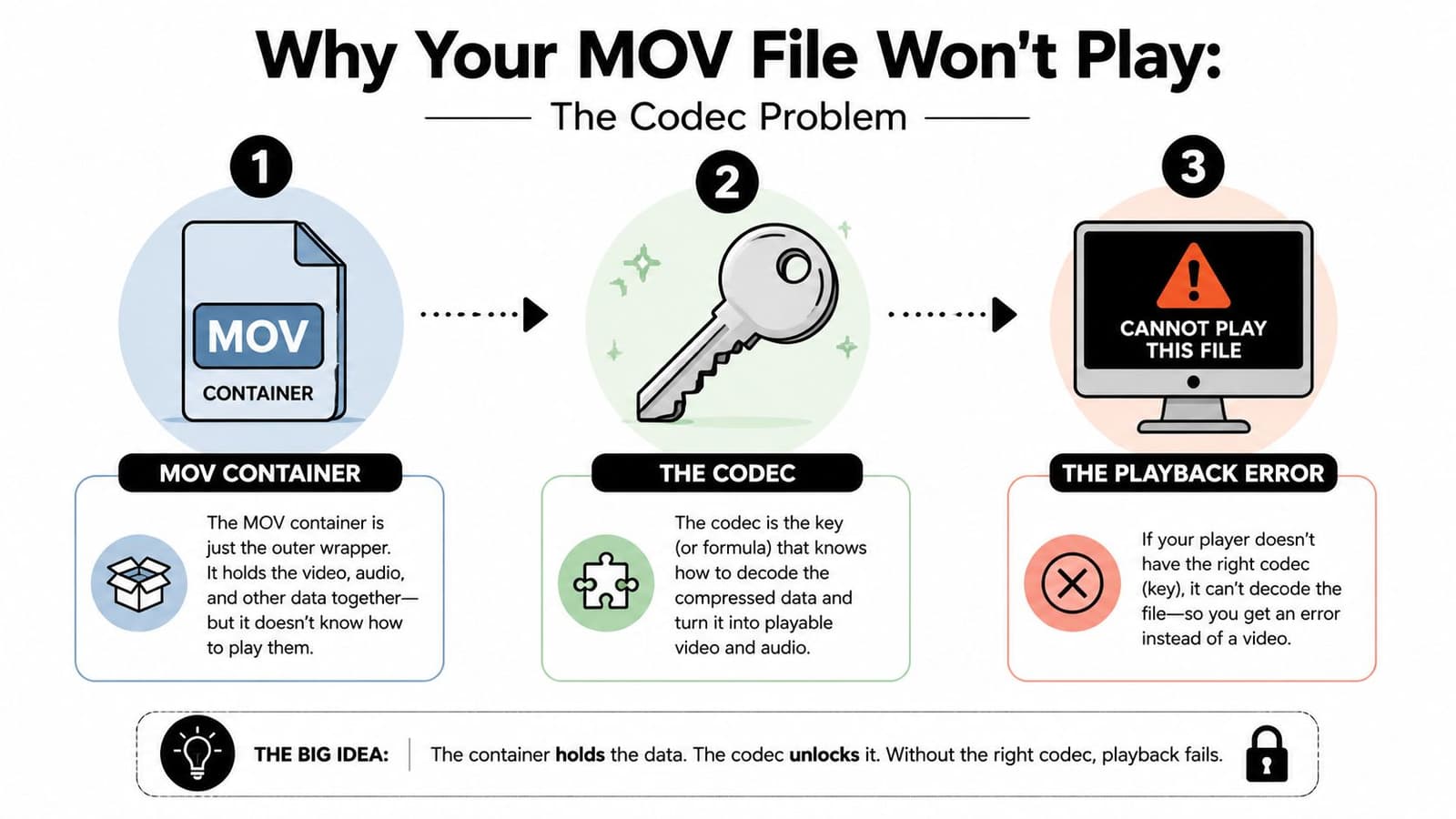
The easiest way to understand MOV problems is this. A MOV file is a container, not a guarantee.
The simple way to think about container vs codec
Think of the MOV file as a box. The box says “video,” but it doesn't tell you whether your player can understand what's packed inside. The codec is the actual method used to compress and store the video stream.
A simple analogy helps. The container is the book cover. The codec is the language the book is written in. Two books can have the same cover style, but if one is written in a language you can't read, the cover doesn't help.
That's why two files ending in .mov can behave completely differently. One might open immediately. Another might show audio only, a black screen, or a codec error.
Why Apple devices seem easier
MOV comes from Apple's QuickTime lineage, so it plays natively on macOS and iOS more often than it does on Windows or Android, as explained in this VideoStudio overview of the MOV format.
That doesn't mean every MOV file is universally safe. It means Apple devices are more likely to understand the combinations commonly used in Apple's ecosystem. Once the file moves to another platform, the player may not recognize the video compression inside the container.
Later, when you're also thinking about upload performance and playback smoothness, it helps to understand related topics like YouTube video compression, because the same codec decisions affect both playback and sharing.
Before the video example below, keep this in mind: changing the player can solve the problem even when the file extension stays exactly the same.
What to do with that knowledge
Once you know the problem is usually the codec, the troubleshooting gets simpler:
- Try a better player first. VLC is often the fastest test.
- Avoid random codec packs. They can create more confusion than clarity.
- Convert only when needed. If the file must be shared broadly, conversion is often the cleaner long-term fix.
The file extension tells you what kind of package you have. The codec tells your device whether it can actually unpack it.
When and How to Convert MOV to MP4
There's a point where playback isn't the core goal anymore. Reliability is. If you want a file that relatives can open, editors can import, and social platforms can accept without surprises, MP4 is usually the peace of mind version.
When conversion is the smart move
Conversion makes sense when the original MOV keeps failing across devices, or when you know the file needs to travel beyond one person's setup.
Good moments to convert:
- Family sharing: You're sending clips to people using different phones and computers.
- Editing: You want one dependable format before starting a slideshow or montage.
- Archiving: You don't want future-you guessing which app used to open that file.
- Posting online: You want fewer import and playback surprises.
This is especially true if the MOV uses a codec that a target device doesn't support well. A practical workflow described by a guide to playing MOV files and converting them with HandBrake is to identify the codec first with MediaInfo, then transcode the file in HandBrake using the Fast 1080p30 preset.
If your converted file is still too large to send comfortably, a separate guide on how to reduce MOV file size can help you make a shareable copy without changing your whole workflow.
A simple HandBrake workflow
You do not need to master every HandBrake setting. For a standard user, the clean path is enough.
-
Inspect the file with MediaInfo Open the MOV and look in the Video section for the codec or format. This tells you what you're dealing with.
-
Open HandBrake
Import the MOV file. -
Choose a general preset
Select Fast 1080p30. It's a practical preset for broad playback compatibility. -
Pick the output location
Save the new file somewhere easy to find, such as the desktop or a family videos folder. -
Start the encode
HandBrake will create an MP4 copy. -
Test the MP4
Open it on the device that had trouble with the MOV.
Useful habit: Keep the original MOV for safekeeping, but share the MP4 copy. That gives you a master file and a version that travels better.
Conversion does take time, and any re-encoding can affect quality. That's why it's best used when compatibility matters more than preserving the original file exactly as it was.
A Note on Tribute Edits and Animated Photos
Some of the hardest MOV problems show up during emotional projects, not casual ones. Memorial slideshows, anniversary videos, birthday montages, and family tribute edits often pull media from everywhere. Old phone clips. New iPhone videos. Scanned prints. Downloads from group chats. Exports from editing apps.
That mix is where compatibility issues pile up fast.

Why mixed family media causes trouble
A tribute edit usually isn't built from one camera and one app. It's built from years of memories collected across different devices and generations. One clip may come from an iPhone, another from an older digital camera, another from a relative's Mac export.
That means one folder can contain files that look similar but behave very differently once imported into editing software or shared with family.
Common friction points include:
- Old recordings: Legacy camera exports can be quirky
- Phone footage: Newer phone videos may use codecs that older systems don't like
- Messaging app downloads: Clips may be recompressed or renamed
- Mixed project folders: A slideshow can fail because of one stubborn file
Why MP4 is the peace of mind format
When the project matters, standardizing your media is often the least stressful move. A good MP4 copy gives you a dependable version for editors, TVs, laptops, and family members who just want to click and watch.
This doesn't mean MOV is bad. It means MOV is not always the best handoff format when the audience includes nontechnical relatives or multiple platforms.
For keepsake videos, the best format is often the one nobody has to think about.
If you're preparing a tribute edit, it's worth cleaning up the folder before the deadline. A pile of mixed files can work, but a folder of tested MP4s is calmer, easier to back up, and much easier to hand off.
Fixing Common MOV Errors No Audio or Codec Missing
When a MOV file fails, the error message often sounds more dramatic than the actual problem. Most issues fall into a few repeat categories.
Codec required or codec missing
This is the classic Windows headache. A key reason is that HEVC-recorded iPhone videos are a frequent cause of “codec required” messages on Windows because Windows does not support HEVC by default, as explained in this Windows-focused MOV troubleshooting video.
What to do:
- Try VLC first.
- If the file still matters for sharing, convert it to MP4.
If you're also extracting sound from old clips or converting formats for memorial projects, a guide on converting MPEG to MP3 can be useful for the audio side of the workflow.
Video plays but there is no audio
If the picture appears but there's no sound, the player may understand the video stream but not the audio stream. This can also happen if the file is partially damaged or if the player has limited codec support.
Try this order:
- Open the same file in VLC
- Test headphones or speakers with another file
- Convert the MOV to MP4
- If needed, inspect the file in MediaInfo to see what audio format is inside
Sometimes the “no audio” problem disappears the moment you switch players.
The file wont open at all
A file that won't open may still be recoverable, but don't assume too much too quickly. The player could be unsupported, the codec could be the blocker, or the file itself could be incomplete.
Start with a short checklist:
- Try another player, ideally VLC.
- Check the file size and transfer history. If the download or copy was interrupted, the file may be incomplete.
- Open it in MediaInfo. If MediaInfo can read it, the file may be intact enough to convert.
- Create an MP4 copy if the metadata looks normal but playback keeps failing.
If nothing can read the file, including metadata tools, corruption becomes more likely.
If you're turning old photos into motion for a tribute, birthday, or family keepsake, Photo for Video helps you create polished, shareable MP4 clips from a single image. It's built for people who want a memory to play smoothly when it matters, without wrestling with format issues at the last minute.