How Do You Play SWF Files? Safe Options for 2026
How do you play SWF files safely in 2026? Use Ruffle, check the file first, fix common errors and export an MP4 for keepsakes.

If an old animation opens but its buttons don't work, have you played it? That's the problem with most answers to “how do you play SWF files”: launching the file is only the beginning. You also need to know whether the player reproduces its sound, controls, video, and saved progress safely.
Start with Ruffle, not an old Flash installer. Then test the parts that matter before deciding whether to keep playing, troubleshoot missing assets, or capture a shareable video.
Table of Contents
- Choose the Right Way to Play an SWF File
- Check the File and Play It in Ruffle
- Play an Embedded SWF in a Current Browser
- Fix a File That Opens but Misbehaves
- Convert to MP4 and Keep the Original
Choose the Right Way to Play an SWF File
| Method | Best for | Setup | Main risk |
|---|---|---|---|
| Ruffle desktop app | Most animations and many games | Download the app and open the file | Some scripted content runs incompletely |
| Ruffle web demo | Quick checks without installing anything | Open the demo and select the file | Remote assets may be blocked |
| Adobe Flash Player plug-in | Nothing today. Adobe blocked Flash content beginning January 12, 2021 | Not available in current browsers | Unsupported, with no security updates |
| Standalone Flash Projector | Legacy projector files only, under controlled conditions | Run the executable | Broader local-system access, so treat it as untrusted software |
| Screen capture to MP4 | Sharing and keepsakes | Play the file and record it | Keeps the visible performance, not interactivity |
Most readers should choose Ruffle desktop. It gives you a direct way to test a local file without trying to restore an obsolete browser plug-in. Double-clicking an SWF or dropping it into Chrome, Edge, Firefox, or Safari normally won't launch the original Flash runtime.
The web demo suits a quick check on a trusted file. For a birthday animation you want relatives to watch without special software, choose capture instead. An unknown download needs a safety check before either route.
Why an SWF needs a different approach
An SWF isn't just an unusual video format. The Library of Congress description of SWF explains its origins in compact vector animation and its expansion into audio, video, and interactive media. That history explains why a short cartoon may behave like a movie while an educational game needs working scripts and external resources.
A standalone Flash Projector isn't the same as a modern, maintained player. It's a legacy executable route, not the sensible default for opening a loose SWF.
Practical rule: Choose the playback method for what you need to preserve, not just the extension on the filename.
Before handling unfamiliar legacy files, Computer Daddy's checklist to secure your home computer is a useful baseline. Updated security software and recoverable backups matter more than finding another player download.
If the file ends in .mov, use the separate instructions for playing an MOV file. Otherwise, pick the row that matches your goal: interactive playback, controlled investigation, or a shareable recording.
Check the File and Play It in Ruffle
Treat an SWF like software, not a clip. It can contain ActionScript, request network resources, and launch URLs. The SWF format guide at File-Extension.info describes the format's active content and its dependence on a compatible runtime.
Say a relative sends an old birthday animation called birthday.swf. The familiar name doesn't establish what the file contains, and a hidden executable extension can make a program look like an animation.
Use this checklist before opening and testing the file.
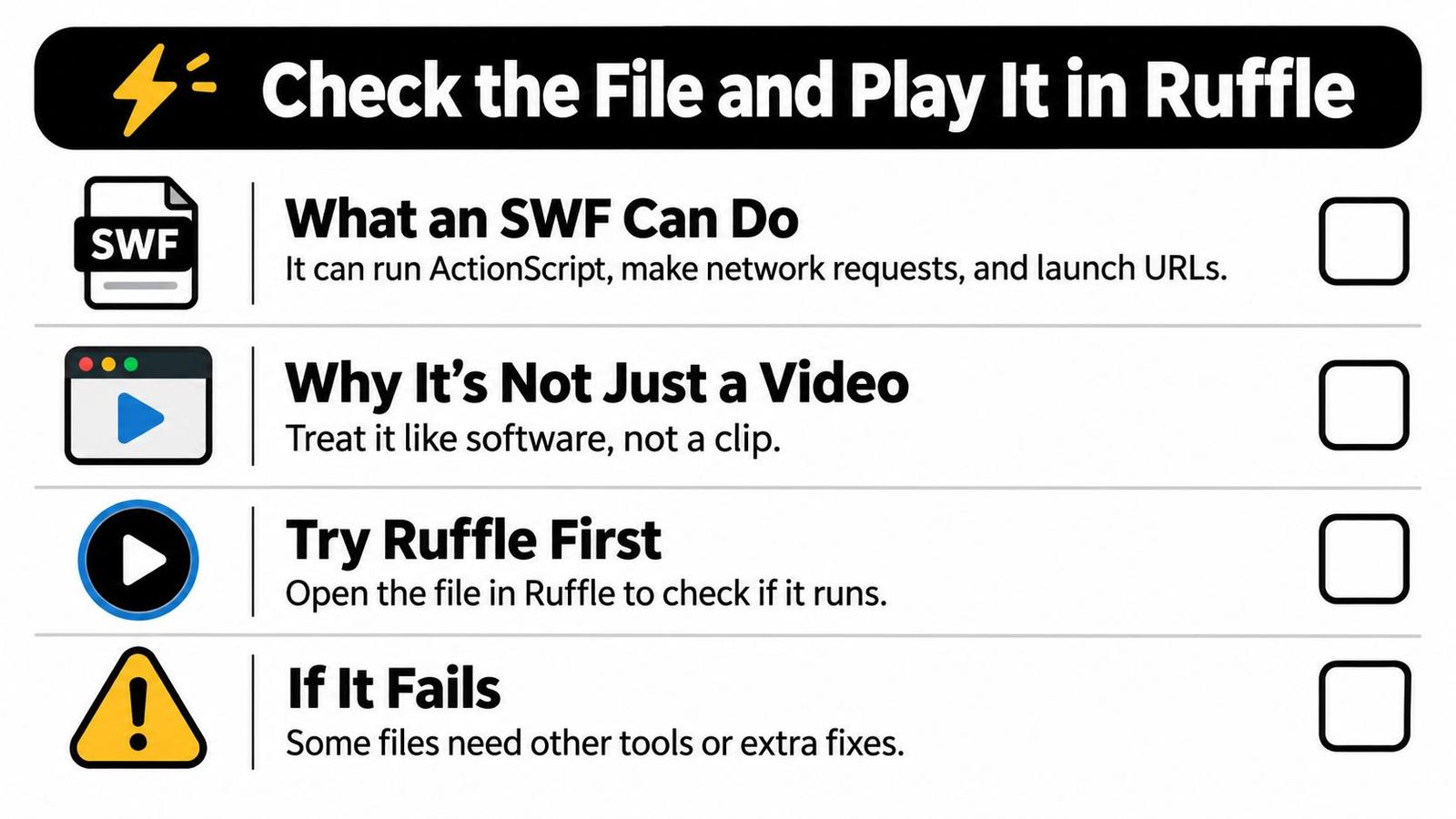
Verify the file before opening it
- Confirm its origin. Ask who created or saved it and what it should do. An expected attachment from a known archive deserves a different level of confidence from an unsolicited download.
- Show the full extension. In Windows File Explorer, enable file-name extensions and inspect Properties. On macOS, use Get Info and inspect Name & Extension. A file called
birthday.swf.exeis an executable, not an SWF. - Scan the file. Use current security software before playback. A clean result helps, but it isn't proof that the content is harmless.
- Reject extra installers. Skip Flash codec packs, old plug-in installers, and download pages that insist you need an unrelated player.
- Isolate unresolved files. If you still can't establish what you're handling, don't test it in your everyday account. Use a disposable virtual machine with networking and shared folders disabled, or seek technical help.
An offline user account can reduce exposure, but it isn't equivalent to a disposable virtual machine. Don't use an account change as permission to run a suspicious executable.
Keep a working copy separate from the original. If the SWF arrived with folders containing pictures, audio, or other SWF files, copy the whole folder structure rather than extracting the main file alone.
Open the verified file in Ruffle
Use Ruffle's Helpful Resources to reach the project's desktop downloads and web demo. Ruffle reimplements the Flash runtime rather than reactivating Adobe's browser plug-in.
Download the desktop build for your operating system from the project's own release route. Extract or install it as instructed, then launch the player.
- Load the SWF. Use the app's Open command where available, or drag the file into the player window if supported by your build. Ruffle also supports passing the SWF's file path to the desktop application.
- Keep companions in place. Open the file from its copied project folder so relative asset paths have a chance to resolve.
- Review permission prompts. If playback requests network access or tries to open a website, pause and check whether that action matches the file's purpose.
- Use the web demo for a quick comparison. In a current browser, select the verified local SWF through the demo's file picker. You aren't enabling Flash in the browser.
A remote-request prompt isn't automatically evidence of malware. An old presentation might load photographs from another address, while a game might request a score service. But approving every request hides a useful diagnostic clue and can expose information unnecessarily.
For an offline keepsake, I would leave networking disabled initially. If something is missing, investigate the requested resource rather than granting unrestricted access.
Test behavior rather than the opening frame
A healthy load shows the expected opening frame, responds to a deliberate click, and starts sound at the appropriate point. Don't stop testing when a title screen appears.
Try the following separately so you can identify the failing component:
- Navigation. Open menus, advance slides, return to the beginning, and use any back button.
- Controls. Test mouse input and the keyboard keys the content requests. Click inside the player first so it receives keyboard focus.
- Sound and video. Listen through transitions and let embedded video reach its end.
- Persistent features. Save progress if offered, close the player, reopen it, and check whether the save remains.
- External actions. Note links and score screens, but don't enter old passwords or approve unexpected downloads.
A title screen proves that something rendered. It doesn't prove that the game, lesson, or presentation works.
For repeatable testing, keep a short text record beside the working copy. Record the Ruffle build, operating system, file hash, companion folders, and any permissions you allowed.
A hash identifies the exact file you tested; it doesn't establish that the file is safe or undamaged. Add a plain-language result, such as “animation and narration work; final menu doesn't respond.” That note is more useful than marking the file as playable.
Play an Embedded SWF in a Current Browser
An SWF embedded in an old webpage needs the surrounding page considered too. The movie may expect a particular folder structure, page script, or remote service that a loose-file test doesn't reproduce.
Use Ruffle's official browser route, not an offer to enable Flash. Start from the Ruffle project's extension instructions and follow its current installation path for your browser. Don't assume that a similarly named extension is maintained by the project.
Choose the extension or web player
For an intact webpage, enable the official Ruffle extension where the project provides one for your browser, then reload the page. If no suitable extension is available, including on a mobile browser, use Ruffle's web player with an accessible copy of the SWF.
The web player doesn't automatically reconstruct the original website. A movie that relies on neighboring files or page-level scripts may still need those resources.
- Click inside the movie. Browser autoplay or focus rules can prevent expected sound or keyboard input.
- Test the page's controls. Try menus and embedded playback before following external links.
- Record the environment. Note the browser, Ruffle build, page address, and any required login or companion files.
Distinguish appearance from resolution
If a movie appears but can't advance, the browser route has only partially succeeded. A blank panel, missing menu, or stalled loading indicator needs diagnosis, not repeated extension installs.
For a shared archive or business website, give technical support the exact symptom and reproduction steps. Networking2000's explanation of response times versus resolution times is useful context: acknowledging the issue isn't the same as restoring working playback.
Keep a local copy where you're authorized to save it. Don't try to solve a missing server dependency by turning obsolete plug-ins back on.
Fix a File That Opens but Misbehaves
A black screen doesn't automatically mean the SWF is damaged. First distinguish failure to load from failure after loading: a visible menu with dead buttons tells you something different from a file the player can't recognize.
Compatibility also differs by scripting generation. Ruffle's documentation describes support across ActionScript 1, 2, and 3, with many older files working and more complex content still subject to compatibility gaps. Don't label every unresponsive button a damaged file.
These are common failure patterns to separate.
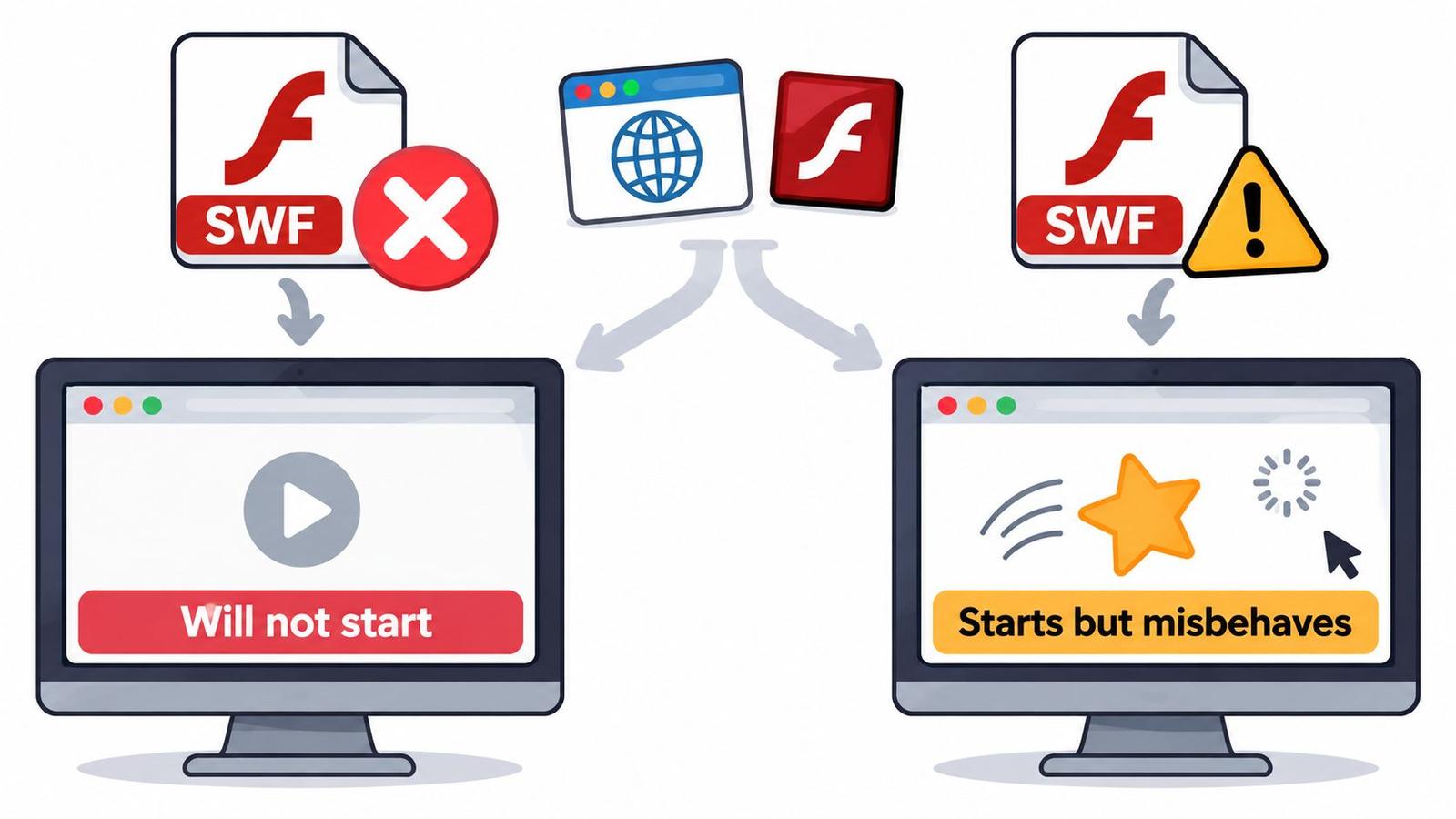
Match the symptom to a test
| Symptom | Likely cause | First fix |
|---|---|---|
| Black screen | Unsupported API or blocked network request | Load an offline copy and check for error messages |
| No sound | Audio implementation gap or browser autoplay block | Click inside the window, then test another file |
| Missing fonts or broken menus | External fonts or assets weren't preserved | Restore companion files and their original folder layout |
| Buttons don't respond | ActionScript compatibility gap | Check Ruffle compatibility notes and try a newer build |
| Progress or high scores missing | Shared-object storage or an unavailable server login | Record the limitation and check whether local saving works |
| File won't load at all | Damaged file or not a real SWF | Check the header and hash, then try another copy |
The quick checks are focus, volume, a known-working comparison file, and a current Ruffle build. Recovering absent assets or replacing a truncated download requires a different copy, not a player setting.
Change only the suspected cause
For missing images, inspect the original folder layout before moving everything into the same directory. A script may request an asset inside a specific subfolder; placing it beside the SWF won't satisfy that path.
If no player recognizes the file, have a technical user inspect its header and compare its hash with a known-good original. A hash without a reference only identifies the copy you have.
Storage failure is a separate problem. Steel City IT's guide to when to use SSD recovery software is relevant when files disappeared or became unreadable on a drive, not when a working menu has a dead button.
Likewise, ordinary video playback advice, such as choosing software to play MOV files, won't repair ActionScript behavior.
Diagnostic discipline: Change the player, the asset folder, or the file copy individually. Changing everything together makes a successful result hard to explain or reproduce.
Convert to MP4 and Keep the Original
Keep the original SWF untouched before recording anything. A usable capture is valuable, but you may later recover missing assets or find a player build that reproduces more of the original.
Create an archive folder that separates the source files from your working copies and finished recordings.
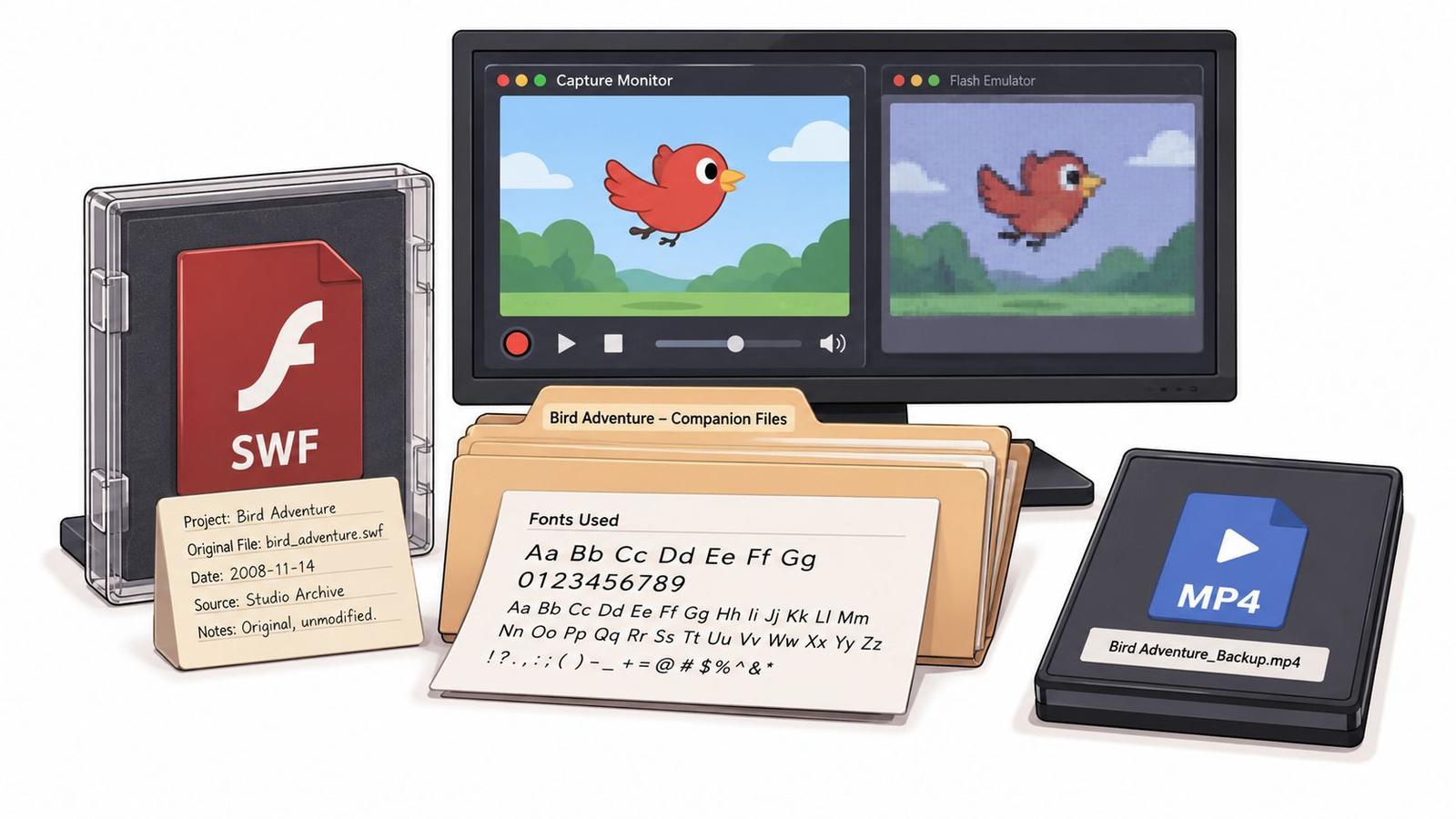
Build a reproducible archive
Save the SWF with its companion files and any fonts you're entitled to retain. Add a dated text note containing the source, file hash, successful playback environment, and unresolved faults.
Don't include obsolete installers as instructions for future relatives to follow. Adobe's end-of-life guidance recommends uninstalling Flash Player rather than continuing to use the unsupported software.
For a family archive, describe the content too. “Birthday greeting with spoken introduction and closing portrait” will help someone identify the piece even if they can't run it.
Capture the version you can verify
- Rehearse playback. Run the intended sequence without recording. Check transitions, narration, and the ending.
- Prepare the screen. Hide notifications and unrelated windows. Keep the player's proportions intact rather than stretching the image.
- Record with system audio. Select the player window or a clean screen region in your recording tool, and confirm that the audio source isn't just your microphone.
- Review the saved file. Watch the beginning, transitions, and ending, then listen for missing narration or clipped sound.
- Export and label the MP4. Note any missing scenes or substituted elements rather than presenting an incomplete capture as an exact reproduction.
An MP4 preserves what appeared and sounded during that run. It doesn't preserve clickable choices, scripts, or saved progress. For an interactive lesson, you may need separate recordings of different paths.
The embedded video below offers an additional visual reference.
Use a still when the memory matters more than playback
If only a portrait or closing frame survives, save a clear still rather than recording a broken animation. At Photo for Video, you can upload that photo, describe the desired motion, and receive a downloadable, shareable MP4 in minutes. Your uploaded photo stays in the browser until you generate a video, and you sign in when ready.
That creates a new keepsake from the recovered image; it doesn't restore the original SWF's animation or soundtrack. Label it accordingly and retain the still alongside the source archive.
Use the MP4 video download guide when saving the finished file. Open the downloaded copy before sharing, and keep it separate from the untouched source.
If your old SWF contains a treasured family portrait, Photo for Video can turn that recovered still into a gently animated MP4. Upload the image, describe the movement you want, and create a shareable keepsake while keeping the original SWF safely archived.