MP4 Video Download: Easy Guide for 2026
Learn safe, easy methods for MP4 video download on any device. Our guide covers saving videos from social media, email, and converting formats.
You're probably here because a video matters to you. It might be a short clip from a relative's phone, an old email attachment from a parent, or a moment you found online that belongs in a birthday montage, anniversary surprise, or memorial tribute. Then the practical problem shows up. The video won't save, the format is wrong, or the download path looks sketchy.
That's where a careful MP4 video download process helps. The point isn't just to collect files. It's to gather the pieces of a story you want to keep, edit, and share with the people who care about it too.
Table of Contents
- Why You Need a Reliable Way to Download MP4 Videos
- Choosing Your MP4 Download Method
- Downloading Videos from Common Sources
- Saving and Managing MP4s on Your Phone
- Troubleshooting Common Video Download Problems
- A Quick Guide to Legal and Ethical Downloading
Why You Need a Reliable Way to Download MP4 Videos
A lot of people don't look up MP4 video download because they're building a media library. They look it up because they're on a deadline with something personal. A niece is turning eighteen. A family is putting together a memorial slideshow. Someone found the perfect clip in a group chat, but now nobody can figure out how to save it cleanly.
That's the practical use case. You don't need a lecture on file formats. You need a video that opens, plays smoothly, and drops into your editor without turning the whole evening into a troubleshooting session.
MP4 tends to be the practical choice for this kind of work because it plays well across phones, laptops, TVs, and common editing apps. If a cousin sends a clip and you need to combine it with photos, music, and voice notes later, MP4 usually creates the fewest headaches. That matters when the emotional side of the project already takes enough energy.
When the file matters more than the download
The most common frustration isn't getting a video at all. It's getting the wrong version of it. Maybe the clip saves with no audio. Maybe it arrives as a web-only format your editing app rejects. Maybe the page offers ten fake buttons before the actual download appears.
Practical rule: If the clip is meant for a family keepsake, choose the method that gives you the cleanest, easiest-to-find file, not the fastest shortcut.
That mindset changes the decision. You stop chasing whatever tool promises instant results and start looking for something dependable. For a one-time save, simple and official is usually best. For a larger tribute project with many clips, it helps to think like an organizer, not just a downloader.
Why this matters for memory projects
A good download workflow protects your time. It also protects the quality of what you're making. If you're assembling a tribute, every extra conversion, missing file, or broken clip creates stress right when you want to focus on the people in the video.
Saving the clip is only step one. After that, you may trim it, combine it with photos, add captions, or place it between older family footage. A reliable MP4 file gives you room to do all of that without starting over.
Choosing Your MP4 Download Method
There isn't one best MP4 video download method for everyone. The right choice depends on where the video lives, how often you download, and how much risk you're willing to tolerate. In practice, common choices include browser extensions, online download sites, and desktop software.
Each can work. Each can also waste your time if you pick the wrong one for the job.
What makes one method safer than another
Browser extensions feel convenient because they sit right inside the browser. The problem is trust. Cybersecurity reports from 2025 indicated that over 60% of malicious browser extensions disguised themselves as utility tools, including video downloaders, making source verification a critical step for users according to this 2025 browser extension security reference.
That doesn't mean every extension is bad. It means you should treat them as a higher-risk choice unless you can verify the publisher, reviews, permissions, and official install source.
Online download sites are easy for one-off tasks. Paste a link, choose a format, and download. The trade-off is clutter. These pages often bury the main action behind misleading buttons, pop-ups, and prompts to install something you never asked for.
Desktop software usually takes more effort upfront, but it tends to be the most stable option for frequent use. If you expect to clean up formats after downloading, a tool that also handles conversion can simplify your workflow. If that's your situation, this guide to a video converter for Android workflows is useful when clips need extra cleanup before they're easy to use.
MP4 Download Method Comparison
| Method | Best For | Key Risk |
|---|---|---|
| Browser extension | Quick access inside the browser | Harder to verify safety and permissions |
| Online download site | Occasional one-off downloads | Ads, fake buttons, and unwanted prompts |
| Desktop software | Frequent downloads and format control | More setup and a steeper learning curve |
How to choose based on your situation
If you only need one clip from a family cloud share or email, don't overcomplicate it. Use the official download path from the service itself.
If you're collecting multiple files for a tribute edit, desktop software is usually easier to live with because it keeps your files local and predictable. You'll spend less time hunting through browser folders and less time dealing with odd file names.
A simple way to decide:
- Use official platform downloads first: If Google Drive, Dropbox, iCloud, or an email app offers a native download button, start there.
- Use online tools carefully: They're best for low-stakes, occasional tasks where no official option exists.
- Choose desktop software for repeat work: If you're downloading, converting, trimming, and organizing multiple clips, one installed tool is often less frustrating.
Pick the method that still feels manageable when you need the file again six months from now.
That's the test commonly skipped. Memory projects rarely end with one export. Families come back later and ask for an updated version, a shorter cut, or a copy formatted for a phone. The safest workflow is the one you can repeat.
Downloading Videos from Common Sources
Most downloads don't come from some abstract “internet video.” They come from familiar places. A social app. A shared folder. An email thread you meant to clean up months ago. The best method depends on the source, and official options are almost always the safest starting point.
Social platforms and built in save options
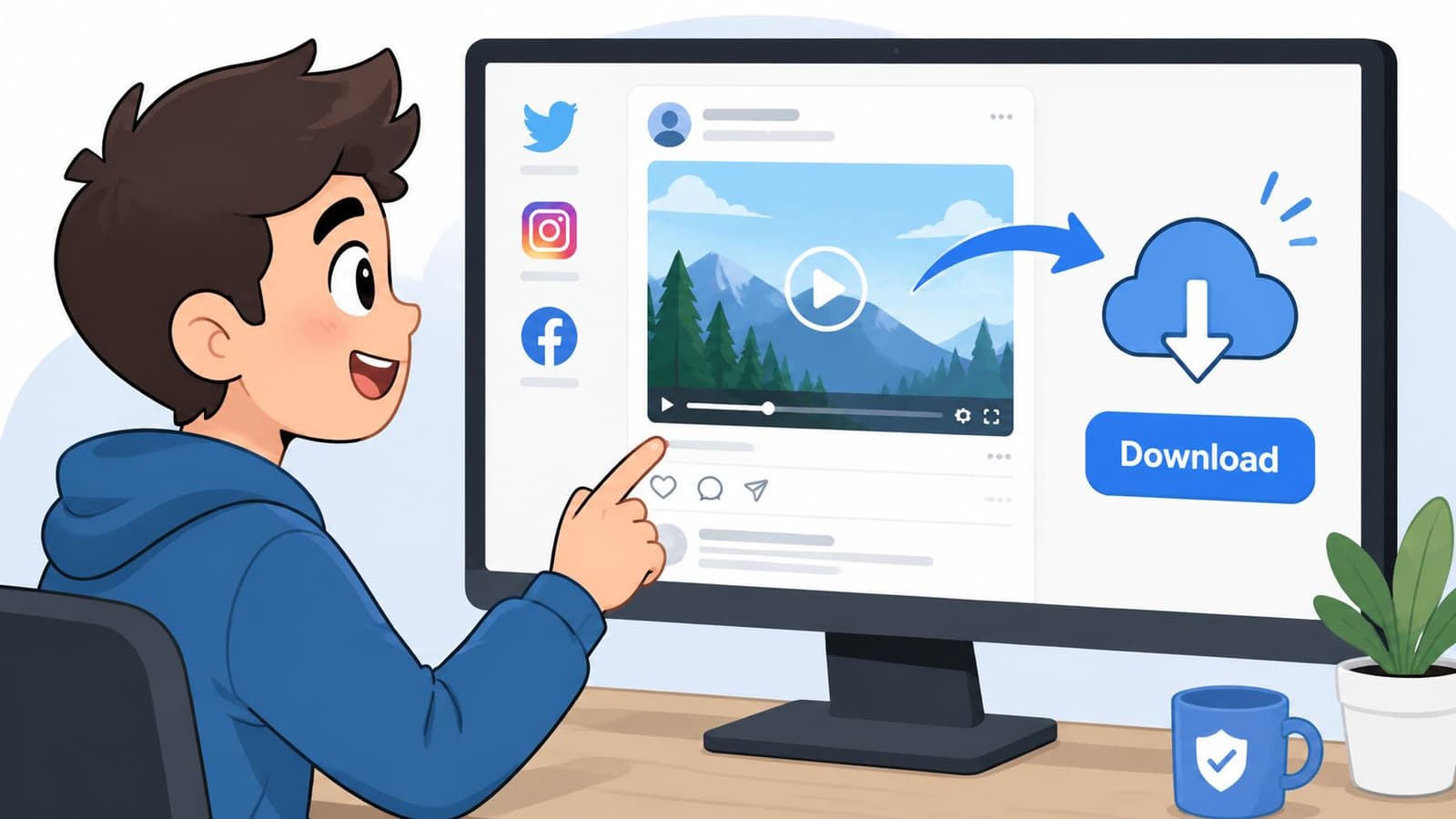
When a video lives on a social platform, people often jump straight to third-party “ripper” tools. That's usually where trouble starts. You may end up with poor quality, missing audio, or a file wrapped in suspicious redirects.
Use the platform's own options first:
- Check for a native Save or Download option. Some apps let you save your own uploads or videos shared directly with you.
- Look for export from the original sender. If a relative posted the clip, ask them to send the original file through cloud storage, text, or email instead of downloading the compressed social version.
- Avoid tools that ask for logins unrelated to the platform itself. If a site wants your account details just to allow a download, leave.
That last point matters. For family projects, the original clip from the sender is often better than anything scraped from a feed.
Cloud storage and shared folders
Cloud services are usually the easiest source for an MP4 video download because they're built for file transfer, not media scraping. If someone sends a Google Drive, Dropbox, iCloud Drive, or OneDrive link, use the service's direct download button.
A clean process looks like this:
- Open the shared link in a browser or app.
- Preview the video if possible so you know it's the right clip.
- Choose Download, not Open in new tab if both options appear.
- Save to a folder you'll remember, especially if this is part of a larger editing project.
If the file lands with an unfamiliar extension or won't play well on your device, you may need a conversion step later. But start by preserving the original download first.
Email attachments without the confusion
Email is still where a lot of meaningful family clips show up. A scanned old recording, a grandparent's voicemail video, a phone clip attached in a rush. The trick is saving the attachment as a real file, not just previewing it.
Here's the reliable approach:
- Download the attachment explicitly: Don't assume “play” means “saved.”
- Rename the file right away: “Dad speech final.mp4” is better than a random attachment name.
- Move it out of Downloads if it matters: Give it a home in a project folder before it gets buried.
If a clip came from email and matters emotionally, save a second copy somewhere calm and obvious, like a dedicated family project folder.
That small habit prevents a lot of re-downloading later.
Saving and Managing MP4s on Your Phone
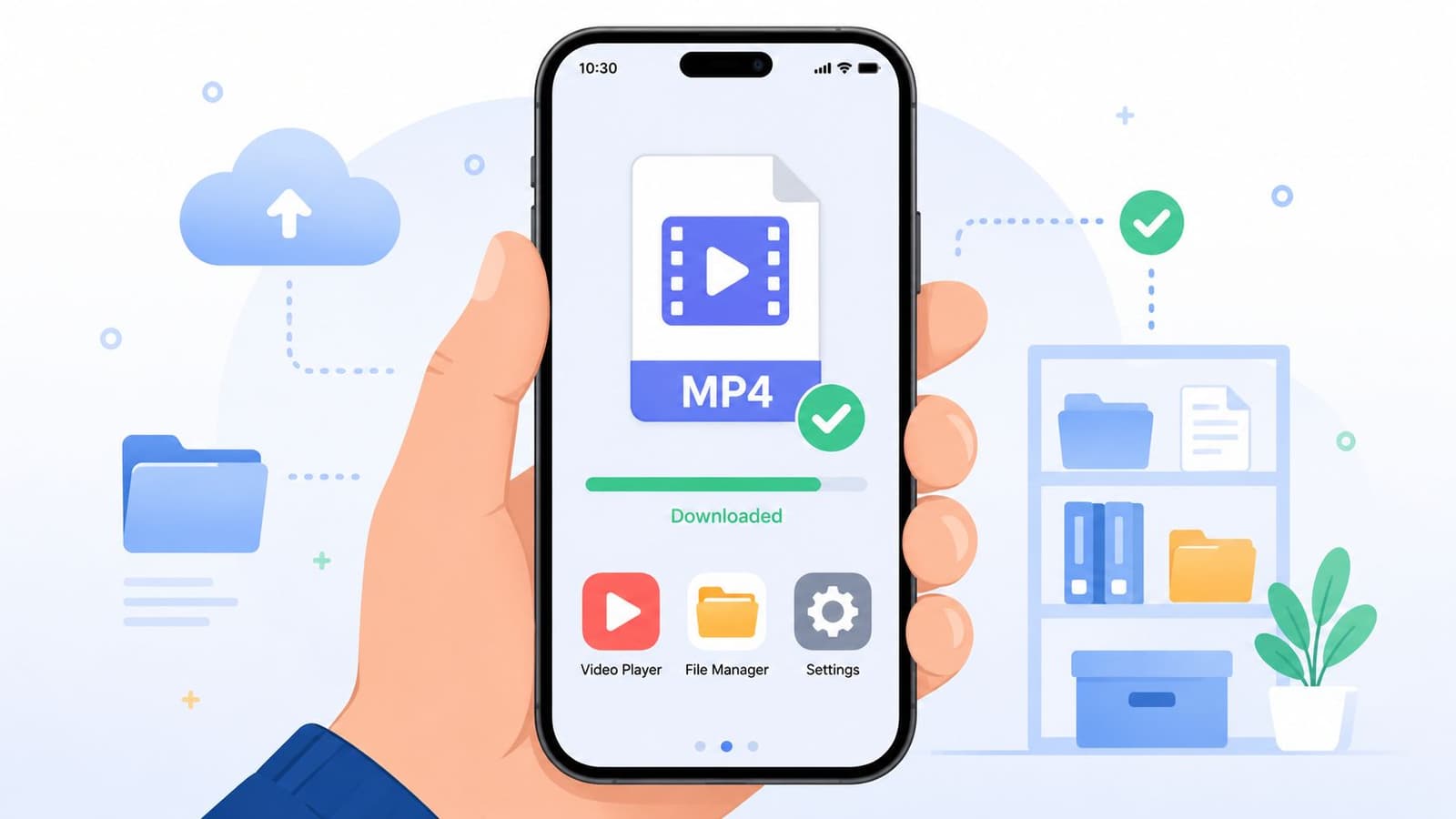
Phones are where many people download, edit, and share everything now. That's convenient until the file disappears into a folder you didn't know existed. The biggest mobile problem usually isn't downloading the MP4. It's finding it afterward.
Finding downloads on iPhone
On iPhone, downloaded videos often go into the Files app rather than Photos. That catches people off guard. If you downloaded through Safari, Mail, or a cloud app, check Files, then look in Downloads, On My iPhone, or the specific app folder.
A practical routine helps:
- Open Files and use the search bar for part of the file name.
- If you can't remember the name, sort by Date and look for the latest MP4.
- Once you find it, move it into a folder with a clear project name.
If your file needs cleanup for smoother playback or sharing, this walkthrough on how to convert iPhone videos to MP4 can help when iPhone footage doesn't behave the way you expect.
Finding downloads on Android
Android usually makes this simpler. Most downloads land in the Downloads folder, which you can access through the phone's file manager. Depending on the device, that app may be called Files, My Files, or File Manager.
Look in these places first:
- Downloads
- Movies
- DCIM
- App-specific folders for browsers, messaging apps, or cloud services
If you download often, create one folder just for your project. Birthday montage, memorial clips, anniversary reel. Any name works as long as you'll recognize it later.
A short walkthrough can help if you're more visual: BLOG_YOUTUBE_EMBED:erALoLpd2rk
Keeping project clips organized on mobile
The best mobile workflow is simple. Don't leave everything in Downloads and hope you'll remember. Move files into folders as soon as you confirm they work.
Try this lightweight structure:
- Raw clips: Original downloads you don't edit
- Edited clips: Trimmed or converted versions
- Final exports: The versions you send to family
That small bit of organization makes mobile editing much calmer. It also helps when someone asks, “Can you send me the original one too?” and you don't have to guess which file is which.
Troubleshooting Common Video Download Problems
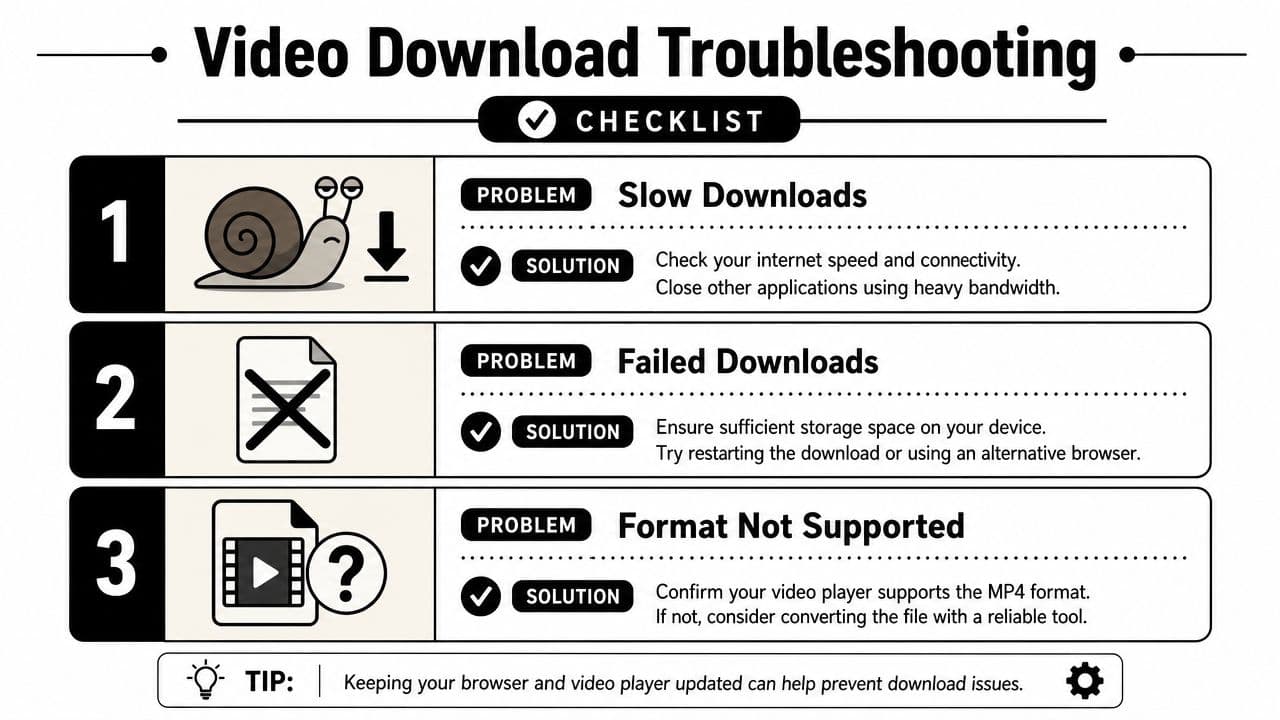
Even a careful MP4 video download can go sideways. A file opens with no audio. The picture looks terrible. The download stops halfway through. Most of these problems have a practical fix if you work from the file backward instead of downloading the same broken version over and over.
The file downloads but has no sound
This usually points to one of three issues. The source itself had muted or separate audio, the player can't handle the audio track properly, or the download tool saved an incomplete file.
Try these fixes:
- Test the file in another player: If one app is silent and another plays audio, the file may be fine.
- Download again from the original source: Especially if the first attempt came from a third-party site.
- Keep the original if possible: A conversion from the source file often works better than trying to repair a damaged copy.
The quality looks blurry or rough
Poor quality often starts at the source. If someone uploaded a compressed social version, downloading it won't improve it. You need the better original, not a stronger downloader.
Use this order:
- Ask for the original file from the person who recorded it.
- Check whether the platform offers a higher-quality export.
- Avoid repeated conversions, which can make the clip look worse each time.
The cleanest fix for bad quality is usually a better source file, not another round of processing.
You got WEBM or another format instead of MP4
This happens a lot with browser-based tools. The video may play fine, but your editor or phone app prefers MP4.
You have two realistic options:
- Download again and choose MP4 explicitly if the source offers format selection.
- Convert the file after download using a reliable converter if MP4 isn't available.
If the file is too large to share or your editor struggles with it, this guide on how to compress MP4 files is a useful next step once you already have a working video.
The download stops halfway
Half-finished downloads usually come from unstable connectivity, low storage, browser hiccups, or a source page that timed out.
Check the basics first:
- Free up storage space on the phone or computer
- Try a different browser
- Restart the download from the original source page
- Avoid multitasking with heavy uploads or streaming while downloading
If it fails repeatedly from the same site, stop forcing it. That often means the method is the problem, not your device.
A Quick Guide to Legal and Ethical Downloading
A video can feel personal and still belong to someone else. That matters. If you're building a private family tribute from clips you own, recorded, or were directly given permission to use, downloading is usually a straightforward practical step. If the video belongs to a creator, lives behind paid access, or isn't offered for download, slow down.
The easiest rule is empathy. If you made the video, how would you want someone else to use it? That question handles most gray areas better than clever workarounds do.
For personal projects, these guidelines keep you on solid ground:
- Use videos you created, received permission to use, or have rights to save
- Respect platform rules and creator ownership
- Don't treat “I can download it” as the same thing as “I'm allowed to use it”
Sometimes the right move isn't downloading at all. If you can't legally or ethically use a clip, make something original instead. A still family photo, a scanned print, or an image from a relative's album can become a meaningful MP4 element in its own right, especially in tribute edits where tone matters more than flashy footage.
If your project needs a heartfelt MP4 but you don't have the right video clip, Photo for Video is a thoughtful alternative. It turns a single cherished photo into a short living-memory video that fits beautifully into birthday tributes, memorial edits, anniversary montages, and family keepsakes.