Software to Play MOV Files: A Complete 2026 Guide
Can't play .MOV files? Our guide covers the best software to play MOV files on Windows, Mac, and mobile, plus easy fixes for common codec and playback errors.
You double-click a MOV file, and nothing useful happens. Maybe Windows throws a vague error. Maybe the video opens with audio missing. Maybe it plays on your phone but not on your laptop. The common assumption is that the file is damaged.
Usually, it isn't.
The frustrating part is that MOV looks simple from the outside. It's just one file extension. But the app trying to open it may not support the video format packed inside that file. That's why one MOV from an older camera works fine, while another from a newer iPhone refuses to play. If you want reliable software to play MOV files, you need to solve the right problem first.
Table of Contents
- Why Your MOV File Won't Play and How to Fix It
- The Quickest Fixes for MOV Files on Any Computer
- Playing MOV Files on Mobile Devices
- When to Convert MOV to MP4 Instead of Playing It
- Troubleshooting Common MOV Playback Errors
- Your Go-To Workflow for Handling Any MOV File
Why Your MOV File Won't Play and How to Fix It
A MOV file failing to open doesn't automatically mean the file is broken. In a lot of cases, the underlying problem is the codec inside the file, not the .mov extension itself.

Think of MOV as a container. It holds video and audio data, but it doesn't tell your device how to decode that data. The codec does that. If your player understands the codec, the file plays. If it doesn't, you get an error, black screen, missing audio, or stuttering playback.
That's why two MOV files can behave completely differently on the same computer.
CopyTrans explains the issue clearly. Many users assume the .mov extension is the problem, but the actual issue is often the codec inside. It notes that some MOVs from iPhones open while others trigger messages like “HEVC Video extension required,” because Windows only plays certain codecs by default and many newer iPhone clips use HEVC/H.265.
Container and codec are not the same thing
A useful perspective is:
- MOV is the box. It's the file wrapper.
- The codec is the language inside the box. That's what your player has to understand.
- Your software matters more than the extension. Good software to play MOV files handles a wider range of codecs.
Practical rule: If one MOV works and another doesn't, don't assume the second file is corrupt. Assume the player lacks support for the codec inside it.
MOV has been around for a long time, and Adobe notes that it remains relevant because it's tied to major playback ecosystems, especially Apple tools like QuickTime and iTunes, while also appearing on Windows and major streaming sites such as Facebook and YouTube. Adobe also notes that MOV often delivers higher-quality playback than MP4, but files are often larger and less widely supported, which is why non-Apple systems often need dedicated players or conversion tools.
That's the mindset shift that makes the rest of this easy. You're not hunting for a magic file repair. You're choosing the right player, or deciding when conversion makes more sense.
The Quickest Fixes for MOV Files on Any Computer
You double-click a MOV file, get an error, and just want the video to play. The fastest fix is usually not hunting for codec packs or reinstalling half your media apps. Start with the player already on your computer, then switch to a player that carries its own codec support.
That approach is faster and safer.
What usually works on Windows
On Windows, keep the process simple. This Windows playback walkthrough recommends trying the built-in Media Player first, then opening the same file in VLC if Media Player fails.
Use this order:
- Right-click the MOV file and choose Open with > Media Player.
- If it does not play, install VLC Media Player from the Microsoft Store.
- Open the same file in VLC.
- If VLC works, set it as the default app for .mov files so future clips open correctly the first time.
This works well because Windows support depends heavily on the codec inside the file. One MOV may open normally, while another from an iPhone, camera, or editing app refuses to play. VLC is often the quickest fix because it handles many codec combinations without asking you to install extra components.
If you want one low-effort Windows answer, use VLC after the built-in app fails.
What to use on Mac
On macOS, start with QuickTime Player. It is the native choice for MOV files and often opens Apple-created video without any setup.
If QuickTime plays the file cleanly, stop there. If it stutters, shows audio without video, or refuses to open the clip, try VLC next. That is usually the better pick for odd exports, older codecs, or files shared across mixed Mac and Windows setups.
There is a practical trade-off here. QuickTime feels more natural on a Mac and fits Apple workflows well. VLC usually supports more file variations.
Which player should you choose?
The right tool depends on what you are trying to do.
| Player | Best For | Platforms | Cost | Key Feature |
|---|---|---|---|---|
| VLC Media Player | One install that solves the most playback problems | Windows, macOS, Linux, Android, iOS, Chrome OS | Free | Wide codec support across many platforms |
| Media Player | Quick first test on a Windows PC | Windows | Included | Already installed on many systems |
| QuickTime Player | Native playback on Mac | macOS | Included | Best fit for Apple-created MOV files |
| 5KPlayer | HEVC or high-resolution MOV playback on desktop | Desktop platforms | Varies by distribution | Good support for 4K and HEVC video |
| KMPlayer 64X | High-resolution playback with hardware acceleration | Desktop platforms | Varies by distribution | Useful for demanding playback cases |
A simple decision rule helps:
- Use Media Player or QuickTime first if you want the fastest no-install test.
- Use VLC if the file fails in the built-in app or you switch between different devices often.
- Use 5KPlayer or KMPlayer only if you have a specific playback need, such as HEVC, very high resolution, or performance tuning.
For many readers, the best choice is still VLC. It is usually the quickest way to confirm whether the problem is the player, not the file.
Playing MOV Files on Mobile Devices
Mobile playback depends heavily on which ecosystem you're in. On Apple devices, MOV feels normal. On Android, it often feels oddly inconsistent until you install the right app.
iPhone and iPad
MOV belongs to Apple's world, so playback on iPhone and iPad is usually straightforward. Clips recorded on an iPhone, exported from a Mac, or shared through Apple-centered workflows tend to open without much drama.
If you stay inside that ecosystem, you may never think about software to play MOV files at all. The format blends into the default experience.
Android phones and tablets
Android is different. EaseFab's Android playback guide notes that Android does not natively support the MOV container format. Its built-in video support focuses on 3GP, MKV, MP4, and WEBM. That's why a third-party player like VLC for Android is typically required to play MOV files from iPhones or cameras on an Android device.
That explains a common situation: someone AirDrops or uploads a clip from an iPhone, and the Android phone downloads it but won't open it properly. The file isn't necessarily bad. The phone just doesn't treat MOV as a native target.
A practical mobile checklist looks like this:
- On iPhone or iPad: Open it normally first.
- On Android: Install VLC for Android if the file won't play.
- If you're sharing with mixed-device users: Consider converting the file to MP4 before sending it around.
Browser-based viewers can be handy for quick review, especially on locked-down devices, but they're better for inspection than final compatibility checks.
That last point matters. A file that previews in a browser may still fail on the recipient's actual device if the target app doesn't support the codec or container well.
When to Convert MOV to MP4 Instead of Playing It
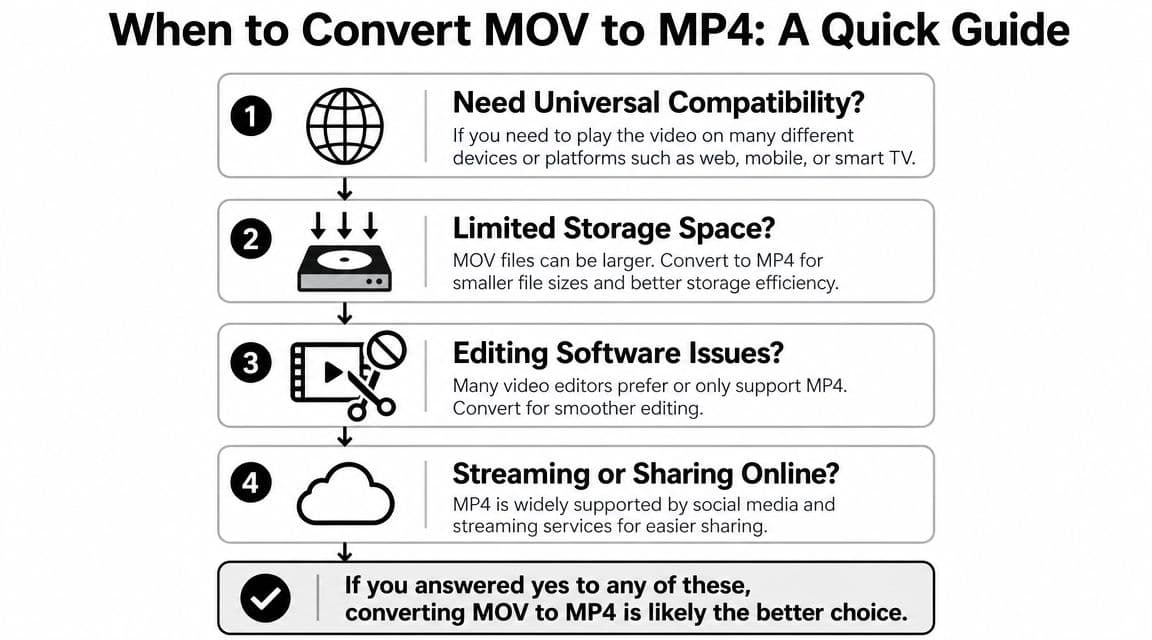
Sometimes finding a player is the wrong goal. If you need the file to work everywhere, not just on your machine, conversion is usually the smarter move.
The better long term move
MOV is often a good editing or interchange format. MP4 with H.264 is usually the safer delivery format when the goal is broad playback across devices, apps, and websites.
That doesn't mean you should convert every MOV file automatically. It means you should ask what the file is for.
This workflow-focused guide points out that the right choice isn't just about playback. The decision to use a player, a converter, or an online viewer depends on the user's goal, whether that's quickly reviewing a clip on a work PC, archiving family videos, or prepping files for a project.
A few examples make the choice easier:
- You just need to watch one clip on your laptop. Use a player. VLC is faster than converting.
- You're sending family videos to relatives with mixed devices. Convert to MP4.
- You're building a tribute montage or keepsake video. Convert clips that need universal compatibility in your editing workflow.
- You need a quick browser preview on a locked-down computer. Use an online viewer for inspection, not final delivery testing.
Use a converter when the goal is bigger than playback
Use a converter like HandBrake when the file needs to travel well. That includes email attachments, shared cloud folders, smart TVs, budget Android phones, older Windows laptops, and editing timelines that behave better with MP4.
If storage matters too, conversion can help. MOV files are often larger, so if you're cleaning up old archives, a format plan helps. If that's your problem, this guide on how to reduce MOV file size is a useful next step.
Here's a simple decision guide:
- Play it as-is when the file stays on your device and your player already handles it.
- Convert to MP4 when you need broad compatibility.
- Keep the original MOV too if the clip might be edited later, especially if it came from a camera or an Apple workflow.
One caution. Converting for convenience can strip away details that mattered in post-production, such as alpha channels or edit-intent metadata. That's why archived originals are worth keeping even when the MP4 copy becomes your everyday version.
A quick walkthrough helps if you want to see the conversion process in action.
Troubleshooting Common MOV Playback Errors
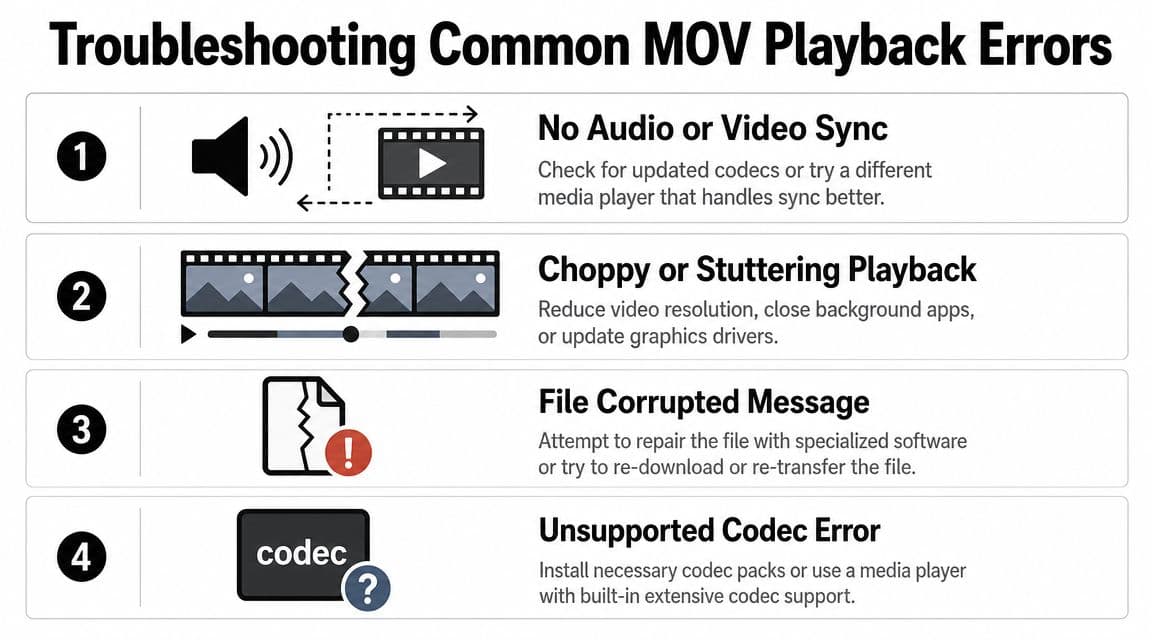
A MOV file that opens is already giving you a clue. The container is readable. The problem is usually deeper, such as an audio codec your player cannot decode cleanly, a damaged transfer, or footage that is heavier than the device can play smoothly.
If the file opens but something is wrong
Start with the symptom you can see or hear. That is faster than blaming the .mov extension itself.
- Video plays but there's no sound. The video track may be fine while the audio codec is not. Test the file in VLC if you started with a default player. If VLC also stays silent, the file may use an unusual audio format or the audio track may be damaged.
- Playback is choppy or stuttering. High-bitrate footage, 4K clips, and screen recordings can push older laptops hard. Close other apps, pause cloud sync, and switch hardware acceleration off and on in the player settings to see which mode your system handles better.
- Audio and video drift out of sync. This often points to a partial download, a bad transcode, or an older encode that one player handles poorly. Try a second player first. If both players show the same drift, suspect the file rather than the app.
- Black screen with audio still playing. That usually means the player can read the container and audio stream but not the video codec properly. HEVC and camera-specific variants are common trouble spots on older systems.
VLC is still the fallback I use for difficult MOV files because it handles more built-in codecs than the default players on many devices. If a file fails in a basic player but works in VLC, the file usually is not broken. The original player just lacks support for one of the streams.
Check the symptom, not just the extension. No audio, black video, and stutter point to different fixes.
If the error points to codec support
Some error messages make the problem plain. “Missing codec,” “unsupported format,” or “cannot render file” usually means the player is the wrong tool for that specific MOV, not that the MOV format itself is bad.
Use this checklist:
- Try the file in VLC first. It covers many codecs without asking you to install system-wide packs.
- Compare with another MOV file. If one MOV works and another fails on the same device, codec mismatch is more likely than a broken setup.
- Re-copy or re-download the file. Email forwarding, messaging apps, and interrupted downloads can leave you with a file that opens halfway but does not play correctly.
- Convert only if playback support is the actual blocker. If the clip needs to work across phones, laptops, TVs, and browsers, MP4 is often the practical answer.
Resolution can muddy the diagnosis too. A file may be playing correctly but still look soft, stretched, or oddly scaled. If that is happening, this guide on fixing video resolution problems helps separate playback trouble from export or display issues.
One caution from experience. Skip random codec packs from unfamiliar download sites. They can create more problems than they solve. A trusted player, a clean re-download, or a controlled conversion is usually the safer fix.
Your Go-To Workflow for Handling Any MOV File
Most MOV problems get simple once you stop treating every failure like a mystery. You only need a repeatable workflow.
The simple decision tree
Use this every time:
- Try the default player first. Media Player on Windows. QuickTime on Mac. Native playback on iPhone or iPad.
- If it fails, use VLC. It's the most dependable all-around software to play MOV files across devices.
- If the file needs to be shared, archived, or edited broadly, convert it to MP4.
That's the whole system. Don't start by hunting obscure codec packs. Don't assume the file is ruined because one app rejects it. And don't keep sending MOVs to less technical friends or relatives if you already know MP4 will save everyone time.
For ongoing projects, a little consistency goes a long way. Keep the original MOV if it came from a camera or Apple workflow, make an MP4 copy for broad compatibility, and use one trusted player as your fallback. If your final export is headed to online platforms, this guide to YouTube video compression is a practical follow-up.
Once you think in terms of player for viewing, converter for compatibility, original for safekeeping, MOV files stop being unpredictable.
If you're turning old photos and family clips into a tribute, memorial, or birthday montage, Photo for Video can help you create polished MP4 moments from a single image, with gentle motion that fits naturally into keepsake edits and reels.