Zoom in Videos: A Practical Guide to Gentle Push-Ins
Learn how to create natural, emotionally resonant zoom in videos from photos and footage. Covers framing, timing, exports, and tribute workflows.
You have a treasured photograph, an unfinished tribute reel, and the feeling that a quiet push-in would say more than another filter or transition. That instinct is usually right. A restrained zoom can guide attention toward a smile, a pair of hands, or a familiar object without asking the image to perform.
The challenge is that old family photos don't behave like clean digital footage. Scans carry grain, paper texture, dust, and limited detail. A move that looks elegant in a slick tutorial can make a face soften, a background shimmer, or a memorial clip feel rushed. Good zoom in videos depend less on maximum resolution than on intent, framing, timing, and stability.
The workflow below starts with the emotional purpose of the shot, then moves through source preparation, generation, review, accessibility, privacy, and delivery. The aim is simple: create movement that feels discovered inside the photograph, not imposed on it.
Table of Contents
- Why a Zoom-In Video Is an Emotional Choice, Not Just an Edit
- Planning the Camera Move Before You Touch Any Software
- Choosing and Prepping the Source Photo Without Losing Its Feel
- Building the Zoom In Clip with Photo for Video
- Quality Control That Catches Bad Motion Before Anyone Sees It
- Accessibility, Dignity, and Privacy for Real Family Audiences
- Putting Zoom-In Videos to Work in Real Projects
Why a Zoom-In Video Is an Emotional Choice, Not Just an Edit
A zoom-in is one of the quietest moves available to an editor. It doesn't announce itself with a transition, a flash, or a change of scene. Instead, it gives the viewer time to notice something that was already present, such as a child's expression, a hand resting on a shoulder, or a wedding ring caught by the light.
That restraint makes the move powerful in family keepsakes. The camera appears to move closer to a memory, but the emotional effect comes from what you choose to approach. Push toward a face and the viewer reads recognition. Settle on hands and the clip may feel intimate. Land on an empty background and the same motion feels accidental.
Start with the feeling, not the effect
Before opening an editor, finish this sentence: “By the end of the move, I want the viewer to notice...” The answer becomes your focal anchor. It also prevents the common mistake of using zoom as decoration after the visual decision has already been made.
A memorial image often benefits from a measured approach that lets the expression remain natural. A birthday reel can tolerate more energy, but it still needs a clear destination. A product image may use the same camera language while directing attention to a texture, label, or detail.
Editorial rule: If the viewer can't tell why the frame is moving closer, the move probably needs a stronger focal point.
The motion should feel continuous from the first frame to the last. There shouldn't be a sudden jump in scale, an unexplained sideways drift, or a crop that cuts through a face because the editor prioritized enlargement over composition. This is especially important when working with the uncanny valley in animation, where even small unnatural changes can make a familiar person feel strangely artificial.
What natural motion looks like
A successful push-in has a beginning, a gentle build, and a settled finish. The subject remains anchored while the surrounding context gradually narrows. The viewer feels guided rather than pulled.
Keep the delivery surface in mind from the beginning. A phone reel, a widescreen tribute, and a small video card may all need different framing. The core principle stays the same: the emotional destination matters more than how dramatic the enlargement appears.
Planning the Camera Move Before You Touch Any Software
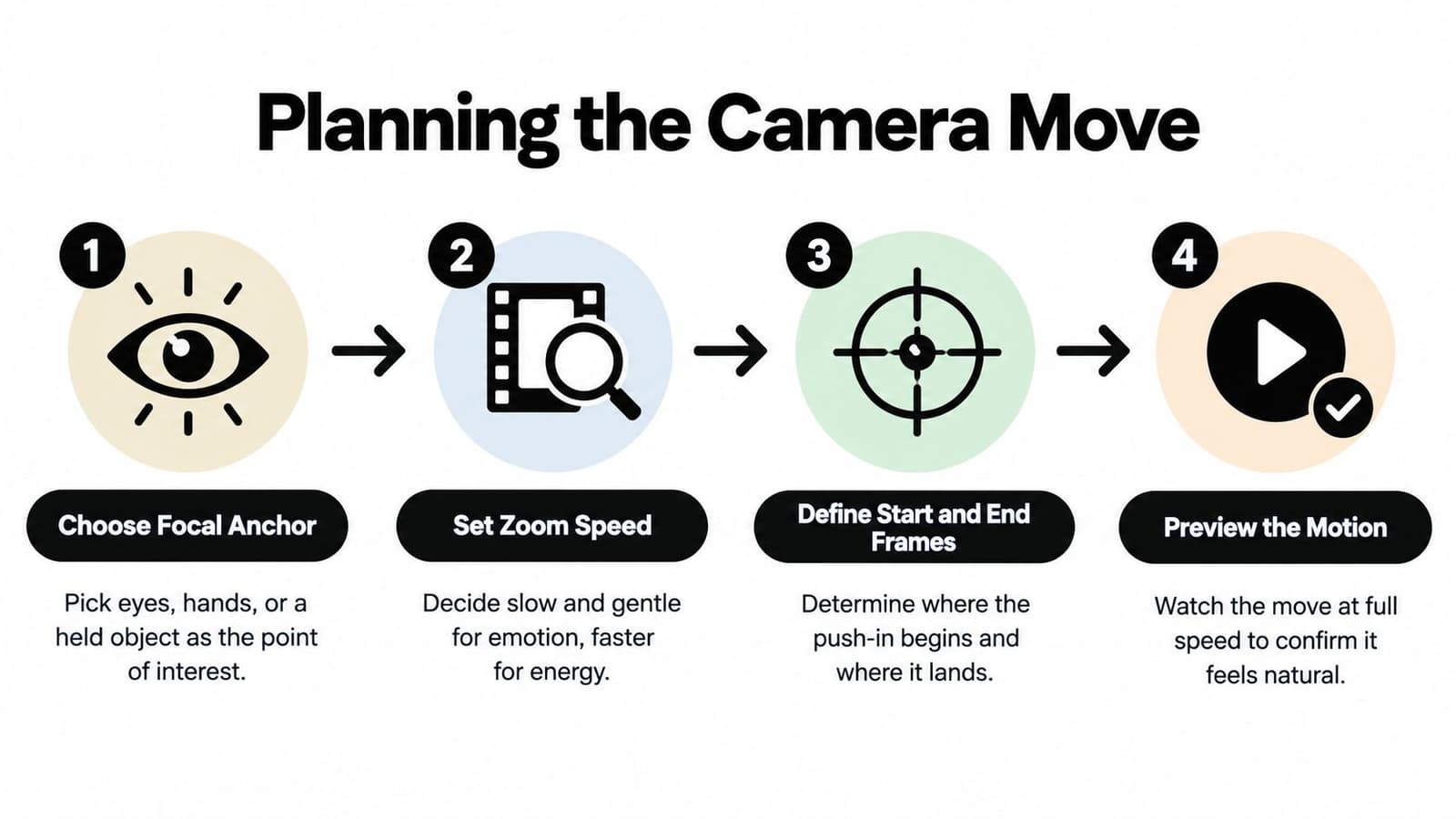
The strongest zoom-in clips are mostly decided before the software opens. Start by marking the point the camera should approach. For a family photo, that might be the eyes, a child's hands around a gift, or two people standing close together. For a product still, it may be a clasp, fabric weave, or printed mark.
Then decide how much time the move deserves. A quiet tribute needs room to breathe. A birthday reel can move with more lift. A short-form social clip may need a quicker read, but speed shouldn't make the subject feel chased.
Three decisions shape the move
Focal anchor: Choose one primary destination. If the frame contains several people, decide whether the move lands on the group or one person. A crop that tries to serve every subject often lands on nobody.
Start and end frames: Begin wide enough to establish context, then finish where the viewer should look. The end frame shouldn't be the largest crop the file can tolerate. It should be the most meaningful composition that still protects the subject.
Easing: Linear interpolation moves at a constant rate, which often feels mechanical. Ease-in and ease-out create a softer rhythm. The clip starts with restraint, gathers attention, and settles instead of stopping abruptly.
Consider two versions of the same photograph. In the first, the image enlarges at a steady rate and the face reaches the edge before the final frame. In the second, the opening is calm, the approach gains gentle momentum, and the final position holds its composure. The second version usually feels more intentional even when the scale change is similar.
Match pace to purpose
Use a slow push-in when the clip carries grief, remembrance, or quiet affection. Let the viewer recognize the image before the camera arrives.
Choose a moderate move for birthdays and anniversaries. It can feel warm and present without turning the photograph into an advertisement.
Use a faster approach for a short-form reel or energetic celebration, but keep the destination obvious. Faster motion doesn't excuse vague framing.
Practical editing guidance commonly uses a move from 100% scale toward approximately 150% to 200% final scale, with a 2 to 5 second motion window, as described in research and guidance on controlled zoom motion. Treat those values as a working range rather than a command. A clean source may support more enlargement, while a soft scan may need less.
The first part of the move establishes whether the clip feels calm or mechanical. If the opening accelerates too sharply, the viewer experiences the effect before they experience the memory. Start with the emotional read, then let the scale change follow.
Choosing and Prepping the Source Photo Without Losing Its Feel
Digital enlargement doesn't create missing detail. It enlarges what the source contains, including scan noise, paper grain, compression blocks, and soft edges. The cleaner the destination region, the more confidently you can approach it.
Inspect the photograph at the size you'll deliver. A file that looks acceptable when viewed small may reveal halos or muddy facial features when enlarged. The reverse can also happen. A little grain may contribute to the sense of a real print, while aggressive cleanup removes the texture that makes the archive feel authentic.
Compare the source choices
A wide, well-scanned photograph gives you room to establish context and approach the subject gradually. A tightly cropped phone capture may already be near its usable limit. A heavily compressed social-media download can fall apart around hair, text, and high-contrast edges.
Reserve the cleanest, most detailed region for the final frame. Don't place the destination crop over a face, printed lettering, or intricate clothing unless enough pixels remain to preserve those features. If you need help evaluating image quality for a physical project, guidance on upscaling photos for personalized blankets offers a useful reminder that enlargement always involves a trade-off between size and retained detail.
Source Photo Prep at a Glance
| Action | Protects the Source | Risk to the Source |
|---|---|---|
| Save a working copy at the intended resolution | Preserves the original file | Repeated resaving can add compression |
| Remove a small amount of dust | Keeps distracting marks from drawing attention | Heavy retouching can erase authentic texture |
| Crop around the planned focal area | Gives the move a clear destination | A tight crop can remove useful context |
| Leave natural grain and color intact | Maintains the photograph's period character | Some defects may remain visible |
| Inspect the final crop at delivery size | Reveals softness before export | A small preview can hide enlargement problems |
A practical preparation pass is deliberately modest. Make a duplicate, perform one careful cleanup pass, and avoid stacking restoration filters. If the source needs broader technical improvement, use a workflow such as getting a high-resolution photo ready for video, then return to the planned focal point and check whether the people still look like themselves.
The right question isn't “How much can I enlarge this?” It's “What is the closest approach that preserves the person, the texture, and the reason this photograph matters?”
Building the Zoom In Clip with Photo for Video
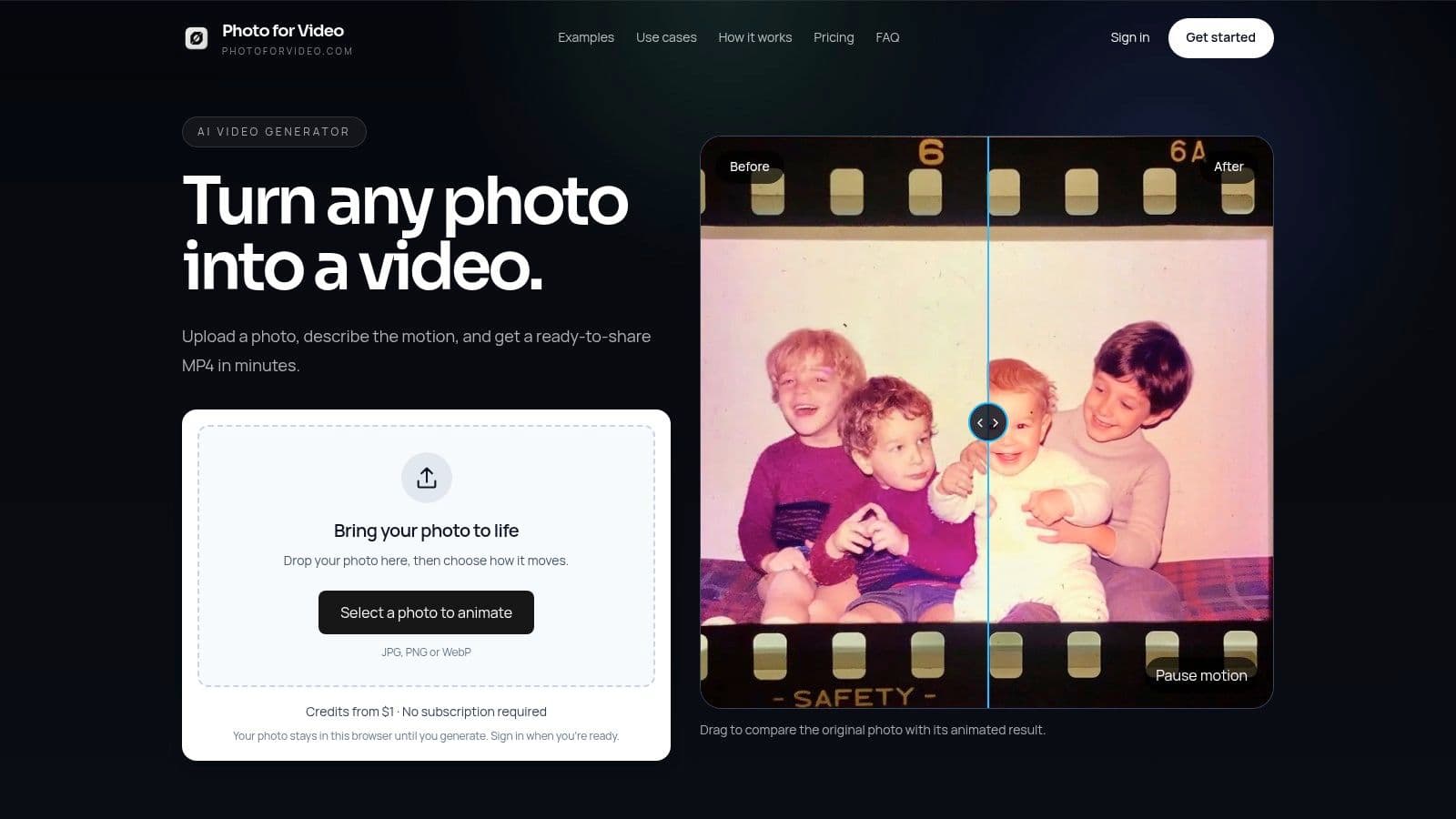
Photo for Video turns a single still into a short MP4 with guided movement, making it suitable for a deliberate push-in without building every keyframe by hand. The quality of the result still depends on the same editorial choices: a clear anchor, a conservative crop, and a motion description that names the camera behavior directly.
Start with the prepared still rather than the untouched archive. Select the image with the subject already positioned safely inside the intended delivery frame. If the face sits close to an edge, no prompt can reliably compensate for the lack of compositional room.
Write a prompt that describes one move
A useful motion line is specific and restrained:
“Slow, centered push-in toward the face, stable framing, gentle finish.”
This wording identifies the camera move, the destination, and the desired behavior. It doesn't ask the system to zoom, pan, rotate, add facial expression, and create environmental motion at the same time.
An ambiguous instruction such as “Make this photo cinematic and emotional” leaves the movement open to interpretation. The result may drift sideways, animate the subject, or add a camera angle that competes with the photograph. For an archival image, ambiguity usually creates more risk than creative value.
The same principle applies when you create a video from a single image. Describe the action as if you were giving a camera operator one concise direction. Name the target, keep the framing stable, and specify a gentle finish when dignity matters.
Choose the plan around the story
Photo for Video's Lite, Plus, and Pro options serve different production needs. Lite is suited to a single-photo clip. Plus and Pro support broader storytelling workflows, including multi-photo sequences and audio-ready exports, with credit usage determined by the selected plan and generation. Choose the level based on whether you're making one keepsake or assembling a fuller tribute, not only on the desire for more motion.
The generated clip should be reviewed before it enters the final edit. If the face shifts, the crop lands on empty space, or the movement becomes more dramatic than the memory allows, revise the focal instruction or use a cleaner source. For additional context on improving detail after generation, this guide to AI video upscaling for zooms can help you evaluate enhancement as a separate step rather than hiding source problems inside the original animation.
Watch the workflow demonstration here:
Before delivering the file, check the basics:
- Format: Export an MP4 that fits the destination editor or platform.
- Watermark: Confirm that the delivered version is watermarked-free.
- Resolution: Match the output to the final surface instead of enlarging a small social file for a full tribute.
- Framing: Watch the opening and closing frames to confirm the subject stays protected.
- Audio: Add music, spoken remembrance, or captions in the wider edit when the story calls for them.
A good automated result doesn't remove editorial responsibility. It gives you a starting clip whose movement can be judged against the photograph's emotional purpose.
Quality Control That Catches Bad Motion Before Anyone Sees It
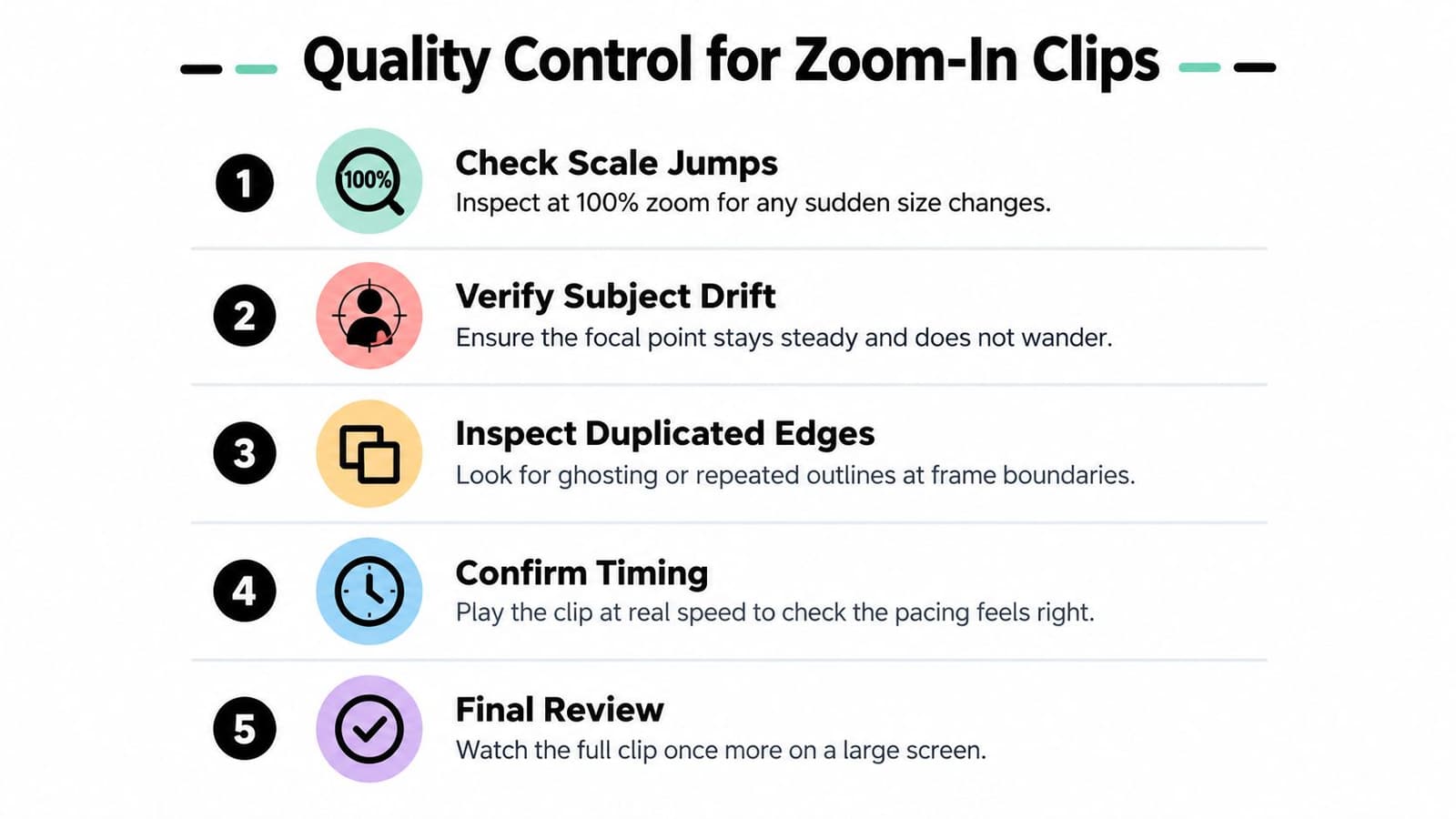
A zoom-in clip can look convincing in a thumbnail and fail when played at full size. Review it at 100% scale, then inspect the sequence frame by frame. Look for sudden changes that the eye may register as unease before you can name the problem.
Temporal consistency matters because viewers expect the photograph to remain the same subject while the camera approaches. Research on video super-resolution found that adding spatio-temporal coupling improved average SSIM from 0.7811 to 0.8152, approximately 4.4%, in a real-world zoom-enhancement benchmark reported in Zoom's video and audio quality material. The practical lesson is not to chase a sharper frame at any cost. A stable, slightly softer move is often more credible than a crisp sequence that shimmers.
Run the inspection in two passes
First, pause through the clip. Check facial landmarks, clothing edges, text, background lines, and the boundary of the crop. Then play the clip at real speed. Some defects are obvious when paused, while others only appear as shimmer or a distracting pulse during playback.
Don't rely on frame rate as a substitute for interpretation. Controlled tests of video-language systems recognized zoom with only 15% to 20% accuracy, and performance remained poor even at 60 FPS and with exaggerated 3× zooms, according to the same quality report. More frames can't repair an unstable trajectory.
Fix the three common failures
- The move feels rushed: The scale change is too large for the available time. Reduce the final enlargement or lengthen the approach.
- The subject drifts: The position path isn't anchored to the focal point. Recenter the destination and remove unnecessary pan movement.
- The face warps: The crop asks too much of a soft or compressed region. Choose a cleaner area, reduce enlargement, and regenerate rather than sharpening the distortion.
Reject any result where the subject changes shape, edges duplicate, or texture appears to boil. A clean regeneration is faster than building a tribute around a defect that becomes obvious on a larger screen.
Accessibility, Dignity, and Privacy for Real Family Audiences
Motion isn't automatically comfortable or appropriate. Viewers vary in their sensitivity to motion-related discomfort, and research links susceptibility during video viewing with sensitivity to motion-parallax cues discussed in research on cybersickness and visual motion. A memorial clip should offer emotional access without requiring every viewer to tolerate the same visual movement.
Use slow scale changes, avoid sudden acceleration, and keep a stable reference in the frame. Where the project allows it, provide a reduced-motion version or a still export. Preserve faces, glasses, wheelchairs, canes, hearing devices, and other meaningful details instead of cropping them away for a more dramatic close-up.
Treat the audience as part of the edit
Captions matter when the clip includes spoken words, music lyrics, names, dates, or contextual text. Keep captions legible with strong contrast, and don't place them over the face or the detail the push-in is meant to reveal.
Emotional restraint matters too. A grieving family doesn't need a sensational crop to prove that a photograph is important. The most respectful version may approach slowly, hold the expression, and end without a dramatic flourish.
Privacy needs the same care. Remove unnecessary metadata from the working copy, understand how the service handles uploads and generated files, and use private or expiring sharing when distributing the finished clip. Photo for Video states that uploads and generations auto-delete after 7 days, according to the publisher information provided for the service.
A 2025 UK survey of 2,019 parents found that 48% didn't know major cloud-photo providers could access and analyze children's images, while 43% knew services could collect metadata such as dates, locations, and times, as reported by Fox News. The same reporting warns that a relatively small collection of ordinary photos can support convincing AI-generated impersonation. That makes sharing choices part of the creative workflow, especially when recognizable children or vulnerable relatives appear in the frame.
Privacy decision rule: The risk comes from the image's identity, context, metadata, and distribution, not simply from how much motion the final video contains.
Putting Zoom-In Videos to Work in Real Projects
A birthday reel can use a moderate push toward a candle, with a bright and expectant finish. A memorial tribute benefits from a slow approach that settles on a smile without altering the face. An anniversary montage can place two restrained push-ins side by side, while an ecommerce motion card can use a shorter, cleaner move toward a product detail.
The working checklist is compact:
- Pick the photo and inspect its usable detail.
- Choose one focal point.
- Write an explicit camera-motion prompt.
- Generate the clip.
- Review it at 100% and frame by frame.
- Export a watermarked-free MP4 matched to delivery.
- Share it privately or through an expiring channel.
Photo for Video turns a single still into a short MP4 with gentle camera movement for birthdays, memorials, anniversaries, keepsakes, and product visuals. Try the focused push-in workflow with your chosen photograph, then visit Photo for Video to create a clip that keeps the image's character while giving the viewer somewhere meaningful to look.