How to Do a Live Photo on iPhone, Android, and AI
Learn how to do a live photo three practical ways: native iPhone Live Photos, converting video to live, and animating old stills with Photo for Video.

You've found a family photo that deserves more than a place in the camera roll: a child leaning toward a birthday cake, a grandparent smiling across the table, or a portrait scanned from an old album. The right way to bring it to life depends on what you have in hand. If the moment is happening now, capture it as a Live Photo; if it's already recorded, convert a video; if the image is completely still, create gentle motion from the photo.
Those approaches produce different files and playback experiences. Choosing between them first saves time and helps the final memory feel natural, not gimmicky.
Table of Contents
- What a Live Photo Is and Why Three Methods Exist
- Capturing a Live Photo Directly on iPhone
- Turning Existing Video Into a Live Photo
- Animating Old Family Photos That Have No Motion to Begin With
- How to Do a Live Photo From One Still Using Photo for Video
- Sharing and Exporting So the Motion Actually Plays
- Matching the Right Method to Your Situation
What a Live Photo Is and Why Three Methods Exist
A Live Photo combines a still image with a short recording of movement and sound. Apple introduced the feature with iPhone 6s and iPhone 6s Plus in September 2015. With Live Photo mode active, the camera buffers movement before the shutter press and records more after it, forming a roughly three-second sequence around a key still frame. The material recorded before the press is saved only when you take the photo. Apple's original Live Photo feature describes how Apple made this a built-in camera feature.
The still remains the anchor; brief movement and sound add context. A blink, a child's smile, or leaves shifting behind a family portrait can make the moment feel present while keeping the photograph recognizable. A Live Photo is not a long video or a GIF, so playback depends on how the file is shared and what the recipient's device supports.
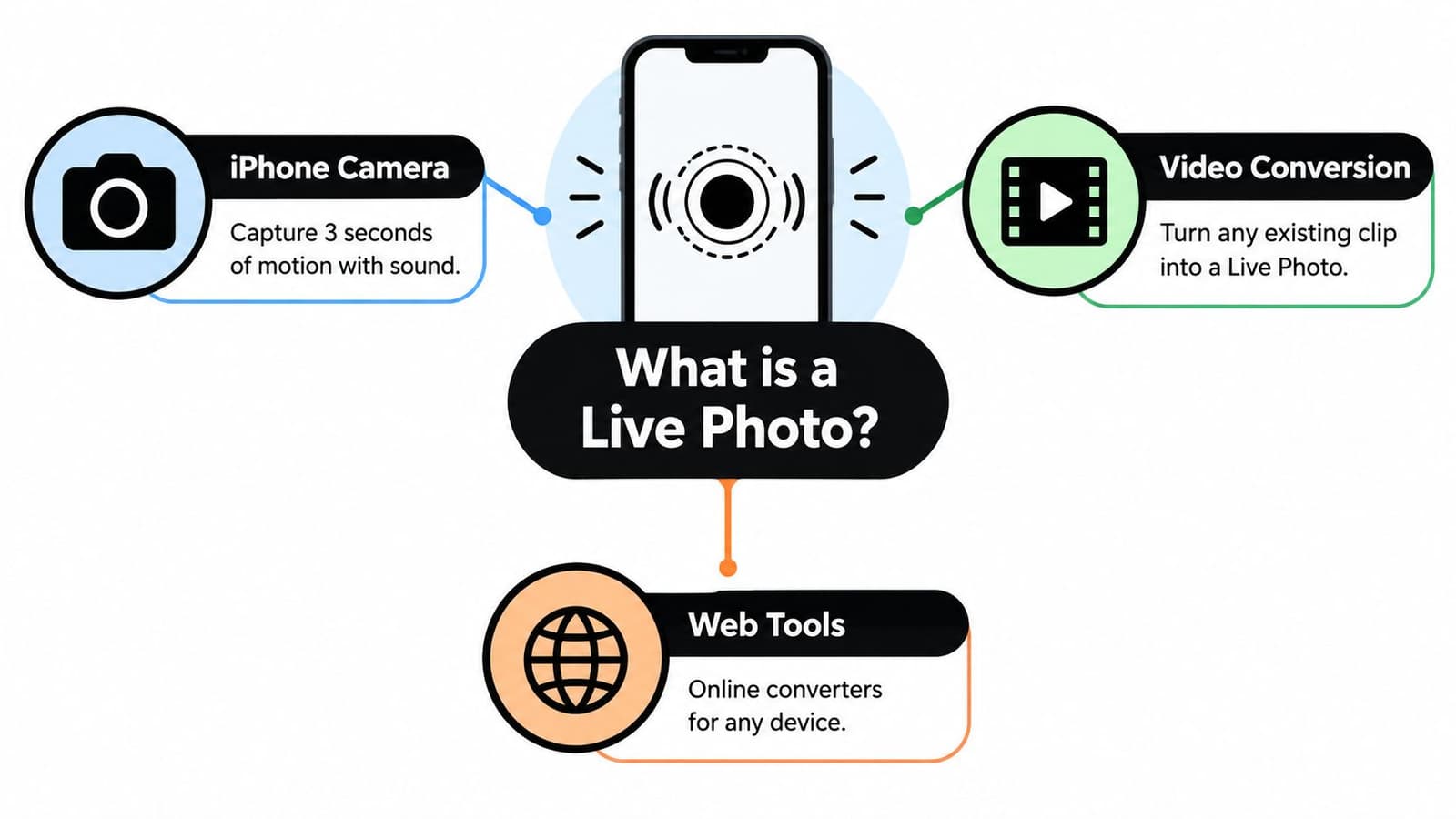
“How to do a Live Photo” can refer to three different jobs:
- Capture a Live Photo on iPhone when the moment is happening now. The built-in camera saves a still with a short window of motion.
- Convert an existing video when you have already filmed the moment. A candle being blown out or a spontaneous reaction can work well if the footage includes a clear frame to use as the still.
- Animate a still photograph when there is no motion source, such as a scan from a family album. An AI tool can generate movement, but its output is a video, not an Apple Live Photo.
These methods create different file types and playback experiences. For a moment in progress, capture it on iPhone; for footage you already have, convert the video; for a photo that never moved, use animation. If the audience includes family members on different devices, check how the finished file plays for them before choosing a format.
Capturing a Live Photo Directly on iPhone
For a moment unfolding in front of you, native capture is the cleanest route. Open the Camera app and check the LIVE control at the top of the screen. Make sure it's enabled, not set to Off; the exact placement can vary with the iPhone interface. Frame the subject, hold the phone steady, and press the shutter.
Steady handling matters because the camera records movement on both sides of the shutter press. If your hand jerks at the moment of capture, the motion can distract from the still frame. A person who moves quickly may also leave the short sequence without a clean, recognizable expression. For portraits, tap the eye or face to set focus and exposure before shooting; if you're using a dedicated camera for a similar moving-portrait workflow, Canon's portrait-setting guidance explains why eye focus and shutter speed matter when a subject moves.
Practical rule: Hold still for the shutter and the moment around it. A little movement in the subject often feels more natural than camera shake.
Some iOS versions offer Loop and Bounce effects in Photos. Loop repeats the movement, while Bounce plays it forward and backward. They can suit playful gestures or environmental motion, but they often look artificial on a quiet family portrait. Keep the original effect if you want the clip to feel like a moment rather than a visual trick.
After capture, open the image in Photos. A motion indicator identifies it as a Live Photo, and pressing and holding the image plays the movement and sound. If playback looks static, check that Live Photo mode was enabled when you took the picture. This simple test is more useful than judging the thumbnail, which shows only the still frame.
Here's a short visual walkthrough of the iPhone capture process:
Turning Existing Video Into a Live Photo
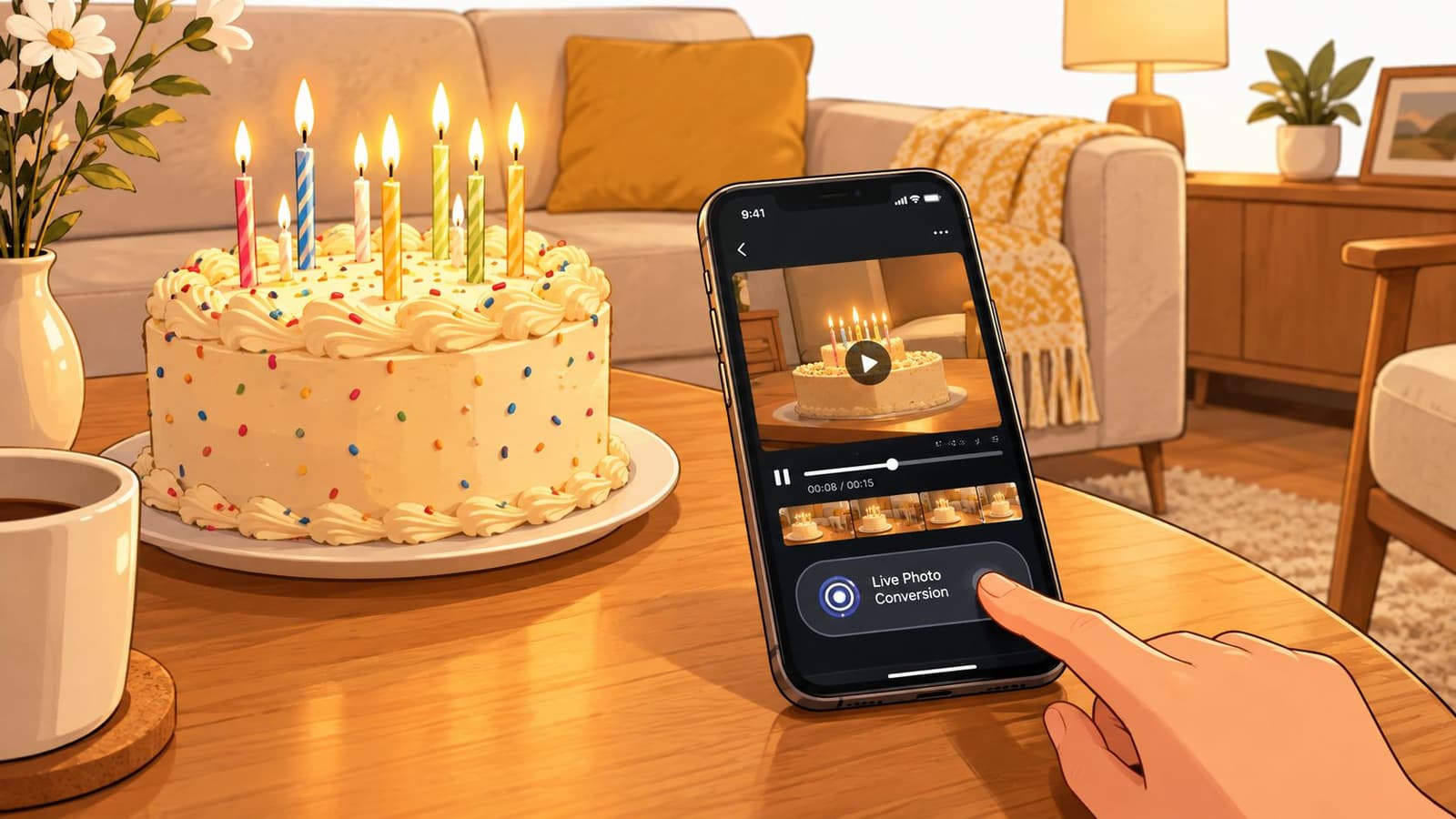
If the moment is already in a clip, conversion lets you select a useful passage instead of trying to recreate it. On iPhone, open the video in Photos and check its options menu or share sheet for Save as Live Photo. If the option appears, select it, choose an available motion style such as Loop or Bounce when prompted, and confirm. The converted result should then sit alongside your other Live Photos in the library.
Menus vary by iOS version and by the type of video. If you can't find the conversion option, update Photos if possible, inspect the video's other actions, or use a dedicated converter. Apps such as IntoLive and Lively are commonly used for this kind of task; they can help when the source comes from another device or needs trimming. Always preview the selected passage before saving. A clip can contain the right event but still have camera shake, a blocked face, or an awkward frame that makes a poor still.
This workflow is especially useful for a birthday candle clip: choose the brief moment where the face and flame are both visible, rather than converting the entire recording. For background on shaping footage into a repeatable sequence, see this guide to making a video loop. Event footage can also come from a hired setup; for example, video booth hire in London can give guests a ready-made moving clip to review and select from.
Conversion is the right choice when you want a moment already recorded to live in the Photos library as a Live Photo. It won't repair a weak source clip, and it doesn't turn an entirely static scan into motion. For that, you'll need a different kind of tool.
Animating Old Family Photos That Have No Motion to Begin With
A scanned portrait gives you a third job beyond capturing a Live Photo or converting recorded video: creating motion from a still. AI photo-to-video animation generates plausible movement from one image. The result is a moving clip, not footage the original camera recorded, so it suits a family tribute when no source video exists.
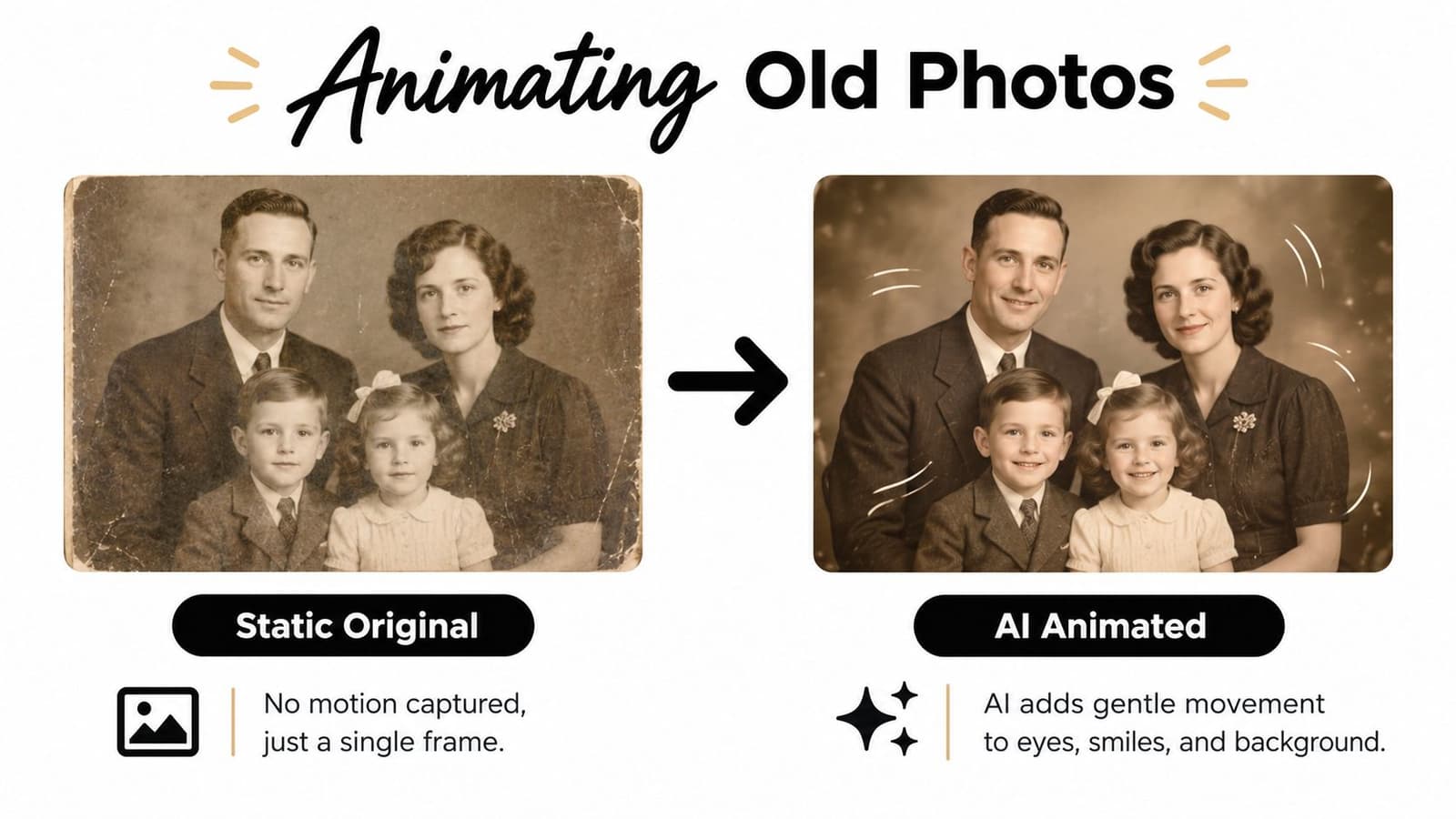
The main challenge is keeping the people recognizable. Old scans may show paper grain, soft focus, faded tones, or minor damage. Heavy smoothing can erase their character; dramatic camera moves or exaggerated expressions can make a family image feel like a digital effect rather than a memory.
Before uploading, check that the scan is upright and the crop includes the full faces and composition you want to keep. Use the highest-quality original available, since compression artifacts can become more obvious when the image moves. If the scan needs cleanup first, follow this guide to enhancing an old photo. Keep the original file too, so you can compare the animation against the source.
For a tribute, restrained movement usually works better than a busy effect. Try a gentle push-in, a natural blink, or a small background shift, then inspect the faces and edges for distortion. Share the finished clip in a format your audience can play across their devices. An AI animation may look like a Live Photo in motion, but it is a video clip, so don't assume it will play as a native Live Photo outside Apple's Photos experience.
How to Do a Live Photo From One Still Using Photo for Video
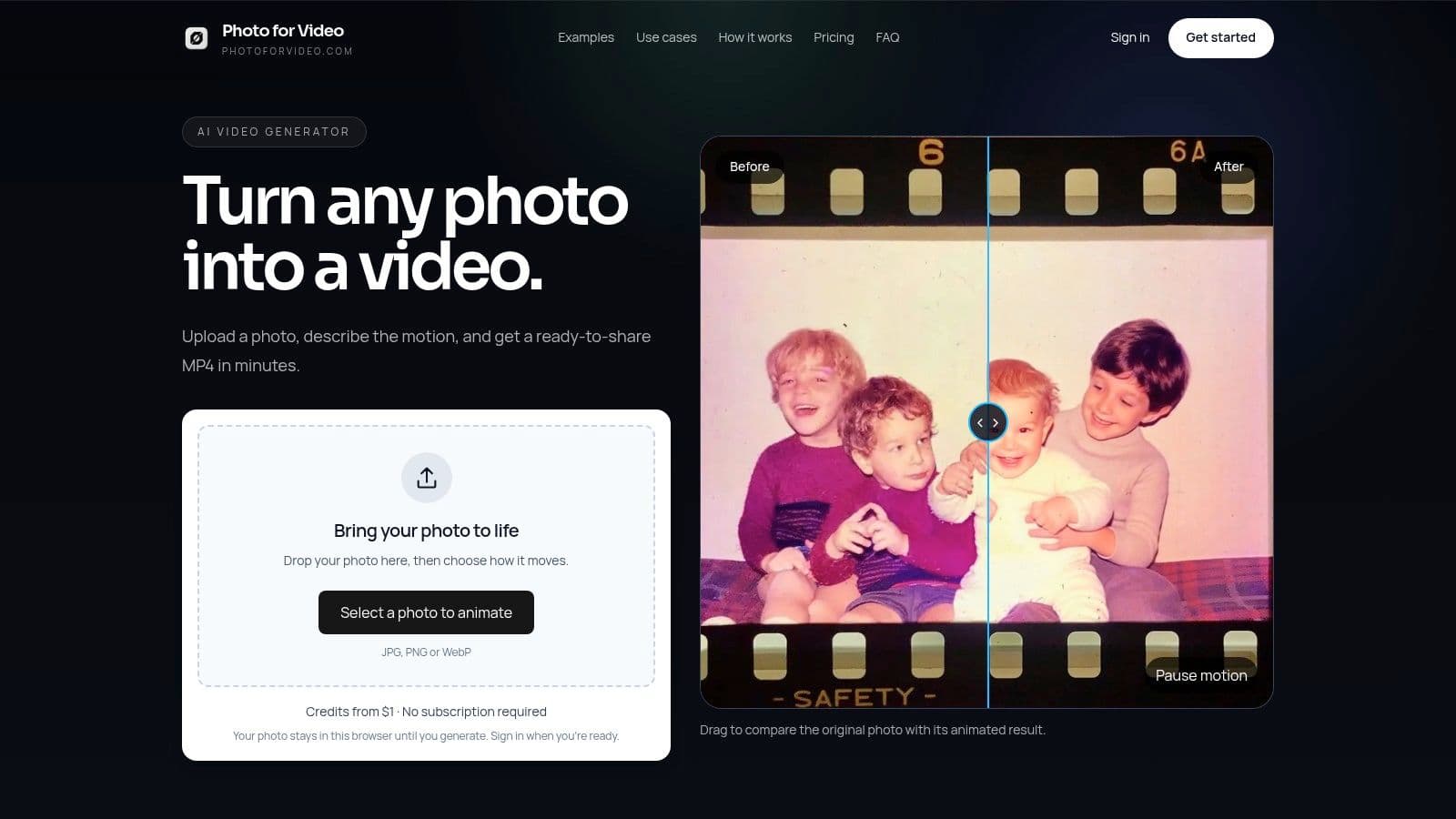
For a scanned portrait or digitized print, Photo for Video turns a still into a short MP4 video rather than an Apple-format Live Photo. That difference matters when you're preparing something to share beyond the Photos app. The browser-based process is straightforward: upload a photo, describe the movement you want, generate a clip, then review and download it.
Write a motion prompt that protects the photograph
Choose one clear movement and a restrained tone. A prompt such as “slow push-in, gentle blink, soft morning light” gives the generator a camera move, a small subject action, and a mood. “Subtle hair movement, no other motion, calm tone” is useful when you want the portrait to stay almost still.
Avoid stacking several actions in one prompt. Asking for a smile, a head turn, a wave, moving hair, and a dramatic zoom can change the face or pull the image away from its original character. For a memorial or family keepsake, make the movement smaller than you think it needs to be, then inspect the face and background before keeping the result.
Generate, review, and save the MP4
Upload the still, enter a concise motion description, and start generation. The service creates a 5–6 second MP4 clip; its credit-based options include Lite, Plus, and Pro, as well as one-time refills and custom credit checkouts. Review the whole clip, not just the opening frame. Look for facial distortion, unexpected movement, or changes to clothing and background details that weren't part of the original photograph.
The service offers watermarked-free exports, and the resulting video can be saved to Photos or brought into a tribute edit. Keep the source still alongside it so you can return to the original whenever you need it. If you're building a longer montage, the video can sit next to native Live Photos in your project, even though it won't behave exactly like one inside Apple Photos.
Sharing and Exporting So the Motion Actually Plays
A moving photo isn't finished when it animates. It's finished when the person you're sending it to can watch it on the device they have, without guessing that they need to press and hold. Apple's Live Photo editing instructions explain that Live Photos include movement and audio, and that Photos supports trimming, muting, and saving the result as a video.
Native Live Photos work most predictably for people using Apple Photos. Playback can be less reliable on Android, Windows, messaging apps, and social platforms. Google Photos has historically supported viewing Live Photos on Android and desktop, but behavior varies more than playback in Apple Photos. When the audience uses mixed devices, exporting an MP4 copy is usually the safer choice. You give up the press-and-hold interaction, but recipients can play the file like a regular video.
| Export format | Best for | Trade-off |
|---|---|---|
| Original Live Photo | Friends and family viewing in Apple Photos | Playback and audio behavior may vary outside Apple devices |
| MP4 video | Android, Windows, messaging apps, and social sharing | Plays as a conventional video, not a press-and-hold photo |
| Muted MP4 | Tributes where background sound distracts | Removes ambient sound that may be meaningful |
Keep the original Live Photo, then make a video copy for wider sharing. Check that the MP4 includes the intended motion and sound before you send it, and mute it if the recorded ambience competes with the moment. If a tribute includes several clips, video quality settings can help you prepare the export for its intended destination.
Matching the Right Method to Your Situation
Use the source you already have to choose your workflow:
- The moment is happening now: Turn on Live Photo in the iPhone Camera app, hold steady, and capture the still with its surrounding movement.
- The moment is already on video: Check Photos for a save-as-Live-Photo option, or use a converter that can trim and export the passage you want.
- The picture has no motion source: Animate the still with an AI photo-to-video tool, keeping the movement gentle and the original character intact.
If a Live Photo won't animate, confirm that Live Photo mode was active when you captured it and test playback by pressing and holding in Photos. If an export arrives as a still, check that you sent the video file rather than the original image. If sound distracts from the tribute, mute the copy before sharing while keeping the original intact.
For AI animation, preview the result before spending more credits on a new version. Simplify the prompt if a face shifts or the background moves too much. Readers building a longer tribute can consider higher tiers for multi-photo storytelling, but one carefully chosen frame and a restrained motion prompt are often enough to make a meaningful keepsake.
If you have a scanned family photo that never had motion, try Photo for Video's workflow of uploading one still, describing the movement, and downloading a watermarked-free MP4. Visit Photo for Video to turn a treasured frame into a short clip you can review, save, and share with the people who matter.