How to Make a Compilation Video People Actually Watch
Learn how to make a compilation video for birthdays or memorials. This guide covers planning, animating photos, editing, audio, and platform-specific exports.
You probably have the typical folder structure that arises when you finally decide to make a family compilation video. A few recent phone clips. Some older digital photos from an external drive. Scanned prints from a parent or grandparent. Maybe one perfect image that matters more than all the rest, but it's soft, cropped badly, or full of glare because it was photographed in a hurry.
That's real-world editing.
Most advice about how to make a compilation video assumes clean source footage and plenty of options. Memorials, birthdays, anniversaries, and family recaps rarely start that way. They start with uneven material and a deadline. The good news is that a strong compilation doesn't depend on perfect files. It depends on story, structure, restraint, and knowing how to make mixed media feel like it belongs together.
Table of Contents
- Define Your Story Before You Start Editing
- Gathering and Preparing Your Raw Materials
- Assembling Your Timeline for Rhythm and Flow
- Polishing Your Edit with Sound and Titles
- Exporting, Troubleshooting, and Quick-Start Ideas
Define Your Story Before You Start Editing
People usually open CapCut, Canva, Descript, Premiere Pro, or iMovie too early. They start dropping clips into a timeline and hope the story appears on its own. It usually doesn't.
A compilation only works when the viewer feels guided. That matters even more for a memorial or birthday montage, where the footage carries emotional weight and every image seems too important to cut. Before you edit a single frame, decide what the video is trying to say.
Choose the purpose and audience first
Start with two questions.
-
Why does this video exist?
A memorial tribute needs reflection and clarity. A birthday montage can be playful and faster. A social reel can be more selective and punchier. -
Who's watching it?
Close family will tolerate more context and slower moments. A broader online audience needs faster visual change and cleaner framing.
The runtime belongs here too. A major shift in compilation production is the move toward template-based workflows where creators choose a target length from under 90 seconds to 3–5 minutes or even 5–10 minutes, depending on platform and category, which shows that timing is shaped by attention and use case rather than raw clip count, as shown in this AI compilation workflow tutorial.
Practical rule: If you can't describe the video in one sentence, you're not ready to edit it.
That sentence can be simple: a warm birthday tribute built around childhood-to-now photos, or a memorial piece that shows a life through family, work, and quiet everyday moments.
If your project is photo-heavy, this is also where a separate memory slideshow planning guide can help you decide what belongs in the sequence before you start arranging media.
Build a simple arc
You do not need a screenplay. You need shape.
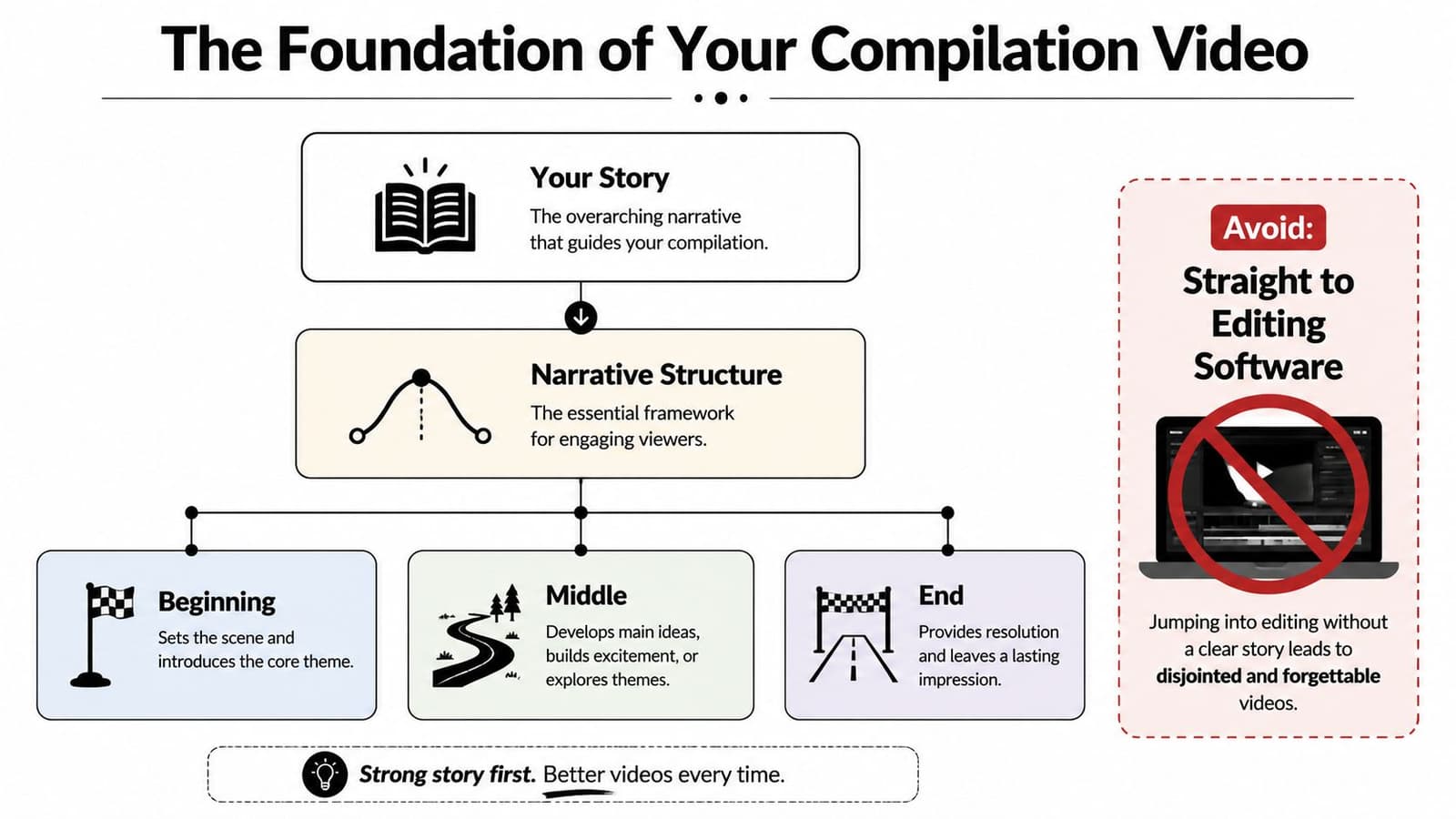
A family compilation usually benefits from a beginning, middle, and end:
| Part | What it does | What to include |
|---|---|---|
| Beginning | Sets tone quickly | Opening portrait, place, date, title card, one strong establishing clip |
| Middle | Carries the emotional body | Milestones, relationships, everyday moments, contrast between eras |
| End | Gives closure | Final message, favorite image, quiet ending beat, credits if needed |
What doesn't work is the random-dump method. That's the version where every clip gets equal treatment, nothing is prioritized, and the viewer never understands why one image follows another.
A stronger sequence groups material by emotion, relationship, or chapter of life. For a memorial, that might mean family, work, hobbies, then later years. For a birthday montage, it might mean early childhood, school years, friends, and recent celebrations. Organizing material this way saves many editors hours. Once the story is clear, trimming becomes easier because you know what each shot has to earn.
Gathering and Preparing Your Raw Materials
This stage is less glamorous than editing, but it's where the compilation either becomes coherent or stays messy. It's like cooking. You don't start sautéing before you know what ingredients are usable.
Most family projects include a mix of vertical phone footage, horizontal clips, screenshots, old JPGs, scanned prints, and maybe one VHS transfer that looks nothing like the rest. Tutorials often skip this problem, but there's a real gap around making low-resolution and mixed-source media feel consistent, especially when you're working from phone photos and scanned prints and need to simulate motion or manage aspect ratios from a single still image, as discussed in this mixed-source compilation guidance.
Treat source collection like ingredient prep
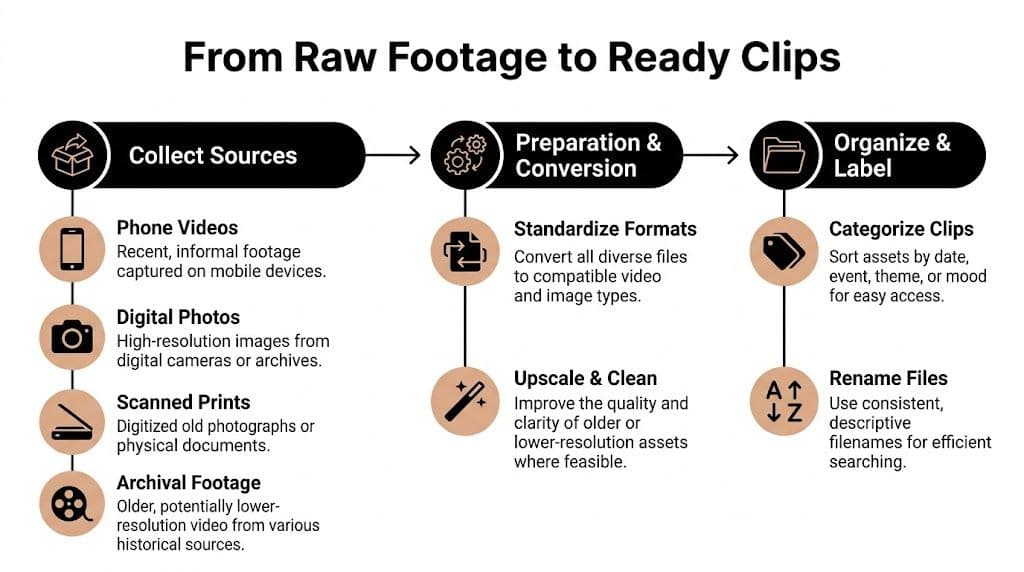
Pull everything into one project folder before you touch the timeline. Inside that folder, create subfolders that make editorial sense.
- By era: childhood, teenage years, wedding, recent years
- By source type: phone video, digital photos, scanned prints, archival transfers
- By importance: must use, nice to use, backup
That last category is underrated. When every item sits in one giant folder, editors keep throwing more media at the timeline instead of making choices.
A practical naming system helps too. Rename files with plain language you can recognize quickly, such as 1998_family_picnic_scan or 2021_birthday_toast_vertical. This saves time later when you need one specific moment and don't want to click through unnamed exports.
A short visual walkthrough can help if you're sorting mixed material for the first time:
Make imperfect media feel intentional
You're not trying to make every source look identical. You're trying to make the differences feel deliberate.
Old scans often look best when you preserve some texture instead of over-cleaning them. If you remove all grain, flatten contrast, and sharpen too hard, faces can start to look brittle. A better approach is gentle consistency:
- Crop with restraint: Don't zoom so far into a low-res photo that it falls apart.
- Use one color approach: If some photos are warm and faded, don't leave one image icy blue beside them unless there's a reason.
- Decide your frame treatment early: Full-bleed crop, blurred background fill, or pillarbox. Pick one approach and repeat it.
A single still image can carry a whole section of a compilation if you give it motion, breathing room, and the right placement.
That's especially true when you only have one surviving photo from an important year or person. In those cases, subtle movement matters. A slow push-in, a drift across faces, or light parallax-style animation can make a still feel present without turning it into a gimmick. AI animators can help here, but tasteful use is the standard. Gentle motion usually ages better than dramatic effects.
Build a prep pass before the edit pass
Before the main edit, create a ready-to-use asset bin.
Include:
- Trimmed selects from longer phone videos
- Clean still exports of old photos after crop and basic correction
- Motion versions of key stills when a static image needs visual life
- Aspect-ratio decisions for vertical and horizontal material
This prep pass reduces the jarring feeling that happens when mixed media lands side by side with no thought behind it. The result is not perfection. It's consistency. In family work, that's usually what viewers respond to most.
Assembling Your Timeline for Rhythm and Flow
Editing is where many creators either make the video watchable or subtly ruin it. The mistake isn't usually lack of software skill. It's trying to solve pacing with transitions.
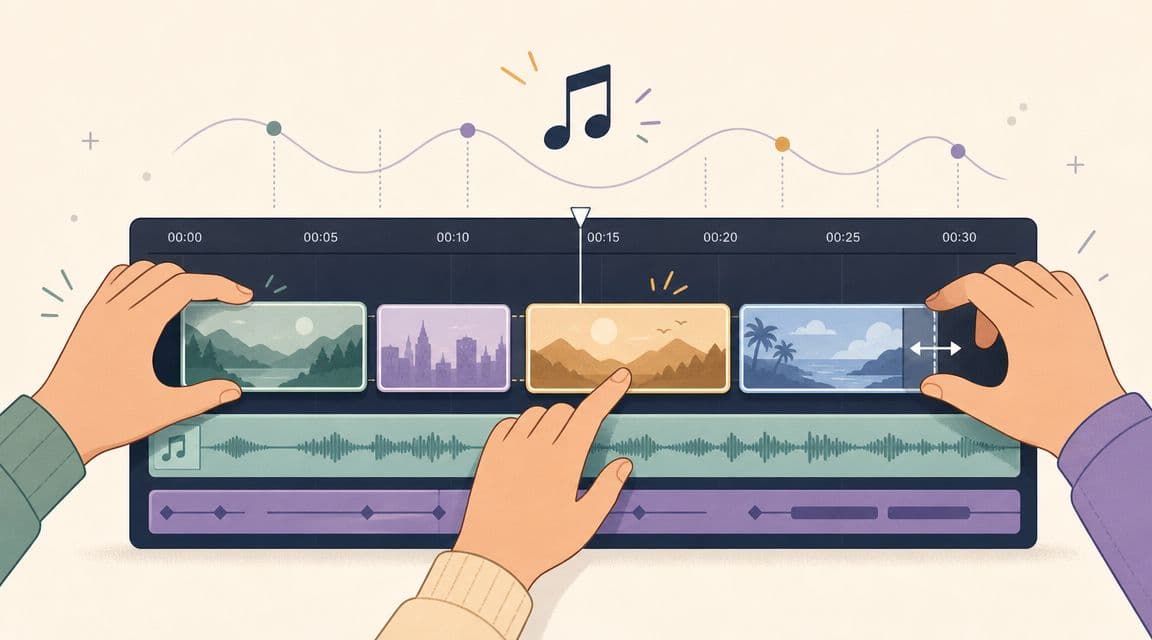
A stronger workflow is simpler. Gather all clips, place them on one timeline, trim the dead space, reorder for narrative flow, and only then add transitions, music, and text. That sequence comes from an editor-grade compilation workflow in Descript's guide.
Build the sequence before decorating it
Start with a silent assembly.
Drop in your clips and stills without music first. This forces you to judge whether the sequence makes emotional sense on its own. If it only works after you add a sentimental song, the structure is probably weak.
Use this order:
-
Place your anchor moments first
These are the shots or photos that absolutely belong. A wedding kiss, a grandparent laughing, a child blowing out candles, a candid look at the camera. -
Trim aggressively
Most source clips start too early and end too late. Cut setup, fumbling, and dead air. Keep the gesture, the smile, the look, the toast, the hug. -
Create clusters
Put related moments together. Vacation clips belong with vacation stills. Childhood school portraits belong near handwritten cards or family snapshots from the same era. -
Check the handoff between moments
The transition from one chapter to the next matters more than flashy transition presets.
If you can mute the edit and still understand the story, you're close.
This phase is where iterative refinement matters. Good compilations usually improve through repeated passes where you watch for choppy segues, awkward speed changes, and places where the sequence loses momentum.
Use contrast to hold attention
One of the hardest parts of how to make a compilation video is avoiding sameness. When every shot is the same size, same duration, and same emotional temperature, people stop engaging even if the subject matters to them.
Vary these elements on purpose:
| Element | Too much sameness looks like | Better approach |
|---|---|---|
| Shot length | Every image holds for the same time | Mix quicker cuts with a few longer pauses |
| Framing | Repeated close crops of faces | Alternate wide, medium, close, and detail shots |
| Media type | Only still photos for long stretches | Rotate stills, live clips, titles, documents, or context cards |
| Energy | Constant intensity | Build, release, then build again |
A memorial often benefits from restraint in the first third, emotional fullness in the middle, and a calmer ending. A birthday montage can open quickly, settle into a few meaningful pauses, and finish with a celebratory lift.
If part of your edit needs a repeated visual treatment, such as a hold on one image for a quote or title, a separate video loop tutorial can be useful for making those moments feel smooth instead of frozen.
Find the moment where the edit breathes
Family editors often overpack because every image feels valuable. But value in life isn't the same as value in the cut.
Leave room for one or two moments to land. A still photo after a run of home-video clips can be powerful. So can a short pause on a face before the next chapter begins. Rhythm is what turns a sequence into an experience instead of a file dump.
A useful test is to watch the timeline and ask:
- Where do I start checking the time?
- Which clip repeats information I already got?
- Which image earns a longer hold because it changes the feeling?
If you can answer those truthfully, your sequence will tighten quickly.
Another good habit is moving your best material earlier than feels comfortable. Don't save every strong image for the end. People decide fast whether they trust the edit. Lead with confidence, then keep rewarding attention.
Polishing Your Edit with Sound and Titles
Once the picture sequence works, audio becomes the emotional glue. This is also the stage where overproduction can do damage. Family compilations don't need a dense sound design package. They need music and text that support the material instead of crowding it.
One widely repeated editing rule is still worth following here: syncing cuts to the beat of a music track can lift attention quickly, and combining different visual types such as footage, animation, or graphic elements helps the piece feel more dynamic. The deeper point is that the strongest edits compress multiple moments into a coherent emotional arc, with music chosen deliberately to drive rhythm, as described in this video engagement editing guide.
Let music set the emotional pace
Choose the track after the picture edit is mostly stable, not before. If you start by forcing everything to fit a song you love, you'll keep clips that don't deserve to stay.
Good pairings are usually obvious:
- Memorial tribute: background, reflective, spacious
- Birthday montage: warm, upbeat, celebratory
- Anniversary or family keepsake: steady, emotional, not overdramatic
Avoid songs that tell the viewer what to feel too bluntly. In remembrance work especially, quieter music often creates more dignity than lyrics that explain the emotion for them.
The music should carry the pace, not compete with the memory.
When you do start syncing to the beat, use it selectively. Not every cut has to hit a drum accent. Beat sync works best as structure, not as a gimmick. Let stronger beats introduce chapter changes, photo runs, or moments of lift.
Keep titles simple and useful
Text in a compilation should clarify, not decorate. The most useful title cards are often the plainest ones.
Use text for:
- Names
- Dates
- Locations
- Short contextual lines
- Closing dedication or thank-you
A memorial video might open with a full name and years, then use occasional lower-thirds for family groupings or locations. A birthday montage might need only an opening card and a final message.
Formatting matters more than effects. Pick one font family, one title style, and one placement logic. If every title slides in differently, the viewer starts noticing the text system instead of the story. For practical options on styling captions and overlays cleanly, this guide to adding text to video is a useful reference.
Exporting, Troubleshooting, and Quick-Start Ideas
By the export stage, the biggest mistakes are usually already baked into the cut. The most common technical pitfall is still overloading the compilation with too many untrimmed clips. Stronger edits trim down to the essential moments, lock the sequence first, and often use music as timing reference with cuts around beat changes, as explained in this compilation editing tutorial from Motionbox.
That means export isn't where you rescue pacing. Export is where you preserve what already works.
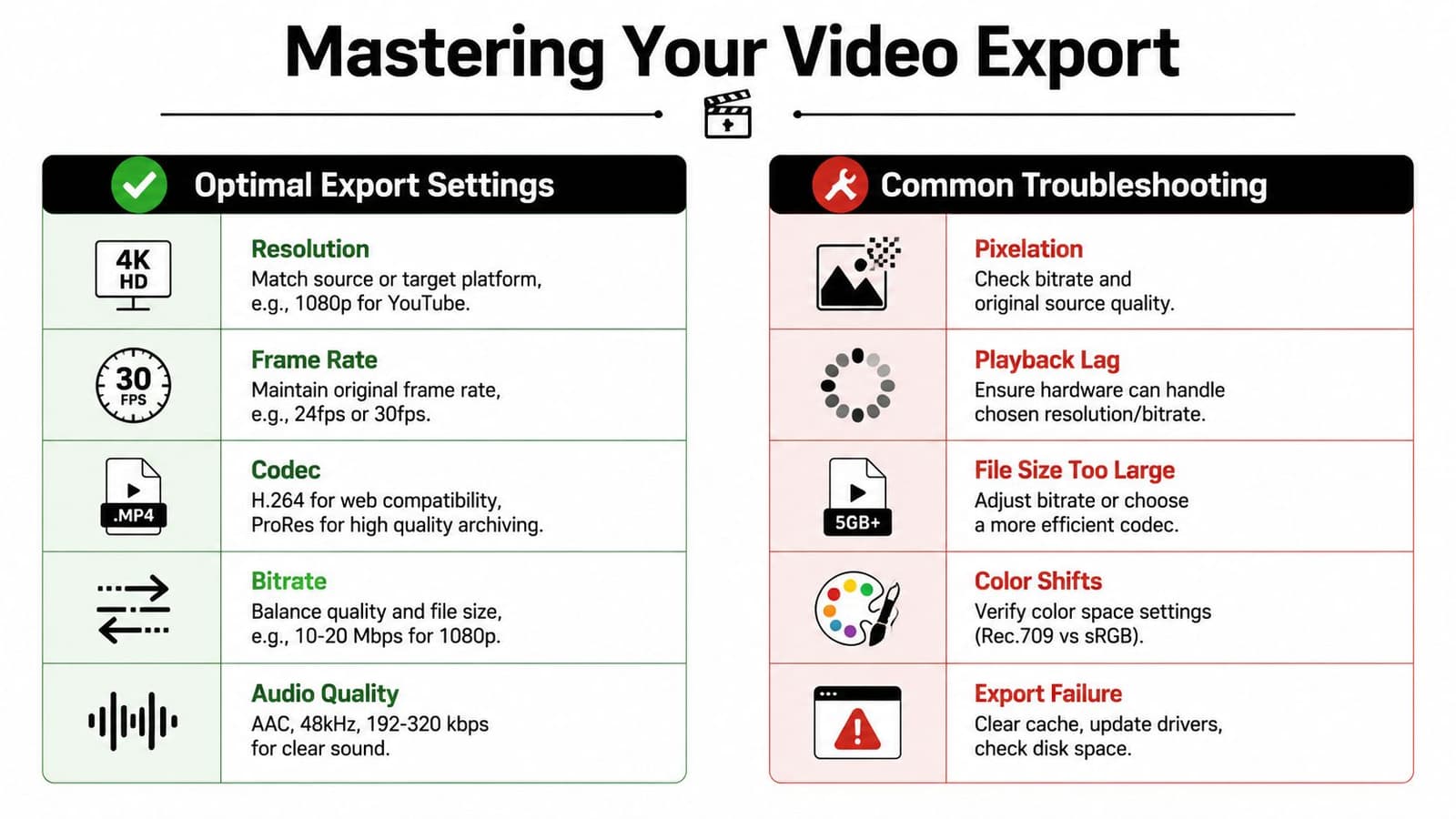
Export for the place where people will watch
Use settings that match the final destination and your source quality.
- For YouTube or TV playback: export a standard horizontal version if your project was built that way.
- For Reels or Shorts: create a dedicated vertical export rather than relying on an automatic crop.
- For family sharing: keep a clean master file, then make smaller copies for messaging apps if needed.
If your source includes older scans and small phone clips, don't expect export settings to manufacture detail that isn't there. A cleaner, moderate export usually looks better than pushing sharpness and compression too hard.
Fix the common problems before you share
Run one final watch-through on the exported file, not just the timeline preview.
Check for these issues:
-
Audio drift or mismatched volume
Dialogue, ambient sound, and music should feel balanced. If one toast is much louder than the rest, fix that before delivery. -
Awkward text timing
Names and dates need enough screen time to read comfortably. -
Jarring mixed media moments
Watch for one over-saturated phone clip or one overly sharpened scan that breaks the visual flow. -
Stuck ending
Many compilations end one beat too late. Tighten the final hold unless that lingering pause is clearly intentional.
Exported playback reveals problems the timeline can hide.
Three fast structures that work
When you need a reliable starting point, use a repeatable shape.
Birthday montage
Open with a recent smiling image. Move back to childhood. Build forward through school, friends, and family. End in the present with celebration.
Memorial tribute Begin with a strong portrait and name card. Group memories by relationships and phases of life. Finish on a calm image and a brief closing message.
Family vacation recap
Start with departure or arrival. Alternate scenic footage with candid family moments. End with one final group shot or travel-home beat.
The useful thing about these templates isn't speed alone. It's that they stop you from treating every project like a pile of unrelated clips.
If you're working with old scans, phone photos, or a single treasured image that needs gentle motion, Photo for Video is built for exactly that kind of compilation workflow. It turns one still image into a short moving clip that fits naturally into birthday montages, memorial tributes, and family keepsakes, so you can bridge the gaps where no live footage exists and make mixed-source edits feel more alive.