Motion Windows for Photo Animation: How to Build Them
Motion windows explained: build masked, layered, eased photo animations for family tributes, reels and keepsakes.
You've got a scanned family photo open on your phone, maybe your parents at a kitchen table or a grandparent holding a birthday cake, and you want it to feel alive for a tribute or reel. You don't want the face to morph, the grain to vanish, or the whole picture to wobble like jelly. You want one small thing to move, gently, while everything you recognize stays exactly as it was.
That's the problem motion windows solve. Instead of asking a tool to animate everything and hoping for the best, you decide in advance what should move, how much, and what must stay still. That decision protects the photograph first and adds life second.
Table of Contents
- What a Motion Window Is in Photo Animation
- How to Build Motion Windows Step by Step
- Writing Motion Prompts That Keep Analog Texture
- Export Settings and Use Cases for Tributes and Reels
- Troubleshooting Motion Windows That Look Wrong
- Check Consent Before You Share
What a Motion Window Is in Photo Animation
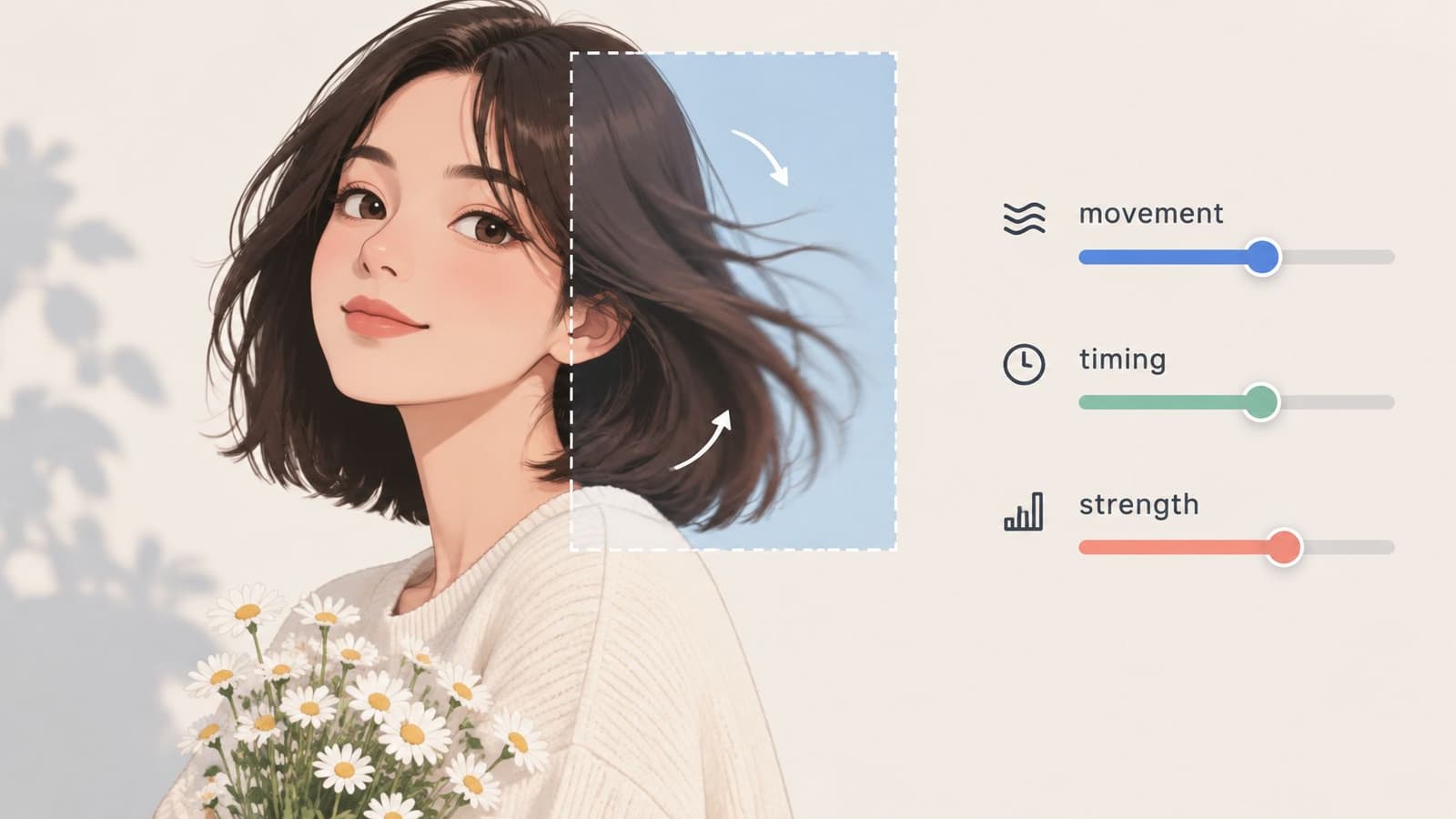
A motion window is a bounded part of a still photo that gets its own movement, timing, and strength, while the rest of the frame stays still or moves in a different way. It's not a preset effect you apply to the whole image. It's a decision you make about one area at a time.
The Three Things a Window Controls
- Region: The mask you draw around a face, a candle flame, a sleeve, a patch of sky, or water. Only pixels inside that boundary are asked to change.
- Duration: The part of the 5 to 6 second clip when the movement runs. A window can start late, end early, or run throughout.
- Strength: How far pixels drift, often just a few pixels or a small fraction of the frame width. Small is usually more believable.
Whole-frame animation works differently. Everything drifts together, and old scans can start to look like warped plastic because grain, edges, and faces all bend at once. A window limits that damage. Fewer moving pixels means less smeared texture and fewer invented details.
Take a 1960s wedding portrait. You could let only the bouquet ribbons shift slightly and the background haze soften, while both faces hold completely steady. The viewer feels a hint of air in the room without doubting who these people are. That's usually the right trade for family material.
A window isn't a visual trick. It's permission, given to one part of the photo and withheld from the rest.
Before you open any tool, pick a photo you already have. Name two or three windows you'd define on it, and write one sentence for each explaining why that area moves. If you can't explain it in a sentence, it probably shouldn't move yet.
How to Build Motion Windows Step by Step
Start with preparation, because most bad results come from a rushed setup rather than a weak prompt. These steps work whether your tool has masking built in or you separate layers in an editor first.
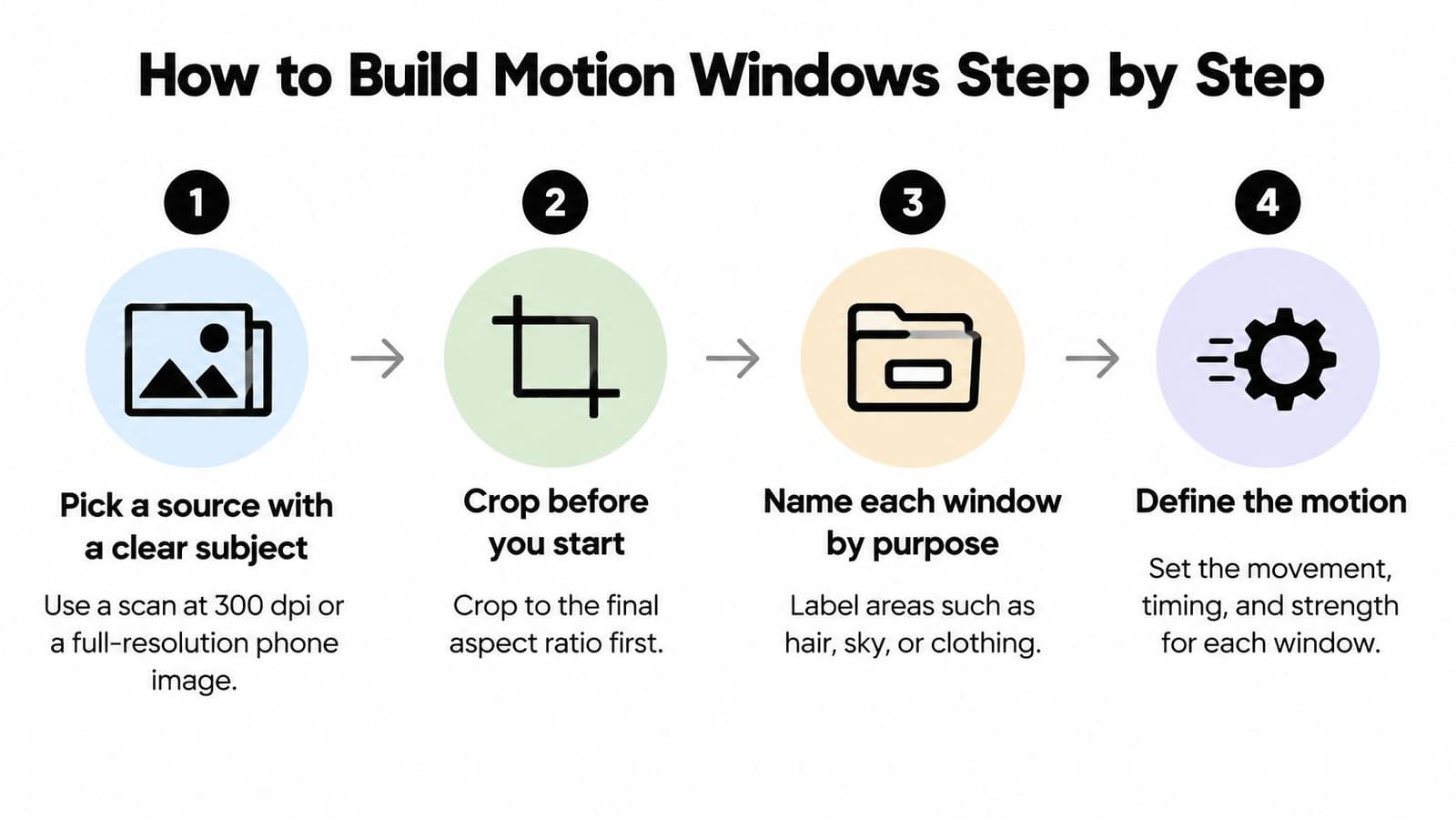
- Pick a source with a clear subject. Use a scan at 300 dpi or a full-resolution phone image. Blurry sources force the tool to invent detail you didn't ask for.
- Crop to the final aspect ratio before you start. Cropping later can cut through a window or push a face too close to the edge. Decide the destination first.
- Name each window by its purpose. Label them hair, sky, tablecloth, or flame, and sketch each boundary on paper or in your editor. A name keeps you honest about what belongs inside.
- Mask tightly and feather the edge. Draw the mask around the moving area only, then soften the edge so motion fades into still pixels. Hard edges create a visible halo, and loose masks pull nearby features along.
- Layer the depth. Assign foreground, midground, and background, then move the foreground most and the background least. That difference reads as real space instead of a flat image sliding sideways.
- Set easing, not just speed. Use ease-in-out for breathing or drifting movement so it starts and stops gently. Linear motion looks mechanical within a second because real objects rarely move at one constant rate.
Camera, Prompts, and Preview
- Add one camera move at most. A slow push-in of about 3 to 5 percent or a gentle pan across the whole frame is enough. Don't stack a camera move on top of a strong window, because your eye can't tell what's supposed to be moving.
- Write the prompt for each window separately, then preview small. Check the clip at half size and at phone size, and reduce any window that pulls attention away from the subject. Small screens exaggerate wobble you might miss on a monitor.
If your generator has no mask tool, you can still use this logic. Separate the subject and background into layers beforehand, animate only the layer you mean to move, and composite the still layer back over it. For longer sequences built from many finished clips, automate photo slideshows with FFmpeg can help you assemble files consistently once each window is approved.
Keep a short note for every window listing its region, duration, and strength. That record lets you reproduce a good result, compare two versions fairly, or correct one setting without rebuilding everything.
Ready test: If you can name the one thing that should move in each window, the setup is ready. If you're naming two or three things, split or simplify it.
Writing Motion Prompts That Keep Analog Texture
A useful prompt follows a simple order: subject, one motion, strength, camera move, tone. For a family scan, that might read: "Gentle breeze moves the curtain behind her, her face stays still, slow push-in, warm soft tone." Each part does one job, so you can change one part without rewriting the rest.
Words That Calm Motion and Words That Inflate It
Calm words include slight, subtle, slow, and steady. They tell the model you want a small change over time. Inflating words include dramatic, spin, zoom, and dance. They invite large movement, and large movement is where faces and hands break first.
Be especially careful with prompts that ask for smiles, waves, or speech in old family photos. The model can't recover an expression from a still image. It invents one the person never made, which can feel wrong to relatives who knew them. A safer request moves things around the person, such as curtains, clothing, candlelight, or leaves, while the person stays as photographed.
- One motion verb per window: "Hair shifts slightly" gives a clearer instruction than asking hair to lift, sway, and shine at once.
- Two or three windows at most: In a short clip, more windows compete for attention and multiply the chances of one looking wrong.
- Explicit preservation phrases: Add lines such as keep film grain, dust, and scratches, do not smooth skin, and keep the original tone and contrast.
Those preservation phrases matter because many tools default to cleaning an image up. Smoothing can erase the very texture that dates a photograph. For a deeper look at protecting that surface, see how to preserve vintage film texture in animated photos.
A common mistake is writing "make it cinematic." That phrase often triggers modern color grading, stronger contrast, and cooler or warmer tones that erase the photo's era. A faded 1970s print should still look like a faded 1970s print after it moves.
Be honest about limits, too. A prompt can't restore detail lost to fading, water damage, or tears. If part of a face is missing in the scan, the tool will guess, and the guess may not resemble your relative. It's better to keep damaged areas still or outside the crop than to ask motion to hide them.
Try this exercise with a weak prompt such as "make grandma come alive and smile at the camera beautifully." Split it into the five parts. Replace the invented smile with one safe motion, add a strength word, choose or remove the camera move, and name the tone. You'll end with a calmer instruction that respects the original.
Export Settings and Use Cases for Tributes and Reels
Export the MP4 at the aspect ratio of its destination, keep the original photo as your untouched master, and name each clip by window and version. Let motion strength fall as emotional weight rises.
The Web.Dev accessibility guidance on motion recommends allowing users to pause, stop, or hide automatically moving content that lasts more than five seconds, and it advises caution even with shorter animations. So don't assume a brief clip is safe for everyone. Offer a still fallback or a lower-motion version, especially for memorials, older viewers, and anyone sensitive to movement. Gentle opacity changes and very small movements suit tributes better than facial reenactment, strong parallax, continuous zooms, or simulated handheld camera work.
| Use case | Aspect ratio | Clip length | Motion level | Export note |
|---|---|---|---|---|
| Memorial tribute slideshow | Match destination | 5 to 6 s per photo | Low, drift of a few pixels | Single play, no loop, provide a still version |
| Birthday reel | 9:16 | 5 to 6 s per clip | Medium | Leave space at the top and bottom for captions |
| Anniversary montage | Match destination | 2 to 3 clips chained with crossfade | Low to medium | Keep one motion style across all clips |
| Social feed post | 1:1 | 5 to 6 s | Medium | Check the crop keeps faces fully inside the frame |
| Ecommerce product visual | 1:1 or 4:5 | 5 to 6 s | Low | Keep product edges sharp and avoid moving labels |
If you're producing these clips regularly, build a repeatable Reels workflow so framing, captions, and exports stay consistent. Before publishing, check your render against practical video quality settings for clean exports, then watch the file on a phone at normal brightness.
Troubleshooting Motion Windows That Look Wrong
The most common problem is simple to spot. The whole face wobbles when only the hair should move. That almost always means the mask is too loose and includes part of the forehead, cheek, or jaw, so tighten it to the hair only and preview again.
Match the Symptom to the Fix
| Symptom | Likely cause | Fix |
|---|---|---|
| Face wobbles when only hair should move | Mask too loose, includes facial features | Tighten the mask to the moving area only |
| Halo or shimmer at the edge of a window | Feathering too low or hard mask edge | Increase feathering and keep the edge inside the moving area |
| Motion looks robotic | Linear easing | Switch to ease-in-out |
| Grain smears or disappears | Strong motion or over-smoothing | Lower strength and add the keep-grain phrase to the prompt |
| Whole frame drifts while subject stays still | Camera move conflicts with a window | Remove the camera move or reduce it to a few percent |
| Clip jumps at the end | Loop endpoints do not match | Play once or end on the starting pose with a short fade |
Work through the table one row at a time. Change a single setting, export a preview, and watch it at the size your audience will use. If you change the mask, strength, and prompt together, you won't know which change helped.
Some windows shouldn't be rescued. If an area still looks wrong after two careful adjustments, removing it usually gives a stronger clip than tuning it a third or fourth time. A photo with one believable moving curtain beats a photo with a curtain, a shifting face, and a bending table edge.
Pay attention when a result feels unsettling even though you can't name a technical flaw. Small facial distortions can create that reaction, and understanding the uncanny valley in photo animation helps you decide when to reduce motion or keep a face completely still.
Remove the window that's fighting you. Stillness is a valid setting, and for many portraits it's the most respectful one.
Keep your failed previews in a separate folder with the setting you changed in each filename. That small habit turns troubleshooting into a record you can reuse on the next family photo, instead of a series of guesses you'll have to repeat.
Check Consent Before You Share
Before you animate a child or a deceased relative, ask whether that person should be animated at all, and who has agreed. A technically gentle motion window can still be the wrong choice if close family members find it upsetting or never gave permission.
A 2025 UK report cited by RTÉ warned that as few as 20 images of a child may be enough to create a deepfake video, while parents in its survey uploaded an average of 63 images monthly and 59% of respondents said those uploads included family photos. That doesn't make every family animation dangerous, but it does mean a private-looking keepsake isn't automatically harmless once exported and shared.
- Record documented permission: Get clear agreement from living relatives, especially for minors. EventUploader's guide to photo consent is a practical starting point for writing that permission down.
- Upload only what you need: Use the one photo for the clip, and remove identifying metadata such as location data where practical.
- Keep control of copies: Download and keep the MP4 locally, then check the platform's stated retention and deletion periods before relying on any stored copy.
Keep private generation separate from public posting. Memorial and birthday content deserves stricter privacy defaults than an ordinary social post because its emotional value can create pressure to share quickly with a wider audience. Consent rules differ across countries, so written permission and a clear process for deleting source files and generated clips form a sensible baseline.
Test your comfort first. Run one window on a non-sensitive photo, check the result, and sit with how it feels. Then decide, with the people affected, whether to animate the family photograph.
Ready to try one careful window on a photo you already love? Photo for Video turns a single still image into a short, gentle MP4 for birthdays, memorials, anniversaries, and family keepsakes, while preserving the texture of the original. Start with one small movement, keep the faces steady, and see how the moment feels.