10 Best Video Converter for Android Apps in 2026
Find the best video converter for Android. Our 2026 guide reviews 10 apps for format conversion, compression, and batch processing, with pros and cons.
You're probably here because your phone is full of clips that don't fit the next step. Maybe an old family video won't open in your editor. Maybe WhatsApp choked on the file size. Maybe you pulled footage from a drone, a messaging app, and a relative's ancient camcorder archive, and now nothing matches. That's when a good video converter for Android stops being a convenience and becomes part of the workflow.
On Android, these apps aren't just doing format swaps anymore. Google's Android media stack has included support since Android 13 for apps to request per-frame encoding statistics, which matters because developers can use that data to improve multipass encoding and frame preprocessing. In plain English, better Android conversion apps can make smarter decisions about quality and efficiency instead of just brute-forcing an export.
That matters because the category is still growing. The global video converter apps market was valued at about $2.3 billion in 2023 and is projected to reach $4.6 billion by 2032, which lines up with what creators and families already know. Phones are now the intake point, staging area, and often the final delivery device.
The list below is workflow-first. Not “which app has the longest feature list,” but which one fits the job: fast cleanup, archive prep, privacy-sensitive conversion, or power-user control.
Table of Contents
- 1. Remux – Video Converter & Compressor
- 2. Video Converter, Compressor (Inverse.AI)
- 3. VidCompact – Video Compressor & Converter (VideoShow)
- 4. Timbre – Audio/Video Cutter & Converter
- 5. Video Transcoder (open source, FFmpeg-based)
- 6. Media Converter Pro (open source, Khang-NT)
- 7. FFmpeg Media Encoder (by SilentLexx UA)
- 8. To MP4/3GP/WebM Video Converter (Clogica)
- 9. Video Converter (by VidSoftLab)
- 10. Media Converter (by Weeny Software)
- Top 10 Android Video Converters, Feature Comparison
- Final Thoughts
1. Remux – Video Converter & Compressor
If your main problem is “just make this thing play everywhere,” Remux is the kind of app that earns a place on your phone fast. It's built around mobile-first conversion and remuxing, so it suits the common real-world job of taking a messy source clip and turning it into a clean MP4 for editing, sharing, or long-term storage.
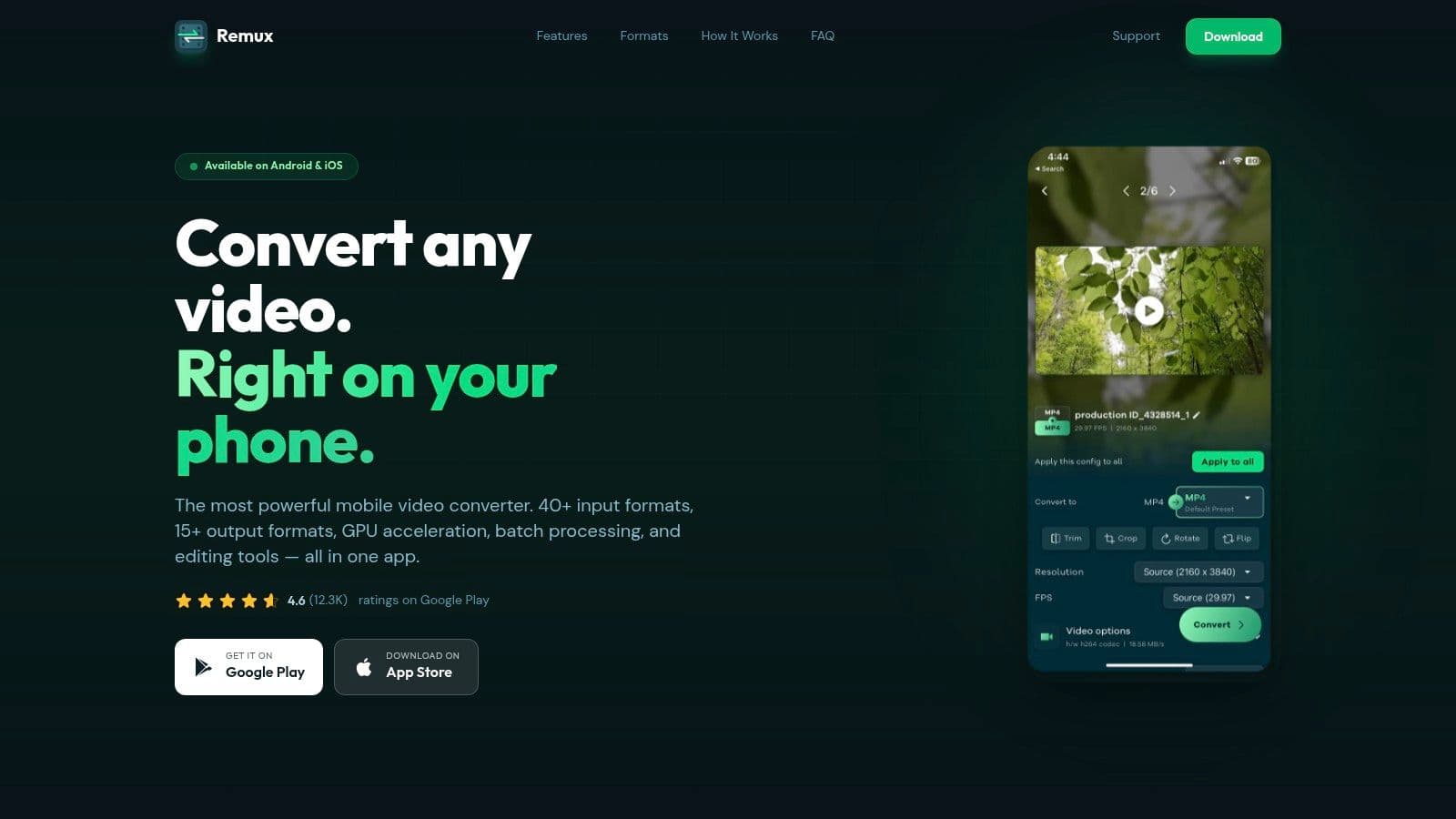
What makes Remux practical is the focus. You're not opening a bloated editor and pretending it's a converter. You're converting, compressing, batching, trimming lightly, and moving on. That's a better fit for montage prep, especially when you need multiple clips standardized before they hit CapCut, VN, KineMaster, or a desktop NLE later.
Why it fits fast turnaround work
Hardware acceleration can make a real difference on supported devices, but that speed always depends on the phone doing the work. On a stronger handset, Remux feels snappy. On a weaker one, the same job can slow down or heat up the device. That's not unique to this app. It's the trade-off with on-device encoding on Android.
A few things stand out in day-to-day use:
- Best use case: Fast MP4, H.264, or H.265 cleanup for clips from different sources.
- What it does well: Batch jobs, straightforward output choices, and basic edits without dragging you into a full editing workflow.
- Where it stops: If you need timeline work, layered titles, or serious color correction, this isn't the tool.
Practical rule: If the file already has usable audio and video streams, remux before you fully re-encode. It's often the cleanest path to compatibility with less unnecessary quality loss.
If your source is an iPhone clip giving Android apps trouble, it helps to understand how to reduce MOV file size without wrecking playback compatibility. That's exactly the sort of problem Remux is good at solving quickly.
Use Remux on its official site if speed and format cleanup matter more than editing bells and whistles.
2. Video Converter, Compressor (Inverse.AI)
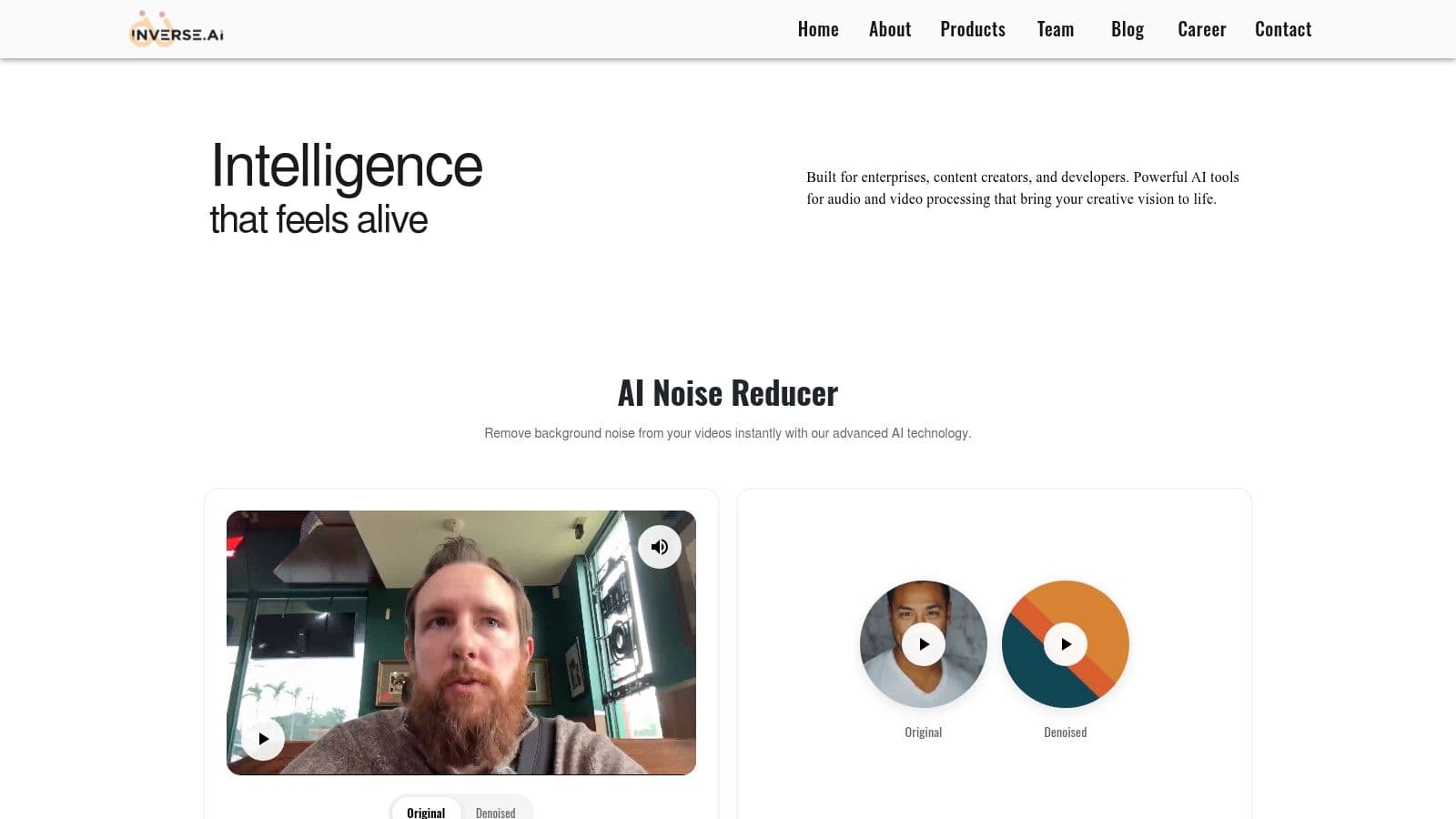
Inverse.AI is one of the safer recommendations when someone wants one app that covers everyday conversion, compression, and audio extraction without much fuss. It's broad enough for mixed household media and simple creator workflows, which is why it's easy to recommend to people who don't want to babysit settings all day.
Google Play's listing is the clearest reason it belongs here. The app advertises conversion and compression with control over resolution, frame rate, and bitrate, plus support for formats including MP4, MKV, AVI, 3GP, MOV, MTS, MPEG, MPG, WMV, M4V, and VOB, along with audio outputs such as MP3, AAC, AC3, OGG, M4A, and WAV. That's not a tiny niche converter. It's a practical media utility.
Best for mixed-format everyday jobs
This is the app I'd point to for the “my clips come from everywhere” problem. Family archive folders, Telegram downloads, old camera files, and phone footage often need to land in one common format before editing. Inverse.AI handles that kind of standardization well.
The trade-off is familiar. Free-tier ads can slow the rhythm of quick jobs, and some nicer features may sit behind in-app purchases. That doesn't make it a bad app. It just means it's better for regular utility work than for fussy, repeated pro exports where interruptions get old fast.
Keep your target consistent. Pick one delivery format for the project, usually MP4 with common playback settings, and convert everything to that before you start editing.
You can check the developer's homepage at Inverse.AI if you want a mainstream, broad-format video converter for Android.
3. VidCompact – Video Compressor & Converter (VideoShow)
VidCompact makes sense for people who want a familiar, easy interface more than deep encoder control. That sounds minor until you're helping a parent, sibling, or client convert old clips without turning the process into a tech support call. Clean workflow beats exotic settings in that situation.
It's especially handy when the source material is older or inconsistent. AVI, MKV, FLV, MPEG, and WMV files still show up in real life, especially in family archives and files copied from old laptops. VidCompact's appeal is that it treats those as normal problems, not edge cases.
Where it works well and where it feels thin
VidCompact is strongest when you need a low-friction app that converts to common outputs like MP4, MOV, or GIF and also lets you trim, rename, compress, and share. That all-in-one simplicity is why casual users tend to stick with it.
Its weak point is precision. If you care a great deal about exact codec behavior, detailed bitrate strategy, or repeatable delivery specs across many exports, it won't feel as sharp as an FFmpeg-based option. The ad load in free use can also wear thin if you're processing a lot of files back to back.
A quick read on the app:
- Best for: Easy archive cleanup and simple social-ready conversion.
- Less ideal for: Technical users who want exact encoding control.
- Good compromise: Convert first in VidCompact, then do your final edit elsewhere.
The official homepage is VideoShow's VidCompact page.
4. Timbre – Audio/Video Cutter & Converter
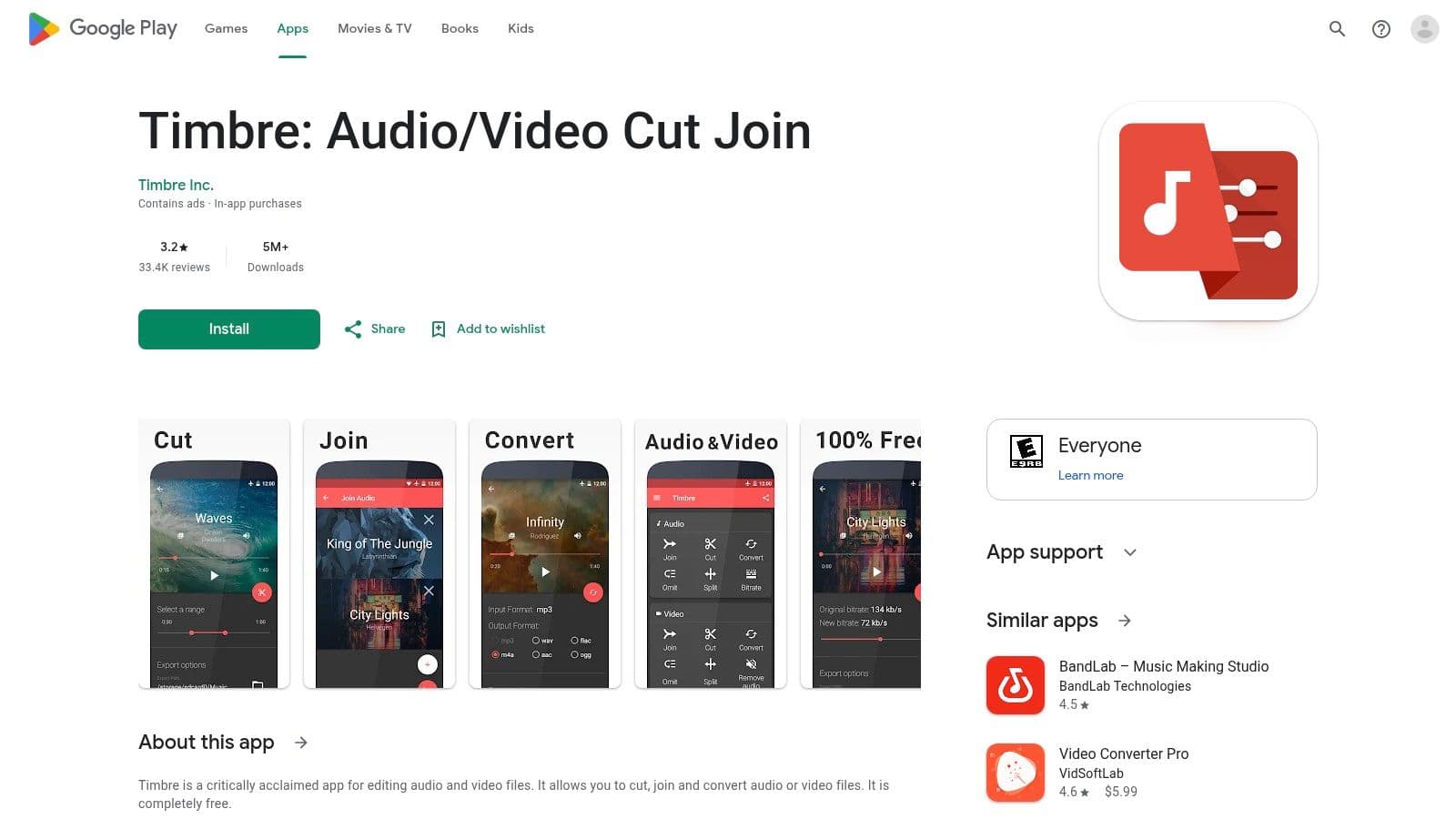
Timbre is the app for people who don't need “creative suite” marketing. They need to cut a clip, join a couple of parts, convert it, and send it. That narrow focus is a strength. A lot of Android users don't need a feature buffet. They need a utility knife.
Its support for common video and audio conversion tasks makes it useful before editing, especially when clips only need a light cleanup pass. If you've got a file that's too long, starts with dead air, or needs to become a simpler MP4 before import, Timbre gets there without much ceremony.
Best for quick trims before export
Timbre shines when the conversion is only half the job. Maybe you want to cut out the shaky first seconds of a clip, join two short parts, or extract audio before dropping the result into another app. It does those small jobs well because it doesn't try to feel like a desktop editor.
The compromise is obvious. Power users will hit the ceiling quickly, and free-tier ads can interrupt the quick in-and-out workflow that makes utility apps valuable in the first place.
Simple tools tend to survive on busy phones. If an app opens fast, trims fast, and exports reliably, you'll use it more than a “pro” app that asks for too much setup every time.
If you're stripping audio from older video files, this guide on converting MPEG to MP3 covers one of the common archive tasks Timbre can help with. The app itself is available through Timbre on Google Play.
5. Video Transcoder (open source, FFmpeg-based)
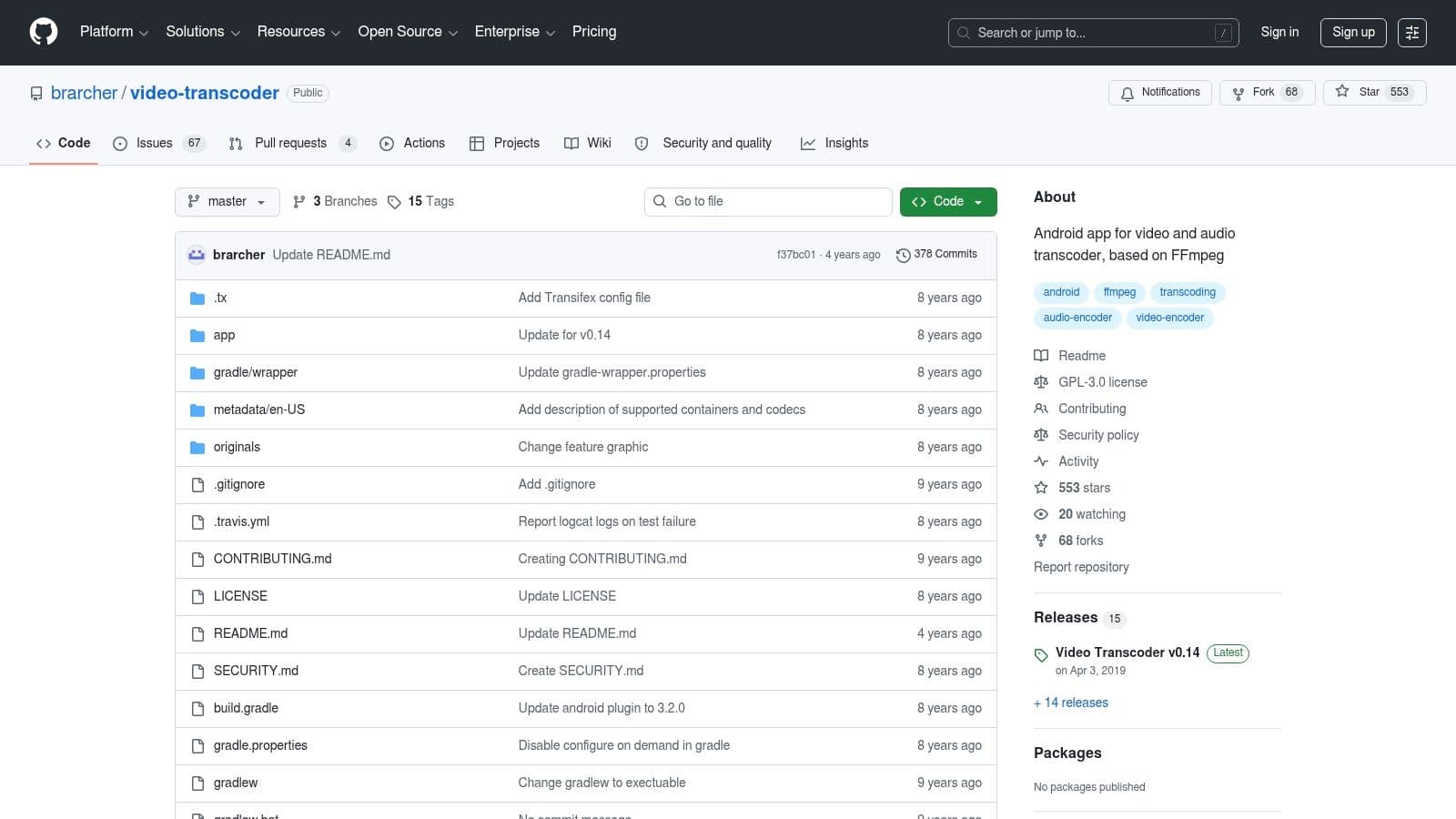
Video Transcoder is what I recommend when privacy and transparency matter more than polish. Open-source apps often look a bit plain beside commercial competitors, but that doesn't mean they're weak. It usually means the effort went into the engine rather than the packaging.
Built on FFmpeg, this app gives you more direct control over output settings than many mainstream Android converters. That matters if you're trying to create repeatable exports, standardize family archive clips, or avoid mystery behavior from “smart” presets.
Why privacy-minded users keep coming back to it
The biggest win here is confidence in what the app is doing. No ad-driven clutter. No aggressive upsells. No trying to funnel you into a broader subscription bundle. You choose codec, bitrate, resolution, and container more directly, and that's often enough for serious utility work.
The weak spot is usability. If you want something slick and beginner-friendly, this won't be your favorite. Hardware acceleration can also depend on the device and build, so don't assume every FFmpeg-based Android app will perform the same way on every phone.
For the right user, though, it's excellent:
- Best for: Ad-free transcoding, reproducible exports, privacy-conscious workflows.
- Not ideal for: Absolute beginners who want guided presets and hand-holding.
- Strong use case: Normalizing odd files into straightforward H.264/AAC MP4 output.
You can browse the project on Video Transcoder's GitHub repository.
6. Media Converter Pro (open source, Khang-NT)
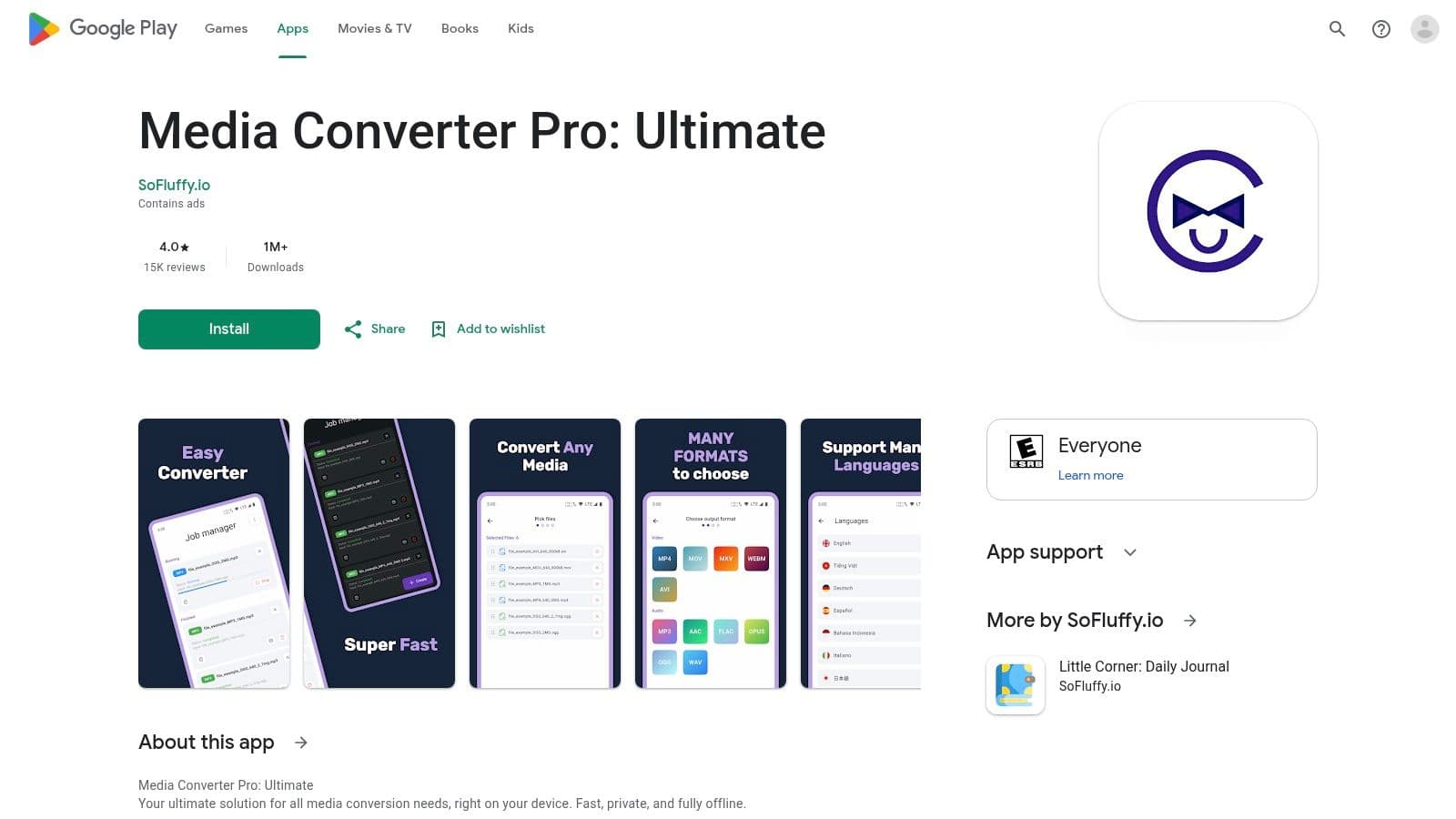
Some apps earn a recommendation because they stay out of the way. Media Converter Pro fits that category. It's open source, ad-free, and simple, which makes it useful for repetitive utility work where you care more about getting the file converted than admiring the interface.
That makes it a good fit for audio extraction, odd-file cleanup, and basic on-device conversion when you don't want ads, feed-style distractions, or feature sprawl. For a lot of archive and family-media work, that's enough.
A practical pick for clean, ad-free utility work
Media Converter Pro gives you the basics that matter. Codec choices, bitrate control, resolution adjustments, and support for common audio and video conversions. It's not trying to impress you with a cinematic interface, and that's part of the appeal.
The trade-off is that documentation and polish can feel sparse. If you expect rich onboarding or device-specific optimization on par with commercial apps, this won't satisfy you. But if your priority is “convert this file on my phone without nonsense,” it lands well.
One workflow where it makes sense is batch-style cleanup of voice notes, old clips, and screen recordings before assembling a tribute or montage in another app. In that role, less app personality is better.
You can find it on Media Converter Pro in Google Play.
7. FFmpeg Media Encoder (by SilentLexx UA)
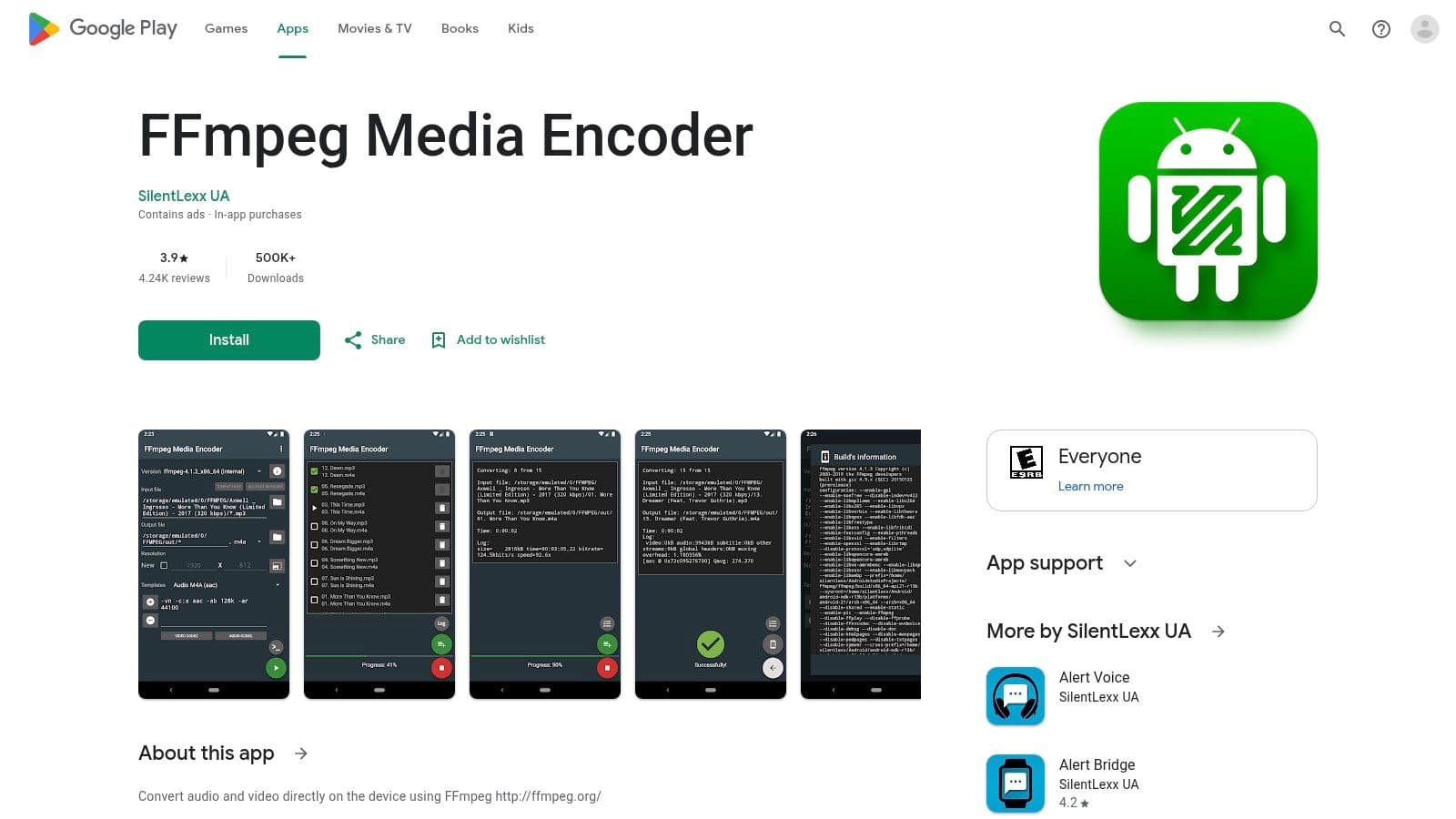
This is the pick for people who already think in FFmpeg terms. If command flags, presets, filters, and codec choices don't scare you, FFmpeg Media Encoder can feel surprisingly capable on Android. If they do scare you, skip it.
The app's value is flexibility. It can mirror a desktop-minded workflow more closely than many tap-and-go mobile converters. That's a big deal for editors who know exactly how they want to encode and don't want a mobile app second-guessing them.
Best when presets are not enough
If you've ever been annoyed that a mobile converter hides the settings you care about, this app solves that. You can work with custom options, advanced filters, and desktop-style logic instead of hoping a generic preset does the right thing.
That control comes with friction. Newer Android storage permissions can get in the way, and the learning curve is real. This is not the app I'd hand to a family member who just wants to make a clip smaller for messaging.
“Use FFmpeg on Android only if you already know what you want the encoder to do.”
That sounds blunt, but it's good advice. In skilled hands, it's one of the most flexible tools on this list. For everyone else, it can feel like too much interface wrapped around too many possibilities.
If that power sounds useful, start with FFmpeg Media Encoder on Google Play.
8. To MP4/3GP/WebM Video Converter (Clogica)
Clogica's converter is a focused tool, and that focus is the reason to choose it. Instead of pretending to be a complete media studio, it zeroes in on Android-friendly outputs like MP4, 3GP, and WebM. That's useful when your real goal is compatibility, not experimentation.
For messy downloads and cross-app handoffs, this kind of app often beats a fancier one. You open the file, set the core parameters, and export into a format that more Android apps will accept without complaint.
Good for Android-friendly output cleanup
This app gives clear access to the settings that usually matter most in practical conversion jobs: codec, bitrate, frame rate, rotation, and audio channels. That's enough control to solve common playback and sharing issues without overwhelming the screen.
Its limitations are straightforward. You won't get much in the way of editing, and some users report background jobs stopping on certain devices. That's a recurring Android issue with battery management and app restrictions, so it's worth keeping the phone awake during longer conversions.
A smart use case is cleaning up odd WebM or MOV clips for broader playback. If an Apple-originated clip is confusing an Android app, this explainer on how to play an MOV file gives context for why converting to a friendlier format often fixes the problem.
If that sounds like your workflow, the developer's site is Clogica.
9. Video Converter (by VidSoftLab)
VidSoftLab's app is the classic “Swiss army knife” option. Convert, compress, trim, merge, rotate, reverse, extract audio. If you want one app that can help clean up a pile of family clips without making you install three separate tools, this one makes sense.
That broad utility matters more than people admit. Most non-professional projects don't fail because of missing high-end codec support. They fail because the person assembling the video has too many little cleanup tasks and no patience for app-hopping.
A solid one-app toolbox for family footage
VidSoftLab is strongest when you've got mixed clips from multiple phones and messaging apps and want them normalized in one place. Batch support helps, and the built-in edit tools cover the common fixes that happen before the “real” edit starts.
The trade-off is that broad apps can feel less stable than focused ones. Ads in the free tier also chip away at speed, and some marketing claims depend heavily on what your device can handle. That doesn't make the app bad. It just means you should treat it like a practical toolbox, not a miracle machine.
A few reasons people stick with it:
- Convenience: Conversion and basic cleanup live in one app.
- Useful feature mix: Trim, merge, rotate, reverse, and audio extraction solve many pre-edit problems.
- Best audience: Families, casual creators, and anyone consolidating clips before a montage.
You can check the developer at VidSoftLab.
10. Media Converter (by Weeny Software)
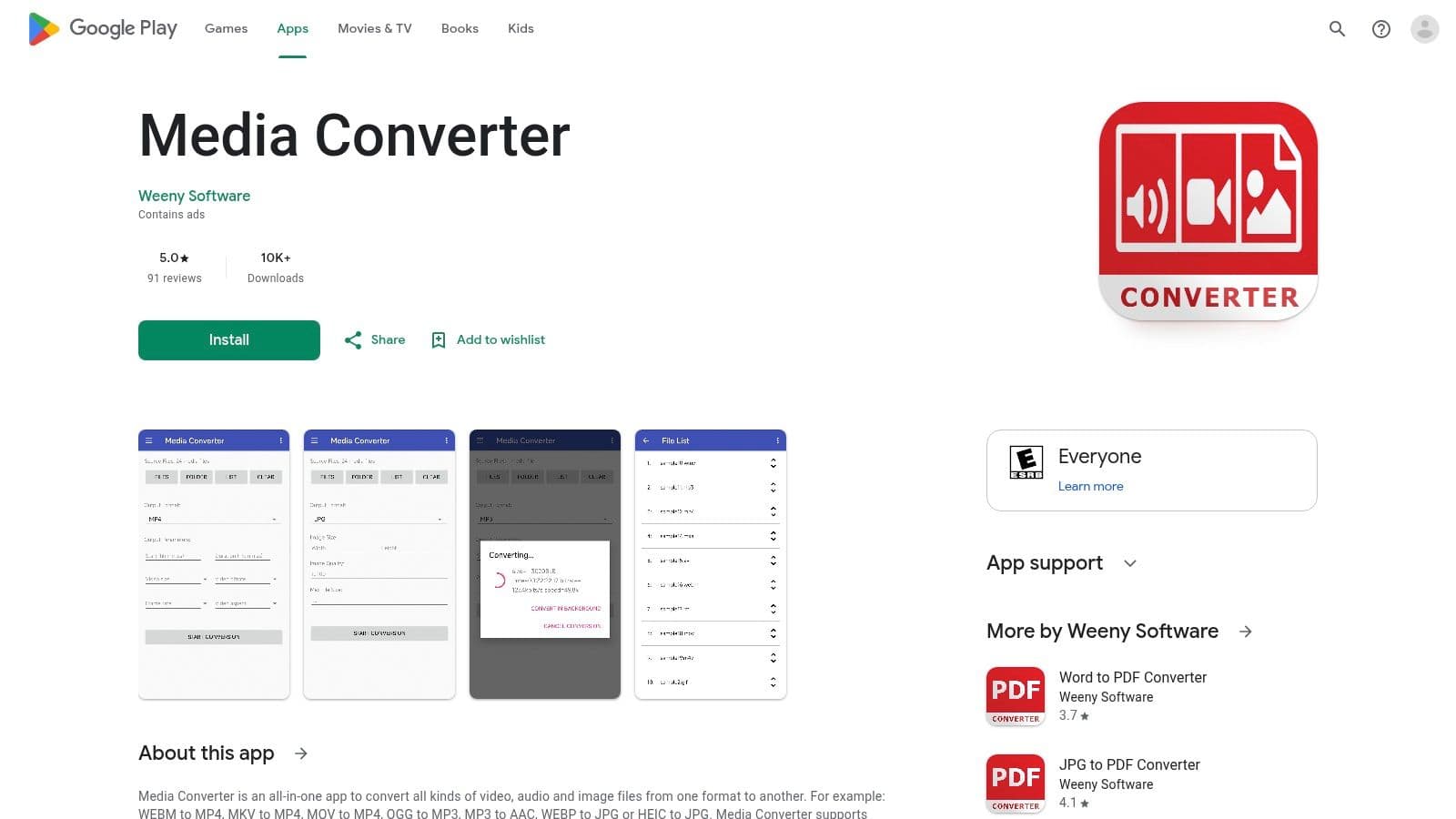
Weeny Software's Media Converter stands out because it goes beyond simple video-to-video conversion. It handles audio, images, and cross-type jobs like video to audio, image to video, and video to GIF. That makes it more of a media utility hub than a narrow converter.
That's useful in tribute edits and family keepsakes, where the workflow often jumps formats. One moment you're shrinking a clip. Next you're extracting audio from a voicemail video, or turning a still photo into a short motion-ready asset for an editor.
Useful when the job goes beyond video-to-video
The simple three-step flow is part of the appeal. Add files, choose output, convert. That kind of straightforward design works well when you're helping someone who doesn't care about codecs but does care that the file opens where it needs to open.
Its downside is that fine-tuning isn't as deep as the more technical apps on this list. If you want power-user FFmpeg-style control, this won't replace that. But if your needs are broader than pure video conversion, it can be the more useful everyday app.
This is the one I'd keep around for odd jobs. Not necessarily for every export, but for the moments where a project suddenly needs a GIF, an audio rip, or a quick image-to-video bridge element.
You can grab it from Media Converter by Weeny Software on Google Play.
Top 10 Android Video Converters, Feature Comparison
| Tool | Core features | UX / Quality | Value & Price | Target audience | Unique strengths |
|---|---|---|---|---|---|
| Remux – Video Converter & Compressor | 40+ inputs, 15+ outputs; batch; HW/GPU accel | ★★★★☆ Fast; device-dependent performance | 💰 Freemium / mobile-optimized | 👥 Mobile editors & montage creators | ✨GPU acceleration for speedy MP4/H.264 remuxing |
| Video Converter, Compressor (Inverse.AI) | Wide container/codec support; compress & audio extract | ★★★★ Reliable; large install base | 💰 Free w/ ads; IAP for advanced tools | 👥 Everyday users standardizing clips | ✨Broad format support for diverse sources |
| VidCompact – Video Compressor & Converter (VideoShow) | Convert to MP4/MOV/GIF; compress, trim & share | ★★★★ Very easy UI; ad-heavy free tier | 💰 Free w/ ads; integrated with VideoShow | 👥 Casual users & quick-conversion needs | ✨Very user-friendly; ecosystem integration |
| Timbre – Audio/Video Cutter & Converter | Cut/join; convert common formats; lightweight | ★★★☆☆ Minimal, reliable for quick tasks | 💰 Free w/ ads | 👥 Users needing fast trims and splices | ✨Task-focused, low learning curve |
| Video Transcoder (open source, FFmpeg-based) | FFmpeg engine; custom codecs/bitrate/resolution; no ads | ★★★★☆ Privacy-first; utilitarian UI | 💰 Free & open‑source 🏆 | 👥 Privacy-minded & technical users | ✨Transparent FFmpeg control; reproducible transcodes |
| Media Converter Pro (open source, Khang-NT) | FFmpeg-based convert; basic params; batch | ★★★★ Ad-free; lightweight | 💰 Free & open‑source | 👥 Power users preferring ad-free tools | ✨Lightweight FFmpeg frontend; good for audio extraction |
| FFmpeg Media Encoder (by SilentLexx UA) | FFmpeg GUI; presets + custom command lines; filters | ★★★★☆ Extremely flexible; steep learning curve | 💰 Free (advanced features require expertise) | 👥 Expert users & desktop workflow emulation | ✨Full FFmpeg power on mobile 🏆 |
| To MP4/3GP/WebM Video Converter (Clogica) | MP4/3GP/WebM outputs; codec/bitrate/frame controls | ★★★★ Purpose-built; clear controls | 💰 Free / FFmpeg-based | 👥 Users standardizing web/mobile outputs | ✨Explicit param control for size vs quality |
| Video Converter (by VidSoftLab) | Batch; many formats; trim/merge/rotate; audio extract | ★★★★ Versatile toolbox; occasional stability issues | 💰 Free w/ ads | 👥 Creators needing an all-in-one mobile toolbox | ✨Multi-tool workflow in one app |
| Media Converter (by Weeny Software) | Many formats; cross-type conversions; folder batch | ★★★★ Broad feature set; fewer fine controls | 💰 Free; Android 15 support | 👥 Users needing media-hub & batch flows | ✨Cross-type conv. (image→video, video→GIF) |
Final Thoughts
The best video converter for Android depends less on feature count and more on what happens before and after the conversion. That's why a workflow-first approach matters. A fast remuxing app is great when you just need clean MP4s that won't fight your editor. An open-source FFmpeg-based app is better when you care about privacy, repeatability, or exact settings. A broad toolbox app helps when the project is messy and the files came from five different places.
The most common mistake is choosing the most “powerful” app when the actual job is simple. If you're converting family clips for a memorial montage, you probably don't need command-line control. You need stability, clear output options, and minimal quality loss. If you're a creator trying to standardize footage before a bigger edit, batch processing and hardware acceleration matter more than flashy extras.
Ads are part of the trade-off on Android. They don't just annoy. They break rhythm. When you're converting one file, that may be tolerable. When you're processing ten, it becomes a workflow problem. That's one reason open-source tools keep a loyal following even when their interfaces look dated.
There's also the issue of over-conversion. A lot of users re-encode everything by default, and that's often where quality gets thrown away. If a file only needs a container change or a lighter touch, a simpler approach is usually better. Convert with a purpose. Don't just hit export because the app makes it easy.
For most readers, the shortlist is pretty clear:
- Choose Remux if speed and clean MP4 output are the priority.
- Choose Inverse.AI if you want broad format support in a mainstream app.
- Choose VidCompact or Timbre for easy, low-friction cleanup jobs.
- Choose Video Transcoder or FFmpeg Media Encoder if control and transparency matter most.
- Choose VidSoftLab or Weeny Software if you want one app to handle a wider mix of tasks.
The right app is the one that removes friction from your project. If it gets your clips into the right format, preserves enough quality, and doesn't fight you every step of the way, it's doing the job.
If you're converting old family footage, still photos, and mixed media into a tribute or keepsake, Photo for Video fits neatly into that workflow. It turns a single treasured image into a short polished MP4 clip with natural motion, which is useful when your project needs more than format conversion and you want a tasteful bridge from static photo to living memory.