Photo Frame That Plays Video: What to Know Before You Buy
A practical guide to choosing a photo frame that plays video, covering resolution, codecs, storage, and how short animated clips bring memories to life.

You've already found the photo. Maybe it's scanned, maybe it's still on your phone, and you can picture it moving gently on a shelf where your family will see it every day. A photo frame that plays video sounds like the simple part, until the clip won't load, plays without sound, or looks stretched on the screen. That gap between a good idea and a working display is mostly a compatibility problem, and it's fixable once you know what to check.
Table of Contents
- A Moving Memory on the Shelf
- What a Video Photo Frame Really Is
- Five Specs That Decide Whether Your Clip Plays
- Turning a Single Photo into a Clip Your Frame Can Play
- Loading and Playing Clips Without the Guesswork
- Privacy, Storage, and Who Owns the Memory in Five Years
- Choosing the Right Frame for Your Family or Studio
A Moving Memory on the Shelf
A grandmother's wedding portrait sits on the mantel. For a few seconds the veil lifts slightly, the light softens, and her expression seems to breathe before the image settles again. It's not a film, and it doesn't need to be. The movement is small enough to feel respectful, but alive enough that people stop instead of walking past another framed print.
That moment is why many families look for a photo frame that plays video in the first place. You're usually not trying to watch movies in the hallway. You want one beloved still photo to become a short, looping moment for a birthday table, an anniversary gift, or a memorial display at home.
Where the quiet disappointment starts
The trouble often begins before anyone sees that moment. You prepare a clip on your phone, it plays perfectly there, and then the frame shows a black screen, an unsupported file message, or a slideshow that skips the video entirely. Because the photo matters, the failure feels bigger than a normal tech glitch.
I've seen that pattern repeat when people test frames side by side. One device accepts an app upload but trims or rejects longer files, another plays the same file from a card, and a third struggles because the video was encoded in a newer format its processor doesn't handle well. The box said video playback, so it's natural to assume any video should work.
Practical rule: Treat "plays video" as a starting question, not a promise. Ask which files it plays, how you load them, and what limits apply.
A more useful question to bring to the store
Instead of asking only whether a frame plays video, ask whether it will play your clip, from your photo, in your preferred orientation, without a fight. That changes the shopping list. Screen size still matters, but codec support, transfer method, storage, and privacy suddenly matter just as much.
You're not being difficult for wanting that certainty. You're planning around a memory you may not be able to recreate. If you work through compatibility first, the emotional part gets to stay emotional, and you don't spend the evening converting files at the kitchen table.
What a Video Photo Frame Really Is
A true video frame treats a short MP4 clip as a normal item in the playlist, alongside still JPEG photos. It can loop one moving portrait, alternate between stills and clips, or run a mixed slideshow without you opening a separate video app. That design matters because a five-second animated photo is meant to live in the room, not demand attention like a television program.
Digital frames became a distinct category after digital photography spread, especially as cameras moved into mobile phones, and broad adoption followed in the mid-2000s as households built large photo libraries. Worldwide revenue reportedly exceeded US$1 billion in 2009, according to the history of digital photo frames and their rise after mobile photography. Video-capable models later added motion, sound, built-in speakers, and slideshow functions, then the category declined as multifunctional tablets, especially the iPad, offered more versatile screens.
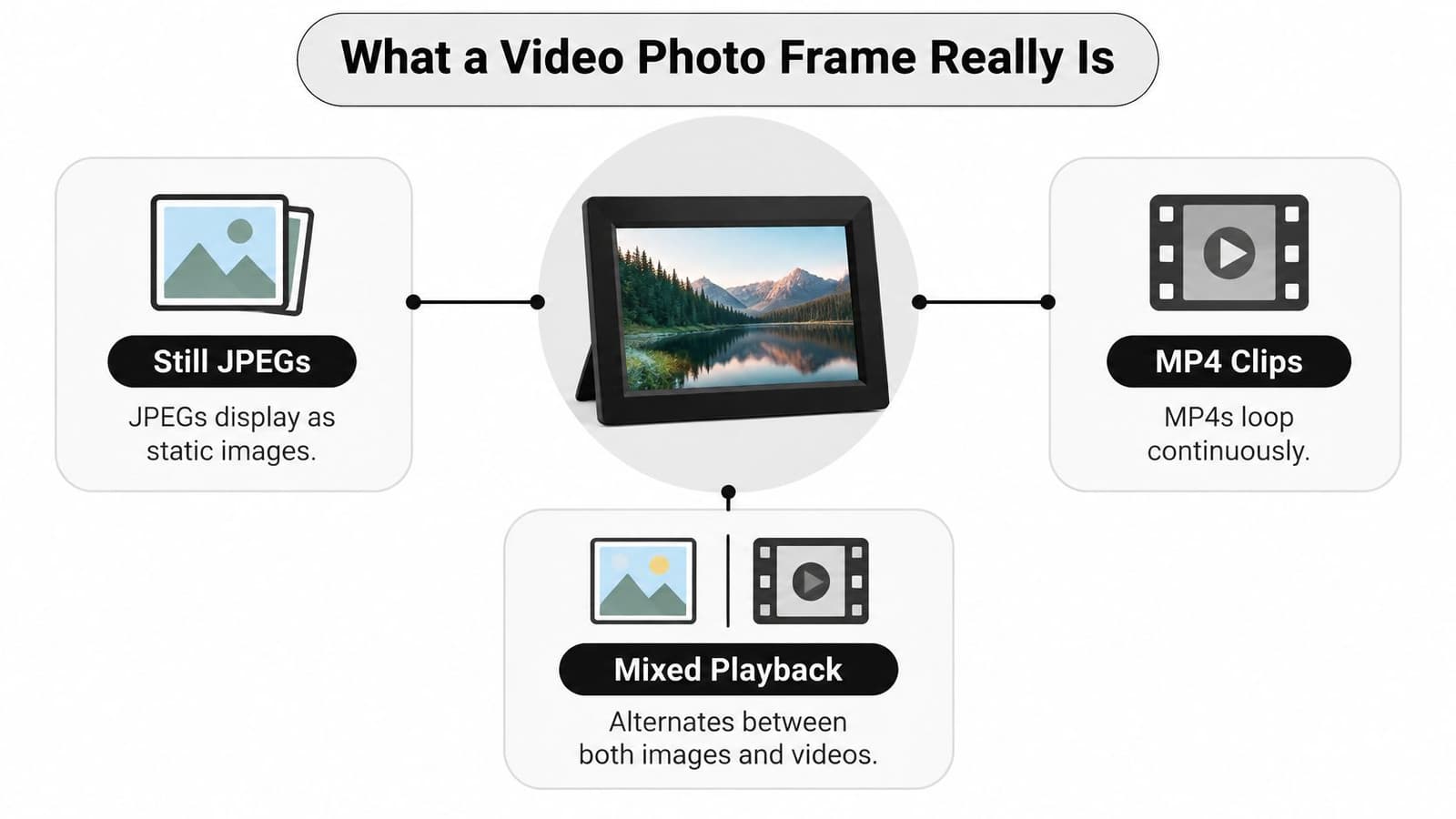
Three neighbours that cause confusion
A standard digital frame is built mainly for still images. Some models mention video, but playback may be limited, buried in menus, or sensitive to file type. If your main goal is a moving portrait, that footnote support can become a daily frustration.
A repurposed tablet can be flexible, and it'll usually play more formats. The tradeoff is that it still behaves like a tablet, with notifications, app updates, account prompts, and a home screen that doesn't look like a keepsake. For a grandparent's shelf, simple is often better.
- Smart display: It adds voice control and connected services, but photos may compete with weather, reminders, and other cards.
- Video photo frame: It focuses on display first, with speakers, local media handling, and looping built around personal memories.
- Still-only frame: It may be cheaper and simpler, but it can't give a portrait that gentle sense of movement.
What to look for in thirty seconds
Check whether video is described as part of the normal slideshow, not as an occasional extra. Look for clear notes about supported files, speakers if you want sound, and storage through internal memory, USB, or SD card. If local playback needs a paid plan to feel usable, count that as part of the actual price and the actual complexity.
Five Specs That Decide Whether Your Clip Plays
Spec sheets look intimidating because every number is presented as equally important. For a family memory frame, five decisions do most of the work: resolution, codec, aspect ratio, storage, and connectivity. If those five line up with your clip, the rest is mostly style, brightness, and convenience.
Video is now a meaningful part of the category, not a novelty. One market analysis estimated the global digital photo frame market at US$58 million at the end of 2022 and projected growth to more than US$81 million by 2033, a 3.1% compound annual growth rate from 2023 through 2033, in the digital photo frame market analysis covering video playback and multimedia functions. The same research context also notes compact screens remain important, which is why short clips made for a shelf display don't need the treatment you'd give a large television file.
Resolution and codec, the hidden pair
Resolution should match the frame's native panel as closely as practical. A much larger file doesn't automatically look sharper on a small screen, and it can make transfers slower or playback less smooth. A much smaller file may look soft, especially if faces fill the frame.
Codec is the spec most buyers skip. H.264 is the safer default for many frames, while HEVC, also called H.265, can be more efficient but less reliable on older devices. A frame review documenting a two-minute app-upload limit while direct local playback had no equivalent limit shows why transfer path and encoding matter together, as described in the Uhale frame review covering app limits and local playback.
A shorter, carefully encoded clip often beats a beautiful phone file that the frame cannot decode smoothly.
Shape, storage, and how files arrive
Aspect ratio decides whether Aunt May keeps her whole hat. Horizontal frames suit group photos and wide scenes, while portrait clips need either a rotatable frame, side bars, or a thoughtful crop. Decide this before you animate, because cropping after motion is added can cut off the movement you wanted.
Storage and connectivity shape your routine. Internal memory is tidy, USB and SD cards are direct, and apps are convenient when family members contribute from far away. The catch is that app routes may compress, cap length, or require accounts, while local transfer gives you more control but asks you to handle the files yourself.
Five Specs and the Defaults That Work for Most Families
| Spec | Why It Matters | Recommended Default |
|---|---|---|
| Resolution | Controls clarity and smoothness | Match the native panel closely |
| Codec | Decides whether the frame can decode it | Choose H.264 MP4 when possible |
| Aspect ratio | Prevents awkward crops and stretching | Plan portrait or landscape before export |
| Storage | Holds your playlist reliably | Internal memory plus USB or SD backup |
| Connectivity | Shapes limits and convenience | App for sharing, local transfer for control |
The frame-safe mindset
Think of a frame-safe export as a recipe, not a single file extension. MP4 is a container, and two MP4 files can behave very differently inside. Conservative resolution, H.264 encoding, sensible audio, and a short length give older and simpler processors less work to do.
Turning a Single Photo into a Clip Your Frame Can Play
Start with a photo that already works as a still image. You want a clear focal point, faces that aren't hidden in shadow, and enough detail that gentle movement won't turn important features into a blur. A slightly imperfect scan can still be lovely, especially for older family prints, but choose the cleanest version you have.
Light preparation helps. Straighten the scan, crop out scanner edges, and fix severe darkness or fading without polishing away the character of the original. If you're learning the broader workflow, this guide to creating a video from a single image walks through the idea in a practical order.
A simple generation workflow
One option for the animation stage is Photo for Video, which turns a single still image into a short MP4 based on a brief description of the motion you want. Keep the prompt plain and specific. For example, ask for a slow push in, a soft smile, hair moving slightly, or candlelight flickering in the background.
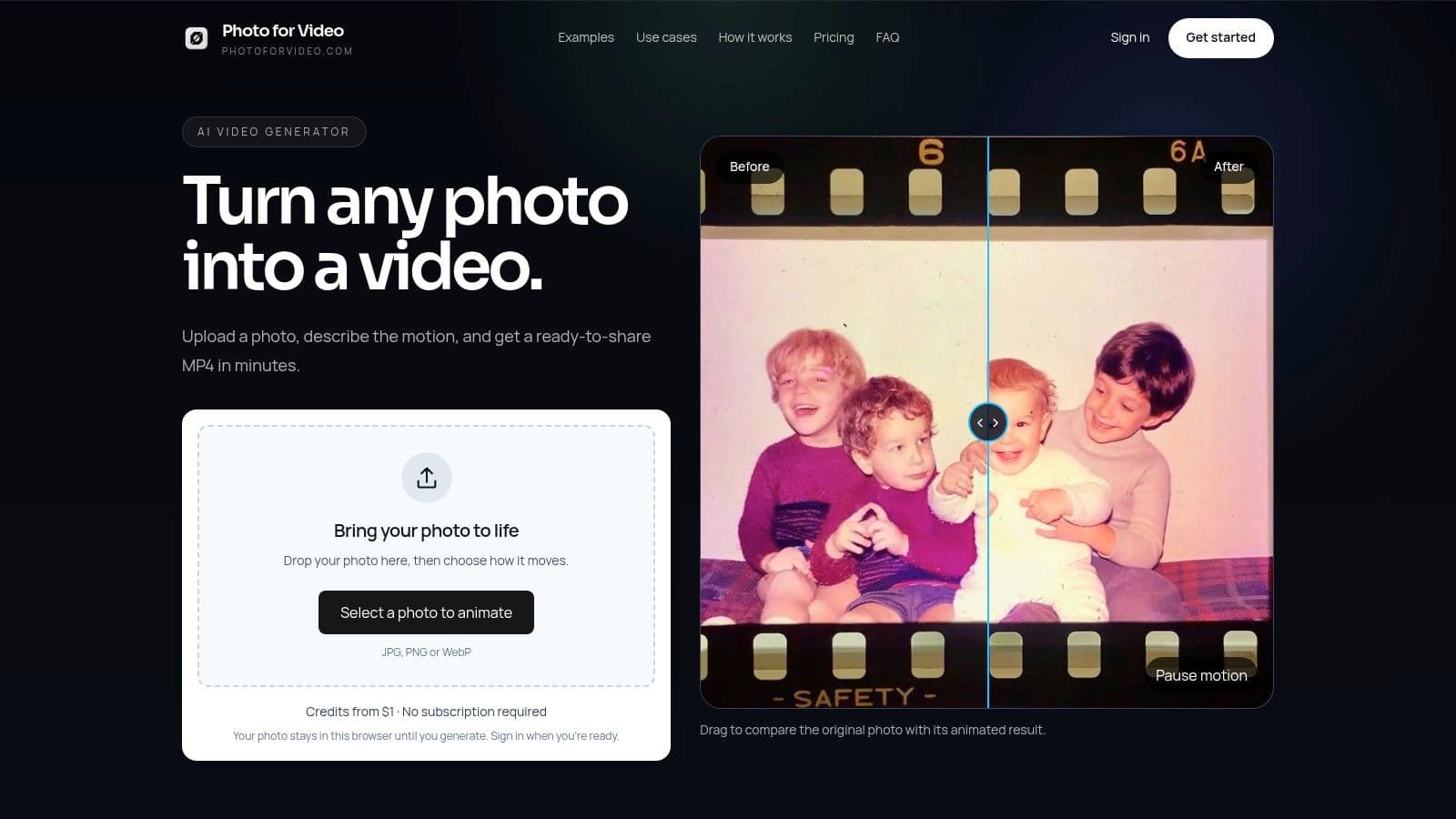
Follow these steps in order:
- Pick one strong photo: Choose the image with the clearest emotional anchor, not the largest group shot.
- Describe one main movement: A veil lifting, leaves drifting, or a gentle camera move is easier to judge than five actions at once.
- Generate a short clip: A brief loop suits a frame better than a long scene because people glance at it throughout the day.
- Watch it at arm's length: Check faces first. If eyes or hands look unnatural, simplify the motion and try again.
- Export for the frame: Save the finished MP4 with playback in mind, not just social sharing.
Export choices that prevent headaches
If the tool offers codec choices, choose H.264 for the widest frame compatibility. Target a resolution near the frame's screen, keep the orientation consistent with how the frame will sit, and decide whether audio belongs in the scene. Soft music can be sweet at a birthday table, but the same sound looping all afternoon in a quiet living room may become too much.
Export discipline: Make the file for the weakest screen in the chain. Your phone is almost never that screen.
Don't judge the clip only by how impressive it looks full screen on your computer. A frame across the room needs clear faces, calm motion, and a beginning and end that loop without a jarring jump. Subtle usually wins, especially for memorials, weddings, and old portraits where dignity matters more than spectacle.
Loading and Playing Clips Without the Guesswork
Test one clip before you prepare a whole montage. That single habit saves more evenings than any spec sheet. If the first file fails, you've lost a few minutes. If the twenty-fifth file fails on the day of a family gathering, you're troubleshooting while everyone waits.
Load that test through the same method you plan to use for the final playlist. An app upload, an email route, and a USB transfer may not treat the same MP4 equally. If you're comparing unconventional display options for a hallway or reception area, a wireless touch screen monitor for UAE is a useful example of how a portable indoor display can handle live view and playback, though a memory frame still needs a simpler, more personal playlist.
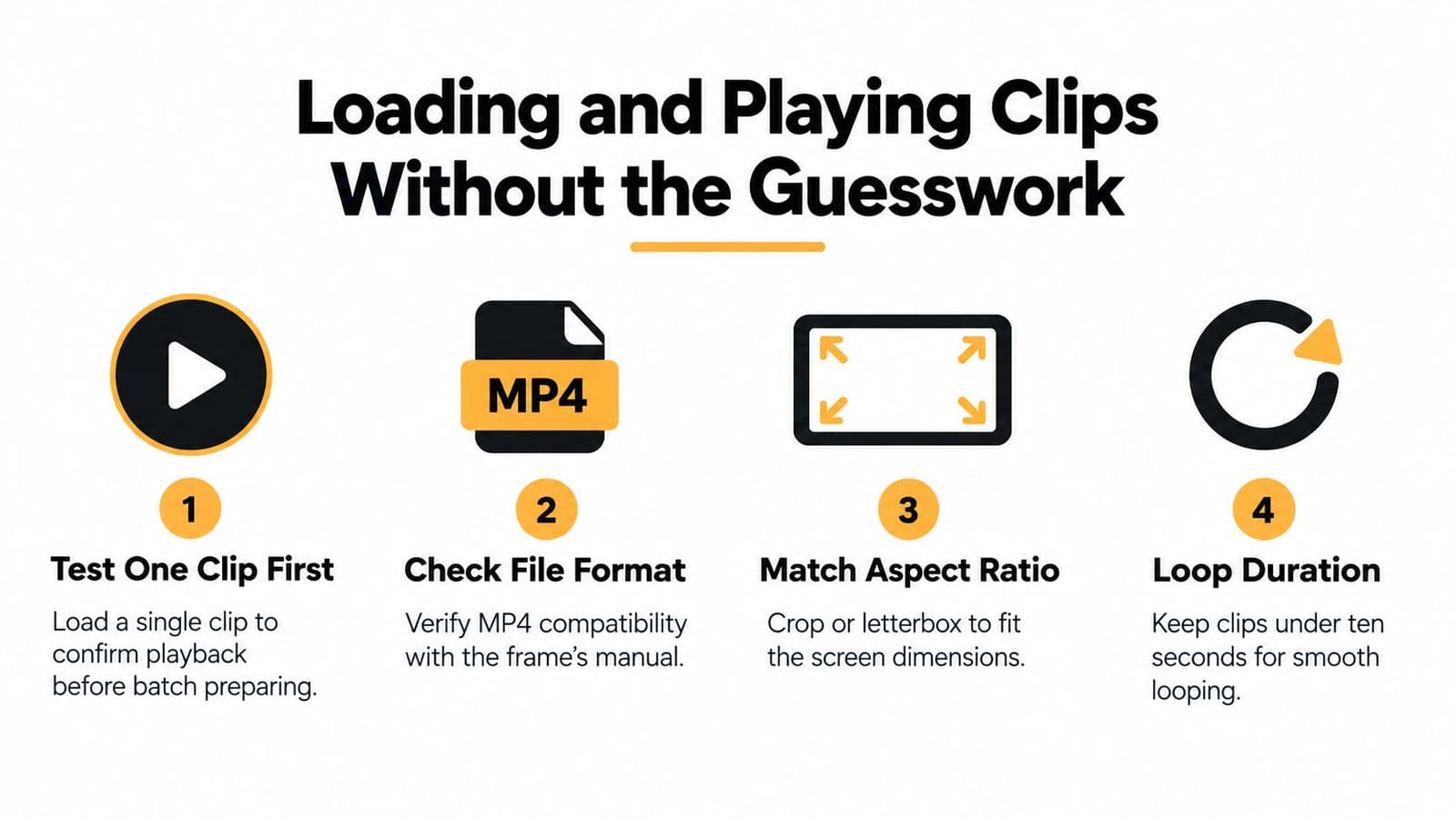
Naming, folders, and playback order
Many frames sort by file name, not by the date hidden inside the photo metadata. Use names that begin with a year or sequence number, such as 01-wedding-portrait or 02-birthday-table. That keeps the story in order when the frame refuses to read your carefully organized folders.
If old family files include MOV clips from phones or digitized collections, this overview of software for playing MOV files can help you understand when conversion is worth doing. Convert before you load the frame, then keep the original file untouched in your archive.
A checklist you can screenshot
- Test one clip first: Confirm picture, sound, orientation, and looping on the actual frame.
- Check the transfer route: Use USB or SD when app limits, compression, or account rules get in the way.
- Set audio intentionally: Mute clips that should be visual only, and keep volume low for shared rooms.
- Review transitions: Simple fades usually feel calmer than spins or slides between memorial clips.
- Keep a spare copy nearby: A duplicate card or USB stick turns a playback problem into a quick swap.
Mixed playlists need a rhythm. A moving clip after every still photo can feel busy, while one gentle clip among several stills gives the eye a place to rest. Stand where visitors will stand, watch for a minute, and adjust the order based on that distance rather than the view from your desk chair.
Privacy, Storage, and Who Owns the Memory in Five Years
A frame on a mantel looks private. The files behind it may not be. If a cloud frame requires uploads to a company server, your family is trusting that provider with intimate photos, memorial clips, and the account rules that decide who can add or remove them.
Independent buyer guidance notes that cloud frames require trusting a provider with personal images, while local-storage models reduce cloud exposure but sacrifice automatic backup if the device fails, as explained in buyer guidance comparing cloud trust and local storage tradeoffs. That tradeoff is the heart of the decision. Convenience can help relatives contribute easily, but it can also tie a cherished playlist to a service you don't control.
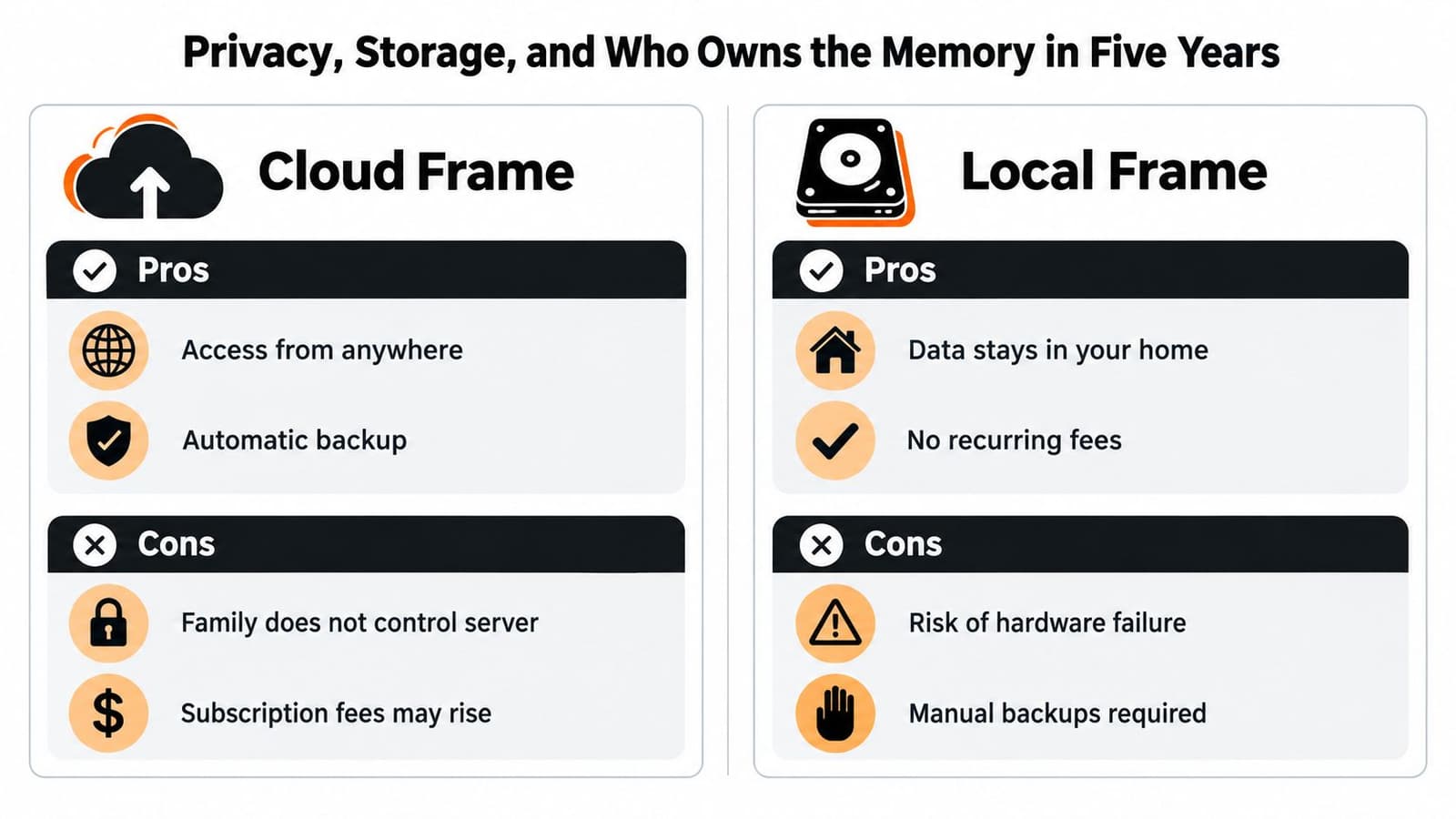
Questions worth asking before you upload
Who can contribute to the frame, and how do you remove someone's access after an event? Can you export everything before closing an account? If the company changes prices or shuts down a feature, do your finished files still live somewhere your family owns?
For long-term keepsakes, those questions connect naturally to practical ways to preserve old photos for the long term. Preservation isn't only about scanning. It's also about keeping usable copies, clear names, and control over the final files.
The frame may be replaced in five years. The MP4 and the original photo should not depend on that frame to survive.
A two-copy plan that stays simple
Use data minimization at the generation stage. A privacy-first service that auto-deletes uploads and generations after 7 days gives you a clear deadline to download what you want to keep, rather than storing family material indefinitely by default. Then save the finished MP4 in two places you control, such as a home drive and a separate backup.
That approach isn't anti-cloud. It's pro-ownership. You can still use an app for easy sharing, but the family archive remains yours if accounts change, a frame breaks, or a relative wants the same clip for a different display later.
Choosing the Right Frame for Your Family or Studio
Match the frame to the job, not to a generic ranking. A memorial gift needs calm playback, easy setup, and controls a nontechnical relative won't fear touching. A birthday frame can handle brighter motion and more contributors. A studio or event display needs reliability under time pressure, plus a backup plan if Wi-Fi is weak.
Three profiles that cover most buyers
For a memorial or anniversary gift, favor H.264 support, local playback, a readable screen, and a simple way to load a small playlist in advance. Preload it yourself if the recipient shouldn't have to create accounts on day one. Gentle loops and muted audio usually suit the room best.
For a creator or family archivist, export control matters more. You'll care about orientation, file naming, repeatable clip settings, and keeping originals separate from frame copies. Build a tiny test montage first, watch it on the actual device, and only then produce the full set.
For an event planner or service, speed and dignity matter equally. Prepare clips early, test them on the venue frame or a matching spare, and carry a USB backup. A beautiful montage that depends on a last-minute download is a risk you don't need.
Your action list for tonight
- Choose one photo: Start with the image people already love.
- Check five specs: Confirm codec, resolution, shape, storage, and transfer method.
- Make one test clip: Play it, loop it, and view it from across the room.
- Save two copies: Archive the original photo and finished MP4 outside the frame.
That's enough to learn whether your idea works. Once one memory moves reliably on the shelf, expanding to a small collection feels manageable rather than overwhelming.
Bring one favorite photo to Photo for Video, describe the gentle motion you want in a short line, and create a brief MP4 you can test on your frame before building a full montage. It's a practical way to turn a still birthday, anniversary, or memorial image into a moving keepsake while keeping the workflow focused on the clip you need.