10 Best Ways to Restore Old Photos Free in 2026
Don't let memories fade. Learn how to restore old photos free with our 2026 guide to 10 amazing AI tools & apps. Fix scratches, color now!

That old photograph might be bent at the corners, washed out from years in an album, or trapped in a low-quality phone snapshot you took in a hurry. Still, you recognize it instantly. A grandparent at a wedding. A child on a porch that no longer exists. Someone you miss, caught in a look that no camera today would recreate the same way.
When restoring old photos for free, speed is often the primary desire. Upload, click, done. Sometimes that works. Sometimes it gives you waxy skin, invented eyelashes, or a face that feels close but not quite true. That's the part many roundups skip. Restoration isn't only about removing damage. It's about deciding what kind of damage you have, how much control you need, and whether the final image is headed for a frame, a slideshow, a memorial board, or a subtle animated tribute.
Free tools are better than they used to be. A 2025 tool comparison on YouTube notes that AI restoration tools can remove scratches, enhance details, and colorize black-and-white images without technical skills, while professional manual restoration typically costs $50 to $200 per image depending on severity. That makes free and freemium tools a practical first pass for most family-photo projects.
This guide stays grounded in workflow. Use the right tool for the kind of damage in front of you, and you'll get better results with less cleanup later.
Table of Contents
- 1. MyHeritage Photo Repair
- 2. Hotpot.ai AI Photo Restorer
- 3. VanceAI Old Photo Restorer
- 4. Fotor AI Photo Restoration
- 5. RestorePhotos.io AI Face Photo Restorer
- 6. Cleanup.pictures Scratch Object Remover
- 7. Pixlr Pixlr X E Free Online Editor
- 8. Photopea Free Photoshop-style Web Editor
- 9. GIMP Free Desktop Editor Open Source
- 10. Snapseed Google Free Mobile Editor with Healing
- Top 10 Free Old Photo Restoration Tools, Comparison
- Next Step Turn Your Restored Photo Into a Living Memory
1. MyHeritage Photo Repair
MyHeritage is one of the easiest starting points if you've never restored an old image before. Its strength is that it keeps the workflow simple. Upload the scan, let the repair process handle obvious surface damage, then decide if the image also needs enhancement or colorization.
That matters for family projects because the typical restoration isn't of a single museum-grade print. They're trying to rescue a handful of album photos before a birthday slideshow or memorial video deadline. MyHeritage is good at getting you from “damaged and discouraging” to “shareable and recognizable” fast.
When MyHeritage works best
It's strongest on scanned prints with moderate creases, fading, and visible age marks. It also pairs naturally with a larger recovery flow. If you're dealing with physically damaged prints, this guide on recovering old photos before restoration is a useful companion because restoration quality depends heavily on what you upload.
A few practical trade-offs matter:
- Best for non-experts: The guided repair flow doesn't ask you to know masks, layers, or clone tools.
- Good first-pass output: It tends to produce a natural family-album look rather than an overly stylized one.
- Less control: If the AI softens texture you wanted to keep, there isn't much fine-grained correction inside the same step.
Practical rule: Use MyHeritage first when the emotional goal is clarity and recognizability, not forensic accuracy.
I'd use it on portraits, wedding snapshots, and lightly damaged group photos. I wouldn't trust any one-click tool alone for a memorial image where the face must remain historically exact. In those cases, use AI as a draft, not the final authority.
2. Hotpot.ai AI Photo Restorer
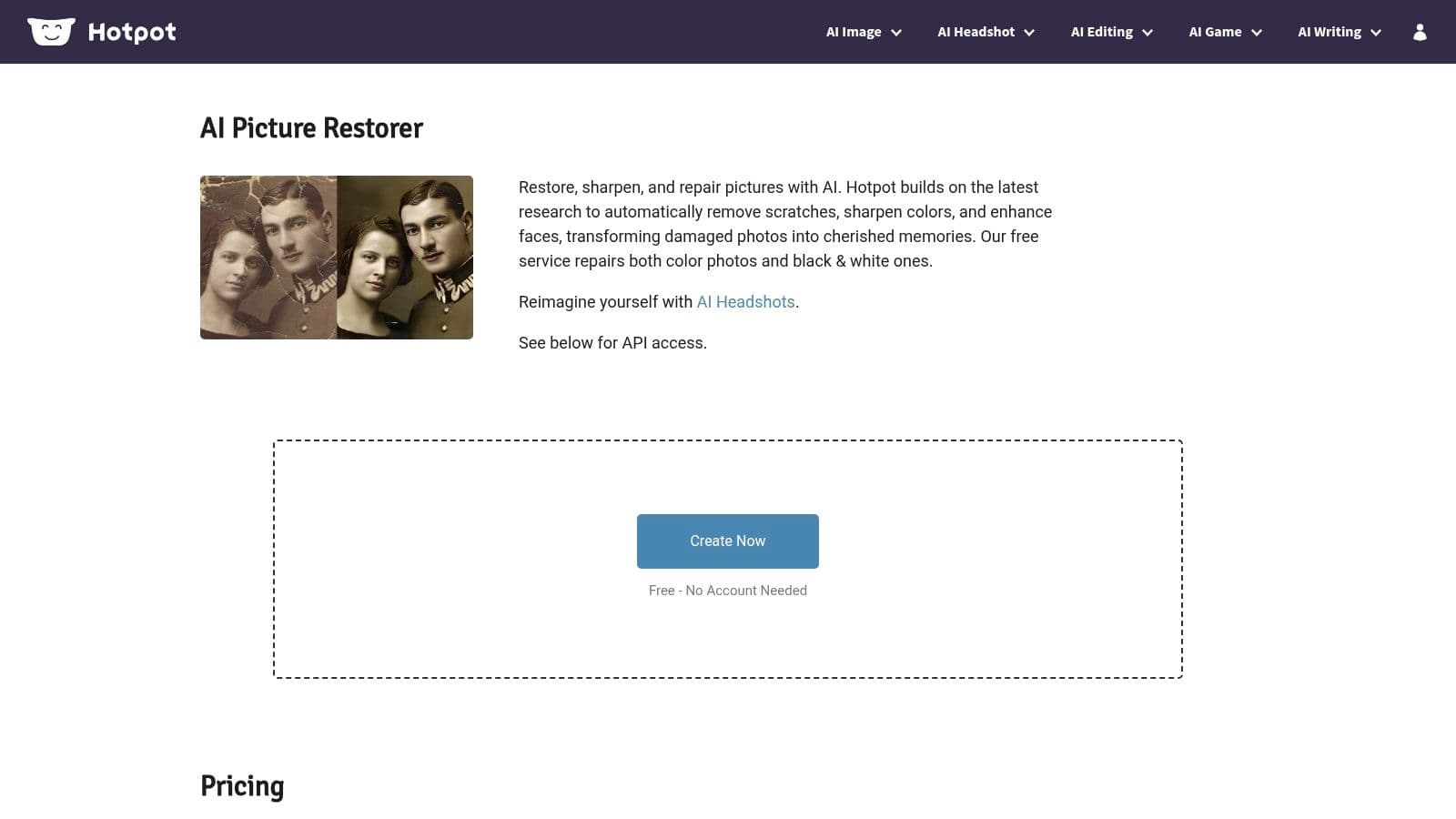
Hotpot.ai Photo Restorer is built for speed. If you've got a stack of scans that mostly need general cleanup, sharper faces, and a little tonal lift, this is one of the faster browser-based options to try.
Its interface is direct. That's a real advantage when you're comparing several tools on the same image and don't want to spend ten minutes navigating menus. Upload, preview, compare, and move on if the result feels wrong.
Best use case
Hotpot works best on images that are salvageable already. It's not the tool I'd choose for a torn heirloom with missing sections, but it can do a good job on low-contrast prints, light scratches, and family portraits that need a quick digital polish.
The trade-offs are familiar with freemium restorers:
- Fast iteration: Good for testing whether an image responds well to AI repair at all.
- Friendly for quick jobs: Useful when you need a presentable version for digital sharing.
- Limited nuance: Fine film grain, fabric detail, and subtle facial texture can get smoothed.
One reason free restoration has become mainstream is convenience. Photobooth.online's restoration page describes free AI tools as scanning photos pixel by pixel and restoring them instantly, with guidance to digitize photos straight-on at a 90-degree angle, in clear focus, and without shine for better scratch removal and face enhancement. That prep advice matters more than people think. A better scan often improves the result more than changing tools.
Don't judge the tool until you've judged the scan. Bad input makes every restorer look worse.
For tribute videos and slideshow use, Hotpot is often enough. For archival keepsakes, it's a fast draft, not the finish line.
3. VanceAI Old Photo Restorer
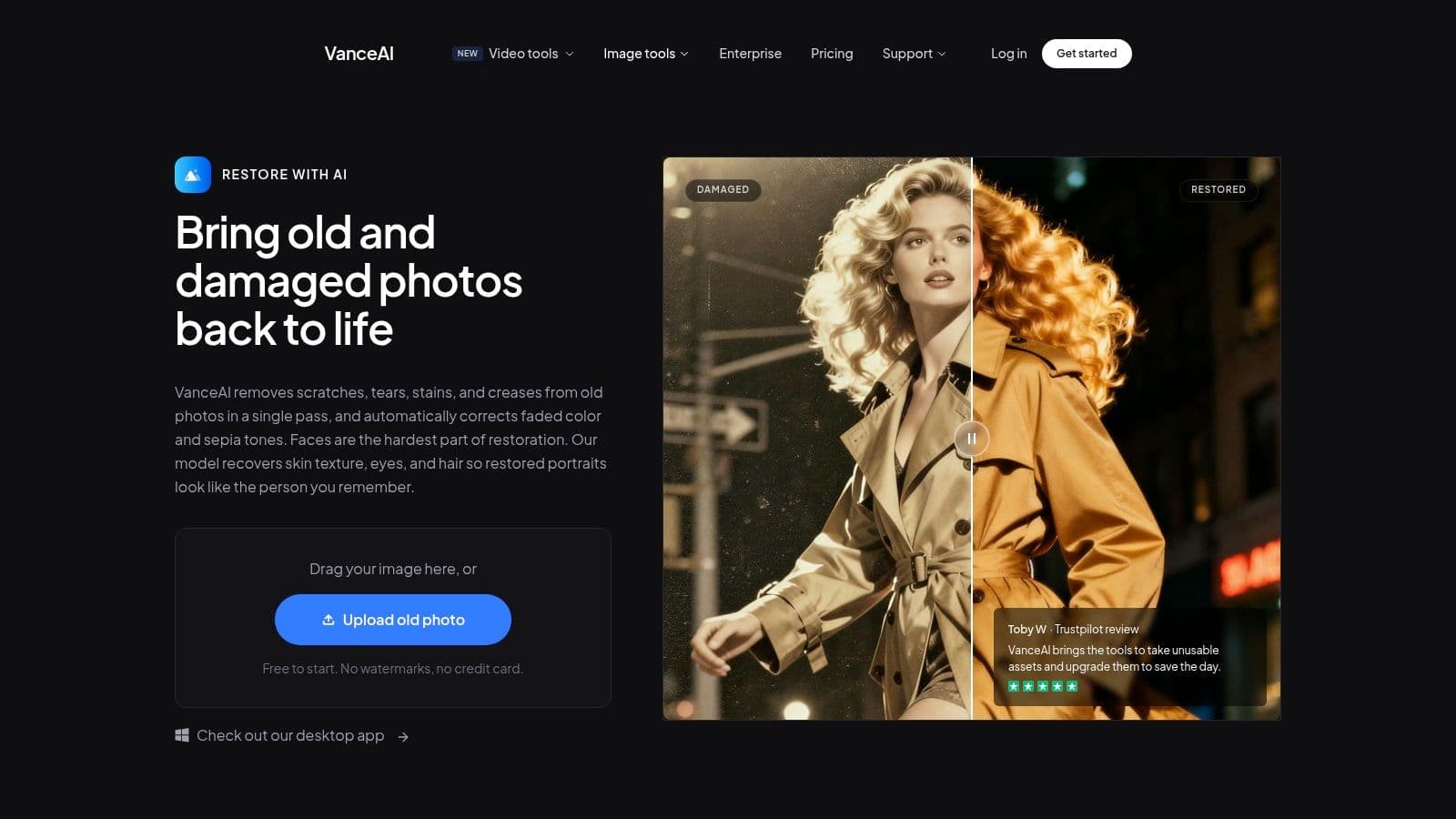
VanceAI Old Photo Restorer is useful when one problem turns into three. Old photos rarely arrive with a single issue. They're faded, soft, spotted, and low-resolution all at once. VanceAI stands out because it sits inside a broader toolkit, so you can restore, deblur, and upscale in one ecosystem.
That's convenient when the image is headed somewhere modern, such as a printed board, a tribute reel, or a digital display where small flaws become more obvious.
Where VanceAI earns its place
It's a practical choice for vintage portraits and snapshots with common print defects. If the face is soft and the overall file also needs extra resolution, keeping everything in one workflow saves time. That's especially useful if you're trying to create a higher-resolution photo for modern output after the restoration step.
Here's where it performs well:
- Multi-step workflow: Restore first, then handle deblurring or upscaling without exporting between several apps.
- Good on visible aging: Spots, age marks, and mild surface defects respond well.
- Credit limits matter: Free use is restricted, so it's best reserved for your strongest candidates.
A lot of casual users are happy with “good enough” restoration if the image is mainly for screens. A Pixelbin comparison page says free restoration adoption has grown strongly, citing over 5 million global users restoring family photos monthly on no-signup, watermark-free tools like Pixelbin, restore-old-photos.netlify.app, and Canva. The same source says free tiers often deliver 75 to 80 percent of premium quality for basic repairs and account for a 65 percent share of total restoration volume among casual users.
That tracks with real-world use. If your goal is a family montage, VanceAI often gets close enough quickly. If your goal is authenticity under close inspection, manual cleanup still matters.
4. Fotor AI Photo Restoration
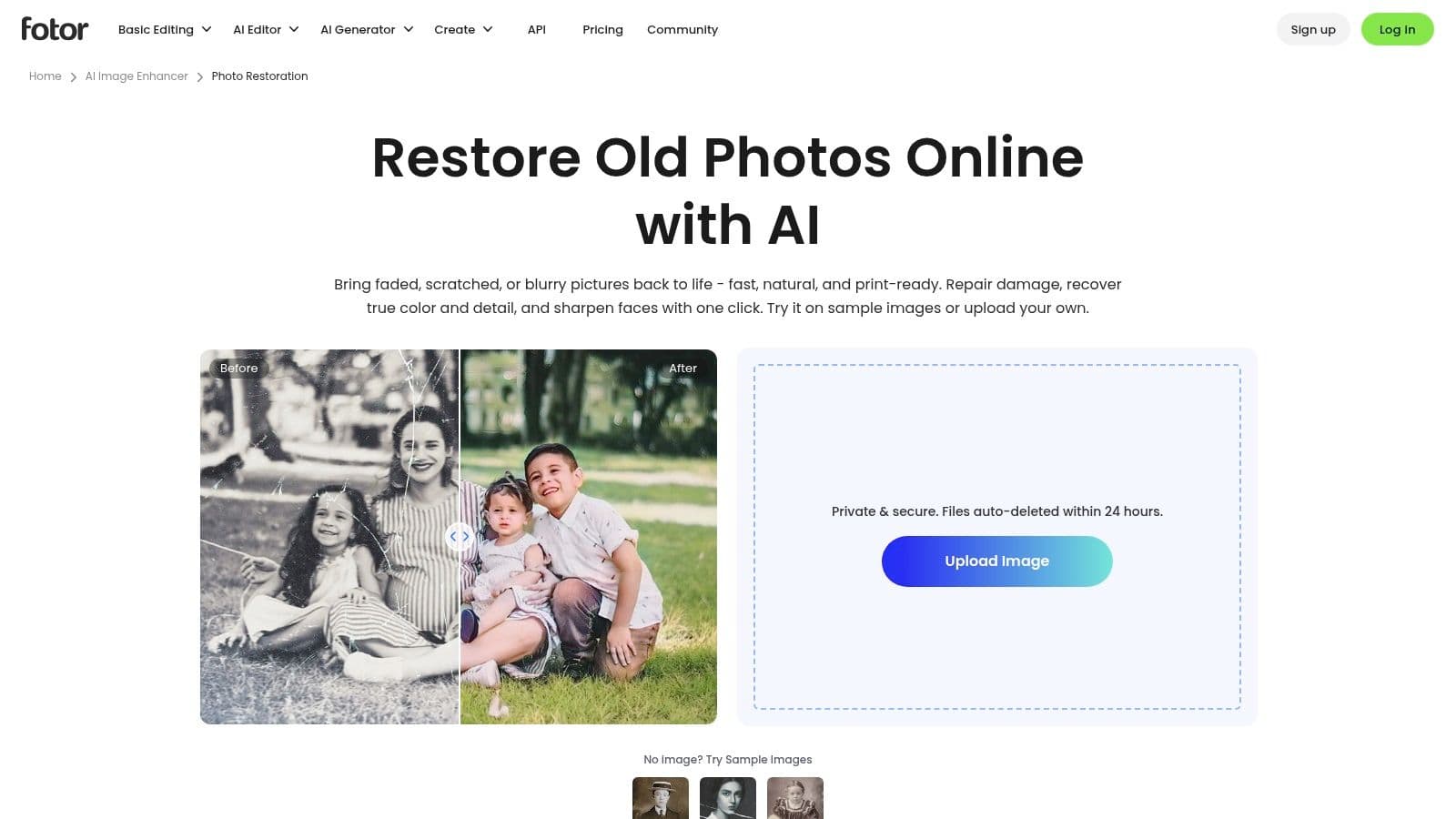
Fotor's photo restoration tool is useful for people who don't want to bounce between an AI restorer and a separate editor. That combination is its real value. You can run an automated repair, then stay in the same workspace to adjust exposure, color, and retouching.
That's a common need with old family photos. AI may remove damage, but the image still looks flat. Whites drift yellow. Black-and-white scans look muddy. Skin tones in color prints feel lifeless even after repair.
A good fit for album cleanup
Fotor makes sense when you're working through multiple photos from the same box or album and need consistency more than perfection. Batch-oriented cleanup has its place, especially for events where you're assembling many images into one sequence.
The practical upside is clear:
- One workspace: Repair damage, then fine-tune the tone without changing platforms.
- Helpful for albums: Similar photos can be brought into a more consistent visual range.
- Watch the texture: Automated enhancement can push detail too hard on delicate prints.
If you're trying to restore old photos free and keep moving, Fotor is one of the more balanced browser options. Just resist the urge to max every enhancement control. Old photos usually look better with restraint. A little fading and grain often carry the feeling of the original.
I'd use Fotor when the end product is a slideshow, social post, or digital frame sequence. I'd be more cautious if the photo will be enlarged or used as a centerpiece memorial portrait where every facial detail gets attention.
5. RestorePhotos.io AI Face Photo Restorer

RestorePhotos.io has a narrow strength, and that's why it belongs on this list. It's face-first. When the person matters more than the background, that focus can be exactly what you need.
The interface is about as simple as it gets. That simplicity makes it useful for families who only need one thing: a clearer face in an otherwise imperfect photo. If the backdrop still shows creases or stains, that might not matter when the image is headed into a memorial slide or a short tribute clip.
Use it for faces, not whole-scene repair
This tool is strongest when the main emotional value sits in the expression. A soft portrait of a grandparent, a wedding close-up, or a childhood school photo can benefit even if the rest of the frame remains rough.
Its trade-offs are straightforward:
- Excellent for portraits: Eyes, mouth, and facial definition get the most attention.
- No signup friction: Good when you need a quick test without committing to a platform.
- Backgrounds may stay damaged: It won't replace a full restoration workflow.
This kind of tool is also a reminder that “free” doesn't always mean “fully complete.” It can solve the most important part of the photo while leaving the rest for manual cleanup in another editor. For many tribute uses, that's enough. Viewers look at the face first.
A face-led repair can carry the whole image emotionally, even when the paper damage isn't fully gone.
If you plan to animate the image later, face clarity matters even more. Subtle movement tends to look better when the eyes and mouth are restored cleanly, while overprocessed backgrounds are easier to hide with gentle camera motion.
6. Cleanup.pictures Scratch Object Remover
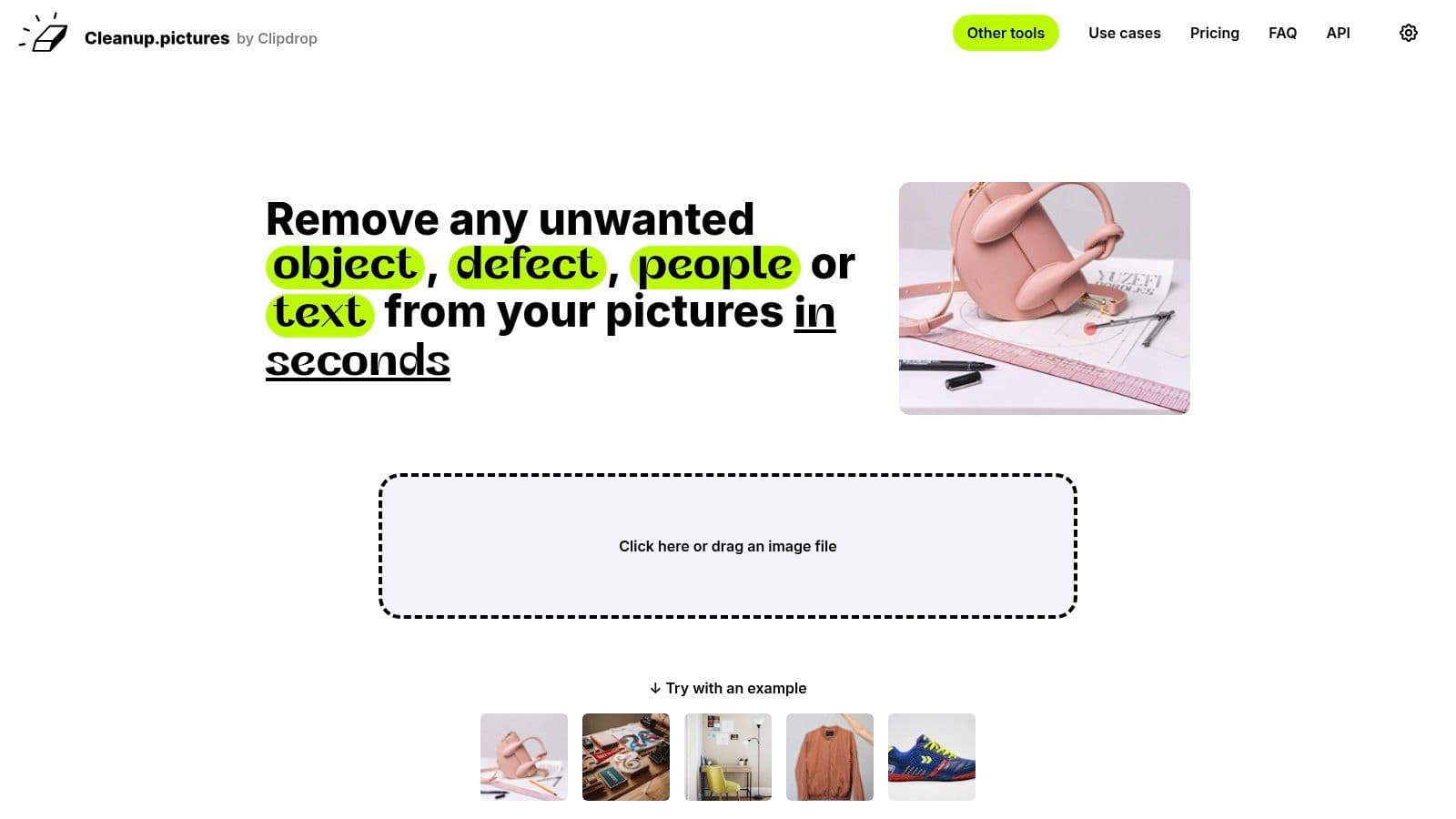
Cleanup.pictures isn't a classic old-photo restorer. That's exactly why it's useful. Instead of reinterpreting the whole image, it lets you brush over specific damage. For scratches, dust marks, small stains, and localized tears, that targeted approach often looks more believable than one-click global AI.
This is the tool I reach for when the photo is mostly fine but has a few ugly distractions. A white crease across clothing. Specks in the sky. A damaged corner near the edge. Global restoration can overdo those photos. Selective cleanup respects what's already working.
Where brush-based repair beats one-click AI
Localized repair is often the better answer when the image has good tone and sharpness already. You don't need a whole new rendition of the scene. You need the defects gone.
That leads to a different set of pros and cons:
- Precise intervention: Remove only the damage you want gone.
- Natural for small defects: Keeps the rest of the image untouched.
- Not a full restore engine: Fading, contrast loss, and general softness still need another tool.
This selective mindset matters because free AI restoration doesn't always preserve authenticity. A 2025 Photoshop workflow tutorial on archive-safe restoration shows that standard AI tools commonly shift faces or redraw features, while methods using Difference blend mode and auto-align in Photoshop can verify pixel-for-pixel accuracy. That same source points to a gap many free tools ignore: historical fidelity.
If you're restoring evidence photos, memorial portraits, or family heirlooms, Cleanup.pictures is a smart companion because it fixes defects without forcing a full-image reinterpretation.
7. Pixlr Pixlr X E Free Online Editor
Pixlr sits in a useful middle ground. It's more hands-on than one-click AI tools, but less intimidating than a full desktop editor. If you want to restore old photos free in a browser and still have control over healing, layers, and color correction, Pixlr is a practical choice.
Its main advantage is balance. You can repair scratches with a heal tool, then move straight into curves, color, and tonal correction. That combination is enough for many family projects where the AI version looked too plastic, but a professional retouching workflow would be more effort than the photo needs.
Best for balanced manual cleanup
Pixlr works well for faded snapshots, mild cracks, and color casts from old scans. It also helps when you want to preserve some analog character instead of smoothing the life out of the print.
A few use cases where it fits well:
- Light manual restoration: Remove obvious defects while keeping the original feel.
- Browser convenience: No install, easy to revisit on another device.
- Skill matters: The output depends more on your hand than with AI-driven tools.
There's a broader reason manual tools still matter. A 2024 Facebook group discussion about manual Photoshop-based restorations shows users actively asking for non-AI workflows because AI often over-smooths images and strips away analog texture. The same verified data notes that industry reporting from 2025 found 34% of digital archivists and genealogists prefer manual restoration for complex damage, especially where AI may invent content instead of accurately repairing it.
Pixlr gives ordinary users a lighter version of that manual-control mindset. You won't get one-click convenience, but you'll keep more say over what stays real.
8. Photopea Free Photoshop-style Web Editor
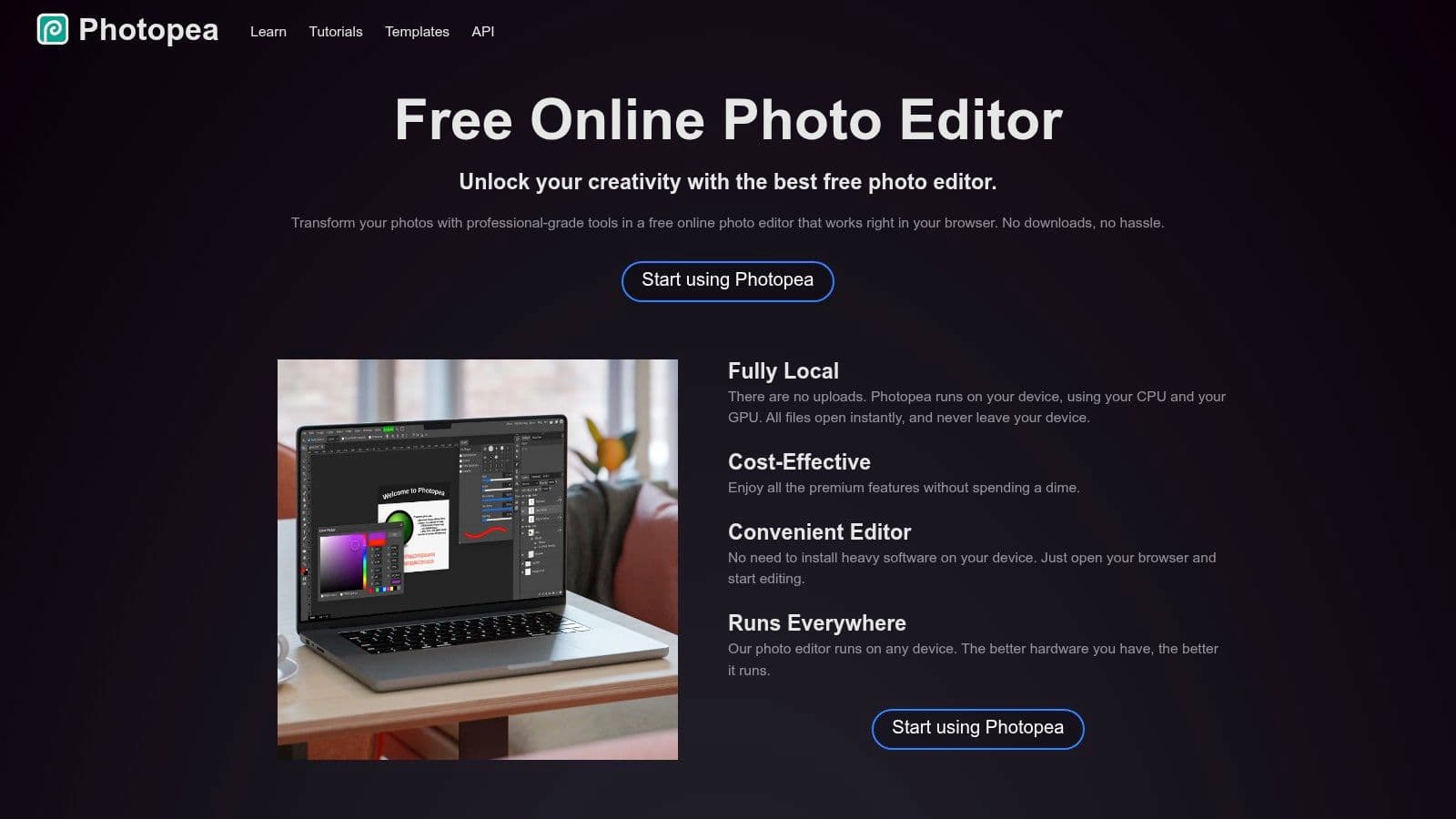
Photopea is the browser tool for people who want serious control without installing Photoshop. Healing, clone, patch, adjustment layers, masks, PSD support. It's all there. If you've ever wished the one-click restorers would stop guessing, Photopea is where you take the wheel back.
That matters for older family photos because not all damage should be treated equally. A crease in a suit jacket can be repaired aggressively. A line crossing an eye or smile needs a more careful hand. Browser-based AI often can't tell the difference in a way you'll trust.
The archive-safe option in a browser
Photopea is especially strong when scan quality is decent and the problem is repair strategy, not missing information. It also pairs well with good digitization habits. If your source scan is crooked, reflective, or soft, fix that first with better capture practices like those in this guide on how to scan old photos properly.
Its best traits are clear:
- High-control repair: Clone and heal only where needed.
- Layer-based finishing: Curves, Levels, and color adjustments stay editable.
- Learning curve: This is not the fastest route for beginners.
If your photo has memorial or archival value, Photopea is one of the smartest free options available because it supports careful, reversible work. You can restore the image without asking AI to invent eyelashes, skin texture, or facial structure. That's often the difference between a photo that feels respectfully revived and one that feels replaced.
For tribute videos, Photopea-prepped images also animate better because they retain believable texture and edge detail.
9. GIMP Free Desktop Editor Open Source
GIMP is the deepest fully free option on this list. No export-size gate, no credits, no browser lag from giant files. If you're willing to learn a desktop editor, GIMP gives you the kind of control that one-click tools cannot.
Restoration becomes a craft through these techniques. Healing and clone tools handle damage. Curves and Levels recover tone. Masks let you treat one part of the image differently from another. With plugins and patience, you can do work that feels much closer to archival restoration than casual enhancement.
When GIMP is the right call
Choose GIMP when the image is important enough to deserve careful labor. Heirlooms, memorial portraits, and historically meaningful family photos fit that category. It's also the better option when AI keeps changing features you wanted preserved.
What stands out in practice:
- Completely free: No hidden export restrictions or usage caps.
- Deep manual control: Better suited to complex damage and authenticity-focused work.
- Slow to learn: It rewards patience, not urgency.
I wouldn't recommend GIMP to someone who just needs three photos cleaned up before dinner. I would recommend it to anyone building a family archive, especially if they care about preserving original grain, paper texture, and period character. Manual restoration is slower, but it's often where the photo keeps its soul.
10. Snapseed Google Free Mobile Editor with Healing
Snapseed is the tool for the photos that live on your phone already. Maybe you photographed a print on the kitchen table, or a relative texted you a snapshot of a framed portrait. You don't always need a desktop workflow. Sometimes you need a good-enough restoration pass right now.
Snapseed's Healing tool is still one of the most useful mobile repair features for scratches, dust specks, and small blemishes. Pair it with Tune Image, Curves, and Selective edits, and you can rescue a surprising amount from a phone capture.
Best mobile workflow
Snapseed works best for fast cleanup, especially before sharing to family members, adding to a slideshow, or prepping an image for a simple animated keepsake. It's not an automatic AI restorer, so you'll do more by hand. That's also why it often preserves a more natural look.
Here's where it helps most:
- Mobile speed: Great for quick fixes while digitizing photos on the go.
- Non-destructive edits: Easy to revise if you pushed things too far.
- Limited precision: Tiny facial defects and complex tears are easier on desktop.
If you're restoring old photos free from a phone, Snapseed is one of the best first stops. Keep your edits gentle. Remove the distractions, correct the fade, and stop before the image starts looking synthetic. Old photos don't need to look new. They need to look cared for.
Top 10 Free Old Photo Restoration Tools, Comparison
| Tool | Core features | Quality (★) | Price / Value (💰) | Target audience (👥) | Standout (✨) |
|---|---|---|---|---|---|
| MyHeritage, Photo Repair | One‑click scratch/tear repair; integrates Enhancer & Colorize; web & mobile | ★★★★ | Free few photos → subscription for throughput/exports 💰💰 | 👥 Genealogy, families, non‑experts | ✨ Guided, natural repairs with ecosystem fit |
| Hotpot.ai, AI Photo Restorer | Automated damage repair, sharpening, slider controls | ★★★ | Free limited + pay‑per‑credit for higher quality/batch 💰💰 | 👥 Casual users, quick batch fixes | ✨ Fast one‑page preview/compare UI |
| VanceAI, Old Photo Restorer | Vintage‑trained repair, face enhance, links to upscaling/deblur | ★★★★ | Signup credits; many tools cost multiple credits 💰💰 | 👥 Users needing vintage fixes + upscaling | ✨ Strong on sepia/print defect removal |
| Fotor, AI Photo Restoration | AI restore + batch mode + manual editor (color/exposure) | ★★★ | Freemium; Pro for advanced exports/features 💰💰 | 👥 Family albums, multi‑photo workflows | ✨ Batch + finishing tools in one workspace |
| RestorePhotos.io, AI Face Photo Restorer | Face‑focused restoration (GFPGAN/CodeFormer); instant before/after | ★★★★ | Completely free, no signup at time of reporting 💰 | 👥 Low‑budget users, face‑centric restorations | ✨ Free, dead‑simple face reconstruction |
| Cleanup.pictures, Scratch/Object Remover | Brush‑and‑erase inpainting for scratches, dust, stains | ★★★★ | Free tier; Pro for higher resolution outputs 💰💰 | 👥 DIY restorers needing targeted fixes | ✨ Natural localized inpainting with brush control |
| Pixlr (Pixlr X/E), Free Online Editor | Heal/repair, layers, masks, Curves/Color in browser | ★★★ | Free tier; paid upgrades for advanced export 💰 | 👥 Casual editors who want manual repair online | ✨ Browser‑based manual tools + quick fixes |
| Photopea, Free Photoshop‑style Web Editor | Healing/Clone/Patch, Curves/Levels, PSD & layers support | ★★★★ | Free (ad‑supported) with paid ad‑free option 💰 | 👥 Power users wanting Photoshop in browser | ✨ PSD support and layered workflows without install |
| GIMP, Free Desktop Editor (Open Source) | Healing/Clone, Curves/Levels, plugins (Resynthesizer) | ★★★★★ | 100% free, no export limits 💰 | 👥 Advanced/manual restorers, pros | ✨ Full‑featured desktop restoration & plugin ecosystem |
| Snapseed (Google), Free Mobile Editor | Healing brush, Tune/Curves/Structure, non‑destructive stacks | ★★★ | Free mobile app 💰 | 👥 Mobile users, on‑the‑go fixes | ✨ Fast, powerful mobile workflow for quick scans |
Next Step Turn Your Restored Photo Into a Living Memory
Restoration is only the first half of the job. Once the scratches are gone, the tones are balanced, and the face looks right again, the image is ready for the way families use it now. Not just in albums, but in memorial screens, anniversary slideshows, birthday reels, and keepsake videos shared across phones and TVs.
That changes how you should think about your final output. A photo meant for archiving can stay untouched after repair. A photo meant for storytelling often benefits from one more step. Motion. Not loud motion, and not gimmicky animation. Just enough movement to let the image breathe.
That's where the workflow becomes more emotional than technical. A restored portrait with gentle motion can feel closer to memory than the static scan ever did. A slow push-in on a parent's face. A soft head turn. A restrained expression shift that doesn't erase the analog texture you worked to preserve. Done well, it doesn't feel fake. It feels like a respectful extension of the photograph.
This is especially powerful for memorials and family tributes. People respond to motion differently than they respond to stills. A single restored frame can carry an entire sequence when it has clarity, believable texture, and subtle movement. That's why it's worth choosing restoration tools with the end use in mind. If the final destination is video, avoid over-smoothed skin, exaggerated sharpening, and background artifacts. Those issues become more obvious once the image starts moving.
Photo for Video was built for exactly this final stage. It turns a restored still image into a short living-memory clip using a simple text prompt. You choose the motion, the camera behavior, and the tone. The result is a polished MP4 designed for real tribute workflows, not just novelty animation. That makes it useful for families, editors, memorial-service teams, and anyone assembling a personal visual story from old photographs.
The strongest workflow is usually simple. Scan carefully. Restore with the least aggressive tool that solves the damage. Keep texture where it matters. Then animate only after the photo already feels right as a still. That sequence protects what's authentic about the image and gives it a second life in a format people will watch, share, and remember.
If you've restored a photo that deserves more than a static screen, try Photo for Video to turn it into a gentle living-memory clip. It's a strong final step for memorials, anniversaries, birthdays, and family montages, especially when you want subtle motion that respects the original photo instead of overpowering it.