Create a Stunning Slideshow with Music: 2026 Guide
Craft a beautiful slideshow with music for memorials, birthdays, & anniversaries. Animate treasured photos with perfect pacing using our 2026 guide.
You're often not starting with a folder full of polished images. You're starting with one photo that matters more than all the others.
It might be a faded wedding portrait, a slightly blurry birthday snapshot, or a phone photo of an old print you found the night before a memorial service. You don't need a flashy montage. You need a slideshow with music that feels honest, gentle, and emotionally right.
That changes the workflow. When the centerpiece is a single treasured image, the job isn't to cram in more material. The job is to protect the feeling in that frame, then build sound, motion, and pacing around it so the memory lands the way it should.
Table of Contents
- Why Most Slideshow Guides Miss the Point
- Finding the Heart of Your Story
- Bringing a Single Photo to Life with Motion
- Matching the Rhythm of Music to Memory
- Assembling Your Slideshow with Seamless Transitions
- Exporting Your Slideshow for Any Occasion
Why Most Slideshow Guides Miss the Point
Most slideshow tutorials assume you have abundance. They tell you to gather dozens of photos, drag them into a timeline, pick a song, and let the app do the rest.
That advice falls apart when the most important image is a single archival photo. In tribute work, that's common. Families often come in with one scan of a parent in uniform, one anniversary portrait, or one candid shot that somehow holds the whole person.
The gap is real. Search demand for animating old memorial photos has risen, with Google Search trend analysis showing a 45% year-over-year increase in queries for “animate old photo memorial” and “make old photo move for funeral”, while much of the top-ranking content still focuses on multi-image slideshows, as noted in this analysis of the old-photo memorial tutorial gap.
The real job is preservation
A good tribute editor doesn't treat an old photo like raw material to be dressed up. The better approach is to preserve what already makes it moving. That could be the grain in the print, the slight softness in the scan, the way someone's posture tells you exactly who they were.
That's why the usual “more photos equals better story” formula often fails. A memorial or anniversary piece doesn't become stronger because the timeline is fuller. It becomes stronger when the most meaningful image gets room to breathe.
Practical rule: If one photo carries the emotional truth, build around it. Don't bury it.
Quantity is not the same as narrative
A slideshow with music works best when it has a center of gravity. In family tributes, that center is often one frame, not fifty. The supporting material matters, but it should serve the core memory rather than compete with it.
What doesn't work is panic-editing. People add every available image because they're afraid omission will feel disrespectful. In practice, that usually weakens the piece. The viewer stops feeling and starts processing.
A smaller, more deliberate sequence usually creates a stronger experience:
- One hero image that holds the emotional weight
- A few supporting photos that add context or contrast
- Music that matches the memory's tone
- Simple pacing that lets the viewer stay present
That approach is less impressive on paper and much more effective in the room. It feels personal instead of assembled.
Finding the Heart of Your Story
The strongest slideshow with music usually starts with one decision. Which image would still matter if you had to cut everything else?
That's your hero image. It doesn't have to be technically perfect. In fact, many of the best ones aren't. A creased print, a dim restaurant snapshot, or a scanned studio portrait can carry more emotional force than a folder of sharp but generic recent pictures.

Music matters here because memory isn't only visual. The inclusion of music in slide shows has become a major factor in engagement, with 94% of viewers remembering content better when it's paired with an appropriate emotional soundtrack, according to this historical review of multimedia storytelling and soundtrack recall.
Choose the hero image first
Don't begin by sorting every file on your phone. Begin by asking what image people would recognize instantly as them.
Good hero images often have one or more of these qualities:
- Recognizable expression. The smile, glance, or posture feels unmistakably like the person.
- Emotional timing. The photo captures a milestone, a ritual, or an ordinary moment that now feels precious.
- Visual focus. Even if the print is damaged, the subject is clear enough to hold attention.
- Story potential. The frame invites movement, music, and a sense of remembered life.
Sometimes the hero image is obvious. Sometimes it helps to show three or four options to a sibling, spouse, or close friend and ask, “Which one feels most like them?”
If you're shaping a broader family piece, this guide to a family memories video is a useful reference point for thinking emotionally before thinking technically.
Build a small supporting cast
Once the hero image is chosen, the rest of the slideshow should act like supporting characters. Their job isn't to steal focus. Their job is to deepen the central memory.
A simple selection framework works well:
| Role | What it does | Example |
|---|---|---|
| Opening image | Sets tone | An early portrait or quiet scene |
| Context image | Places the person in a life | Wedding, work, home, family table |
| Contrast image | Shows another side | Formal portrait paired with candid laughter |
| Closing image | Leaves the room with feeling | A calm, warm, or dignified final frame |
A tribute gets stronger when each photo answers a different emotional question.
What was their presence? How did they love? How did they age? What do people want to hold onto after the video ends?
That's a better filter than chronology alone. A strict birth-to-present order can feel dutiful. A story-led order feels human.
Bringing a Single Photo to Life with Motion
Animating one still image is where many slideshow projects either become moving or become gimmicky. The difference is restraint.
The goal isn't to make an old photograph perform tricks. The goal is to create the feeling that the memory is gently returning. Small camera motion usually does that better than aggressive effects.
Use motion that respects the original photo
For archival images, the most reliable moves are still the simplest:
- Slow push in when the face carries the emotional weight.
- Gentle pan when the environment matters, such as a porch, church, beach, or kitchen.
- Slight parallax feel only when it remains natural and doesn't separate people from the image in an artificial way.
If the scan is cracked, faded, or slightly crooked, don't rush to remove every flaw. Some imperfections belong to the memory. Clean up dust and obvious distractions, but leave enough texture that the image still feels like a real photograph.
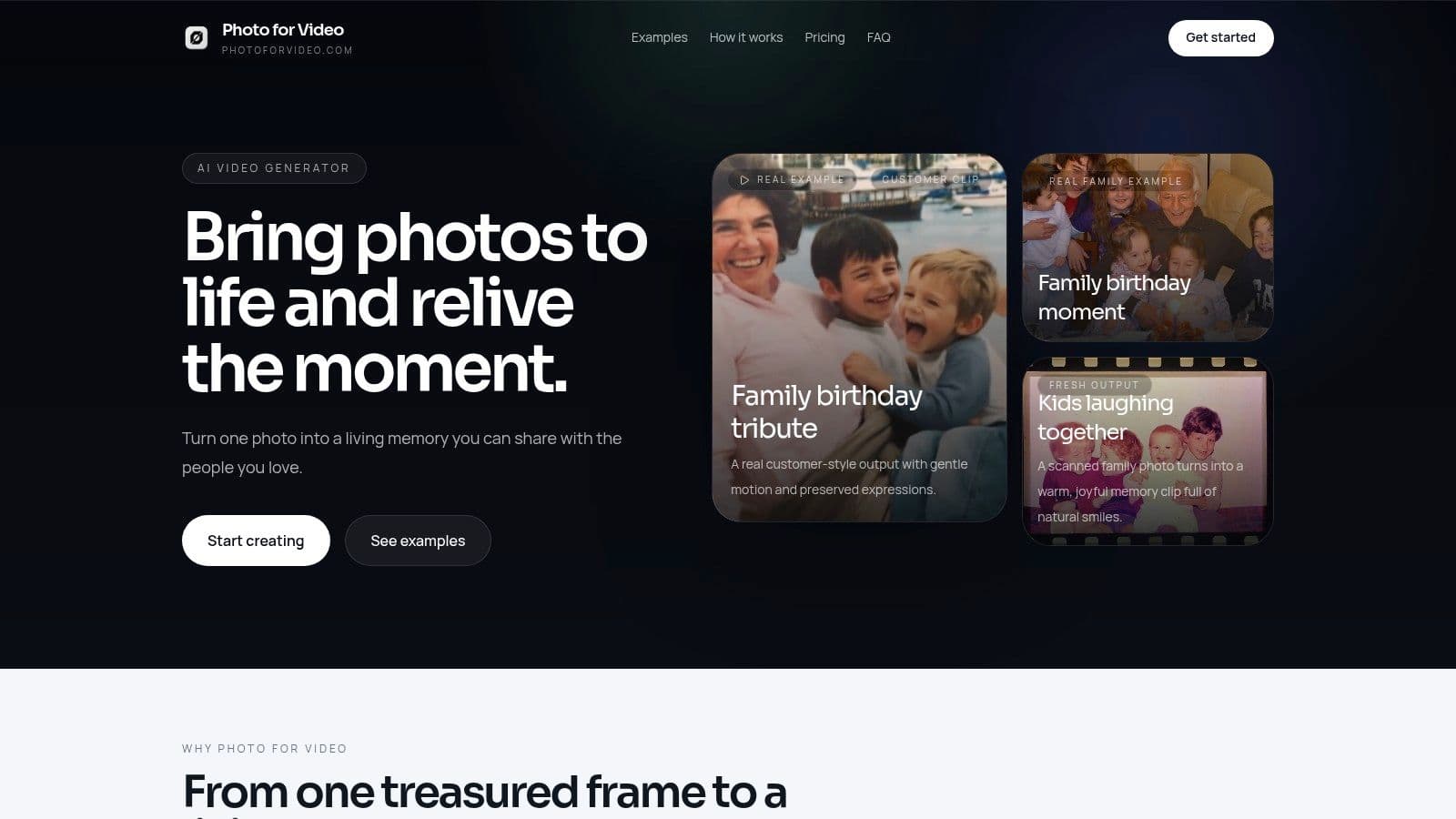
A short living-memory clip can become the anchor shot for the whole tribute. If you want a practical example of that workflow, see this guide on how to create video from a single image.
Write prompts like an editor, not a magician
The best motion prompts are specific about movement, pace, and mood. They are not stuffed with dramatic language.
Try prompts like these:
- Gentle zoom in on her face, warm nostalgic tone
- Slow left-to-right pan across the couple, soft and respectful
- Subtle camera push toward his smile, natural movement, no dramatic effect
- Light drifting motion, like a passing memory, keep the original photo texture
Avoid prompts that ask for too much. “Make them wave,” “add dramatic cinematic movement,” or “turn this into a movie scene” usually pushes the result away from authenticity.
Keep the movement slower than your first instinct. Memorial work rarely benefits from speed.
After you generate the clip, watch for three things:
- Face stability. Expressions should stay calm and believable.
- Edge behavior. Hands, collars, and hairlines often reveal over-processing first.
- Texture retention. Old paper grain and tonal softness should remain visible.
When the shot works, it doesn't call attention to the effect. It feels less static.
A quick visual demo helps more than theory alone:
Matching the Rhythm of Music to Memory
Music selection is where people usually get sentimental, and timing is where they usually get sloppy. Both matter.
A strong slideshow with music doesn't just have a beautiful track under it. The music shapes how long the viewer stays with each image, when the emotional rise happens, and whether the central photo feels held or rushed.

Pick music for tone, not for popularity
Start with the role the track needs to play.
If the video is for a memorial service, I'd usually favor a non-vocal bed or a vocal track with enough space in the arrangement that the visuals can still lead. Dense lyrics can work, but only when the words truly belong to the person being honored.
Here's what usually works better than trend-chasing:
- Piano or light strings for reflective tributes
- Acoustic guitar for warmth and family intimacy
- Soft ambient textures when the photo itself carries most of the emotion
- A meaningful favorite song only if the recording quality, lyrics, and licensing fit the occasion
For public sharing, use properly licensed music from reputable libraries or subscription platforms. For in-room family use, people often choose personally meaningful songs, but it's still worth checking whether the playback context requires licensed use.
Edit to phrasing, peaks, and breath
Professional pacing separates itself from auto-generated timing. Technical benchmarking shows that projects using Ken Burns panning effects synchronized with beat-marked audio achieve a 41% higher emotional resonance score than static slides with background music, and the recommended method is to identify audio waveform peaks and map slide movement duration to the interval between them, as described in this benchmarking summary on beat-synced slideshow motion.
In practice, that means you stop editing by guesswork. You look at the waveform.
A simple workflow:
- Mark the phrase starts. These are often stronger than every individual beat.
- Place your hero image on a musical arrival point rather than at random.
- Time motion to the music's energy. A slow swell can carry a gradual push-in. A clean piano change can support a cut.
- Let stillness exist. Not every moment needs movement or transition.
If you want to go deeper on that craft, this article on syncing audio with video is a useful companion.
Don't ask the slideshow to fight the song. Let the phrasing tell you where the image should open, linger, and release.
Handle short loops carefully
Single-photo tribute clips create a different problem from longer slideshows. When the whole emotional moment is brief, a bad music loop becomes painfully obvious.
Recent platform analysis found a 60% rise in single-photo tribute videos using short, looped non-vocal tracks, and one common failure is exactly what editors already know from experience: generic slideshow advice often produces loops that restart awkwardly or cut off mid-phrase, breaking the emotional effect. That gap is discussed in this guide focused on slideshow music and looping problems.
For short clips, I recommend this approach:
- Use a musical phrase, not just a segment of length
- Fade before the phrase feels chopped
- Avoid looping vocals
- Test the ending twice. Once with speakers, once with headphones
A smooth loop should feel intentional. If the viewer notices the join, it isn't smooth.
Assembling Your Slideshow with Seamless Transitions
A slideshow becomes watchable in the edit and memorable in the sequence. Here, the hero image earns its place.
I like to think in emotional order rather than file order. Not every story should open at birth and end at the latest available photo. Sometimes the best opening is the image that makes everyone in the room go quiet.
A simple memorial sequence that works
Take a short memorial tribute built around one animated wedding portrait.
It might open with a still black frame and the first notes of the music. Then a simple title card with the name and dates. After that, one or two supporting images establish family context. Not too many. Just enough to orient the viewer.
Then the animated hero photo appears and stays longer than anything else in the piece. That's the emotional peak. After that, the edit can resolve with one quiet later-life image and a closing line or only a fade to black.
That structure works because it gives the most important moment space. It doesn't sprint through the memory.
Transitions that help instead of distract
Most tribute slideshows need fewer transitions, not more. Star wipes, page curls, spinning zooms, and heavy light leaks usually pull the viewer out of the memory.
The transitions I trust most are:
- Crossfades for reflective pacing
- Hard cuts on musical accents when the rhythm supports it
- Fade to black when you need a clean emotional reset
If your music is short or looped, be especially careful around the centerpiece shot. Awkward restarts are more visible in this micro-format because the audience is focused on one moving image. That's one reason editors keep refining these shorter tribute forms, especially as single-photo memorial videos become more common in social sharing.
If a transition calls attention to itself, it's probably doing too much.
Exporting Your Slideshow for Any Occasion
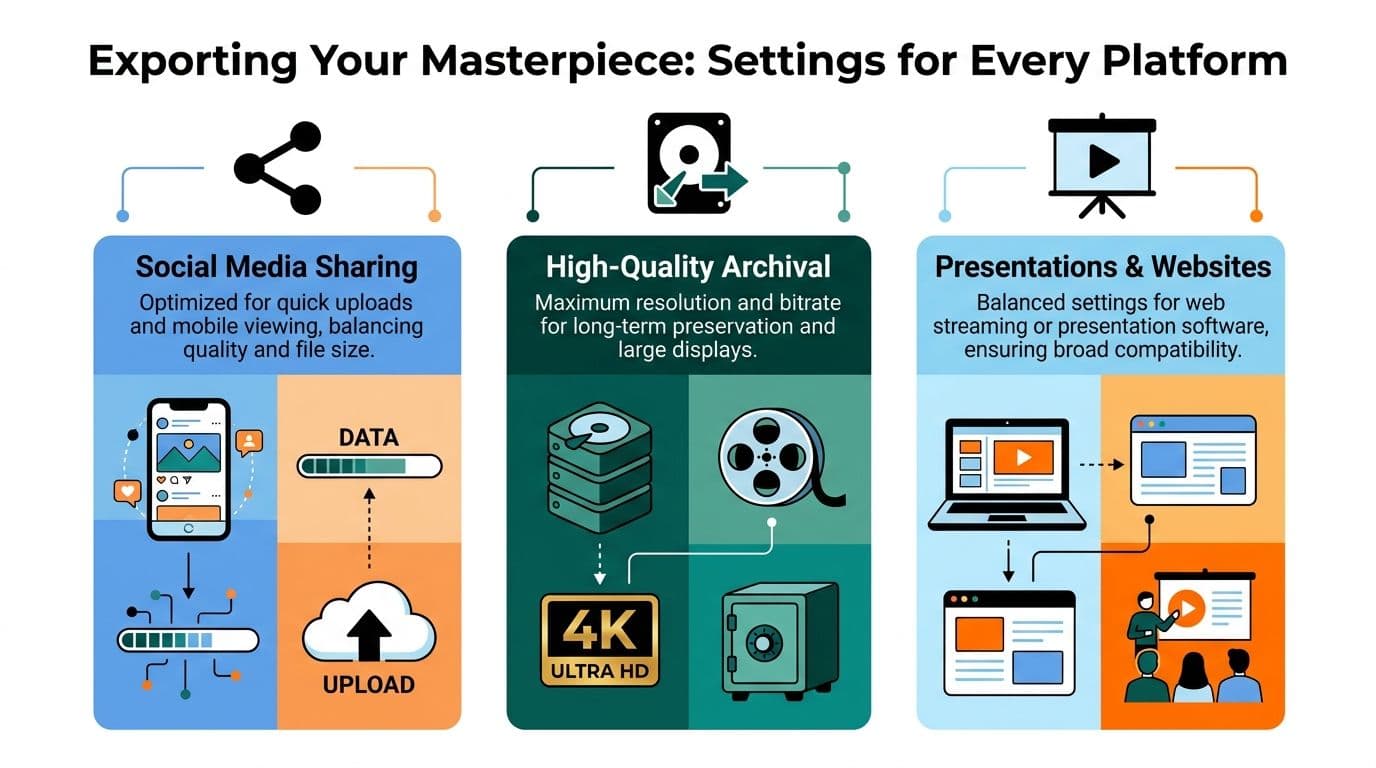
Export is where beautiful editing can still go wrong. A file that plays perfectly on your laptop can stutter on a venue projector, look cramped on a vertical feed, or sound harsh through event speakers.
The safest approach is to export for the delivery environment, not for your editing timeline.
Export settings by use case
Here's the comparison I use most often:
| Use case | Video shape | Best approach | Notes |
|---|---|---|---|
| Memorial projection | Horizontal | Export a high-quality master and test playback on the actual system if possible | Bring a backup file on a second drive |
| Instagram Reel or short tribute post | Vertical | Reframe the hero image carefully so faces don't sit too close to the top or bottom | Keep titles large and simple |
| Website or presentation deck | Horizontal or square | Prioritize broad compatibility and smooth autoplay behavior | Check whether sound starts muted by default |
| Family archive | Highest practical quality | Save a clean master before making platform-specific versions | Keep the original music and project files together |
For most editors, that means creating one master export first, then making delivery copies from that master instead of repeatedly exporting from the timeline.
Audio checks before you deliver
Audio ruins more tribute videos than visuals do. In professional workflows, 68% of audience disengagement occurs when audio volume exceeds -12dB during dialogue, and the standard guidance is to normalize tracks to -18dB LUFS and export as 48kHz/24-bit WAV for clean integration and preserved quality, according to this audio workflow reference on level control and export standards.
Before final delivery, I'd check:
- Narration balance. If there's spoken audio, music must sit under it cleanly.
- Speaker harshness. Small venue systems can make bright tracks feel brittle fast.
- Fade integrity. Openings and endings should feel finished, not chopped.
- Backup format. If you're delivering for an event, carry both the preferred file and a fallback version.
The final test is simple. Watch it once for technical errors, then once as a family member would. If you stop noticing edits and start feeling the person, it's ready.
If you're working from one treasured photo and want to turn it into a gentle, natural moving clip for a tribute, anniversary, or birthday piece, Photo for Video is built for exactly that workflow. It helps you transform a single still image, including old scans and imperfect prints, into a short living-memory video that fits cleanly into a larger slideshow with music.