Best Split Screen Video Editors 2026
Our 2026 guide reviews the 10 best split screen video editor apps (desktop, mobile, free & paid). Create stunning video collages easily!
You've got the raw material already. A folder of old photos, phone clips, voice notes, and maybe a few animated images that finally make a still portrait feel alive again. The hard part is turning all of that into one split-screen piece that feels respectful, clear, and emotionally right.
A good split screen video editor helps you show relationships at the same time instead of one after another. You can place a childhood photo beside a recent clip, compare two family branches in parallel frames, or let one animated photo play next to a still image so the motion carries more weight. Used well, split screen is not just a layout choice. It is storytelling.
The catch is that editors handle this very differently. Some give precise control over crops, motion, spacing, and sync, which matters when a tribute needs careful timing. Others get you to a finished draft faster with presets and templates, which can be the better choice if you are building something for a service, anniversary, or memorial on a deadline.
This guide gets to the point. Here are the tools I'd consider for a split screen video editor workflow in 2026, with a practical focus on real projects that mix standard media with animated photos. If you want ideas before choosing software, this split-screen video guide with tribute-style examples gives useful context for how these layouts work in an actual memorial or family montage.
The angle here is practical. Instead of stopping at feature lists, each editor section shows a sample workflow for bringing animated photos into a split-screen tribute or memorial piece, because that is usually where technical decisions stop being abstract and start affecting the final story.
Table of Contents
- 1. Adobe Premiere Pro
- 2. Apple Final Cut Pro
- 3. Blackmagic DaVinci Resolve
- 4. CapCut
- 5. Wondershare Filmora
- 6. CyberLink PowerDirector 365
- 7. Apple iMovie
- 8. Canva Video
- 9. Shotcut
- 10. KineMaster
- Top 10 Split-Screen Video Editors, Feature Comparison
- From Single Frames to a Shared Story
1. Adobe Premiere Pro
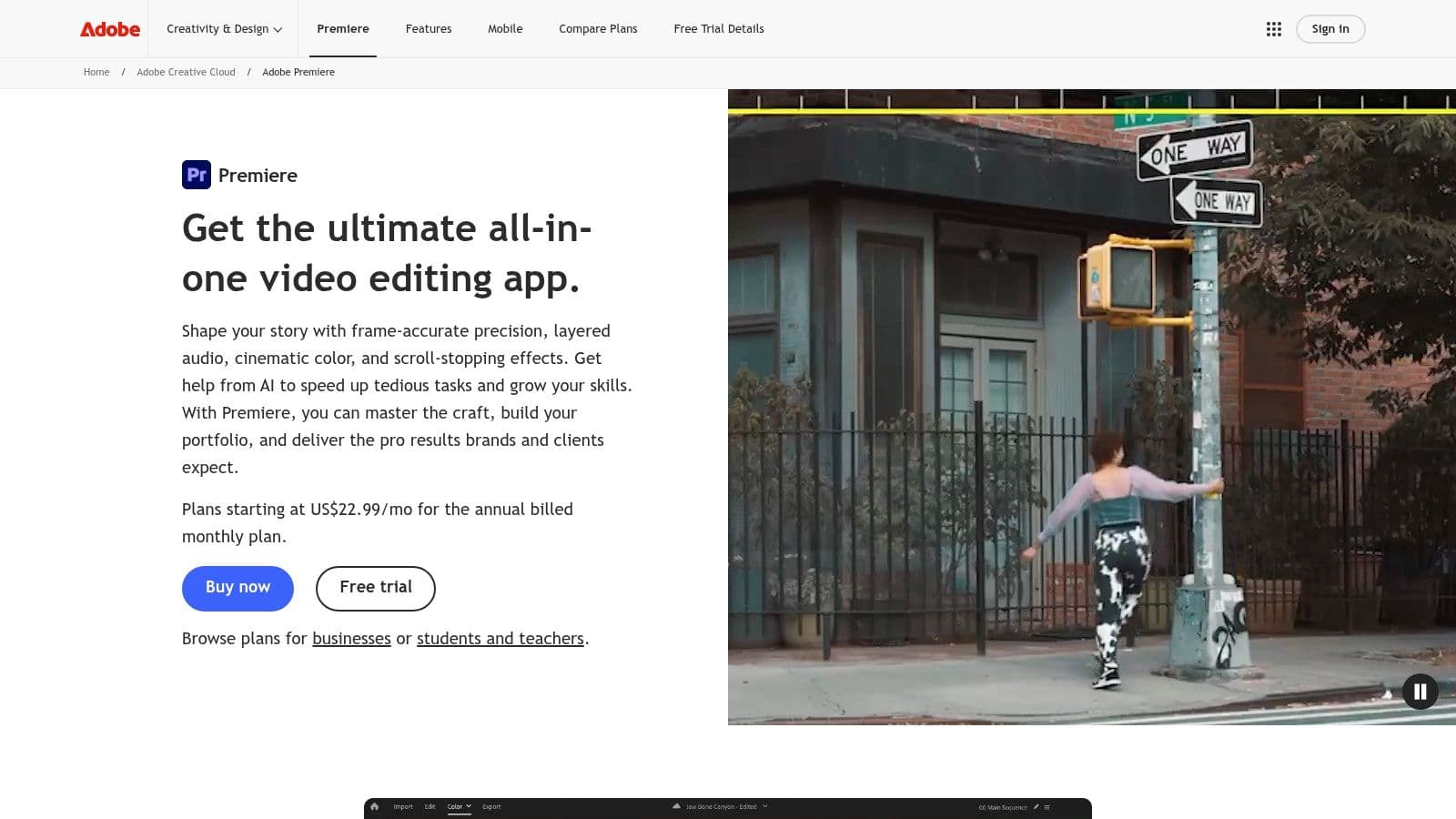
Adobe Premiere Pro is still the most dependable choice when the split screen itself carries emotional meaning, not just visual style. If you want one pane to hold a still portrait, another to hold an animated photo clip, and a third to carry text or archival footage, Premiere gives you exact control over timing, spacing, crops, captions, audio, and finishing.
Its split-screen workflow is straightforward once you know the logic. You stack clips on separate tracks, then use Motion, Crop, masks, and keyframes to place each element. Around 2015 to 2018, tutorials and studio guides began documenting how these same methods were adapted for vertical and standard canvases, often using scale and precise X/Y positioning for repeatable four-way layouts, as noted in this reference on split-screen positioning workflows.
Why Premiere still wins for precise tribute edits
Premiere is best when the tribute needs restraint. Templates can be fast, but they often push too much movement into every panel. That usually hurts memorial work.
Useful strengths:
- Layer-based precision: You can decide exactly how much visual weight each memory gets.
- Audio control: Gentle music, room tone, and voiceover sit better here than in most template-first apps.
- Integration: If you prepare image assets in Photoshop or want more advanced panel animation in After Effects, the handoff is smooth.
Practical rule: In memorial edits, don't animate every pane at once. Let one moving image lead while the others support.
A sample memorial workflow
Start with a 9:16 or 16:9 sequence, depending on where the video will live. Drop your Photo for Video exports into the timeline, then add static scans or short clips above and below them. Resize each panel manually, then keep motion direction consistent. If one animated photo slowly pushes in from left to right, don't pair it with another pane drifting hard in the opposite direction unless you want tension.
For border and placement ideas, this split-screen layout guide for animated photo projects is a useful companion. Premiere is the editor I'd choose when I know I'll need to finesse the emotional pacing frame by frame.
2. Apple Final Cut Pro
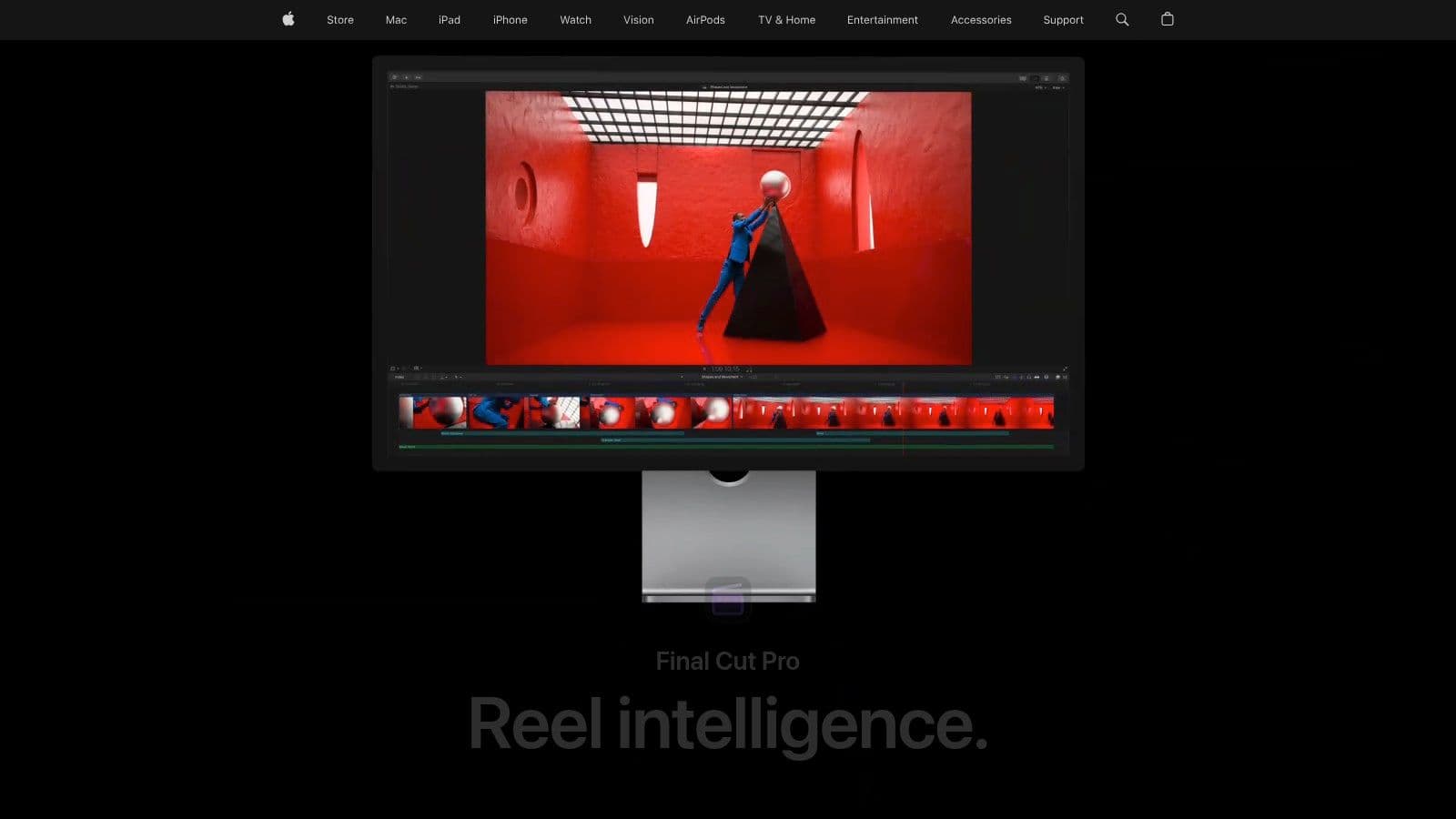
Apple Final Cut Pro is what I'd recommend to a Mac user who wants professional results without a subscription. It's fast, clean, and unusually comfortable for large family projects where you're sorting many clips, trying alternate versions, and exporting several aspect ratios.
Final Cut handles split screens through stacked clips, transform controls, crop tools, and templates. On Apple silicon, playback is often smooth even when a timeline gets busy. That matters when you're testing combinations of animated photos and live footage and don't want your machine interrupting the process.
Where Final Cut feels faster than most editors
The Magnetic Timeline divides opinion, but for tribute editing it often helps more than it hurts. You can rearrange sections quickly without constantly repairing broken gaps.
I like Final Cut most for editors who want these trade-offs:
- Better speed than complexity: It's quicker to assemble than Resolve and less intimidating than Premiere.
- One-time purchase: Good for creators who edit a few meaningful projects a year.
- Strong plugin ecosystem: Helpful if you want elegant split-screen presets without giving up manual control.
What doesn't work as well is deep interface customization. If you already think in track-based terms, Final Cut can feel slightly abstract at first.
A clean workflow for animated photos
Build your base story first, not your layout. Place your main emotional beats on the timeline in full-screen form, then create duplicates above them and transform those copies into split panes. That keeps the story coherent before you start designing the composition.
If you're combining one animated memory with a talking-head clip or scanned photos, this video overlay walkthrough for layered tribute edits helps with the visual logic. Final Cut is excellent when you want a split screen video editor that feels polished, fast, and not overly technical.
3. Blackmagic DaVinci Resolve
Blackmagic DaVinci Resolve suits the editor who wants precise control over a tribute and is willing to spend more time setting it up well. The free version already handles serious split-screen work. Studio starts to make sense once you need faster playback, stronger noise reduction, or more demanding finishing tools.
Resolve stands out because it does not force one style of split screen. Quick presets can get a two-panel layout on screen fast, but its main strength is manual control. You can position each clip exactly, soften edges, adjust crops, and match color across old scans, phone footage, and animated photo clips without the whole piece feeling like a template.
Best for editors who care about finish quality
I recommend Resolve when the tribute has mixed source quality and the differences are obvious. A still photo animated in one tool, a dim church recording from a phone, and a decades-old scanned print rarely match on their own. Resolve gives you better color tools than most editors in this list, and Fairlight is especially useful if you need to balance music under a voice message instead of just lowering one volume slider and hoping for the best.
The trade-off is real. Resolve asks more from your computer and more from your attention. On weaker machines, layered split-screen timelines with masks and animated clips can stutter, especially once you start stacking correction and audio work in the same project.
If playback gets choppy, simplify early. Use exported animated photo clips, create proxies, and leave detailed masking for the final pass.
A practical workflow for animated-photo tributes
Start by deciding what the viewer should feel in each panel. One pane might hold the main animated portrait. Another can carry supporting context, such as family video, scanned letters, or a quiet wide shot from a memorial service. That emotional hierarchy helps you avoid the common Resolve mistake of building a technically impressive layout that splits attention in the wrong places.
Then set up the timeline before you cut extensively. Create your project at the final aspect ratio, or make separate timelines if you know you need both vertical and widescreen versions. Drop the animated photos in first as finished clips, then build the split screen around them with Transform, Crop, and Inspector controls. I usually save Fusion for moments that genuinely need motion design, because basic split-screen work is faster and easier to revise on the Edit page.
Keep the layout restrained. Two or three panes usually hold attention better than four or five in a memorial piece. Use color correction after placement so the panels feel related, not identical. This aspect-ratio planning guide for tribute videos is a good companion if you are preparing one story for more than one screen shape.
Resolve is a strong choice for tribute editors who want a split screen video editor with room to grow, and who would rather spend extra effort once than hit quality limits halfway through the project.
4. CapCut
A family member asks for a memorial reel by tonight. The photos are scattered across phones, a few clips came from text messages, and you still want the final piece to feel gentle rather than rushed. CapCut handles that kind of job well.
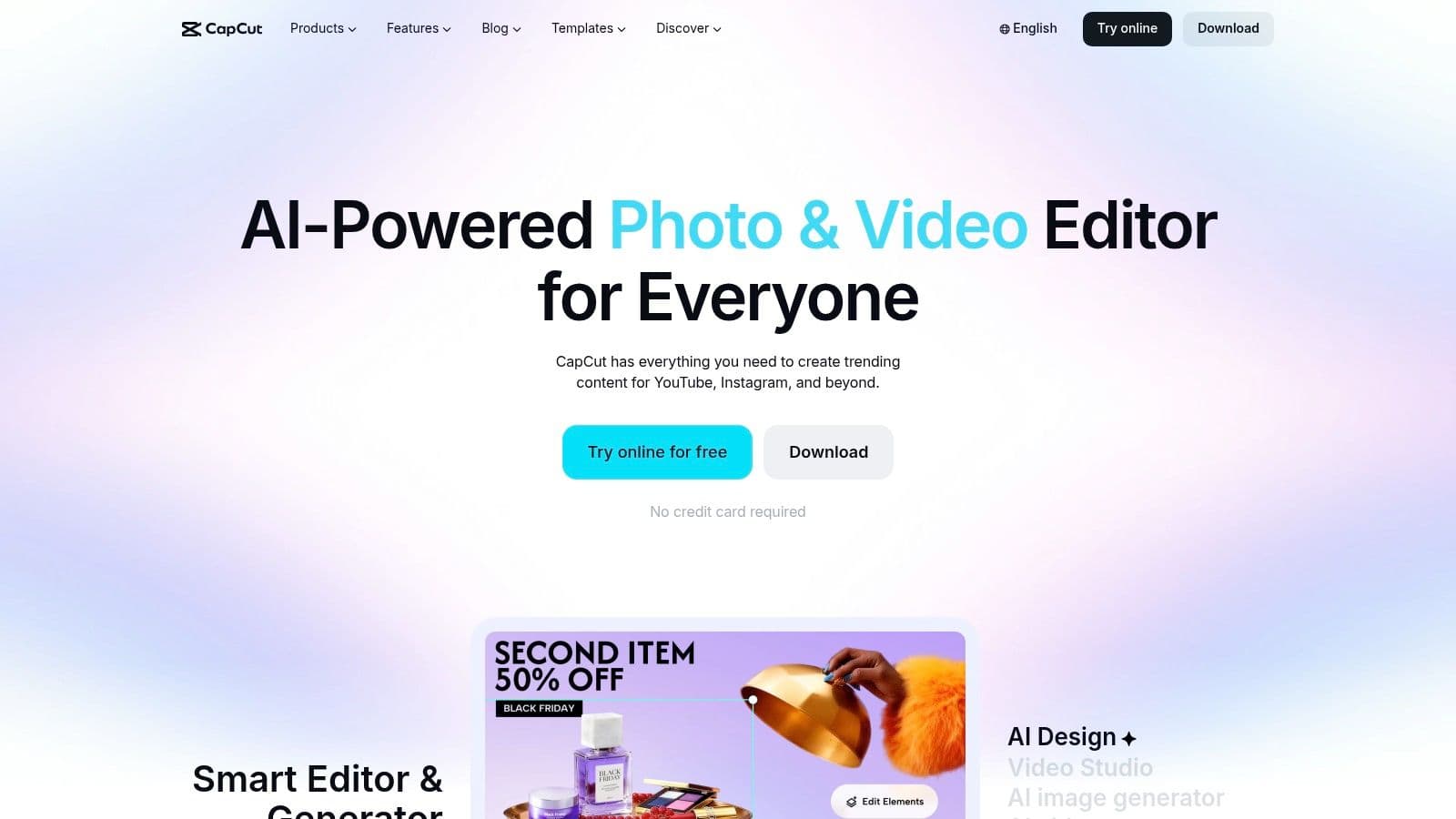
CapCut is one of the fastest ways to build a split screen video editor workflow across mobile, desktop, or browser. It favors speed, presets, and social-friendly formats over exact timeline control. That trade-off works in its favor when the goal is a short tribute, especially if you want to mix animated photos from Photo for Video with stills, captions, and one or two live clips.
Best for quick tribute edits and vertical delivery
CapCut works best when you need to assemble something clean, emotional, and watchable without spending an hour adjusting every panel by hand.
It is a strong fit for:
- Vertical memorial edits: Good for Reels, TikTok, Stories, and phone-first family sharing.
- Fast captioning: Auto captions save time and help relatives follow along with sound off.
- Template-based starts: Useful if you need a layout on screen immediately, then want to trim it back.
Its main limitation is restraint. Many CapCut templates are built to grab attention, not hold a reflective tone. For tribute work, that means extra cleanup. Remove unnecessary zooms, flashy transitions, and animated stickers early, or the split-screen layout will feel busy fast.
A practical Photo for Video workflow in CapCut
Start with a blank project or the simplest two-panel template you can find. I usually avoid the more animated collage presets for memorial pieces because they make timing harder to control.
Import your Photo for Video exports first. Place the strongest animated portrait in the larger panel, then use the second panel for context. A childhood photo, a scanned card, or a quiet clip from a family gathering usually works better than filling every space at once. If you want a three-panel look, add the third pane only after the first two feel balanced.
Then slow the whole sequence down. Short-form apps encourage quick cuts, but tribute edits need breathing room. In CapCut, that usually means extending clip duration, reducing transition motion, and keeping text sparse. One date, one name, or one short phrase is often enough.
CapCut is a good choice if you need to make something meaningful on a tight deadline. It gives up some precision, but for many families that is the right compromise. The editor stays approachable, and with a little restraint, the final split-screen piece can still feel personal instead of templated.
5. Wondershare Filmora
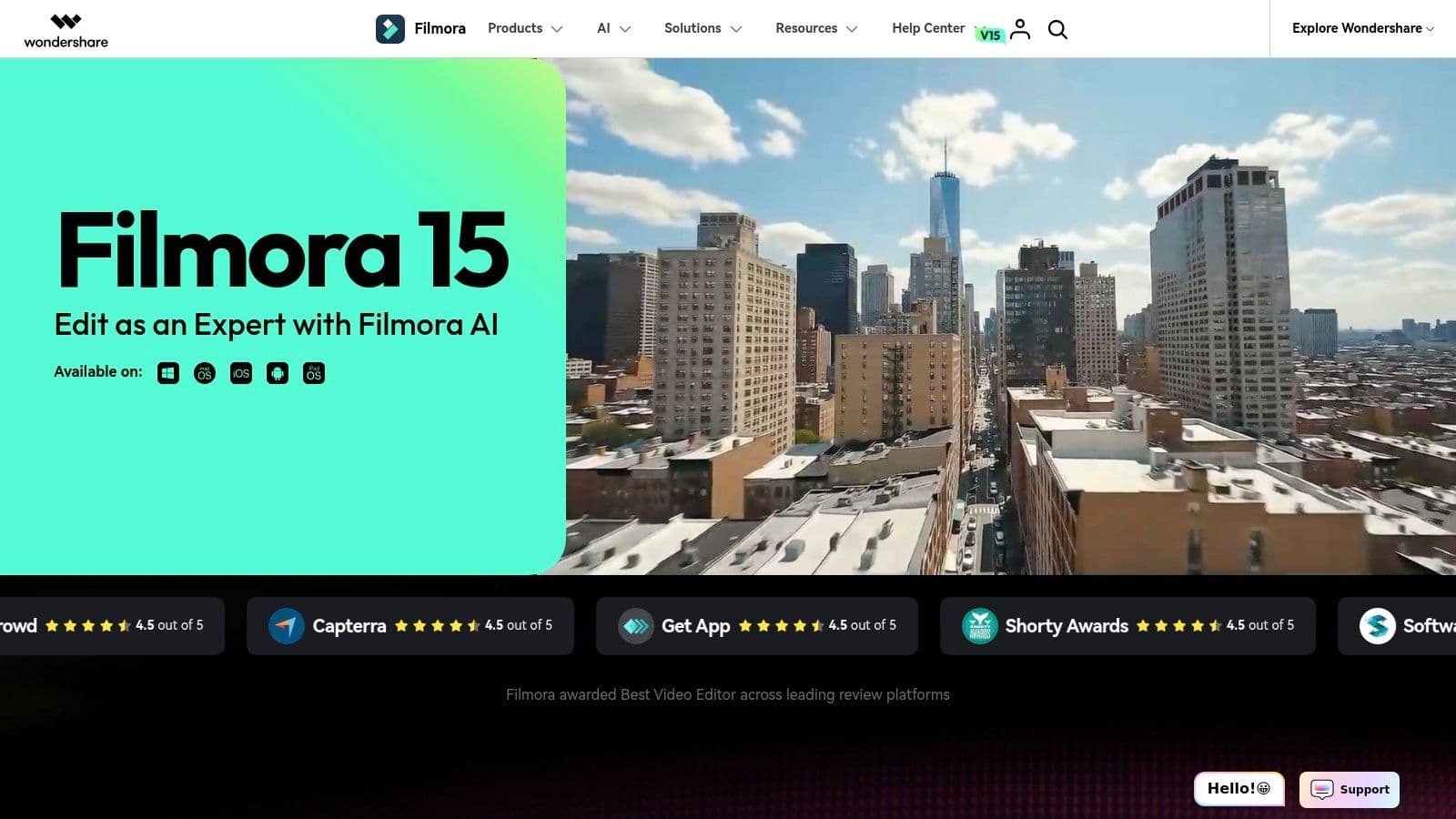
Wondershare Filmora sits in a very practical middle ground. It's easier than the pro suites, more flexible than many mobile apps, and friendly to people making tribute videos without a deep editing background.
Filmora is especially appealing if you want templates but still need some manual adjustment. Its split-screen tools are designed for collage-style editing, which is often exactly what a family montage needs.
Why Filmora works well for family editors
Filmora shines when the project is emotionally important but technically modest. You want it to look clean, not cinematic. You want the software to help, not become the event.
What works well:
- Template-first setup: Good for getting multiple memories on screen fast.
- Drag-and-drop editing: Less intimidating for occasional editors.
- Decent balance: Easier to customize than many social apps.
What doesn't work as well is deep refinement. If you need exact panel timing, advanced compositing, or subtle audio finishing, you'll feel the ceiling sooner than in Premiere or Resolve.
A practical animated collage workflow
Start with a three-panel or four-panel layout, but don't fill every pane immediately. Put one Photo for Video clip into the hero position. Then add still photos or very short supporting clips in the remaining windows. If the template adds heavy transitions, reduce or remove them.
Editing instinct: Empty space is better than forced space. If a fourth pane adds no emotional value, leave the layout simpler.
Filmora is one of the better choices when a non-editor wants a split screen video editor that won't punish them for learning as they go.
6. CyberLink PowerDirector 365
A common PowerDirector project looks like this: you have a folder of family photos, a few phone videos from different years, and one animated photo clip that carries more feeling than any of the stills around it. You need a split-screen sequence that feels respectful, finished, and personal, without spending the whole evening building boxes and keyframes from scratch.
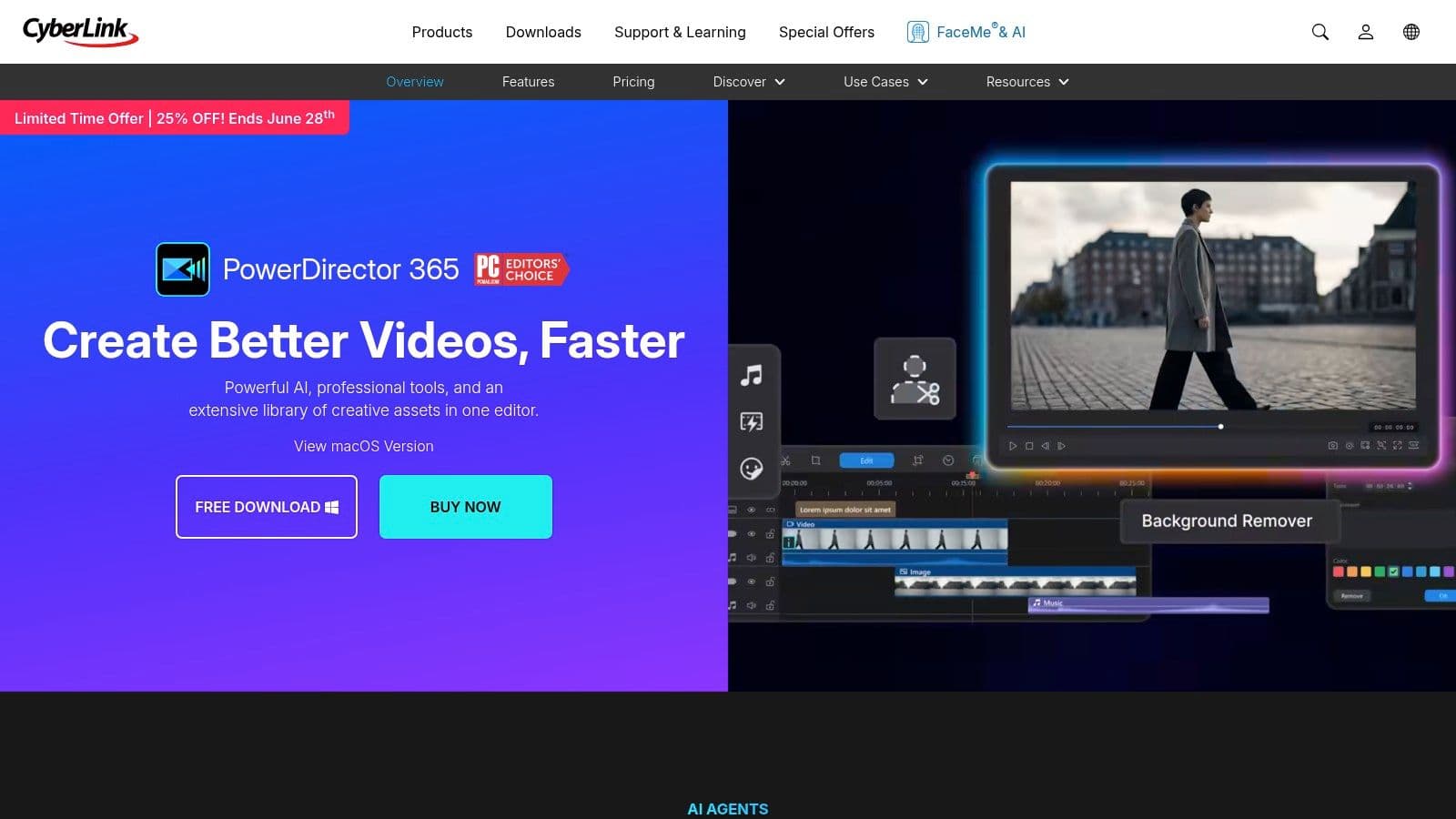
CyberLink PowerDirector 365 is good at that middle ground. It uses presets and guided tools to get the layout on screen quickly, then gives you enough control to stop the result from feeling canned.
Its Split-Screen Designer is the reason to consider it. For school tributes, event recaps, memorial montages, and family edits with mixed media, speed matters. A project that starts easily is more likely to get finished.
Fast to build, with room to personalize
PowerDirector works best for editors who want a head start, not a fully automated result.
What it does well:
- Gives you usable split-screen layouts quickly
- Makes timing, crop, and motion adjustments without much setup
- Handles animated photo clips well inside preset-based designs
The trade-off is finishing depth. If exact color work, advanced compositing, or detailed audio cleanup will define the piece, Premiere Pro or Resolve gives you more room. If the main job is assembling a thoughtful tribute on a deadline, PowerDirector is often the more practical pick.
A sample workflow for an animated-photo tribute
Start in Split-Screen Designer and choose a layout that already matches the emotional hierarchy you want. One larger pane usually works better than a perfectly even grid for remembrance edits.
Place your Photo for Video animation in the largest panel first. That clip becomes the emotional anchor. Then fill the smaller panes with supporting stills or short video fragments from the same period of life, not random favorites from every year. The sequence feels more coherent when each split-screen moment has a clear theme.
Next, adjust timing by hand. Presets often cut too quickly for tribute work. Extend the shots, reduce transition intensity, and keep motion subtle. If a panel pulls attention away from the animated photo, scale it back or replace it with a still image.
Text should stay restrained. A name, date range, or short phrase is usually enough.
PowerDirector is strongest when you use its templates as a starting structure, then make deliberate story decisions yourself. That balance is what makes it a useful split screen video editor for people who need speed, but still want the finished piece to feel like it came from the family rather than the software.
7. Apple iMovie
Apple iMovie is limited, but that doesn't make it a bad recommendation. If your tribute only needs a clean two-up comparison, a picture-in-picture moment, or a simple before-and-after sequence, iMovie can absolutely get it done.
Its biggest advantage is psychological, not technical. People finish projects in iMovie because the app doesn't overwhelm them.
Simple, limited, and still useful
iMovie works best for:
- First-time editors
- Quick family reels
- Simple two-panel stories
It works poorly for complex layouts. If you want multi-pane precision, elaborate masking, or a polished social campaign with several aspect ratios, you'll outgrow it quickly.
Keep iMovie projects narrow. One emotional idea per sequence works better than trying to build a full collage wall.
A basic two-panel tribute workflow
Use the built-in split-screen overlay to pair a still image with an animated version of that same image. That structure works especially well for remembrance videos because it visually communicates time, memory, and presence without needing much text.
If the project starts to expand, iMovie's handoff path into Final Cut Pro is useful. It's a smart place to begin when you need a split screen video editor that feels safe and uncomplicated.
8. Canva Video
A common Canva project starts the same way. Someone needs a memorial reel by tonight, wants it to feel respectful on Instagram or Facebook, and does not have time to build a split-screen layout from scratch.
Canva Video fits that job well. It gives you frames, grids, captions, brand-safe typography, and fast resizing in one place, which matters more than advanced editing depth when the goal is a polished tribute that gets finished.
Best for layout speed, not timing finesse
Canva works best when you need:
- Fast split-screen assembly
- Clean text treatment for names, dates, and short dedications
- Easy versioning for vertical, square, and horizontal formats
The trade-off is control. Canva can place elements quickly, but it is less comfortable when you need frame-level timing, layered audio shaping, or detailed motion adjustments across multiple panels.
A practical tribute workflow with animated photos
Start with the layout, not the media. Choose a two-panel or four-panel grid first, then drop in one animated photo clip from Photo for Video as the emotional anchor. Surround it with still photos, a short title card, and one quiet text line rather than filling every box just because the template allows it.
That restraint matters. In memorial edits, too much motion can make the piece feel busy when it should feel composed.
A simple Canva sequence that works well is 10 to 20 seconds long. Put the animated photo in the largest panel, keep the supporting images static, and use subtle fade or drift animations only where they support the story. If the family wants a version for Stories and another for a service screen, Canva's resize workflow saves time.
Canva is a strong choice for creators who care more about presentation than timeline craftsmanship. It helps you make a split-screen tribute that looks organized, readable, and emotionally considerate without asking you to think like a full-time editor.
9. Shotcut
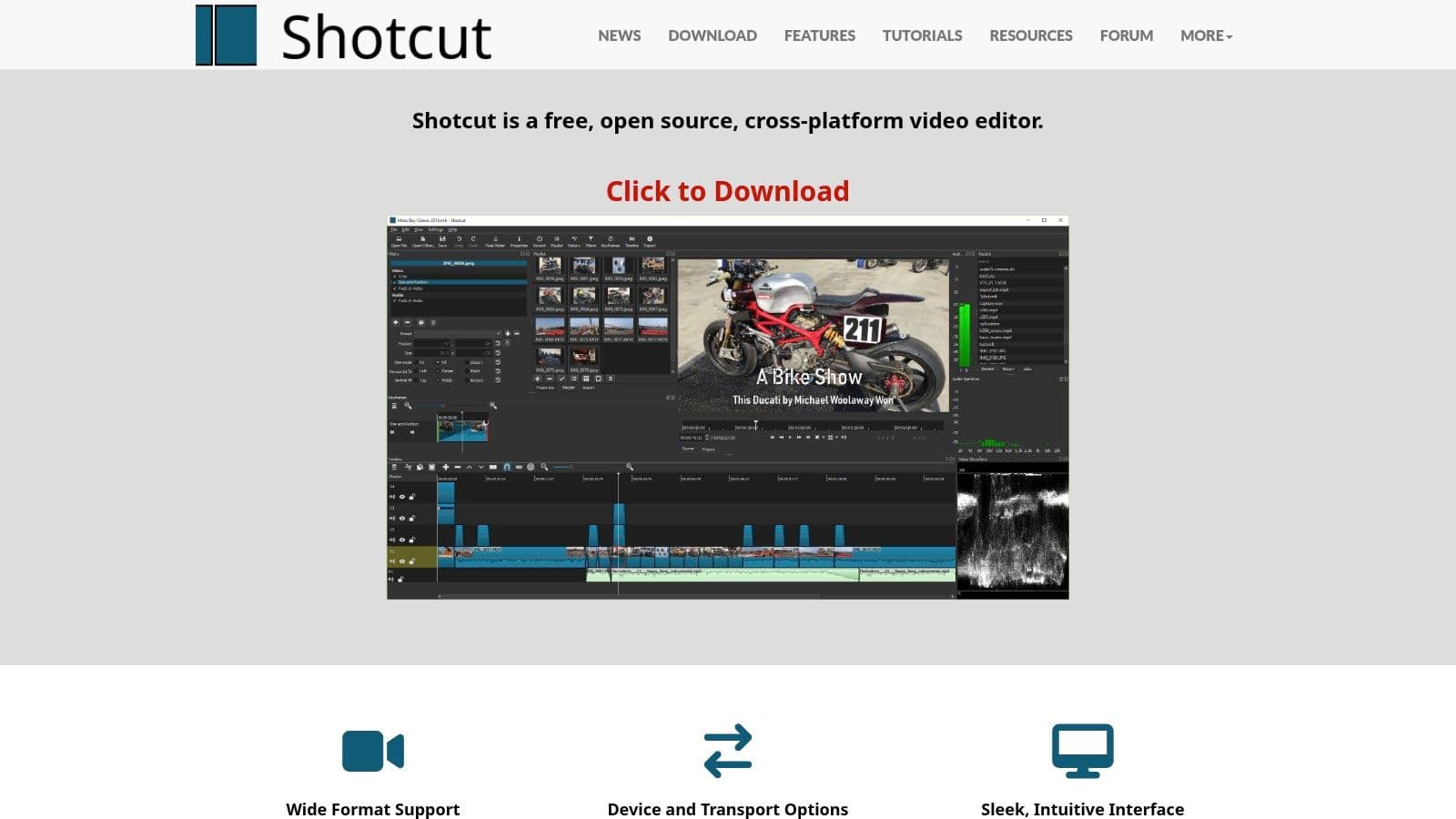
Shotcut is the option I'd point to when budget is the first constraint and you're willing to do more by hand. It's free, open source, cross-platform, and capable of custom split-screen layouts if you can tolerate a more utilitarian interface.
This isn't the editor that charms you. It's the editor that unassumingly lets you build what you need.
Manual control without the price tag
Shotcut makes sense for editors who value:
- No subscription or watermark
- Manual crop, size, and position control
- A flexible timeline without template lock-in
Its main drawback is speed of assembly. There are fewer shortcuts to a polished result. If you want instant grids and social templates, other tools will get you there faster.
A no-cost animated split-screen workflow
Import your animated photo clips as standard MP4 files, place each on its own track, then use Size, Position, and Crop filters to create your panel arrangement. Start with two panes, not four. Shotcut rewards modest scope.
One reason this matters is that existing split-screen guidance still focuses heavily on live-action footage and manual layout, while largely ignoring how to coordinate AI-generated still-to-motion clips so their camera moves and emotional tone stay aligned. In Shotcut, that alignment is entirely your job. The payoff is freedom. The risk is inconsistency if you rush.
10. KineMaster
KineMaster earns its place on this list for one reason. It gives you real layer-based editing on a phone, which still narrows the field fast. If you need to assemble a split-screen tribute from media already sitting on a family member's device, that matters more than a long feature list.
I reach for it in time-sensitive situations. A memorial slideshow often comes together on the day of the service, in a parking lot, a church lobby, or at a kitchen table with photos arriving over text. KineMaster handles that kind of pressure better than many mobile-first editors because you can stack clips, keyframe motion, trim precisely enough, and export quickly without being locked into a template.
Real control on mobile, with the usual touchscreen limits
KineMaster works best for editors who need more than drag-and-drop presets. You can place animated photo clips on separate layers, resize each panel by hand, add titles, and adjust timing so one side breathes while the other carries the motion.
The compromise is accuracy. Two-panel layouts are manageable on a phone. Three or four panels can become tedious, especially if you care about even spacing, clean borders, or matching crop lines. That is the point where desktop software starts saving time.
A practical phone-first workflow for an animated memorial split-screen
Start with one animated photo from Photo for Video as the emotional anchor. Put it on the top layer and let it occupy most of the frame. Then add a second clip or still image in a smaller pane for context, such as a younger portrait, a family moment, or a wide shot of the group.
Keep the structure simple:
- Import your animated photo clip and supporting media.
- Drop the animated clip onto the main video layer.
- Add the second visual as a media layer.
- Use Transform or crop controls to create a clean side-by-side or picture-in-picture layout.
- Add a short name caption and dates, not a paragraph of text.
- Set one music track and trim visuals to its phrasing.
- Preview on the actual phone screen before exporting.
That last step matters. A tribute that feels balanced on the editing canvas can look crowded once it is full-screen on a vertical display.
KineMaster is strongest when you respect the device and edit accordingly. For memorial work, that usually means one animated image, one supporting pane, restrained text, and motion that feels gentle rather than busy. As noted earlier in the article, simpler split-screen structures tend to be easier to manage well on mobile. KineMaster gives you enough manual control to make that simplicity feel intentional, not generic.
Top 10 Split-Screen Video Editors, Feature Comparison
| Editor | ✨ Core features | ★ UX / Quality | 💰 Value & Pricing | 👥 Target audience | 🏆 Standout |
|---|---|---|---|---|---|
| Adobe Premiere Pro | Layer/mask split-screens, AI tools, deep color/audio | ★★★★★ Broadcast‑grade; steeper learning | 💰 Subscription (Creative Cloud) | 👥 Pro editors, collaborative teams | 🏆 Industry standard + Frame.io review |
| Apple Final Cut Pro | Magnetic Timeline, AI masking/transcripts, ProRes optimized | ★★★★★ Extremely fast on macOS | 💰 One‑time purchase (macOS only) | 👥 Mac pros & freelancers | 🏆 Speed on Apple silicon |
| Blackmagic DaVinci Resolve | Video Collage, Fusion VFX, Fairlight audio, top color tools | ★★★★★ Pro finishing; learning curve for Fusion | 💰 Powerful free tier; Studio paid upgrade | 👥 Colorists & finishing houses | 🏆 Best‑in‑class color + free pro features |
| CapCut | Ready-made split templates, auto captions, cloud sync | ★★★★ Fast, social‑first workflow | 💰 Freemium (features vary by region/device) | 👥 Social creators & casual editors | 🏆 Vast template library for quick reels |
| Wondershare Filmora | 200+ split templates, drag‑and‑drop PIP, simple color tools | ★★★★ Very approachable for non‑editors | 💰 Affordable subscription / perpetual options | 👥 Families & hobbyists making tributes | 🏆 Easiest desktop multi‑panel builder |
| CyberLink PowerDirector 365 | Split‑Screen Designer, AI effects, stock integrations | ★★★★ Approachable UI; preset workflows | 💰 Budget 365 subscription; frequent sales | 👥 Prosumer users & quick editors | 🏆 Preset-driven speed + value |
| Apple iMovie | Built‑in Split Screen, PIP, Ken Burns, handoff to FCP | ★★★ Very simple, beginner‑friendly | 💰 Free on Apple devices | 👥 First‑time editors & family reels | 🏆 Fast path to Final Cut Pro |
| Canva Video | Drag‑and‑drop grids/frames, templates, team Brand Kit | ★★★ Design‑first, very fast layouting | 💰 Freemium; Pro/Business for teams | 👥 Social marketers & template users | 🏆 Quick resizing + team collaboration |
| Shotcut | Multi‑track timeline, crop/position/mask filters, 4K | ★★★ Functional; manual setup for split screens | 💰 Free & open‑source | 👥 Budget editors & tinkerers | 🏆 No‑cost, highly customizable layouts |
| KineMaster | Multi‑layer timeline, keyframing, mobile 4K export | ★★★ Powerful on mobile; less precision than desktop | 💰 Freemium (watermark on free; subscription unlocks) | 👥 Mobile creators & event‑day editors | 🏆 Desktop‑like editing on phones/tablets |
From Single Frames to a Shared Story
You are often making this kind of video under pressure. A memorial service is in two days. A family member has sent ten photos from their phone, someone else found an old camcorder clip, and now the job is to place those memories side by side in a way that feels gentle instead of busy. That is where split screen earns its place. It lets one moment answer another.
The best editor is the one that matches your pace and your tolerance for setup. Premiere Pro and DaVinci Resolve give the most control if timing, layered text, audio cleanup, and exact framing all matter. Final Cut Pro remains a strong middle ground for Mac users who want professional results with less setup time. CapCut, Filmora, PowerDirector, and Canva get to a finished layout faster, which matters when the deadline is close and the people waiting for the video care more about the feeling than the fine print of the edit. iMovie, Shotcut, and KineMaster still make sense when budget, simplicity, or device limits shape the project.
The trade-off is not feature count. It is control versus speed, and polish versus emotional restraint.
That matters even more when you bring animated photos into the edit. A short motion clip made from a single portrait can carry a surprising amount of weight in a tribute video, but only if the surrounding panes support it. One practical workflow is to choose a lead image first, animate that still with Photo for Video, then build the split screen around that motion instead of animating everything at once. In Premiere Pro or Resolve, that usually means placing the animated portrait in the dominant pane, then using stills or brief candid clips in the smaller panes. In CapCut, Filmora, Canva, or KineMaster, the same idea works with templates. Replace one panel with the animated MP4, keep the other panels quieter, and resist the urge to fill every corner.
This is also why many split-screen tributes fall apart. The software can stack clips, crop frames, and place panels without much effort. The harder part is rhythm. If one pane drifts slowly while another cuts every two seconds, the viewer feels the mismatch. If every panel moves, the eye keeps searching for a focal point. If the split arrives before the first image has had time to land, the emotional beat is weaker.
A calmer structure usually works better.
Start with a single full-frame photo or video clip. Let it breathe. Introduce the animated photo next. Then add a second pane only when it adds context, contrast, or a sense of shared time, such as a childhood portrait beside a recent family gathering, or a formal still beside a laughing candid moment. That simple sequence turns split screen from a visual trick into storytelling.
As noted earlier, editing tools continue to spread well beyond professional studios, and split-screen editing is part of that shift. It now shows up everywhere people are trying to connect moments across time, including family reels, memorial videos, anniversary tributes, and short social edits. The craft question stays the same in all of them. Not how many panes you can fit on screen, but which combination of images helps the viewer feel the relationship between them.
Single frames can carry memory on their own. Shared frames can carry meaning.