
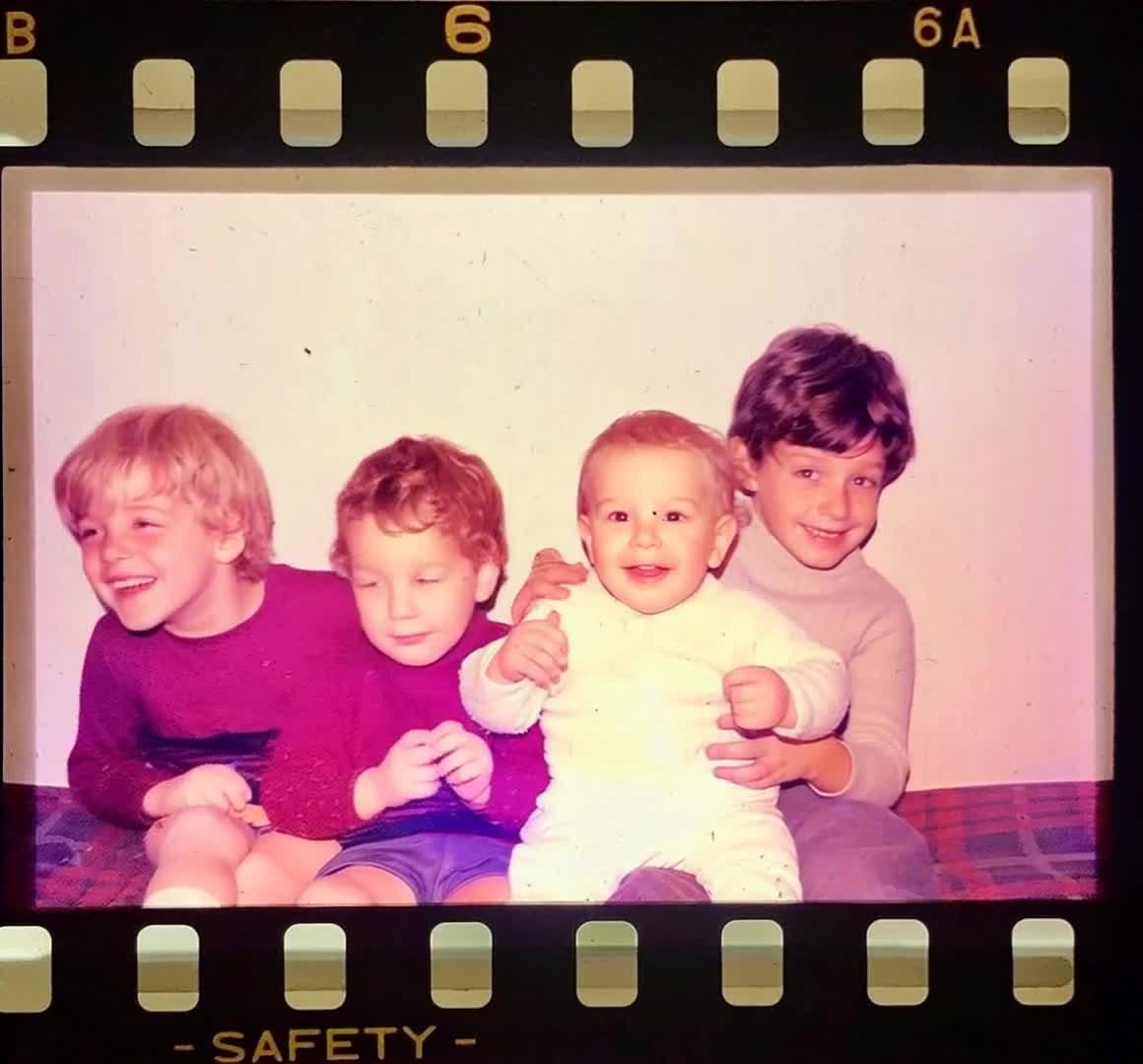
Choose the moving part
Name a subject action, such as a blink, or a camera action, such as a slow push-in. Do not begin with both a large gesture and a sweeping camera move.
A moving subject and a moving camera create different results. Choose one first, then tell the AI what needs to stay still.
Start with the camera-only prompt below, or use one of the motion recipes. The creator lets you change the prompt and model before you spend credits.
Use this order: movement, amount, then the details that should stay unchanged.
Name a subject action, such as a blink, or a camera action, such as a slow push-in. Do not begin with both a large gesture and a sweeping camera move.
Use words like subtle, slow, or nearly still. Avoid a sequence of several actions that needs new poses or scenery beyond the photo.
If the first result is too busy, keep the image and model and reduce the requested motion. Each new generation may use more credits.
Remove the head turn or wide smile. Try the original expression with a nearly still head. Check the source has clear eyes and mouth.
Reduce the camera sweep. Ask for a fixed background and try minimal subject motion so straight lines have less reason to change.
Avoid waving, walking, or reaching from a pose with overlapping limbs. Start with the limbs stationary and visible.
Name one visible action more explicitly. Replace 'bring it to life' with 'one natural blink' or 'leaves sway gently'.
Motion instructions guide generation; they are not frame-by-frame controls or a guarantee that one region will stay frozen. If you need exact movement of a selected layer, use a dedicated animation editor. Here, judge the generated clip against your source.
Very slow camera push-in. Keep the subject nearly still. Preserve the original pose, appearance, background, and lighting. No scene cuts.
Try this prompt: Camera only · a closer viewThe person blinks once naturally with subtle breathing. Keep the head in its original position. Locked camera and stable background.
Try this prompt: Subject only · a small expressionLeaves in the background sway gently in a light breeze. The main subject stays still. Preserve the original composition and lighting.
Try this prompt: Background only · a light breezeThe creator uses a text prompt to guide motion. It does not offer a pixel-level motion mask in this workflow, and generated details can move beyond your request.
You can ask for gentle repeating motion, but the first and last frames may not match. Trim or blend the exported clip in an editor if a seamless loop matters.
AI generation varies between attempts and models. Keep the source and settings consistent when comparing prompt changes, and review the cost before trying again.
Open the creator with a restrained camera prompt, then adapt it to your image.